In a world where 16 billion passwords and login credentials have already been exposed online, it’s no longer enough to hope your messages are safe (you have to guarantee it).
Between record breakers in data leaks and billions of compromised records floating around the dark web, hackers aren’t just after big corporations. They’re after everyday conversations, shared files, and yes, that link you just sent to a colleague.
Studies show that up to 30% of data breaches are linked to weak or reused passwords and insecure sharing habits, such as via email and SMS. This only makes matters worse!
So if you’re sending something sensitive (legal documents, contracts, personal info), how do you keep it truly private?
Let’s start by understanding what a password-protected link actually is.
What is a password-protected link?
A “password-protected link” is a special kind of URL that won’t open the content you’re sharing until someone enters the correct password first.
Think of it like locking your digital door. Even if someone has the address (the unique URL), they can’t get inside without the key (the password) you set.
It’s a simple but powerful way to control access to sensitive files, private pages, or confidential information you’re sharing online, especially when you don’t want just anyone with the link seeing it.
With password protection, only people who know the right password can pass through the gate and view the destination content.
Why is password protection so important?
Here’s why:
- Stops unauthorized access: Without a password, anyone who slips upon or forwards your URL can see your content. Password protection adds a layer of defense against this.
- Keeps confidential info safe: Whether it’s financial docs, legal contracts, or personal files, password-protecting the link helps prevent accidental leaks.
- Works with tools you already use: You can manage link passwords alongside a password manager to keep all your access keys organized and strong.
- Simple yet effective: There’s no need for complex authentication systems. A protected URL with a solid password does the job for most use cases.
Common methods for creating password-protected links
When you want to share sensitive information or material online but still control who can access it, knowing how to set up a password-protected link is super useful.
One of the easiest ways to do this is to use URL shorteners that let you turn regular URLs into secure, password-protected versions before you share them.
Method #01: Link shorteners & managers
The best link shortener tools not only make long URLs cleaner and easier to share, but they also often have built-in password protection features that turn any link into a controlled-access URL.
Below are some of the most reliable tools you can use today and how they handle password-protected links:
Replug
Replug is an efficient link shortener and tracker that also works as a password-protected link generator, letting you set a password for any URL you shorten, hassle-free.
Here’s how to create a password-protected link using Replug (step-by-step):
1. Sign in or create your Replug account.
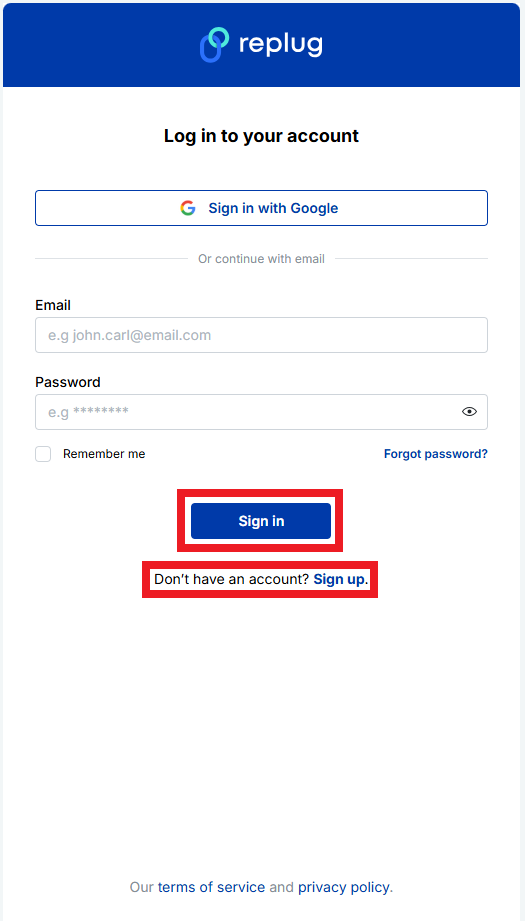
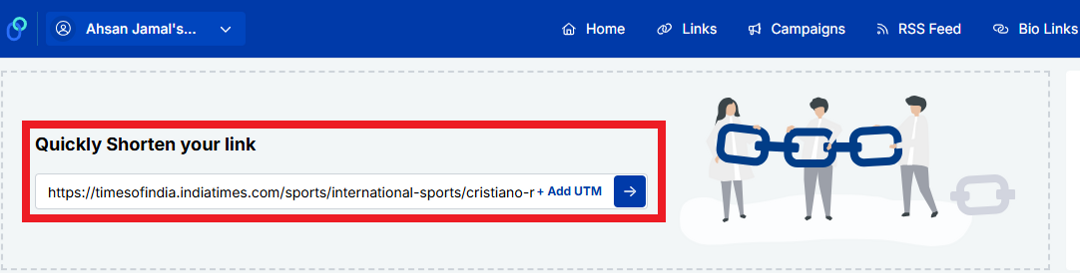
2. Once you’re logged in, go to the Replug links dashboard and click a link of your choice. If you are a new user, look for the “Quickly Shorten your link” option.
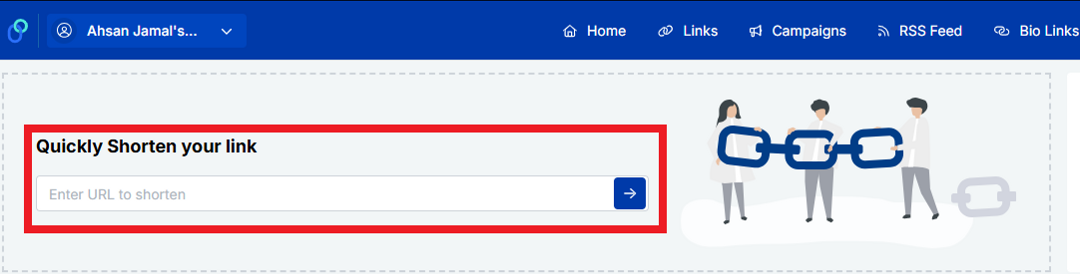
3. Enter the link (or URL) you want to shorten and get password-protected. Then, click the blue right arrow button.
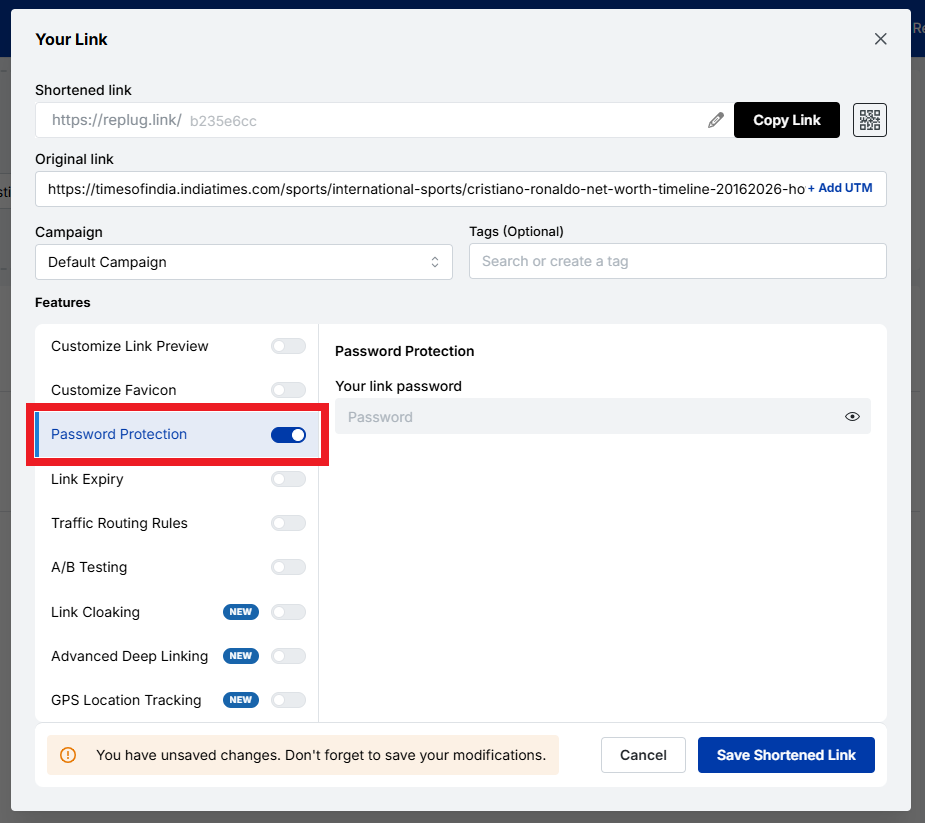
4. You’ll get your shortened URL within seconds. Now, turn on the “Password Protection” toggle button.
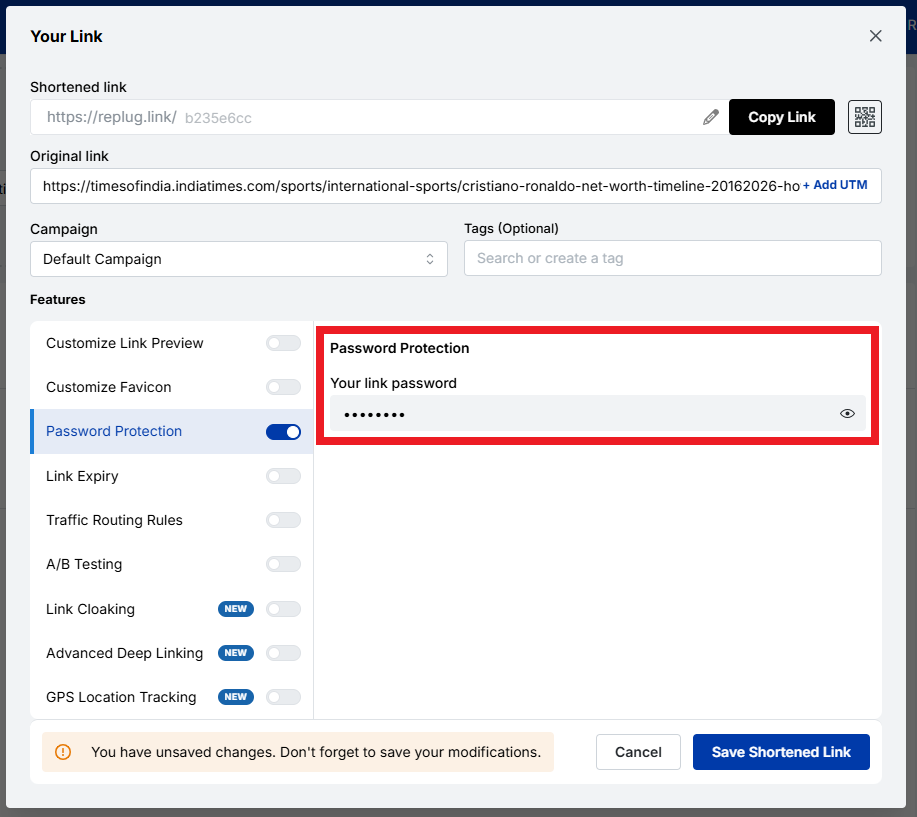
5. Set a strong password under the “Your link password” option.
6. Finally, save the link by clicking the “Save Shortened Link” button.
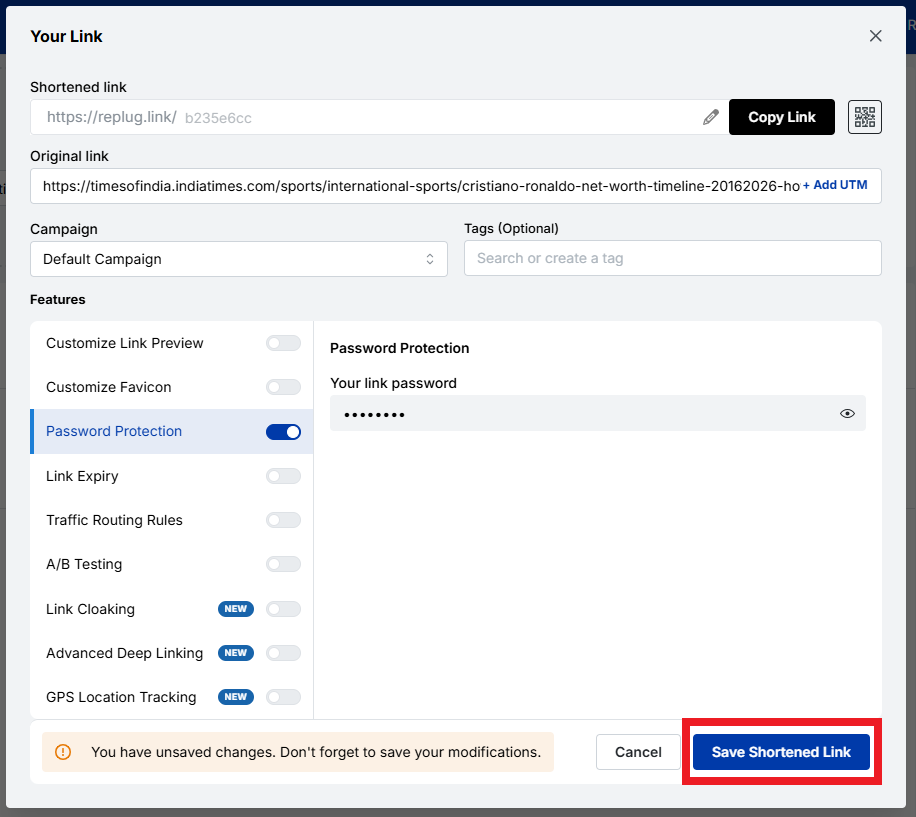
7. Once done, anyone who tries to open the link will be asked for the password you set before they can see the content.
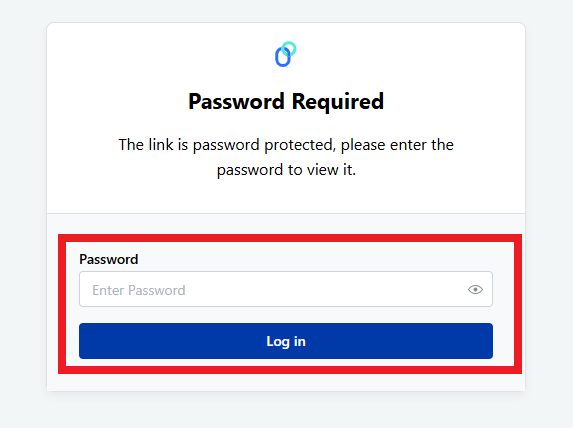
That’s all there is to it!
Note: If you’re just starting out and want a password-protected link for free, Replug offers this feature, along with link tracking and branding tools, at no extra cost.
Short.io
Short.io lets you create short URLs and add password protection, so anyone who clicks your link must enter the correct password first. This feature is part of their password protection settings. When you create or edit a short URL, you can also customize how the password page looks.
Dub
With Dub, you can protect your short links by setting a password during the link creation process. You enter your destination URL and set a password in the password settings, and Dub will prompt visitors to enter it before redirecting them. It’s available on their Pro plans and above!
Nimble Links
Nimble Links makes it easy to shield any link with a password by just pasting your URL, setting a key, and generating a protected link. Visitors trying to open the short URL will first see a password prompt. However, keep in mind this is best for casual sharing or internal use rather than for highly sensitive content.
Method #02: Specialized security tools
Some tools are built specifically for secure information exchange, allowing you to create highly private links that often expire, self-destruct, or require additional safeguards beyond a standard password prompt.
These are great when you want one-off secure links or when you’re sending sensitive info like credentials or agreements.
Password.link
Password.link is a simple service that lets you create secure, one-time links to send or receive confidential information.
It encrypts your content directly in the browser and generates a link that can be configured to expire or be opened only a certain number of times. An ideal option for sharing details that should vanish after use.
You can also request secure data from others through a similar link. Its focus on one-time secure URLs makes it perfect for time-sensitive or highly private exchanges.
Link Lock
Link Lock is a lightweight tool that lets you encrypt any URL with a password so that only people who know it can access the real destination.
Instead of hovering around a standard address, visitors first see a password prompt and only reach the original URL after entering the correct credentials. Everything happens client-side, meaning your passwords and links aren’t stored on external servers.
Method #03: File sharing services
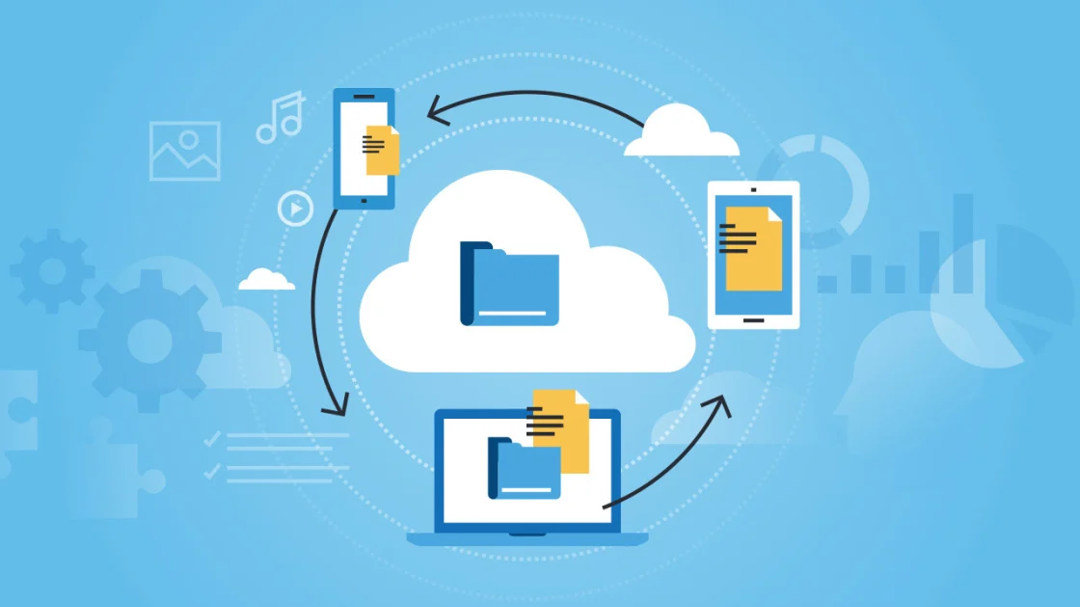
Cloud-based file services often let you not only upload files but also password-protect the shared URLs you generate, adding another layer of safety to your file links.
Proton Drive
Proton Drive is a secure cloud storage service that lets you upload files and then generate shareable links with password protection and optional expiration dates.
The files are end-to-end encrypted before they leave your device, and you can withdraw access whenever you want. Even if someone has the link, they can’t open it without the password you set.
MEGA
MEGA offers encrypted cloud storage and links that can be password-protected at the time of creation. When the link is protected, anyone who clicks it will be prompted to enter the password before access is granted, helping ensure that your shared content stays private.
Password-protected MEGA links often use a unique format that separates the password from the visible part of the URL for added security.
Method #04: Website protection
If you’re sharing content from your own website (not just files), you might want to secure entire URLs or sections of your site so that visitors must enter a password to view confidential content.
SiteGround
With SiteGround hosting, you can password-protect specific URLs or pages through the hosting control panel.
In the site tools area, there’s a section for protected URLs where you can specify which parts of your site require a username and password to access. This adds a gate before the page even loads, helping you control who sees private web-based content.
Read also: What is a Discord vanity URL and how to create one?
Best examples of password-protected links
Here’s a snapshot of real-world password-protected link examples you can use or learn from, whether you’re sharing files, documents, or curated content online.
Each service below highlights how platforms let you restrict access so that only those with the URL can view or download what’s behind it.
Password-protected link Google
Google Drive does not natively support password-protected links for shared files or folders. This means you can share URLs, but the service itself won’t ask for a password before granting access.
Security instead relies on Google account permissions and who you choose to share with. For true password protection, users often turn to third-party tools that wrap Google Drive links with a password layer.
Password-protected link Google Drive
Because Google Drive lacks built-in password prompts on share links, many people use external services (like MultCloud) to generate a link that requires a password to view a Google Drive file.
Password-protected link OneDrive
OneDrive also doesn’t offer straightforward password protection on shared links in most consumer plans. Instead, security relies on sharing only with specific people or using organizational policies.
Enterprise-level Microsoft 365 tenants can apply password protection on links via admin settings, especially for “Anyone with the link” shares.
Password-protected link Dropbox
With Dropbox (on Professional and higher plans), you can add a password directly to a shared link, so recipients must enter it before accessing files or folders. Passwords and link expiration settings are built into the link settings on the Dropbox site or app.
Password-protect link SharePoint
In SharePoint Online, you can create password-protected sharing links for files and folders. But keep in mind, this works with “Anyone with the link” share permissions and is usually managed through the SharePoint Online interface. Recipients must enter the correct password to view the content.
Password-protect link ShareFile
While ShareFile doesn’t let you set a classic password prompt on public links, it does offer very strict access controls. This ensures that only signed-in or specified users can access a share link, effectively controlling access in a way similar to password protection.
Password-protected link Linktree
Linktree lets you lock individual links on your bio page using a “Code Lock.” Visitors must enter a 4-digit code before they can open that specific link. This is great for exclusive content or gated experiences.
Password-protected link Words Puzzle Page
Sites like puzzle pages or member-only content pages often use simple password gates on URLs, so only people with the password can access them.
You set a password and share the link plus the password with your audience. This isn’t built into every platform, but it’s a good example of how password protection can control access to interactive content (think of a custom WordPress page with password protection enabled).
How can you make your links more secure?
Making sure your links are actually safe to share is more than just adding a password. It’s about layering smart practices to reduce the risk of unauthorized access or data leaks.
Here are key ways you can boost the security of your shared URLs:
- 🔒 Use strong, unique passwords: Don’t fall for simple phrases like “1234” or “password”. Aim for longer, unpredictable passwords with a mix of characters. A password manager can help you generate and store these securely so you don’t have to remember them all.
- 📤 Share passwords separately: Never send the password in the same message as the link itself. For example, email the link and send the password over text or a secure messenger so someone intercepting one can’t open the content.
- ⏱️ Set expiration dates: Make links expire after a certain time (like a day or a week) so they don’t stay open forever if someone else missteps on them later.
- 📈 Limit access & track usage: Where possible, set limits on how many times the link can be used and monitor access attempts. This helps you catch weird activity early.
- 🍃 Use secure channels & networks: Before sharing anything sensitive, make sure you’re on a trusted, private connection rather than public Wi-Fi, which can be snooped on more easily.
- 🔐 Combine protections: Password protection is just one part. Combining it with features such as click limits, link expiration, and encryption provides a stronger defense than passwords alone.
Doing these things together keeps your password-protected links truly protective, so only the right people can open them.
Wrapping up
As you’ve seen, sharing sensitive content online doesn’t have to be risky anymore, especially when you use the right tools and practices.
From simple cloud drives to password-protected link shorteners, there are plenty of ways to add an extra layer of security to your shared URLs.
No matter if it’s a private file, an invite-only page, or something you don’t want publicly indexed, protecting your short URL with a strong password and good link hygiene helps prevent unauthorized eyes without slowing you down.
Just remember to share passwords separately, set expiration dates when possible, and choose tools that match how sensitive your content really is. With these steps, your links stay concise, easy to share, and most importantly, secure!
Frequently asked questions

Muhammad Ahsan Jamal