Discord has become the go-to platform for online communities, from gaming squads and creator fandoms to business teams and study groups. With voice channels, chat rooms, and tons of integrations, it’s the ultimate space to build and engage with your audience.
But when it comes to inviting new members, Discord’s default invite links can be… well, forgettable. Sharing something like:
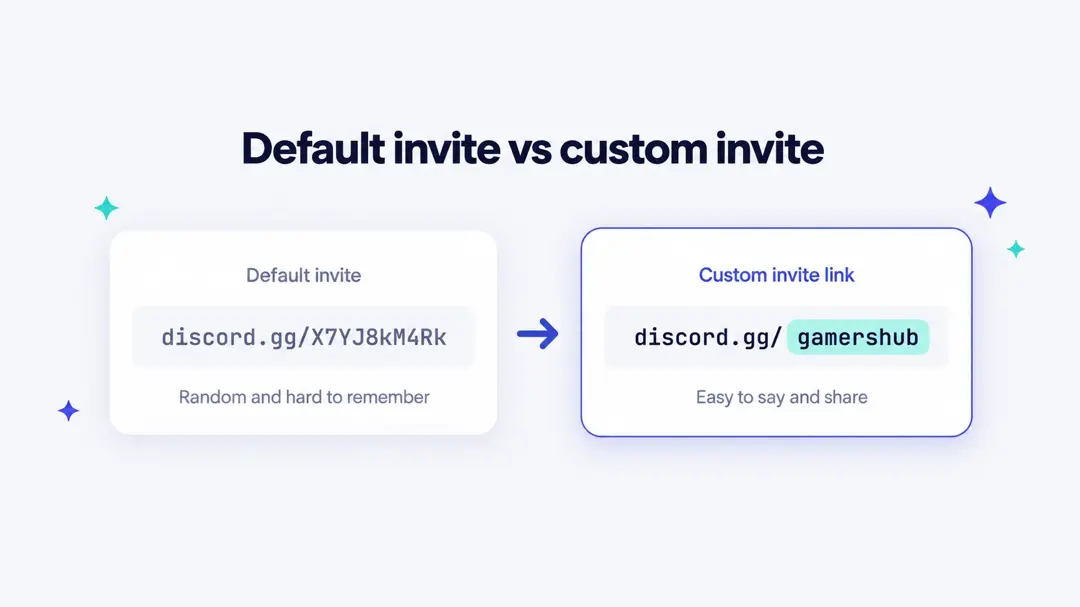
Not exactly the kind of link you’d want to share in your chat. That’s where a Discord vanity URL comes in – a clean, branded invite link that’s easy to remember and even easier to share.
In this guide, we’ll break down exactly what a vanity URL is and show you two simple ways to create one:
- The official Discord method (if your server meets the requirements)
- And a quicker alternative using a free custom link maker, perfect if your server hasn’t reached Level 3 yet.
Let’s get started with everything you need to know about setting up your own custom Discord link.
Quick answer: a Discord vanity URL is a custom server invite such as discord.gg/gamershub instead of a random code like discord.gg/X7YJ8kM4Rk. Discord now calls it a Custom Invite Link. It unlocks when your server reaches Boost Level 3 (14 Server Boosts), and you set it under Server Settings > Boost Perks > Custom Invite Link. If your server is not at Level 3, you can still share a branded short link (for example yourname.link/discord) that opens your normal invite.
What is a Discord vanity URL?
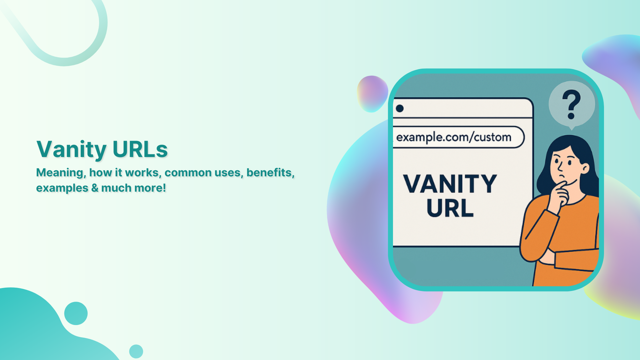
A vanity URL on Discord is a customized invite link you can set for your Discord server. It replaces the default, auto-generated invite code with something branded and readable.
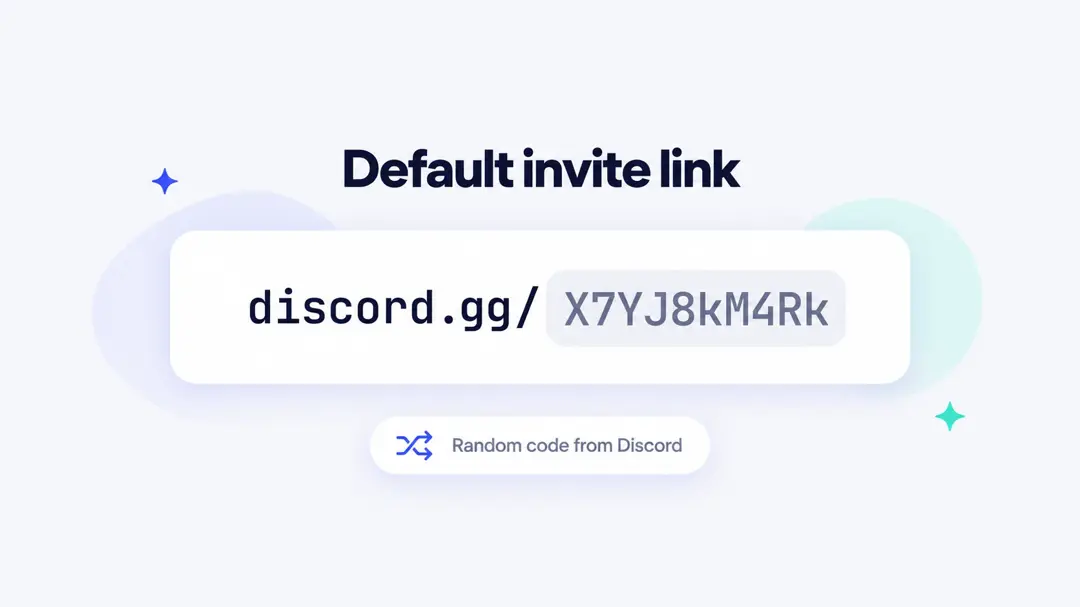
Discord vanity URL example:
Default URL:
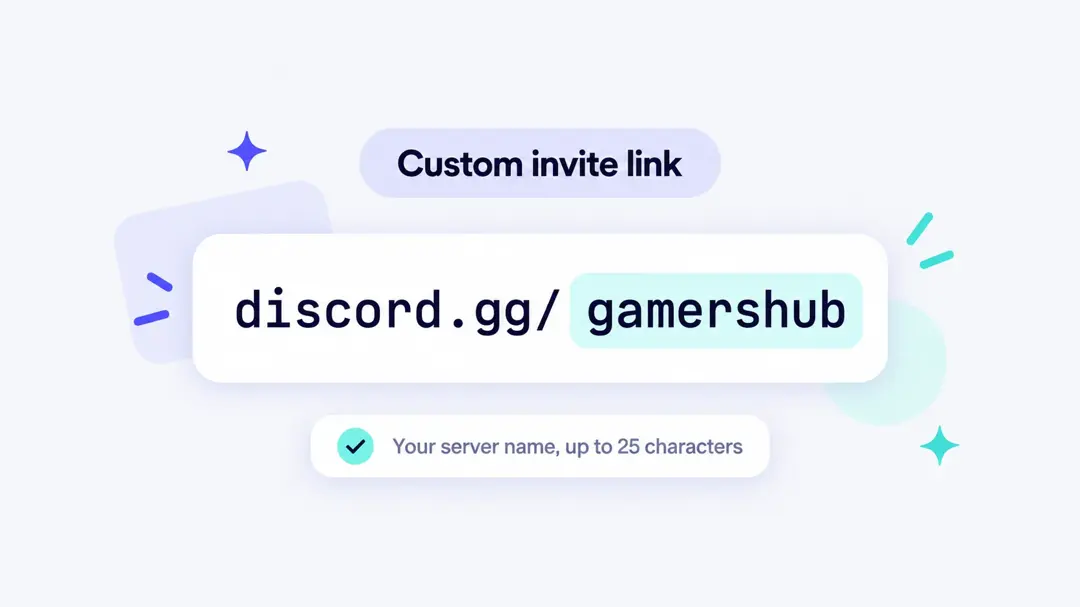
Vanity URL:
Key aspects of Discord vanity links:
- Customizable: Lets you replace the default jumble of characters with your own brand or community name, making it more personalized.
- Requirements: Unlocked when a server has 14 or more boosts (Level 3). Discord’s current help article lists Level 3 as the requirement; “Partner/Verified” servers have also had the feature in the past, and occasionally it has been available through special perks or beta programs.
- Setup: You can set it up by going to Server Settings’ “Boost Perks” section (older versions of Discord showed it under “Overview”) and typing in your preferred name (up to 25 characters allowed: lowercase letters, numbers and dashes).
- Professionalism: Helps your server look more credible, branded, and polished, which is especially useful for companies and larger groups.
- Security concerns: If not properly protected, these links can be compromised and used in scams, so owners need to be careful and safeguard them appropriately.
Discord vanity URL requirements and rules
These are the rules from Discord’s own help center (Custom Invite Link and Server Boosting FAQ articles), checked in October 2026:
| Rule | What it means for you |
|---|---|
| Boost Level 3 | Your server needs 14 active Server Boosts. Nitro subscribers get 2 boosts to use on any server and 30% off extra boosts. |
| Who can set it | Someone with permission to manage the server, in Server Settings > Boost Perks. |
| Allowed characters | Up to 25 characters: lowercase letters, numbers and dashes. |
| First come, first served | If someone else already uses the name, Discord shows an error. Discord Support cannot check availability for you. |
| Public access | Setting a custom invite link makes your server joinable by anyone who has the link. |
| A visible channel | At least one text channel must let @everyone View Channel, or the link shows as invalid. |
| Losing boosts | If you drop below Level 3, you keep the link for 30 days. After that it is removed and another server can claim it. |
| Abuse or IP conflicts | Discord can remove a custom invite link that is abused or that conflicts with someone’s trademark. |
Also read: How to Get a Custom YouTube URL
How to create a Discord vanity URL (2 methods)?
Method 1: Using Discord’s native vanity URL feature
Note: Server Vanity URLs are one of the special server features. It can be unlocked once the server reaches boost level 3 or if the server is partnered or verified.
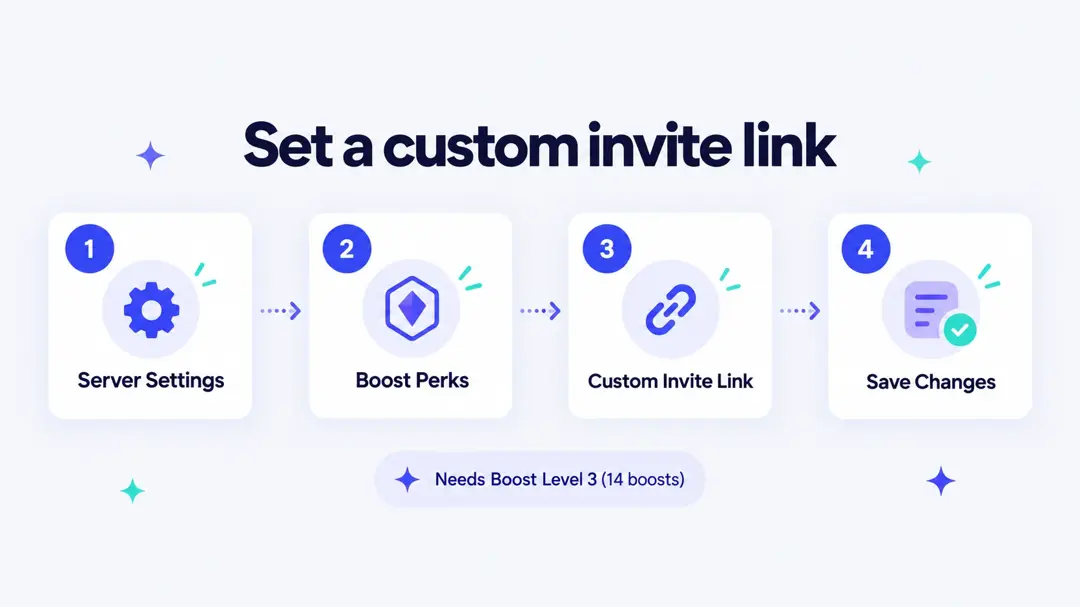
Step 01: Enable server verification level
- Go to your server settings.
- Navigate to the “Moderation” tab.
- Set the verification level to at least “Medium” to help protect your community. Discord doesn’t require this for a custom invite link, but it is a good idea because the link makes your server joinable by anyone who has it.
- Check that at least one text channel lets @everyone view it (channel settings > Permissions > View Channel). Without one, Discord shows the custom link as invalid.
Step 02: Access the overview section
- In server settings, click on the “Boost Perks” tab. (Older versions of Discord had this option under “Overview”.)
Step 03: Edit your vanity URL
- Scroll down to the “Custom Invite Link” option (earlier called “Vanity URL”).
- Click into the field next to discord.gg/ (older versions showed an “Edit” button next to the current invite link).
- Type in your desired custom name: up to 25 characters, using lowercase letters, numbers and dashes.
- Ensure your link is unique (unique URL). Discord will notify you if the name is already taken.
Step 04: Save your changes
- If the name is available, click “Save Changes” to activate your new vanity URL. To remove it later, use “Remove Custom Invite Link” in the same place.
Your new invite link will now look like:
Method 2: Create a vanity Discord link using a link shortener tool
If your server doesn’t meet the requirements for a native Discord vanity URL, no worries. There’s a faster and easier way to get a clean, branded invite link: use a link shortener like Replug.
Replug is a powerful link management platform that allows you to:
- Customize any link (including Discord invites)
- Add password protection to your links (create password-protected links)
- Create a QR code for any of your links
- Set up expiry for links
- Customize link preview
- And more…
Steps to create a vanity Discord invite link with Replug
Step 01: Get your Discord invite link
- Open your Discord server.
- Click on “Invite people”.
- Copy the full invite link.
- Before you copy it, click “Edit invite link” and set it to last as long as possible (choose “Never” if Discord offers it) with “No limit” on uses, then generate the new link. New invites last 7 days by default, and a short link that points to an expired invite sends people to an “Invite Invalid” page.
Step 02: Log in to Replug
- Head to replug.io, and sign in or create an account for free.

Step 03: Create a new branded link
- On the Replug dashboard, paste your Discord invite into the “Quickly Shorten your link” field.

Step 04: Customize your vanity URL
- A popup window will appear where you can customize your vanity URL. Simply edit the link in the top bar to your preferred slug.

- Click the shorten icon (checkmark) to proceed.
- Then click “Save Shortened Link,” and your new branded Discord invite link is ready to share anywhere online.

Put the link on your own domain
A short link on Replug’s domain is already easier to read than a random invite code. For something that looks fully yours, connect a domain you own (up to 3 on the free plan) or claim a free .link domain, which is included for the first year on paid plans. Emily Carter, who runs a study server from Austin, could share emilycarter.link/discord instead of a discord.gg code.
See which places bring new members
Discord tells you how many times each invite was used (Server Settings > Invites), but not where people clicked it. With short links you can create one link per place, all pointing to the same invite:
emilycarter.link/tiktokin her TikTok bioemilycarter.link/youtubein video descriptionsemilycarter.link/twitchon her stream panels
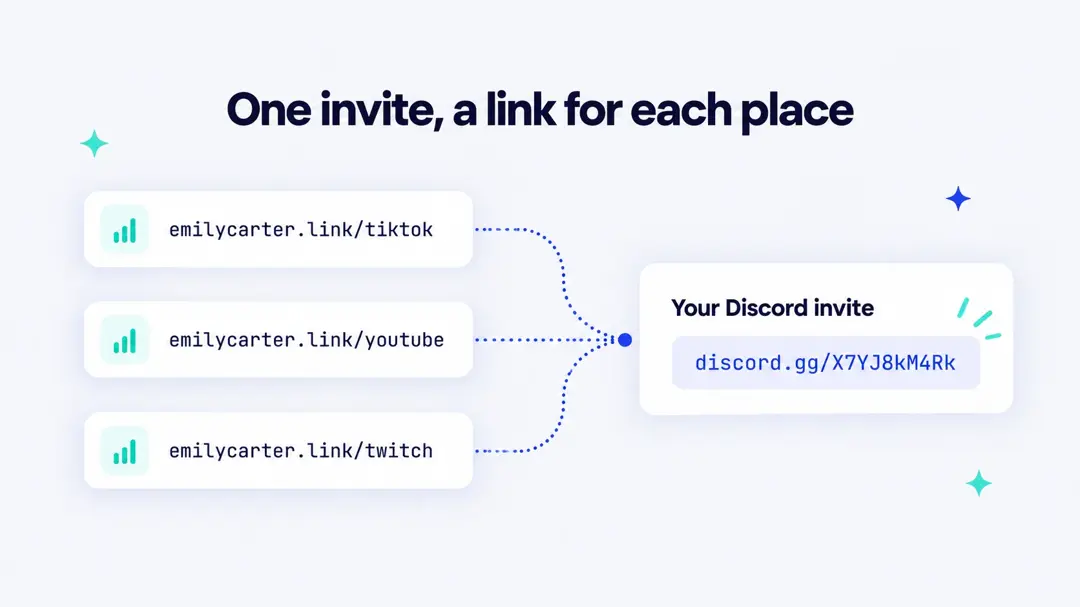
Replug’s link tracking then shows clicks for each link, with country, device and referrer, so you know which channel is worth more attention. If the invite ever changes, you edit the destination once and every link keeps working.
How do I get a vanity URL on Discord without boosting?
If you’re hoping to buy a Discord vanity URL for free or get an official Discord vanity link without boosting, the short and honest answer is: you can’t get a real Discord vanity URL directly from Discord without meeting the platform’s requirements.
Discord only issues official custom invite URLs for servers that reach Level 3 (14 boosts) or are in verified/partnered status. There’s no built-in way to unlock that feature without boosts.
That said, you can make a branded invite link without boosting that looks like a vanity URL. A lot of communities use external services (like link shorteners or custom redirect sites) to create branded links that redirect to your Discord invite.
These won’t be true discord.gg/YourName links from Discord itself, but they look clean and easy to remember (and some are free, too).
So while you can’t legitimately get an official Discord vanity URL without boosting, you can create a custom redirect link that works like one.
Note: Don’t expect Discord itself to hand you a free vanity URL without meeting the boost requirements.
Discord custom invite link vs. a branded short link
Both give you a cleaner link than a random invite code. They work differently, so here is how they compare:
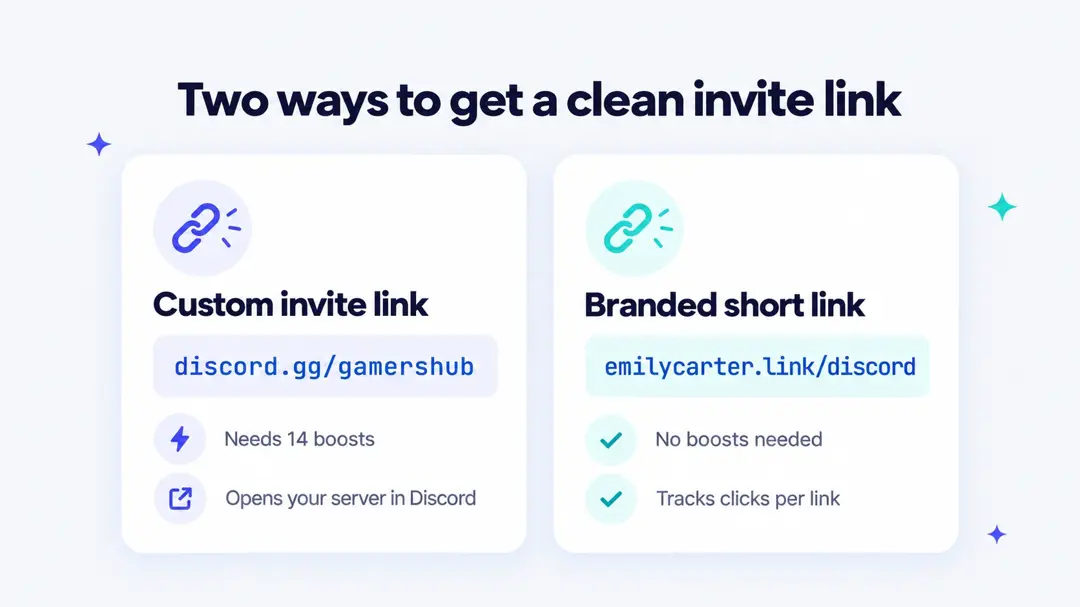
| Discord custom invite link | Branded short link (e.g. Replug) | |
|---|---|---|
| Looks like | discord.gg/gamershub | yourname.link/discord or rplg.co/gamershub |
| Requirement | Boost Level 3 (14 boosts) | None; free plan available |
| Ongoing cost | Boosts are paid monthly | Free plan, or a paid plan for more links and domains |
| Inside Discord | Shows Discord’s server invite card | Shows a normal link preview, which you can customize |
| Click tracking | Invite use counts only | Clicks per link, with country, device and referrer |
| If boosts drop | Removed after 30 days; others can claim the name | Not affected; you keep the link |
| Change where it points | Always your server | Edit the destination at any time |
| Works outside Discord | Yes | Yes, plus QR codes for print and streams |
Many servers use both: the custom invite link inside Discord, and a branded short link in social bios, videos and on printed material, where tracking matters more.
How to choose a good Discord vanity name
- Keep it short: one or two words people can say out loud, such as gamershub or austin-study.
- Match your other handles: use the same name as your YouTube, Twitch or TikTok so people can guess it.
- Lowercase only: Discord only allows lowercase letters, numbers and dashes, so drop capital letters and spaces before you try.
- Avoid other brands’ names: Discord can remove a custom invite link if there is an intellectual property conflict.
- Have a backup: names are first come, first served across all of Discord, and Discord Support can’t check availability for you. Pick two or three options before you try.
Keep your vanity link from being taken over
When a server loses Level 3, Discord keeps the custom invite link for 30 days and then releases it. Anyone can claim it after that, including people who copy popular names to run scam servers. Your old discord.gg link in YouTube descriptions, bios and posts would then send people to someone else’s server.
- Keep enough boosts to stay at Level 3, or plan for what happens if you lose them.
- Watch the boost count in Server Settings so a drop doesn’t surprise you.
- Share a link you control in public places (for example a branded short link on your own domain) and point it at your current invite. If the vanity name is lost, you update one destination instead of hunting down every old post.
What happened to discord.io?
discord.io was a popular third-party service for custom Discord links (discord.io/yourname). In August 2023 it shut down after a data breach that exposed data from about 760,000 members, according to BleepingComputer. Servers that relied on it had to replace every link they had shared. If you use any third-party link for your server, pick one where you can change the destination and, ideally, use your own domain, so you can move without breaking old posts.
Final thoughts
A vanity URL makes your Discord server look more legit and easier to promote. While Discord’s built-in option requires a Level 3 boost, tools like Replug give you a smart workaround, plus added benefits like link expiry, QR codes, password protection and much more.
Frequently asked questions

Muhammad Ahsan Jamal