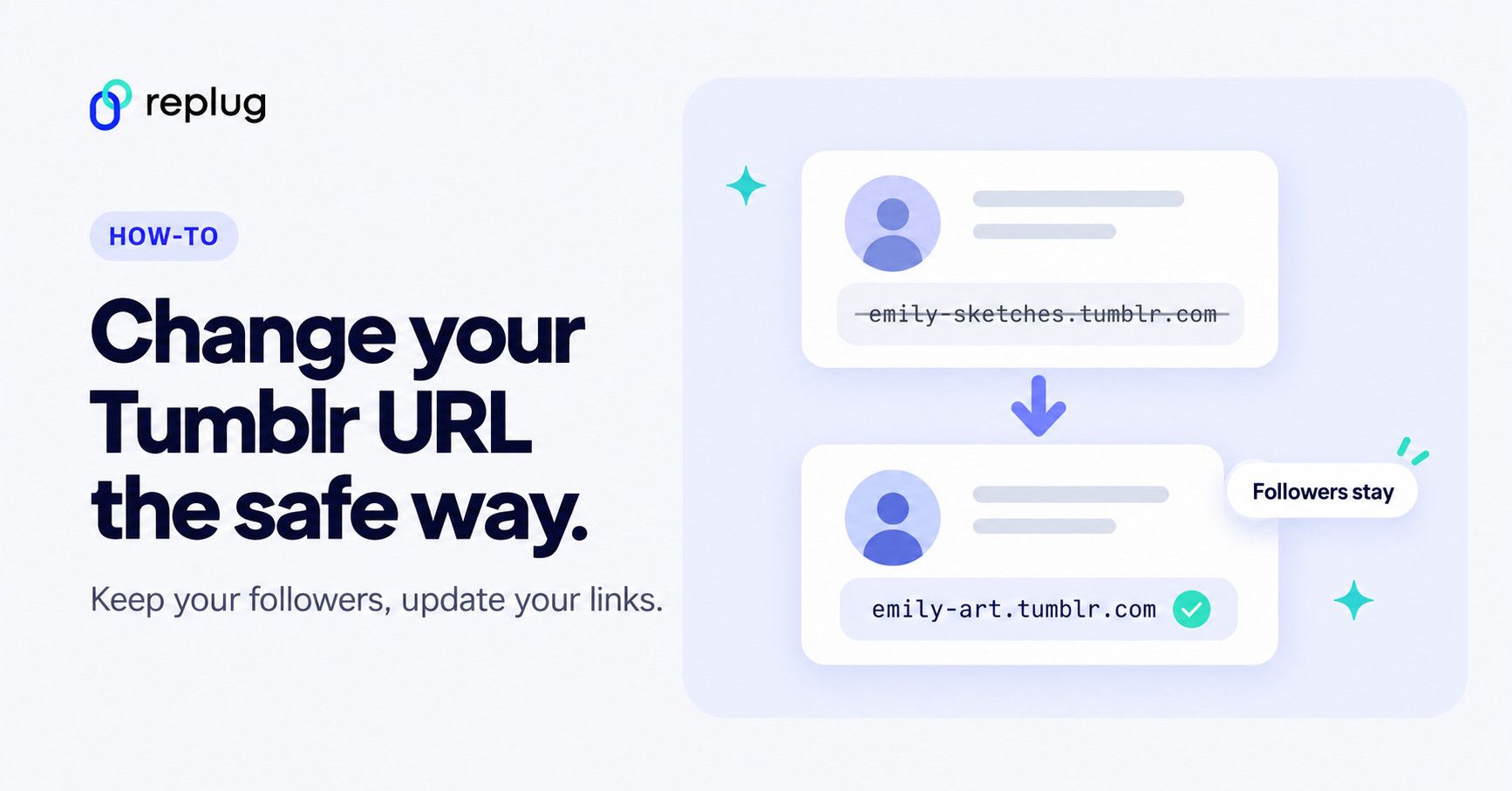
Quick answer: to change your Tumblr username (your blog URL) on the web, click Settings in the dashboard sidebar, pick the blog on the right, click the pencil icon next to Username (or Blog name for a secondary blog), type the new name and click Save. In the app, tap the account icon, choose the blog, tap the gear icon, then Change name and Save. According to Tumblr’s Help Center, your followers stay, but links to your old URL break, and your old name becomes available to anyone after 24 hours.
So, you’ve outgrown your Tumblr username.
Maybe it doesn’t vibe with your current aesthetic.
Maybe you’re rebranding.
Or maybe it just feels like time for a glow-up.
The good news? Tumblr makes it easy to change your URL without losing your followers. Once it is set, you can share it anywhere, and on X you can even tweet a link without the URL cluttering the post.
The better news? You can take that simple switch and turn it into a smart branding move (if you know how).
Let’s walk through how to change your Tumblr URL, and then we’ll show you how to elevate your link with Replug’s branded short links.
How to change your Tumblr URL in the app
It’s quick and simple. Here’s how to change your Tumblr URL on mobile:
- Tap the account icon (the little human silhouette).

- Choose the blog you want to edit from the drop-down at the top.
- Tap the gear icon for settings.

- Tap “Change name”

- Enter your new Tumblr username.
- Tap “Save”

Tumblr will redirect your old URL to the new one automatically, so your followers won’t be left in the dark. No messy migrations or broken links. Update (October 2026): this is no longer accurate. Tumblr’s Help Center says changing your URL breaks existing links to your blog, including masterposts, links in your description and links you shared on other sites. Your followers aren’t affected and still see your posts on their dashboard.
How to change your Tumblr URL on desktop
Changing your Tumblr URL on your desktop? No problem! Just follow these simple steps:
- On your dashboard, click “Settings” in the sidebar.

- Select the blog you want to update on the right side of the screen.

- Click the pencil icon in the “username” section (or “blog name” for secondary blogs).

- Type in your new username.
- Click “Save”.

That’s it! Your new Tumblr URL is live, and your old followers still know where to find you.
Related: How to change your LinkedIn URL (Step-by-step guide)
Tumblr username rules
If Tumblr won’t save your new name, check it against the rules in Tumblr’s Help Center:
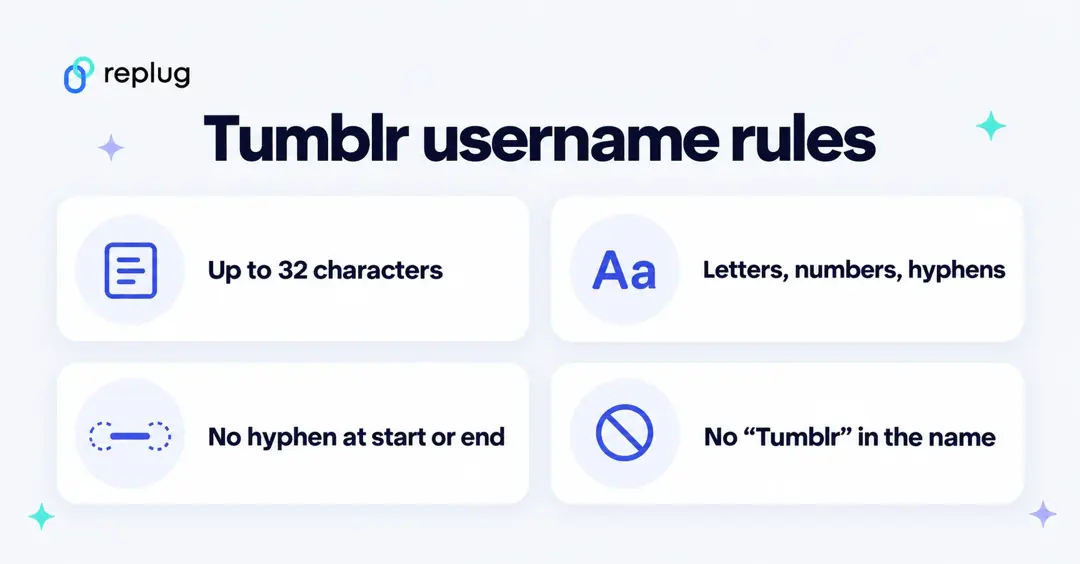
- Up to 32 characters.
- Letters, numbers and hyphens only, and no hyphen as the first or last character.
- The name can’t contain the word “Tumblr”.
- It must not already be taken. Tumblr says it doesn’t release taken or inactive names, even when the blog looks empty.
What happens when you change your Tumblr URL
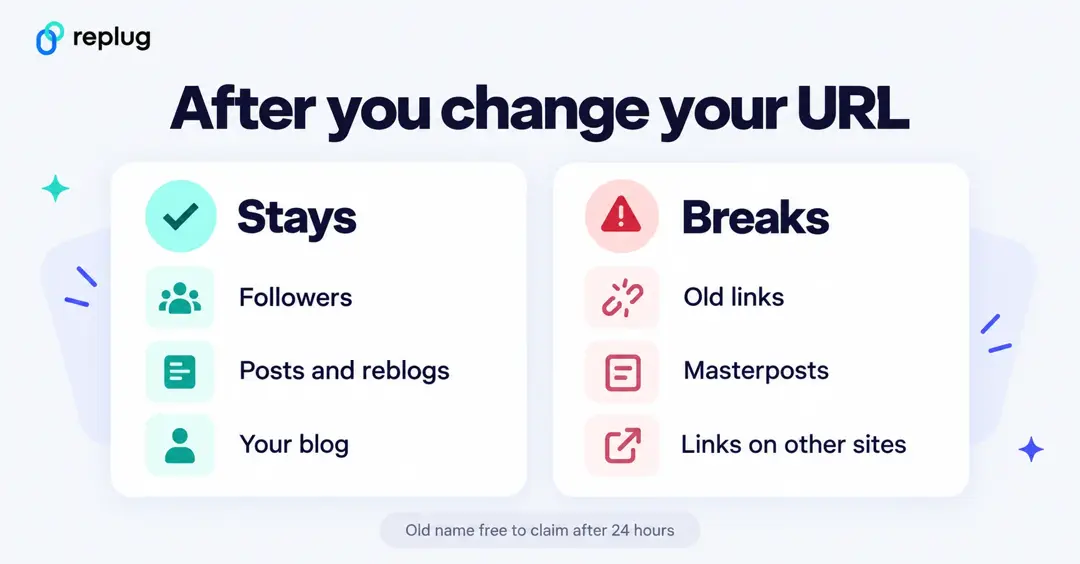
| What | After the change |
|---|---|
| Followers | Stay. They keep seeing your posts on their dashboard. |
| Your posts, likes and reblogs | Stay on the blog, now under the new address. |
| Links to your old URL | Break: masterposts, links in your description and links you shared on other sites. |
| Your old name | Free for anyone to claim 24 hours after the change. |
| Custom domain | A domain is connected to the blog itself, not to the name, so it should keep working. Open it once after the change to check. |
Source: Tumblr Help Center, “Changing Your Username / URL”, checked October 2026.
Before you change it: a quick checklist
- Check the new name is free by visiting newname.tumblr.com. If it shows “There’s nothing here”, the name may still be taken or hidden (see Tumblr’s note on unavailable names).
- List where your old URL appears: your blog description, pinned masterposts, other social bios, your email signature and any printed cards.
- Make the switch, then update those links straight away.
- Changed your mind? Switch back within 24 hours, before the old name is released to others.
Keep your old links working next time
Because Tumblr doesn’t forward old links, it helps to share one link that you control instead of your raw Tumblr address. Two ways to do that with Replug:
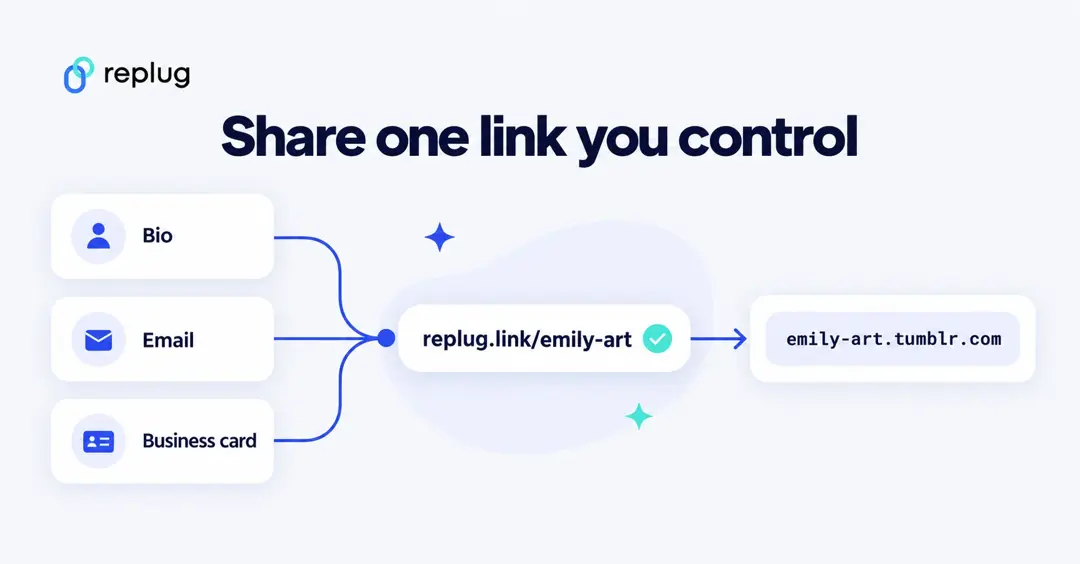
- A short link: share replug.link/emily-art everywhere and point it at your Tumblr. If you rename the blog later, you only change the link’s destination, which is on the Scale and Agency plans. On Free and Essentials, create a new short link instead.
- A bio link page: put your Tumblr, shop and other profiles on one bio link page. You can edit its buttons on any plan, so a rename only means updating one button. Our guide shows how to add links to your Tumblr bio.
Can’t change your Tumblr username? Quick fixes
- “Someone beat you to that username”: the name is taken. Try a variation with a hyphen or a number.
- The Save button does nothing: check the length (32 characters at most), remove spaces and symbols, and make sure the name doesn’t start or end with a hyphen or contain “Tumblr”.
- You can’t find the Username field: on secondary blogs the field is called “Blog name”. In the app, make sure you picked the right blog in the dropdown before tapping the gear icon.
- Old links show “There’s nothing here”: that’s expected after a rename. Update the links to the new address.
Tumblr lets you change your name, but that’s about it
Tumblr gives you a fresh username and even lets you attach a custom domain (according to Tumblr’s domains guide, new connections currently work only for domains registered through Tumblr). And that’s where it ends.
If you’re someone who’s using Tumblr to grow a brand, promote your work, or run campaigns, this might feel… underwhelming.
There’s no customization for how your link looks when shared.
No tracking to see how it performs.
No way to turn a simple URL into something that actually drives results.
This is why instead of just using Tumblr to change your URL, it’s best to add Replug to the mix.
What to know how and why? Keep reading.
How to change your Tumblr URL with Replug?
Here’s how you can easily change your Tumblr URL inside the Replug app:
- Log in to the Replug App or create an account if you don’t already have one.
- Copy your Tumblr URL:
- Click on “Accounts” on the left side of your Tumblr homepage
- Select your account/blog.
- Copy the URL from the search bar.

- Create a custom short Tumblr URL:
- Paste your Tumblr URL in the bar under “Quickly Shorten your link” (in the current dashboard, the shorten bar on the Home page)

- Customize your Tumblr URL

- Save your custom URL:
Click on “Save Shortened link” and get sharing! Picking your own ending, such as replug.link/emily-art, is on the Essentials plan and above; the free plan gives you an automatic ending.
You may also like: How to add links to Tumblr bio: Step-by-step guide
Tumblr URL vs Replug branded links
As promised, here’s a breakdown of why you should use Replug to take your Tumblr URL to the next level:
| Feature | Tumblr custom URL | Replug branded links |
| Custom domain support | ✅ | ✅ |
| Branded link previews | ❌ | ✅ |
| Link A/B testing | ❌ | ✅ |
| Click analytics | ❌ | ✅ |
| Retargeting pixels | ❌ | ✅ |
| CTA overlays on shared links | ❌ | ✅ |
| Link cloaking & redirects | ❌ | ✅ |
| Bio-link pages | ❌ | ✅ |
| QR codes | ❌ | ✅ |
| Third-party integrations | ❌ | ✅ |
| Custom favicon & branding | ❌ | ✅ |
| UTM parameters | ❌ | ✅ |
Tumblr gives you a URL. Replug gives you control, strategy, and performance.
Why branding your Tumblr link with Replug is a smart move?
Here’s how Replug takes your updated Tumblr link and gives it real marketing muscle:
- Branded URLs: Match your blog, brand, or business name with clean, professional links.
- Custom previews: Choose the thumbnail, headline, and description your audience sees when you share (Essentials and above).
- Detailed analytics: Track the total and unique clicks, where they’re from, and how your links are performing.
- Retargeting pixels: Reconnect with people who’ve clicked your links across platforms by adding retargeting pixels to Meta, Google, LinkedIn, and more (Essentials includes 1 pixel; Scale and Agency have no limit).
- CTA overlays: Add catchy call-to-action buttons, forms, banners, or even YouTube videos to the content you share (Essentials and above).
- A/B testing: Experiment with variations of up to 20 Tumblr URLs to find what performs best (Scale and Agency plans).
- Dynamic QR codes: Instead of creating static QR codes, Replug allows you to create unlimited dynamic QR codes that never expire. The free plan includes 10 smart QR codes; Scale and Agency have no limit.
- Smart bio-link pages: Build a high-converting landing page with all your most important links in one place.
- Link cloaking & redirection: Keep your links clean and trustworthy by avoiding sending your followers to broken links. (Link cloaking is on the Scale and Agency plans.)
Conclusion
Changing your Tumblr URL is a solid move, especially if you’re rebranding or aligning your content with a new direction. Tumblr makes the switch easy, but that’s just the beginning.
If you want your link to do more than just exist, it’s time to think bigger. With Replug’s custom URL shortener, you’re not just customizing a URL; you’re optimizing it for clicks, conversions, and visibility. Whether you’re a content creator, business, or blogger, the ability to brand, test, and track your links can be a game-changer.
Tumblr might be your platform, but Replug turns your links into power tools.
FAQs

Amna Yawar