Snapchat isn’t just about sharing photos and videos anymore; you can now attach a link to a Snap and easily direct your friends and followers to external content. Thanks to the Snapchat linking feature, sharing a website, article, or even a funny meme right inside your snaps and stories has never been simpler.
In this guide, we’ll walk you through how to add a link to Snapchat story and snaps on both iOS and Android. By the end, you’ll know exactly how to attach a clickable link on Snapchat and let your friends swipe up on Snapchat to visit your shared content.
Follow along with the steps below to start sharing your favorite websites and content in no time!
Quick answer: take or upload a Snap, tap the paperclip icon in the toolbar on the right of the Preview screen, paste or type your URL and tap Attach to Snap. Then tap Send To, choose My Story and post it. Friends who view the Snap swipe up to open the website. It works the same on iPhone and Android.

How to add a link to Snapchat story: iOS and Android
Adding a link to your Snapchat snaps and stories is a great way to share a website on Snapchat and engage your followers.
Note: Screenshots are provided for the Android version, but iOS users should be able to follow along.
Here’s a step-by-step guide on how to do it:
Step 1: Open the Snapchat app on your iOS or Android device.
Step 2: Take a photo or film a video snap using the main camera tab or by uploading a photo/video from your device. Apply filters, stickers, emojis, text, or drawings to your snap as desired.
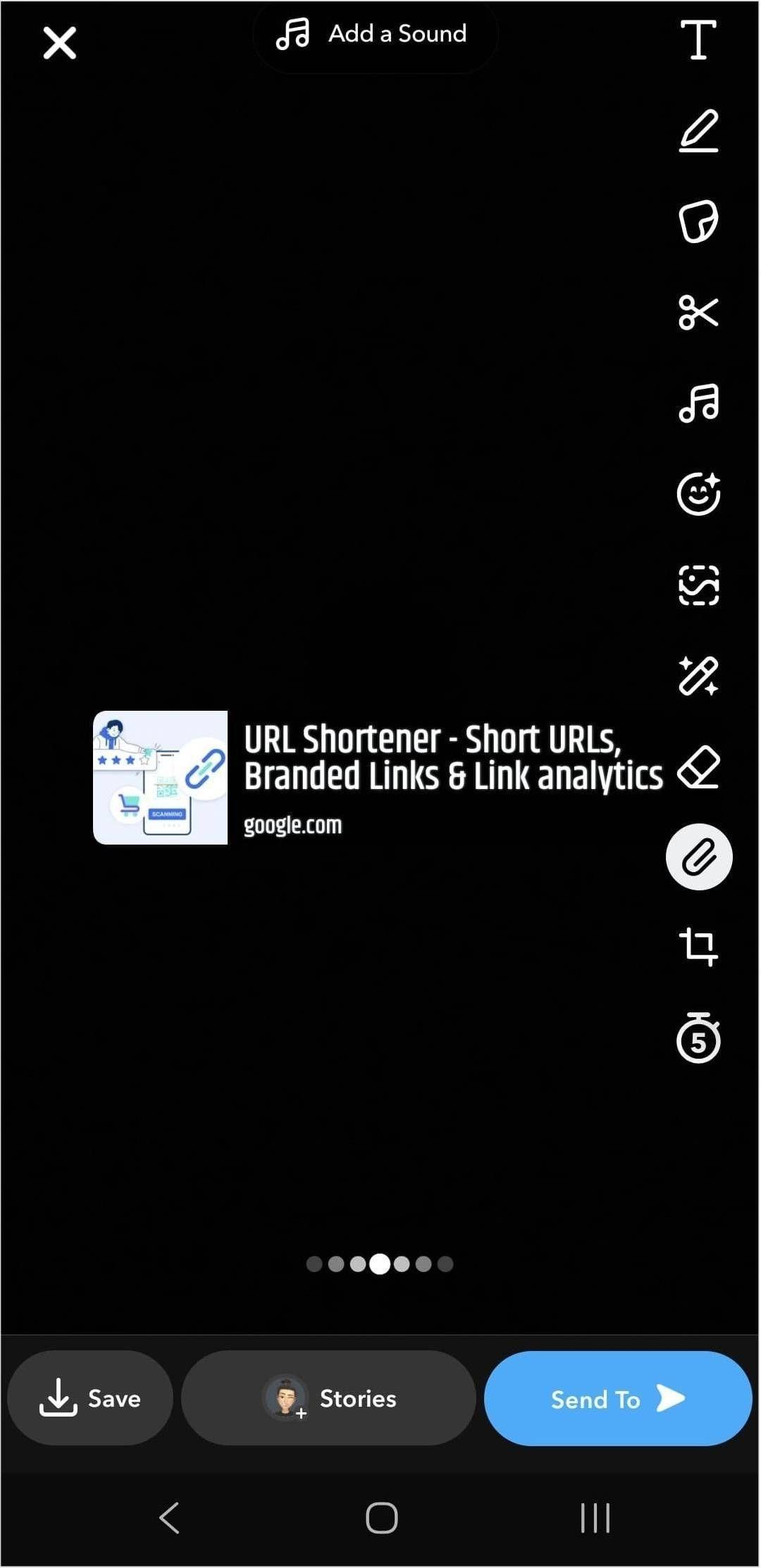
Step 3: Tap the Snapchat paperclip icon in the menu on the right to attach a link to Snap.
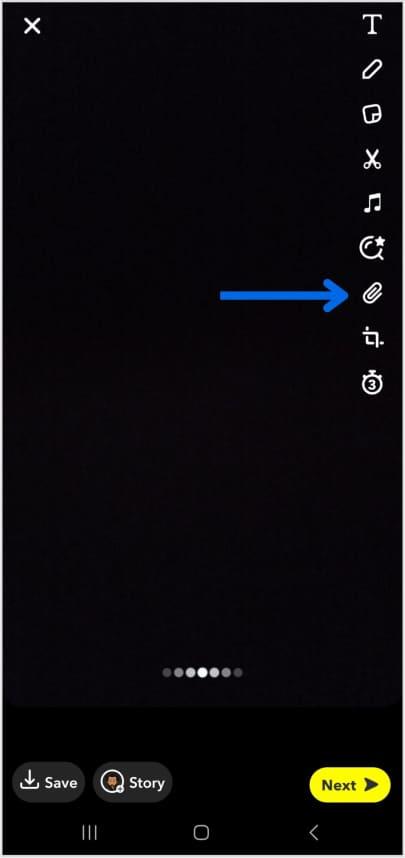
Tip: If the link is too long to type, copy it from your browser or another app before coming back to Snapchat.
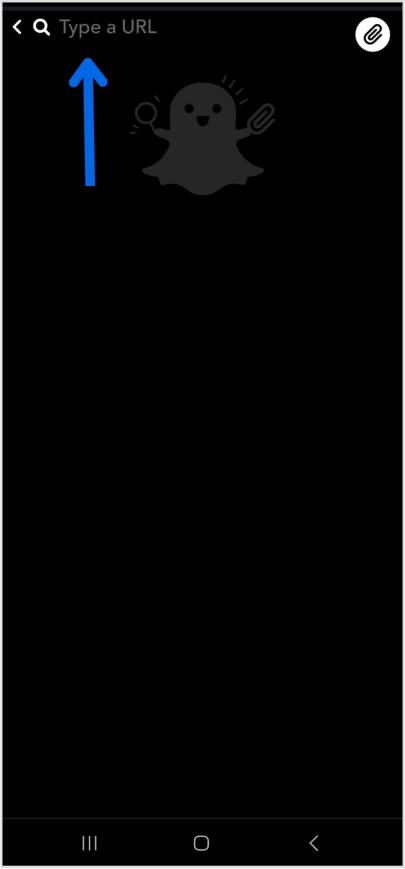
Step no 4: Paste the link into the “Type a URL” field and tap “Attach to Snap.”
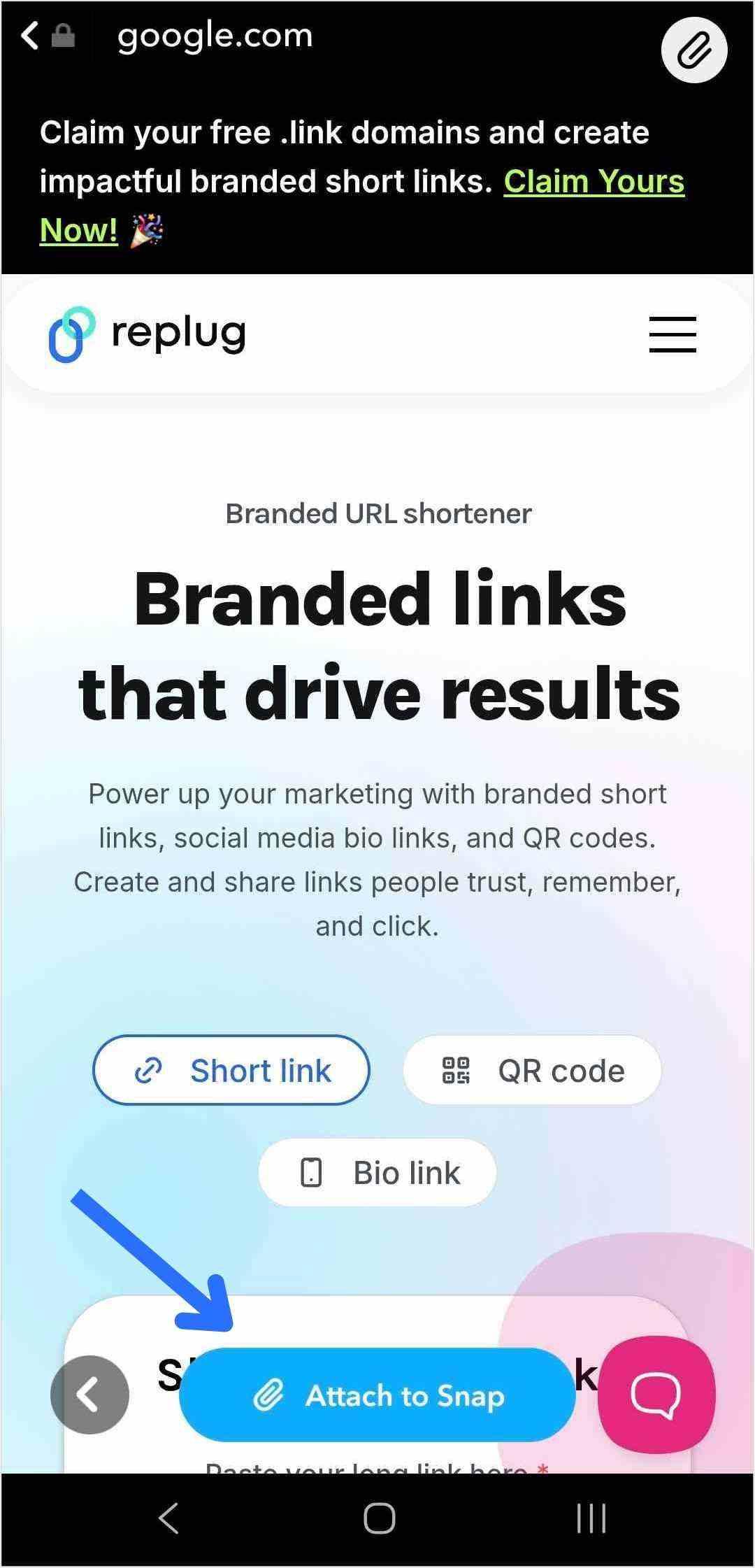
Tip: Attaching a link to your Snap is just the first step. To drive traffic and get people to swipe up, dress up your snap! Use music, effects, emojis, and text to make your story more appealing and clickable.
Also read: How to Add a Link to Your Instagram Story?
Step 5: The paperclip icon will now be highlighted in white, showing your link is attached.
Also read: How to Create Password-Protected Links: Step-by-Step Guide
Step 6: Tap the blue arrow to send your snap to friends, or tap the story button to add a link to your Snapchat story.
That’s it! Now your viewers can swipe up on Snapchat to visit the link directly.
What your viewers see: Snapchat shows that a website is attached to your Snap. Viewers swipe up to open it, and the page loads in Snapchat’s in-app browser, so they return to your Story when they close it.
How to add an Instagram, TikTok or YouTube link to your Snapchat story
The paperclip accepts any web address, so you can send your Snapchat friends to your other profiles or a specific post. Copy the link in the other app first:
- Instagram profile: open your profile, tap Share profile and choose Copy link (more ways in our guide to finding your Instagram URL). For a single post or Reel, tap the share (paper plane) icon and choose Copy link.
- TikTok: open the video or your profile, tap the Share arrow and choose Copy link.
- YouTube: tap Share under the video or on your channel page, then Copy link.
- Go back to Snapchat, take your Snap, tap the paperclip, paste the link and tap Attach to Snap.
Want to send people to several places at once? Snapchat allows one link per Snap, so link to a bio link page that lists your Instagram, TikTok, YouTube and shop together.
Paperclip icon missing? How to fix it
- Take the Snap first: the paperclip only appears on the Preview screen, after you capture or upload a photo or video. It is not on the camera screen.
- Expand the toolbar: on smaller screens some tools are hidden. Tap the small arrow at the bottom of the right-hand toolbar to show all of them.
- Check the sticker tray: in some app versions the link tool appears as a link icon or Link sticker instead of a paperclip.
- Update and restart Snapchat: install the latest version from the App Store or Google Play, then close and reopen the app.
- The link will not attach or shows a warning: Snapchat checks links for safety and may block or warn about pages it considers risky. Open the URL in your browser to make sure it loads, use the full
https://address, and turn off your VPN if the tool still fails.
How long does a link on a Snapchat story last?
A link lasts as long as the Snap it is attached to. Snapchat’s help center says Snaps on My Story are viewable for 24 hours, so your link disappears with the Story after a day. A few options change that:
| Where you post | How long the link stays |
|---|---|
| My Story (default) | 24 hours |
| My Story with Snapchat+ My Story Timer | 1 hour, 6 hours, 12 hours, 24 hours, 2 days, 3 days or 1 week |
| A Story saved to your Public Profile | Until you remove it |
| A Snap sent directly to friends | Until it is viewed and deleted, like any Snap |
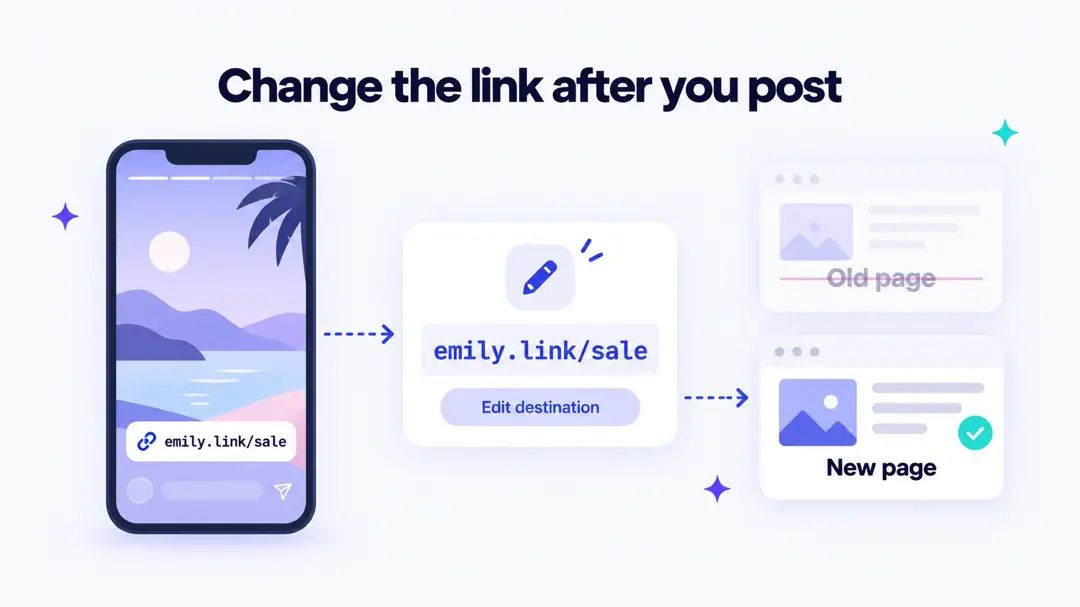
You cannot edit a Snap after you post it. To change the link, delete the Snap from your Story and post it again with the new URL. Or attach a short link that you can point to a new page later (more on that below).

Snapchat link vs. shareable link: what is the difference?
Snapchat has two features with similar names. The paperclip link in this guide adds a website to your Snap. A shareable link works the other way around: it is a public web link to one of your Snaps or Memories that you can post outside Snapchat. Anyone who has a shareable link can view that content, and Snapchat says the link expires around 36 hours after you create it. You can also delete it earlier from the link’s menu in the Snapchat app.
How brands can leverage Snapchat links?
Snapchat has approximately 493 million daily active users (Snap Inc., second quarter of 2026), making it a valuable platform for brands to effectively reach their target audience. Using the Snapchat linking feature is a smart way for brands to maximize engagement and guide followers to key content. Features like Snapchat Planets also offer brands new ways to understand user interactions and strengthen their community.
Here’s how brands can make the most out of their Snapchat link:
Control and direct traffic
By adding a Snapchat link, brands gain control over where their followers go next after swiping up on a snap. Whether directing users to the homepage, a specific product page, or a demo page, brands can guide their audience’s journey within the app.
Gain insights with powerful analytics
Each swipe up on Snapchat gives valuable engagement data. Analyzing these interactions enables brands to better understand the audience’s behavior and preferences, allowing for more targeted marketing strategies.
Utilizing tools like Replug not only shortens links but also provides valuable insights into user engagement and the effectiveness of different types of content. By tracking click data and analyzing other metrics, brands can refine their marketing initiatives and optimize their Snapchat presence.
Using a link shortener
Replug’s short URL generator free can provide short links and streamline the process of sharing them on Snapchat effortlessly. Shortened links are cleaner and take up less space, making them more visually appealing and easier for users to engage with.
A short link also fixes a Snapchat-specific problem: you cannot edit a Snap after posting it. If you attach a Replug link, you can change where it points later, for example when a sale ends or a page moves, and the Snap already on your Story keeps working. Each Snap can also get its own link, so you can compare which Story sent the most clicks.
Craft comprehensive social media strategies
Maximizing the use of Snapchat features, including links, is crucial for developing a robust social media strategy. Brands that harness the full potential of Snapchat links can initiate conversations, explore relevant topics, and expand their reach to a wider audiences.
Frequently asked questions

Manahil