Instagram has made it easier than ever to share valuable resources and information with your followers. You can now add links to your Instagram Stories, regardless of your account size. Whether you’re a business, creator, or an individual, this feature empowers you to connect with your audience in new ways.
In this guide, we’ll show you how to add a link to your Instagram story, enabling you to share what matters most to you. Let’s get started.
Quick answer: create your story, tap the Stickers icon at the top, choose Link, paste your URL and tap Done. Drag the sticker where you want it, then share the story. People who tap the sticker go to your page. Instagram opened the Link sticker to all accounts in October 2021, except new accounts and accounts that repeatedly break its rules, according to Instagram’s announcement.
Why do you need to add a link to your Instagram story?
Adding a link to your Instagram story serves several important purposes:
- Share resources: You can direct your followers to external websites, articles, or resources related to the content of your story. This is valuable for sharing information, promoting products or services, or providing additional context.
- Drive traffic: If you have a website, blog, or online store, adding a link to your story can help drive traffic to your site. This is essential for businesses and content creators looking to expand their online presence.
- Enhance engagement: Links in stories can prompt user interaction. When viewers tap on the link, it provides a way for them to engage further with your content, whether it’s to learn more, shop, or explore related content.
- Promote events: If you’re hosting an event, webinar, or live stream, you can use links in stories to invite your audience and provide event details or registration links.
- Support causes: Advocates and change-makers can use links to share information about social causes, fundraisers, or petitions, helping raise awareness and drive action.
- Connect with your audience: Adding links enables you to offer your followers valuable resources, making your content more relevant and engaging.
Who can use the Instagram link sticker?
- All account types. Personal, creator and business accounts can add the Link sticker, regardless of follower count. Instagram dropped the earlier limit to verified accounts and accounts with a certain number of followers when it expanded links in stories to everyone on October 27, 2021.
- Not new accounts or rule breakers. The same announcement says new accounts and accounts that repeatedly share hate speech, misinformation or other content against the Community Guidelines don’t get the Link sticker.
- Organic stories only. According to Instagram Help, link stickers only work in regular (organic) stories. Story ads use a call-to-action sticker set in Meta Ads Manager instead.
- Not every sticker everywhere. Instagram’s stickers help page notes that not all stickers are available to everyone and that some may be unavailable in certain regions, and it recommends updating the app if a sticker is missing.
How to add a link to your Instagram story?
Here’s how to add a link to your Instagram story:
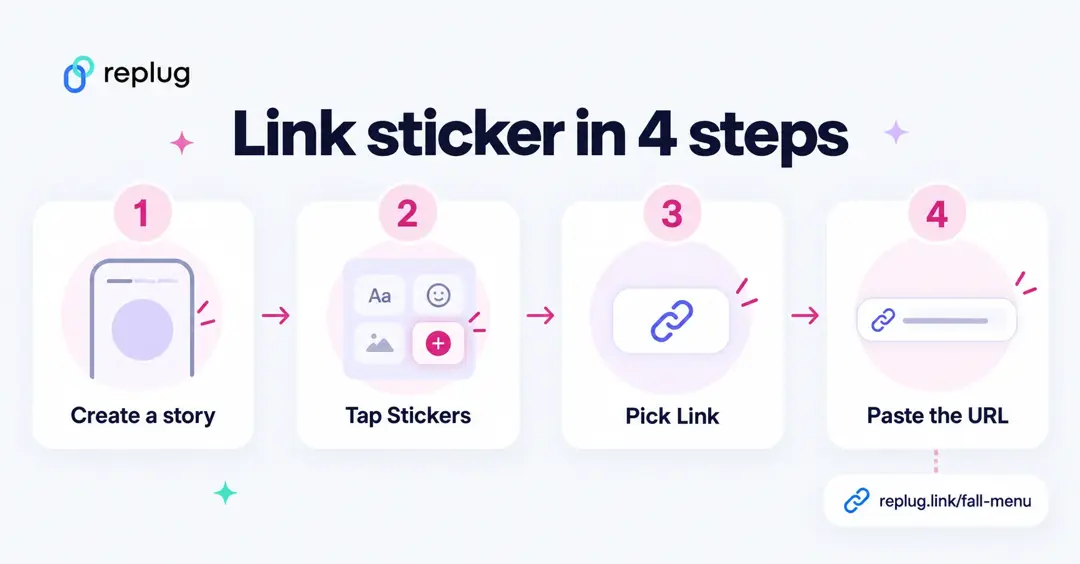
Step 1: Open Instagram
Ensure you have the Instagram app installed on your mobile device. Log in to your Instagram account if you’re not already logged in.
Step 2: Access your story creator
Tap your profile picture or swipe right from your home feed to access the story creator.
Step 3: Capture or upload content
At the bottom of the screen, you’ll see options to capture a photo or record a video using your device’s camera. Alternatively, you can swipe up or tap on the gallery icon to upload existing content from your camera roll. Choose the content you want to add to your story.
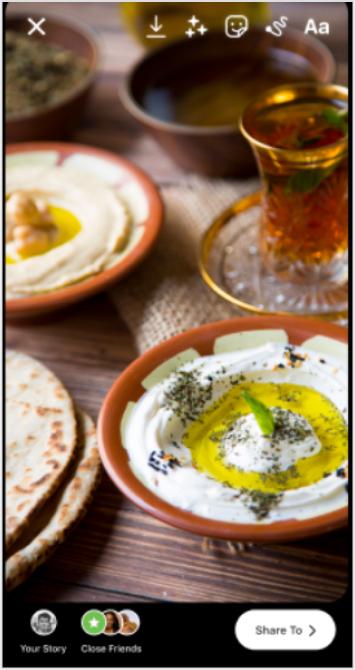
Step 4: Access the sticker tool
After capturing or uploading your content, you can enhance your story with various stickers and features. To add a link to your story, tap the “Sticker” icon from the top navigation bar.
Also read: How to add YouTube links to Instagram story?
Step 5: Add the link sticker
In the sticker options, locate and tap on the “Link” sticker. This sticker is used to add the link you want to share with your followers.
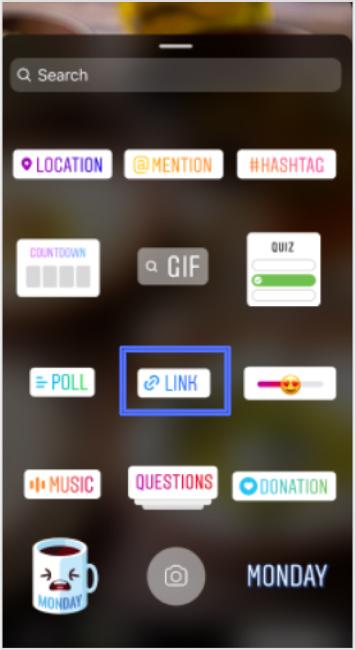
Step 6: Enter your desired link
A pop-up window will appear, allowing you to enter the web link you want to share. Type or paste the URL into the provided space.
Step 7: Confirm and customize
After entering the link, tap “Done” to confirm. You can also customize the appearance of the Link sticker by tapping on it, which may allow you to choose from different color variations or styles, depending on Instagram’s features at the time.
Step 8: Place the sticker on your story
Now, you can place the Link sticker on your story. Simply drag and drop it onto your image or video, just like you would with other stickers.

Also read: How to add multiple links in one link: 7 easy methods explained!
Step 9: Publish your story
Once you’re satisfied with how your story looks with the added link, you can proceed to share it with your followers. Tap the “Your Story” button at the bottom of the screen to post your story.
Step 10: Viewers interact with the link
When someone views your story and taps on the Link sticker, they will be redirected to the web page you’ve shared.
Important Note: Instagram has certain safety measures in place. New accounts and accounts that repeatedly share harmful content or violate community guidelines may not have access to the Link sticker feature. Be sure to follow Instagram’s guidelines and policies to maintain access to this and other features.
Link sticker not showing? Quick fixes
- Update Instagram from the App Store or Google Play, then close and reopen the app.
- Open the sticker tray and type “link” in the search box at the top.
- Check that you are posting a regular story, not an ad or a boosted story.
- If your account is new, keep using it normally for a while; Instagram doesn’t give the sticker to brand-new accounts.
- Check Account Status in your settings for any restriction on your account.
- If you still can’t add it, put the link in your bio and write “link in bio” on the story.
Track clicks on your story link
A story lasts 24 hours, so it helps to know quickly whether the link worked. Instagram’s insights help page lists views, viewers, interactions and accounts engaged for each story, but it doesn’t document a separate count of link sticker taps. Two simple ways to measure the link itself:
- Add UTM tags to the URL before you paste it, for example
?utm_source=instagram&utm_medium=story&utm_campaign=fall-menu. Your website analytics then shows visits from that story. - Use a short link with its own analytics. In Replug, shorten the URL (UTM tags included), paste the short link into the sticker and check its clicks, countries, devices and referrers. Click history is 14 days on the Free plan and 90 days on Essentials, according to Replug’s pricing page.
A separate short link per story also lets you compare stories against each other, and the same link can go in your bio after the story expires.
Replug: Simplify your social media link management
Managing links on social media platforms like Instagram can be a crucial part of your online strategy. Replug is a comprehensive link management platform and bio-link tool designed to simplify this process.
With Replug’s efficient short URL generator, you can create shortened, trackable links that are perfect for Instagram bio links or sharing in your stories. This Instagram link shortener provides valuable analytics to help you measure the performance of your links, including click-through rates and audience engagement data.
Whether you’re a marketer, business owner, or content creator, Replug can enhance your social media marketing efforts by making link management effortless and effective.
Try Replug today and take control of your links to maximize your online presence.
FAQs on adding a link to Instagram Story

Arslan Jadoon