Instagram lets you add up to 5 links in your bio now, but that doesn’t mean they’re all going to convert. When it comes to personal branding or promoting a business on Instagram, every detail matters, including the link in your bio.
Your Instagram bio is one of the first things visitors notice, and it’s a powerful tool to drive traffic to your website, blog, or other social media profiles. If you’re pasting a long, messy URL straight into your profile, you’re missing the point. Instead, rename it using a branded short link.
Let’s walk through how to rename your Instagram bio link, and how to stretch its potential using Replug.
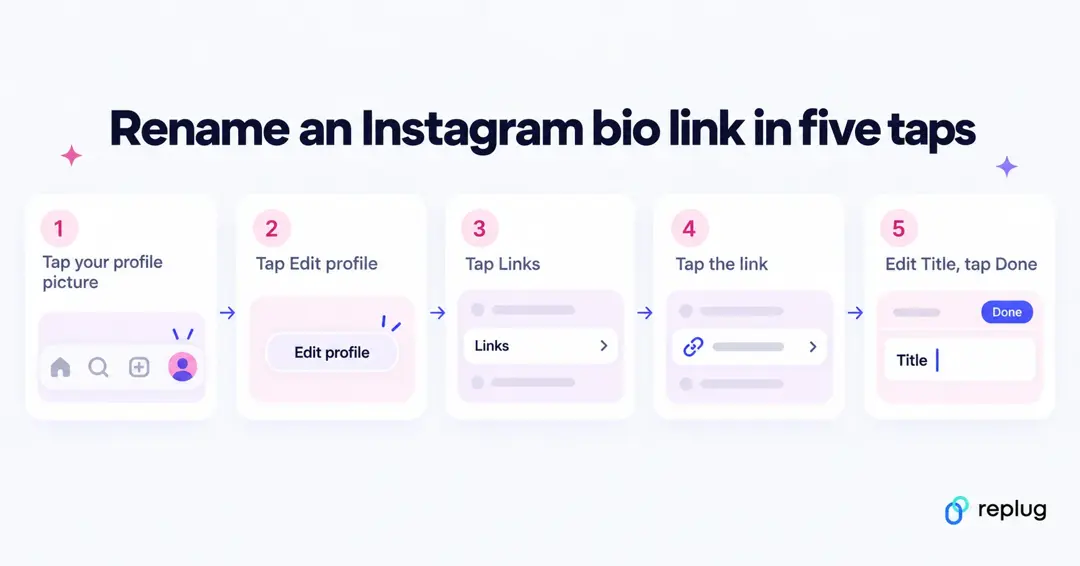
Quick answer: to rename a link in your Instagram bio, tap your profile picture in the bottom right, tap Edit profile, tap Links, tap the link you want to rename, type a new name in the Title field, then tap Done (iPhone) or the checkmark (Android). You can change the URL on the same screen. Instagram lets you add up to 5 links, and managing them only works in the iPhone and Android apps, not on a computer. These steps match Instagram’s Help Center as of October 2026.
So, let’s get started!
How to rename a link in your Instagram bio?
To rename a link in your Instagram bio, follow these easy steps:
Step 1: Make sure you’re logged in so you can access your profile settings.
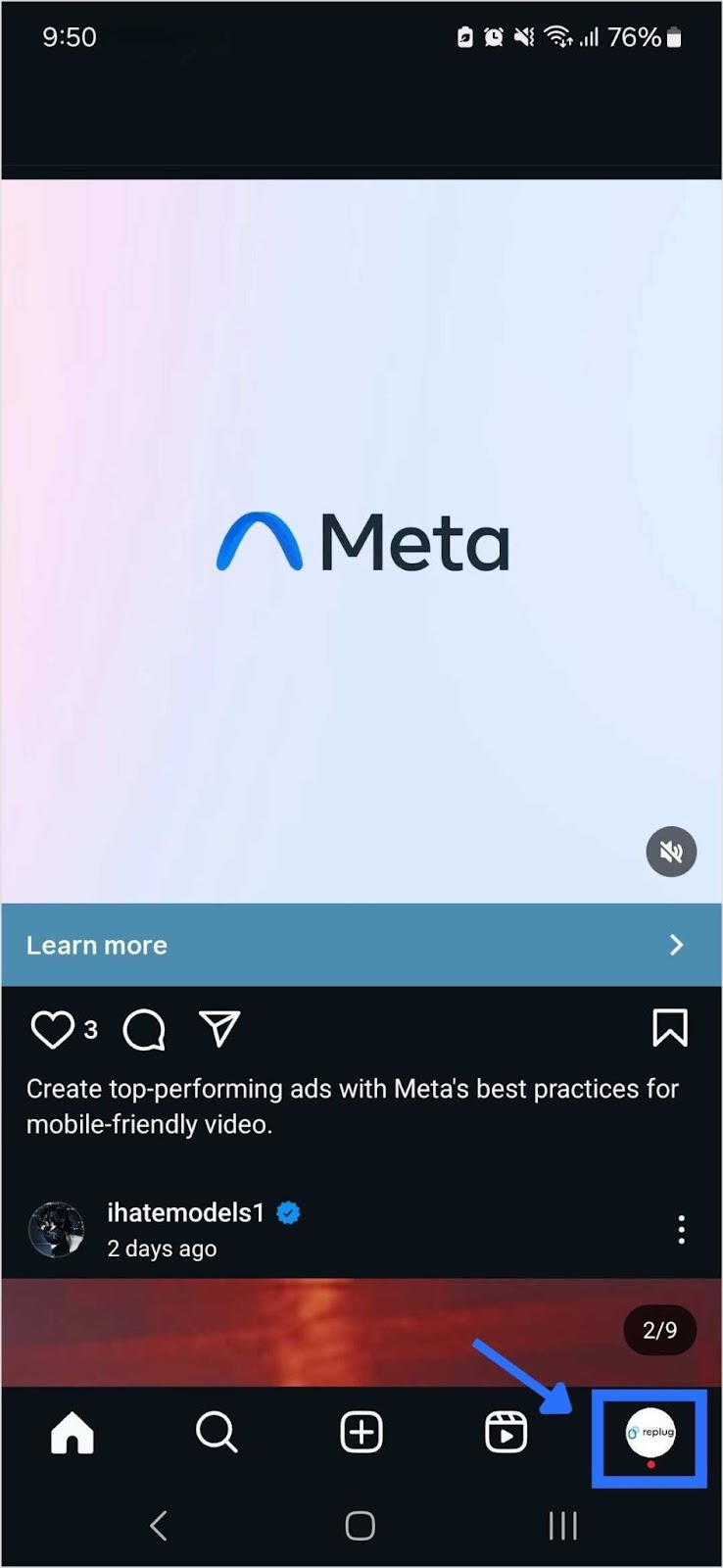
Step 2: Tap the “profile icon” in the bottom-right corner of your screen to go to your Instagram profile.
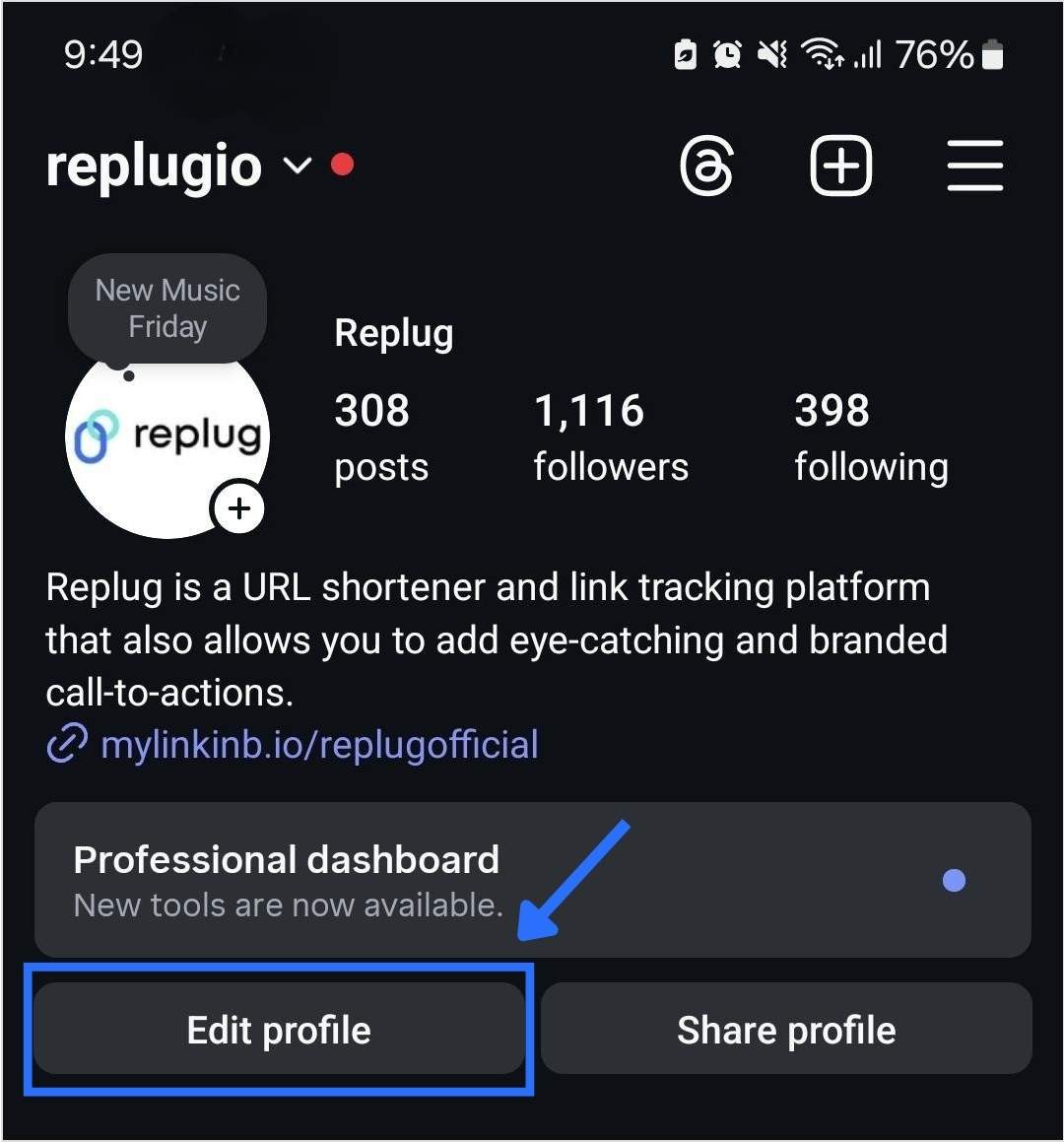
Step 3: Once on your profile, tap the “Edit Profile” button. You’ll find it just below your profile picture and bio.
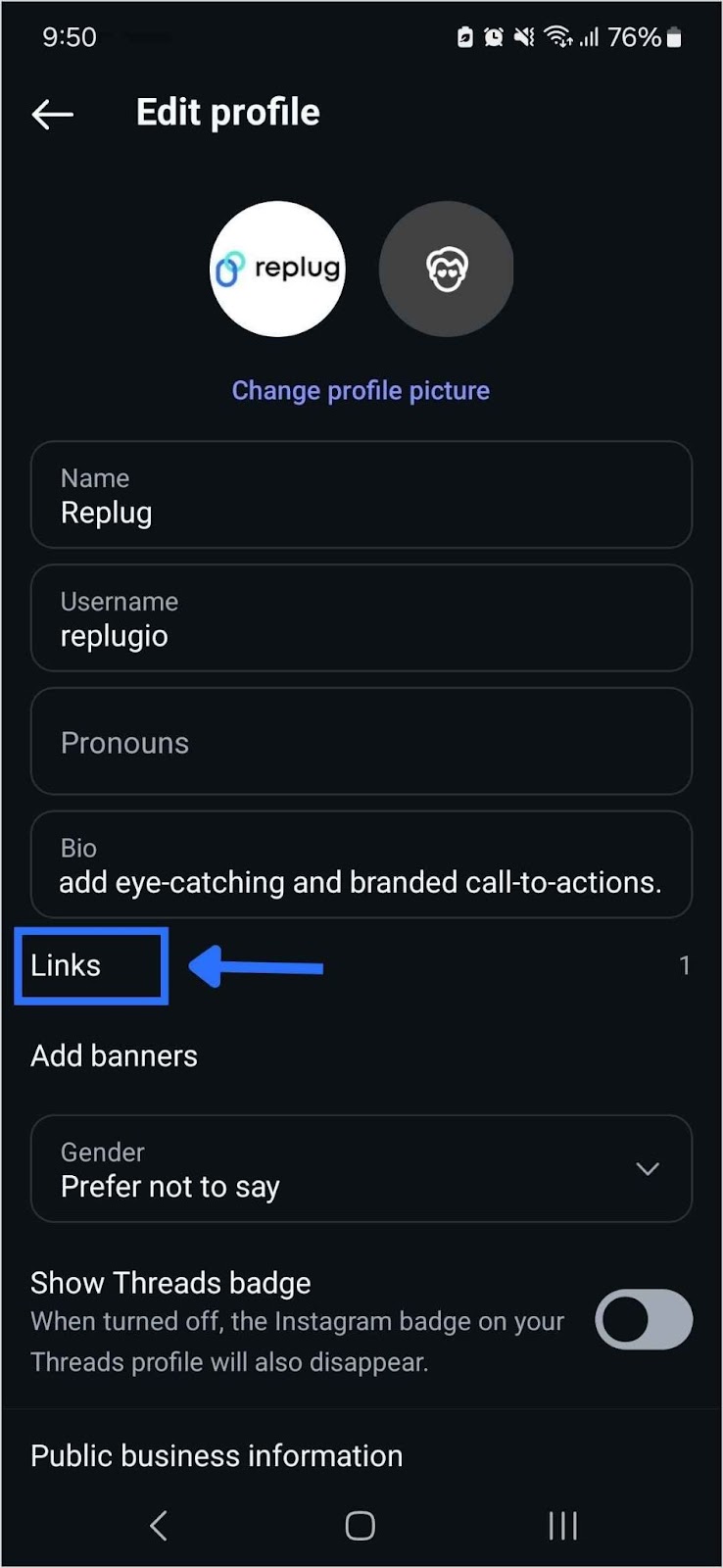
Step 4: Click on “Links”. Choose the one you want to rename.

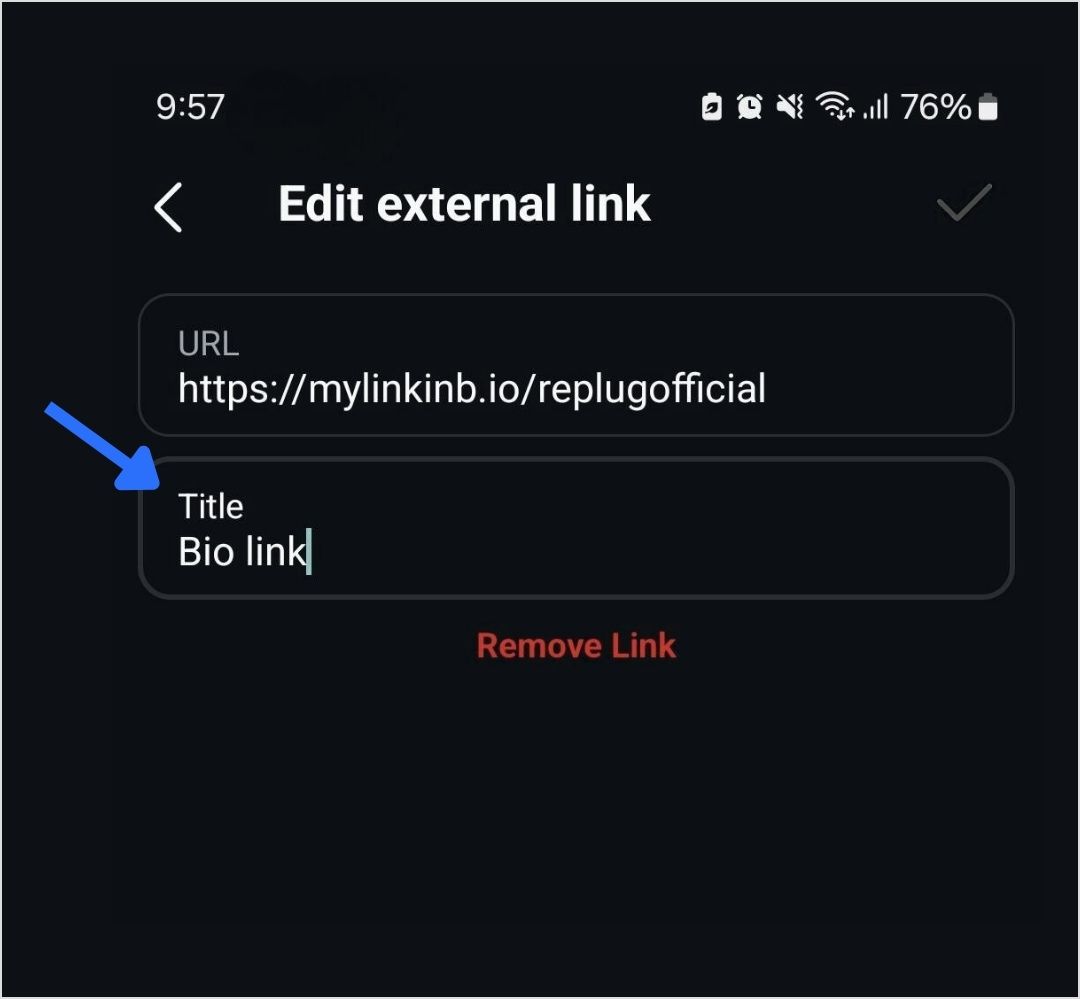
Step 5: Change link name on Instagram by simply typing in your desired Title for the link you selected.
Step 6: Tap the save icon in the top-right corner to apply your changes: Done on iPhone or the checkmark (✓) on Android. Your renamed link will now appear in your bio. (The new title shows in the list of links people see when they tap your link; see below for where it appears.)
Read also: How to get to the link in the bio on Instagram?
Two ways to rename an Instagram bio link
“Renaming” a bio link can mean two different things, and they show up in different places:
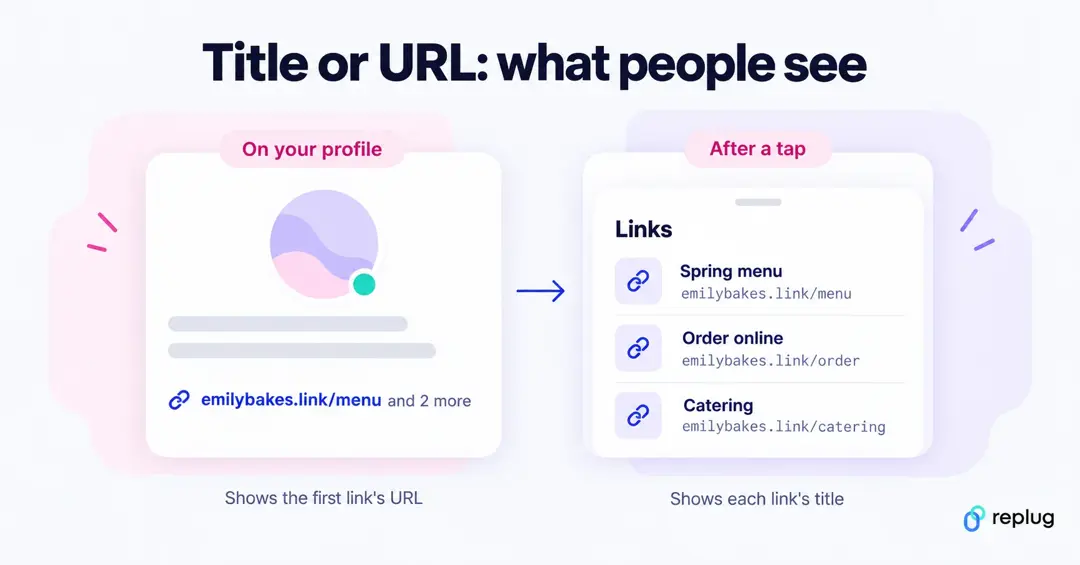
| The link title | The link address (URL) | |
|---|---|---|
| What it is | A label you type in the Title field, such as “Shop the spring menu” | The web address itself, such as yourbrand.link/menu |
| Where people see it | In the list of links that opens when someone taps the link on your profile | On your profile, under your bio (the first link, with a note such as “and 2 more” if you have several) |
| How to change it | Edit profile → Links → tap the link → Title | Paste a different URL into the URL field, or use a shorter, branded link |
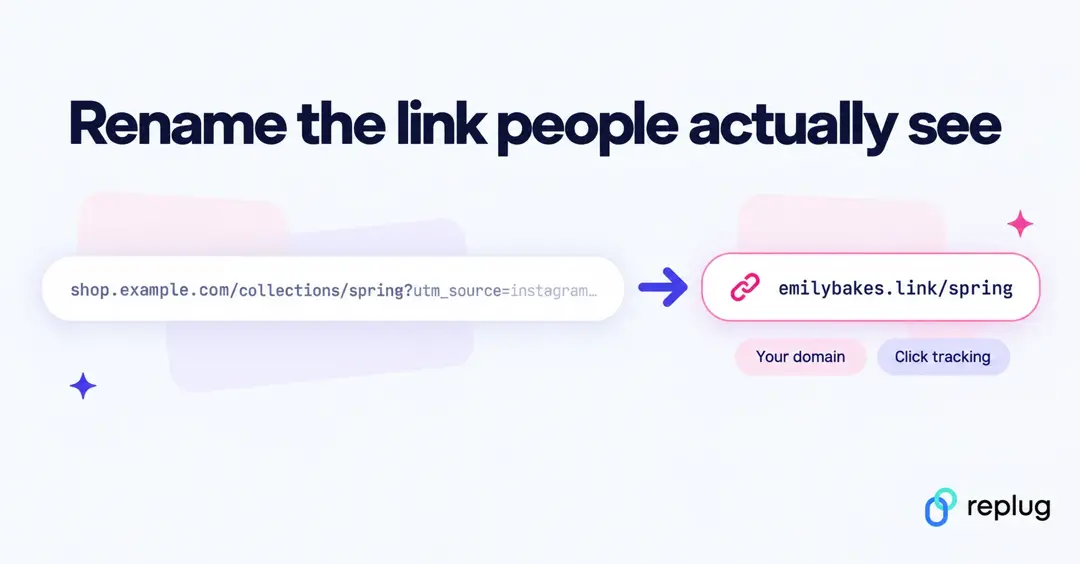
So if you want the words people see on your profile to change, a new title alone won’t do it: change the address. A long tracking URL such as shop.example.com/collections/spring?utm_source=instagram&utm_medium=bio gets cut off, while a branded short link such as emilybakes.link/spring reads cleanly and tells people where they’re going. With Replug you can put short links on your own domain (the free plan includes 3 custom domains), pick the ending of the link (custom slugs come with paid plans), and see how many people tap it in click analytics.
How to change the URL of a link in your Instagram bio
To swap the address a link points to, keep the link and edit it in place:
- Tap your profile picture in the bottom right to open your profile.
- Tap Edit profile, then tap Links.
- Tap the link you want to change.
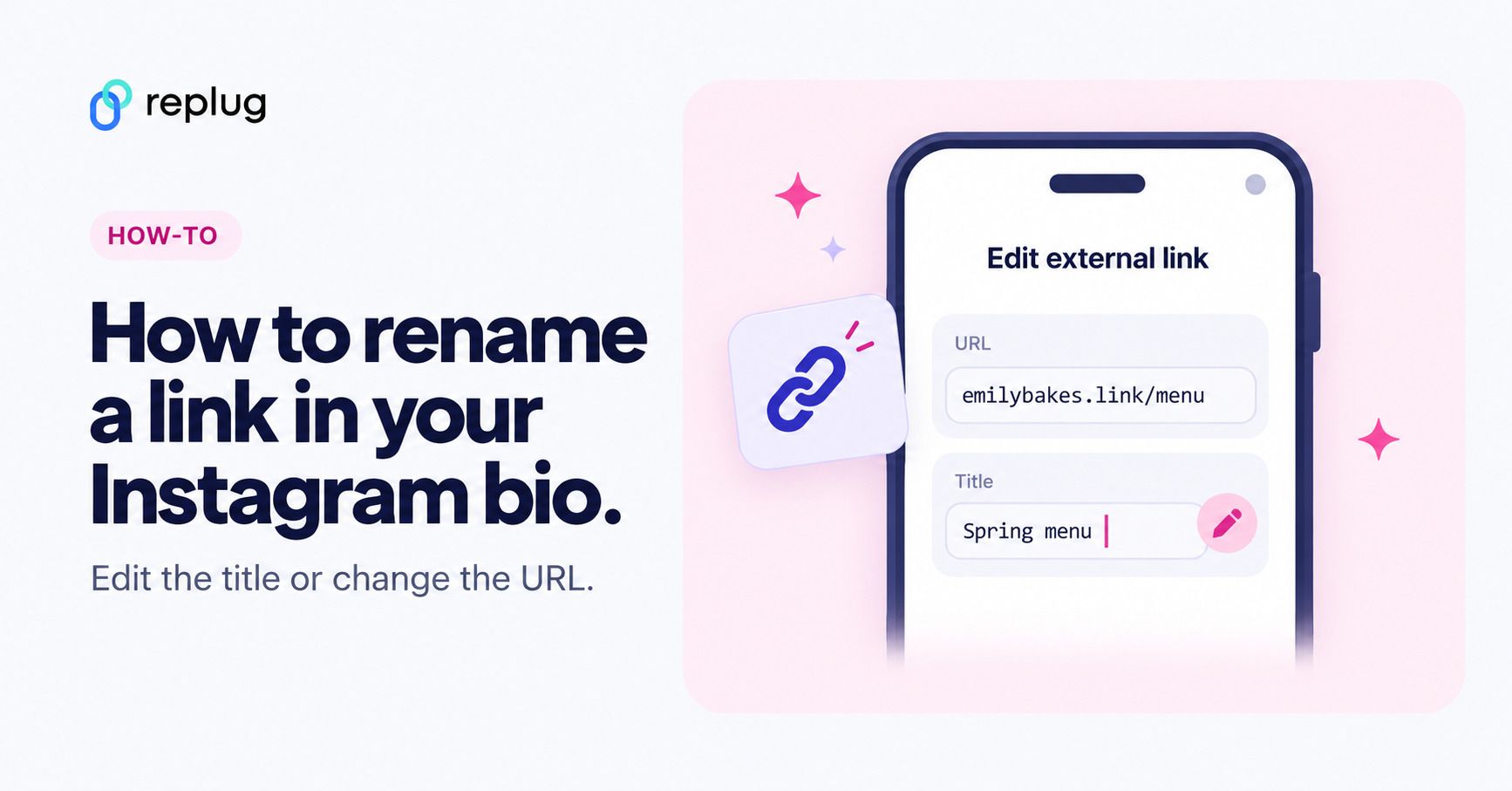
- Delete the old address in the URL field and paste the new one (include https://). Update the Title too if it no longer fits.
- Tap Done (iPhone) or the checkmark (Android), then go back to your profile and tap the link to test it.
If you change the destination often (a new drop every week, a seasonal menu, the latest video), there’s another option: put a short link in your bio once and change where it points from your link manager. On Replug’s Scale and Agency plans you can edit a link’s destination after sharing it, so the link in your Instagram bio stays the same and visitors land on the new page.
Why is my Instagram link title not showing?
This is the most common surprise after renaming a link. Instagram’s Help Center doesn’t say where titles appear, but in the current app the profile itself shows the web address of your first link, not its title. Titles appear in the list of links that slides up when someone taps that link. If the title still doesn’t show there, work through these checks:
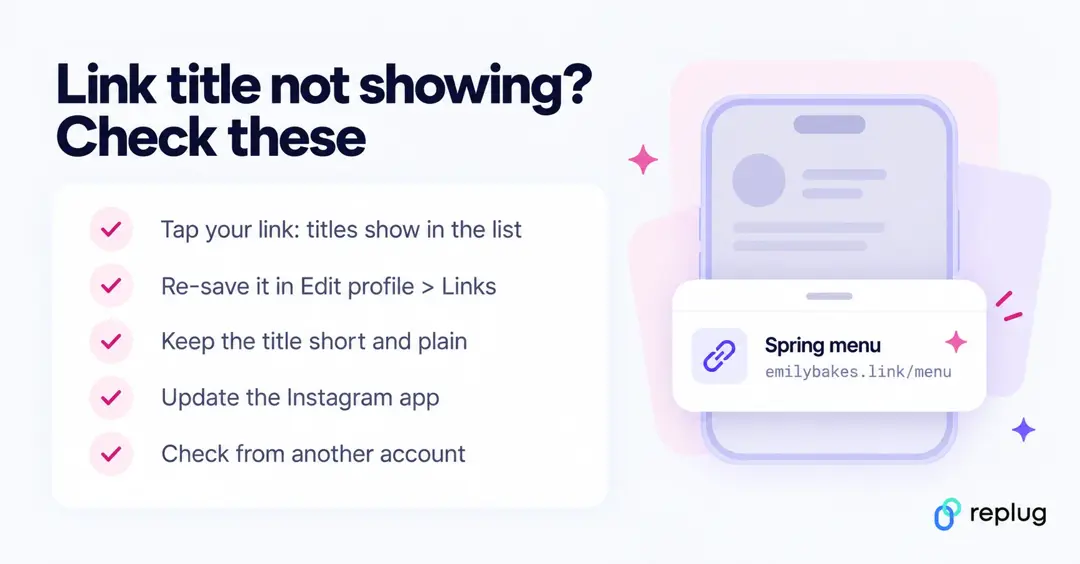
- Check the list, not the profile. Tap your own link on your profile. If the title shows in the list that opens, it saved correctly.
- Re-save the link. Go to Edit profile → Links, tap the link, retype the title and tap Done or the checkmark.
- Keep the title short and plain. A few words without unusual symbols displays most reliably.
- Update the Instagram app from the App Store or Google Play, then check again.
- Check from another account or device. This rules out a display problem on one phone.
- Want words people see without tapping? Put them in your bio text above the link (for example “New spring menu ↓”), or use a link address that says what it is.
How to add, remove and reorder links in your Instagram bio
Everything happens under Edit profile → Links in the Instagram app:
| Task | Steps |
|---|---|
| Add a link | Links → Add external link (iPhone) or Add link (Android) → paste the URL, add a title → Done |
| Rename a link | Links → tap the link → edit Title → Done or ✓ |
| Change a link’s URL | Links → tap the link → edit URL → Done or ✓ |
| Remove a link | Links → tap the link → Remove link |
| Reorder links | Links → options menu → Reorder links → drag → Done |
| Limit | Up to 5 links; your profile shows the first one |
| On a computer | Not available: Instagram’s Help Center says this feature works only in the iPhone and Android apps |
If five links aren’t enough, or you want one place to update everything, point one link at a link-in-bio page. Our guide to adding multiple links to Instagram compares the options, and if you’re cleaning up instead, see how to remove a link from your Instagram bio.
What is a “link in bio” on Instagram?
A “link in bio” on Instagram refers to the clickable URL that users can include in their profile’s bio section. Since Instagram does not allow clickable links in individual posts, the link in bio is a valuable method for directing followers to external content, such as websites, blog posts, online stores, or other social media profiles.
Why it’s important:
- Traffic and conversion: The link in bio is a direct avenue to convert Instagram engagement into website traffic, sales, or other conversions. It’s an essential part of any Instagram marketing strategy.
- Branding: A well-curated link and description contribute to a cohesive brand experience on Instagram, helping users quickly understand what to expect when they click the link.
How to make the most of your Instagram bio links?
Renaming your Instagram link might seem like a small tweak, but it plays a big role in shaping user expectations, strengthening your branding, and increasing click-throughs.
And if you’re managing multiple destinations, you can use Replug’s free bio link maker, which allows multiple links to be hosted on a single landing page.
Here’s how Replug can enhance your Instagram bio link:
- Customizable landing page: Customize your branding by adding a profile name, description, profile image, cover photo, and brand colors.
Additional tip: Enhance your visuals with a photo editor to give your bio link page a personal touch. - Multiple links: Share links to your latest blog posts, online store, social media channels, promotional offers, and more in one place.
- Analytics: Track link performance to see which links are getting the most clicks, allowing you to optimize your content strategy based on data.
Quick tips to make your Instagram bio link count
- Add a relevant CTA: When it makes sense, add a call-to-action (CTA) to your link title like “Shop Now,” “Learn More,” or “Subscribe.” CTAs give your audience clear direction and can increase both clicks and conversions from your bio link.
- Use custom, branded URLs: Custom URLs do more than save space; they make your bio look cleaner and more intentional. Using tools like Replug’s URL shortener free tool, you can create branded links that match your style, improve trust, and keep your Instagram profile looking sharp.
- Keep it short: Long or cluttered titles can be overwhelming and easy to skip. A short, punchy title is more scannable, looks better in your bio, and makes it easier for followers to know exactly what to expect when they click.
- Keep it clean: Avoid clutter in your link titles. Skip unnecessary punctuation, symbols, or random emojis. A clean, straightforward title is easier to read and looks more polished in your bio.
- Match your brand voice: Your link title should reflect your brand’s tone, whether that’s casual, bold, or professional. Brand consistency helps build trust and makes your profile feel more intentional.
You may also like: How to remove link from Instagram bio?
Final thoughts
By utilizing an efficient link management platform, and implementing effective strategies, you can transform your Instagram bio links into a powerful driver of traffic and engagement. Regular updates, strong CTAs, and a well-structured landing page can significantly enhance the user experience and help you achieve your marketing goals.
FAQs for how to rename a link on Instagram bio

Manahil