Your Instagram bio is your brands first impression, and it matters. It’s more than just a few lines of text. It’s a powerful tool to establish your brand identity and drive traffic to your brand.
Brands lose potential leads and drop conversion rates instantly as they’re not familiar with the platform’s algorithm or best practices. Some of the most important pointers to maximize your Instagram profile’s bio is knowing
- How to remove link from Instagram bio?
- How to maximize the limited space in your bio?
- How to rename your Instagram bio link?
When crafting your Instagram bio, consider including some of the following:
- A short description of your brand
- A branded call-to-action (CTA)
- A bio-link
- Your website link
- A microsite link
Don’t forget that the URL in your bio channels your followers to an external website, a new landing page, a microsite, or other relevant destinations, expanding your influence beyond Instagram.
Let’s optimize it together.
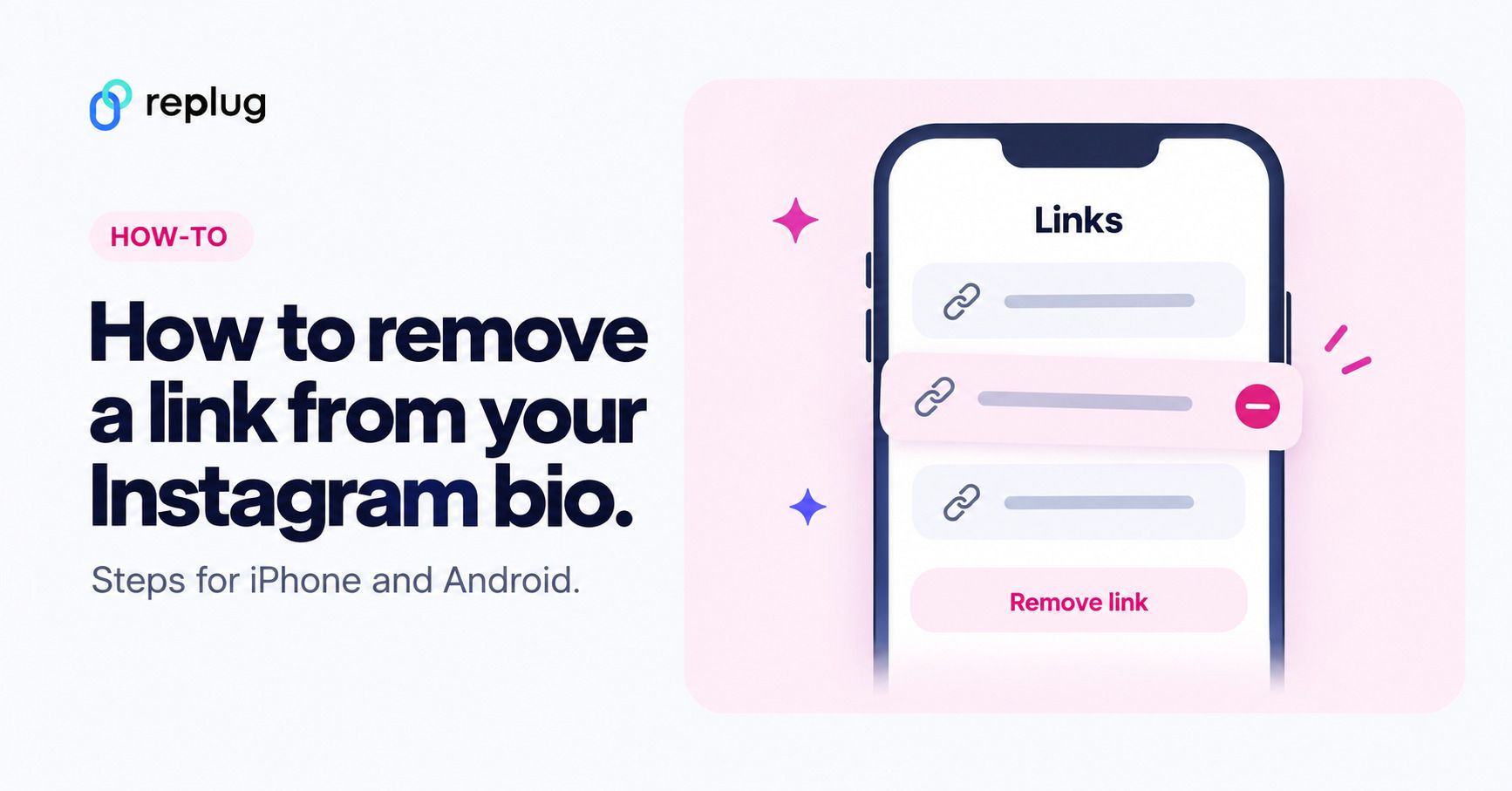
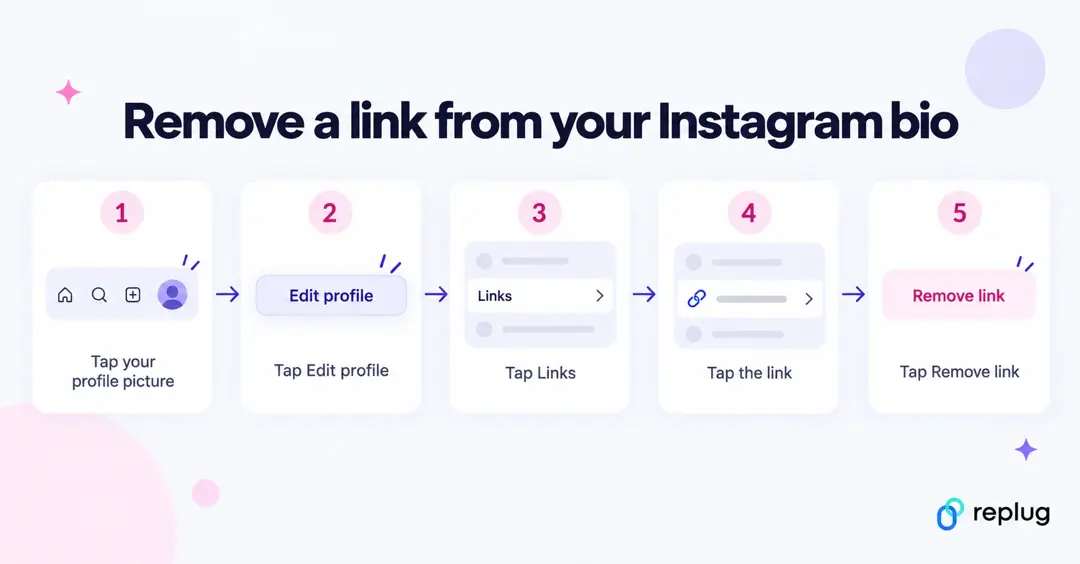
Quick answer: to remove a link from your Instagram bio, tap your profile picture in the bottom right, tap Edit profile, tap Links, tap the link you want to delete, then tap Remove link. Repeat for each link you want gone. This only works in the Instagram app on iPhone or Android; Instagram’s Help Center says managing links isn’t available on computers. A Facebook profile link and the Threads badge are removed differently; both are covered below.
Why I can’t remove the link from my Instagram bio?
There are a few potential reasons why you might be unable to remove a link from your Instagram bio:
- Instagram glitch: Sometimes, Instagram experiences temporary glitches. Try closing the app completely and reopening it. This might resolve the issue.
- Link shortener or third-party app: If you’re using a link shortener or a third-party app to manage your bio link, you might need to remove the link from that service first. Deleting or editing it there doesn’t take it off Instagram, though: the link stays on your profile until you remove it under Edit profile → Links.
- Outdated app: Ensure you’re using the latest version of the Instagram app. Outdated apps can sometimes cause issues.
- Cache issues: Clear your app’s cache or use a different device to see if the issue persists. Cached data can sometimes cause unexpected behavior.
- Account issues: Verify that your account hasn’t been flagged or restricted in any way, which might affect your ability to make changes.
- You’re on a computer: instagram.com doesn’t let you add or remove profile links. Open the Instagram app on your phone instead.
- It isn’t in your Links list: a Facebook profile link, the Threads badge and a URL typed into your bio text are each removed in a different place. See “How to remove other links from your Instagram profile” below.
Additional troubleshooting steps:
- Check internet connection: A poor internet connection can interfere with app functions.
- Try a different device: If possible, log in to Instagram from a different device to see if the issue persists.
- Wait it out: Sometimes, Instagram experiences temporary server issues. Waiting a few hours might resolve the problem.
If you’ve tried these steps and still can’t remove the link, contact Instagram support directly for further assistance.
How to remove a link from your Instagram bio?
Removing a link from your Instagram bio is a quick and easy process. Follow these steps to update your bio:
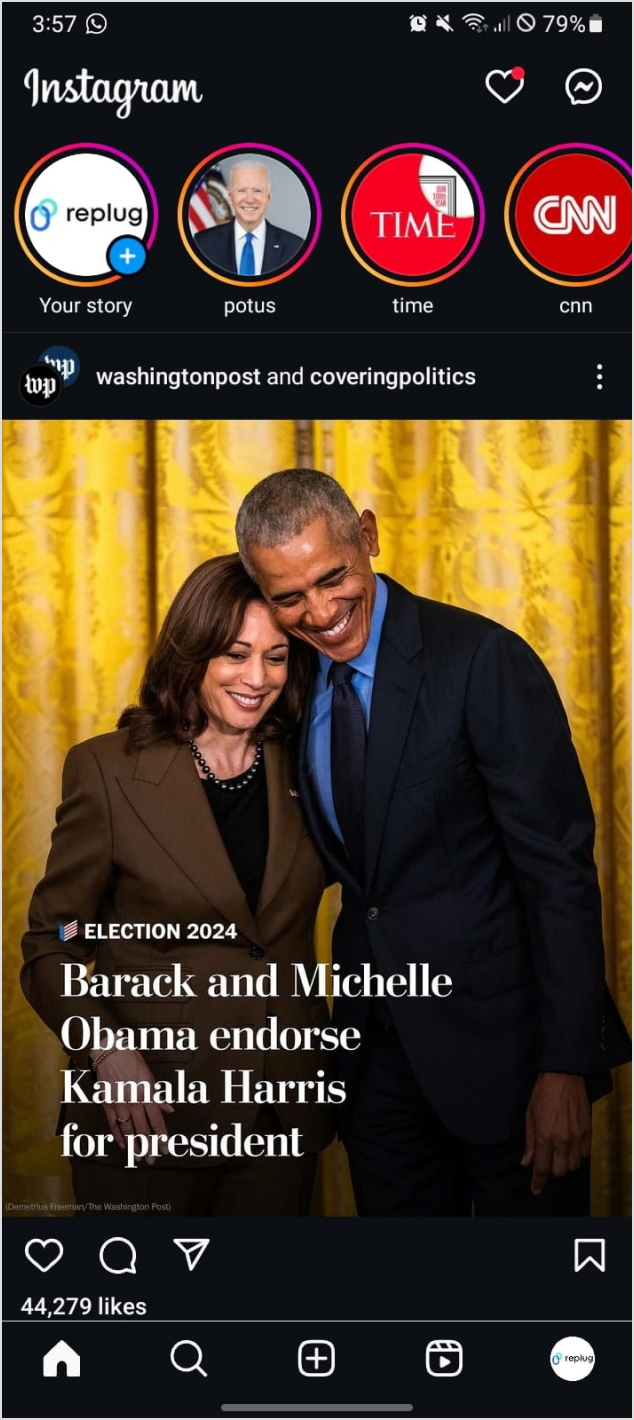
Step 1: Open the Instagram app on your device.
Step 2: Go to your profile
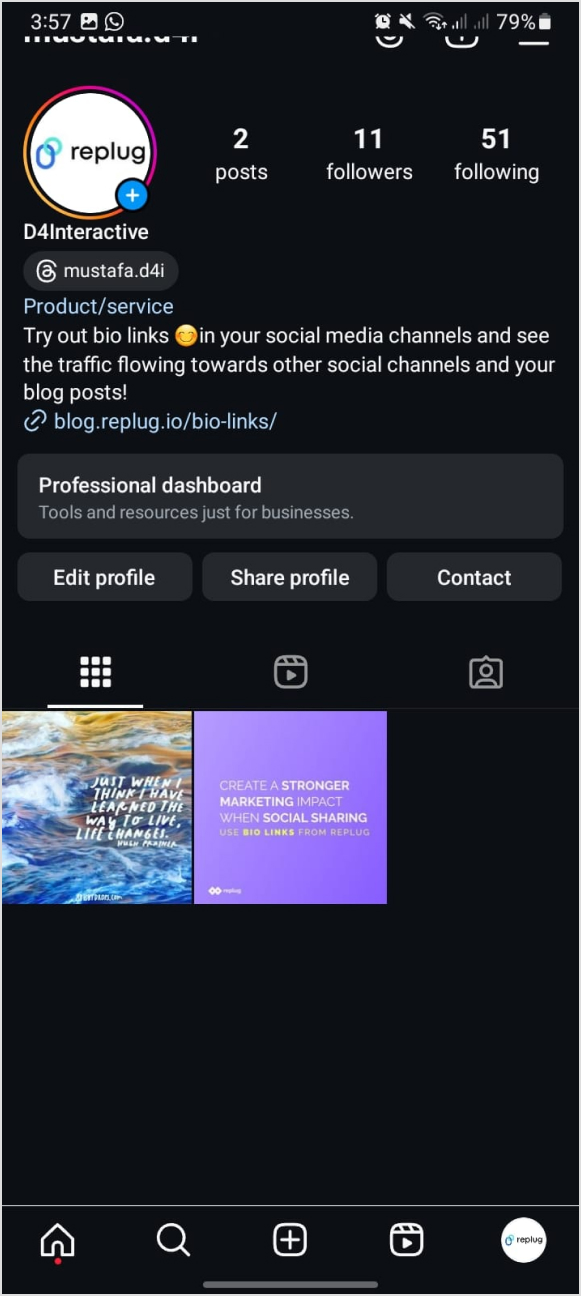
Tap on your profile picture in the bottom right corner of the screen to go to your profile page.
Step 3: Edit your profile
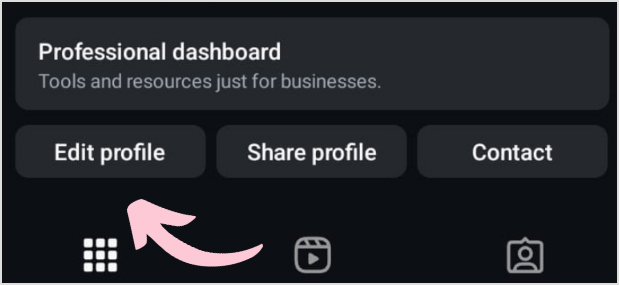
On your profile page, tap the “Edit Profile” button. This is usually located directly below your profile picture and bio.
Step 4: Open your links
In the “Edit Profile” screen, tap “Links”. This is where your current links are listed (Instagram allows up to 5; older versions of the app showed a single “Website” or “Link” field here).
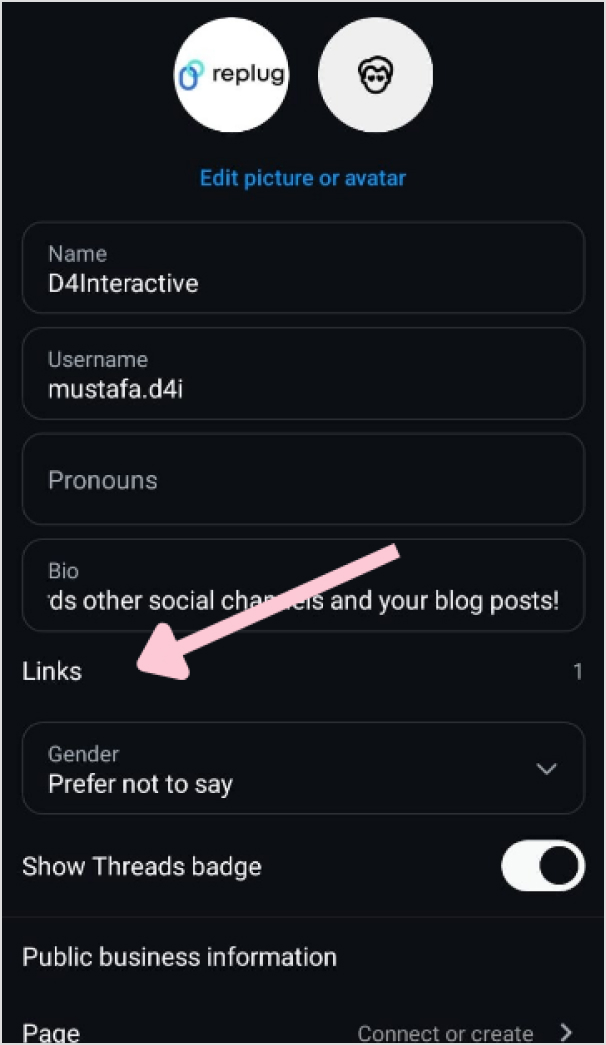
Step 5: Remove the link
Tap the link you want to delete, then tap “Remove link” and confirm. (In older versions of the app you tapped the “Link” field and deleted the text.)
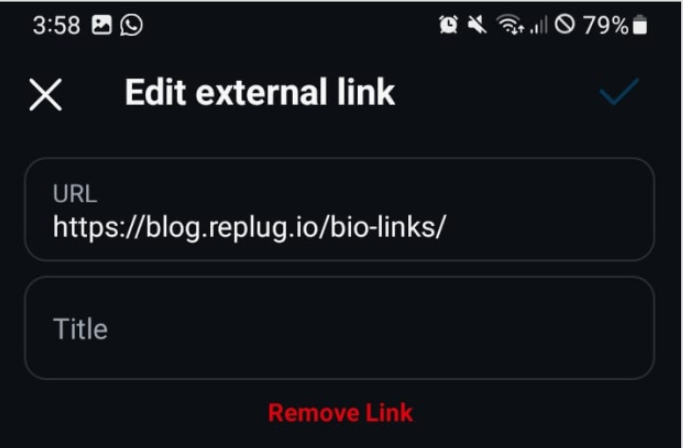
Step 6: Save your changes
Once you’ve removed the link, tap “Done” (iOS) or the checkmark (Android) in the top right corner to save your changes.
Refresh your profile: Go back to your profile page and refresh it to ensure that the link has been successfully removed.
And that’s it! You’ve successfully removed or updated the link from your Instagram bio.
Removing all of your links
There’s no “remove all” button. Repeat steps 4 and 5 for each link until the Links list is empty. If you only want a different link to show first, you don’t need to delete anything: in Links, open the options menu, tap Reorder links and drag your favorite to the top.
How to remove other links from your Instagram profile
Not every link on a profile lives in the Links list. Find the one you’re trying to remove:
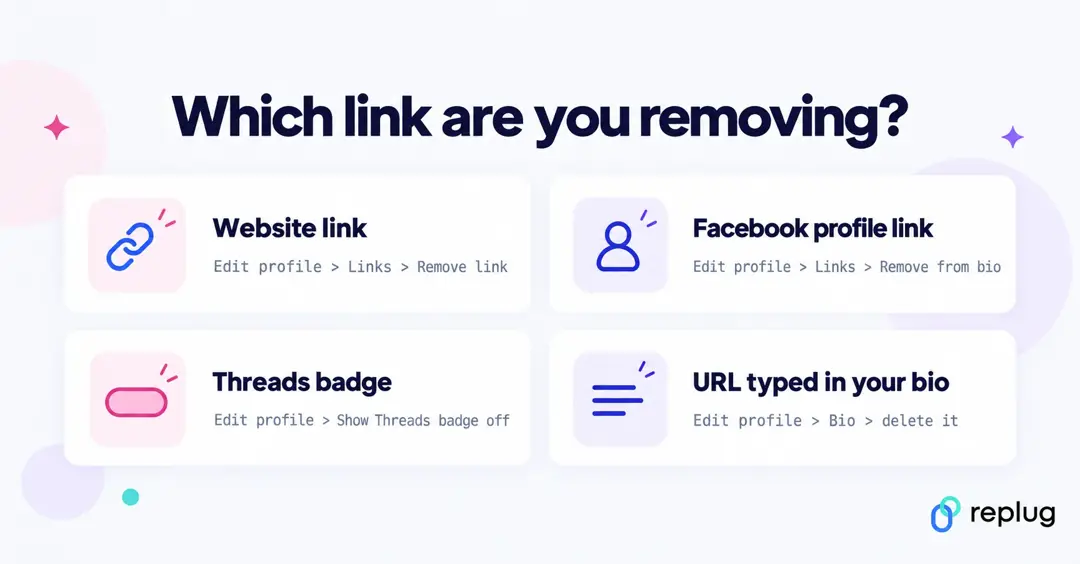
| What you see on your profile | Where to remove it |
|---|---|
| A web link under your bio (YouTube channel, Linktree, NGL, shop, website) | Edit profile → Links → tap the link → Remove link |
| A Facebook profile or Page link | Edit profile → Links → tap the Facebook entry → Remove from bio |
| The Threads badge next to your name | Edit profile → turn off Show Threads badge |
| A URL typed into the bio text | Edit profile → Bio → delete the text → Done or ✓ |
| Links you visited inside Instagram (not on your profile) | Profile → menu → Your activity → Link history → Clear or Clear all |
Remove a YouTube, Linktree or NGL link
These are ordinary profile links, so the steps above work for them. Removing a link from Instagram doesn’t close your YouTube channel, Linktree page or NGL account; it only takes the link off your profile. If an app added the link for you, check that app’s settings too so it doesn’t ask you to add it back.
Remove the Facebook link from your Instagram bio
If your Accounts Center connects Instagram and Facebook, your profile can show a link to your Facebook profile or Page. Go to Edit profile → Links, tap the Facebook entry and choose Remove from bio. This hides the link without disconnecting the accounts. To stop sharing between the apps entirely, remove the account in Accounts Center.
Hide the Threads badge
If you made a Threads profile with your Instagram account, a Threads badge can appear on your Instagram profile. Tap Edit profile and turn off Show Threads badge (Instagram’s Help Center calls it “Show Threads banner”). Turning it off also hides the Instagram badge on your Threads profile, and anyone who visits your profile can see the badge while it’s on, even if your account is private.
Remove a link typed into your bio
A URL typed into the bio text isn’t clickable, but it still takes up space. Tap Edit profile → Bio, delete it and save. While you’re there, check the Instagram bio character limit: removing a pasted URL frees up characters for a line about what you do.
What happens when you remove a link from your Instagram bio
- It disappears from your profile as soon as you save. If you remove the first link in your list, the next one takes its place on your profile.
- The page itself isn’t affected. Anyone who saved or shared the URL can still open it. A short link (from Replug or another shortener) keeps working until you delete or pause it in that tool.
- There’s no undo button. To bring a link back, add it again with Add external link (iPhone) or Add link (Android) and retype its title.
- Your other links stay as they are. Removing one link doesn’t change the titles or order of the rest.
Remove the link or just change where it goes?
People often delete a bio link because the page behind it is out of date: last month’s sale, an old video, a sold-out product. In that case you have two simpler options:
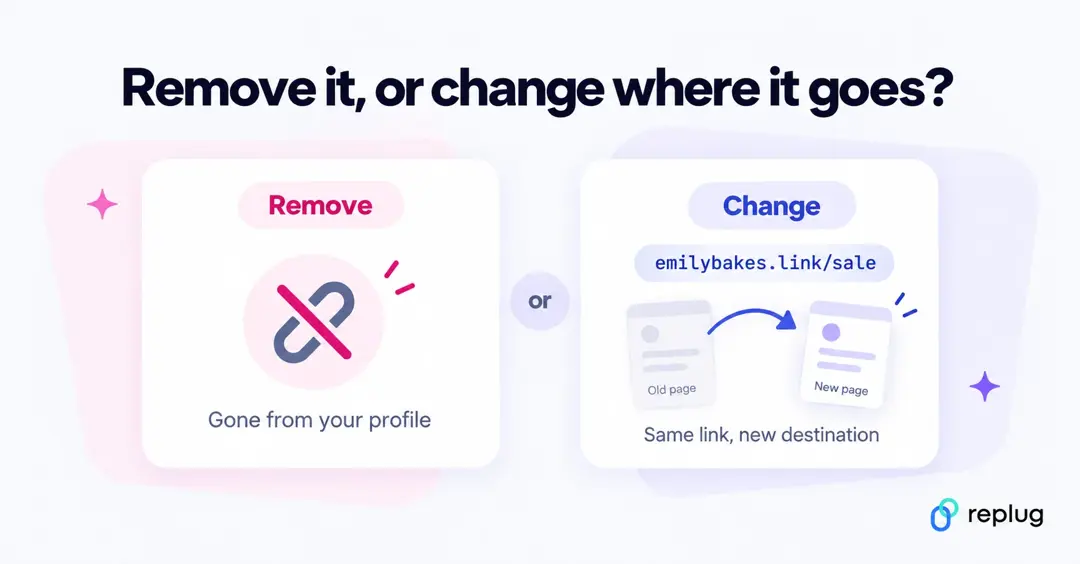
- Edit the link in place. In Edit profile → Links, tap the link and paste a new address into the URL field. Our guide on how to rename or change a link in your Instagram bio walks through it.
- Keep one short link and change its destination. If you put a Replug short link in your bio, Scale and Agency plans let you edit the destination after sharing, so your Instagram profile never needs touching. Click analytics show whether the old link was still getting taps before you retire it.
- Collect everything on one page. A link-in-bio page holds as many links as you need behind one URL, and you add or remove them there instead of in Instagram.
How to rename a link on Instagram bio?
Renaming a link on Instagram involves using link shortener tools that not only condense your URL but also allow customization of the link text to make it more appealing and memorable.
One of the best options is Replug. It is a top-notch, free link shortener tool that offers customization features.
Introducing Replug.io
Replug.io is a link management platform that simplifies URL sharing by creating branded short links and provides in-depth click tracking for performance optimization.
Steps to rename bio links on Instagram using Replug
Take the first step towards using Replug by creating an account.
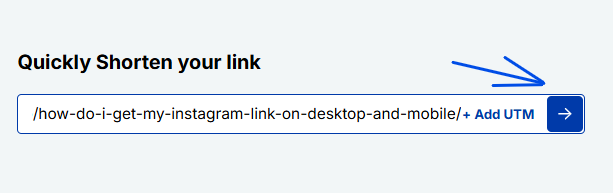
Step 1: In the top-left corner, paste the link you want to shorten into the input bar. Then, click the arrow icon next to it to proceed.
Step 2: You’ll be redirected to this page
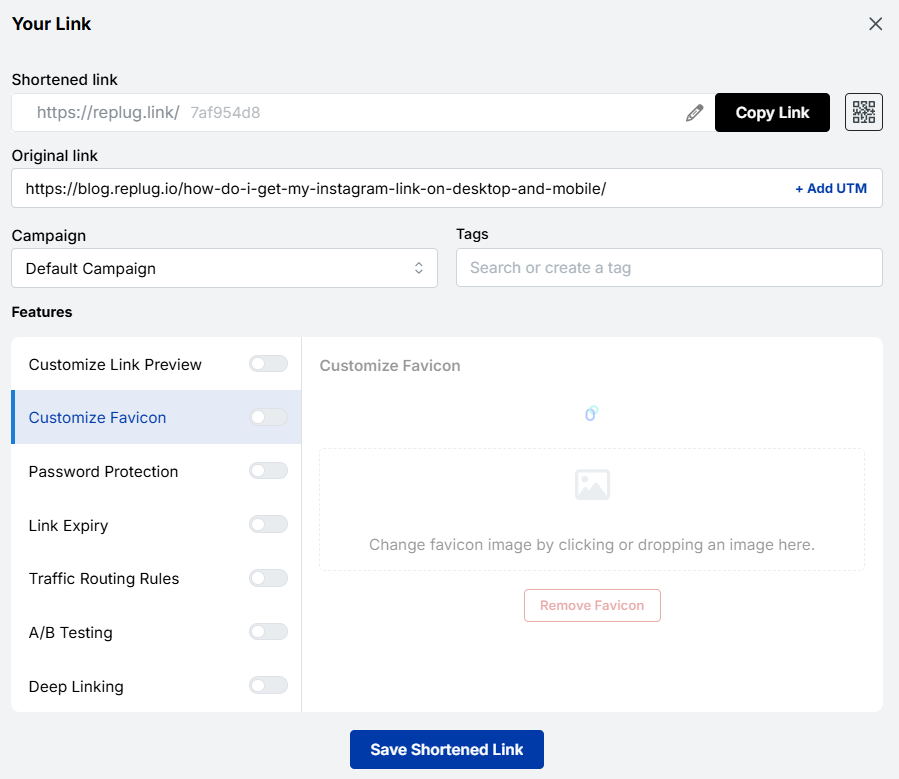
Click the pencil icon in the top bar to rename or customize your link.
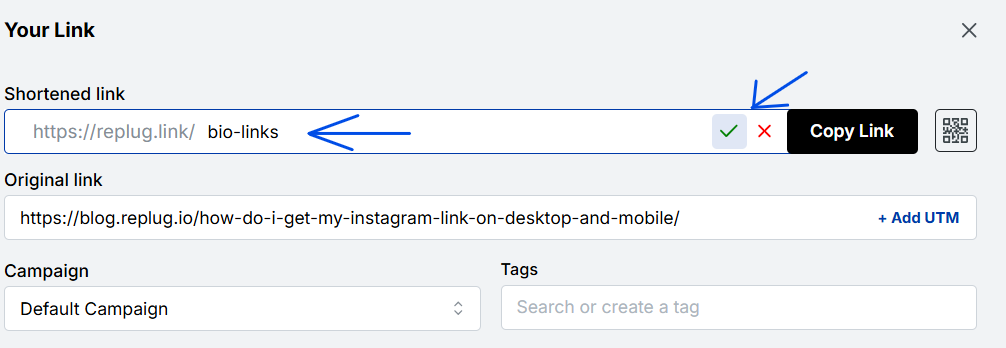
After editing, click the green checkmark to confirm the changes.
Step 3: Once you’ve finalized your changes, click the “Save Shortened Link” button at the bottom to complete the process.
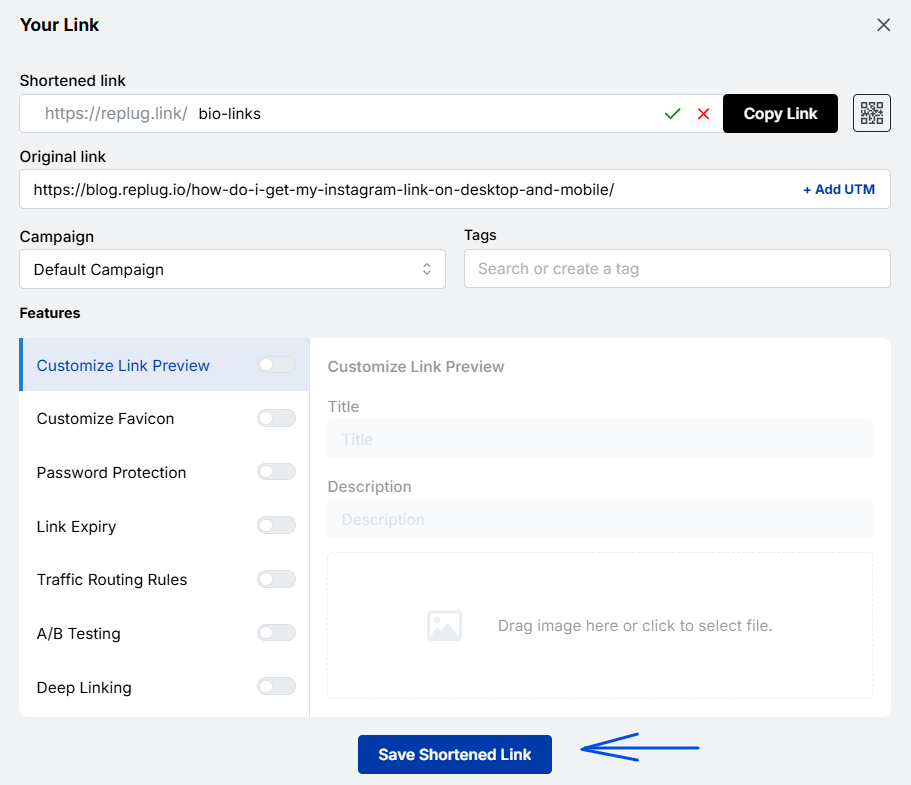
Voila! Your link is renamed.
Step 4: Update your Instagram bio
- Open Instagram and go to your profile.
- Tap on “Edit profile”.
- Tap “Links”, then “Add external link” (iPhone) or “Add link” (Android), and paste your customized short link. (Older versions of the app called this the “Website” field.)
- Save your changes.
- Double-check your profile or wherever the link is used to ensure that the new name is correctly reflected and that the link still functions properly.
For more info: How to rename a link on Instagram bio?
Replug: Link-in-bio feature
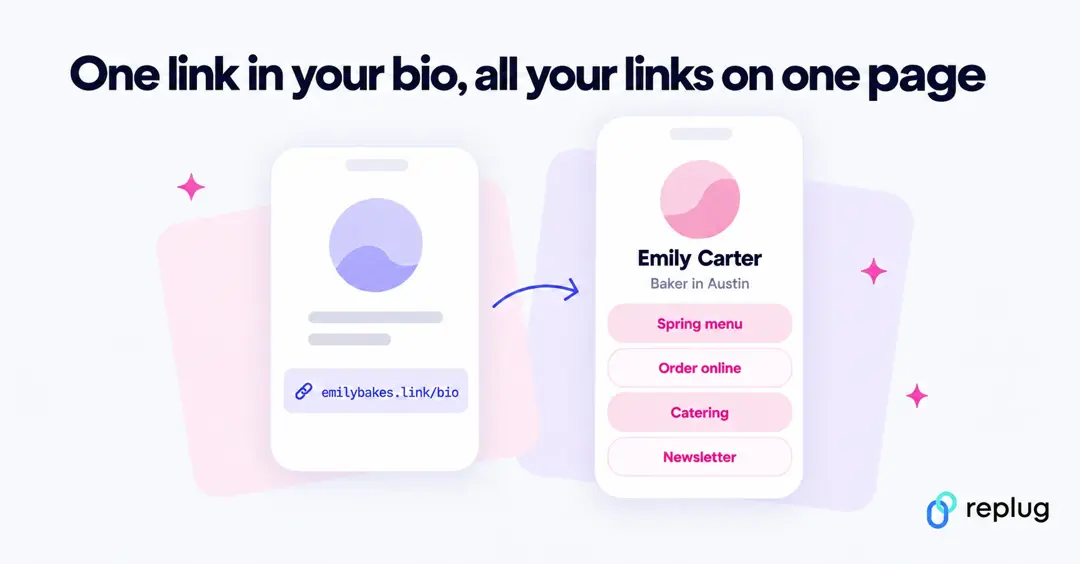
You can achieve this effortlessly with the Replug’s top-notch link in bio maker. This tool lets you consolidate all your important content and links into a single, accessible location for your audience.
Here are amazing features of Replug’s link in bio tool
1. Add your favorite content in one place
Bring your brand to life with social media icons, essential links, the recent blog with an RSS feed, audio clips, important text, and cards for stunning images.
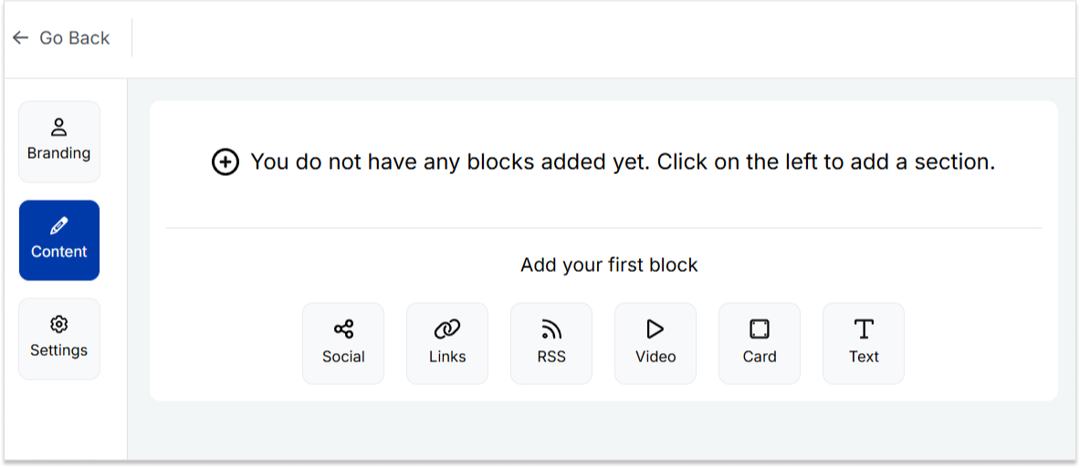
2. With Replug, you don’t just get a link in bio – you get to own it by renaming your links.
Also, customize their appearance and match your landing page blocks from colors to favicons to your brand’s vibe.
3. Track bio link performance

With performance tracking features, you can monitor the total number of clicks, conversion rates, and other valuable metrics. The best part is that you can view your analytics in both a summary list view and a detailed view.
Top tips to maximize the limited space in your bio:
| Quick tips | Maximize your impact |
| Less is more | Add a short description about your brand or page. |
| Try adding a bio landing page | Conclude your website link, portfolio, contact information etc. |
| Identify your unique selling point (USP) | Clearly communicate what sets you apart. |
| Include a clear call to action (CTA) | Tell people what you want them to do next. |
| Keep on experimenting | Try different stuff. See what clicks. You might surprise yourself! |
Conclusion
Removing a link from your Instagram bio is a simple process that can be done in a few steps through the app’s profile settings. By keeping your bio updated and free of outdated or broken links, you ensure a professional and effective presence on the platform. This helps maintain a clear and engaging profile, optimizing your brand’s impact and user experience.
So that was it for today’s guide. If you have more questions regarding link name changers, link removers, or the best link in bio tools, feel free to visit our website.
FAQs related to Instagram bio-link

Manahil