Companies in the digital age must monitor and optimize their online efforts to maximize engagement, conversions, and profitability. Click tracking is an invaluable approach that allows businesses to gain insights into the performance of their online links and marketing campaigns. This guide explores what click tracking is, where it is used, and how it can elevate your brand’s online presence. So, let’s get started.
Quick answer: click tracking records each time someone clicks a link, plus details about that click: when it happened, roughly where (country and city from the IP address), which device and browser, and which site sent the visitor. Link click tracking usually works through a redirect: the link points to a tracking server first, which logs the click and forwards the visitor to the real page in a fraction of a second. On your own website, a script such as Google Analytics can record clicks as events instead. Short-link tools, email platforms and ad networks all use the redirect method.
What is click tracking?
Click tracking is a digital marketing technique that involves monitoring and recording the interactions or clicks made on links, typically hyperlinks, with the aim of gathering data and insights into user behavior and engagement.
It is commonly used in web analytics and online marketing to track the performance of various online elements, such as links in emails, websites, advertisements, or social media posts.
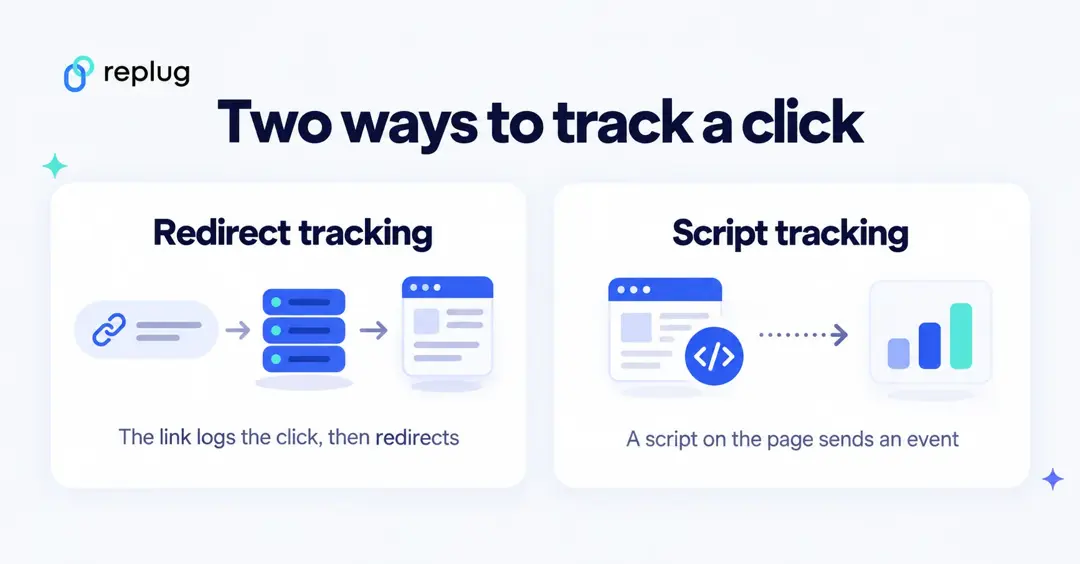
Click tracking is achieved either by sending the link through a tracking address (a redirect) or by running a small script on the page, which lets the tracking system record when and where users click.
How click tracking works
There are two common methods. Most tools use one of them, and some use both.
1. Redirect (link) tracking
The link you share doesn’t point straight at the destination. It points to a tracking server, which logs the click and then redirects the visitor. Mailchimp describes it this way: when click tracking is on, it adds tracking information to each link, so every click goes through Mailchimp’s servers to the intended address, and that redirect is logged as a click (Mailchimp Help). Short links work the same way: when someone opens a Replug short link, Replug notes the time, location, device, browser and referrer and sends them straight on to your destination (Replug link tracking).
- Works anywhere a link works: emails, SMS, social bios, PDFs, QR codes and ads, even when the destination isn’t your website.
- No code on the destination page.
- Limit: it sees the click, not what the visitor does after landing.
2. Script (on-page) tracking
A tracking script on your own page listens for clicks and sends an event to an analytics tool. Google Analytics 4 records outbound clicks automatically with enhanced measurement, each time a user clicks a link that leads away from the current domain (Analytics Help), and Google Tag Manager has click triggers for links and other elements (Tag Manager Help). Browsers support this with features such as navigator.sendBeacon(), which sends a small POST request for analytics without holding up the page (MDN), and the HTML ping attribute on links, which asks the browser to send POST requests to listed URLs when the link is followed (MDN).
- Sees on-page behavior: buttons, menus, scroll depth and heatmaps.
- Only works on pages where you can install the script.
- Can be blocked by consent choices, ad blockers or privacy settings.
| Redirect tracking | Script tracking | |
|---|---|---|
| Where it runs | On the tracking server, before the page loads | In the visitor’s browser, on your page |
| Works on pages you don’t own | Yes | No |
| Typical tools | Link shorteners, email platforms, ad networks | Google Analytics, Google Tag Manager, heatmap tools |
| Best for | Comparing channels and campaigns | Improving pages and funnels |
What a click tracker records
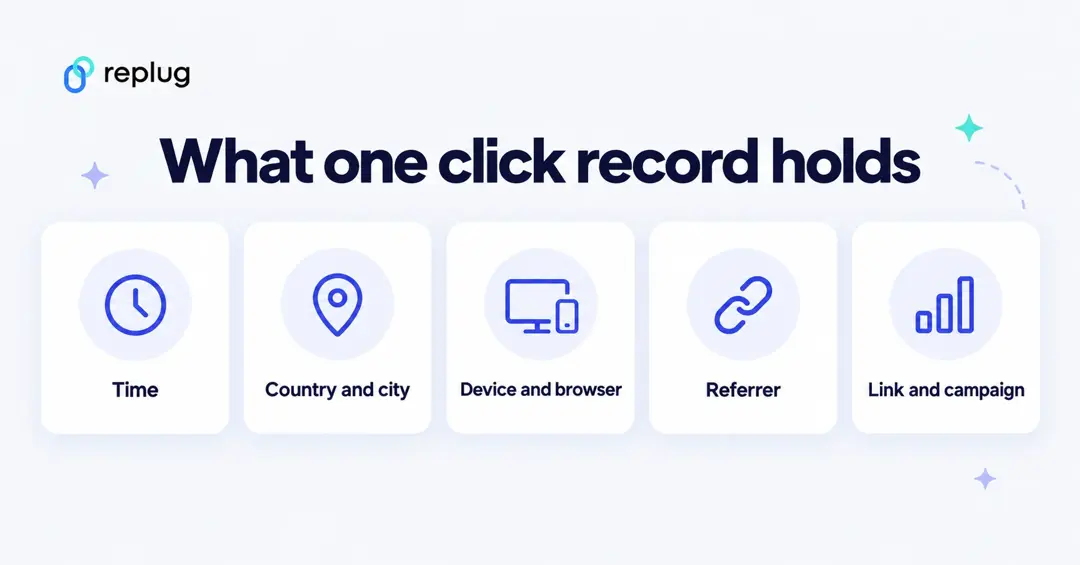
- Time of the click.
- Country, region and city, estimated from the IP address.
- Device, operating system and browser, from the browser’s user agent.
- Referrer, the page or app that sent the visitor, from the Referer header. It can be trimmed or missing, because sites can limit what they pass on with a referrer policy (MDN); apps and direct opens often send none.
- Which link and campaign, plus any UTM tags you added for analytics tools (Analytics Help).
A click record doesn’t tell you who the person is, and it doesn’t show what they do after the page loads; measure sign-ups and sales on your website. Counting every click and counting each visitor once are different numbers; our guide to unique clicks vs. total clicks explains the difference.
Is click tracking legal? Privacy and accuracy
- Consent: in the UK, PECR says you must tell people if you set cookies, explain what they do and get consent that is actively and clearly given (ICO); EU rules work similarly. Redirect tracking that doesn’t store anything on the device is treated differently from cookies, but check the rules where your audience lives and say what you collect in your privacy notice.
- Email tools ask you to follow the law: Mailchimp turns click tracking on by default and says you can leave it on where permitted by applicable law (Mailchimp Help).
- Bots inflate counts: automated visits (email security scanners, crawlers, link previews) can register as clicks. Mailchimp warns that bot activity can falsely inflate open and click metrics and lets you filter email bot clicks (Mailchimp Help), and Google Analytics automatically excludes known bots and spiders using Google research and the IAB’s International Spiders and Bots List (Analytics Help).
- Expect different totals: each tool filters, deduplicates and times clicks its own way, so your link tracker, email platform and analytics won’t match exactly. Compare trends within one tool.
How click tracking strengthens your brand: 6 key benefits
Here’s a concise breakdown of how click tracking elevates your brand with six key benefits:
- Analyzing user behavior:
Click tracking helps you analyze your audience’s behavior. It answers questions about what messaging prompts them to act, which content resonates the most, and how they access your site, leading to a better user experience.
- Optimizing and improving content:
By embedding trackable links, you can assess content performance, determine the type of content that engages your audience, and identify where your content performs best, enabling better content marketing strategies.
- Aiding in A/B testing:
Click tracking provides essential data for A/B testing, enabling in-depth analysis of marketing efforts. It helps compare elements like CTA buttons, landing page designs, and email subject lines to find the most effective strategies. New to testing? Start with these A/B testing basics.
- Enhancing social media and content marketing:
Click tracking allows you to evaluate the impact of your social media strategies by tracking page views and click-throughs. It provides insights into audience demographics, helping you improve your social media marketing.
- Simplifying data-driven decision-making:
Click tracking eliminates guesswork and facilitates data-driven decision-making. By reviewing precise measurements tied to your efforts, you can identify which initiatives worked well and which didn’t, leading to more informed decisions for future campaigns.
- Finding and fixing website errors:
Click tracking can help proactively identify website errors, broken links, non-functional CTAs, etc. This ensures a seamless user experience, preventing potential disruptions to your customers’ journeys.
Utilizing click tracking in different areas
Click tracking is employed in various aspects of digital marketing and user experience analysis, including tracking marketing campaign performance, monitoring email engagement, and optimizing web design to enhance the user experience. It provides valuable insights for data-driven decision-making in these domains.
- Link tracking for marketing campaigns:
- Click tracking is instrumental in assessing the success of marketing campaigns on platforms like Facebook, LinkedIn, Instagram, and PPC. By incorporating UTM tracking codes, marketers can attribute traffic sources and campaign details.
- UTM parameters, which are query strings added to URLs, help identify essential details such as traffic sources, mediums, and campaign names.
- This method enables the accurate attribution of traffic, leads, and sales to various marketing campaigns, enhancing segmentation and offering insights into custom campaigns using tools like Google Analytics and Usermaven.
- Email link tracking:
- Many email marketing tools employ tracking pixels within email messages, allowing marketers to monitor user actions, including opens, clicks, on-site activity, and subscriber engagement.
- This feature empowers marketers to discern subscriber preferences, such as content format (text or design-heavy), optimal email send times, and effective subject line formats.
- It provides actionable insights for refining email marketing strategies and engagement tactics.
- UX click tracking:
- In addition to link tracking, UX (User Experience) click tracking offers a visual representation of user interactions on a website.
- Heatmap tools like Hotjar record and visualize all user activities, such as clicks on links, images, and site elements, both above and below the fold.
- Heatmaps reveal hot areas of user focus and cold areas that are often ignored, helping businesses understand user behavior and interaction patterns.
- These insights guide web design improvements to enhance the overall user experience.
- Click tracking can identify issues such as high bounce rates without clicks or scrolls above the fold, prompting A/B testing of design elements to enhance customer retention.
Using Google Analytics and Google Tag Manager for click tracking:
Google Analytics is a web analytics tool that allows you to track and analyze user behavior on your website. And Google Tag Manager serves as an intermediary between your website and Google Analytics. It helps you set up and manage tracking tags for specific user interactions, such as clicks on buttons or links. These tags are then sent to Google Analytics to collect data.
Using Google Analytics:
- Account setup: Start by creating a Google Analytics account if you don’t already have one. Within your account, you’ll set up a property for the specific website you want to track.
- Tracking code: Google Analytics provides a tracking code snippet. You’ll need to add this JavaScript code to every page of your website. This code collects data on user interactions and sends it to your Google Analytics property.
- Verification: After installation, you can verify that Google Analytics is correctly tracking your website’s data. It helps ensure that information is being accurately collected.
Using Google Tag Manager:
- Account and container: Create a Google Tag Manager account and set up a container for your website. The container is where you manage all your tracking tags and triggers.
- Container snippet: Google Tag Manager also provides a container snippet, which consists of JavaScript code. Similar to Google Analytics, you’ll add this snippet to your website, both in the <head> and <body> sections.
- Tag creation: In Google Tag Manager, you create tags for specific user interactions you want to track, such as clicks on particular buttons or links.
- Triggers and variables: You’ll configure triggers and variables that specify when and what data to collect. Triggers determine when a tag fires and variables collect specific data, such as the elements clicked.
- Tag deployment: After setting up your tags, triggers, and variables, you’ll publish the changes in Google Tag Manager. This makes the tags live on your website.
By combining these two tools, you streamline the process of click tracking, manage the tracking codes effectively, and ensure that data is accurately collected and sent to Google Analytics for in-depth analysis of user interactions.
Tip: in Google Analytics 4 you may not need a custom tag at all for links to other sites. Enhanced measurement records an outbound click event (with the link URL and domain) for links that leave your domain, and you can turn it on under Admin > Data streams (Analytics Help).
How to use Replug for link tracking?
Replug is a link tracking and management platform that empowers marketers, businesses, and website owners to create, customize, and track their links for various marketing and promotional purposes. It offers a wide range of features designed to enhance link engagement, analyze user behavior, and optimize marketing strategies.
Here’s how to create a tracking link using Replug.io:
Step 1: Sign in or create an account
If you’re not already a Replug user, you can sign up for a free account, or log in to your existing Replug account. The Free plan includes 100 short links and 1,000 tracked clicks a month.
Step 2: Choose or create a campaign (optional)
Campaigns are used to organize and group your tracking URLs. New links go into your default campaign, and you can pick another campaign in the link window or create one under Campaigns in the sidebar.
Step 3: Enter the destination URL
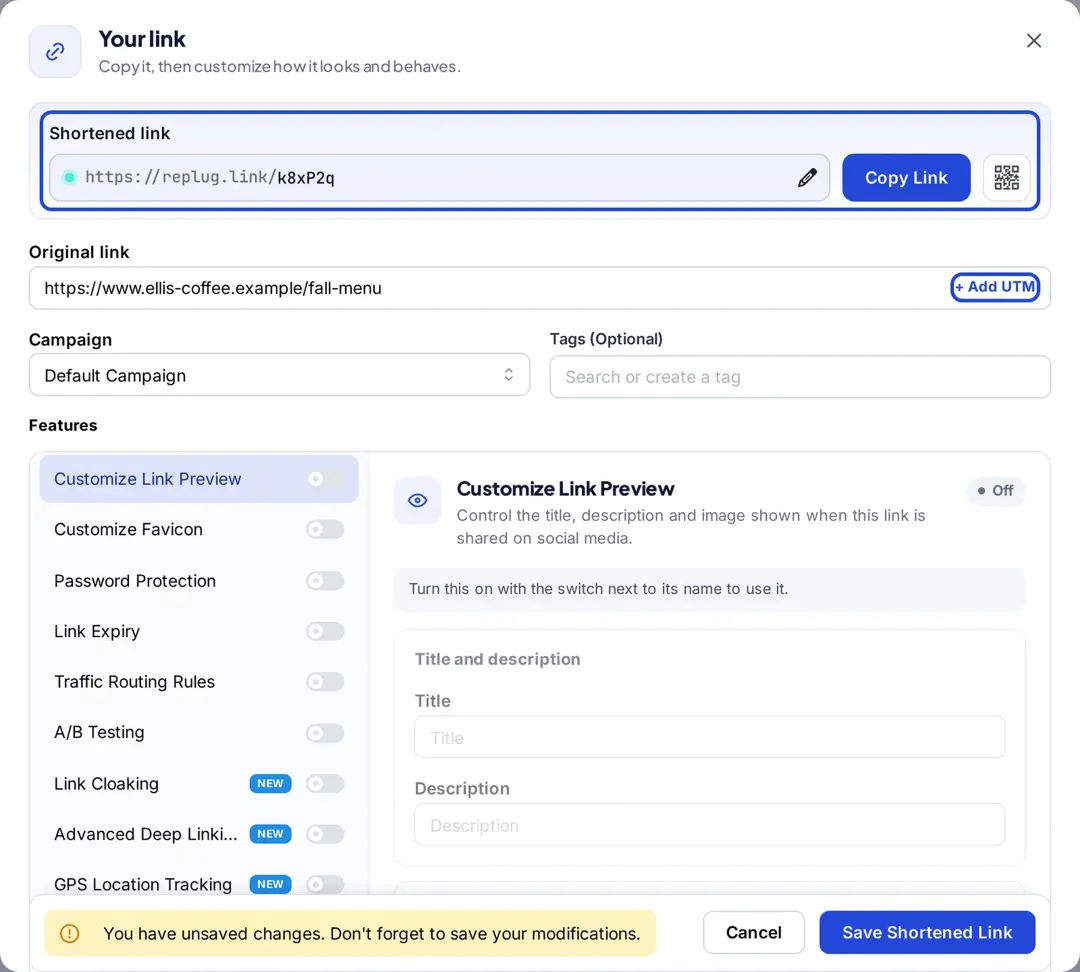
On the Home screen, paste the destination URL that you want to track into the “Paste a long URL to shorten…” field and click Shorten. The Your link window opens with your new short link.

Step 4: Add UTM parameters
In the Your link window, find “+ Add UTM” on the right side of the Original link field and click it.
Step 5: Select or create UTM parameters
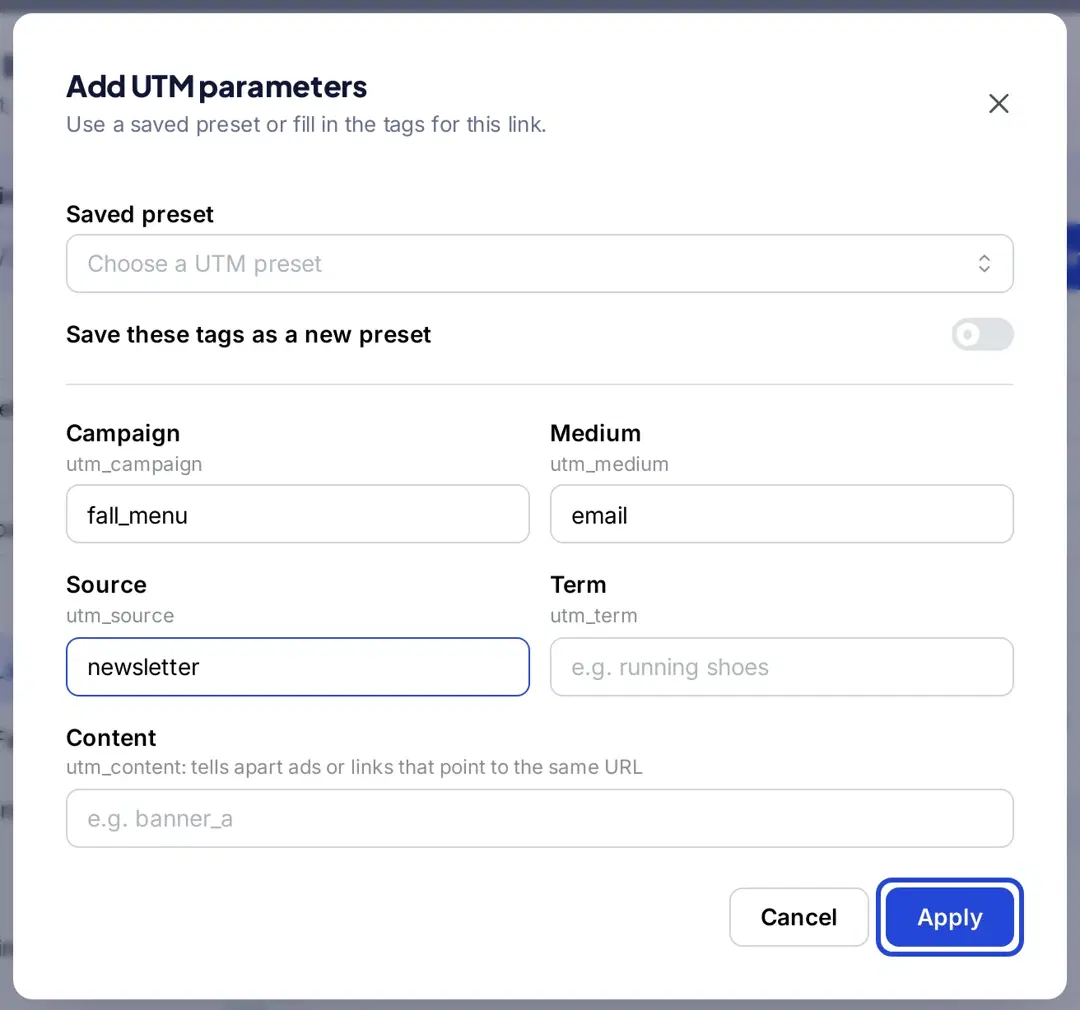
You have the option to either select from saved UTM parameters or create a new set.
If you’re creating a new one, fill in Campaign (utm_campaign), Medium (utm_medium), Source (utm_source) and, if you need them, Term and Content, then click Apply. Turn on “Save these tags as a new preset” to reuse them later.
Step 6: Check the tracking URL
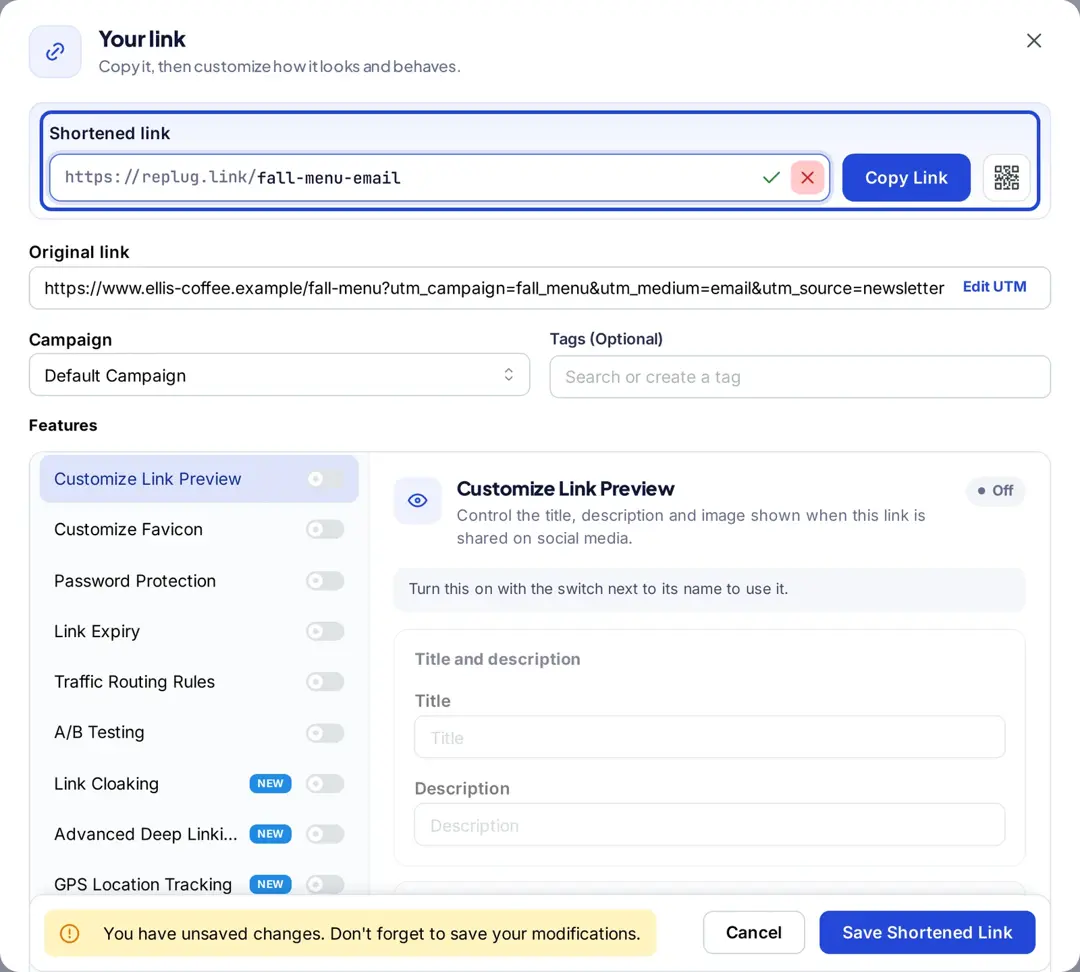
After you apply the UTM parameters, the Original link field shows your destination with the UTM tags appended, and the short link now forwards to that tagged URL.
Step 7: Customize the tracking URL (optional)
If desired, you can further customize the URL by clicking the pencil icon next to the shortened link and typing a readable back-half, such as fall-menu-email. Custom back-halves start on the Essentials plan.
Step 8: Copy and update
Copy the generated tracking URL to use in your marketing materials.
Click the “Save Shortened Link” button to save your changes, then use Copy Link.
Step 9: Access your tracking URL
To access the newly created tracking URL and monitor its performance, follow these steps:
- Open Links in the left sidebar to see every link and its clicks.
- Open Analytics for clicks, unique clicks and QR scans over time.
- Use the tables to break clicks down by referrer, country, city, browser, operating system and device.
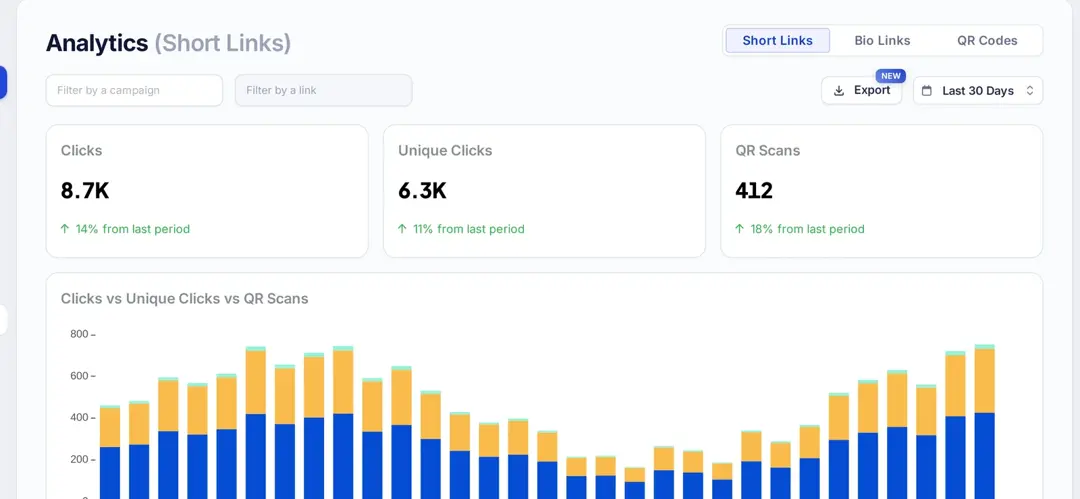
By following these steps, you can efficiently create, customize, and manage a tracking URL using Replug, and monitor their performance through the dashboard. Analytics history is 14 days on Free, 90 days on Essentials and unlimited on Scale and Agency (Replug link tracking, pricing checked October 2026).
Replug offers additional features beyond basic link tracking, such as link retargeting (Essentials and up), A/B testing and deep linking (Scale and Agency), bio links and link management. Depending on your subscription level, you may have access to more advanced features.
Want to try it? Start with the free link shortener and tracker.
Frequently asked questions

Arslan Jadoon