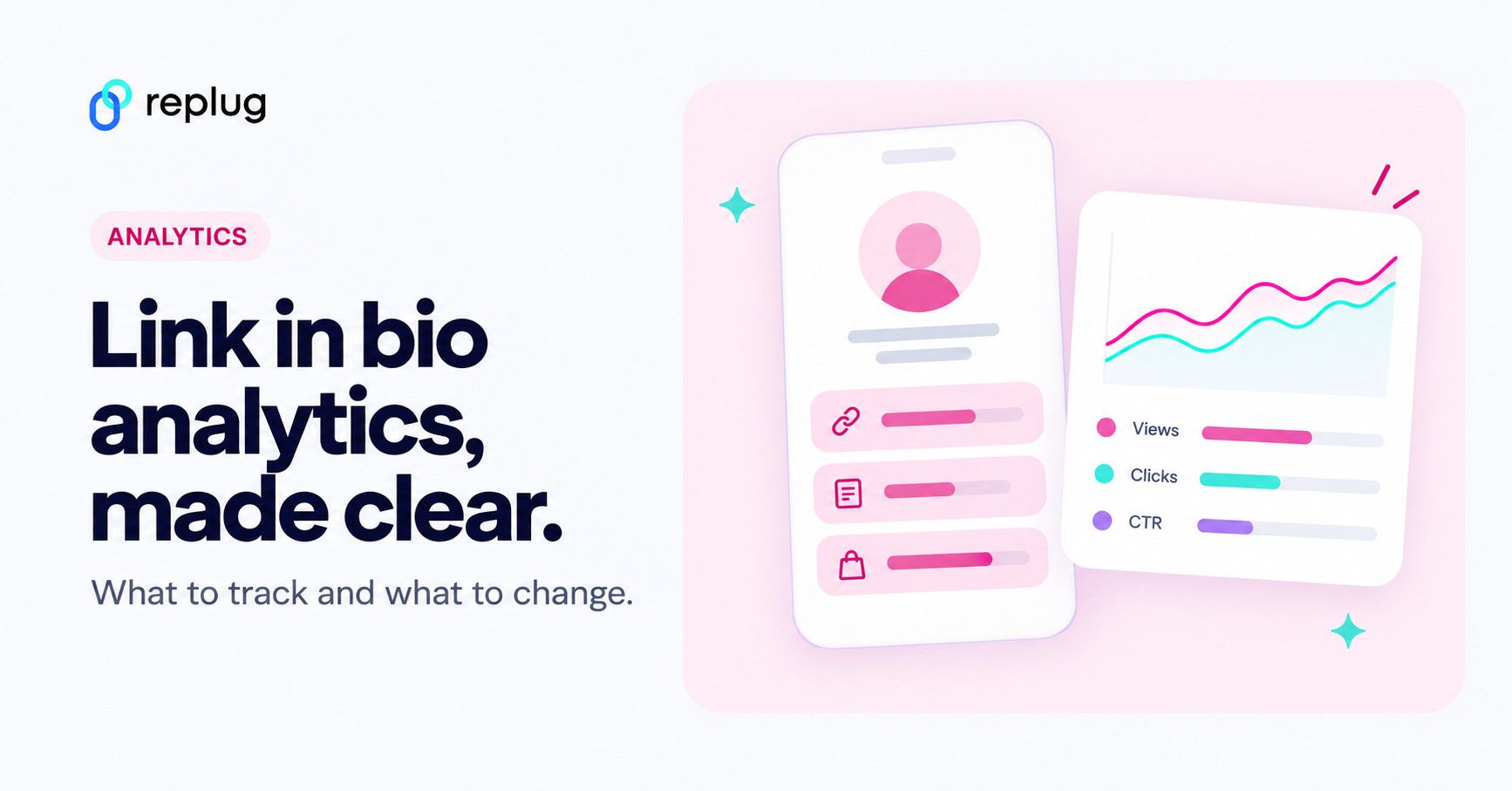
Quick answer: link in bio analytics are the numbers behind the page your social profile links to: how many people open it (views and unique views), how many tap something (clicks and clicks per link), the share of visitors who click (click-through rate), and where they come from (referrers, countries, cities, devices and browsers). Instagram and TikTok don’t break down taps on the buttons of your bio page, so you read these numbers in your bio link tool. In Replug they’re under Analytics > Bio Links, with 14 days of history on the Free plan, 90 days on Essentials and full history on Scale and Agency (Replug pricing).
You’ve got that one link in bio carrying your shop, your latest drop, or your best video, all in a single click. But do you really know what happens after someone taps it? Are people exploring your links, or dropping off after the first click?
That’s where link in bio analytics comes in. It shows which links get the most love, where your audience is coming from, and when they’re most active. And with tools like Replug, checking it all is as simple as open, tap, scroll.
Let’s break down how to use these insights to get real results.
What to track in link in bio analytics
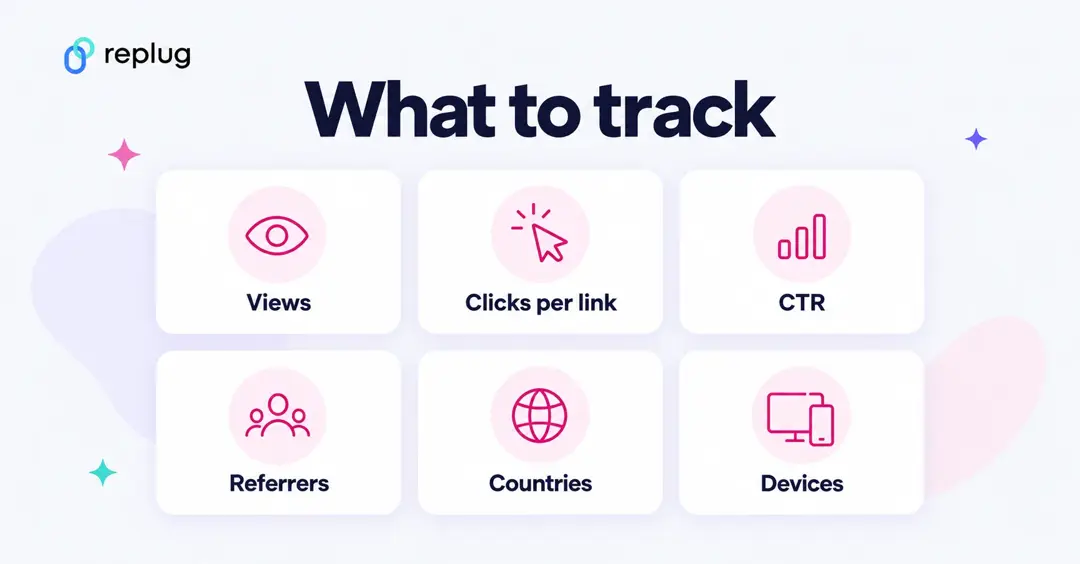
These are the numbers worth checking, what each one tells you and what to do about it.
| Metric | What it tells you | What to do with it |
|---|---|---|
| Views | How many times your bio page was opened | Rises after posts that mention your link; flat views mean people aren’t tapping your profile link |
| Unique views | How many different people opened it | Compare with views to see repeat visitors |
| Clicks | Taps on any link or block on the page | The main sign the page is doing its job |
| Clicks per link | Which buttons get tapped | Move winners to the top, rewrite or remove buttons nobody taps |
| Click-through rate (CTR) | Clicks divided by page views | Track it week to week; a drop after a change means the change didn’t help |
| Referrers (sources) | Which app or site sent the visit | Put more effort into the platforms that send visitors |
| Countries and cities | Where visitors are | Time posts for their time zone; localize offers |
| Devices, OS and browsers | How people view the page | Check the page on the devices most visitors use |
| Sign-ups and QR scans | Email sign-ups and offline scans | Measure lead capture and print or packaging codes |
Linktree defines click rate the same way: total clicks divided by total views, so 1,000 clicks from 2,000 views is a 50% click rate (Linktree Help). Since clicks count every tap, one visitor can tap several buttons, so CTR can go above what you might expect from “one visitor, one click”.
Can Instagram or TikTok show your link in bio clicks?
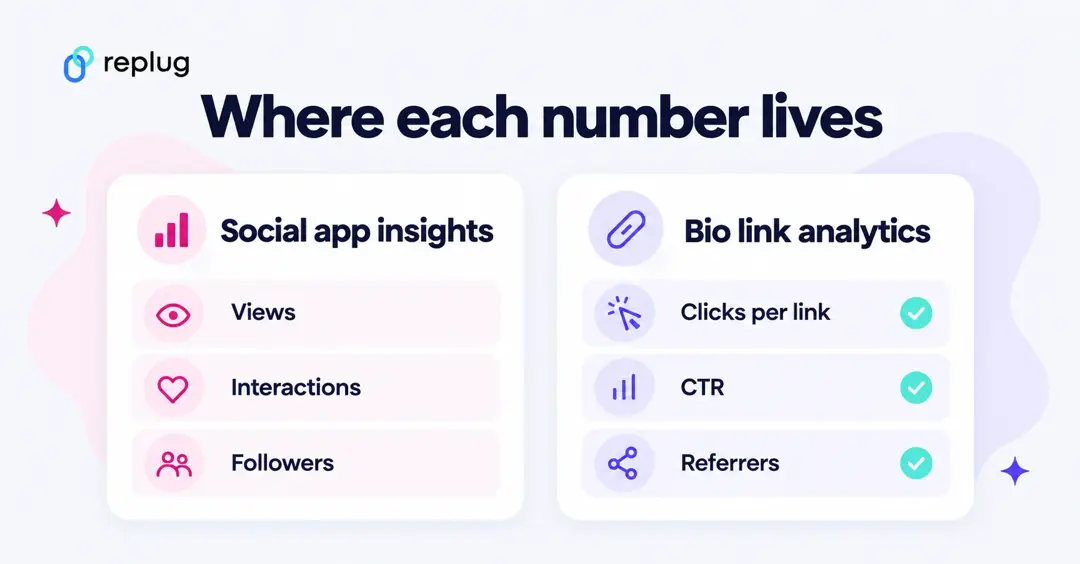
Only partly. According to Instagram’s Help Center, insights for public accounts cover views, viewers, interactions, accounts engaged and followers, for preset or custom timeframes within the past 90 days. That help article doesn’t list a breakdown of which link on your bio page people tapped, or where they went next, because that happens on your bio link page, outside Instagram. TikTok’s help article on profile links describes how to add and report a link, not click statistics. Neither app tells you who tapped (see how to see who clicks on your Instagram link), so use your bio link tool for click data and Instagram or TikTok insights for reach and engagement.
Link in bio analytics in Replug vs. Linktree
| Replug | Linktree | |
|---|---|---|
| Views, clicks, click rate | All plans | All plans |
| Clicks per link | All plans | Most clicked: Pro and Premium |
| Locations and devices | All plans | Pro and Premium |
| History | 14 days Free, 90 days Essentials, full history Scale and Agency | 28 days Free, 90 days Starter, 365 days Pro, lifetime Premium |
Replug from replug.io/pricing and the Analytics > Bio Links screen; Linktree from Linktree Help. Checked October 2026.
What is the best way to track link in bio analytics?
The most effective way to track link in bio analytics is by combining detailed tracking with the best bio link tools that help you act on what you learn easily.
Replug makes this simple. It shows how many clicks your link in bio is getting, where your audience is coming from, and when engagement peaks. Beyond numbers, it helps you create branded short links that build trust and boost click-through rates with the help of its efficient URL shortener free tool.
By adding UTM parameters to the links on your bio page, your website analytics (for example Google Analytics) can show which visits came from your link in bio; Replug’s UTM builder adds them for you. This way, you get a clear view of what’s working and can refine your strategy as you go. Together, these features turn your link in bio from a basic list of links into a powerful, data-driven marketing asset.
Let’s discuss the two easy ways to track your link in bio analytics using a top-notch link in bio generator.
How to track your link in bio analytics (two easy ways)
First things first: make sure you’re signed into your Replug account.
Haven’t signed up yet? You can start on the Free plan, which includes bio link analytics with 14 days of history, or with a 14-day free trial of a paid plan for longer history.
Now, here are two quick ways to see what’s really happening behind your bio links:
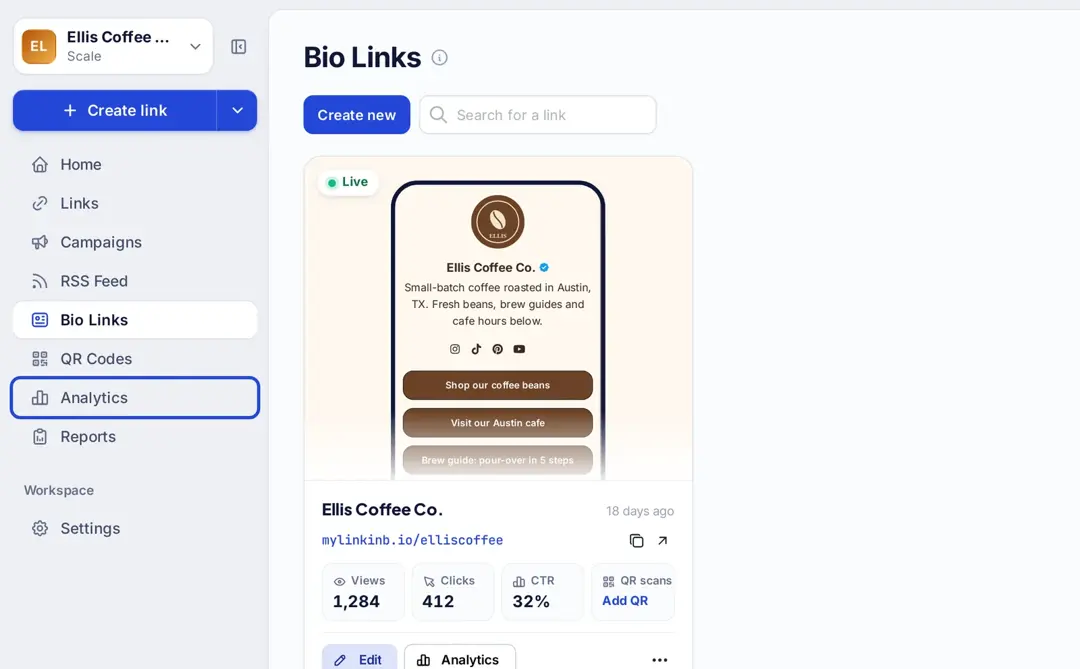
Method 1: Quick check from the bio links tab
- Go to “Bio Links” in your Replug dashboard.
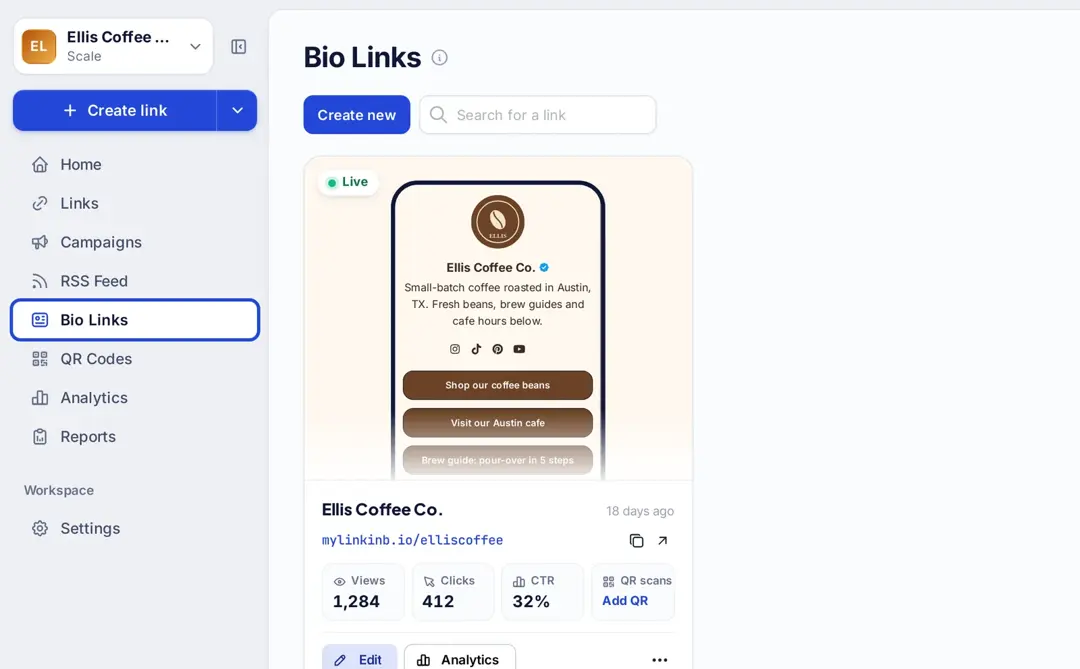
- Find the bio link you want to check.
- Click Analytics on its card.
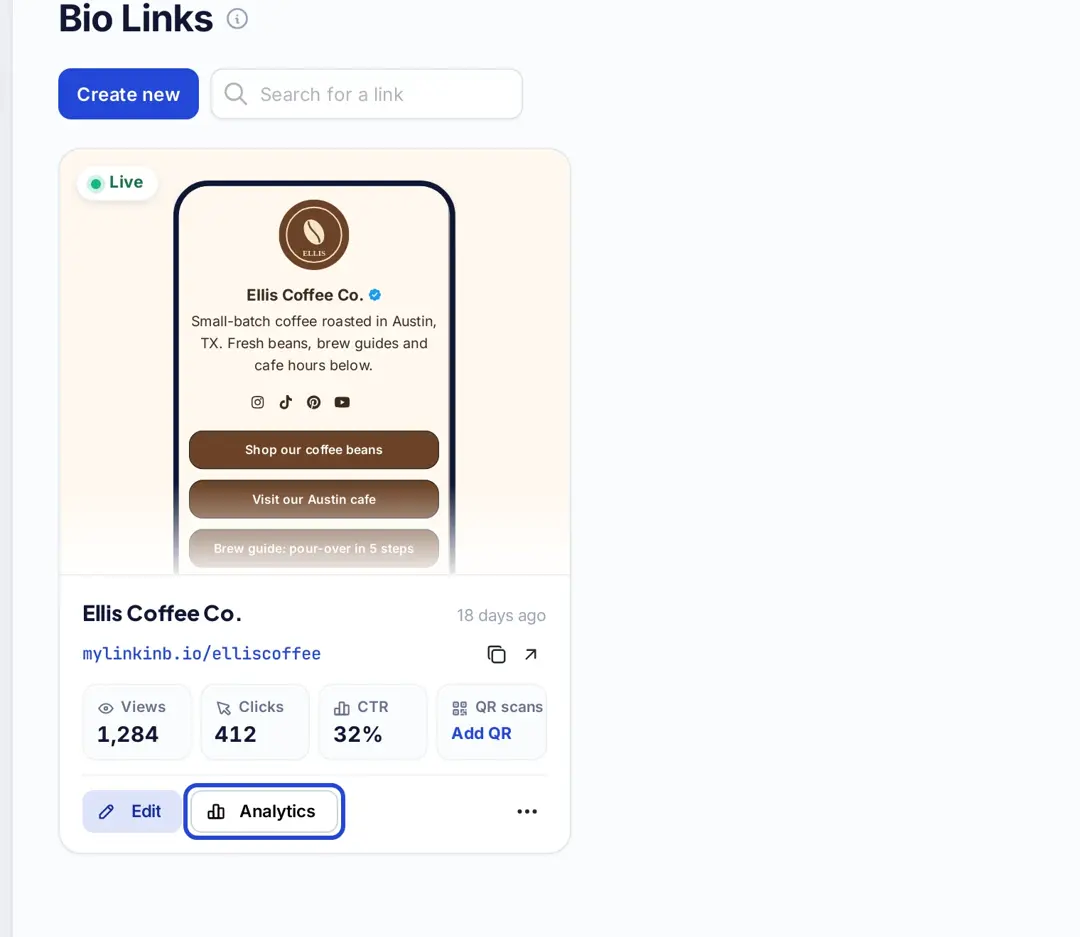
This opens up your analytics for that specific bio link, showing:
- Views, unique views, clicks, and QR scans
- A bar chart comparing views vs. unique views vs. clicks
- Breakdowns by referral source, location (country, region and city), browser, and operating system
- Custom date ranges; how far back you can look depends on your plan (14 days on Free, 90 days on Essentials, full history on Scale and Agency)
Ideal for: When you just want a quick pulse on how one bio link is doing.
Method 2: Full view from the Analytics dashboard
If you want to dig deeper or track multiple bio links together:
- Go to Analytics inside Replug
- Click “Bio Links“
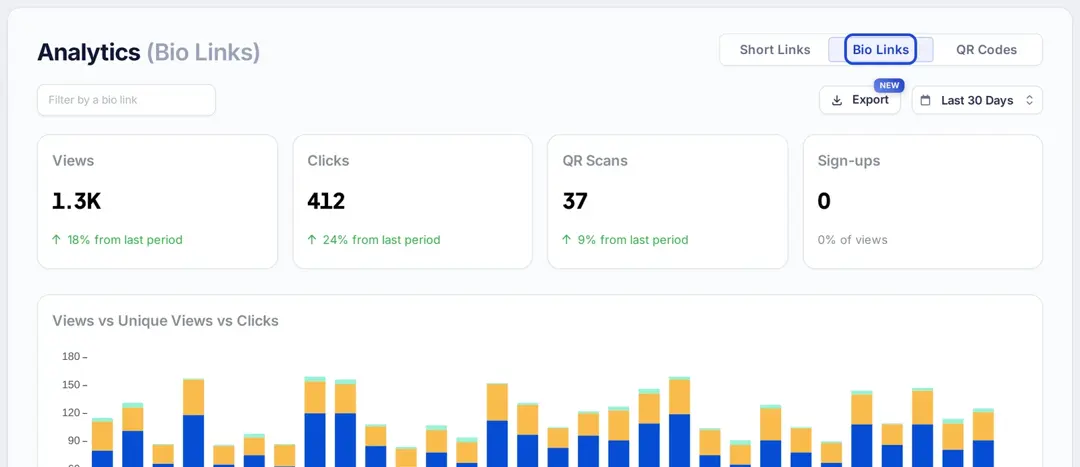
Here, you’ll get:
- A detailed overview of all your bio links (or filter by just one)
- Clicks per link: every link and block with its clicks, unique clicks and CTR, so you can see what people click most
- Traffic sources so you know where visitors come from
- Locations, browsers, and devices
- Flexible date filters (history depends on your plan)
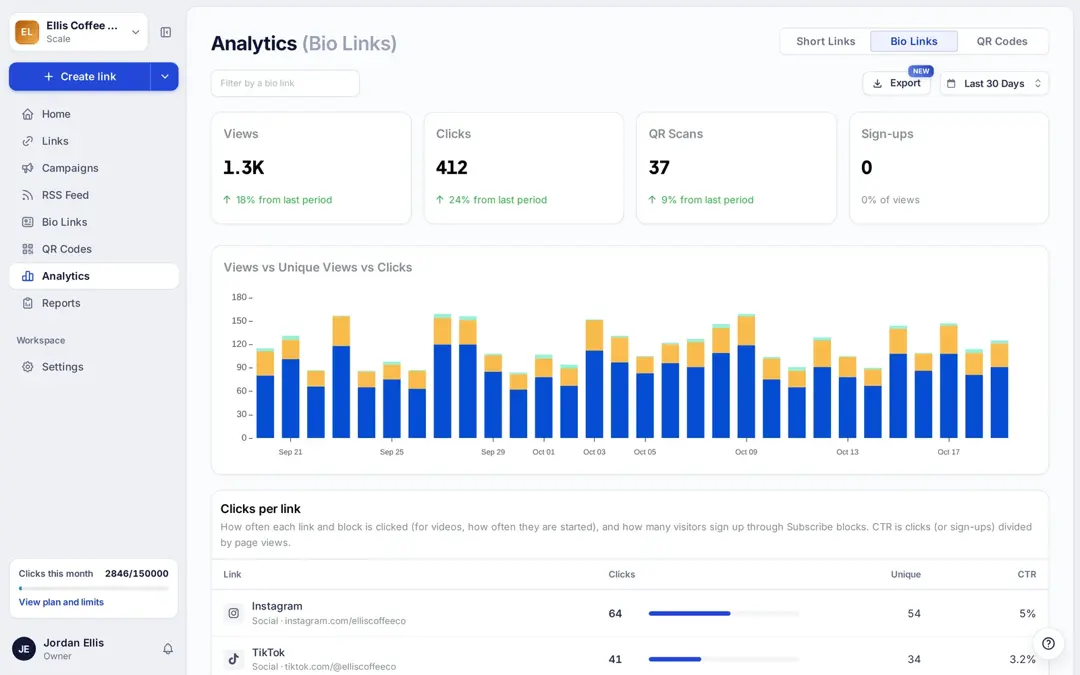
Ideal for: Managing several bio links, running campaigns, or seeing the bigger picture.
Also read: How to measure campaign performance in Replug?
What those numbers actually tell you
Once you’ve opened your analytics, here’s what the data really means:
- Views: Total times people opened your bio page
- Unique views: Each visitor only counted once, even if they come back
- Clicks: How many times someone tapped a link inside your bio page
- Clicks per link: Shows which links get the most action, with unique clicks and CTR (clicks divided by page views)
- Blocks: Social icons, videos and other blocks are counted too (for videos, how often they are started), plus sign-ups from Subscribe blocks
- Traffic sources: See where your visitors came from (for example Instagram, TikTok, YouTube or direct visits)
- Locations: Know where your audience lives and what time zones they’re in
Quick tip: Use UTM parameters for even deeper insights
Want to know exactly which post, story, or campaign drives the clicks?
Add UTM parameters to your links.
They’re little tags you add to the end of a URL so analytics tools (such as Google Analytics on your website) can tell where each visit came from.
For example:
- Tag the links on your bio page, for example
utm_source=instagram&utm_medium=bio, so your site analytics shows visits that came through your bio page - To compare placements (your Instagram bio, a Story link sticker, your TikTok profile), make a separate Replug short link to your bio page for each one and compare their clicks
Now you’ll know which actually brings traffic, and which just looks good. Inside Replug, you can create and manage UTM-tagged links easily, so you can track smarter without extra hassle. Pair them with click tracking for every link and you’ll see the full picture.
Another handy tip: Create a QR code for your bio link
Replug also lets you create a QR code for any of your bio links. So, if you share your link in bio offline on posters, packaging, slides, business cards, or anywhere else; you’re still not flying blind.
You can track:
- How many times your QR code was scanned
- When those scans happened, on the same timeline as your views and clicks
- How QR scans compare to regular link clicks
Also read: What is QR Code tracking? A beginner’s guide to how it works
What to do next?
Data is great, but action is what makes it matter:
- Move your best-performing links higher up
- Swap out links that aren’t getting clicks
- Post when your audience is most active
- Test different headlines, emojis, or thumbnails to see what bumps up clicks
- Focus promotion on platforms that actually send traffic
Conclusion
Your bio link shouldn’t just look pretty. It should work. Clicks, sign-ups, sales, traffic – whatever your real goal is.
And the good news? It’s simpler than you think.
With Replug’s link in bio analytics, you can see what’s working, what’s getting ignored, and where your audience is coming from, all in a few clicks.
Add UTM parameters to track which posts drive traffic, and use QR codes to bring in offline scans too. Then adjust: move your best links up, drop the ones that flop, and post when your audience is most active.
Your link in bio is more than a link. It’s your quiet traffic driver and digital storefront.
Now you know how to use link in bio analytics to make it deliver.
Frequently asked questions

Manahil