Tracking performance is key to improving any marketing effort. Whether you’re running a one-time promotion or managing multiple campaigns across different platforms, understanding what’s working (and what’s not) helps you make better decisions.
Quick answer: to measure campaign performance, pick one goal and two or three metrics that show progress toward it before launch, tag every link so each visit can be tied to the campaign, then compare results with a baseline or an earlier period. Read clicks in your link analytics and what visitors did on your site in your web analytics, such as Google Analytics 4.
This guide covers which metrics to use for each goal and channel, a measurement plan you can copy, where to find campaign results in GA4, and how to see a campaign’s clicks, unique clicks and QR scans in Replug, step by step.
Campaign performance metrics by goal

Start from what the campaign is for. Each goal has its own handful of metrics; tracking all of them for every campaign mostly adds noise.
| Goal | Metrics to watch | Where you find them |
|---|---|---|
| Awareness | Impressions, reach, clicks, unique clicks | Ad platform, social insights, link analytics |
| Engagement | Click-through rate, engaged sessions, engagement rate | Email or ad platform; GA4 |
| Conversion | Key events (sign-ups, purchases), conversion rate, cost per acquisition, revenue | GA4, ad platform conversion tracking, your store or CRM |
| Retention | Repeat purchases, unsubscribes or opt-outs | Store or CRM, email or SMS platform |
Two GA4 definitions are worth knowing. An engaged session lasts longer than 10 seconds, has a key event, or has two or more page or screen views, and the engagement rate is the share of sessions that were engaged (Analytics Help). A key event is an event you mark as important, such as a purchase; GA4 then reports it by campaign (Analytics Help).
Metrics by channel
| Channel | Useful campaign metrics |
|---|---|
Clicks per link, click-through rate, unsubscribes; sessions and key events by utm_campaign | |
| SMS | Clicks on the link in the text, opt-outs; sessions and key events from tagged links |
| Paid social and search | Impressions, clicks, cost per click, conversions and cost per conversion in the ad platform |
| Organic social | Link clicks, unique clicks, referrers; sessions by source |
| Print and QR codes | QR scans, scans by city and device; sessions from tagged QR links |
| Influencers and partners | Clicks per partner link; key events by utm_source or promo code redemptions |
Clicks and scans tell you whether people responded. Key events and revenue tell you whether the campaign paid off. You usually need both, from different tools.
A simple campaign measurement plan
Write this down before the campaign starts and share it with whoever reports on it. Copy the template and fill it in:
Campaign name:        fall-menu-2026
Goal:                 online orders from returning customers
Primary metric:       orders (GA4 key event: purchase) from campaign traffic
Secondary metrics:    clicks and unique clicks per link, engagement rate
Baseline:             orders from the same channels, Sept 2026
Target:               +15% orders vs. baseline
Channels and links:   email (utm_source=weekly-newsletter, utm_medium=email)
                      SMS (utm_source=sms-list, utm_medium=sms)
                      flyer QR code (utm_source=flyer, utm_medium=qr_code)
UTM campaign value:   fall-menu-2026 (lowercase, same on every link)
Dates:                Oct 5 to Oct 31, 2026
Check-ins:            weekly; final report Nov 7
Owner:                Riley Brooks
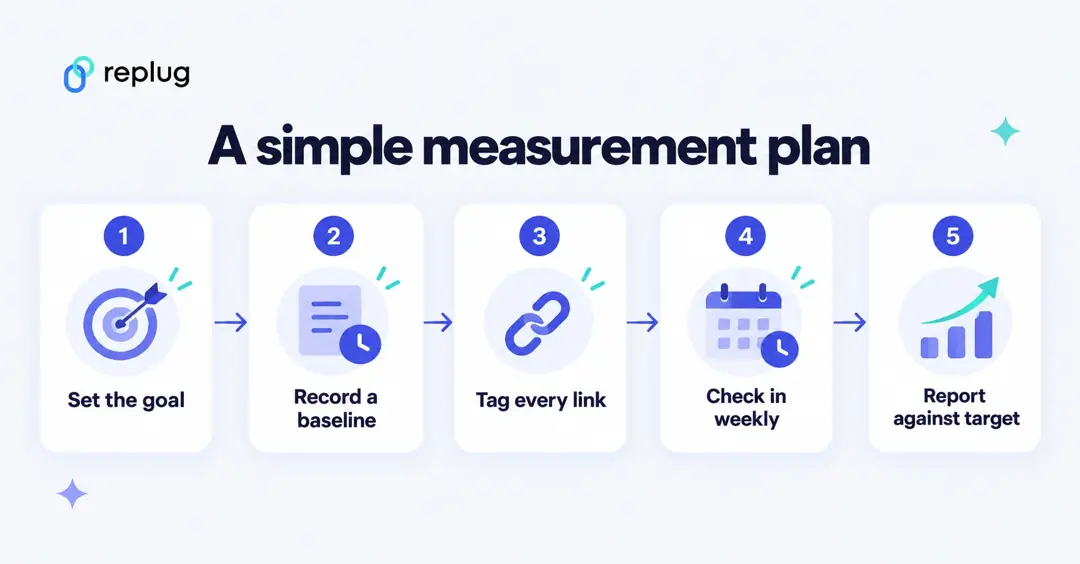
The target is an example; set yours from your own baseline. Then follow five steps:
- Set the goal and the primary metric before launch, so the result can’t be picked afterward.
- Record a baseline: the same metric for a comparable earlier period or for traffic outside the campaign.
- Tag every link with the same
utm_campaignvalue; Google recommends always setting source, medium and campaign (Analytics Help). See campaign tracking for the setup. - Check in while it runs: clicks and scans show early whether a channel is working; pause or fix what isn’t.
- Report against the target and write down what you’d change next time.
How to see campaign results in Google Analytics 4
- Open Reports > Acquisition > Traffic acquisition.
- Set the table’s primary dimension to Session campaign (or Session source/medium to compare channels).
- Search for your campaign name, then read sessions, engaged sessions, engagement rate and key events for that row.
- For a custom view, such as campaign by landing page, build a free-form exploration under Explore.
Sources: Traffic acquisition report and Get started with Explorations (Analytics Help). GA4 shows UTM-tagged traffic under these session dimensions; untagged links from email or chat apps often show up as direct traffic instead.
What is campaign analytics?
Campaign analytics is the process of tracking URLs and analyzing data from marketing campaigns to measure performance and refine strategies. It helps marketers understand which channels bring visitors and results, how people interact with content, and where to focus.
In link tracking, campaign analytics means grouping links by campaign and comparing their clicks, unique clicks, QR scans and where those clicks came from. Link analytics stops at the click; sign-ups and sales after it are measured on your site, for example with GA4 key events.
In Replug, every short link, bio link and QR code belongs to a campaign, so you can see a campaign’s numbers in one place:
How to measure campaign performance in Replug?
Step 1: Log in to your Replug account
Sign in to Replug. If you don’t have an account, the Free plan needs no credit card, and paid plans come with a 14-day trial (pricing). Free keeps 14 days of click history, Essentials 90 days, and Scale and Agency keep it all.
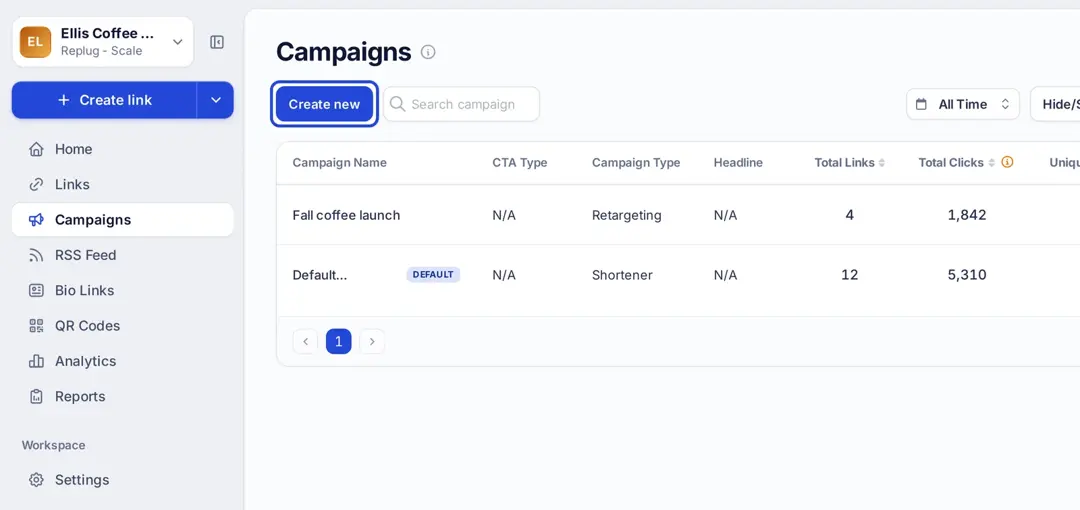
Step 2: Open Campaigns
Click Campaigns in the left menu to see all campaigns with their total links, total clicks, unique clicks and QR scans. Use All Time to change the date range, Hide/Show Columns to choose columns (CTA type, campaign type, headline, total links, total clicks, unique clicks, QR scans) and Active Campaigns to switch to archived ones.
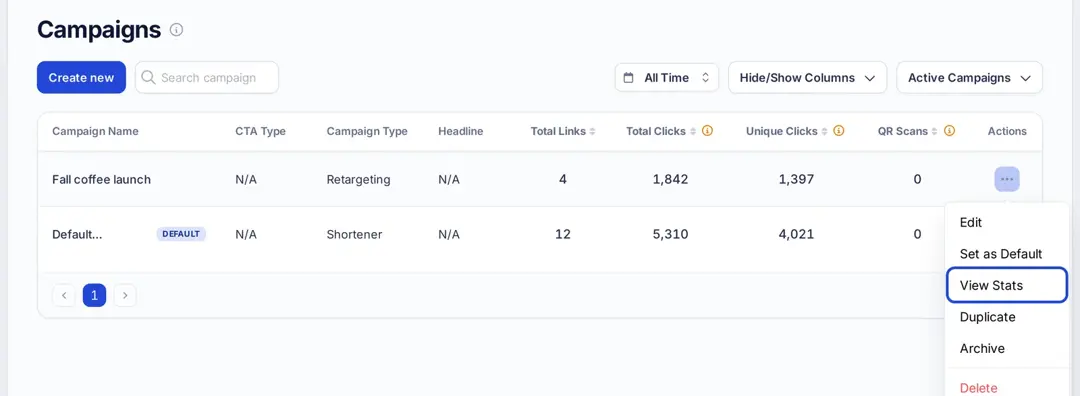
Step 3: Click “View Stats”
Click the ⋯ button in the Actions column of the campaign you want, then choose View Stats.
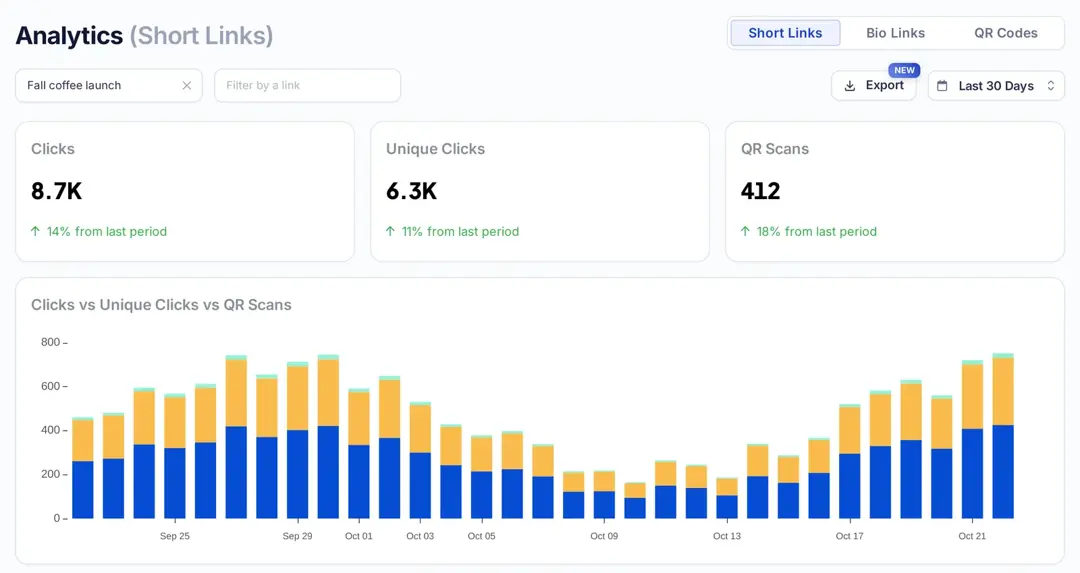
Step 4: Read the campaign’s numbers
View Stats opens Analytics with the campaign already selected in the filter. At the top you see:
- Clicks: all clicks on the campaign’s links.
- Unique clicks: clicks from different visitors (see what unique clicks are).
- QR scans: clicks that came from scanning the links’ QR codes.
- A change against the previous period under each number, and a daily chart of clicks, unique clicks and QR scans.
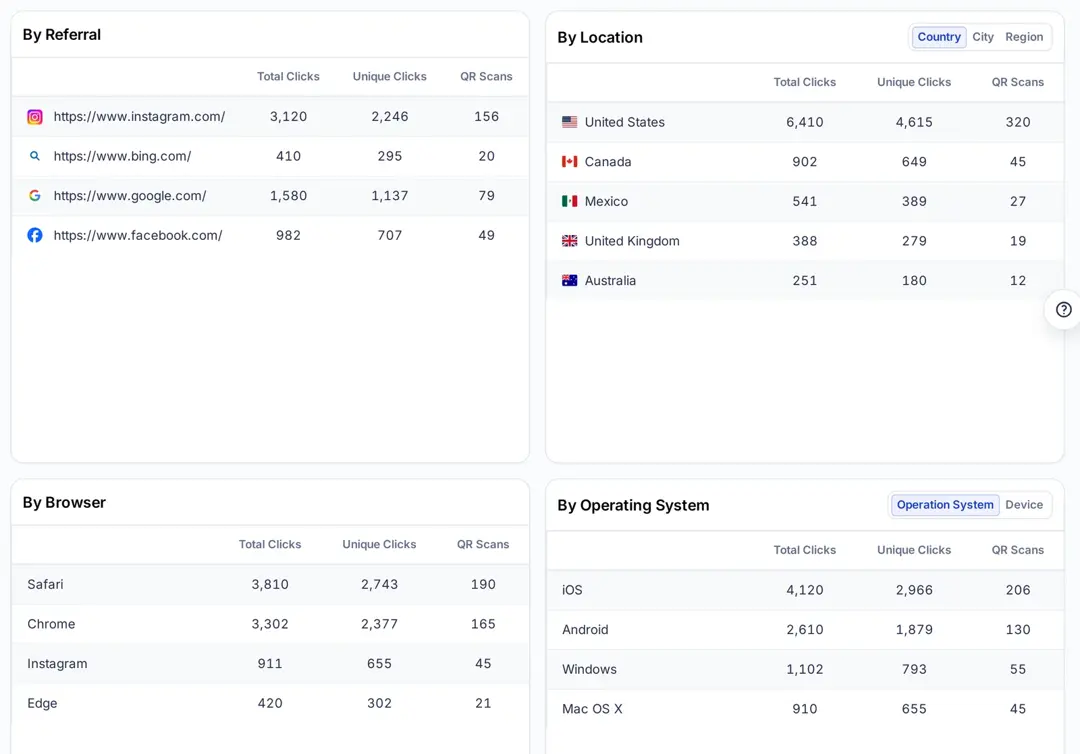
Below the chart, four tables break the clicks down by referral source, location (country, city or region), browser, and operating system or device:
Step 5: Filter and export
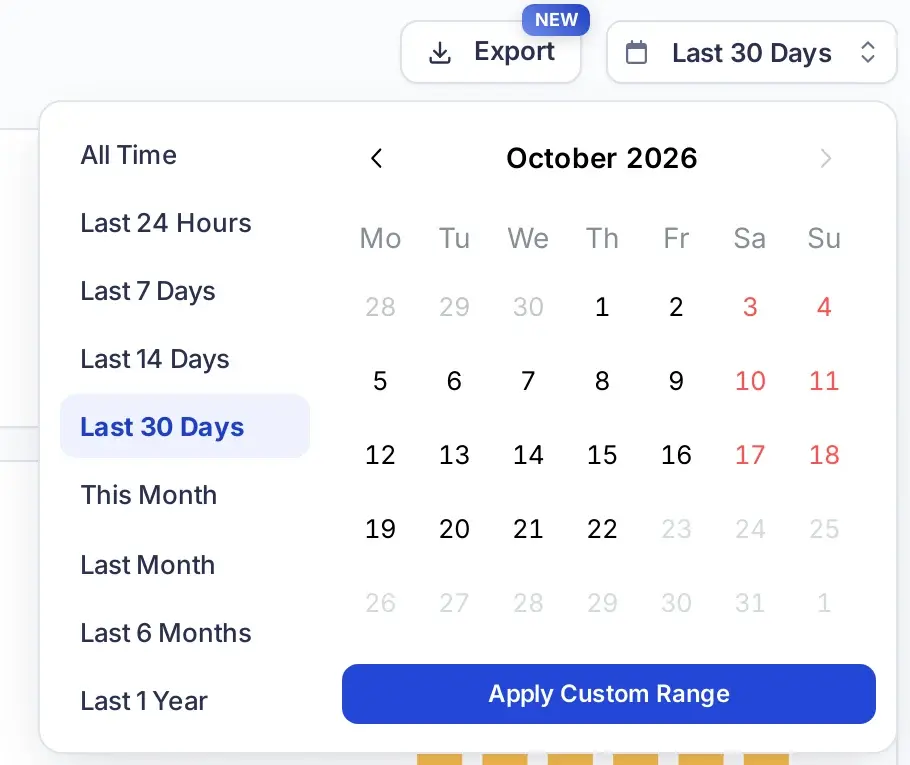
- Time period: pick a preset such as Last 7 Days, Last 30 Days or This Month, or set a custom range and click Apply Custom Range.
- One link: use Filter by a link to see a single link in the campaign.
- Link type: switch between Short Links, Bio Links and QR Codes at the top. The chart changes with it: Clicks vs Unique Clicks vs QR Scans for short links, Views vs Unique Views vs Clicks for bio links, and QR Scans vs Total Clicks for QR codes.
- Export: download the report as PDF, Excel or CSV. Scheduled email reports start on Essentials (link tracking).
This helps you compare formats and see how each one performs.
Benefits of analyzing campaigns with Replug
Here’s how campaign analytics with Replug can elevate your marketing efforts:
- Easy visual comparison: The daily chart shows how your campaign is doing over time, so you can spot spikes, dips and trends.
- Optimize campaign performance: Identify your best-performing content, platforms, and formats, so you can focus on what brings the highest ROI.
- Adjust while it runs: See what’s working while your campaign is live and change course before it ends.
- Smarter marketing decisions: Insights by location, device, browser, and referral source help you shape future campaigns more strategically.
- Better reporting and client updates: Export reports as PDF, Excel or CSV, or schedule them by email (Essentials and above), to share progress with clients or your team.
- Retargeting: add retargeting pixels to a campaign so people who click its links join your ad audiences (one pixel on Essentials, unlimited on Scale and Agency).
💡 Want to go a step further? Replug’s link retargeting lets you re-engage people who click your links across ad platforms.
- Content and platform testing: Use data to A/B test formats and messaging across different channels and learn where your audience is most responsive.
- Cross-campaign insights: Compare short links vs. bio links vs. QR codes to see which formats bring the most traction.
- Understand audience preferences: Get to know your users better, what they use, where they’re from, how they click, and tailor your marketing accordingly.
Conclusion
Replug is an all-in-one link management platform that gives you more than just link shortening; it gives you clarity. With campaign-level clicks, unique clicks, QR scans and breakdowns by source, location, browser and device, you can see which links and channels people respond to, then follow those visitors into your web analytics to measure results.
Whether you’re running a single link campaign or managing dozens, Replug makes measuring success simple and actionable. Try the free link shortener to get started.
FAQs on how to measure campaign performance

Manahil