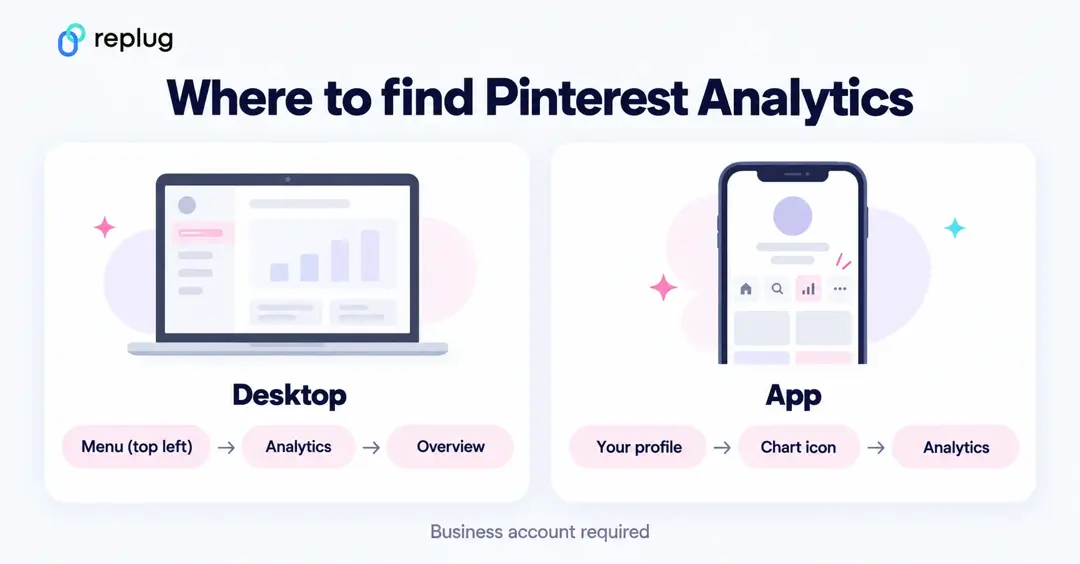
To see Pinterest Analytics, you need a free Pinterest business account. On a computer, click the menu icon at the top left of Pinterest and, under Analytics, select Overview. In the app, tap your profile picture, tap the chart icon at the top left and select Analytics. You’ll see impressions, engagements, saves, Pin clicks, outbound clicks and your audience, with top Pins and boards (Pinterest Help).
Pinterest had 640 million monthly active users in the second quarter of 2026, according to Pinterest’s Q2 2026 results (August 4, 2026). Whether you run a store on Pinterest or do Pinterest affiliate marketing, Analytics is where you see which Pins people find, save and click. Below: where to find it on desktop and mobile, what each metric means in Pinterest’s own words (checked October 2026), and how to measure the visits Pinterest sends to your site.
What is Pinterest analytics?
Pinterest Analytics is the statistics section of a Pinterest business account, where you can monitor, track and analyze how your Pins and boards perform.
It reports how your content is doing, for example:
- How many impressions did your Pins get?
- How many Pin clicks and outbound clicks did they receive?
- Which Pins and boards get the most impressions, saves and clicks?
- How many clicks went from Pinterest to your website?
Publishing Pins consistently matters, but without looking at the numbers you won’t know what works. If you publish 15 Pins a week and never check which ones earn impressions, saves and outbound clicks (or how many unique clicks your links get), you’re guessing. So check your analytics regularly and watch a few key metrics.
Why does Pinterest analytics matter?
Growth on social media rarely happens by accident. Understanding why Pinterest analytics matter is a good start. Here are five reasons:
1. Keeping an eye on the key performance metrics
Analytics shows you which content resonates. By tracking impressions, saves, Pin clicks, outbound clicks and engagement, you can see which Pins perform well and which don’t.
2. Effectively driving your Pinterest content strategy
Your top Pins and boards show which topics, images and descriptions people engage with. Pinterest suggests using the data this way: if most of your impressions are on mobile, optimize your site for mobile, and if an item on your site drives traffic, feature it in more Pins and save it to more boards (Pinterest Help).
3. Monitoring your Pinterest ROI
To judge what Pinterest is worth to your business, compare what you put in (time, design, ads) with what comes out: outbound clicks, and the visits, sign-ups or sales your own website analytics records from Pinterest. Analytics gives you the Pinterest side of that picture, so decisions rest on data rather than guesswork.
4. Getting deeper into the audience insights
Audience Insights shows the top categories and interests of your audience compared with Pinterest’s whole audience, plus a breakdown by age, gender, location and device. Data covers the last 30 days (Pinterest Help). It helps you make content for the people who actually see your Pins.
5. Exporting Pinterest analytics reports
After you apply filters on the Overview page, click Export at the top right to download a CSV snapshot of the data; Audience Insights has its own Export CSV button (Pinterest Help, Audience Insights). Sharing these exports with your team or clients keeps everyone working from the same numbers.
3 tools to check Pinterest analytics
Pinterest’s own analytics is free; other tools add scheduling, reporting across networks or link tracking. Three to know (checked October 2026):
1. ContentStudio

ContentStudio is a social media management tool for scheduling, publishing and analyzing content across networks. On its Pinterest scheduler page it lists:
- Scheduling standard, video, multi-image and repeat Pins to any board
- A visual content calendar, bulk scheduling and best-time-to-post recommendations
- Approval workflows and multiple workspaces for teams and agencies
- Analytics that cover Pinterest alongside the other networks it supports
Pricing: Standard $19, Advanced $49 and Agency Unlimited $99 a month, billed annually, according to ContentStudio’s pricing page.
2. Replug
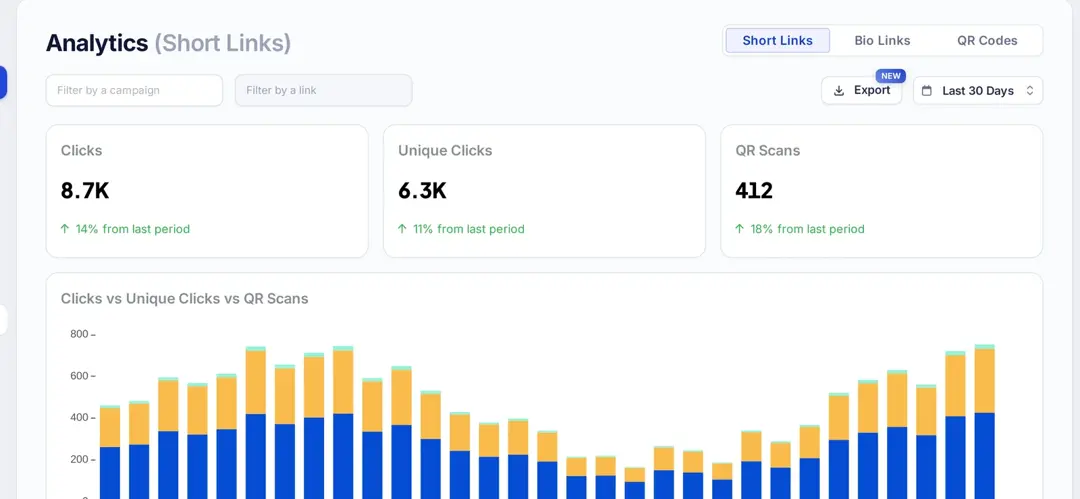
Replug is a link management tool. It doesn’t read your Pinterest account; it measures the links you put in your Pins and profile. Here’s what you can do with it for Pinterest:
- Add UTM parameters: tag your Pin links with the UTM builder (on every plan) so your website analytics can tell which campaign each visit came from.
- Track clicks: see clicks and unique clicks on each short link, by country, city, device, browser and referrer.
- Retarget visitors: add a retargeting pixel to a link so you can reach people who clicked it with ads later (one pixel on Essentials, unlimited on Scale and Agency, per Replug’s pricing).
- Bio links: build a bio link page with several links for your Pinterest profile.
- Shorten your Pin links: use the link shortener to create short, branded URLs for your Pins.
Replug doesn’t track sales or sign-ups; your website or store analytics does that. Pricing: a Free plan plus Essentials, Scale and Agency plans, listed on replug.io/pricing.
3. Pinterest Analytics
Pinterest Analytics is built into every Pinterest business account and shows content performance, engagement, clicks and audience demographics.
Key features:
- Impressions tracking
- Outbound clicks tracking
- Engagements, saves and Pin clicks
- Top Pins and top boards
- Audience Insights
- Filters by date range, content type, device, age, gender and source
- CSV export
Pricing: Free
Also Read: How to Craft a Killer Pinterest Bio for Maximum Reach?
Important Pinterest metrics to track
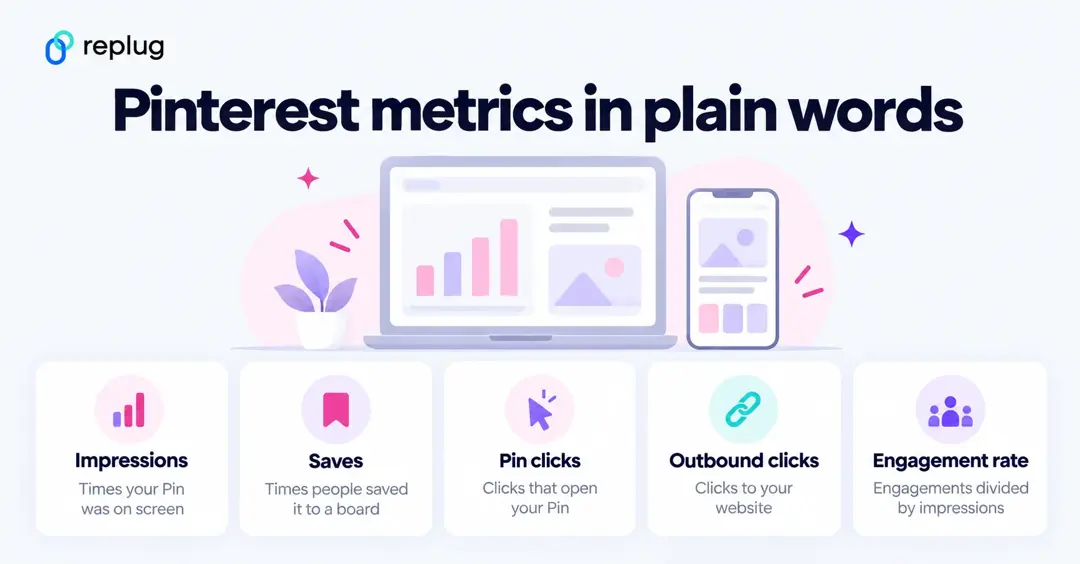
Analytics is most useful when you know what you’re looking for. These are the metrics Pinterest reports, with Pinterest’s own definitions:
| Metric | What it means (Pinterest’s definition) |
|---|---|
| Impressions | The number of times your Pins or ads were on screen. |
| Engagements | The total number of engagements on your Pins, including saves, Pin clicks, outbound clicks, carousel card swipes and collections clicks. |
| Pin clicks | The total number of clicks on your Pin or ad so it opens in closeup. |
| Outbound clicks | The number of times people perform actions that lead them to a destination off Pinterest. Counted from the date the link is added. |
| Saves | The number of times people saved your Pin to a board. |
| Total audience | The total number of people who have seen or engaged with your Pins. |
| Engaged audience | The number of people who have engaged with your Pins. |
| Top Pins and boards | The Pins and boards people viewed or engaged with most, sorted by impressions by default. |
| Profile visits (Pin stats) | The number of people who visited your profile after viewing your Pin. |
| Follows (Pin stats) | The number of followers gained from a particular Pin. |
Definitions from Pinterest Help: Review Pinterest Analytics and Review your Pin stats.
Other important metrics to keep an eye on
| Metric | What it means |
|---|---|
| Engagement rate | Total engagements divided by the number of times your Pins were seen. |
| Pin click rate | Clicks from your Pin or ad to content on or off Pinterest, divided by the number of times your Pins were on screen. |
| Outbound click rate | Clicks to the destination URL of your Pin, divided by the number of times your Pins were on screen. |
| Save rate | Total saves divided by the number of times your Pins were on screen. |
| Video metrics | Video views (2 seconds with 50% in view), average play time, 10-second plays, played to 95% and total play time, shown when you filter for video Pins. |
| Audience demographics | Age, gender, location and device of your audience, in Audience Insights. |
Two things to know when you compare numbers: real-time figures for the last 48 hours are estimates and can go down, and you can look back over custom date ranges of up to a year and a half (Pinterest Help).
How to access Pinterest analytics on a desktop?
Here are the steps on a computer, from Pinterest Help:
Step #1: Switch to a business account
Pinterest Analytics is only available on business accounts, which are free (Pinterest Help). To convert a personal account on desktop: click the more options icon at the bottom left, select Settings, click Account management, find Convert to a business account and click Convert account, then fill out your profile and business details. Business accounts are public, and your Pins and followers stay the same.
Step #2: Open the menu
Log in to your business account and click the menu (hamburger) icon at the top left of the page.
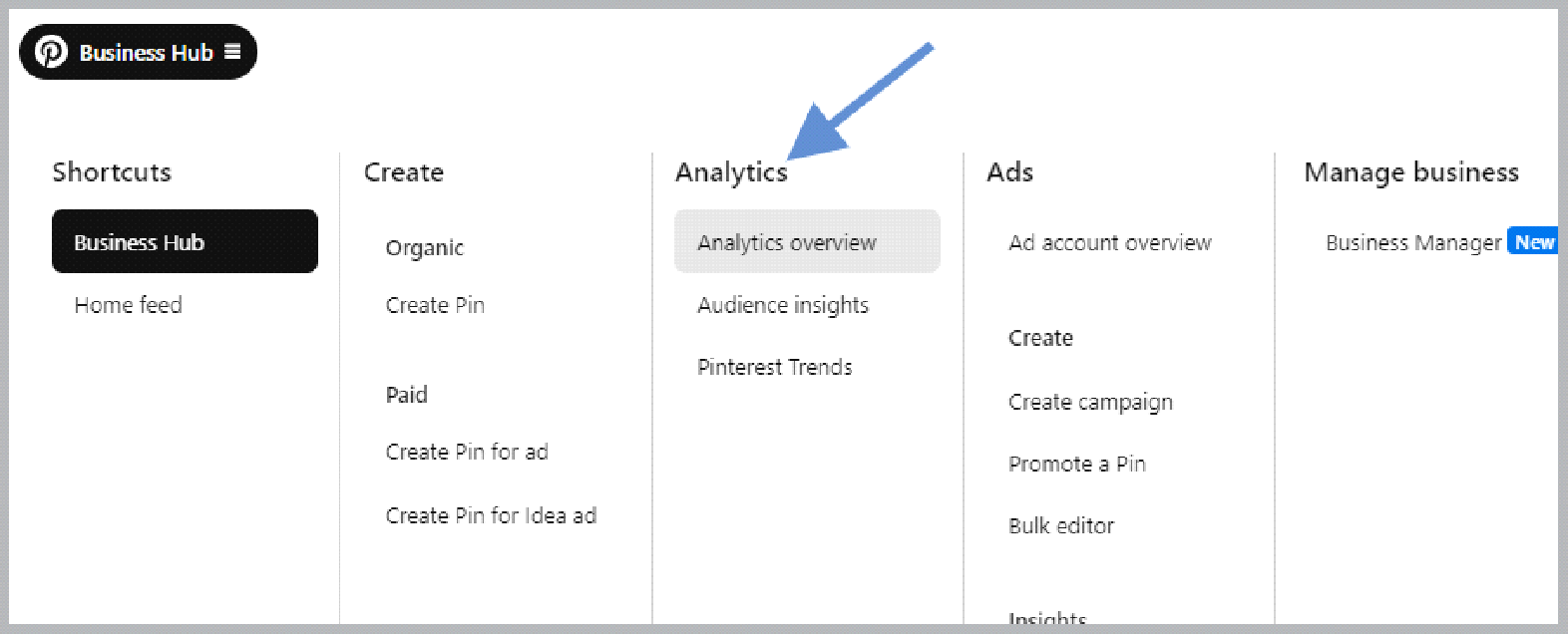
Step #3: Access the Analytics section
Under Analytics, select Overview. You’ll see overall performance, performance over time, top boards and top Pins for the last 30 days. Use the date range and More filters to narrow the data by content type, device, age, gender or source.
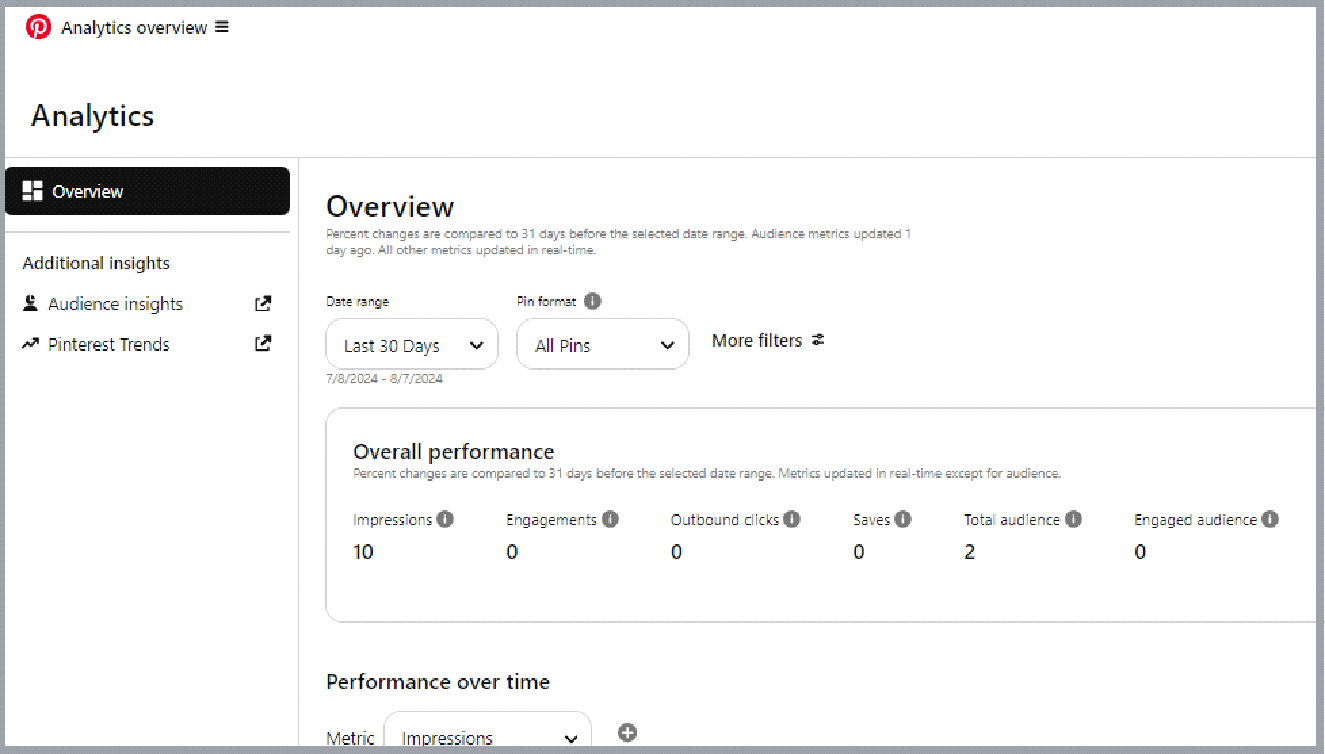
For your audience, open the menu again and, under Analytics, click Audience insights (Pinterest Help). To see stats for Pins other people save from your website, claim your website first.
How do you access Pinterest analytics on mobile?
The steps are the same in the Pinterest app on Android and iPhone, according to Pinterest Help:
Step #1: Use a business account
If you have a personal account, convert it in the app: tap your profile picture at the bottom right, tap your profile photo at the top left, tap Account management, then Convert to a business account and Convert account, and follow the prompts (Pinterest Help).
Step #2: Go to your profile
Open the Pinterest app, log in to your business account and tap your profile picture at the bottom right.

Step #3: Access the analytics section
Tap the chart icon at the top left of your profile, then select Analytics. Tap Audience at the top of the screen to see Audience Insights.

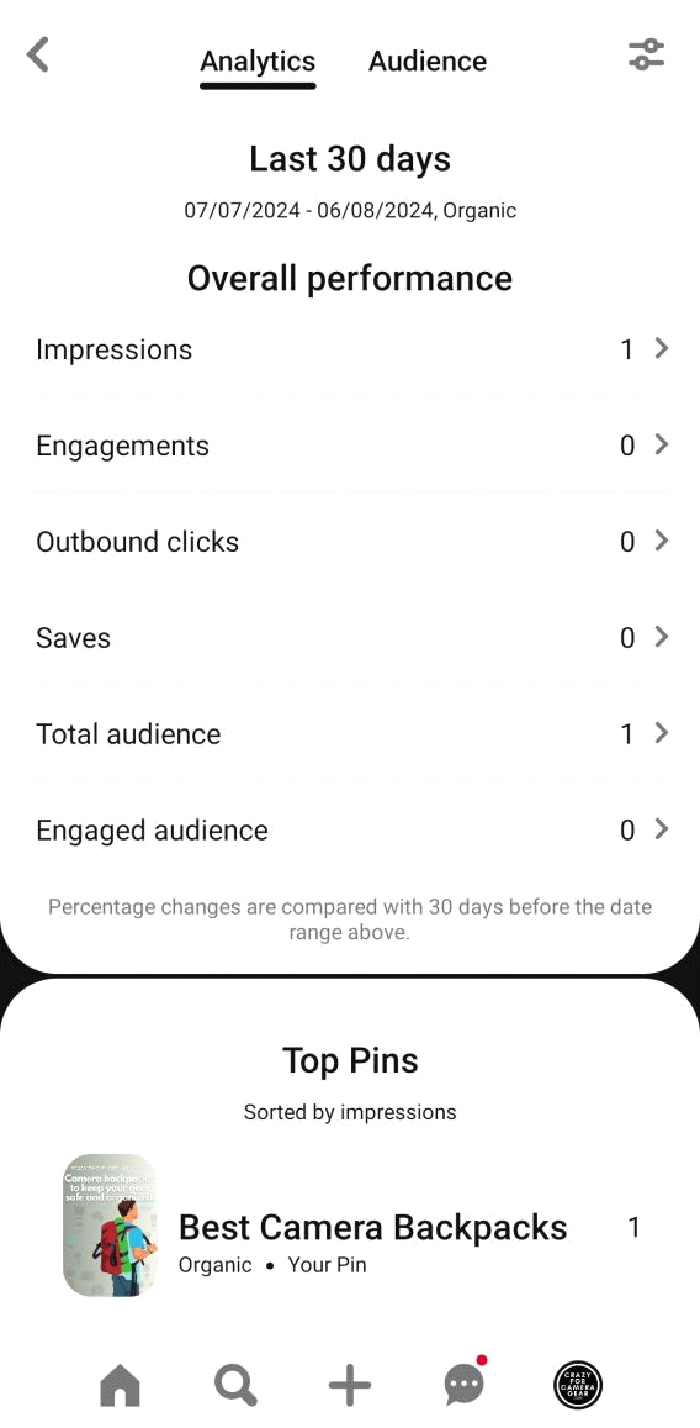
How to see stats for a single Pin
Pin stats show how one Pin performs: impressions, saves, Pin clicks and outbound clicks, plus video and product tag metrics where they apply (Pinterest Help).
- On desktop: click your profile picture at the top right, click Created, select a Pin, then click See more stats below it.
- In the app: tap your profile picture, tap Created, select a Pin and tap Pin Stats below it (or See more).
Pin stats update in near real time, so they can differ from the totals in Pinterest Analytics.
How to track clicks from Pinterest to your website
Outbound clicks tell you how often people left Pinterest for your link. What they did next is in your website analytics, so tag each Pin link with UTM parameters (for example utm_source=pinterest&utm_medium=social&utm_campaign=fall_menu); see how tracking URLs work. For Instagram, see how to view Instagram analytics.
If you put a short link in your Pins or profile, Replug counts the clicks on that link and shows where they came from (country, device, browser, referrer). Those counts include clicks from anywhere the link is shared, not only Pinterest, and they won’t match Pinterest’s outbound clicks exactly, because each tool counts on its own side.
Conclusion
Pinterest Analytics shows which Pins people see, save and click. Check Overview for the big picture, Pin stats for single Pins and Audience Insights for who you reach, then repeat the topics, formats and designs of your best Pins.
Pair Pinterest’s numbers with UTM-tagged links and your website analytics, and you’ll know not just what people liked on Pinterest but what they did after they clicked.
Here are the commonly asked questions about Pinterest analytics.
FAQs about Pinterest analytics

Manahil