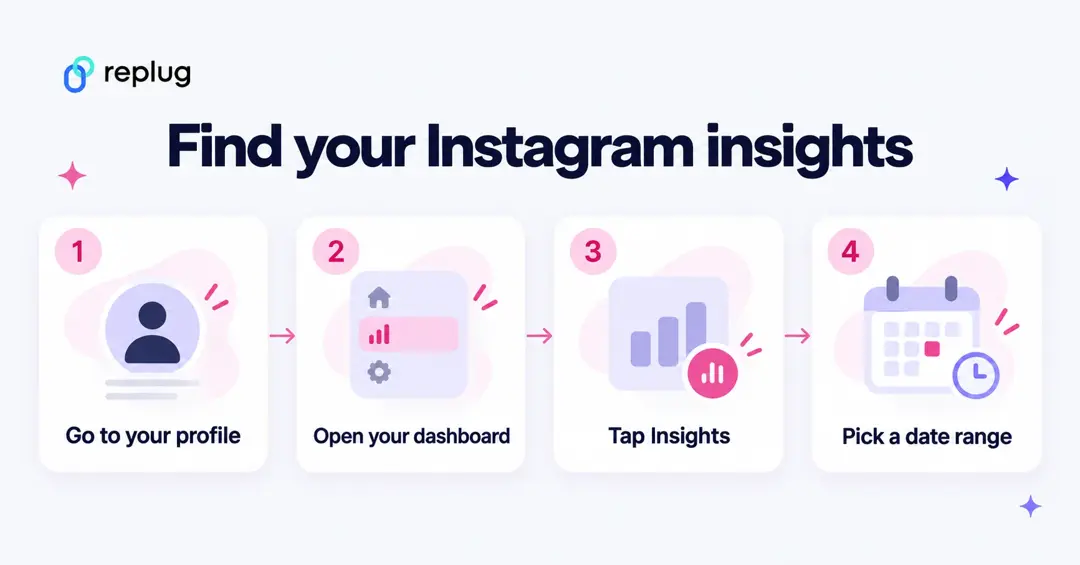
To view Instagram analytics, go to your profile in the Instagram app and tap Professional dashboard (on a business or creator account) or Your dashboard (on a personal account), then tap Insights. You’ll see the last 30 days of views, interactions, new followers and content you shared, and you can change the date range to any period within the past 90 days. On a computer, go to instagram.com and select Dashboard in the left menu. Your account must be public to see insights.
This guide follows Instagram’s Help Center (checked October 2026): where to find insights on the app and the web, what each metric means, how to see insights for posts, stories, reels and live videos, and how to use the numbers. Instagram calls its analytics Insights, so you’ll see both words below.
What is Instagram analytics?
Instagram analytics, called Instagram Insights in the app, is a free set of statistics about your account and the content you post: how many times it was viewed, how many accounts saw it, how people interacted with it and how your followers changed. You can view it for your whole account or for a single post, story, reel or live video.
Key takeaways on Instagram analytics:
- Insights are available to public accounts, personal or professional. If you switch a public account back to private, you lose access to insights; switch back to public within 90 days to get past data back (Instagram Help).
- Account insights cover any period in the past 90 days: 5 presets (last 7, 14 or 30 days, previous month, last 90 days) or a custom range.
- Audience demographics (top countries, cities, age ranges, gender) appear once you reach or engage more than 100 accounts in the chosen period; follower trends need at least 100 followers (About Instagram insights).
- Post, story and reel insights stay available for up to two years; live video insights for 30 days after the broadcast.
- Instagram says some metrics, such as Views and Viewers, are estimated and still in development.
How to view Instagram analytics in the app
- Tap Profile or your profile picture in the bottom right to go to your profile.
- Tap Professional dashboard (professional account) or Your dashboard (personal account). If you don’t see it, tap More to open Settings and activity, then tap Insights below For professionals, or Your dashboard below Your insights and tools.
- Review the last 30 days of Views, Interactions, New followers and Content you shared.
- To change the date range, tap an insight, tap the dropdown and pick a preset or a custom range (start and end at least 1 day apart, within the past 90 days), then tap Update.
Steps from View account and content insights on Instagram. Tap the (i) in the top right of any insight to see Instagram’s definition of each metric.
How to view Instagram analytics on desktop
Instagram insights are also on instagram.com:
- Select Dashboard from the left-hand menu.
- Select Insights below For professionals (professional account) or Your dashboard below Your insights and tools (personal account).
- From the Insights dropdown, select Account or Content.
- Use the dropdown to set the date range: the last 7, 14, 30 or 90 days, or a custom range within the past 90 days.
Steps from the computer version of Instagram’s help article.
How to switch to a business or creator account on Instagram?
You don’t need a professional account to see basic insights any more, but business and creator accounts get the professional dashboard, ads, and contact options. To switch, according to Instagram Help:
- Tap Profile or your profile picture in the bottom right to go to your profile.
- Tap More to go to Settings and activity.
- Below For professionals, tap Account type and tools.
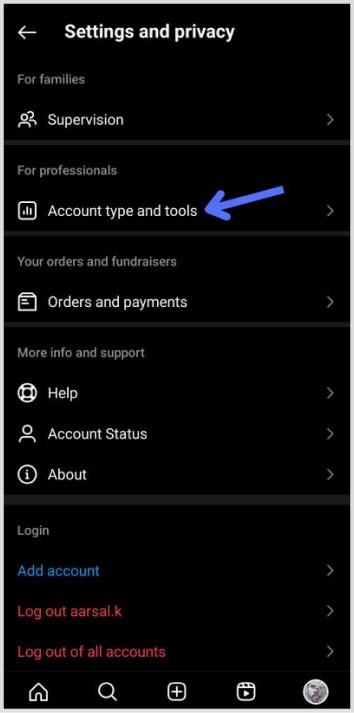
- Select Switch to professional account.
- Select the category that best describes what you do. The category doesn’t decide whether you get a business or creator account.
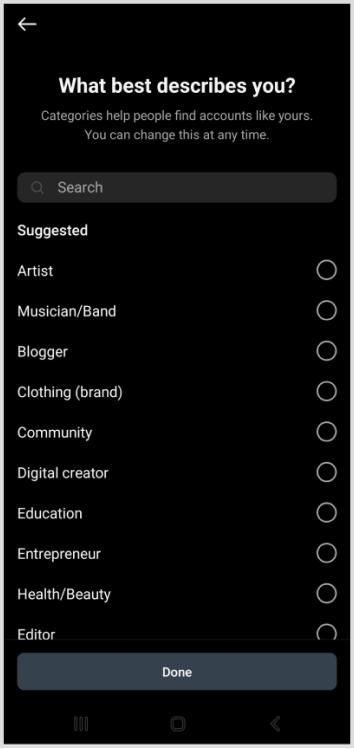
- Tap Switch to professional account, choose Creator or Business and tap Next.
- Add contact details if you like, or tap Don’t use my contact info, and optionally connect a Facebook Page.
If your personal account is private, switching to a professional account makes it public. If you later switch back to a personal account, you lose in-app insights, but Instagram keeps the data for 90 days (Instagram Help).
You may also like: How to check analytics on TikTok?
Types of Instagram analytics:
Instagram now reports “Views” and “Viewers”; older guides mention impressions and accounts reached. Here’s what each insight means, from About Instagram insights.
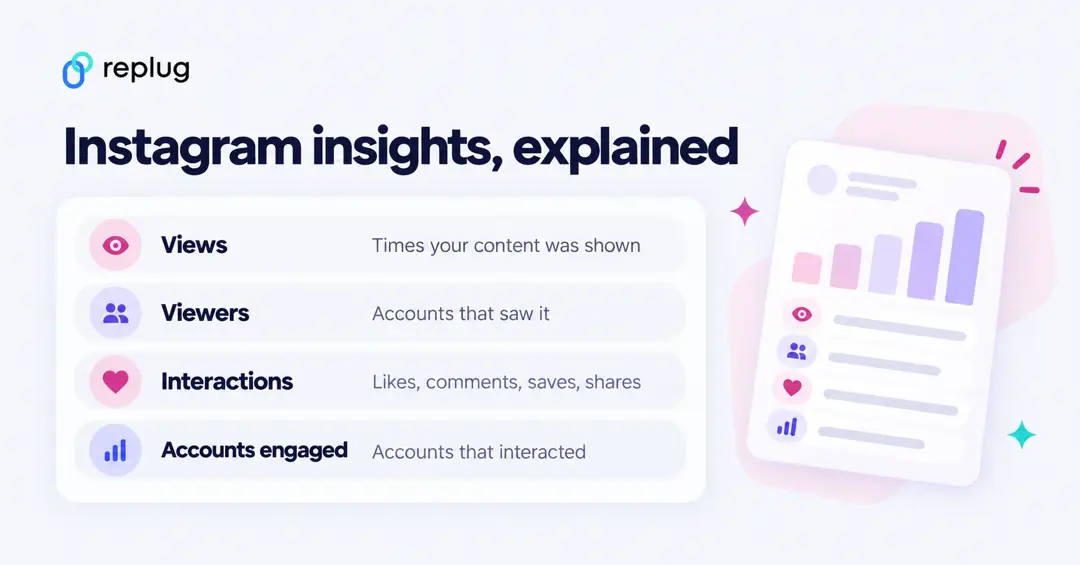
1. Overview analytics:
- Views: the number of times your content was played or displayed (reels, posts, stories, live videos and ads).
- Viewers: the number of unique accounts that saw your content on screen at least once, with top countries, cities, age ranges and gender.
- Interactions: likes, comments, saves, shares and other actions on your content.
- Accounts engaged: the number of unique accounts that interacted with your content; for posts, stories and live videos it’s split into followers and non-followers.
- Content you shared: how many stories, reels and posts you published in the period. Tap a content type to filter your content library by media type, reach, interactions and time frame.
2. Instagram audience analytics:
Total followers shows trends once you have at least 100 followers: growth (followers gained and lost), top locations, age range and the times your followers are most active on Instagram.
3. Instagram post analytics:
Open a post and tap View Insights to see Views, Interactions and Profile activity (actions people take on your profile after engaging with the post). Post insights are available for up to two years (Instagram Help).
4. Instagram stories analytics:
Open your story, tap Activity, then the Insights icon. You’ll see Views, Viewers, Interactions (replies, shares, sticker taps, link taps), Accounts engaged and Profile activity (profile visits, follows, website clicks). Insights for expired stories stay available for up to two years under Content you shared in your dashboard (Instagram Help). To add links people can tap, see how to add a link to your Instagram story.
5. Instagram reels analytics:
Go to the Reels tab on your profile, open a reel and tap View insights. Reel metrics include Views (times the reel started to play or replay), Watch time, Viewers, Average watch time and Follows. They’re available for reels posted on or after May 14, 2021, for up to two years (Instagram Help).
6. Instagram live analytics:
Live needs a public account with at least 1,000 followers. Live insights include Viewers, Peak concurrent viewers, Comments, Shares and Accounts engaged, and are available for 30 days after the broadcast, in the mobile app only (Instagram Help).
If you boost a post, you also get ad insights such as results, cost per result and spend; boosting is only available to professional accounts (Instagram Help).
Instagram analytics best practices:
1. Regularly check analytics:
Pick a schedule, such as once a month, and look at the same date range each time so the numbers are comparable. The Previous month preset makes this easy.
2. Be organized with spreadsheets:
Insights only go back 90 days for your account (two years for single posts, stories and reels), so copy your key numbers into a spreadsheet each month if you want a longer history.
3. Sort your content library:
Tap a content type under Content you shared to open your content library, then filter by media type, reach, interactions and time frame to find what worked best.
Also read: How to add a link to your Instagram story?
How to use Instagram analytics to grow your business:
1. Understand your audience:
Use Viewers and Accounts engaged demographics, and your followers’ most active times, to decide what to post and when.
2. Benchmarking strategies:
- Internal benchmarking: compare your strongest and weakest posts, reels and stories over the same period and look for common themes.
- Metrics to prioritize: for the account, follow Views, Viewers, Accounts engaged and New followers; for single posts, look at Interactions, Profile activity and Follows.
- External benchmarking: you can’t see other accounts’ insights, but you can compare public signals such as their posting frequency, formats and visible likes and comments.
Enhance social media tracking with Replug analytics:
Instagram insights tell you what happened on Instagram. They don’t show what people did on the websites you link to. A tracked short link fills part of that gap: put a Replug link in your bio, a story link sticker or a DM, and Replug shows how many people clicked it and from which countries, devices and referrers. Add UTM parameters with Replug’s UTM builder, and your web analytics tool can attribute the visits to Instagram. Replug counts clicks; it doesn’t track purchases or sign-ups on your site.
For more on tracking, see what a tracking URL is and how to see who clicks on your Instagram link. Replug also creates QR codes for any URL and link tracking across channels.
Frequently asked questions

Arslan Jadoon