Feeling stuck staring at your Instagram profile, wondering if your bio really matters in 2026? You’re not alone!
With over 3 billion monthly active users on Instagram, it’s a bustling digital space where first impressions count more than ever before.
But here’s the major issue!
Many people either rush through their bio or treat it like an afterthought, and miss out on real opportunities to connect, convert, and stand out.
This is especially true if you’re crafting a professional bio that needs to communicate who you are, what you do, and why people should care, all within 150 tiny characters.
It’s frustrating when you know your content is great, yet your profile doesn’t reflect that at a glance.
Luckily, updating your Instagram bio is easier than you think, and that’s exactly what we’ll walk you through next.
So, stay with us for the next couple of minutes!
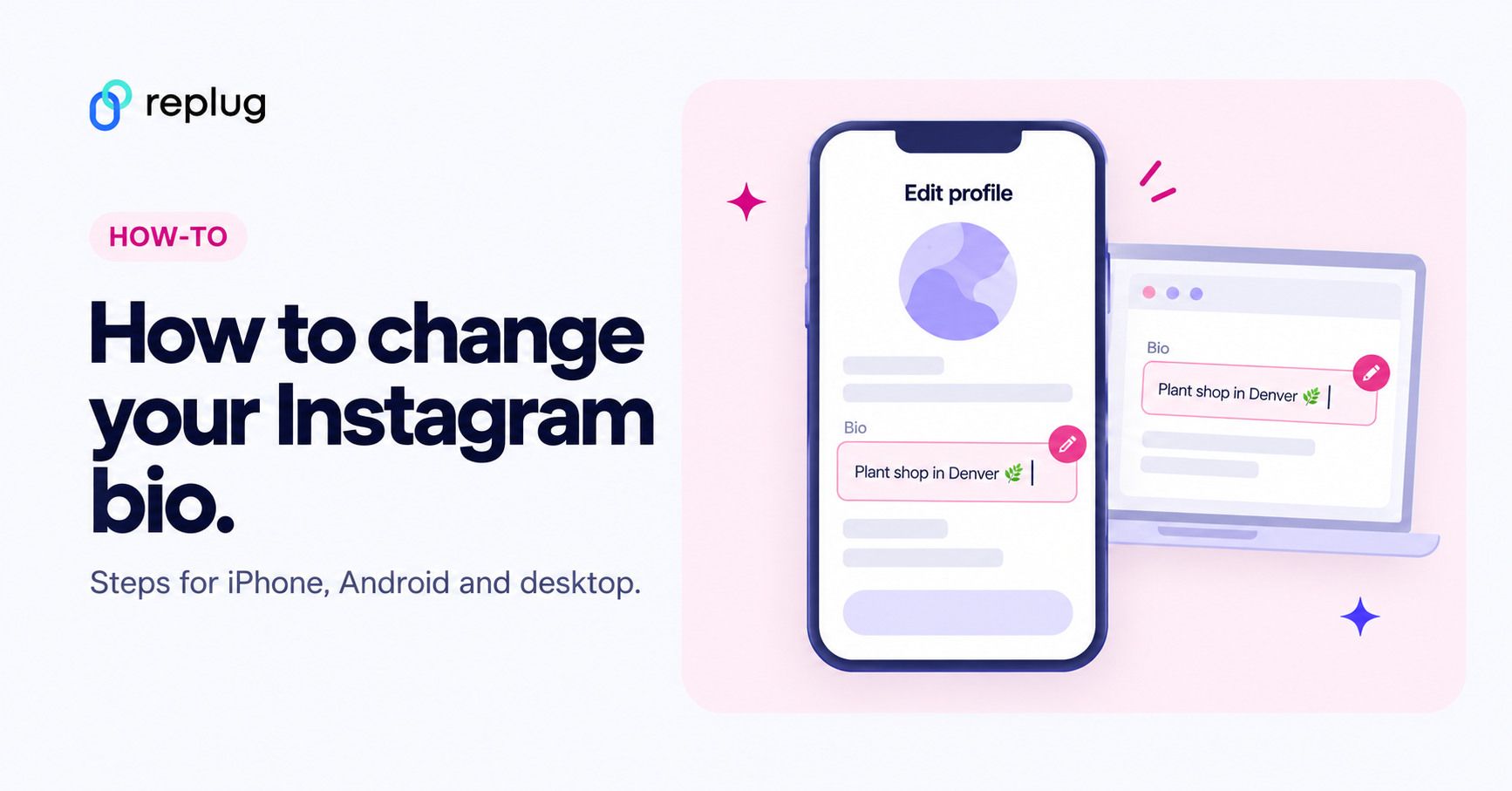
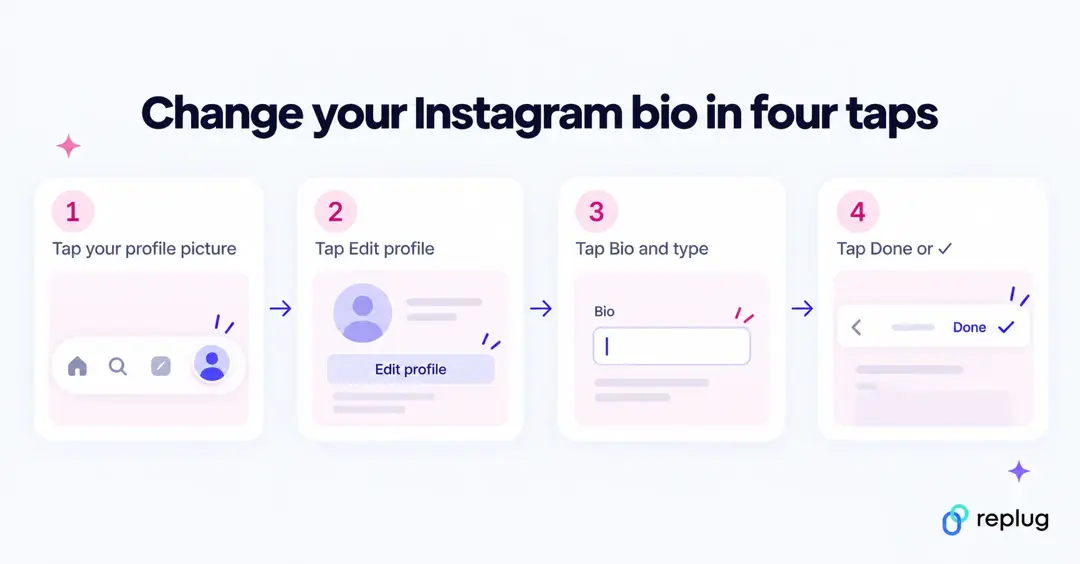
Quick answer: to change your bio on Instagram, tap your profile picture in the bottom right, tap Edit profile, tap Bio, type your new bio (up to 150 characters), then tap Done on iPhone or the checkmark (✓) on Android. On a computer, click your profile picture in the left menu, click Edit profile, edit the Bio box and click Submit. These are the steps in Instagram’s Help Center as of October 2026.
What is the bio section on Instagram?
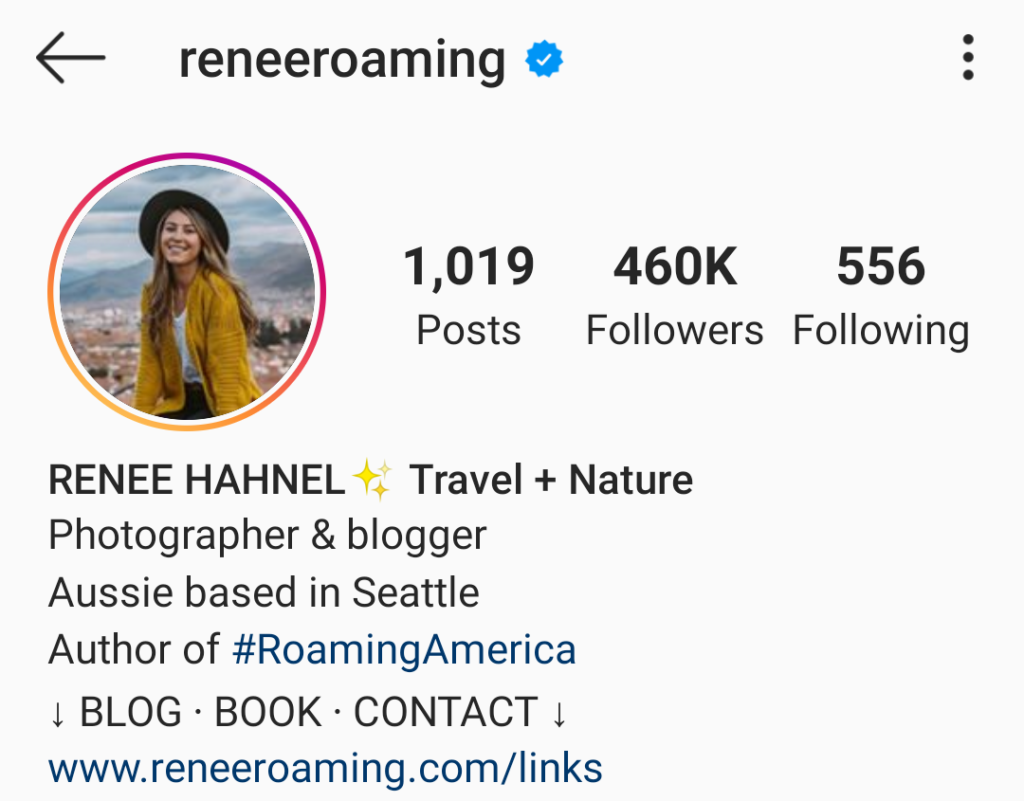
Your “Instagram bio” is that short bit of text right under your username and profile photo on your profile.
Think of it as a tiny intro card that tells new visitors who you are, what you do, or what they can expect from your account, all in one short sentence or two.
Even with only a small space, it’s one of the first things people see when they land on your profile.
How does it work:
- Quick snapshot of you: It’s a brief section where you can introduce yourself, share your vibe, or even explain your business (basically your mini pitch to anyone who lands on your profile).
- Character limit: You only get up to 150 characters, so every word has to count. That’s why it’s important to keep it clear and punchy. Captions, usernames and comments have their own Instagram character limits.
- Extras you can add: Beyond simple text, you can include emojis, hashtags, or even mentions of other profiles to make the bio more engaging and searchable.
- Clickable links: Instagram lets you add up to 5 links to your profile (from the Instagram app; adding links isn’t available on computers). That’s super helpful if you want to send people to your website, blog, shop, or even a link page with lots of options.
- Visible everywhere: Anyone who visits your profile (whether on mobile or desktop) will see your bio right away, so it works as a quick intro that sets expectations for your content.
How to change bio on Instagram on iPhone
Updating or editing your Instagram bio on your iPhone is actually really straightforward. You just need to know where to go and what to tap.
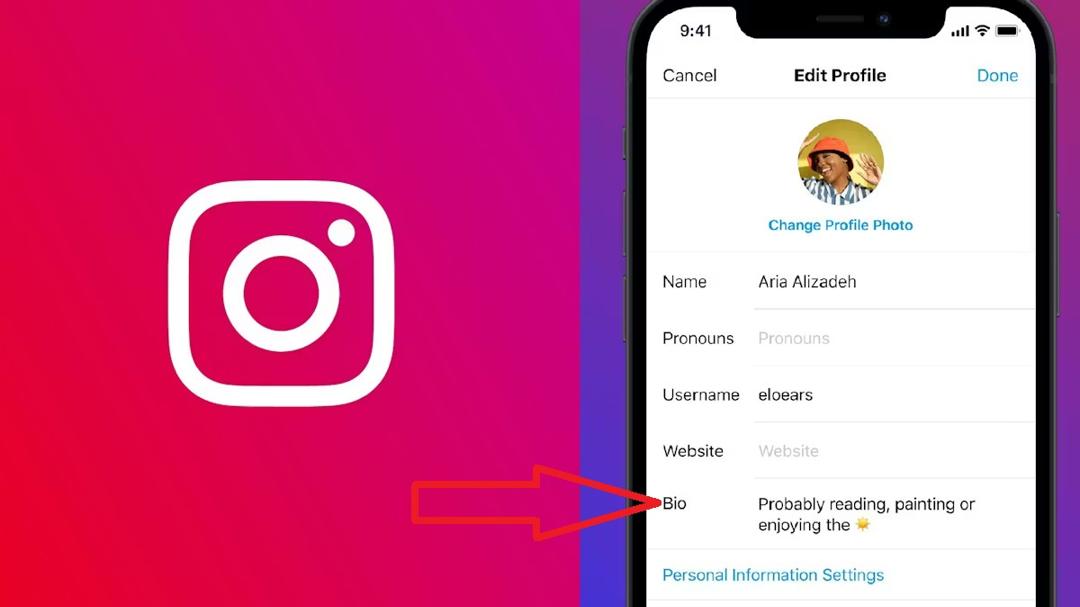
No matter if you’re refreshing your vibe, adding new info, or tweaking your professional or personal short bio, these steps will make sure you do it in a few taps without the usual headaches.
Here’s how to change bio on Instagram app on an iPhone:
1. Open the Instagram app: Find and tap the Instagram app icon on your iPhone and make sure you’re logged into your account.
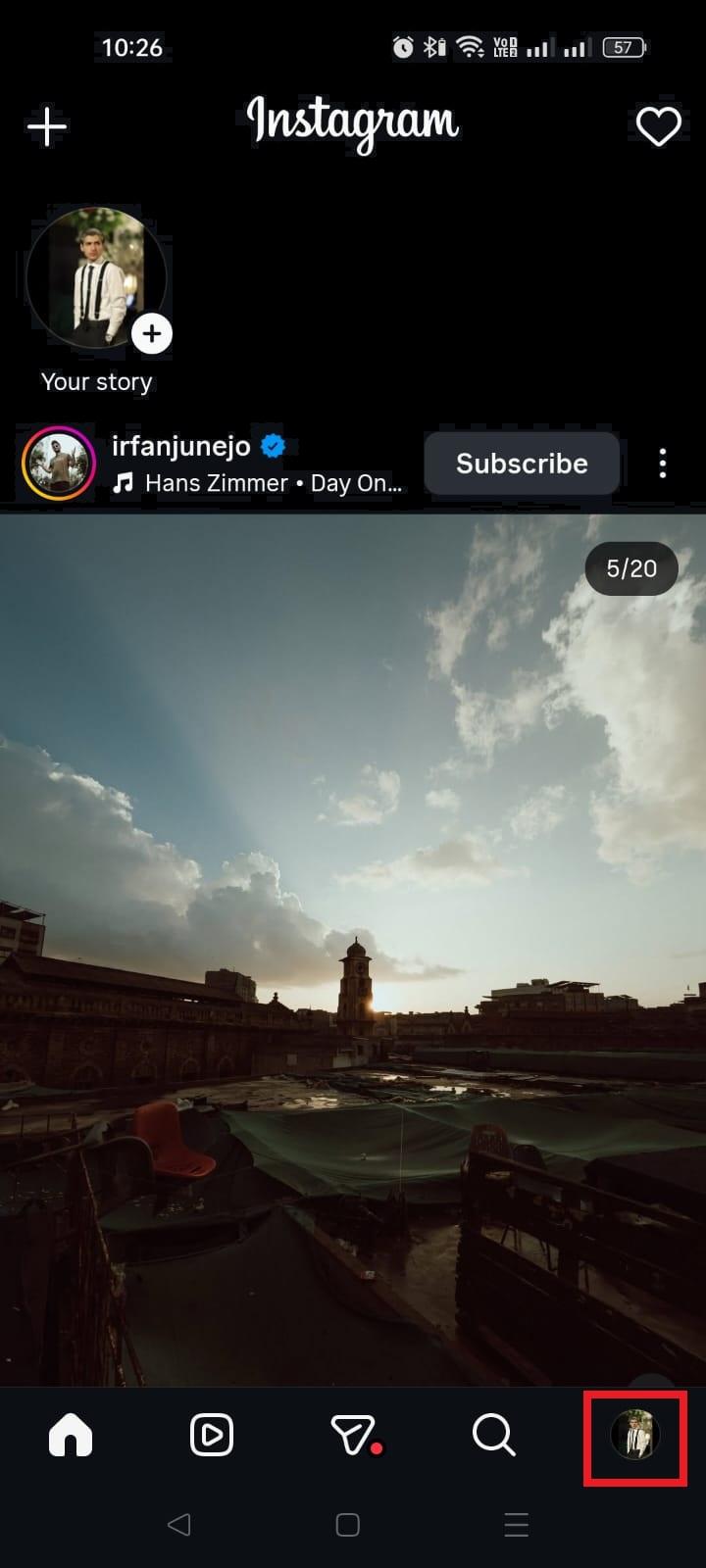
2. Go to your profile: Tap the profile icon at the bottom-right of the screen. That’s you!
3. Tap “Edit Profile”: Right under your profile picture and username, you’ll see Edit Profile. Tap it to open your profile settings.
4. Select the “Bio” field: In the profile settings, find the Bio section. Tap on it to start editing the text.
5. Type your new bio: Add, delete, or rewrite your bio the way you like. You can include emojis, hashtags, or a link, but keep it within the 150-character limit Instagram gives you. (A URL typed into the bio text isn’t clickable; add links through the Links field instead, covered below.)
6. Save your changes: Once you’re happy with it, tap Done (or the checkmark) in the top-right corner to update your bio. It’ll show up instantly on your profile.
That’s it! You’ve just changed your Instagram bio on your iPhone, successfully 🎉
Now your profile says exactly what you want it to!
Note: If you don’t see the Done(or the checkmark) icon, sometimes just tapping outside the text box or waiting a second for your keyboard to settle makes it appear.
How to change bio on Instagram on an Android smartphone
Changing your Instagram bio on an Android phone takes just a few taps, and it’s basically the same process as on other phones; it’s just about knowing where to go.
Whether you want to freshen up your profile, add a new tagline, or make your bio actually say what you mean, this guide walks you through it step-by-step so you don’t miss anything.
Here’s how to change bio on Instagram mobile (Android):
1. Open the Instagram app: Tap the Instagram icon on your Android phone and make sure you’re logged in.
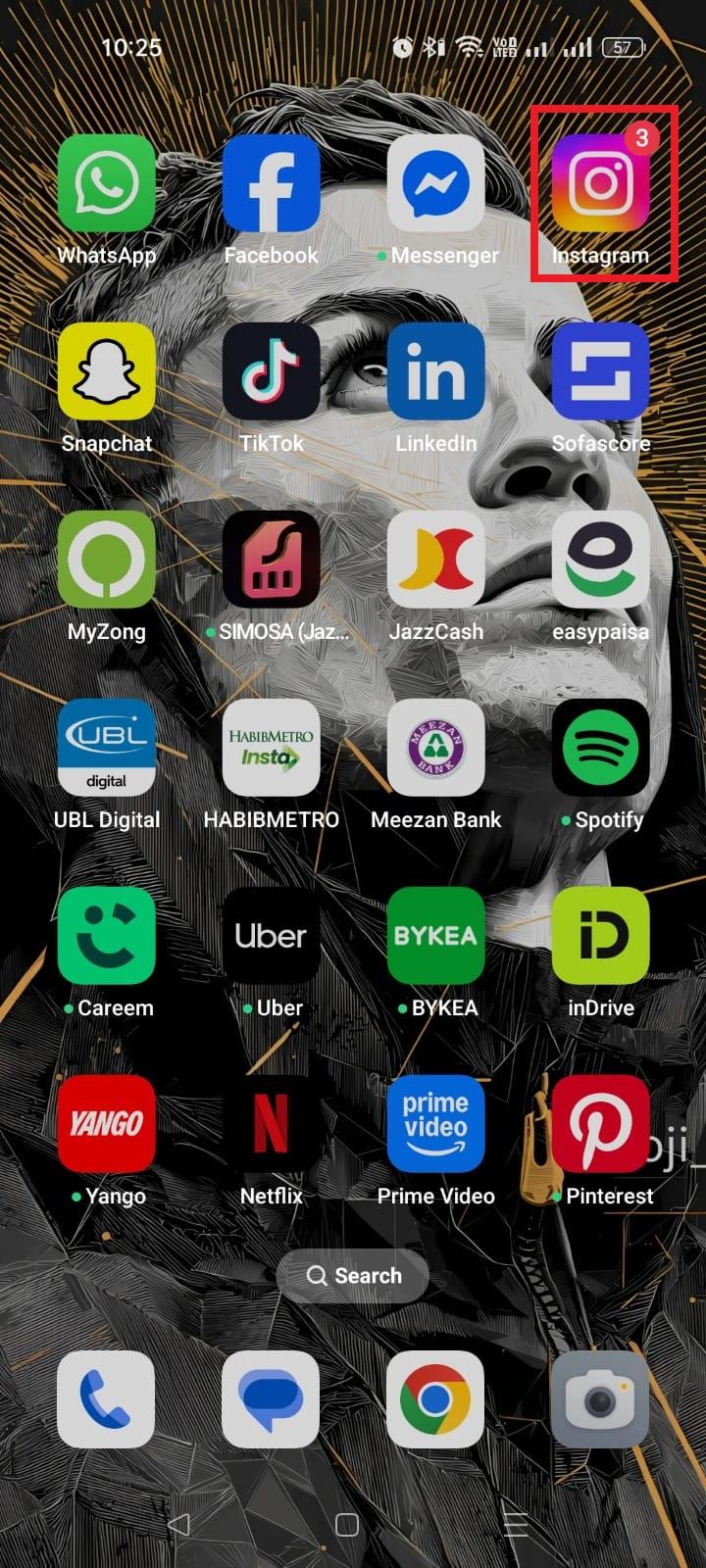
2. Go to your profile: Tap the profile icon (usually a little person silhouette) at the bottom-right to open your profile page.
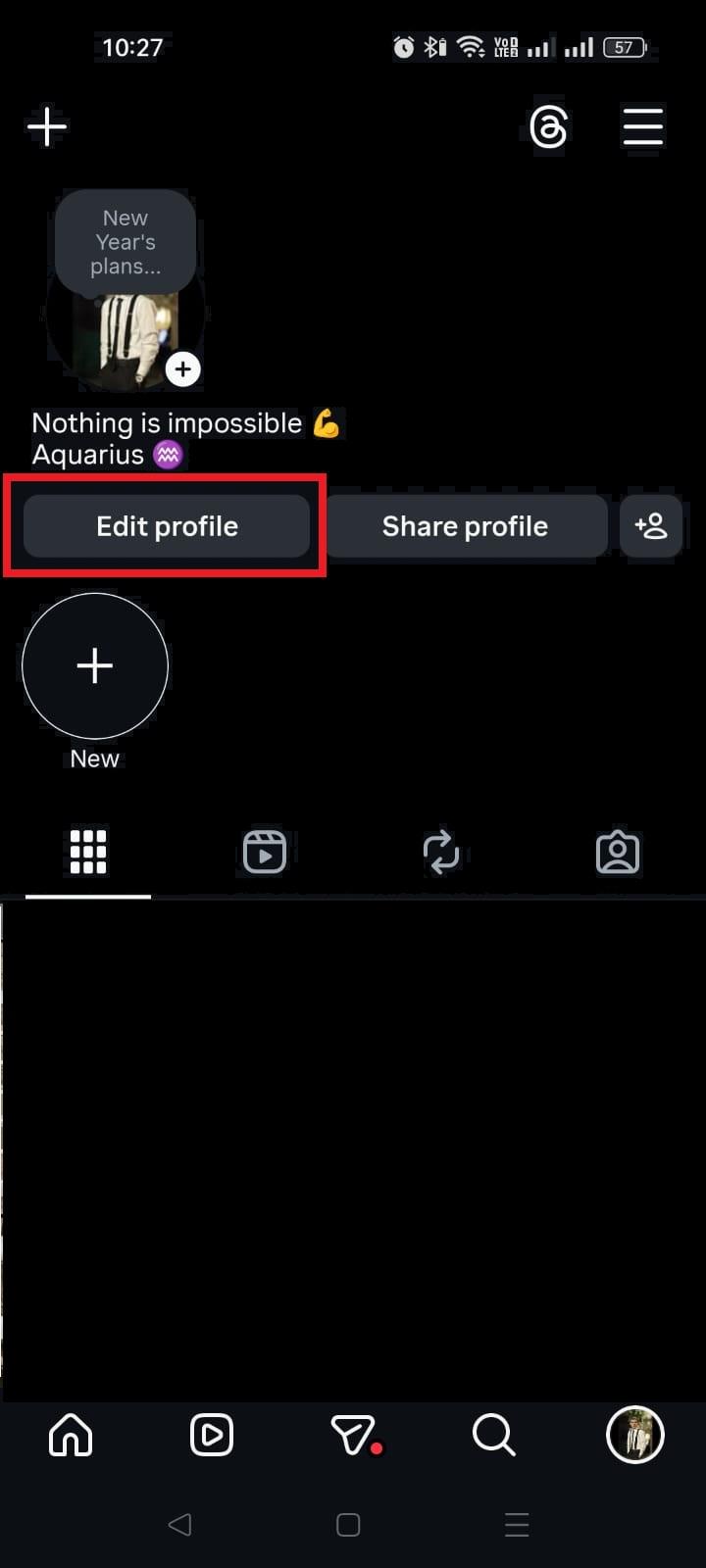
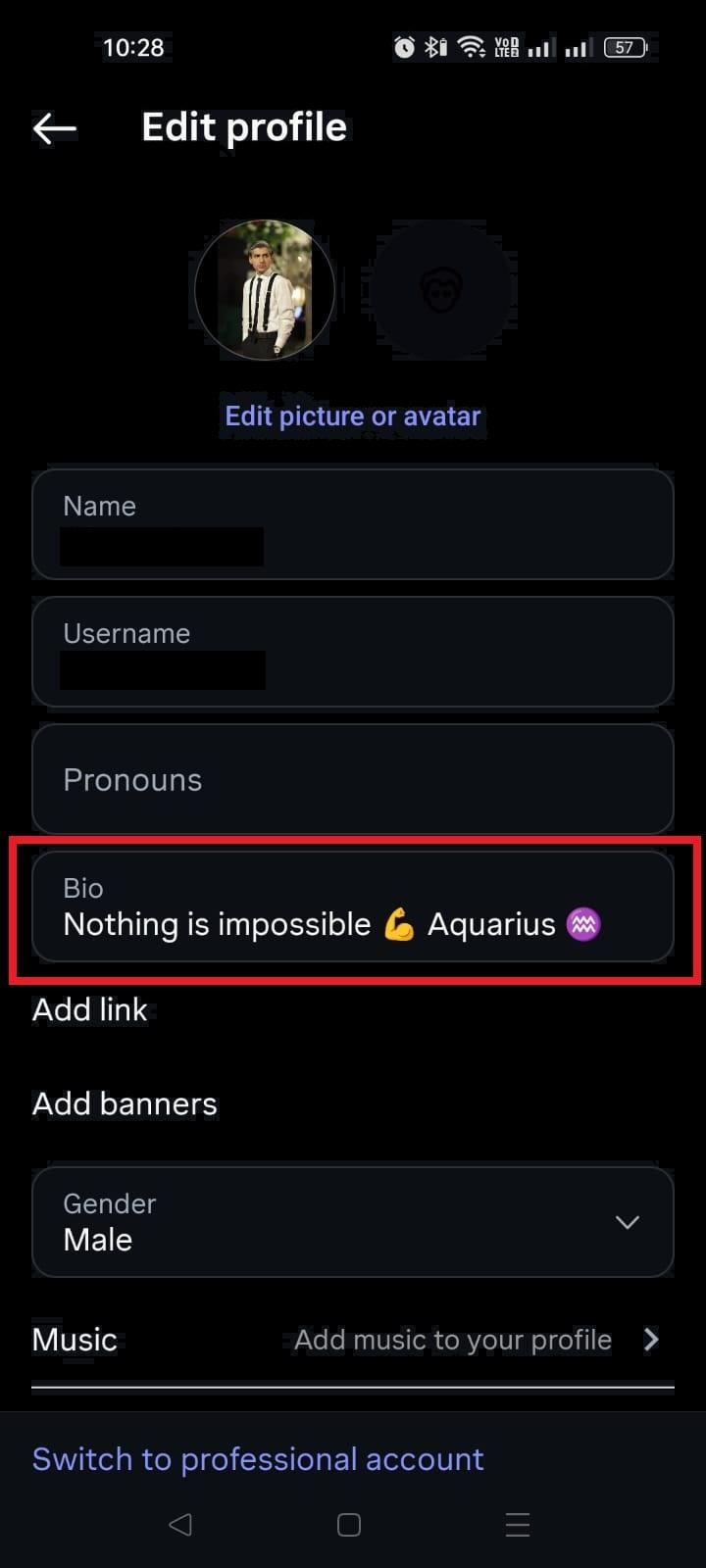
3. Tap “Edit profile”: Just below your profile picture and bio, you’ll see the Edit profile button. Tap it to enter the edit screen.
4. Tap the “Bio” field: Look for the Bio box on that screen and tap it. The existing bio will become editable.
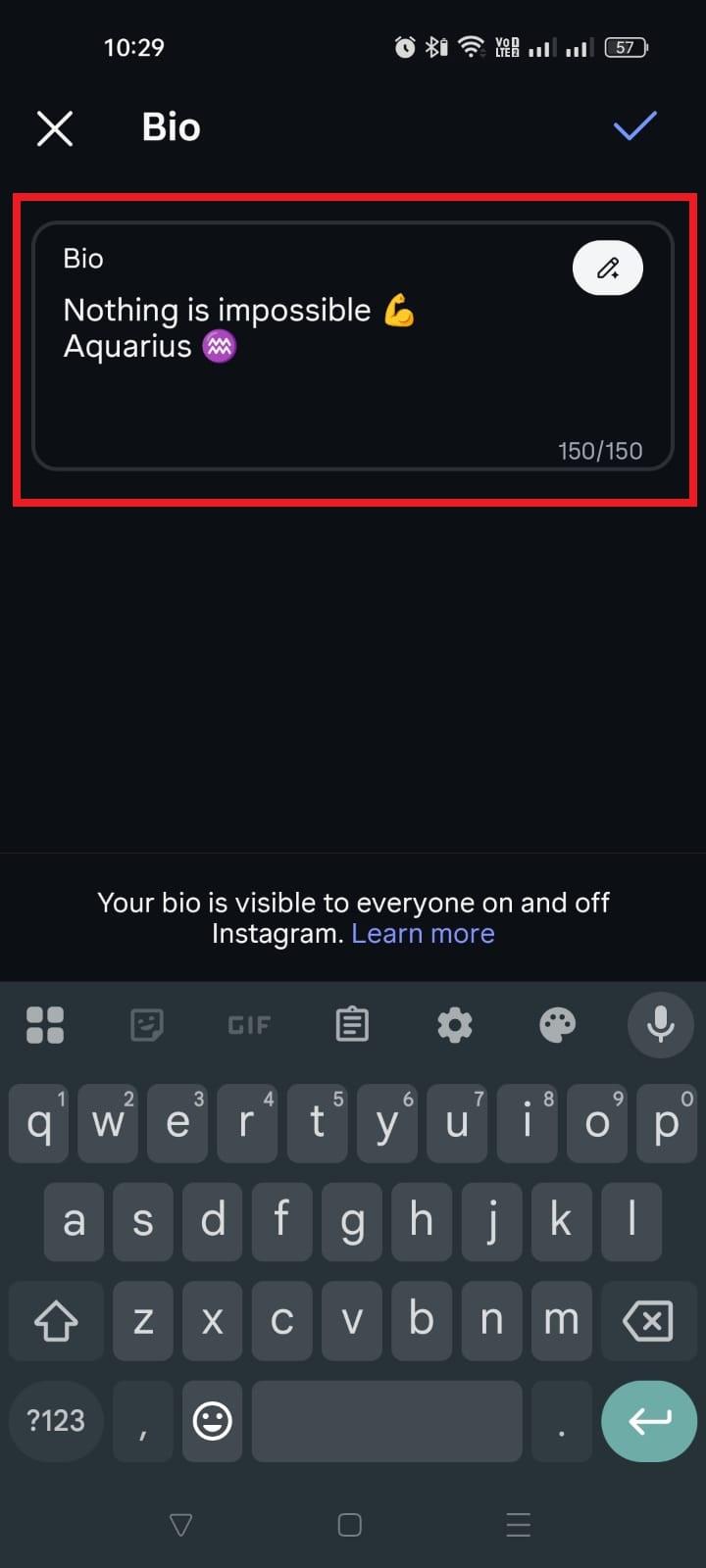
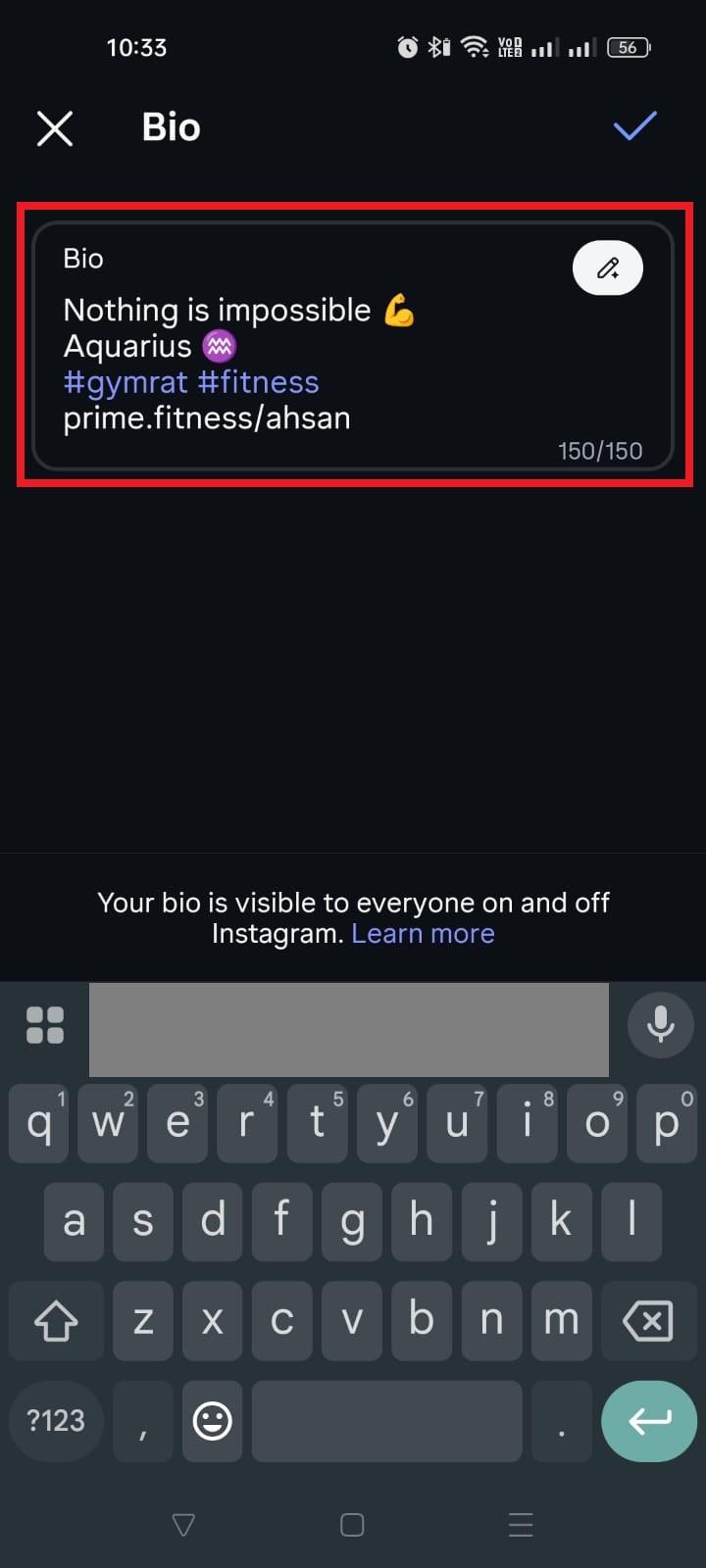
5. Type your new bio: Enter whatever you want your bio to say. You can include emojis, short links, or hashtags. Just stay within Instagram’s 150-character limit.
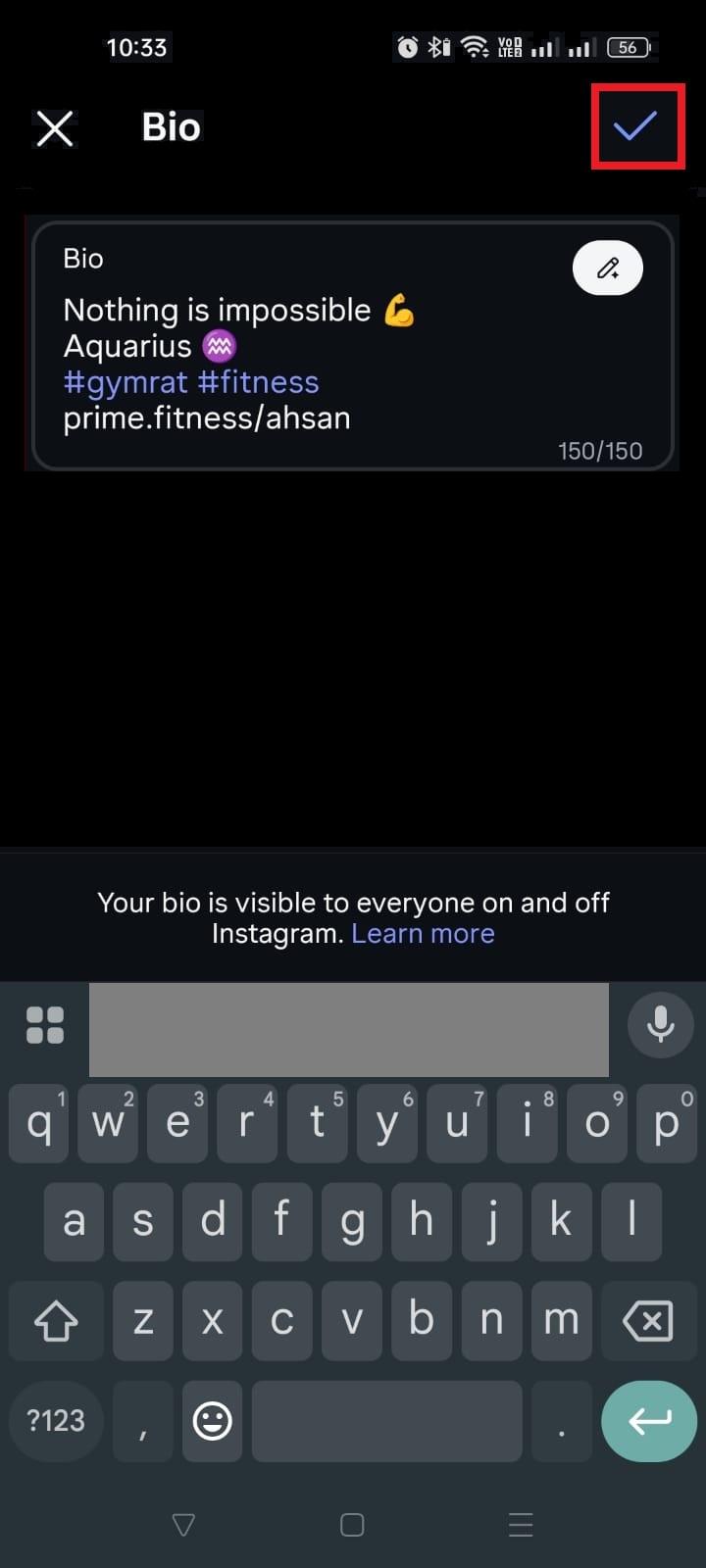
6. Save your changes: Hit the checkmark (✓) in the top-right corner to save. Your updated bio will appear immediately on your profile.
That’s it, super simple and quick!
Now your profile reflects exactly what you want visitors to see.
How to change bio on Instagram on desktop (web browser)
Updating your Instagram bio from your computer (PC) is handy, especially when you’re working, blogging, or just want the bigger keyboard advantage.
The web version of Instagram lets you edit your profile, including your bio, right from your browser with just a few simple steps. (no phone needed!)
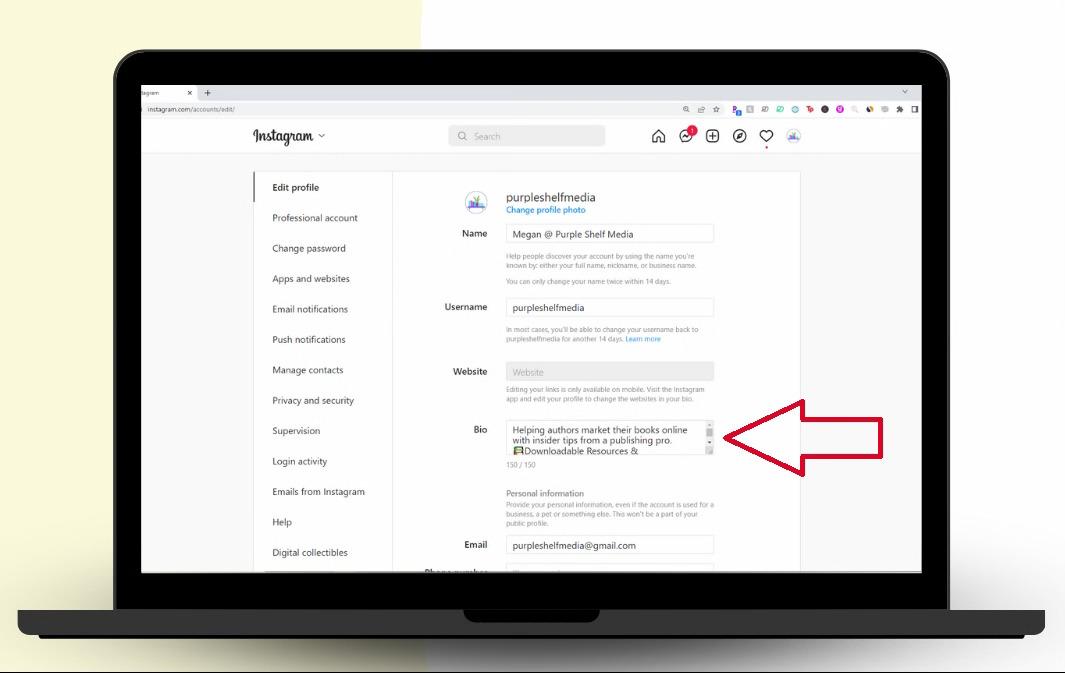
Here’s how to change bio on Instagram profile on desktop/laptop:
1. Open your web browser: Go to instagram.com and log in to your account if you haven’t already.
2. Go to your profile: Click your profile picture (labeled Profile) in the menu on the left side of the screen.
3. Click “Edit profile”: On your profile page, you’ll see an Edit profile button near your username. Click it to open the editing screen.
4. Find the “Bio” field: In the edit screen, look for the Bio box. Click inside it to select it, then delete the old text and type your new bio. (Remember, Instagram limits this to about 150 characters, including spaces and emojis.)
5. Save your changes: Once you’re completely satisfied with what you’ve written, click Submit at the bottom of the form to save the new bio. It will update on your profile right away!
And that’s all there is to it!
Quick tip: If your bio doesn’t seem to save properly from the web, try refreshing the page or clearing your browser cache (sometimes tiny glitches happen).
Quick reference: where to edit your Instagram bio on each device
The path is the same everywhere; only the save button changes.
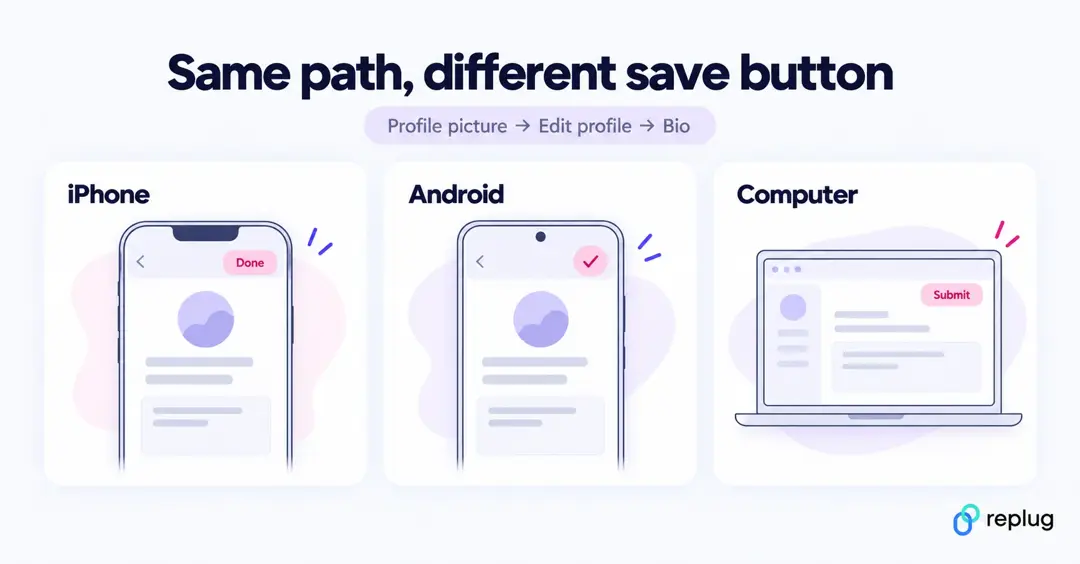
| Device | Path to the Bio box | How to save |
|---|---|---|
| iPhone app | Profile picture (bottom right) → Edit profile → Bio | Tap Done |
| Android app | Profile picture (bottom right) → Edit profile → Bio | Tap the checkmark (✓) |
| Computer (instagram.com) | Profile picture in the left menu → Edit profile → Bio text box | Click Submit |
| iPad app, Instagram Lite, mobile browser | Your profile → Edit profile → Bio | Tap Done or Submit |
Your bio is public: Instagram’s Help Center notes that anyone can see it, so leave out personal details such as your phone number or home address.
How to add links to your Instagram bio
The bio text itself can’t hold a clickable link. Links have their own field on the Edit profile screen, and you can add up to 5 of them. Instagram only offers this in the iPhone and Android apps, not on a computer.
- Tap your profile picture in the bottom right to go to your profile.
- Tap Edit profile.
- Tap Links, then tap Add external link (iPhone) or Add link (Android).
- Paste the URL, add a title if you like, and tap Done (iPhone) or the checkmark (Android).
To change the order, go to Edit profile → Links, tap the options menu, choose Reorder links, then drag them. The first link is the one people see on your profile without an extra tap, so put your most important destination there.
If you have more than five places to send people, point one link at a bio link page that holds all of them. Our guide on adding multiple links to Instagram walks through the options.
How to add line breaks and spacing to your Instagram bio
A bio split into short lines is easier to scan than one long sentence. To add a line break:
- iPhone and Android: tap the return key on the keyboard while typing in the Bio box.
- Computer: press Enter inside the Bio text box on instagram.com, then click Submit. Many people find this the most reliable way to get clean breaks.
- If breaks disappear: write the bio in your phone’s notes app, copy it, and paste it into the Bio box. Avoid a trailing space at the end of a line.
Line breaks count toward the 150-character limit, as do spaces and emojis. Fancy “font” generators replace normal letters with look-alike symbols; they work in a bio, but screen readers and Instagram search may not read them as words, so keep your name and keywords in regular text. See our guide to the Instagram bio character limit for how characters are counted.
How to change bio on Instagram business account
Changing your Instagram bio on a business account works almost the same as on a regular personal profile. The only difference is that business accounts often have a few extra options (like contact buttons and address fields) that you can fill in if you want.
The steps below will walk you through it cleanly so you don’t get stuck.
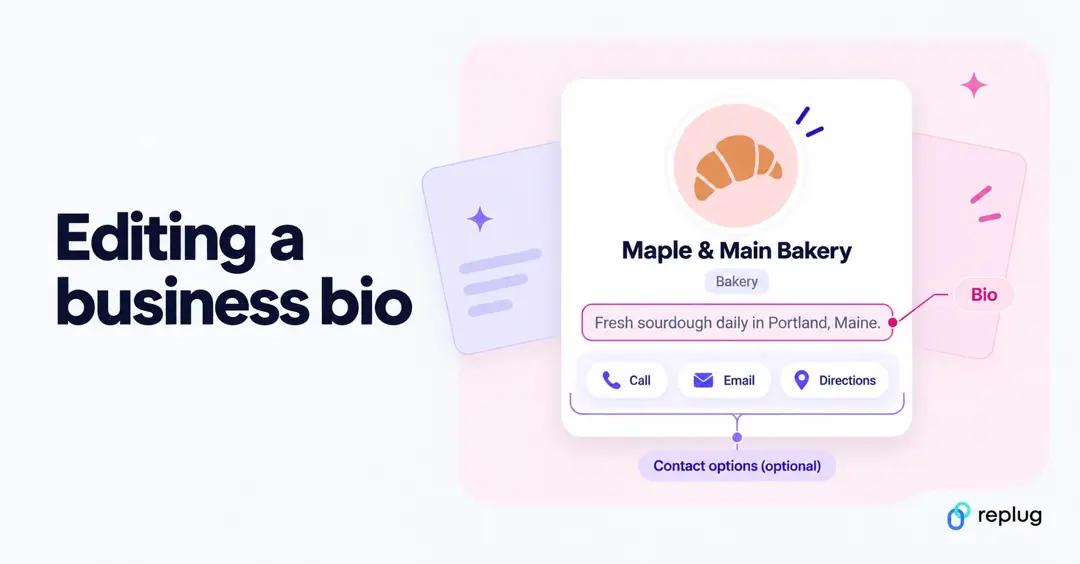
Here’s how to do it:
1. Open the Instagram app: Launch Instagram on your phone and make sure you’re logged into your business account.
2. Go to your profile: Tap your profile picture icon at the bottom-right of the screen to head over to your profile.
3. Tap “Edit profile”: Right under your username and bio area, you’ll see Edit profile. Tap that to open your profile settings.
4. Find the “Bio” field: On the Edit profile screen, you’ll see a box labelled Bio. Tap inside that box to start editing your text.
5. Type your new bio: Enter the text you wish! For business accounts, it’s a good idea to include your value proposition or a short brand message, so people instantly know what you offer. You can use emojis and hashtags too (but use them sparingly).
6. Add contact details (optional): In a business account, you may also see extra fields like Business Address, Phone Number, and Email. These aren’t technically part of the bio box, but they show up on your profile and make it easier for customers to contact you. If you have a physical store, you can also add a location to your bio.
7. Save your changes: Once you’re delighted with how your bio looks, tap the checkmark (or Save/Done) at the top-right. Your updated bio will appear right away on your profile.
And that’s it! You’ve successfully refreshed your business bio without any fuss! 🎉
Note: No matter if you’re updating your brand message or adding a new promo link, keeping your bio current helps people quickly understand your business.
Read also: How to get to the link in the bio on Instagram?
Can’t change your Instagram bio? Fixes to try
If the Bio box won’t open or your edit won’t save, work through these in order:
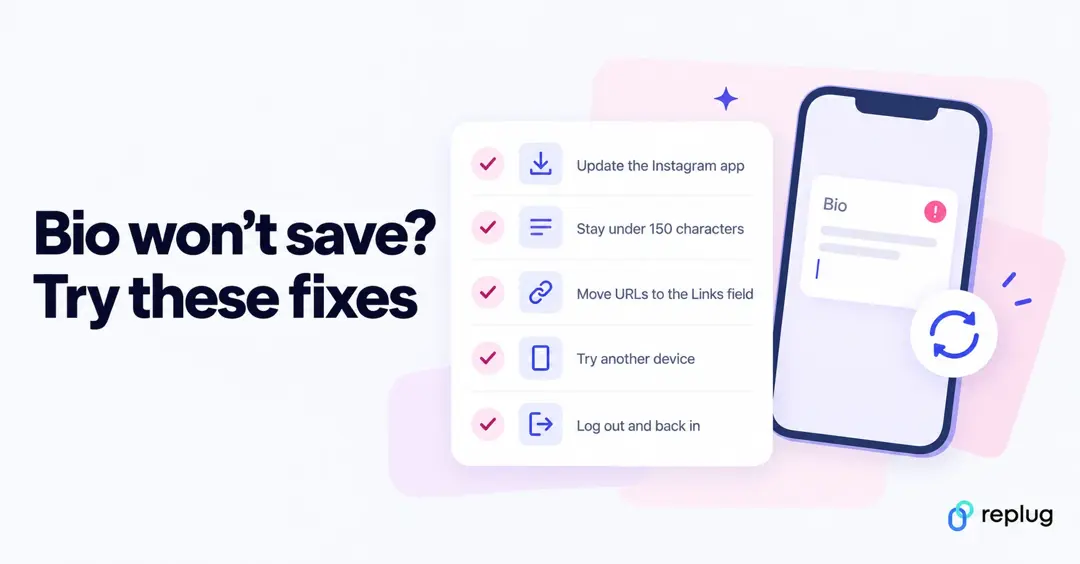
- Update the Instagram app. Old versions can show a different Edit profile layout or fail to save. Update from the App Store or Google Play, then try again.
- Check the length. Bios are capped at 150 characters, including spaces, line breaks and emojis. Trim a few words and save again.
- Remove URLs from the bio text. Put links in the Links field instead. A URL in the bio text isn’t clickable anyway, and removing it rules out a flagged link as the cause.
- Try another device. Make the change on instagram.com from a computer, or from the app if the web version fails.
- Refresh your session. Check your connection, close and reopen the app, or log out and back in.
- Looking for name or username instead? Instagram is moving some profile settings into Accounts Center (or Meta Account settings). Name, username and profile picture can be edited there, but the bio stays on the Edit profile screen.
If none of this works, wait a few hours and try again. If it still fails, report it from your profile menu under Settings and activity → Help → Report a problem.
Why one must focus on his/her Instagram bio in 2026
In 2026, your Instagram bio isn’t just a few lines of text anymore; it’s your first handshake with anyone who lands on your profile.
With Instagram still featuring a massive global user base and high engagement compared to many other platforms, people form an impression of you or your brand in just a few seconds, and your bio plays a big part in that.
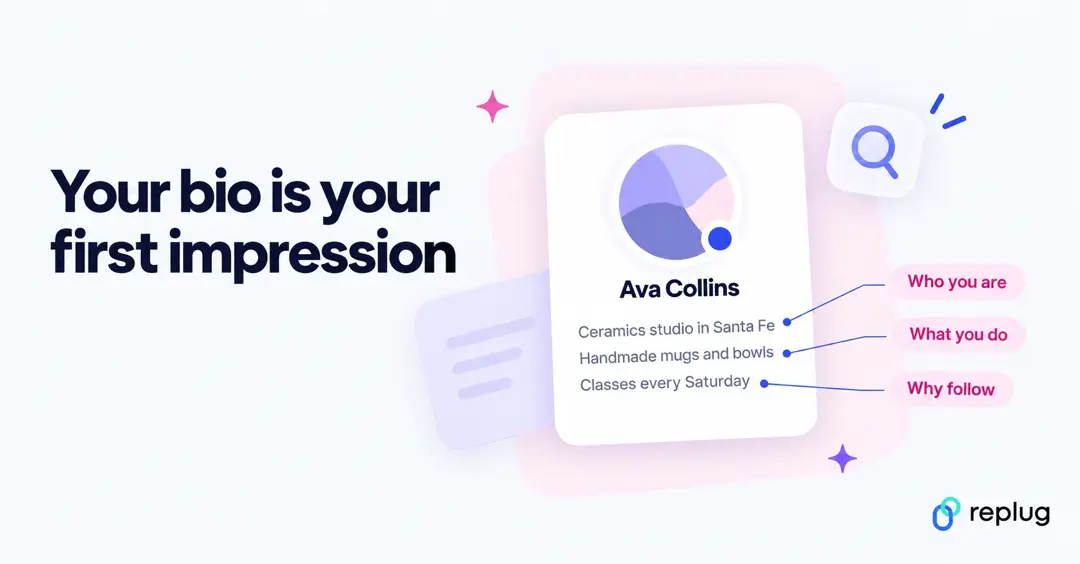
A clear, well-written bio tells visitors instantly who you are, what you do, and why they should care, which can be the difference between losing a potential follower and gaining one.
Moreover, a strong bio also helps people find you, because Instagram’s search and explore suggestions use keywords from bios to recommend profiles to others.
In short, it’s a tiny space with big impact, helping boost visibility, trust, and engagement right from the start. So, please make the most of it!
How to write a great Instagram profile bio: 8 useful tips
Your Instagram bio is where you make that first impression, and in 2026, it still matters more than ever.
A great bio doesn’t just look good, it tells people what you’re about, helps them find you, and maybe even gets them to take action.
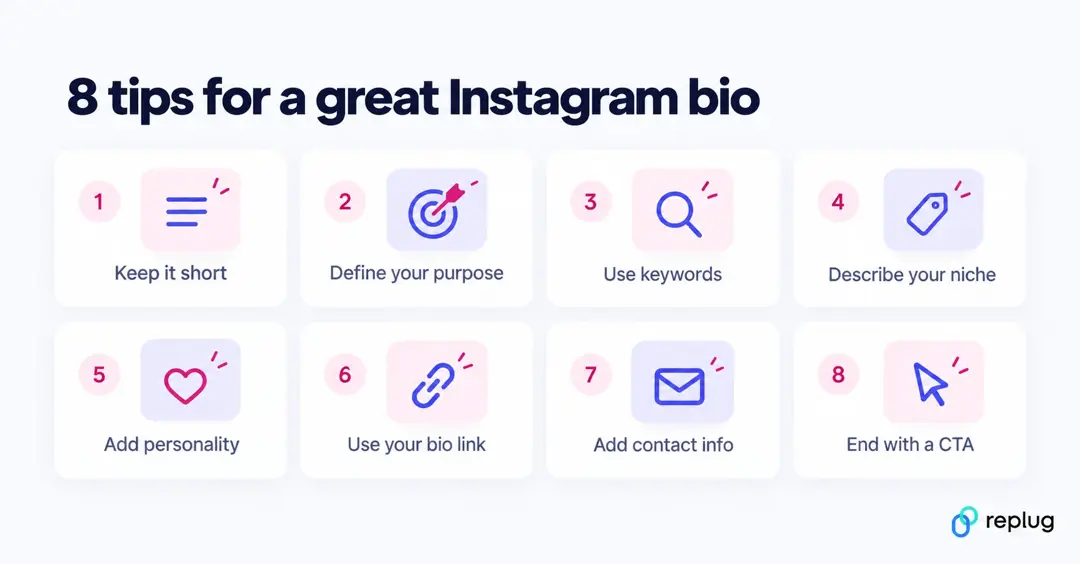
Here are some practical tips to help you craft one that actually works!
Tip #01: Keep it concise, memorable, informative, & structured
Instagram only lets you use up to 150 characters, so remember that every word counts. Keep it short, clear, and easy to scan (use multiple lines) so your visitors instantly get what you’re all about.
Tip #02: Define your purpose
Tell people why you’re on Instagram, whether you’re sharing travel tips, selling products, or posting creative work. A clear purpose attracts the right followers!
Tip #03: Use searchable keywords
Add in relevant keywords that describe your niche (like “fitness coach” or “food blogger”). These help your profile show up in Instagram search results.
Tip #04: Provide a brief description of your niche
Let visitors know exactly what you focus on. Being specific helps people decide quickly if your content is for them or not.
Tip #05: Add personality & emojis
A few emojis or a bit of friendly flair can make your bio more inviting and memorable. Just don’t overdo it!
Tip #06: Take full advantage of the link in bio
Instagram lets you add up to 5 links, and your profile shows the first one with the rest one tap away. Use them wisely to lead people to your website, shop, blog, or an Instagram bio link page with multiple options.
Tip #07: Add your contact information
If you want people to reach you hassle-free for collaborations, bookings, or questions, include an email or other contact details in your bio.
Tip #08: Include a strong call-to-action (CTA)
A CTA like “Shop now,” “Follow for tips,” or “DM for collabs” forces visitors to take that next vital step. It’s one of the most effective ways to turn a profile visitor into a follower or customer.
With these tips, your bio won’t just look aesthetic; it’ll work for you, too.
Also read: 250+ best bio ideas to level up your profile look in 2026
Need wording before you open the Bio box? Browse these Instagram bio examples for creators, businesses and personal accounts, and adapt one to your own voice.
Summing up
As you can see, your Instagram bio is more than just a few words at the top of your profile. It’s a chance to make a great first impression, share who you are, and even drive real engagement or traffic.
From knowing what a bio actually is, to updating it on iPhone, Android, or desktop, and learning how to write one that truly connects with your audience, you now have all the tools you need to make yours stand out in 2026.
And here’s a pro tip!
If you’re serious about getting more out of your bio, give Replug a try today. It’s a reliable link management platform that lets you create branded short links in seconds and even build powerful bio links that bring everything you want followers to see into one place.
Also, don’t forget to check out Replug’s Instagram bio generator tool. It’s a great way to craft a standout bio with minimal effort!
Frequently asked questions

Muhammad Ahsan Jamal