A link in your Instagram bio is a great way to drive traffic to your website and increase engagement with your content. In addition, it allows you to direct potential followers to a landing page, portfolio, or blog post you want to promote.
You can also link to an email sign-up page, product page, or shop. This feature is handy for businesses, brands, and influencers who want to increase their reach and promote their content.
Follow this step-by-step guide to quickly find any profile’s link in the bio on mobile and desktop.
Quick answer: the link in bio sits on the person’s Instagram profile, directly under their name and bio text, shown as a blue link with a small chain icon. To get there, tap their username at the top of the post, story or reel, then tap the link. If they added more than one link, tap it to see the full list (Instagram allows up to 5, according to Instagram Help). On a computer, go to instagram.com/username and click the link under the bio.
Where exactly is the link in bio on Instagram?
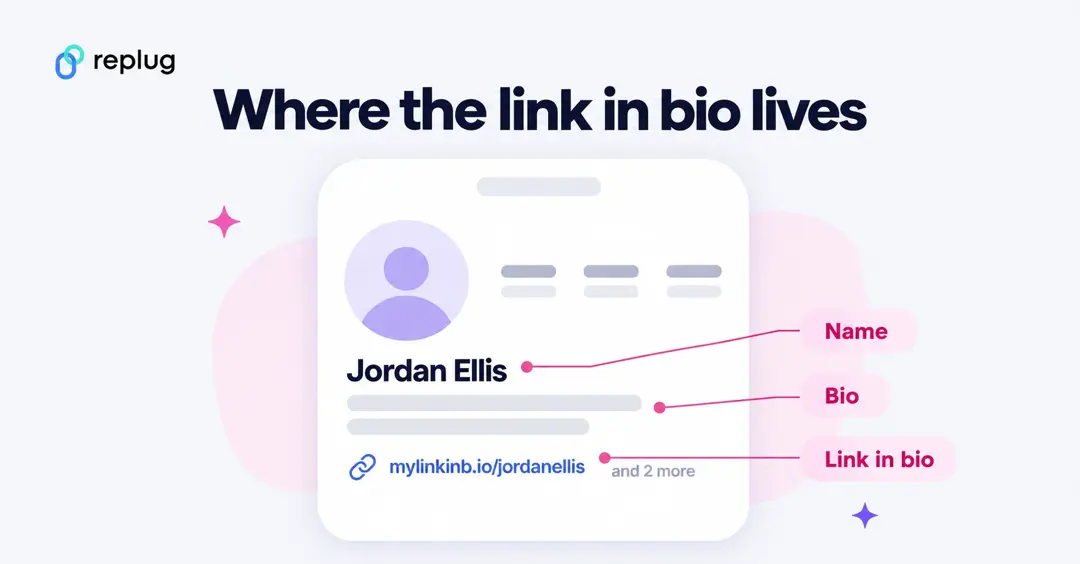
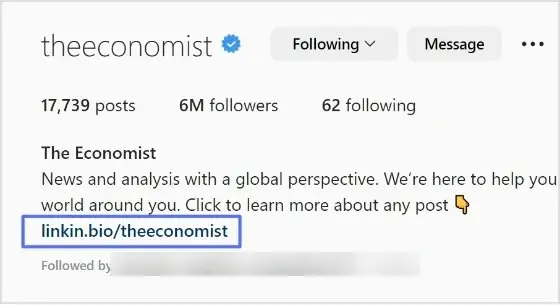
Every Instagram profile has the same layout: profile photo and counts at the top, then the name, the bio text and, if the account added one, the website link. That last line is the “link in bio”. It is the only place on a profile where a link opens with one tap, which is why creators and brands write “link in bio” in captions.
- One link: you see the address itself (for example, a shop or a bio page such as mylinkinb.io/elliscoffee). Tap it to open it.
- Several links: Instagram shows the first one with a note that there are more. Tap it to open a list of all the links, then tap the one you want.
- No link: the account hasn’t added a website. Check the caption, the story or the highlights for the address instead.
According to Instagram Help’s page on adding websites (checked October 2026), an account can add up to 5 websites, and anyone, on or off Instagram, can see them. That means you can find the link even if you don’t follow the account. If you want the background on what the phrase means and why people use it, see what “link in bio” means.
How to get to the link in the bio on Instagram on a mobile device?
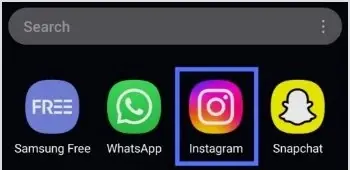
Step 1: Open the Instagram app on your mobile device.
Step 2: Tap on the user’s profile name (username) on whose caption you noticed the Link in Bio.

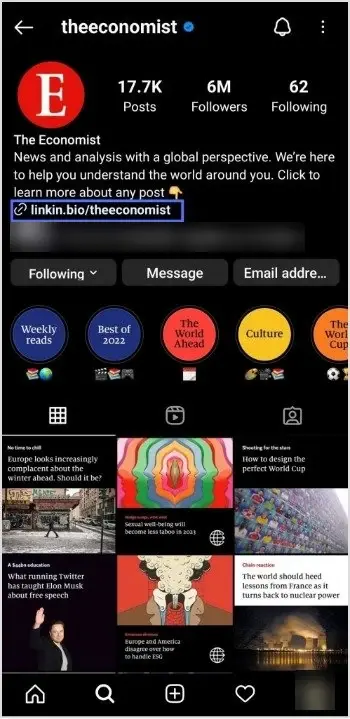
Step 3: You will be taken to the user’s profile screen. Here you will see a website link that’s your “Link in Bio.” Just tap on the link to open it.
Find the link in bio from a post, story or reel
- From a feed post: tap the username or profile photo at the top left of the post.
- From a story: tap the username at the top left of the story. If the story has a link sticker, tapping the sticker opens that link directly.
- From a reel: tap the creator’s name at the bottom left of the reel.
- From a comment or a tag: tap the @username to open that profile.
Each of these opens the profile, where the link sits under the bio.
How to get to the link in the bio on Instagram on a computer device?
Here are two simple steps to find the Instagram link in the bio on a computer.
Step 1: Click on the profile that says Link in bio in a post.

Step 2: The website link will show up under their bio on their profile screen. Click on it to open the link.
You can also type instagram.com/ followed by the username into your browser to open the profile directly. Viewing links works on a computer, but adding them doesn’t: Instagram Help says adding a website to your profile isn’t available on computers, only in the Instagram app for iPhone and Android.
How to copy the link in someone’s Instagram bio
Tapping a bio link opens the page inside Instagram’s own browser. To save or share the address:
- Tap the link in the bio to open the page.
- Tap the three-dot menu in the corner of Instagram’s browser.
- Choose the option to copy the link, or open the page in your phone’s own browser (Safari or Chrome) and copy the address from there.
On a computer, right-click the link under the bio and choose “Copy link address”. Menu names can differ slightly between app versions; if you don’t see a copy option, open the page in your browser first.
Why can’t I see or open the link in someone’s bio?
- They haven’t added one. Only accounts that add a website show a link. A link typed into a caption or comment doesn’t open with a tap, which is why people point to the bio instead.
- It’s behind the “more” note. When an account has several links, only the first is shown. Tap it to see the rest.
- Your app is out of date. Update Instagram from the App Store or Google Play and check again.
- You are blocked or the account was removed. If you can’t open the profile at all, you won’t see the link either.
- The page itself is down. If the link opens a blank page or an error, the problem is on the website, not in Instagram. Try again later or open it in your phone’s browser.
How To Add A Instagram Link In Bio?
Adding an Instagram link in bio helps direct your followers and potential customers to your dedicated page.
As a result, makes it easier for them to find your profile and learn more about your brand. It also encourages followers to engage with your content, which can help drive sales and increase brand awareness.
Here’s how to add an Instagram link in the bio:
Step 1: Open Instagram on your mobile and tap your profile icon in the bottom right corner.

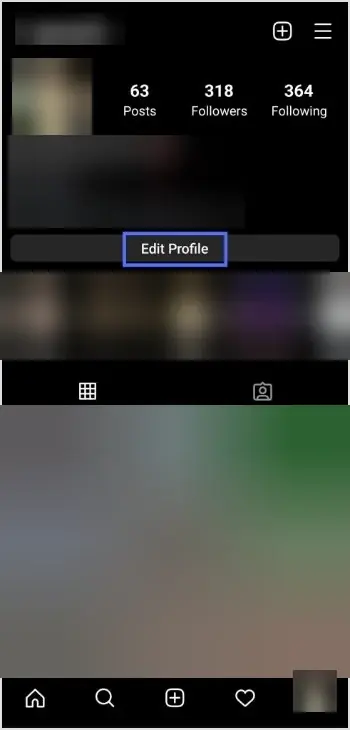
Step 2: Tap Edit profile at the top of your profile.
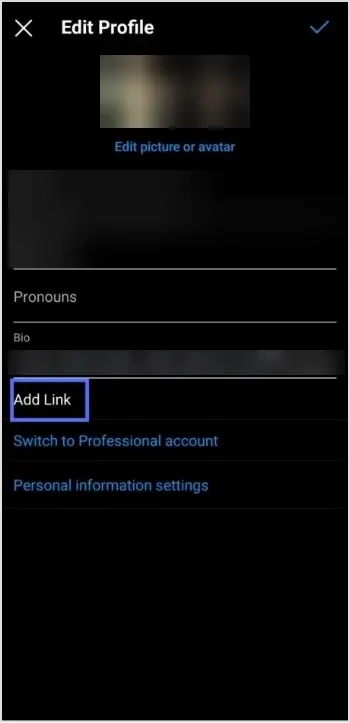
Step 3: Tap Links. (Older app versions showed this as Add link.)
Step 4: Tap Add external link to add your website address.
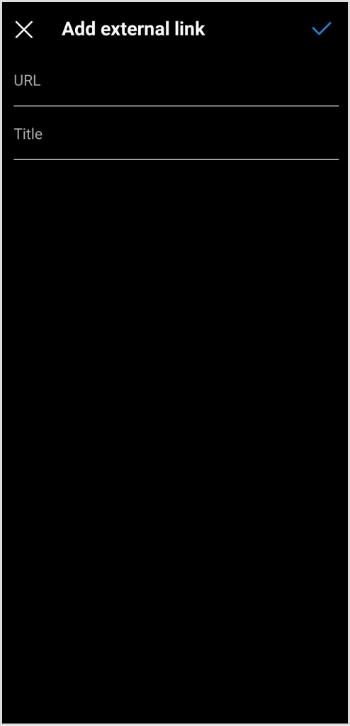
Step 5: Paste the URL in the URL field, add an optional Title, then tap Done.
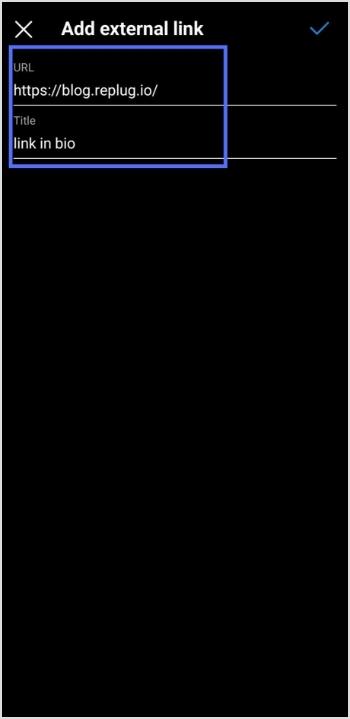
Step 6: Your link in the bio will now appear in your profile.
You can repeat these steps to add up to 5 links, and reorder them from Edit profile → Links → Options → Reorder links, according to Instagram Help.
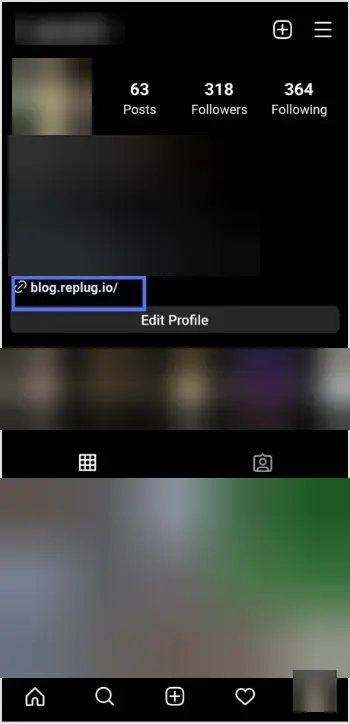
Your Instagram profile now has a link in the bio.
Instagram bio page with multiple bio links – Is it possible?
Adding multiple bio links to your Instagram bio is a great way to drive more traffic to your website and other online resources. By adding links to your Instagram bio, you can easily direct your followers to your website, blog, YouTube channel, and other platforms where they can learn more about you and your business.
Additionally, including multiple bio links allows you to showcase your work, products, or services in an efficient and organized way. You can use a free link shortener to create a single, short URL that links to multiple websites.
Follow these steps to add multiple bio links to your Instagram profile.
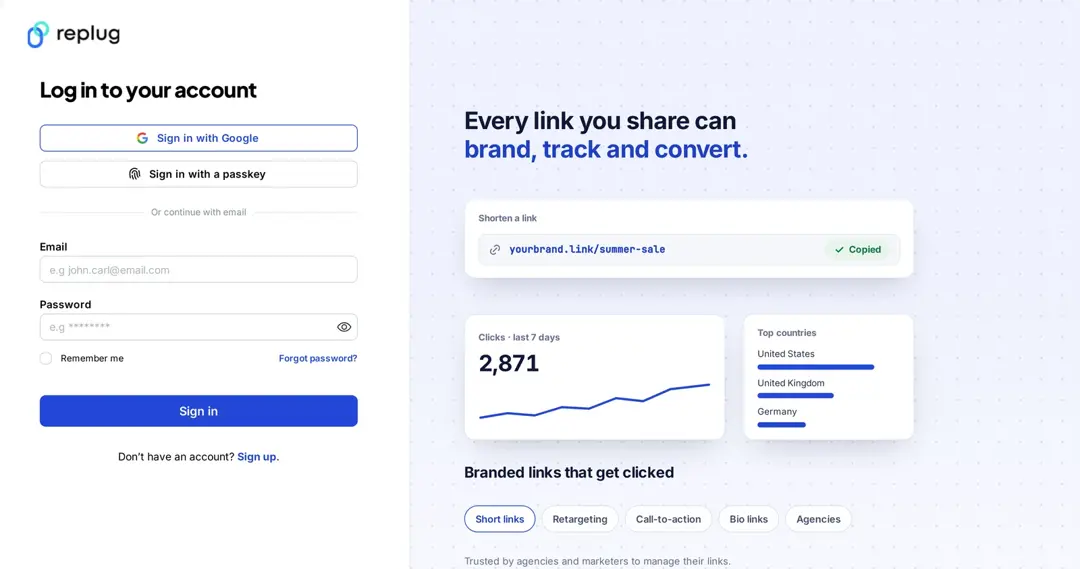
Step 1: Sign in to your Replug account, or create one. The Free plan includes 2 bio links with no card needed, according to Replug’s pricing page.
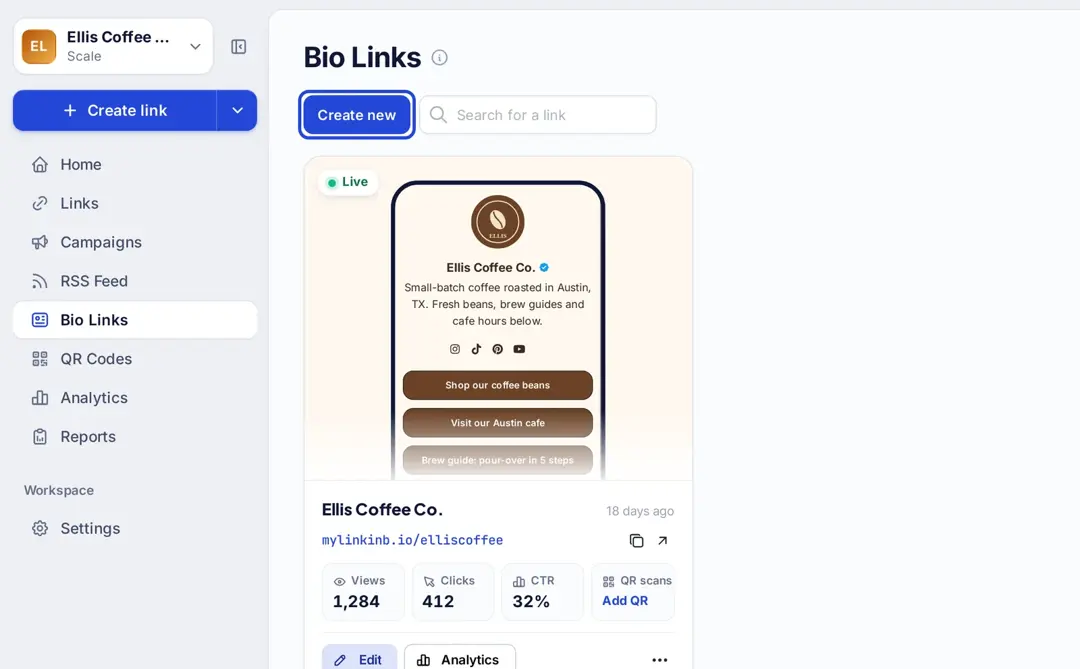
Step 2: In the dashboard, click Bio Links in the left sidebar.
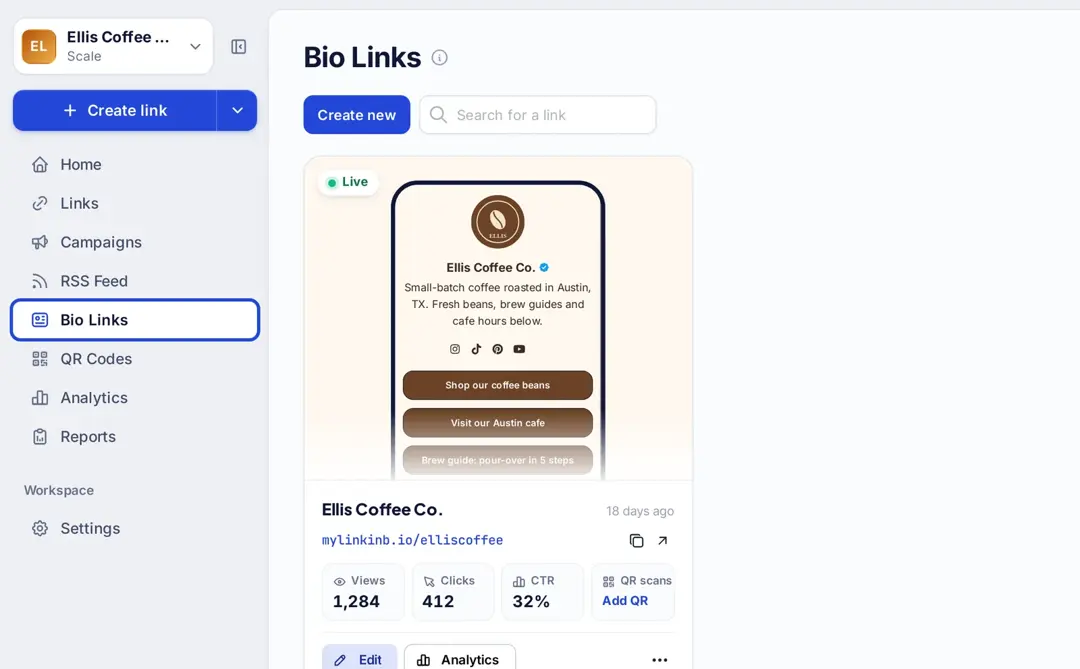
Step 3: Click Create new, then pick one of the ready-made templates or start from a blank page.
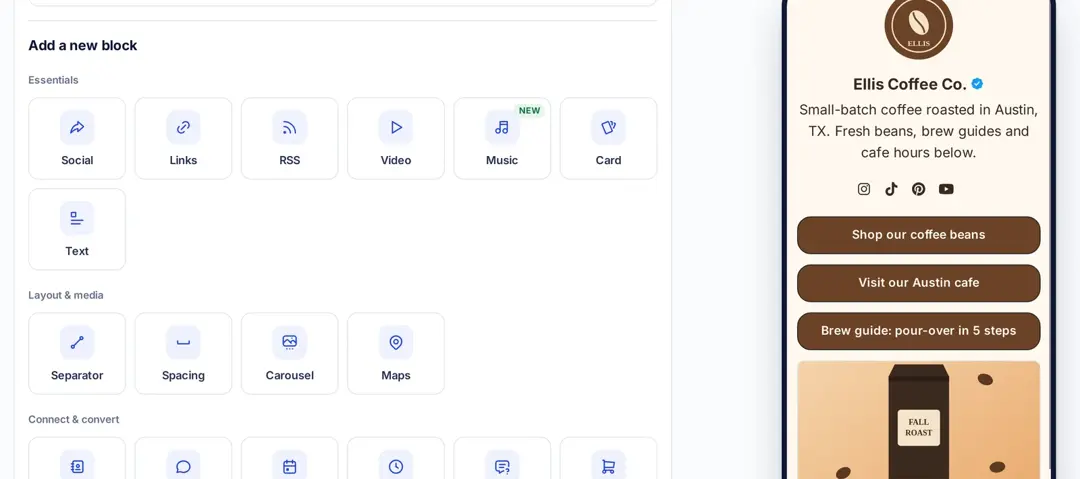
Step 4: Open the Content tab and click Add a new block. You can add social icons, links, RSS feeds, video, music, cards, text and more; the Bio Links page lists 18 block types.
Note: The above image shows you the options (blocks) you can choose for your Instagram bio or landing page.
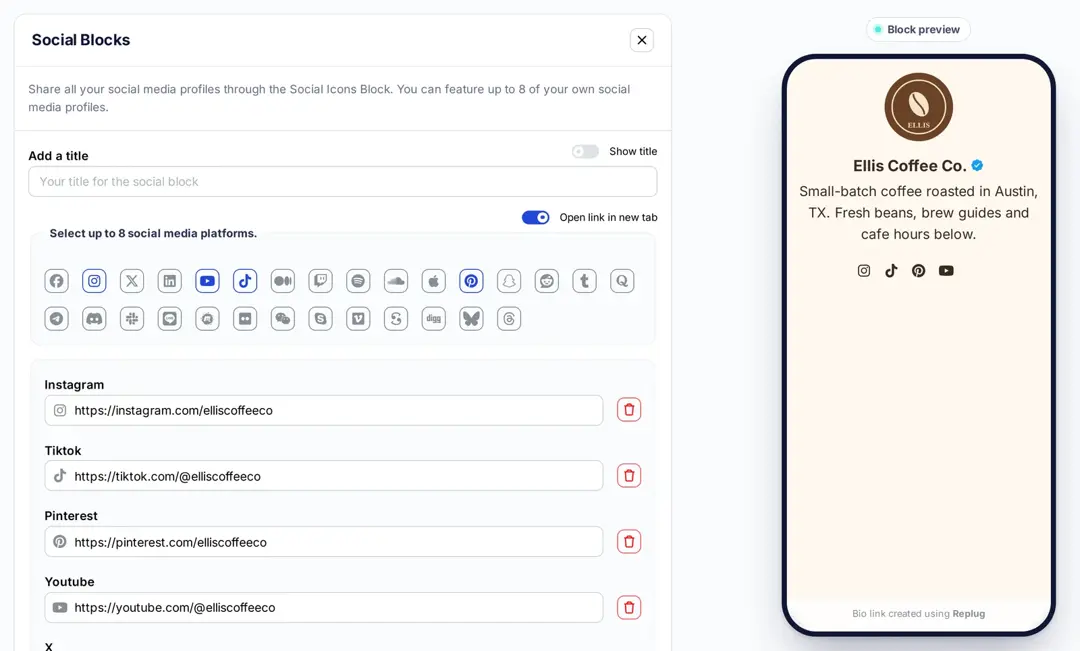
Step 5: Choose the Social block and pick the platforms you want to show (up to 8).
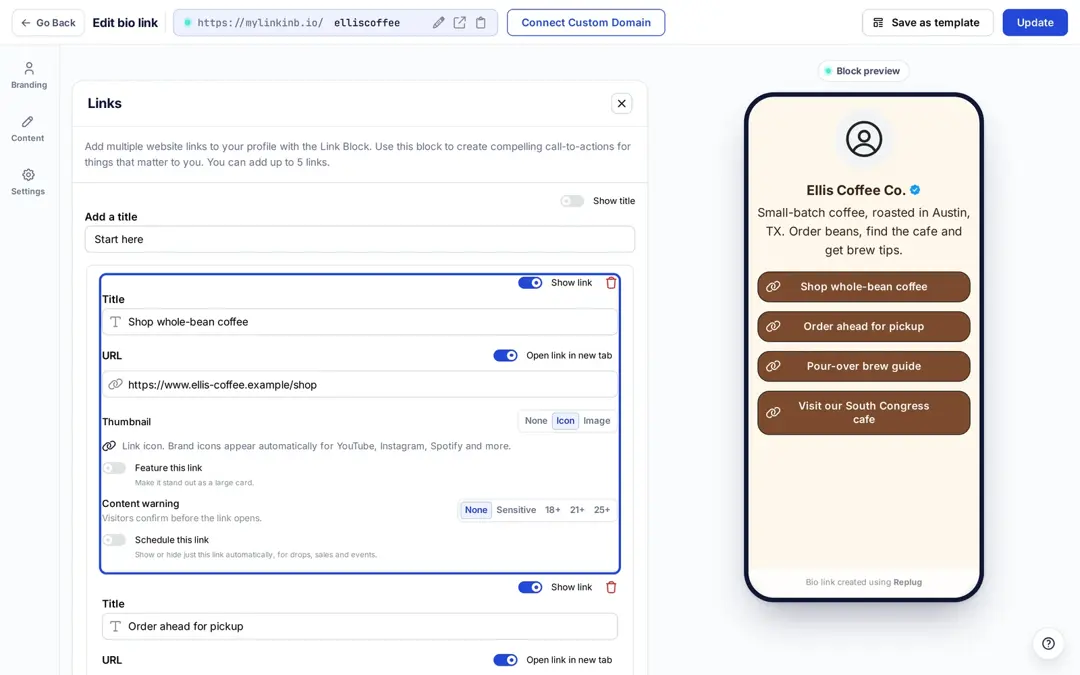
Step 6: Enter the profile URL for each platform. Then add a Links block for your website, shop or newsletter, with a title and URL for each link. The phone preview on the right updates as you go.
Note: When someone clicks on any of your social icons, they will go to the relevant social media profile.
Step 7: To add another block, click Add a new block again.
Step 8: Choose another block, for example a Card.
Step 9: In the Card block, paste the destination URL. Replug fetches the title, image and description from the page, and you can edit them. Pick a card Style.
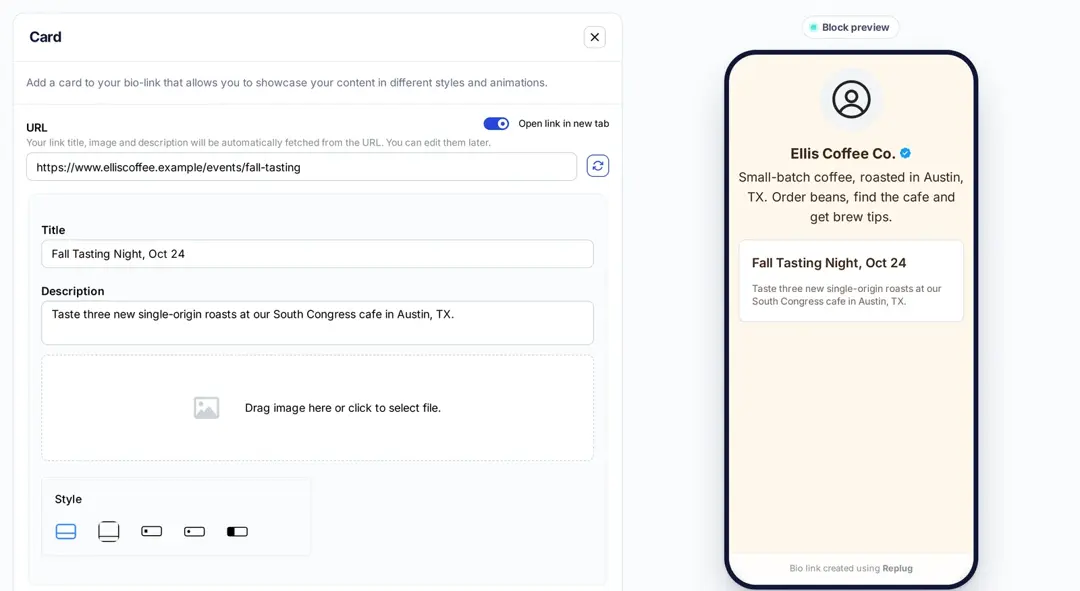
If you want to see how any section or block looks, you can preview it side by side. Here is an example of how the card looks.
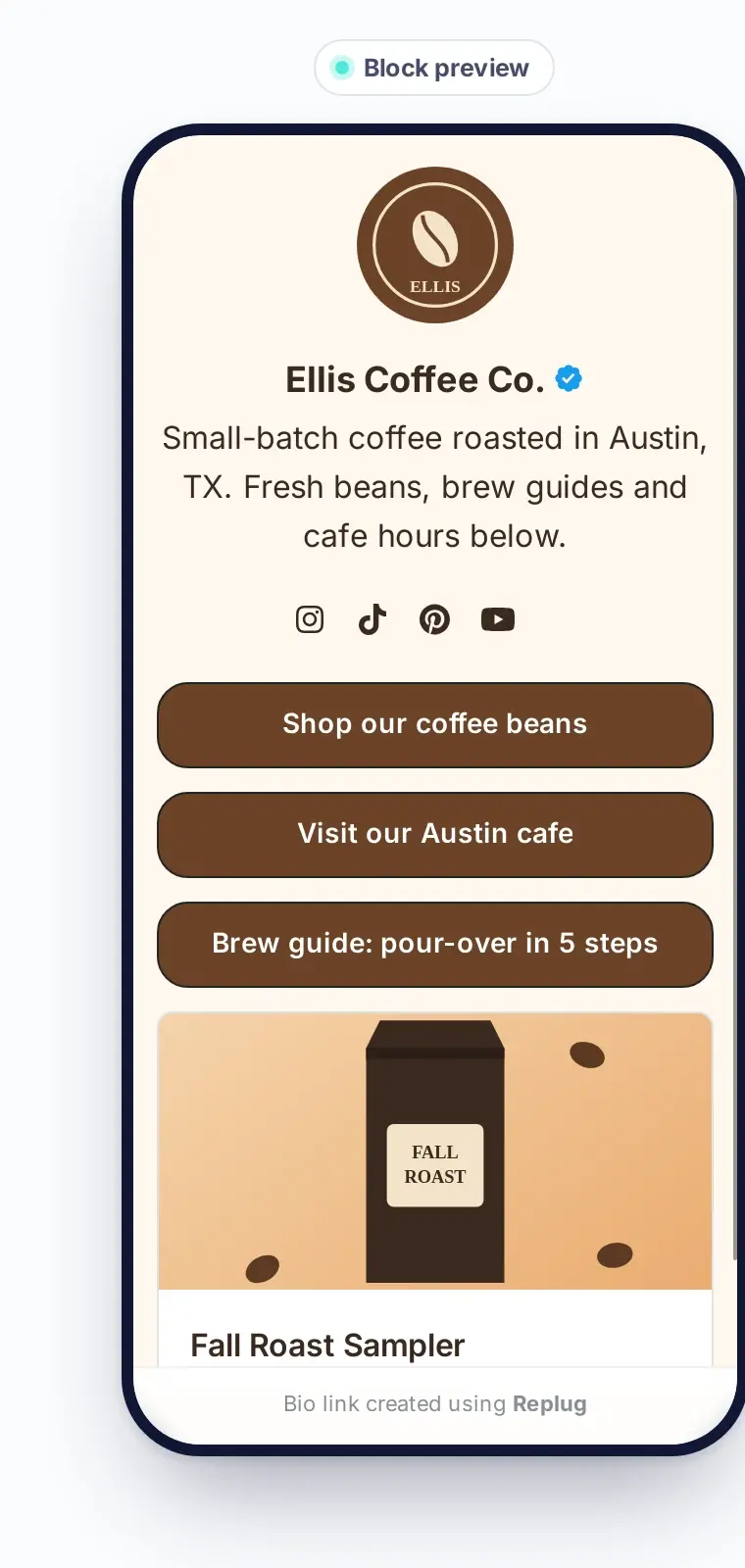
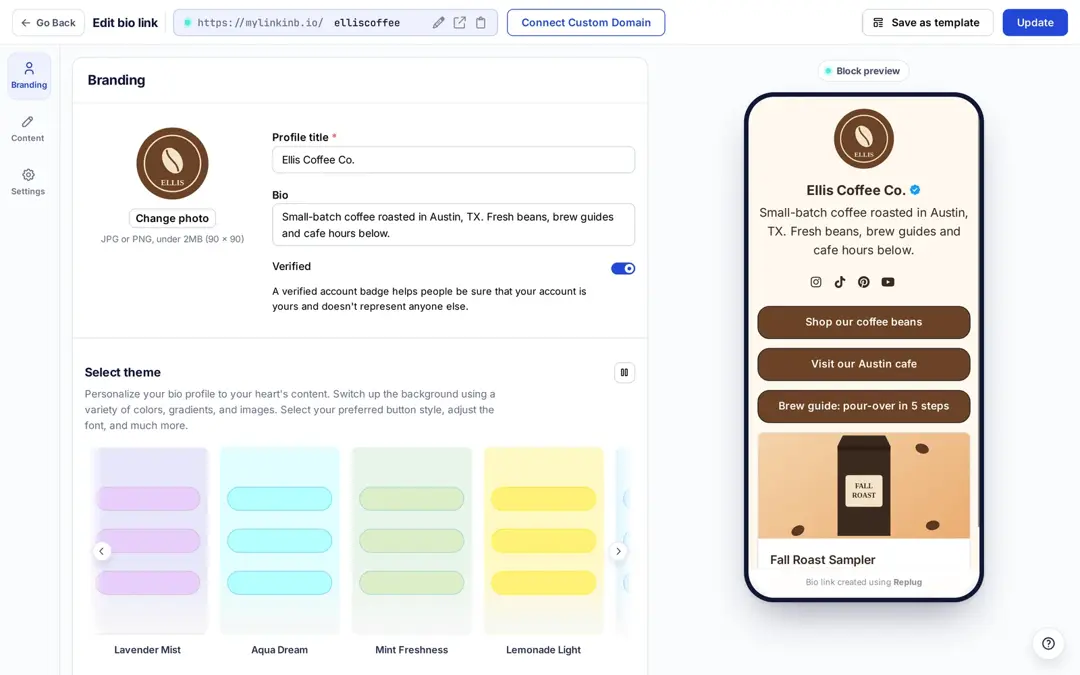
Step 10: Open the Branding tab to add your photo, name and bio, and to pick a theme, colors, font and button style.
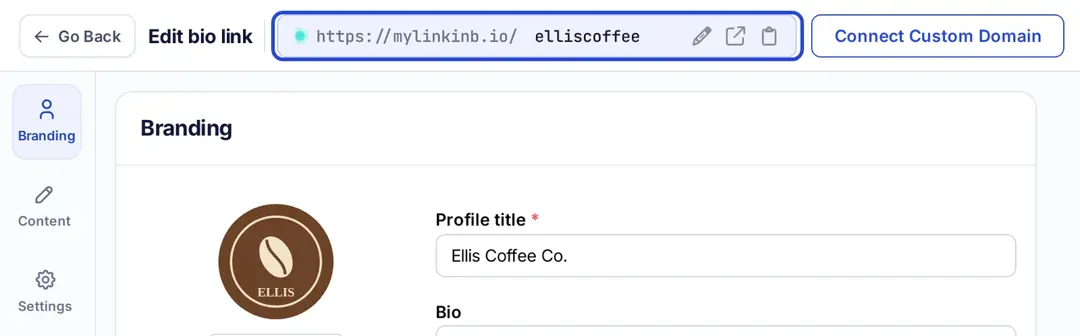
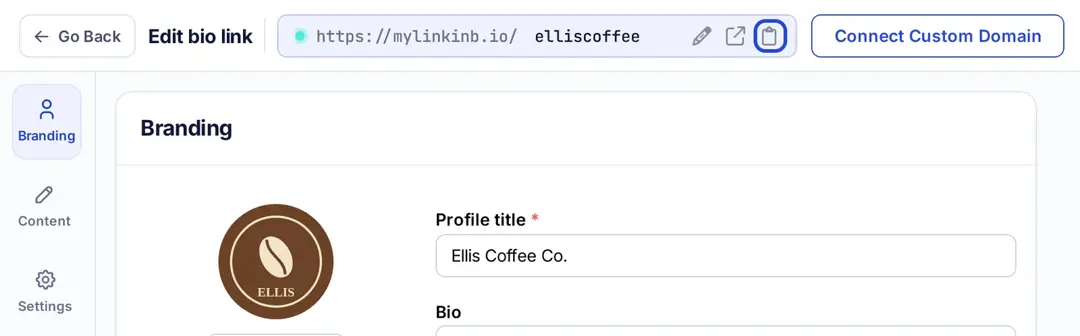
Step 11: At the top of the builder you see your page address on mylinkinb.io. Click the pencil icon to change the end of the address, or click Connect Custom Domain to use your own domain.
Note: Replug is an all-in-one link optimization platform that allows you to create a brand with a custom domain in seconds.
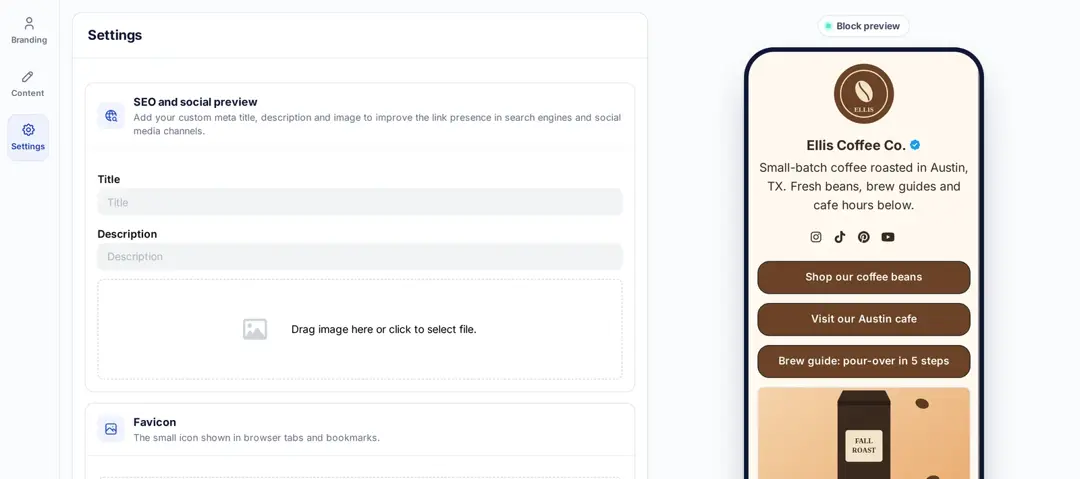
Step 12: In the Settings tab you can set the SEO title and description, the social preview image and a favicon, and add retargeting pixels (from the Essentials plan).
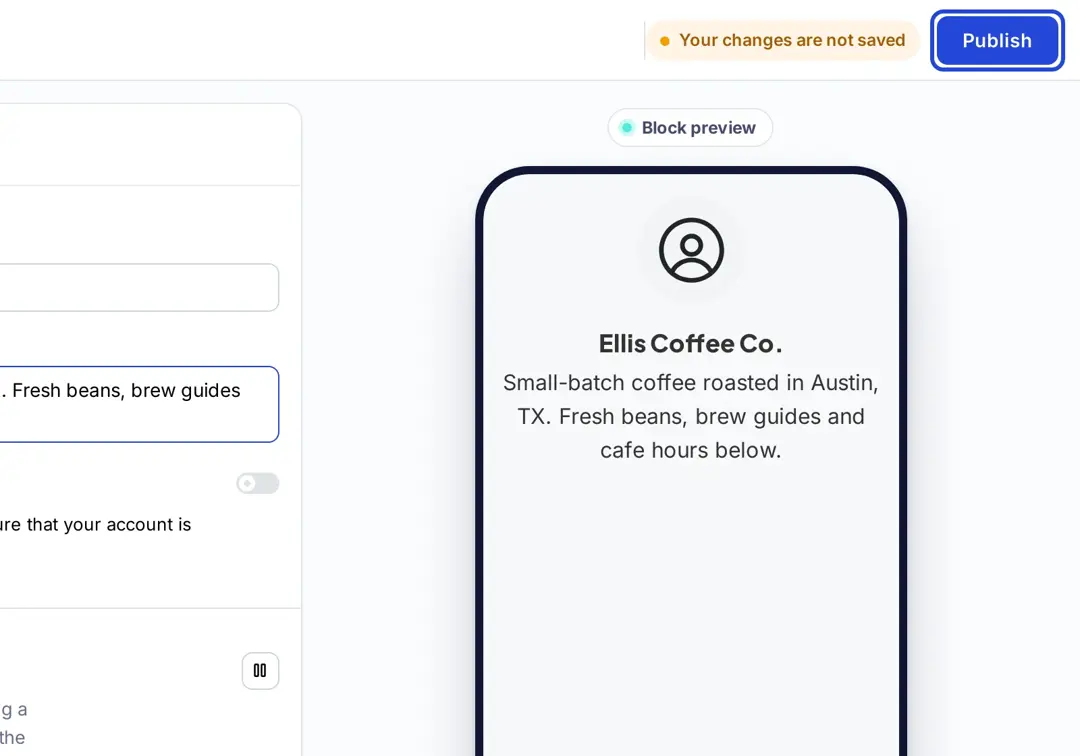
Step 13: Click Publish at the top right. Then copy your bio page link and paste it into Instagram under Edit profile → Links → Add external link.
Trending Topics:
How to remove link from Instagram bio?
Frequently asked questions

Arslan Jadoon