In 2026, Facebook isn’t just an artefact of the early social media era. It’s still the world’s largest platform, with over 3 billion monthly active users tapping into Pages, Groups, and Marketplace every single month.
Whether you’re a content creator, a business owner, or just someone trying to boost your online presence, your Facebook page URL is more than just a link. It’s your digital handshake with the world!
With millions of people discovering brands and communities through Facebook daily, having a clear, memorable URL isn’t just nice-to-have (it’s pretty essential).
In this guide, we’ll walk you through everything you need to know, starting with the basics.
So let’s kick things off with: What exactly is a Facebook page URL?
What is a Facebook page URL?
When we talk about a “Facebook page URL,” we’re referring to the unique web address that points directly to your Facebook Page/Profile on the internet.
Think of it like your page’s personal location on the web. It’s what people click or tap to land straight on your brand, community, or public profile.
In most cases, a Facebook page URL looks like:
https://www.facebook.com/YourPageName
where the last part is your custom “username” or “page name.”
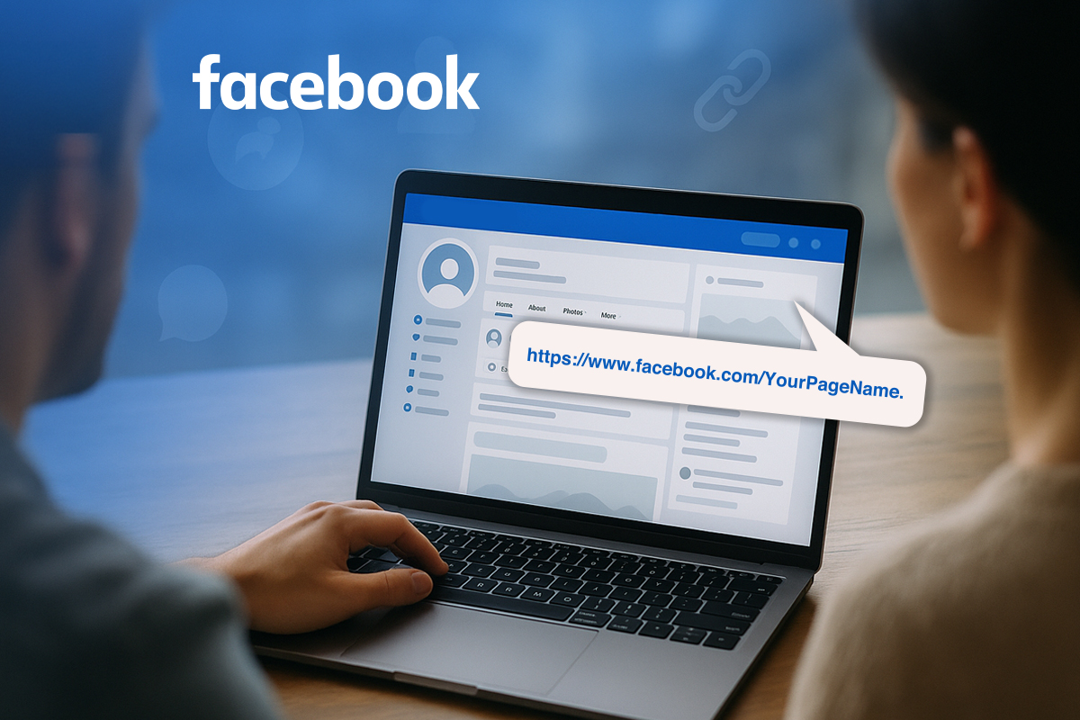
The main idea behind these URLs is simplicity and identity. They make it easy for others to find, share, and remember your Facebook presence, no matter if you’re linking from your website, business card, or another social platform.
Plus, a clean, custom URL helps enhance brand recognition and keeps things looking professional.
Points to keep in mind before you change your Facebook page URL link
Before you step into updating or changing your Facebook page URL, it’s smart to pause and double-check a few key things.
Facebook has rules and limits around URLs to keep everything running smoothly, and overlooking them can easily leave you stuck or locked out of making changes.
Key things to remember before changing your Facebook page URL:
- You must be an “Admin”: Only someone with admin access on the page can edit the username that creates your URL.
- Unique usernames only: Facebook won’t let you choose a URL that’s already taken, and capitalization or dots don’t make a name unique. For instance, ahsan.jamal07 is treated the same as AhsanJamal07.
- Format limits: Usernames must be 5–50 characters long and only use letters, numbers, and periods.
- Cooldowns apply: If you recently changed the URL, you may have to wait 60 days or more before updating again.
- Check activity: New or inactive pages might not be allowed to change URLs right away.
Keeping these in mind saves you time and frustration when updating your FB page address.
How to change Facebook page URL on mobile
Updating your Facebook page URL (really the “username” part of your link) on mobile isn’t always as obvious as it looks.
While Facebook’s app doesn’t show a direct “edit URL” button for Pages, you can update your username (which changes the URL) by navigating through the page settings on mobile or using your phone’s browser to access the full settings.
Let’s walk through how to do this on both iPhone and Android!
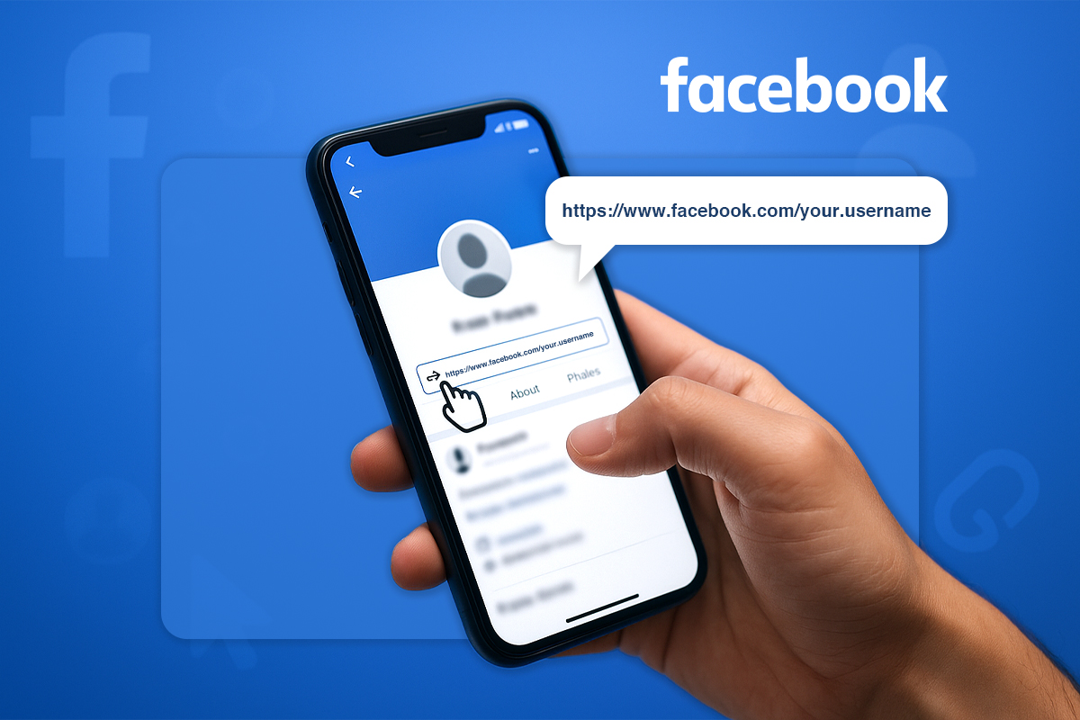
How to change Facebook page URL on iPhone easily
1. Open the Facebook app and log in to the account that you are an “Admin” of.
2. Tap the menu icon (three stacked lines at the bottom right).
3. Scroll down and select “Pages,” then tap your page.
4. Tap the “Page profile” icon or the three dots to access settings.
5. Go to “Settings & Privacy → Settings,” then “Page settings.”
6. Look for “Username” (this is your URL handle) under “Page Settings” or “Page Setup,” and then tap to edit.
7. Type your desired new username and tap “Save changes.” If it’s available, Facebook updates your page URL.
Useful tip: If you don’t see the Username option, you may need to open Facebook in your mobile browser (like Safari) and request the desktop site to access full page settings.
How to change Facebook page link on Android step-by-step
1. Open a web browser (e.g., Google Chrome), and sign in to your Facebook account.
2. Go to this link (https://www.facebook.com/settings/?tab=profile).
3. Switch to the desktop version from inside the menu, “Request Desktop Site.”
4. Swipe and move onto the “General Page settings.”
5. Tap on the “Edit” option available next to the “Username.”
6. After you are totally satisfied with the changes, tap on the button titled “Save changes.”
That’s it!
Remember, this change affects how people can find your page online. So, always pick a username that’s clear, relevant, and easy to remember!
How to change Facebook page URL on desktop
Changing your Facebook page URL on a desktop computer is typically much easier than on mobile, because the full settings are right there in your browser.
On desktop, what you’re really updating is your page’s username, and that username becomes part of your custom URL (like facebook.com/YourPageName).
Here’s how to change Facebook page URL on laptop/PC:
1. Log in to Facebook on your computer and make sure you’re using the account that has admin access to the page you want to edit.
2. Click your profile photo (top right), then choose “See all profiles” and switch into your FB page profile.
3. Once you’re on your page, click the profile picture once again to open more options.
4. Go to “Settings & Privacy,” then click “Settings.”
5. In the left menu, select “Page setup” or “General” (or similar).
6. Find the “Username” section and click “Edit” next to it.
7. Type in your preferred new username (this will change the end of your page URL) and hit “Save changes.”
Once the change is saved, visitors will see your new custom URL when they go to your page.
Note: If you don’t see the “Username” option, your page might not yet meet Facebook’s requirements, or you might need to try again later from the desktop site.
Read also: How to change URL name on YouTube: A practical guide for content creators & YouTubers [2026]
How to change Facebook URL for business page
Updating the Facebook URL for your business page means changing its username, i.e., the part that comes after facebook.com/ that makes your link easy to share and remember.
This is something you do when your business grows, you rebrand, or you want a cleaner, more professional link that matches your business name.
Here’s how to change Facebook URL for page (business):
1. Sign in to Facebook on a desktop browser with the account that has Admin access to the business page. Keep in mind, only admins can edit the URL!
2. Switch into your “Business Page Profile” from the top-right profile menu.
3. Go to “Settings & Privacy,” then click “Settings.”
4. In the left sidebar or menu, choose “Page Setup” or “Account Center.”
5. Look for the “Username” field, and click “Edit” next to it.
6. Enter the new username you want (make it simple, brand-aligned, and unique). Facebook will tell you if it’s already taken.
7. “Save Changes” once the username is accepted. Your business page URL instantly updates to facebook.com/YourNewUsername.
That’s all there is to it!
Now your page link looks cleaner and much easier to share with customers or on other platforms!
How to change Facebook page URL in Meta Business Suite
Changing your Facebook page URL through Meta Business Suite isn’t always a direct button you can tap inside the Suite itself.
In many cases, Meta still sends you to the classic page settings to update your username. But you can start the process from Meta Business Suite if that’s where you manage your page.
Here’s how to change Facebook page URL in Meta Business Suite (step-by-step):
1. Open Meta Business Suite: On your desktop browser, go to business.facebook.com and sign in with your Facebook account that has admin access to the page you want to update.
2. Go to settings: In the bottom-left, click on the option titled “Settings.”
3. Access page info: Under the Account menu, click on the option named “Pages.”
4. Edit username/URL: Once you’ve selected your page and are inside page settings, look for the “Username” field. Click “Edit” next to it, and type your new username.
5. Save changes: Click on the button “Save Changes.” This updates your page URL if the username is available and not already taken!
6. Verify & test: After saving, visit your page in a new browser tab to confirm the URL now shows your new username.
Note: Name/URL changes may take up to 3 days to be reviewed. Also, if approved, you cannot change the URL again for 7 days.
Why customize your Facebook page URL in 2026?
Customizing your Facebook page URL is one of those small tweaks that makes a surprisingly big difference.
Instead of a long string of numbers, a clean, branded link helps people recognize and remember your page hassle-free, which matters more than ever at present.
Here’s why you should consider customizing your Facebook URL:
- Improved brand consistency & trust: A URL that matches your brand name reinforces who you are and appears more reliable to visitors and customers.
- Better discoverability & SEO: A clean, keyword-friendly URL helps both Facebook’s internal search and Google understand what your page is about, improving your chances of being found.
- Enhanced shareability: Short, memorable URLs are easier to share in posts, emails, business cards, or ads, and people are more likely to type them correctly. To go further, let others share your Facebook posts by setting them to Public.
- Easier tagging: When your URL/username is simple and branded, fans and followers can tag your page more easily in posts and stories, increasing your reach.
Customizing your link isn’t just decorative! It’s a smart move to make your page work for you online, in the best possible manner.
Important Facebook page URL rules you must know?
Before you customize your Facebook page URL, it helps to understand all the rules Meta sets. These guidelines ensure URLs remain unique, clear, and safe for everyone using the platform, and knowing them can save you time and frustration.

Critical Facebook page URL guidelines to understand:
- Admin access required: Only a page admin can set or change the username (which becomes your URL).
- Unique & case-insensitive: Your username must be one-of-a-kind on Facebook, and capitalization or periods don’t make something unique.
- Allowed & forbidden characters: You can use letters (A–Z), numbers (0–9), and periods (“.”). However, no special symbols, spaces, or domain extensions like “.com”. Also, usernames cannot begin or end with a period or hyphen.
- Minimum length: Must be at least 5 characters long.
- No impersonation: Usernames shouldn’t mimic someone else’s identity, trademark, or brand.
- Activity requirement: Facebook may remove usernames from inactive or low-engagement pages and allow only active, real pages to claim them.
- Page age & engagement criteria: New pages may need to be a few weeks old (at least 30 days old with a minimum of 25 followers) and show basic engagement before they can set a custom URL.
- 60-day lock/limits: After you change a username, Meta often limits how soon you can change it again (cooldown periods).
- Broken links & branding limits: If you pick something too generic or unrelated to your page’s name, Facebook may reject it to prevent broken links or misleading brands.
Understanding these rules & regulations makes it much easier to select a URL that Facebook will accept on the first try, and keeps your page looking polished and professional.
Picking the right Facebook page URL: Best practices to consider!
Choosing the right Facebook page URL is more than just a technical step. It’s part of how people recognize and find your brand online.
A clean, branded URL helps you look professional and makes sharing easier in 2026 and beyond.
Best practices to consider:
- Keep it branded & simple: Your URL should match your business or page name so people know exactly who they’re clicking on. Also, simple links are easier to remember and type!
- Ensure consistency across platforms: Use the same or very similar handles you use on Instagram, YouTube, or Twitter. Consistency helps followers recognize you quickly.
- Optimize for search (SEO): Including a relevant keyword or your actual brand name improves visibility inside Facebook’s search and on Google.
- Technical constraints & rules: Stick to Facebook’s requirements (only letters, numbers, and periods; at least 5 characters) to avoid rejection when saving your URL.
- Strategy & timing:Think before you set it! Once chosen, Meta may limit how often you can change it, so pick something you’ll be happy with long-term.
Keeping these tips in mind helps your page look polished, consistent, and discoverable. A real boost for your online presence!
Shorten your Facebook URL with Replug!
When we talk about shortening your Facebook URL with Replug, what we really mean is using a smart tool that makes those long, messy Facebook links look clean, branded, and easy to share.
Replug is a brilliant link management platform that does much more than just shorten URLs. It lets you organize, track, and customize the links you share across social platforms like Facebook, Instagram, email, and more.
If you’ve ever asked yourself, “How do I shorten my Facebook page URL?”, Replug has you covered. With it, you can get a shortened, custom Facebook page URL that not only looks nicer but also lets you see analytics on clicks and engagement.
The process is seriously simple: You just paste your long Facebook link into Replug’s Facebook URL shortener tool → tweak the slug or branding if you want → and hit the arrow button to generate a sleek short link.
This link is ready to share in posts, ads, messages, or anywhere online. It’s especially handy if you want your links to look professional and easy to remember.
Wrapping up
To wrap things up, your Facebook page URL might seem like a small detail, but it plays a big role in how people find and remember your brand.
We’ve walked through what it is, what to watch out for before changing it, and how to update it across mobile, desktop, business pages, and Meta Business Suite.
We also covered why customizing your Facebook vanity URL still matters in 2026 and the key rules and best practices to follow when choosing one.
Once you’ve picked the right URL, tools like a reliable URL shortener can make sharing even easier and hassle-free. Pair that with a Facebook post generator, and you’re all set to create posts that look polished, professional, and easy for your audience to click and trust.
Frequently asked questions

Muhammad Ahsan Jamal