![How to change URL name on YouTube: A practical guide for content creators & YouTubers [2026]](/_next/image?url=https%3A%2F%2Finternal-blog.replug.io%2Fwp-content%2Fuploads%2F2022%2F12%2FHow-to-change-URL-name-on-YouTube-A-practical-guide-for-content-creators-YouTubers-2026.png&w=1920&q=80)
In 2026, standing out on YouTube isn’t just about great content; it’s about being easily found.
With over 2 billion+ logged-in monthly users and millions of new channels launching every year, discoverability is more competitive than ever.
One simple yet powerful way to boost your channel’s visibility and memorability is by optimizing your YouTube URL. Turning that long, auto-generated link into something sleek, branded, and easy to share.
According to creator insights, channels with branded URLs see significantly higher engagement and clickthrough compared to generic ones, making it a small tweak that delivers a big impact.
Whether you’re building a personal brand or scaling your business on YouTube, conquering your URL is a practical step every creator must know.
So, without any further ado, let’s get started!
What is the YouTube URL name?
When we talk about URL names on YouTube, we’re simply referring to the web addresses that take people straight to your content, i.e., a specific video, a playlist, or your entire channel.
A URL is the address you type in the browser bar to reach something online, like:
- https://www.youtube.com/watch?v=… for a video or
- https://www.youtube.com/@YourHandle for a channel.
On YouTube, every piece of content has its own unique URL. The primary purpose of these links is to make it easy for viewers to find, share, and come back to what you’ve created.
For channels, YouTube used to let creators set a custom URL (like /c/YourChannel), but now handles (starting with @) effectively act as your channel’s branded URL.
In short, your YouTube URL name (or handle) is the human-friendly web address people use to find your channel or videos, and choosing a clear one helps with branding and sharing.
Can I change my YouTube channel URL name?
Yes, but with one important twist (and it’s different from how it worked in the old days).
You can’t directly edit an old custom URL once it’s been set, but you can change your YouTube channel’s address by updating your handle.
Handles now act as your official channel URL (e.g., youtube.com/@YourHandle), so picking a new handle effectively gives you a new URL.
Here’s the latest update on this:
📌 Custom URLs you set in the past can’t be changed now. They’ll still work, but you can’t edit them.
🔁 You can change your YouTube handle, which updates the newer handle-based URL format.
This means yes, you can change how your channel link looks. You just do it by picking a new handle in YouTube Studio. Feel free to tweak your handle until it feels right for your brand!
Note: You can edit/update your handle twice every 2 weeks (14 days). However, keep in mind that changing your channel name may remove your verification badge.
How to change the YouTube channel URL name?
Changing your YouTube channel’s URL name today means updating your YouTube handle, because that’s what creates your branded address like youtube.com/@YourHandle.
Once you pick a new handle, YouTube automatically updates your channel URL to match it, as long as the handle is available.
Here’s a simple step-by-step guide you can follow:
1. Sign in to YouTube Studio: Log in to your YouTube account and go to YouTube Studio.
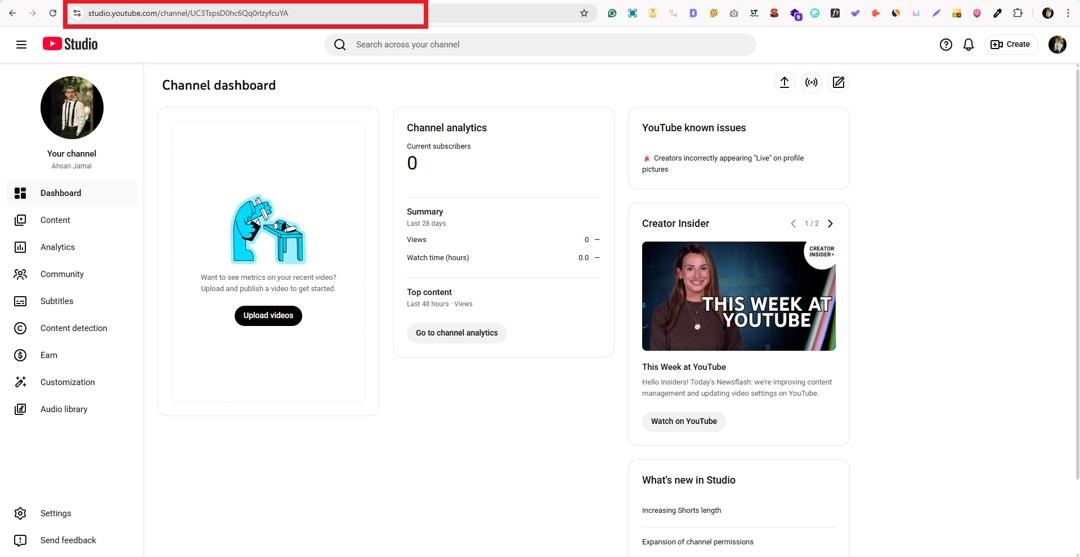
2. Go to “Customization”: From the left menu, click “Customization,” then “Basic info.”
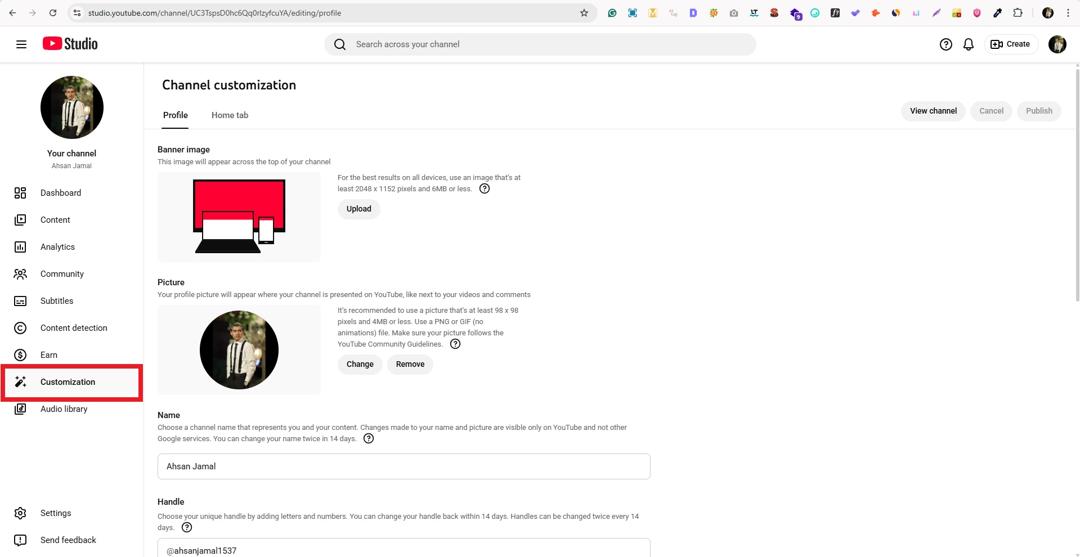
3. Edit your handle: Under the “Handle” section, click the text box to edit the current handle.
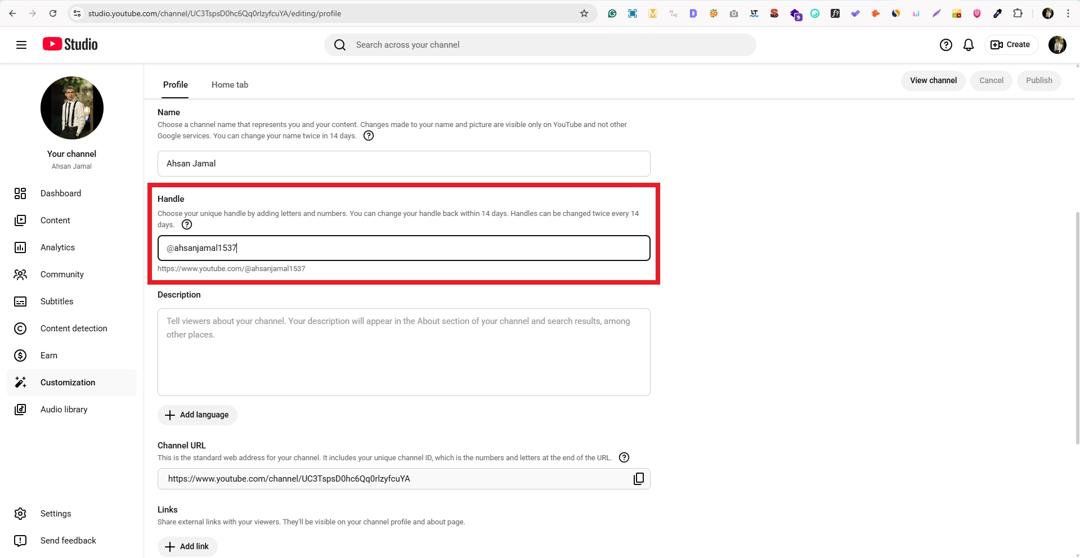
4. Choose a new handle: Type your new @handle (like @YourBrand) and check if it’s available.
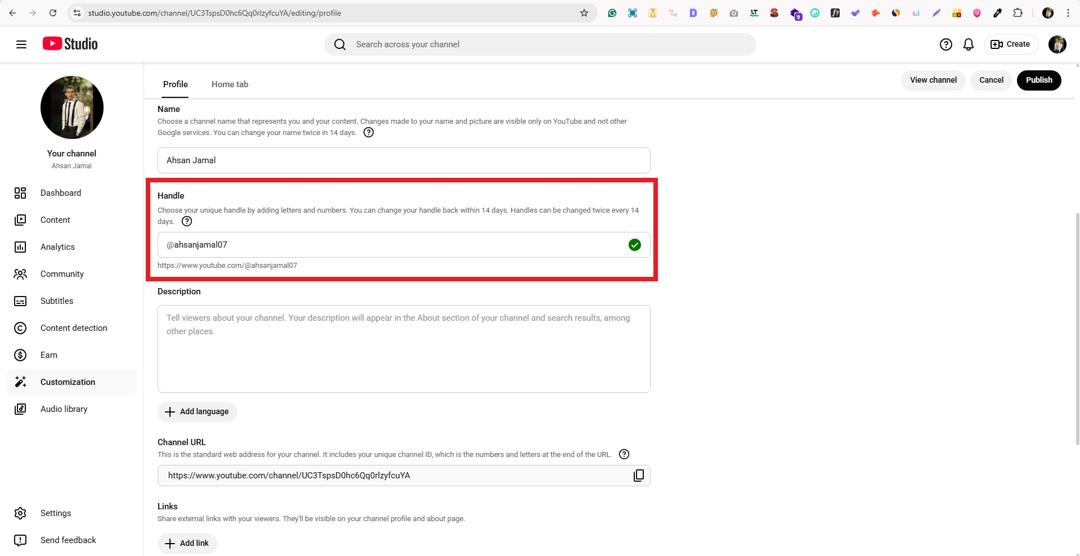
5. Publish your changes: Once you’re happy with it, click “Publish” to save and update your channel URL.
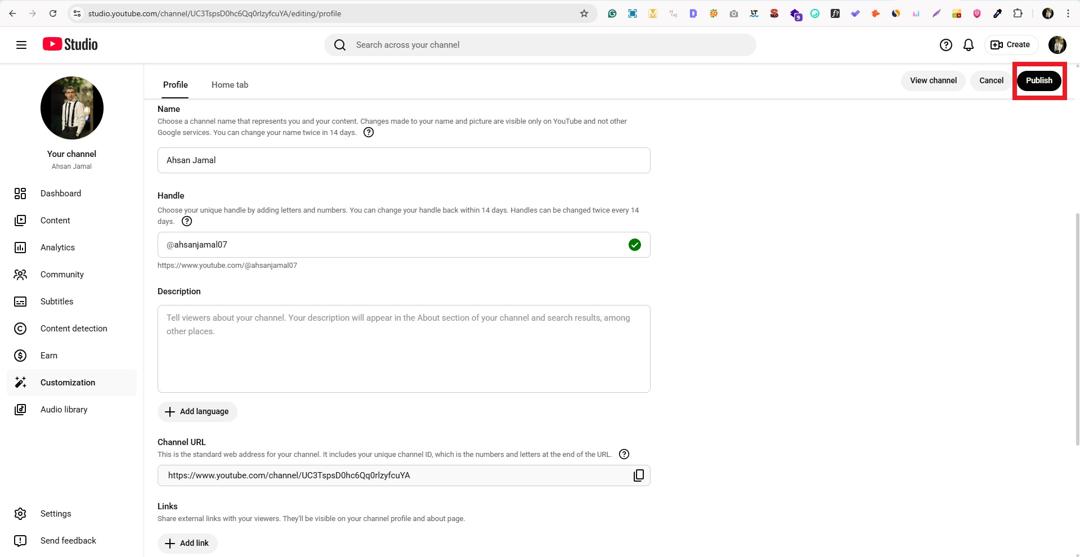
That’s all there is to it!
After this, your channel URL will work with the new handle. And, please don’t forget to update any old links you’ve shared elsewhere online!
How to change URL name on YouTube on phone?
Updating your YouTube URL name on your phone is all about changing your handle in the YouTube app, since that’s what now determines your channel’s web address.
Handles are free to update and show up everywhere on the platform once saved.
Here’s how to change link name on YouTube on phone, step-by-step:
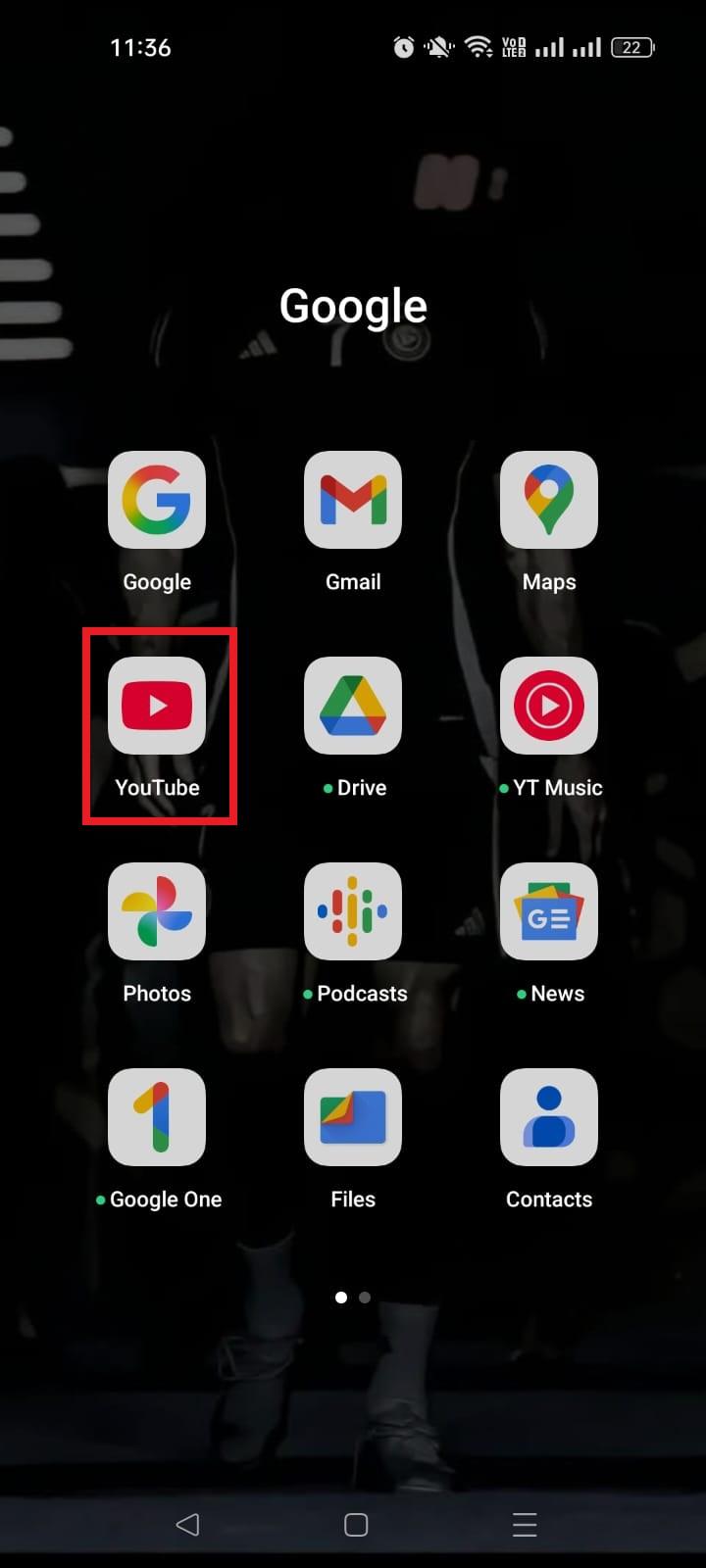
1. Open the YouTube app on your phone and sign in to your account.
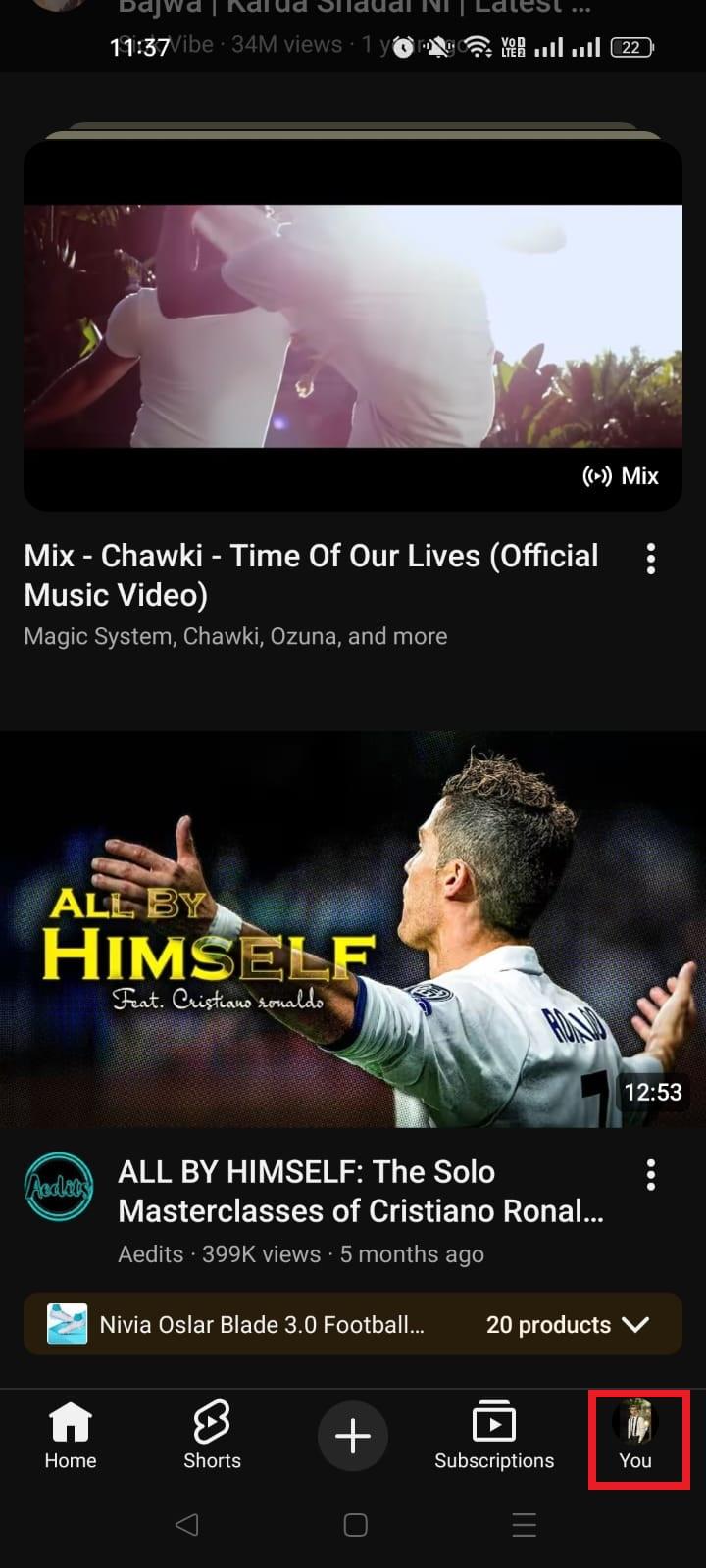
2. Tap your profile photo in the bottom-right corner to open your account menu.
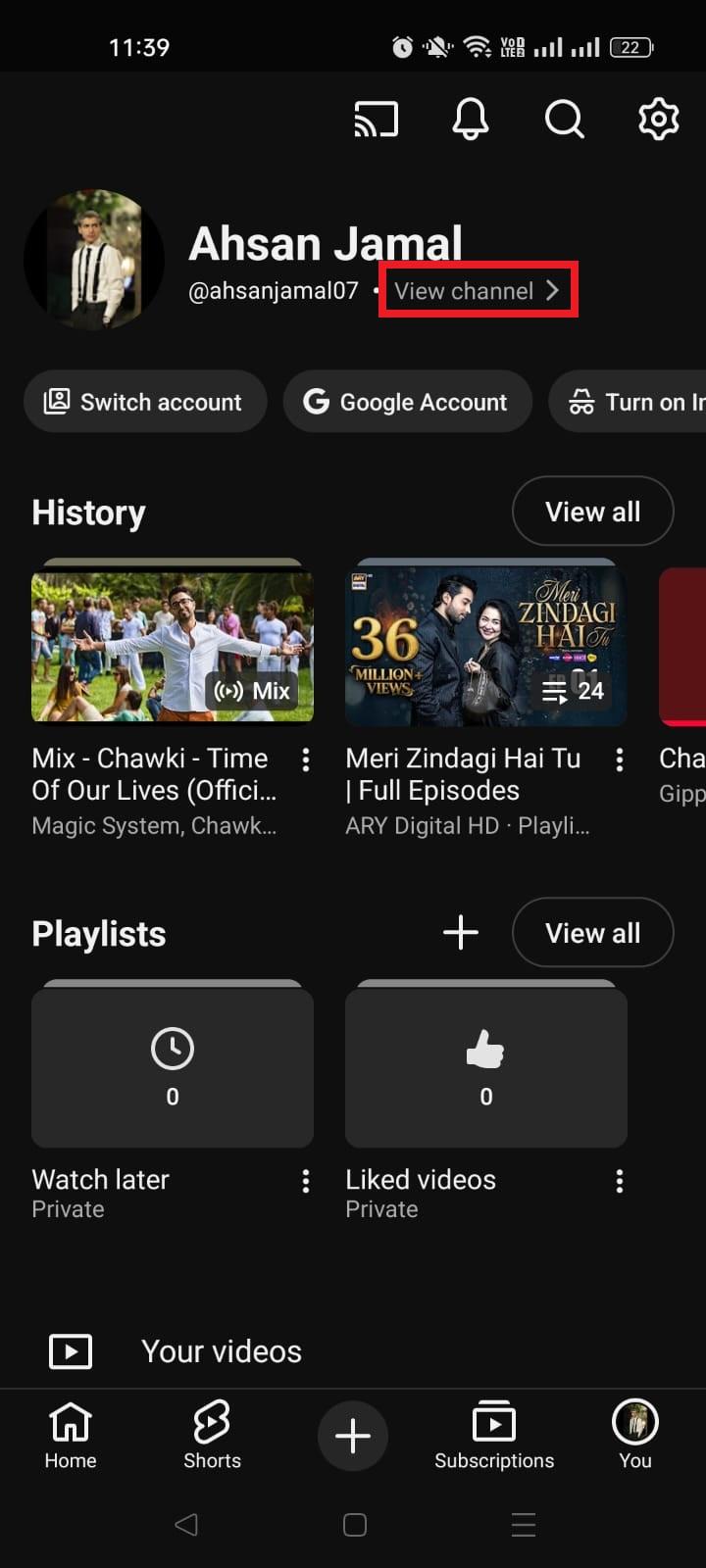
3. Tap View Channel to go to your channel page.
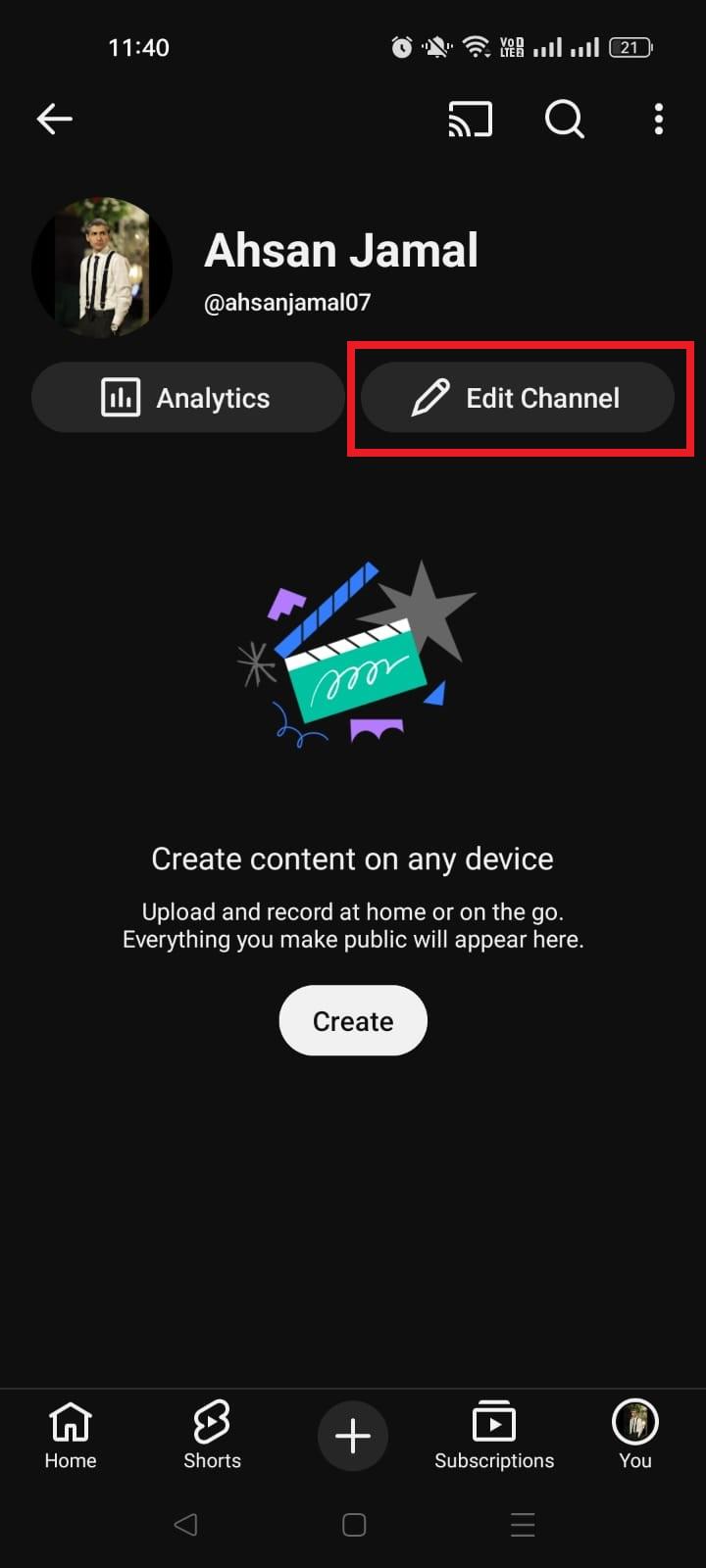
4. Tap the Edit Channel (pencil) button right below your channel name/handle.
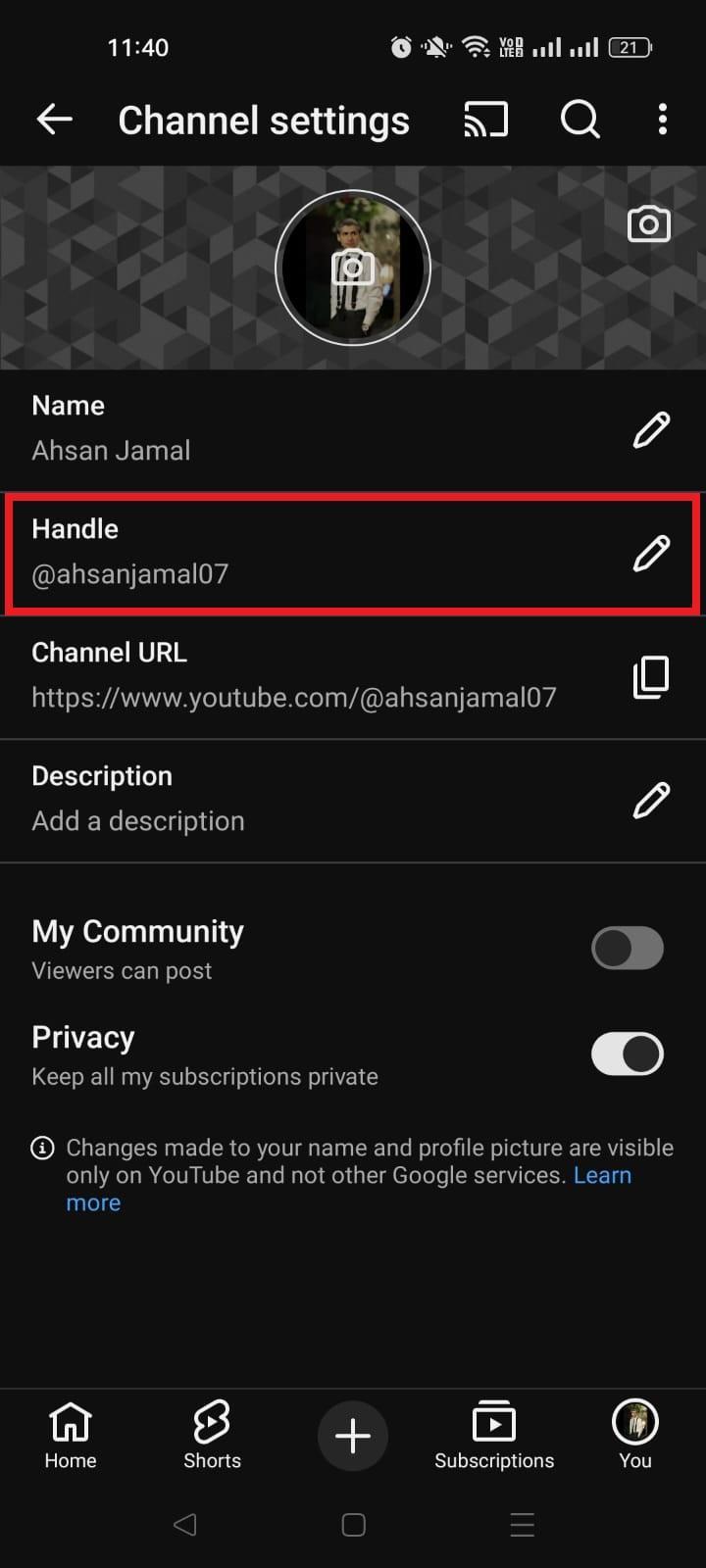
5. Find the Handle field. It shows your current @username. Tap the pencil icon next to it.
6. Type your new handle. Make sure it’s unique and available.
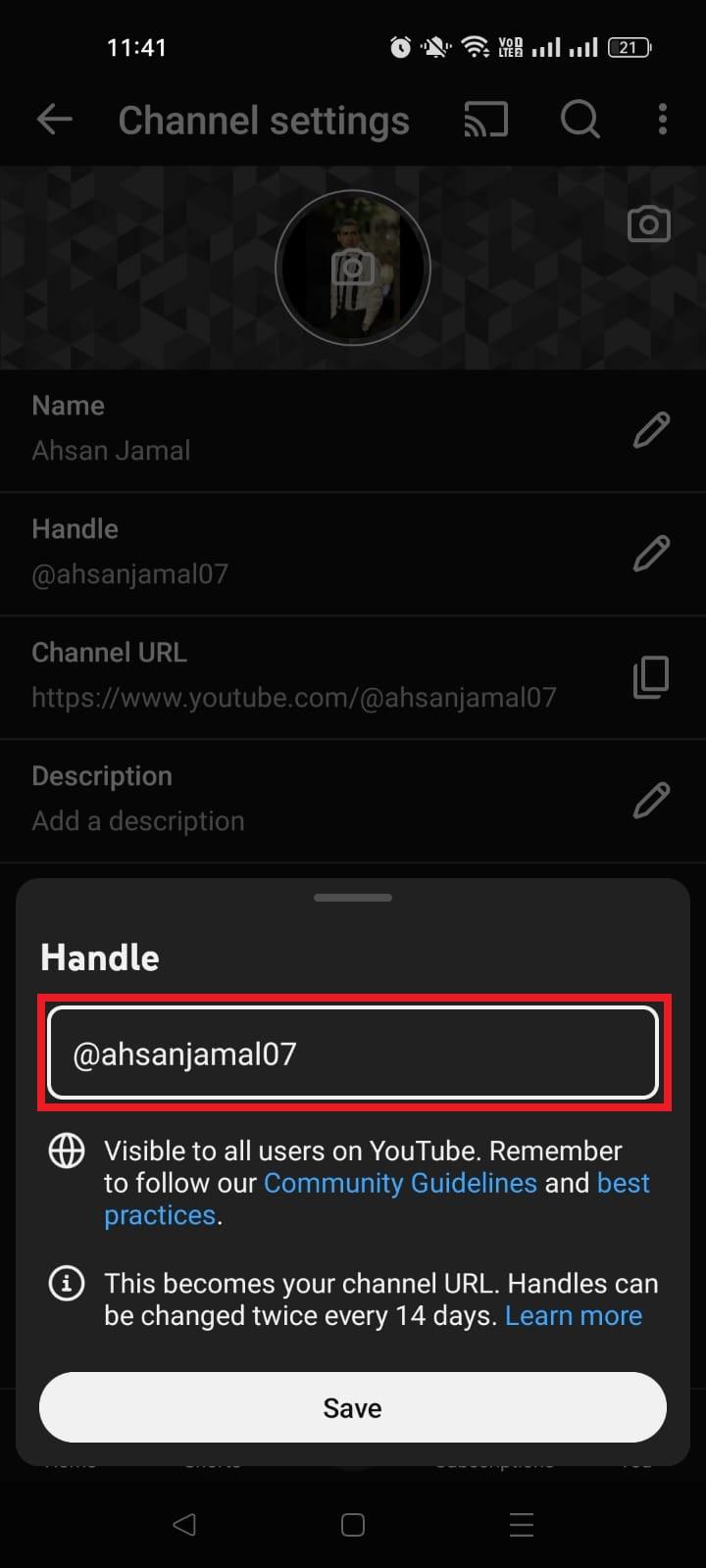
7. Save your changes by tapping the “Save” button or the check mark.
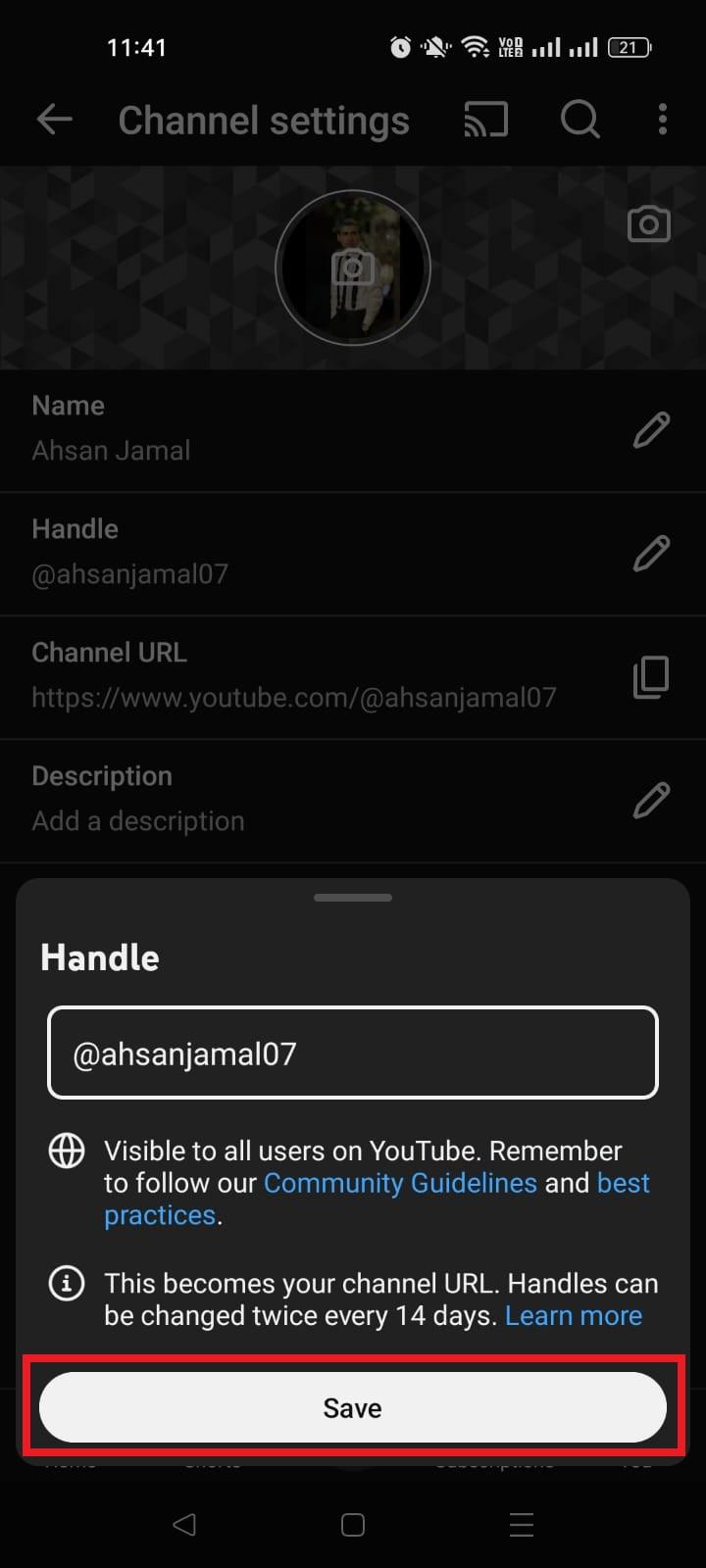
Once saved, YouTube updates your channel URL to use the new handle instantly!
Read also: How to change Facebook URL on mobile and desktop?
How to change name on the YouTube website?
Changing your name on the YouTube website is quick and simple, and it updates how your profile/channel appears to viewers across YouTube. It’s done through YouTube Studio in your browser.
Here’s how to change it, step-by-step:
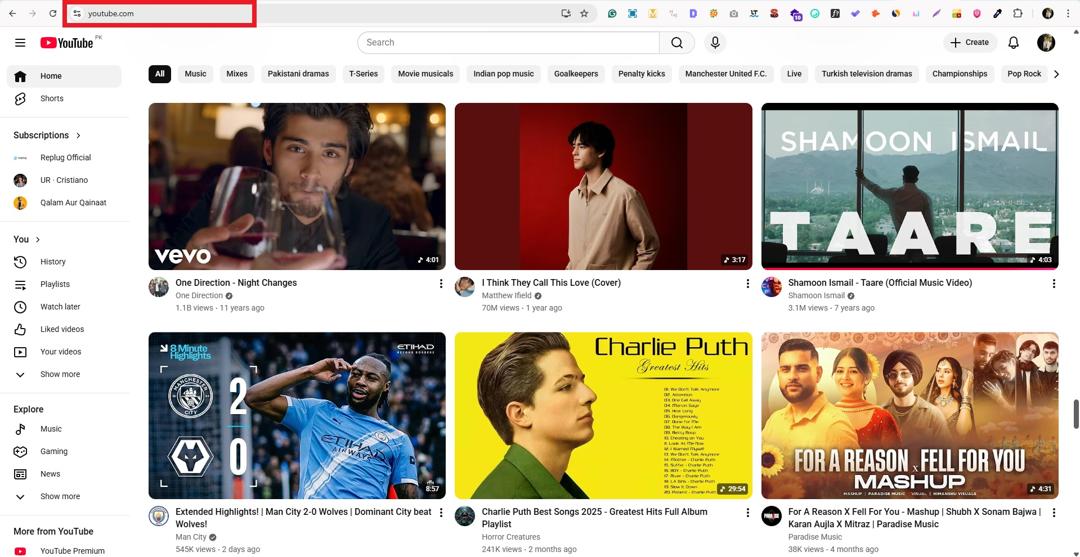
1. Sign in to YouTube: Open your browser, go to youtube.com, and log in to your account.
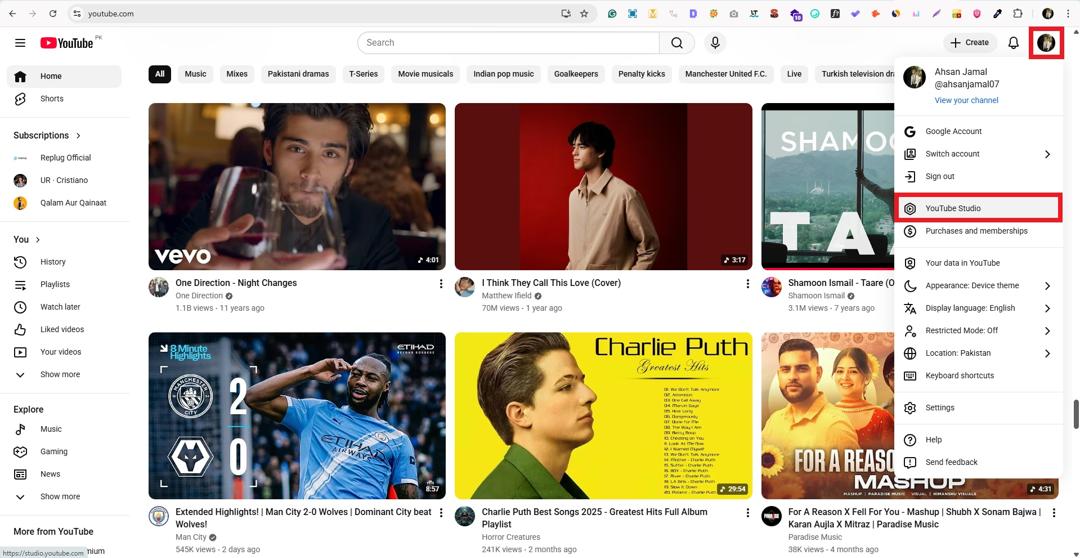
2. Go to YouTube Studio: Click your profile icon in the top-right corner, then select YouTube Studio from the dropdown.
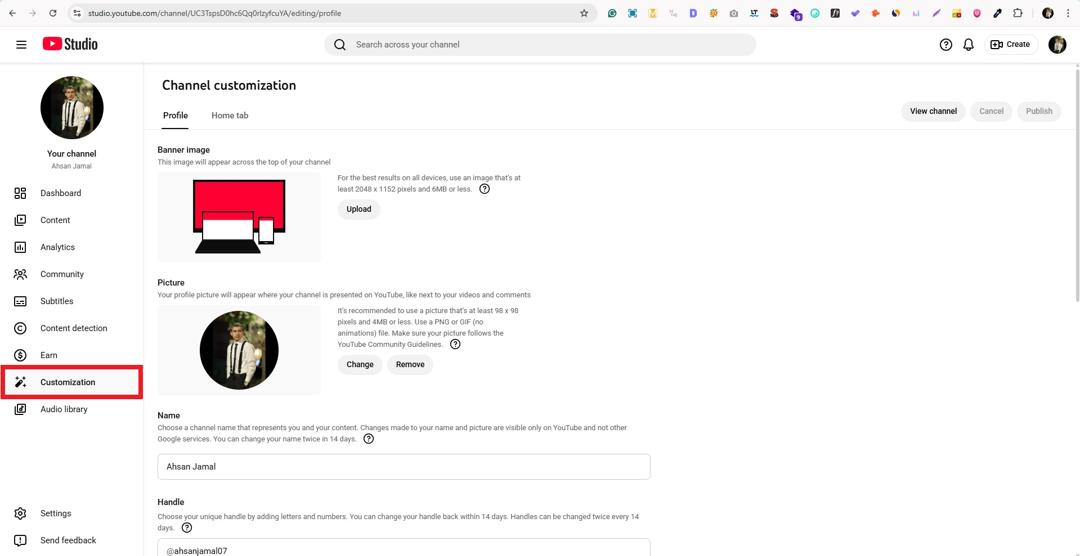
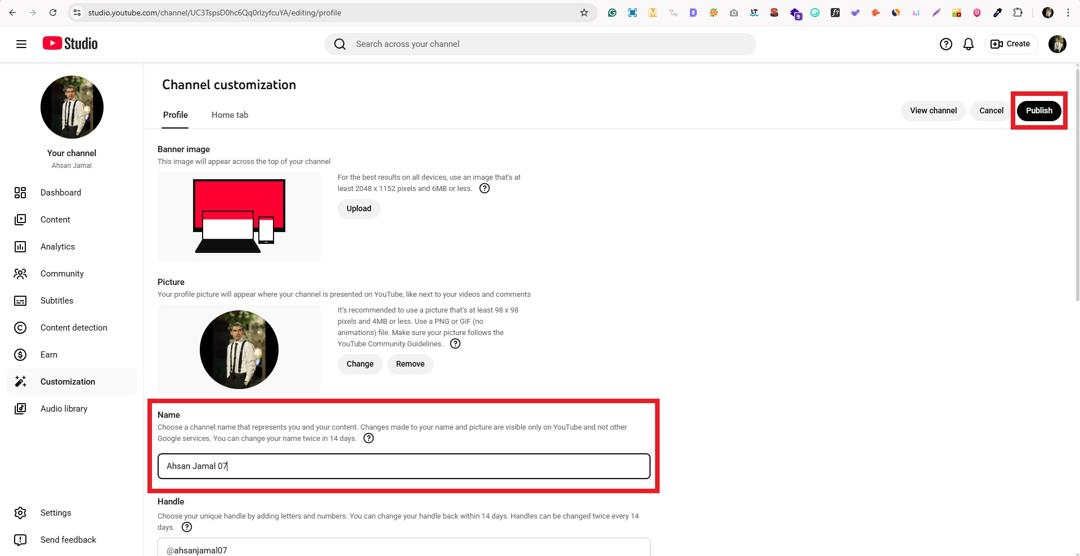
3. Open Customization: In the left sidebar, click “Customization.”
4. Edit your channel name: Click the text box titled “Name,” type your new one, and click the Publish button to save.
5. Update your handle (optional): If you want your URL to reflect the new name, edit the Handle (@username) field and publish it, as well.
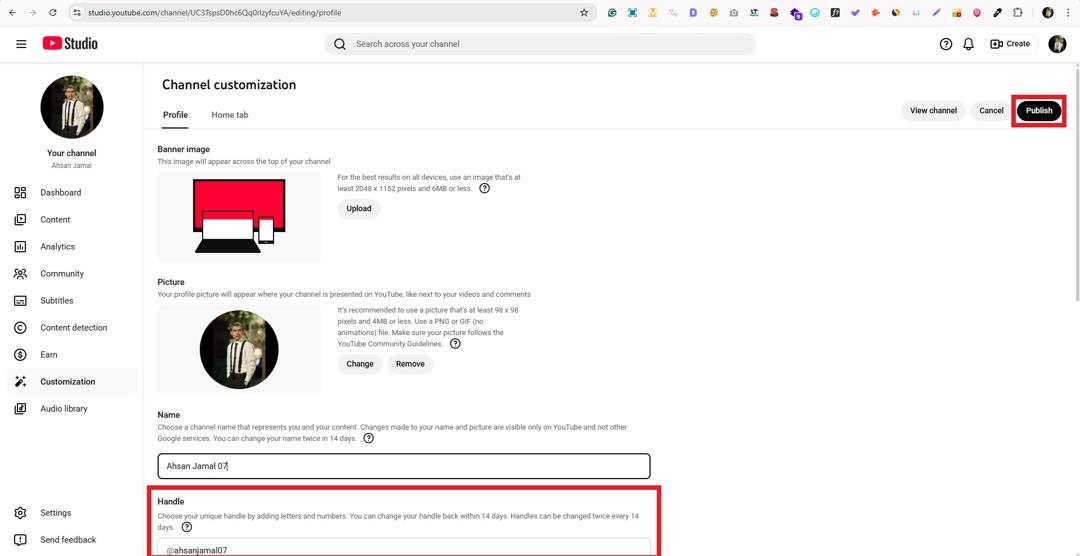
That’s it! Your updated name (and handle, if changed) will go live and show across YouTube soon.
Shorten your YouTube URLs with Replug!
If you’re sharing YouTube content across social media, email, or anywhere online, sometimes those long YouTube links just don’t cut it. That’s where Replug comes in!
It is a brilliant link optimization platform that helps you shorten a link and turn it into something clean, branded, and professional before you share it with your audience.
Replug goes beyond just shortening URLs by giving you full control over link tracking, branding, analytics, and more.
Here’s why using Replug for your YouTube URLs is worth it:
- 🔗 Create short, branded URLs: Transform messy YouTube links into sleek ones that are easier to share and remember.
- 📊 Track link performance: See clicks, sources, and engagement data to understand what’s working.
- 🎯 Add extra marketing power: Include retargeting pixels, CTAs, or even QR codes for offline sharing.
- 👥 Perfect for creators & marketers: Replug helps you boost visibility, improve engagement, and make your URLs look more professional.
Using this trustworthy platform makes your YouTube links more effective and user-friendly, so every share gets noticed!
Wrapping up
All in all, changing your YouTube URL name in 2026 is easier and more effective than ever, not just for branding, but for helping your audience find and remember you.
We walked through what URLs are on YouTube, how to update them via handles on desktop and mobile, and why keeping everything consistent matters.
And if you’re sharing links beyond YouTube, this reliable YouTube link shortener makes any long video or channel URL clean, memorable, and trackable before you post it anywhere.
With tools like this, you’re in control of how your content looks and performs across platforms. A simple change that can make a big difference for your growth.
Feel free to go ahead and apply these steps with confidence!
Frequently asked questions

Muhammad Ahsan Jamal