Steam is a digital distribution service developed by Valve. It was launched in September 2003 as a way for Valve to provide automatic updates for its games and quickly expanded to include other games and software. Steam has become the most prominent digital distribution platform for PC games, with over 100 million active users.
In addition to its huge game library, Steam provides features like community forums, game reviews, and in-game purchases. But with the growing need to share content, URL shortening is key for promoting game links, trailers, and community posts on social media.
For example, if you’re sharing a lengthy Steam game URL on social media, using a smart link hub like Replug.io can make the link more presentable and manageable. Shortened URLs are ideal for platforms like Twitter (X), where character count matters.
In this guide, we’ll walk you through everything you need to know about Steam URLs and how to effortlessly share them on social media. Let’s dive in!
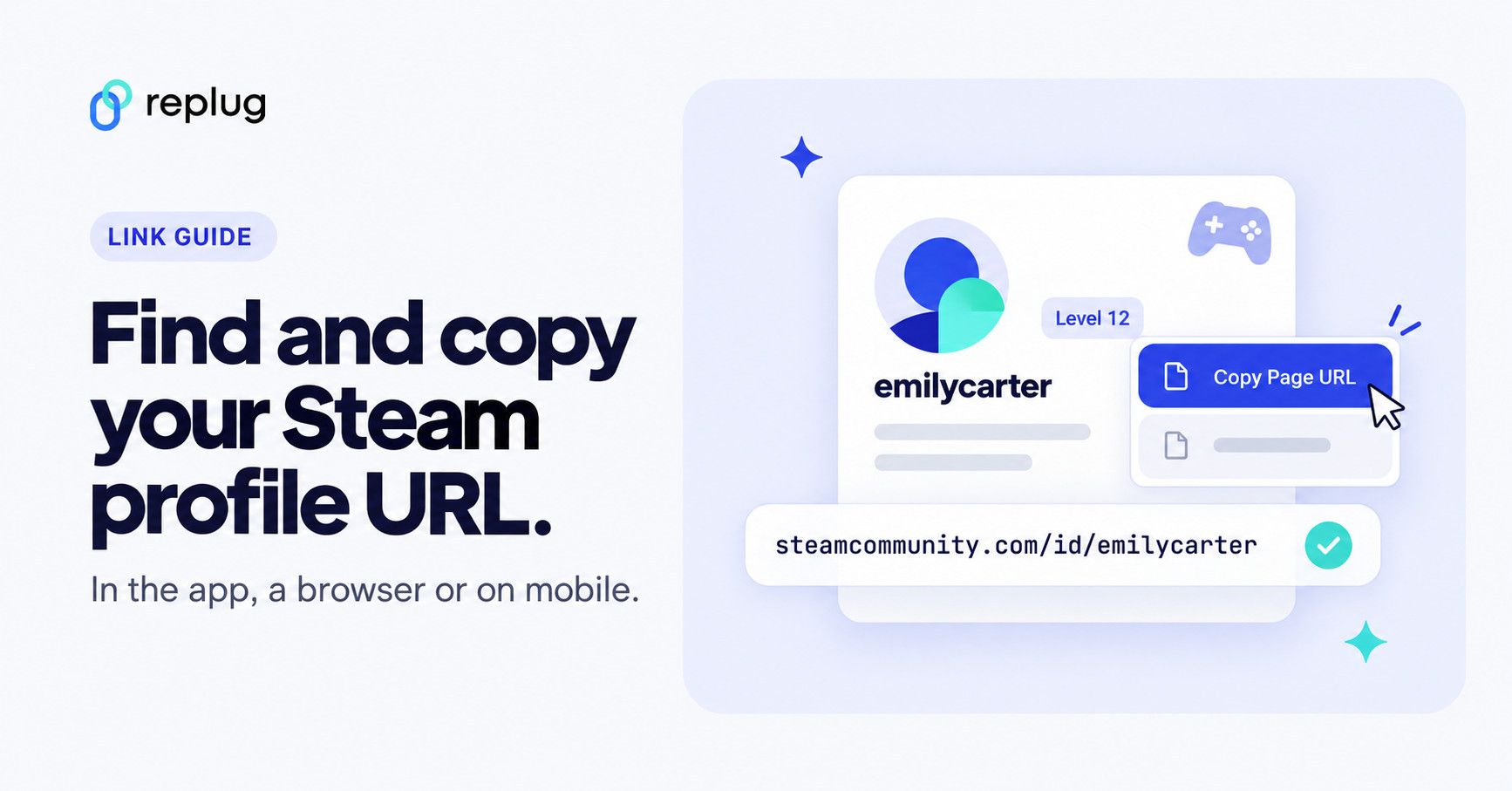
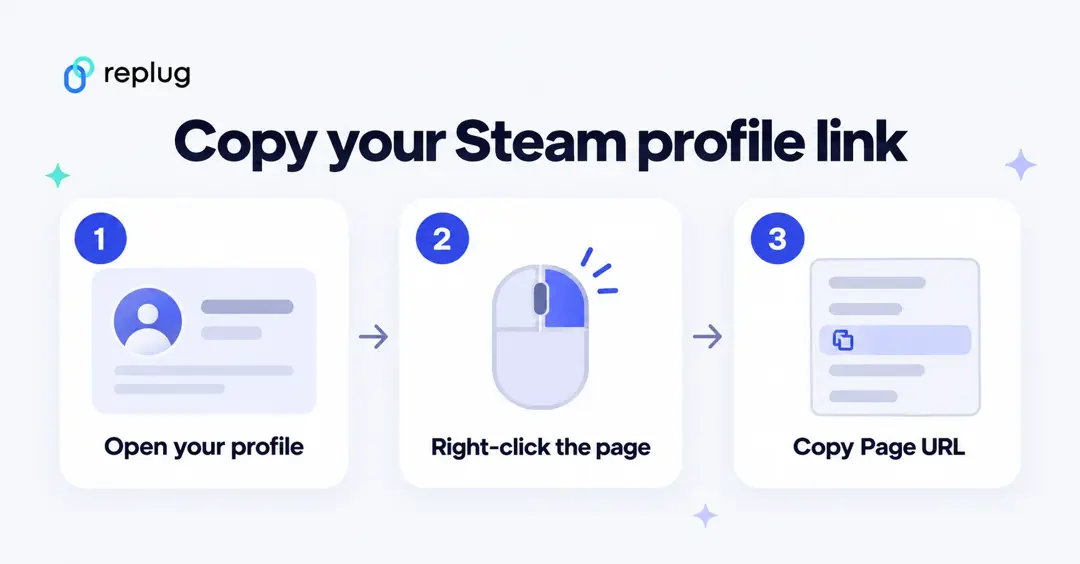
Short answer: your Steam URL (your Steam profile link) is either https://steamcommunity.com/profiles/ followed by your 17-digit SteamID64, or https://steamcommunity.com/id/ followed by your custom URL if you set one. To copy it in the Steam app, open your profile, right-click anywhere on the page and choose Copy Page URL. In a web browser, open your profile on steamcommunity.com and copy the address bar.
Steam offers a variety of features, including:
- A library of over 50,000 games
- Automatic updates for games
- The ability to chat with friends and other players
- The ability to create and join communities
- The ability to purchase games and other software
- The ability to stream games
Steam is available on Windows, macOS, and Linux.
What is my steam profile URL?
A Steam URL is a unique identifier for a Steam user or game. It is a string of letters and numbers used to access the user’s profile or the game’s store page on the Steam website.
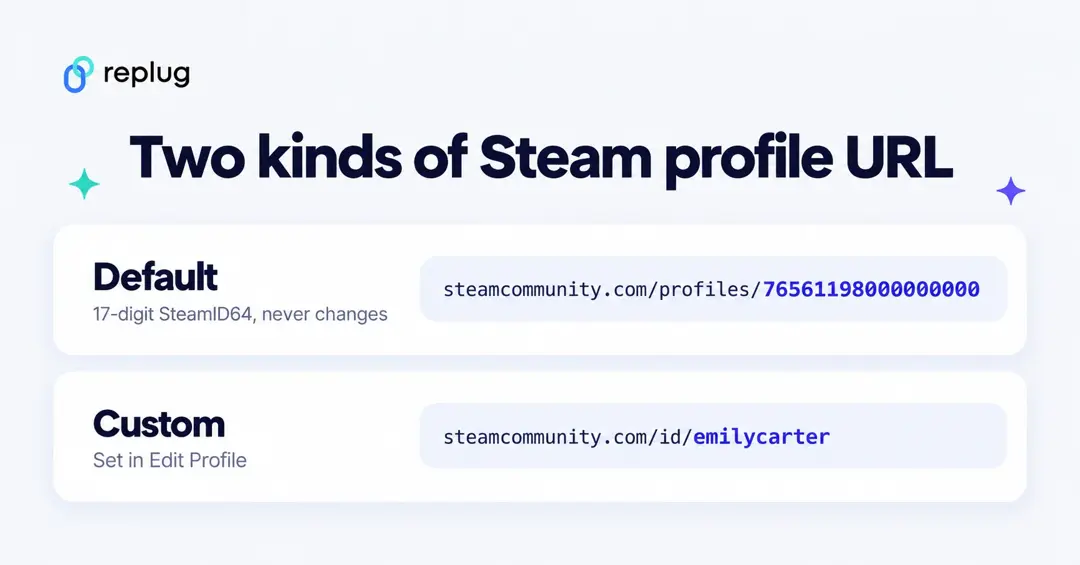
Your profile link comes in one of two formats, depending on whether you have set a custom URL:
| Type | Example | When you see it |
|---|---|---|
| Default profile URL | https://steamcommunity.com/profiles/76561198000000000 | You have never set a custom URL. The number is your SteamID64, which is always 17 digits and never changes. |
| Custom profile URL | https://steamcommunity.com/id/emilycarter | You picked a custom URL in Edit Profile. You can change it at any time. |
| Shortcut to your own profile | https://steamcommunity.com/my | Opens the profile of whoever is logged in. Useful for yourself, but don’t share it, because it opens each visitor’s own profile. |
Steam URL vs. Steam ID vs. account name
- Steam profile URL: the web address of your Steam Community profile. This is what you share with friends, tournament organizers or trading sites.
- SteamID (SteamID64): the 17-digit number that identifies your account. According to Steam Support, it can’t be changed, even by Steam Support staff.
- Account name: the name you sign in with. It is private and also can’t be changed, so never share it as your “Steam ID”.
- Profile name: the name other players see. You can change it whenever you like in Edit Profile, and it is not part of your URL.
- Custom URL: the optional name after /id/ in your profile link. It is separate from your profile name.
How to find Steam URL?
To find your Steam URL, follow these steps:
Step 1: Open the Steam client.
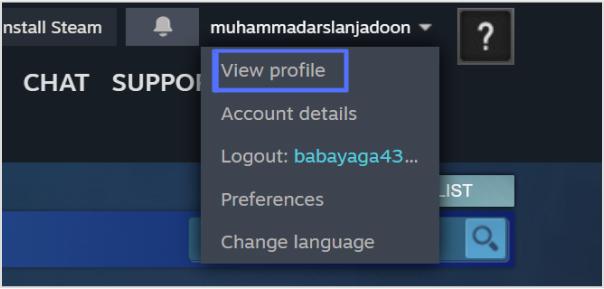
Step 2: Click on your profile name in the top right corner.
Step 3: Select “View profile” from the drop-down menu.
Also read: How to Create a Short URL: Step-by-Step Guide
Step 4: Your Steam URL will be displayed in the URL bar at the top of the page.
Don’t see a URL bar? The Steam app hides it by default. Either right-click anywhere on your profile page and choose Copy Page URL, or turn the bar on: go to Steam → Settings → Interface and enable the option to display web address bars when available.
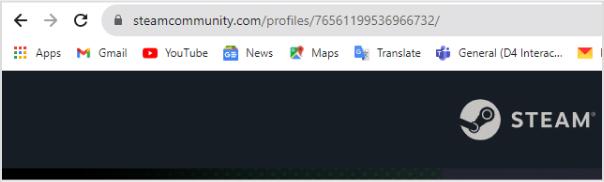
Your Steam URL is a unique identifier that can be used to find your profile on Steam. It is also used to create links to your profile, such as when you want to share it with friends.
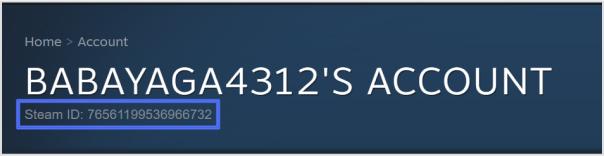
Your Steam ID is a unique number that is assigned to your account. It can be found in the “Account Details” section of your profile.
Also read: How to Create a Smart URL Link: Step-by-Step Guide
How to find your Steam URL in a web browser
- Go to steamcommunity.com and sign in.
- Hover over your profile name at the top of the page and click Profile (or open the account menu at the top right and choose to view your profile).
- Copy the address from your browser’s address bar. That is your Steam profile URL.
This works on any computer, even one without the Steam app installed.
How to get your Steam profile link on mobile
In the Steam Mobile app, tap your avatar to open your profile. Depending on your app version, you may not see a share or copy option there. The most reliable way on a phone is the browser:
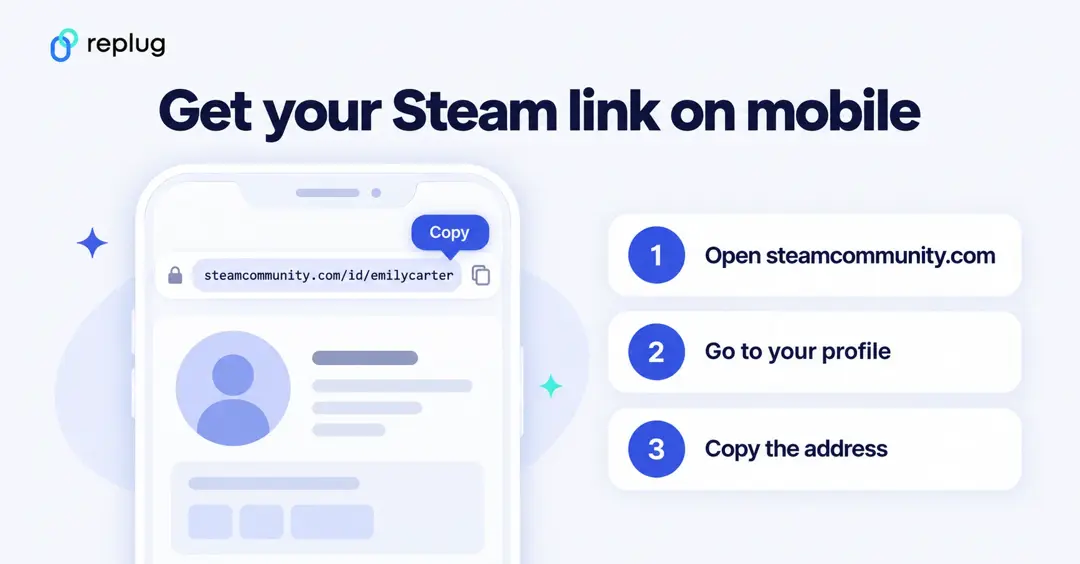
- Open steamcommunity.com in Safari, Chrome or any mobile browser and sign in.
- Tap the menu and open your profile.
- Tap the address bar and copy the full link. On iPhone you can also use the Share button and choose Copy.
If the browser shows a mobile prompt to open the Steam app, choose to stay in the browser so you can copy the address.
How to set or change your custom Steam URL
A custom URL turns a long number into something people can remember, such as steamcommunity.com/id/emilycarter.
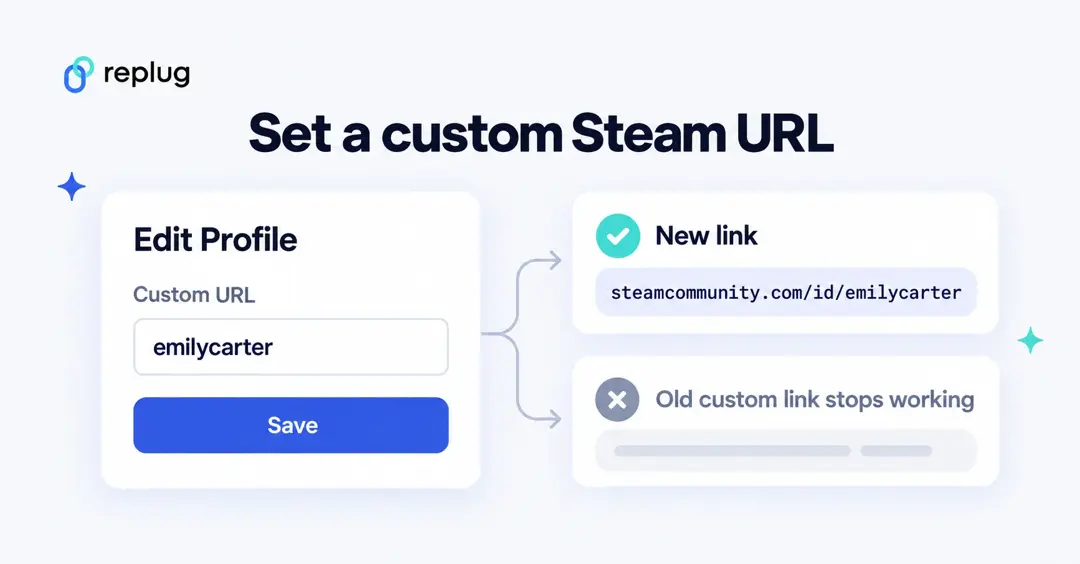
- Open your Steam profile and click Edit Profile.
- In the General section, find the Custom URL box.
- Type the name you want. It has to be unique, so try another if Steam says it’s taken.
- Scroll down and click Save.
Keep these in mind:
- Your old link stops working as soon as you change the custom URL. Update it anywhere you shared it, such as a Discord profile, a stream panel or a trading site.
- Your SteamID64 never changes, so the /profiles/ link with your number keeps working even after you set or change a custom URL.
- To see your SteamID64 when you already have a custom URL, Steam Support suggests clearing the Custom URL box in Edit Profile; the number then appears in the URL shown below it. Put your custom URL back before you save, or just close the page without saving.
How to find someone else’s Steam profile URL
- In the Steam app, open their profile from your Friends list, a game’s community page or a group, then right-click the page and choose Copy Page URL.
- In a browser, open their profile on steamcommunity.com and copy the address bar.
- If you want to add someone as a friend instead, use Friends → Add a Friend. That page shows your Friend Code and a Quick Invite link. Quick Invite links work once and expire after 30 days, so they are not a replacement for your profile URL.
How to find your Steam trade URL
Trading sites often ask for your trade URL, which is different from your profile URL. It lets people send you trade offers without being on your friends list.
- Sign in and open steamcommunity.com/my/tradeoffers/privacy, or go to your Inventory → Trade Offers → Who can send me Trade Offers?
- Find the Trade URL box under the third-party sites section.
- Click Copy. If you shared it with a site you no longer trust, click Create New URL to make the old one stop working.
Steam profile link not working? Common fixes
- “The specified profile could not be found.” The custom URL was changed or removed. Ask for the new link, or use the /profiles/ link with the 17-digit SteamID64, which never changes.
- The profile opens but shows almost nothing. The profile is private or friends-only. The link is right; the owner controls what visitors see in Edit Profile → Privacy Settings.
- A friend opens the link and sees their own profile. You shared steamcommunity.com/my. Share the /id/ or /profiles/ link instead.
- The link has extra text at the end. Remove anything after your ID or custom name, such as /home or /?l=english, so the link is clean.
Shorten your Steam URL for easy social sharing
Shortening your Steam URL for social sharing means making long web addresses shorter, making them easier to share on social media. This simplifies sharing, looks better, and often comes with tracking features. It increases click-through rates, works offline too, and can even subtly promote your brand.
For a deeper walkthrough with examples for game, workshop and profile links, see how to shorten your Steam profile URL. If you share several links at once, such as your Steam profile, Twitch channel and Discord server, put them all on one bio link page and share that single link instead.
How to shorten your Steam URL?
Step no 01: Begin by signing in to your Replug account, or if you’re new, create a free account.
Step no 02: In the “Shorten your link” bar at the upper left corner, paste your Steam URL.
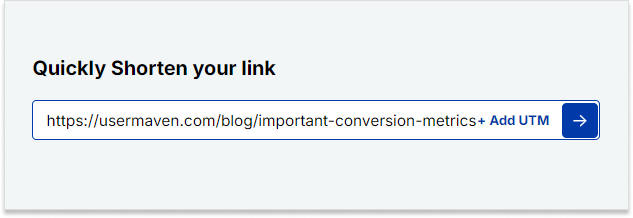
Step no 03: Once redirected, you can add a link preview, set an expiry date, and customize the link settings to your liking.
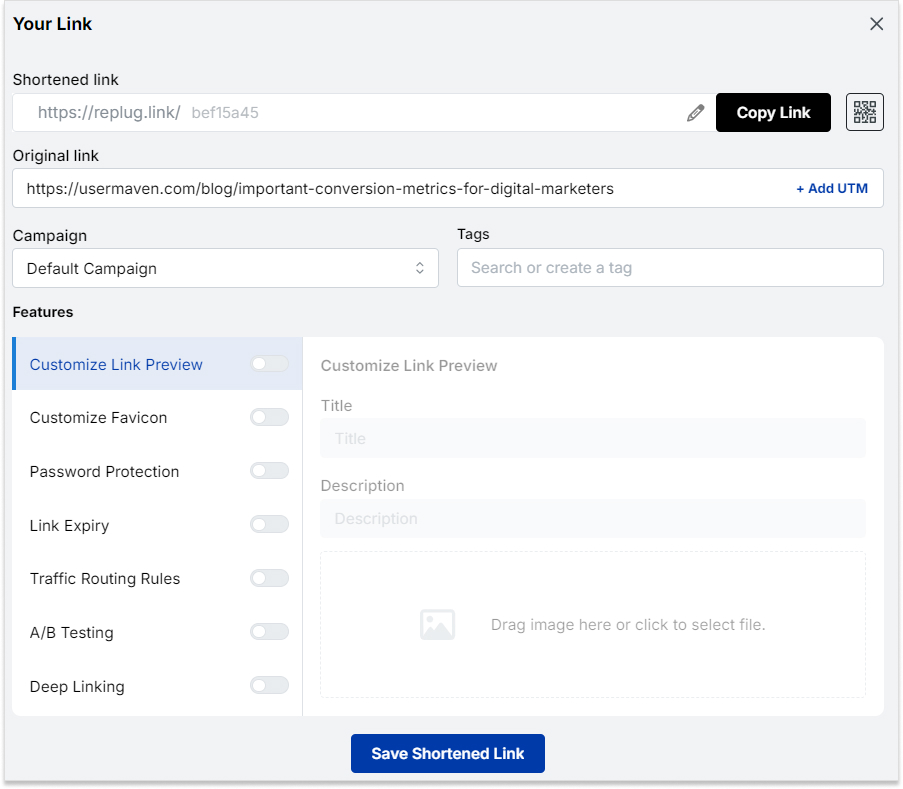
Step no 04: On this page, locate the top bar where you can edit the link slug to match your preference.
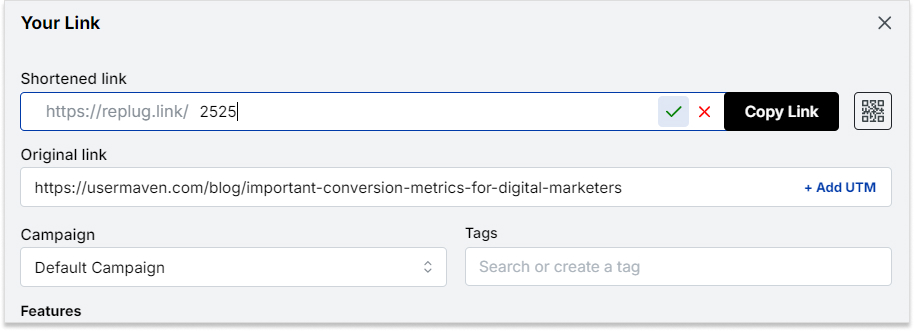
Step no 05: Press the tick button, scroll down, and save your newly shortened link. You’re all set!
Replug offers robust link tracking and analytics features. You can monitor the performance of your shortened links in real time. You can gain insights into the number of clicks, geographic locations of users, referring sources, and more.
This data empowers you to refine your strategies, tailor your content to your audience, and make informed decisions to optimize your link management efforts.
FAQs

Arslan Jadoon