What is a tracking pixel?
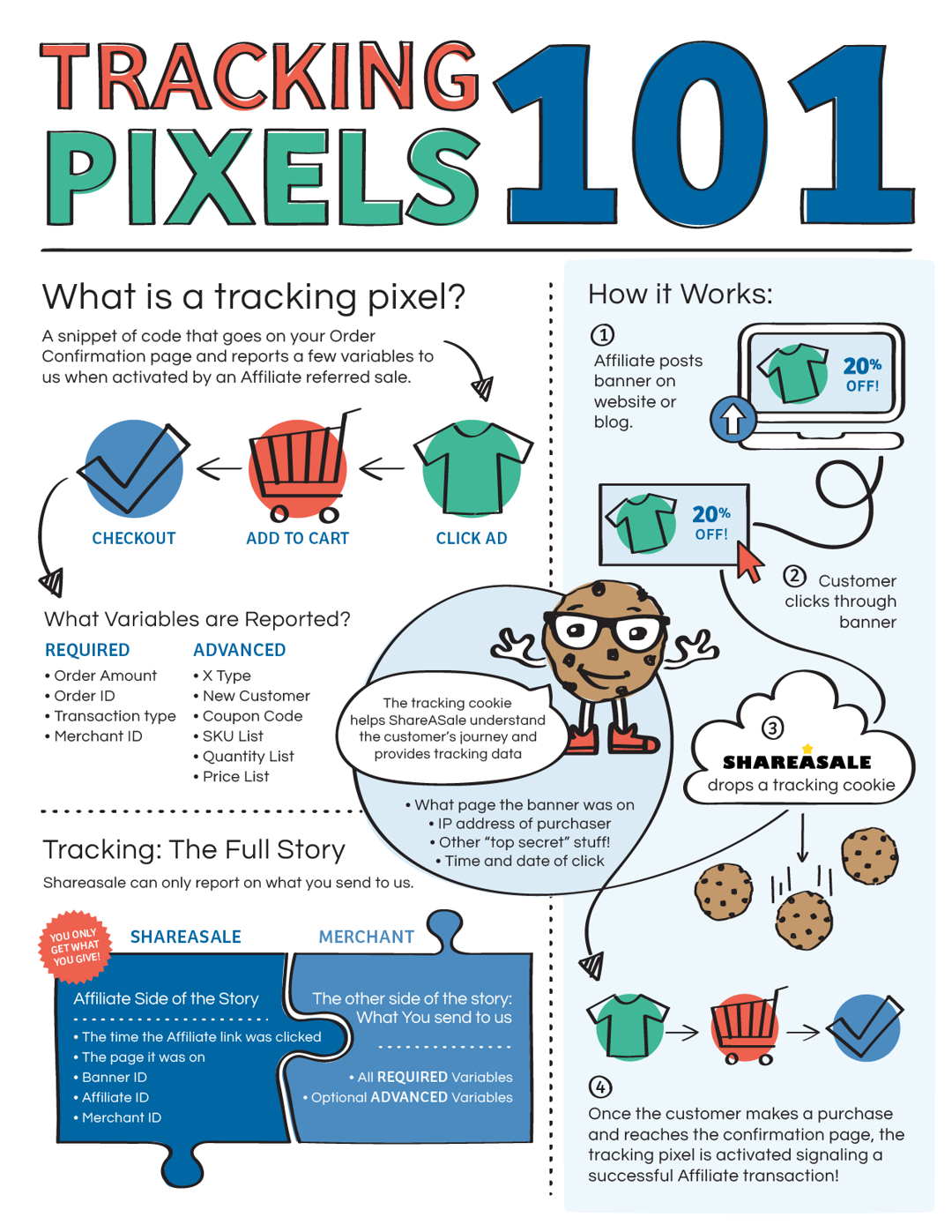
A tracking pixel is a pixel tag or code snippet that triggers the tracking system when a visitor lands on a website page after clicking on a specific link or CTA.
A tracking pixel works by placing it on a website or in an email and tracking the data that helps the marketer or advertiser analyze and track the campaign performance.
Quick answer: a tracking pixel is a small piece of code, often a 1×1 transparent image or a short JavaScript snippet, placed on a web page or in an email. When the page or email loads, the pixel makes the browser send a request to the analytics or ad platform that owns it, and that request reports an event: a page view, an email open, a purchase. Ad platforms use these events to measure campaigns and to build retargeting audiences. In the EU and UK the same consent rules apply to pixels as to cookies.
Have you ever noticed how quickly you land on a “thank you” page when you finish the checkout process on an e-commerce site?
Do you know that the largest websites, such as e-commerce platforms, social media platforms, and web portals, track their website visitors?
Websites and apps track their users because it helps them navigate in the right direction or understand what they need to accomplish.
In some cases, a tiny image file is added to the website or app, which usually goes unnoticed by the naked eye. In other cases, the “pixel” is a JavaScript snippet in the page’s code rather than an image, which is how the Meta Pixel and the Google tag work today.
Adding a tracking pixel on any web or app property is to collect user data to understand their behaviors, actions, and choices.
Furthermore, it is used to track the activity of users on a website or email campaign to determine the success of the campaign.
Let’s do this. Shall we?
Why do you need tracking pixels?
Tracking performance is the essence of any marketing campaign, as it helps marketers understand how their marketing efforts will pan out.
Here are four areas where tracking pixels comes in handy:
i. Analyzing website traffic: Tracking pixels can gather data on how users interact with a website. This can help website owners understand which pages are most popular, how users navigate through the site, and where they are coming from.
ii. Measuring the effectiveness of online advertising: Tracking pixels can measure the success of online advertising campaigns by tracking how many users click on an advertisement and then go on to make a purchase or complete some other desired action.
iii. Targeting users with relevant advertisements: Tracking pixels can be used to track user behavior and interests, which can be used to show targeted advertisements to users that are more likely to be interested in them.
iv, Email marketing campaign: Tracking pixels can be used to track the success of email marketing campaigns by measuring how many users open the email and click on links within it.
No doubt, tracking pixels are important for businesses and marketers, as they allow them to gather data on how users interact with their websites and emails regardless of the platform.
Moreover, it enables marketers and advertisers to use this information to improve their marketing efforts and relaunch their advertising campaigns more effectively.
What are the different types of tracking pixels?
There are two main types of tracking pixels used in digital marketing:
Conversion Pixels
Conversion pixels play a vital role in tracking conversions on websites and apps. For example, you may have seen “thank you” or “also check these” pages while buying products online. Such pages trigger or direct visitors to specific pages when they notice a conversion. And conversion pixels help perform this action.
Now a product sale isn’t the only conversion. In fact, a generated lead or downloaded file is also a conversion. It depends on the campaign type and what the marketer or advertiser wants from the audience.
Retargeting Pixels
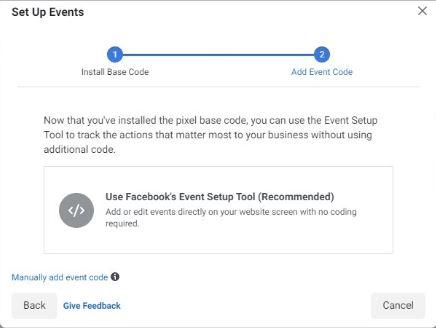
One of the most popular tracking pixels is the retargeting pixels. It’s used in retargeting campaigns in the digital marketing field. Retargeting is a marketing strategy of targeting the audience that has visited their website or landing page to convert visitors into subscribers or paid users.
Retargeting is usually done through paid advertising. However, the targeting process begins earlier, when the retargeting pixel is added to the website code (or, with a link tool such as Replug, to the short link people click). Hence, the retargeting pixel collects visitor data and helps marketers reach the same audience through paid ads.
Tracking pixels by platform: Meta Pixel, Google tag and LinkedIn Insight Tag
Each big ad platform has its own pixel. They work the same way, but they have different names and slightly different rules:
| Pixel | What it is, per the platform | Used for |
|---|---|---|
| Meta Pixel | “A snippet of JavaScript code that allows you to track visitor activity on your website” (Meta for Developers) | Measuring Facebook and Instagram ads, custom audiences and retargeting (Meta Business Help) |
| Google tag (gtag.js) | “A single tag you can add to your website to use Google measurement and advertising products” such as Google Ads and Google Analytics (Google for Developers) | Conversion tracking, remarketing audiences, analytics |
| LinkedIn Insight Tag | A tag that “needs to be incorporated as a component of your website’s pages” to use website audiences or Conversion Tracking (LinkedIn Help) | B2B retargeting and conversion tracking on LinkedIn |
According to Meta’s developer documentation, the Meta Pixel can collect HTTP header data (such as the IP address, browser and page location), the pixel ID and Facebook cookie, button clicks, and any extra values you choose to send. Platforms also limit what you may send: Meta tells advertisers not to share prohibited information such as health, financial or children’s data, and LinkedIn says the Insight Tag should not be installed on pages that collect or contain sensitive data.
How does tracking pixels work?
Tracking pixels are used to track the users’ online behavior, such as the pages they visit, the links they click on, and the products they purchase.
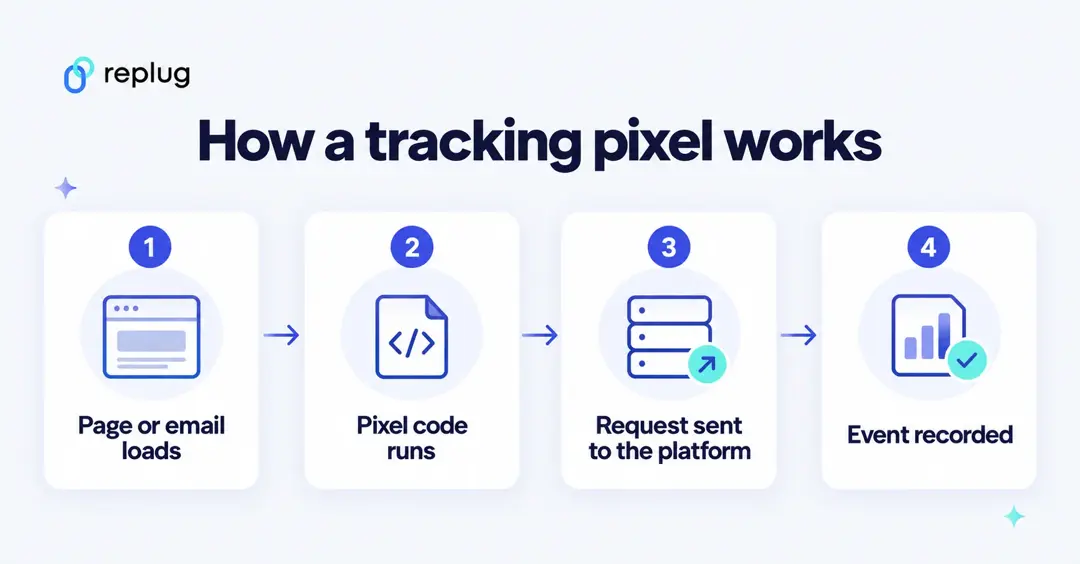
A tracking pixel is a piece of code that embeds into the website code or URL to track the performance of the page or link.
In some cases, tracking pixels are tiny, transparent images placed on web pages or emails to track user behavior.
Advertisers often use tracking pixels to track the effectiveness of their online advertising campaigns. They can also be used by website owners to track the traffic to their sites and to understand the demographics of their users.
The way tracking pixels works is that they are often placed in the HTML code of a web page or in the body of an email. They can be implemented using JavaScript or iFrame.
Example: Suppose a user visits a website or opens an email that contains a tracking pixel; the pixel sends a request to the server that hosts the pixel.
This request includes information about the user’s browser, such as the user’s IP address, the type of device they are using, and the type of browser they are using.
The server then records this information and stores it in a database. This information can be used by the webmaster or by the sender of the email to analyze the user’s behavior and tailor their marketing efforts.
What does a tracking pixel look like?
An image pixel is just an image tag that points at the tracking server, sized to one pixel so nobody sees it. A simplified example:
<img src="https://tracker.example.com/open.gif?campaign=fall-roast&user=123" width="1" height="1" alt="">
The query string (campaign=fall-roast&user=123) is what tells the server which email or page was opened. JavaScript pixels such as the Meta Pixel do the same job with a script that sends events like PageView or Purchase.
Email tracking pixels and Apple Mail Privacy Protection
Email tools use an invisible image to count opens. That count is less reliable than it used to be: Apple’s Mail Privacy Protection hides the reader’s IP address and “prevents senders from seeing if you’ve opened the email message they sent you,” according to Apple Support. Clicks on links in the email are a sturdier signal than opens.
How to Set Up a Tracking Pixel Using Replug?
Replug is a powerful free link shortener tool that allows brands and marketers to create short, branded URLs for marketing, such as for social media, email marketing, and online advertising.
It is an efficient link optimization platform, that offers UTM embedding, link tracking, deep links, tracking URL, and other services, to open up the opportunity to retarget the audience easily.
As Replug records data of the users’ behavior on the short links, it makes it possible for marketers and brands to retarget those people through different advertising channels.
Replug fires your pixels when someone clicks your short link, bio page or QR code, before sending them on to the destination, so you can build audiences even from links to sites you don’t own. Retargeting pixels are on paid plans: one pixel on Essentials and unlimited on Scale and Agency, per Replug’s pricing page (checked October 2026). Supported networks in the app: Meta (Facebook), Google, X (Twitter), LinkedIn, Pinterest, TikTok, Quora and custom code.
Here’s how you can set up tracking pixels using Replug:
Step #1: Create a Replug account
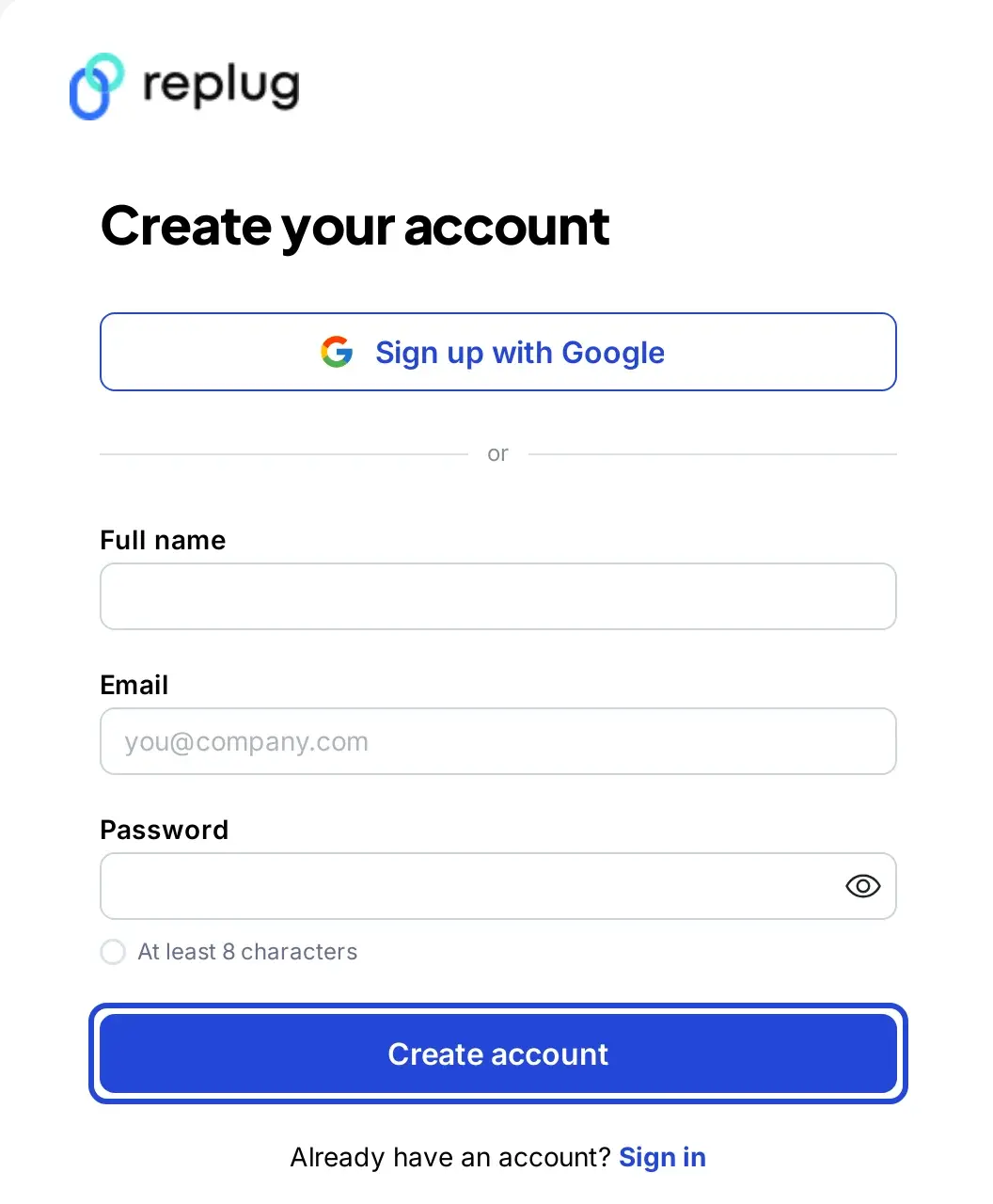
To get started with Replug, you must first create a Replug account. Then, you just need to visit the Replug website and sign up for free to start the process.
Once you’ve created your Replug account, log in to your account to explore the features this URL-shortening tool has to offer.
After the successful login to your Replug account, you’ll see the Replug dashboard, where the process begins.
Pay close attention to all the steps for setting up a tracking pixel using Replug before jumping the gun. And more importantly, don’t create a short link right after landing on the dashboard area because you’d have missed out on a few steps.
Step #2: Add your retargeting pixel in Settings
Pixels are saved once per workspace and then attached to campaigns or bio pages. First copy your pixel ID from the ad platform (for example, from Meta Events Manager).
Adding a pixel takes a few seconds and only has to be done once per workspace.
To add a pixel:
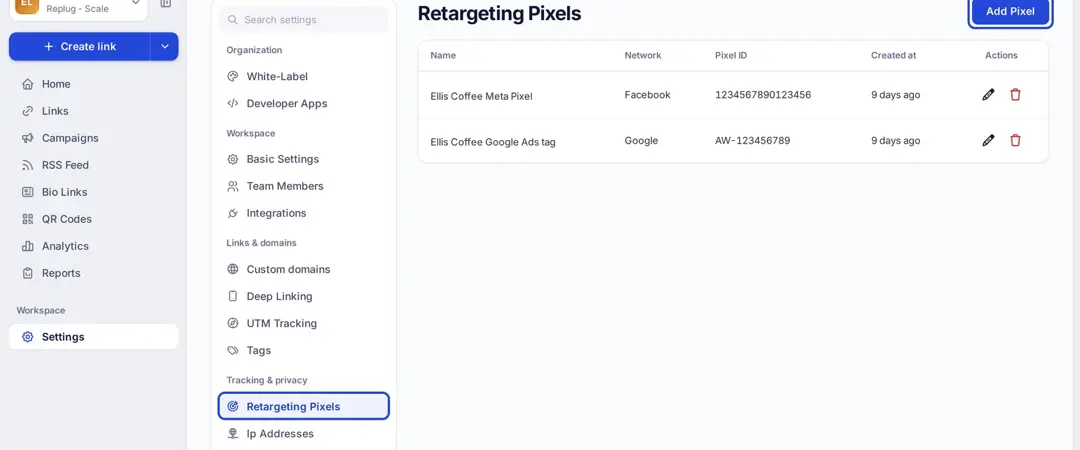
- Click Settings at the bottom of the left menu, then Retargeting Pixels under Tracking & privacy.
- Click Add Pixel.
- Give the pixel a name, choose the Network (for example Meta (Facebook) Pixel) and paste your Pixel ID, then click Create.
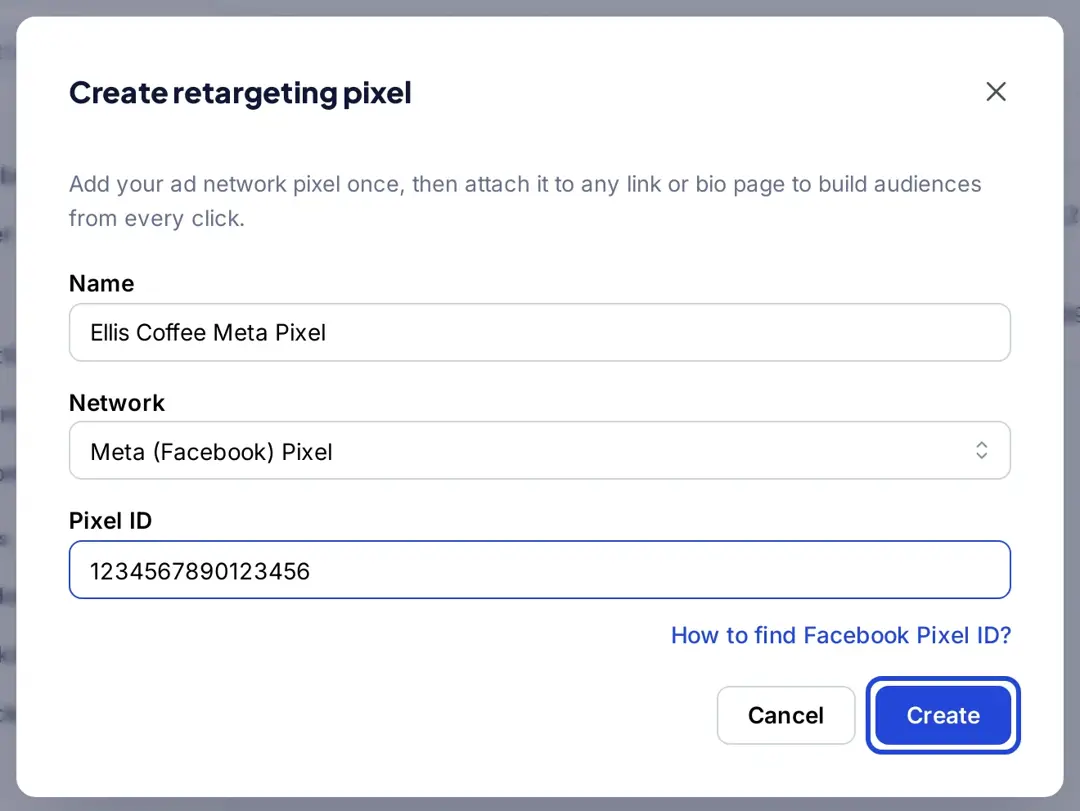
Once it’s saved, the pixel appears in the list and can be used in any campaign or bio page in that workspace.
Step #3: Make a new campaign
The next up is creating a new Replug campaign in line with your retargeting campaign. Every link in a campaign fires that campaign’s pixels.
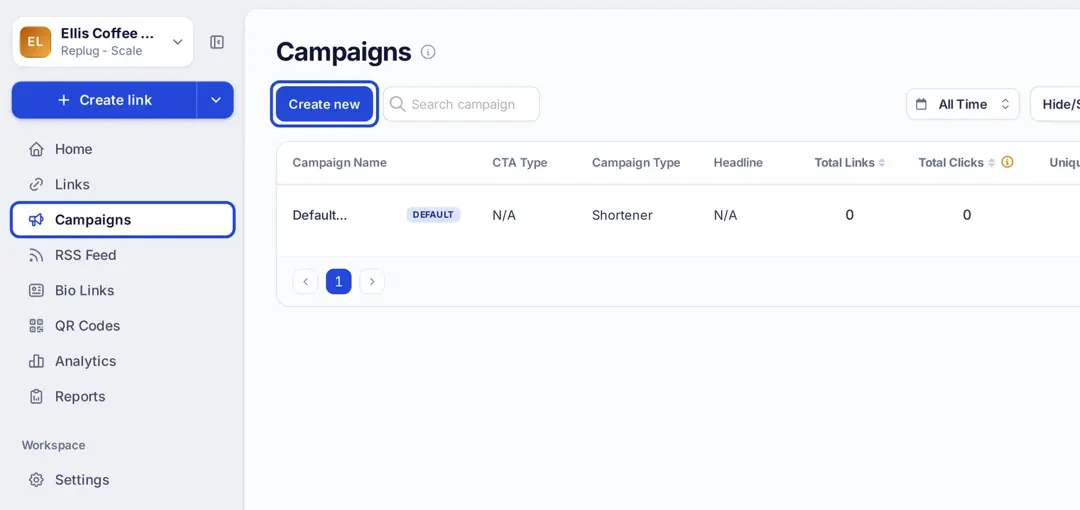
Now click “Campaigns” in the left menu, and then click “Create new” to get started.
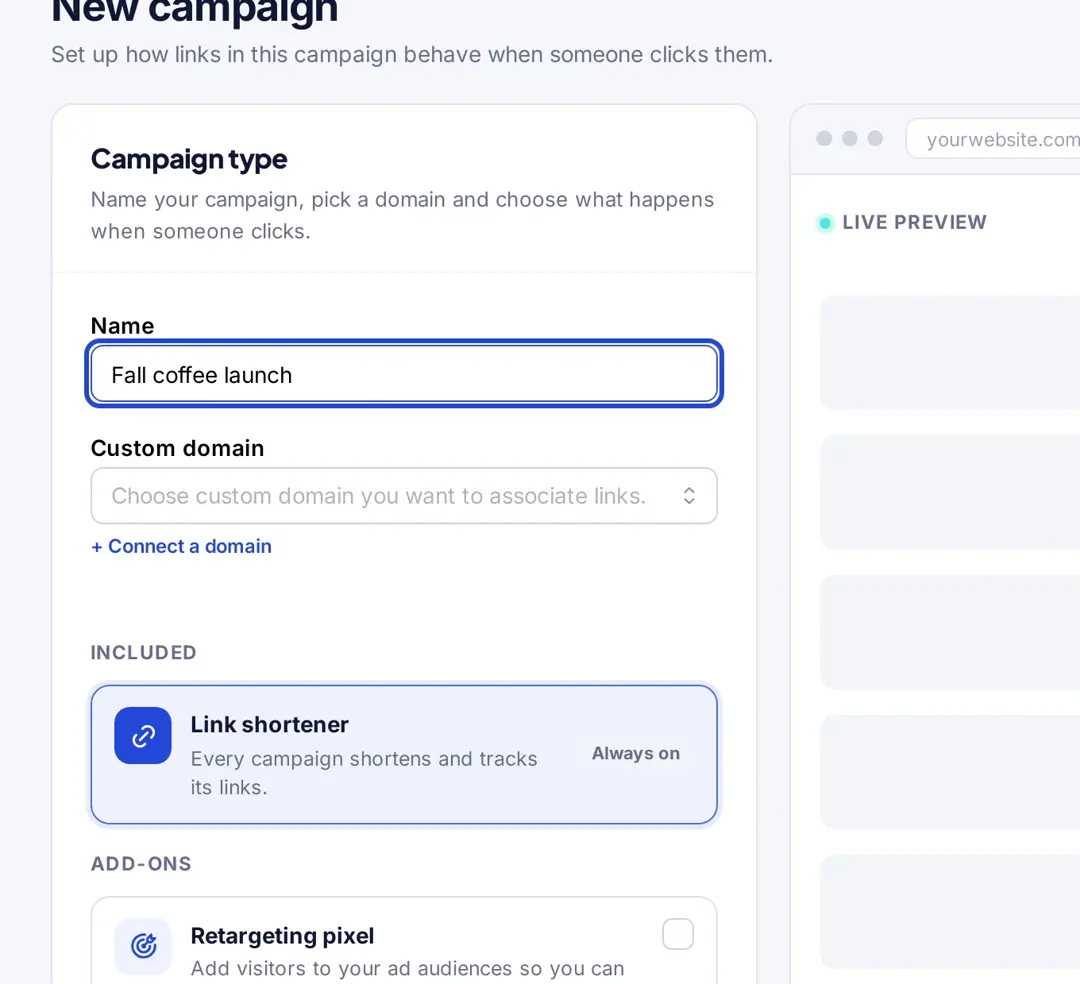
At this point, give the campaign a name you will recognize later, such as “Fall coffee launch”.
Step #4: Select the Retargeting pixel add-on
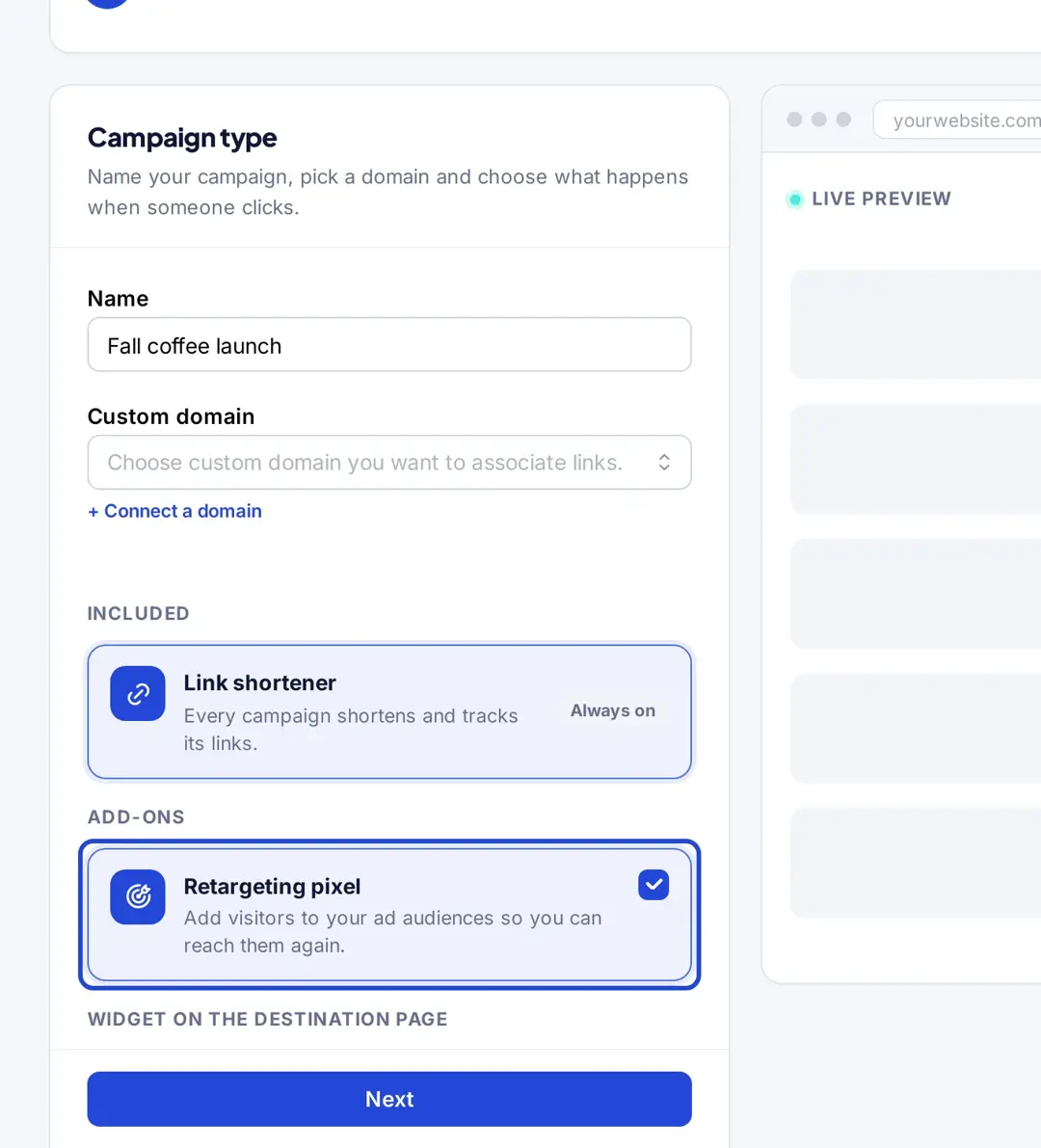
It’s one of the most important steps in the retargeting campaign because it sets the direction of the campaign. This is the part where you name your campaign and choose its type.
Provide a name for your campaign and select the custom domain if required in the campaign. Otherwise, you can skip the custom domain section.
However, make sure that you tick the Retargeting pixel add-on (under Add-ons) before clicking Next. The Link shortener is always on; you can also add a call-to-action widget to the same campaign.
Step #5: Pick your pixel and save the campaign
Everything seems quite easy until this point, and I’ll ensure the last step goes as smoothly as possible.
Now, this is the part where you choose which pixels fire for this campaign. In the Retargeting Pixels step, select one or more saved pixels (or click Create a new retargeting pixel), then click Save campaign.
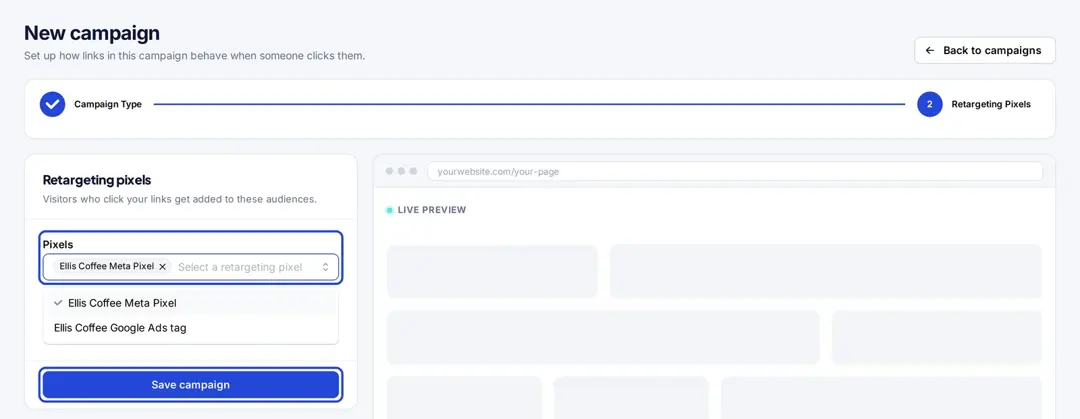
From then on, choose this campaign when you create a short link, and every click on that link fires the pixel. To add a pixel to a bio page instead, open the page’s Settings and pick the pixel under Retargeting pixels.
Once everything is done, you’re all set to launch your retargeting campaign using Replug.
Retargeting pixels on short links and bio pages
A pixel normally has to sit on a page you control. A link tool moves that step to the click: the short link loads, your pixels fire, and the visitor is sent on to the destination a moment later. That is how you can build an audience from people who clicked a link to a news article, a YouTube video or a partner’s product page, as described on Replug’s retargeting pixels page.

- Use it on links you share in posts, emails, bio pages and QR codes, where you can’t add code to the destination.
- Read the ad platform’s terms first. Meta, for example, says advertisers must not place their Meta Pixel on websites they don’t own without permission, per Meta Business Help. The pixel fires on your own short link domain, not on the destination site, but the platform’s rules on data and consent still apply.
- Ask for consent where the law requires it (see below); a short link doesn’t change that.
What are the key differences between a pixel and cookie?
A pixel is a small piece of code placed on a website or in an email. It is often used to track a user’s activity on the website or email and to send this information back to the company or organization that placed the pixel.
Pixels are typically used to track website visitors and to understand how they interact with the website.
A cookie is a tiny chunk of data that is stored on the visitor’s computer by a website. It is used to remember certain information about the user, such as their preferences or login information. In addition, cookies are often used to personalize the user experience and to track a user’s activity on a website.
There are some key differences between pixels and cookies:
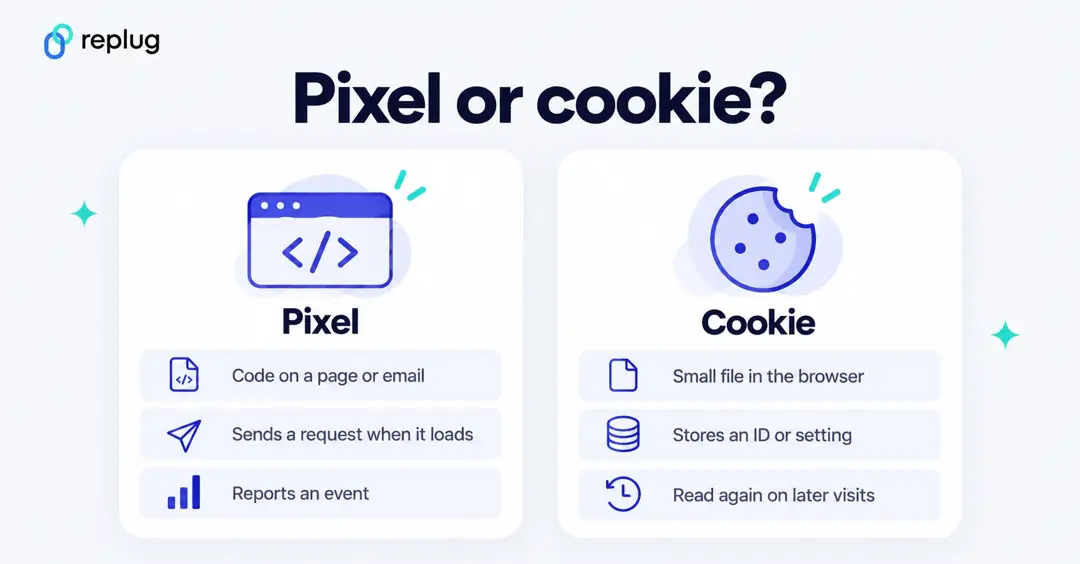
Purpose/Goal: Pixels are primarily used for tracking and analytics, while cookies are used for personalization and tracking.
Placement: Pixels are placed on websites or in emails, while cookies are stored on a user’s computer.
Size: A pixel is a request, not stored data, so it has no size limit in the browser. A cookie is stored in the browser, and browsers are expected to support at least 4,096 bytes per cookie, according to the web standard for cookies, RFC 6265.
Duration: A pixel fires each time the page or email loads and doesn’t expire by itself. Cookies last until their expiry date or until the visitor deletes them, depending on how they are configured. Many pixels set or read a cookie as well, which is why the two are often used together.
Privacy: Pixels can be used to track users across different websites and devices, which has raised privacy concerns. Cookies raise the same concerns, and in the EU and UK both fall under the same consent rules.
Tracking pixels, consent and privacy
Pixels are covered by the same rules as cookies in Europe. The European Data Protection Board’s Guidelines 2/2023 on the technical scope of Article 5(3) of the ePrivacy Directive (final version October 2024) name tracking pixels in web pages and emails among the techniques that rule covers. In the UK, the ICO’s guidance on cookies and similar technologies says you must tell people what you set, explain why, and get consent that is actively and clearly given, and that the same rules apply to any other technology that stores or gains access to information on someone’s device.
- Load marketing pixels only after the visitor accepts them in your consent banner, where the law requires consent.
- If you use Google’s tags, consent mode passes the visitor’s choice to Google so its tags adjust their behavior; it works with your banner but doesn’t provide one.
- Keep sensitive data out of pixel events and URLs, as Meta’s and LinkedIn’s own rules require.
- Name every pixel and what it does in your privacy or cookie policy.
This is general information, not legal advice; check the rules for the countries your visitors come from.
Also read: How To Utilize Replug for Facebook Retargeting Ads?
FAQs about tracking pixels

Muhammad Ahsan Jamal