So your TikTok’s buzzing, your Twitch streams are picking up steam… but the two aren’t talking to each other? Let’s fix that.
TikTok and Twitch are like that duo everyone wants to see collab; different vibes, same audience. Whether you’re gaming, chatting, or doing “Just Chatting,” your Twitch fans are likely scrolling through TikTok too.
But here’s the problem: if your link in bio is missing or just leads nowhere, that’s a missed opportunity.
In this guide, we’ll walk you through two easy ways to add your Twitch link to your TikTok bio, including a smarter method that lets you link more than just Twitch (without overwhelming your bio space). If you just need to share your Twitch channel link elsewhere, we’ve covered that too.
Short answer: copy your channel link (twitch.tv/yourname), open TikTok, tap Profile → Edit profile, then next to Links tap Add and paste it. The link field only appears for accounts with at least 1,000 followers or a Verified Business Account. TikTok gives you one clickable link, so if you also want YouTube, Discord or merch in your bio, link a bio page that holds all of them.
Let’s begin!
Why add your Twitch link to TikTok?
Let’s say someone’s vibing with your TikTok content. They’re hooked with your stream highlights, funny edits, or behind-the-scenes clips. Naturally, they want more.
But if there’s no link (or just a dead one) in your TikTok bio?
That curiosity dies instantly, and you might just have lost a potential fan.
By adding your Twitch link:
- You give followers a direct route to your live content.
- You grow your Twitch audience organically.
- You make your TikTok work harder for your creator journey.
And if you’re streaming for views, subs, or just for fun, why not make every click count? Let’s discuss 2 easy methods to add your Twitch link to your TikTok bio.
You may also like: TikTok bio ideas & hacks to drive traffic
How to get your Twitch link:
- Open the Twitch app or website.
- Tap your profile icon.
- Copy the URL.
Your Twitch link is always https://www.twitch.tv/ followed by your username, for example twitch.tv/emilyplays. In the Twitch mobile app, tap your profile picture, open your channel, tap the share icon and choose Copy link. Typing the address by hand works too.
Got your link? Perfect.
Now, let’s add it to TikTok:
Method 1: Add your Twitch link using TikTok’s native option
TikTok allows only one clickable link in your bio. If Twitch is your main platform, it should absolutely own that space.

Option A: If you don’t have 1,000 followers
No worries! You can still add a clickable link by switching to a Business Account and verifying it (TikTok’s help center now limits profile links to accounts with at least 1,000 followers or a Verified Business Account):
- Open TikTok, go to your profile.
- Tap the three lines (☰) in the top-right corner.

- Head to Settings & Privacy > Account > Switch to Business Account. In current versions of the app the option is Settings and privacy > Account > Business verification, where you submit your business details and documents.

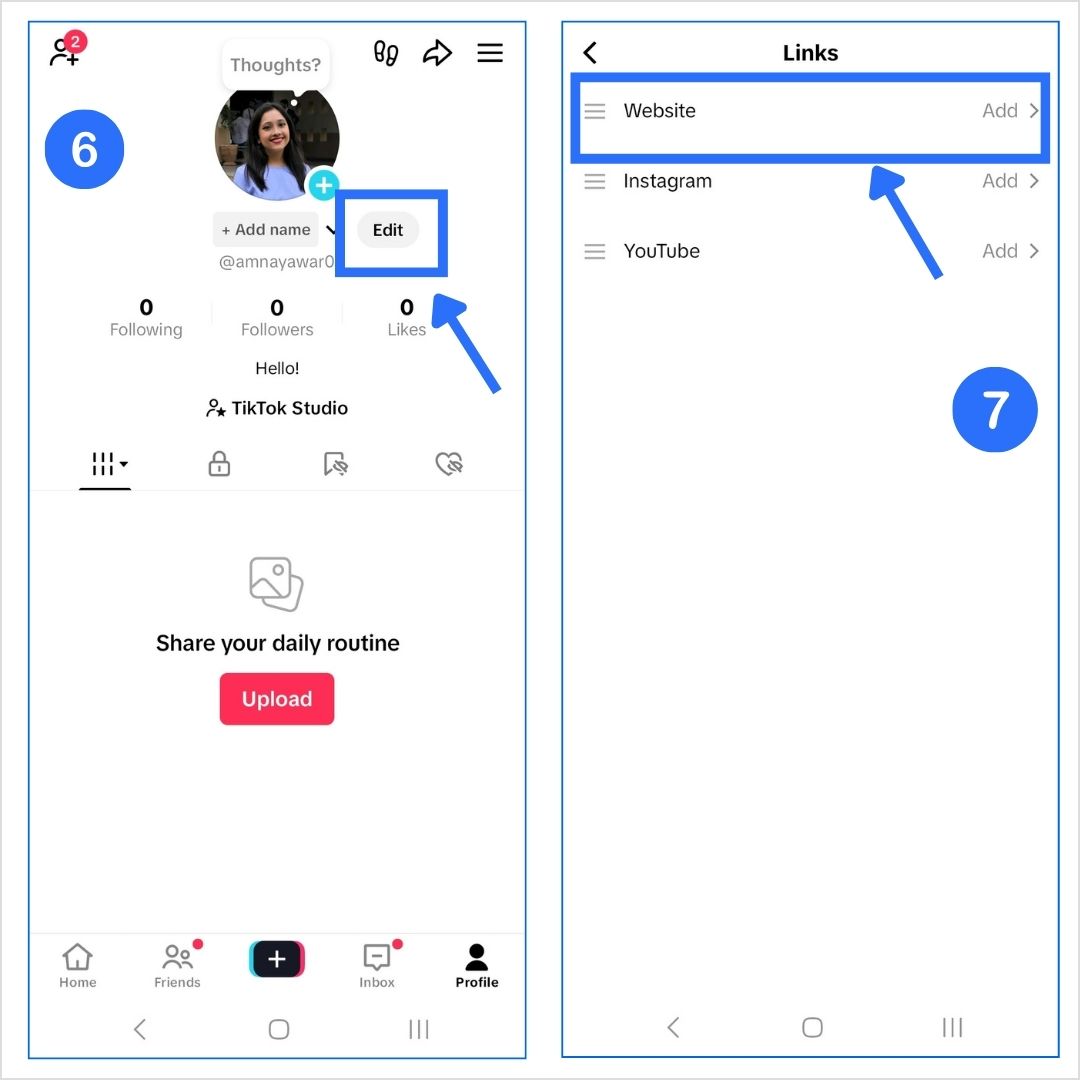
- Go back to your profile and tap Edit Profile.
- You’ll now see a “Website” field. Paste your Twitch URL there. (The field is now called Links: tap Add next to it and paste the URL.)

Boom. You’re good to go.
Option B: If you have 1,000+ followers (personal account)
- Open TikTok and tap your profile icon.
- Tap Edit Profile.
- Paste your Twitch URL under the “Website” section (now labeled Links; tap Add).
Done and dusted. Anyone who visits your TikTok can now hop over to your Twitch.
Method 2: Add a bio link using Replug
Let’s say you also want to link your Twitch streams individually, add more social profiles in your TikTok bio, or want to promote your upcoming campaign. With TikTok allowing only one link in bio, it gets tough.
That’s where Replug comes in. It is an all-in-one link optimization platform that helps you add multiple links in your bio with just one link (sounds a little crazy, but it’s possible). Here’s how to do it using Replug’s bio link feature:
Step 1: Log in or create an account
Log in or sign up at Replug.
Step 2: Go to Bio Links
- Go to your dashboard and click on Bio Links.

- Create a new bio link page.

Step 3: Customize and publish your bio link page
- Give your bio link a name and a description. It should match your Twitch vibe.
- Customize your bio link page with different colours, layouts, background, buttons, and more.
- Hit the Publish button.

Step 4: Add blocks
Replug lets you add multiple blocks to your bio site. Be it for your social, videos, or links; there’s room for everything. Let’s take a look at some:
Social block:

Card block:

Link block:

Important note: Update your blocks as you go; otherwise, you will lose your progress.

Step 5: Optimize for SEO (additional step)
Before sharing your new Replug link, take a moment to fine-tune it for both search engines and social platforms. A little polish here can make a big difference in how your link performs.
Here’s how to upgrade your link inside Replug:
- Optimize the URL slug: Skip the random characters, go with something clean and memorable. Something like this:

- Add a custom meta title and description: These appear when your link is shared or shows up in search results. Keep the title clear and the description compelling so people know exactly why they should click.
- Upload a custom preview image: A well-designed thumbnail makes your link stand out in places like Instagram DMs, Discord, and X.
- Set a custom favicon: It’s a small touch, but it adds professionalism and reinforces your brand.
- Add tracking pixels: Want to run retargeting ads later? Drop in retargeting pixels and start building audiences right from the clicks your link gets.

Here’s the final preview of the bio link we created using Replug:

Bonus features you’ll love:
- Branded URLs: Create branded links with this top-notch link shortener that reflect your stream name.
- Click tracking: See how many people actually click and visit your Twitch profile.
- Mobile-optimized: Make sure your Twitch bio page looks sleek on any screen.
- Easy updates: Swap links or update visuals anytime without touching your TikTok profile.
- Dynamic QR codes: With Replug, you can create a dynamic QR code for your bio links. These QR codes never expire!
No link field yet? What to do under 1,000 followers
- Put your Twitch name in your bio text. Write “Live on Twitch: emilyplays” so people can search for you. It isn’t clickable, but it costs nothing.
- Say it in your videos. End clips with your Twitch name on screen and pin a video that explains your stream schedule.
- Use your other profiles. Instagram and YouTube allow links without a follower minimum, so viewers who check those can still reach your channel. Here is how to put your Twitch channel on Instagram.
- Verify a business account if you run a business, or keep posting until you reach 1,000 followers. The Links field appears as soon as you qualify.
Can you connect Twitch to TikTok or stream to both?
There’s no official connection between Twitch and TikTok accounts: you can’t log in with one or show your Twitch stream inside your TikTok profile. What you can do:
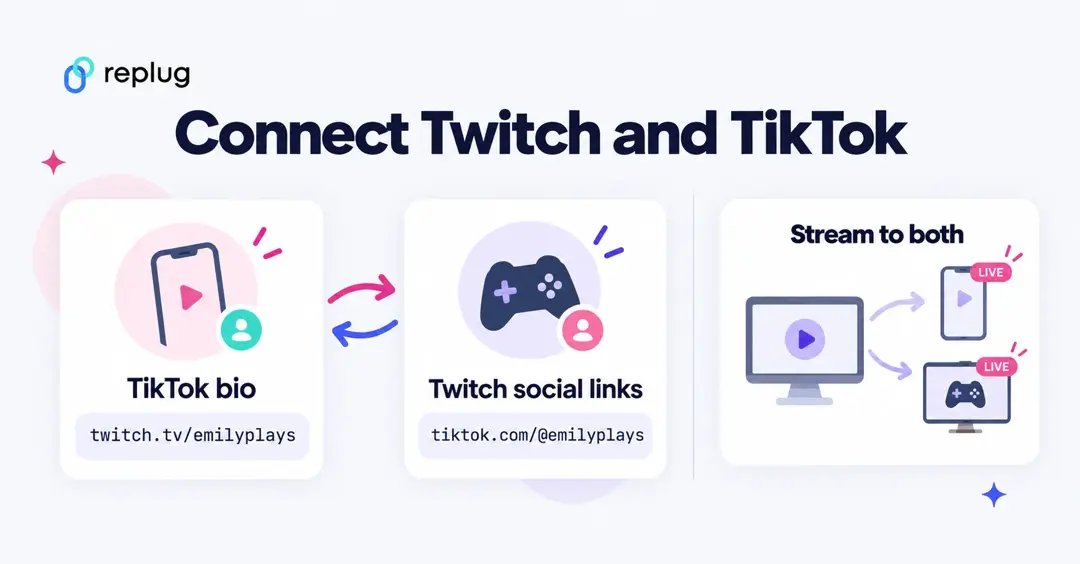
- Link both ways. Put your Twitch link in TikTok, and your TikTok link in Twitch in the Social links section of your Twitch settings (under Profile or Channel, depending on the version).
- Stream to both at once. Since late 2023 Twitch lets most streamers, including Affiliates and Partners, simulcast to other platforms, as long as the Twitch stream is the same quality or better. You need TikTok LIVE access with a stream key (TikTok gives this to eligible accounts), then a multistreaming tool such as Restream or Streamlabs. Twitch’s rules say you can’t send your Twitch viewers away to the other platform during the stream.
- Turn streams into TikToks. Clip your best Twitch moments and post them as TikToks with “live on Twitch” in the caption. Tools such as Streamlabs’ Cross Clip can reformat clips to vertical video.
Twitch link not working on TikTok? Common fixes
- There is no Links field. Your account doesn’t meet the 1,000-follower or Verified Business Account requirement yet.
- The link is in your bio text, not the Links field. URLs typed into the bio text aren’t clickable. Move it to Links.
- The link opens the wrong channel or a 404. Check the spelling of your username, and update the link if you changed your Twitch name; old usernames stop working.
- Viewers see a “you’re leaving TikTok” screen. That is normal for outside links. A link on your own domain or a recognizable bio page looks more trustworthy on that screen.
- TikTok removed the link. TikTok can remove links that break its community guidelines. Twitch links are fine, but a page full of unrelated links may not be.
Make the most of the one TikTok link
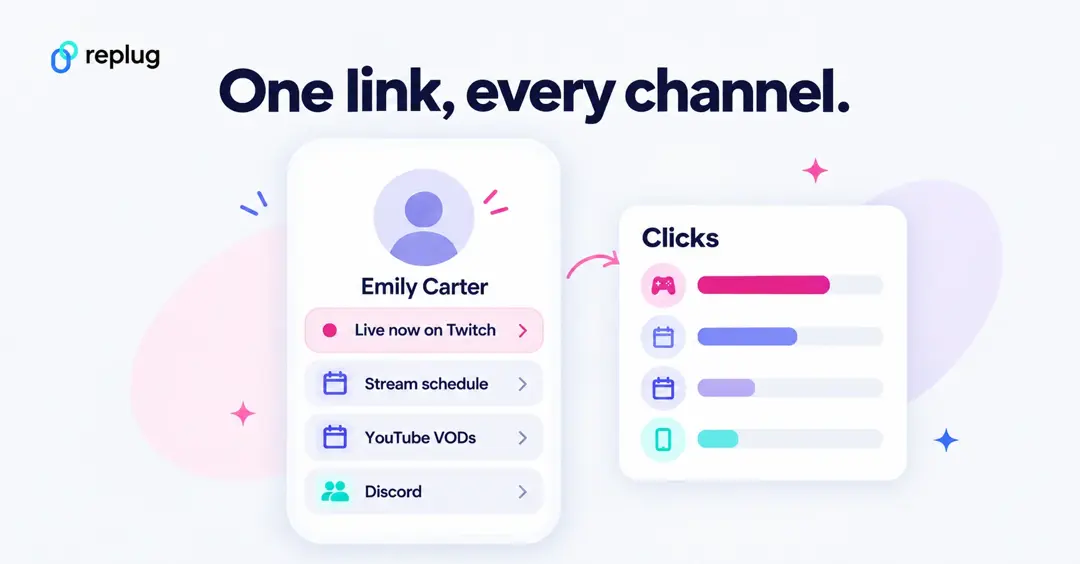
Because TikTok gives you a single link, it pays to make it work harder. With a Replug bio link page you can show a “Live now” button for Twitch, your schedule, your YouTube VODs, Discord and merch, and change them without touching TikTok. Each button gets its own click count, so after a week you know whether TikTok viewers want the stream, the clips or the community. If you only need one destination, a short link such as rplg.co/emilyplays on your own domain does the same job and still counts clicks.
Quick comparison: TikTok’s native vs. Replug
| Feature | TikTok Native | Replug Bio Link |
| One link | ✅ | ✅ |
| Multiple links | ❌ | ✅ |
| Branding & visuals | ❌ | ✅ |
| Click tracking | ❌ | ✅ |
| QR code generation | ❌ | ✅ |
| Custom layout & design | ❌ | ✅ |
| Embed TikTok/Twitch video | ❌ | ✅ |
If you just want to quickly throw in your Twitch link in your TikTok bio, TikTok’s built-in feature is your go-to. However, if you want more clicks, followers, and views on your Twitch profile (which is probably the case), Replug is your best bet.
Make your TikTok work for your Twitch
You don’t just want views. You want loyal fans.
Adding your Twitch link to TikTok bridges the gap between “scrolling” and “streaming.”
If you’re keeping it simple, use TikTok’s built-in link option.But if you want a clickable, trackable, brand-friendly bio that boosts all your platforms? Replug is the way to go.
FAQs for how to add a Twitch Link to TikTok

Manahil