Are you an avid gamer or just a casual viewer of gaming streams? Then you’ve likely come across Twitch, the popular live-streaming platform that has taken the gaming world by storm.
Whether you’re watching your favorite gamer or streaming your own gameplay, sharing your Twitch URL link is essential to getting more viewers and building your online presence.
That’s where Replug.io comes in to play. It helps you manage and brand the links you share, so every URL works harder for you.
But with all the different types of links available, from stream links to PDF links to channel URL links, it can be confusing to know which one to share and how to do it.
In this article, we’ll walk you through the process of sharing your Twitch URL link and give you some tips on how to make the most of it.
So, let’s get started and make sure your Twitch channel gets the recognition it deserves!
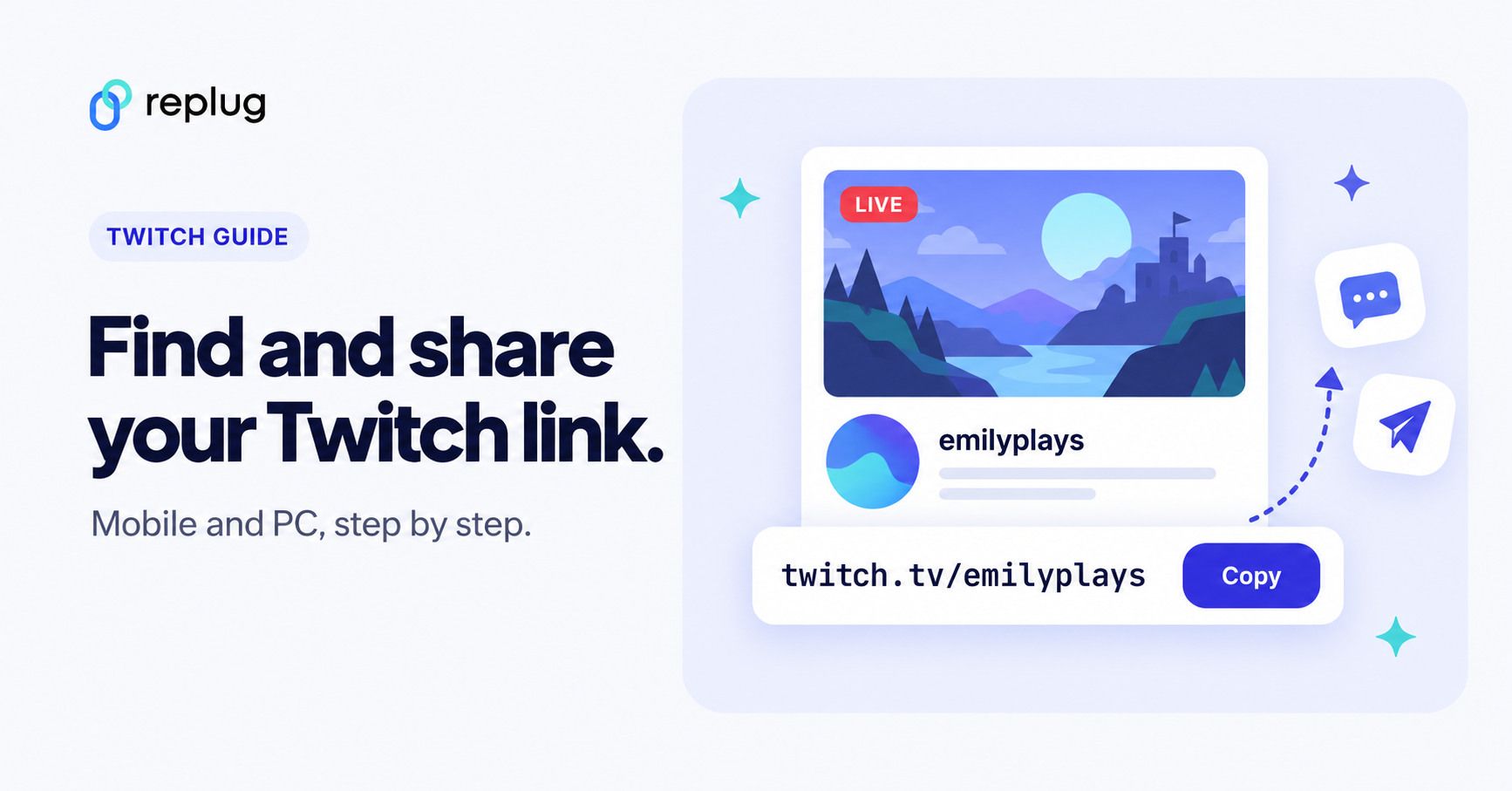
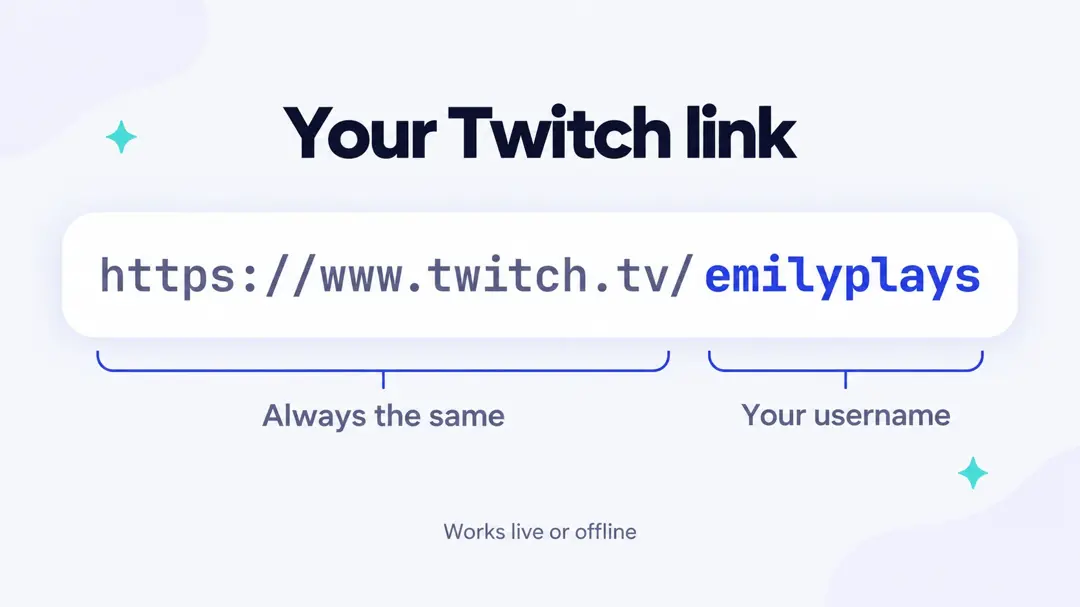
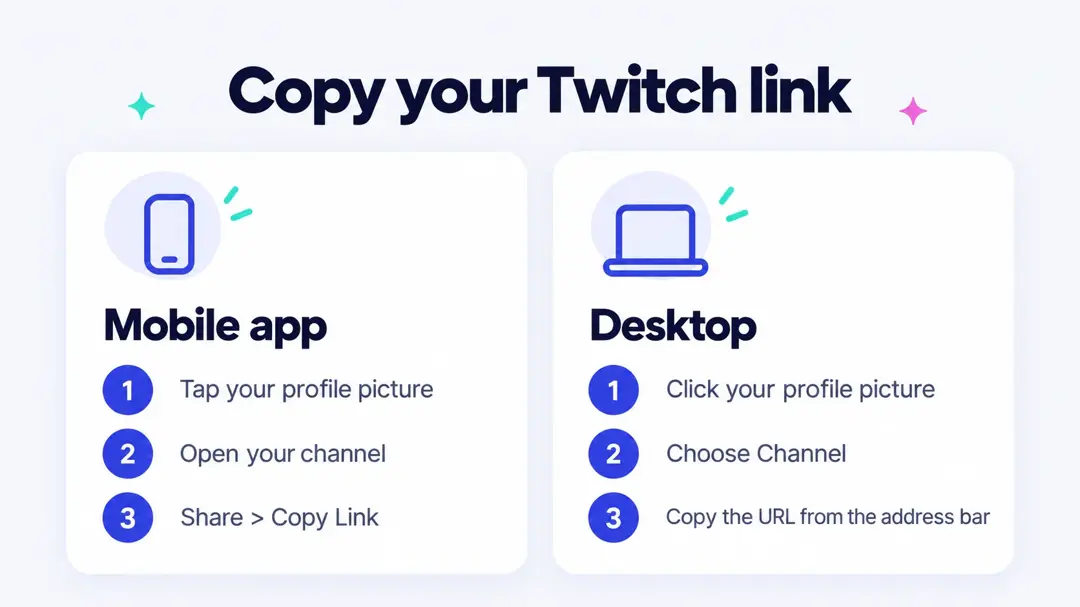
Quick answer: your Twitch link is https://www.twitch.tv/ followed by your username, for example twitch.tv/emilyplays. On a computer, open your channel and copy the address from the browser bar. In the Twitch app on iPhone or Android, open your channel, tap the Share icon and choose Copy Link. Then paste it anywhere: a post, a DM, your bio or a Discord server.
How to find and share your Twitch channel URL?
Your Twitch Channel URL is the link to your Twitch profile, which viewers can use to find and follow your channel. Here’s how to find and share your Twitch Channel URL:
How to find Twitch channel URL?
Step 1: Open Twitch on your preferred device and log in to your account.
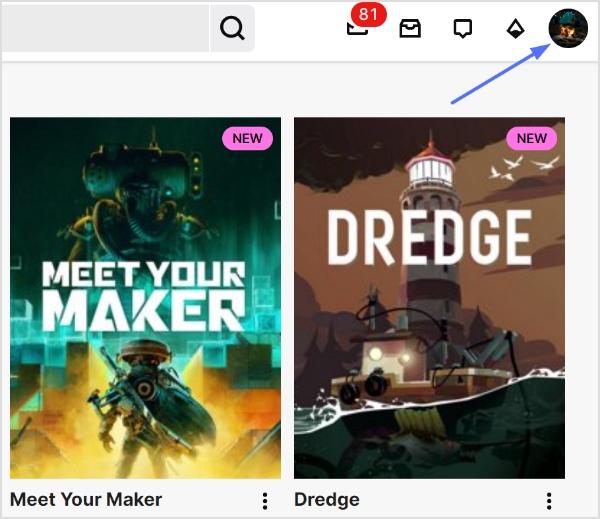
Step 2: Click on your profile picture in the top right corner of the screen.
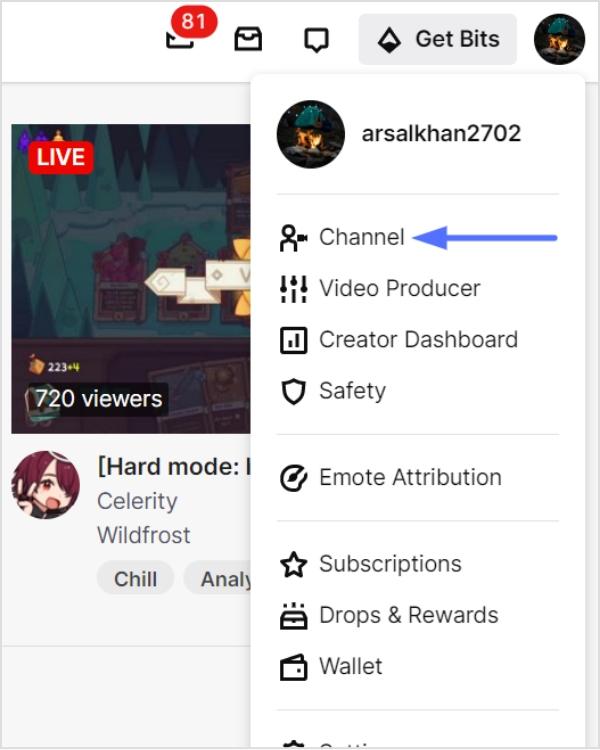
Step 3: Select “channel” from the dropdown menu.
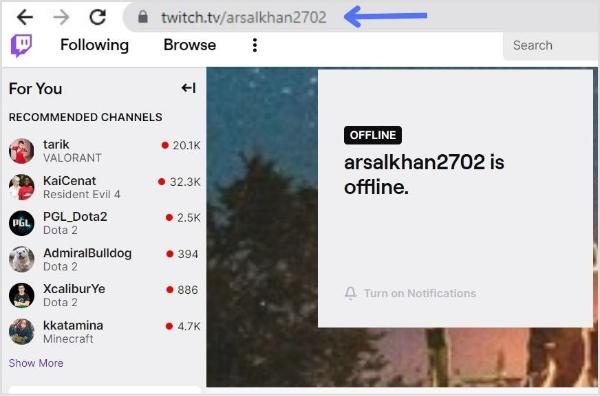
Step 4: You can find the profile URL in the URL bar above. This is your Twitch Channel URL.
How to find your Twitch link on iPhone or Android
The Twitch app does not show an address bar, so you copy your link from the share menu instead. The steps are the same on iPhone and Android:
- Open the Twitch app and tap your profile picture to open your account menu.
- Tap your channel (it may be labeled My Channel or show your name) to open your channel page.
- Tap the Share icon at the top of your channel page. In some app versions it sits under the three-dot menu (⋯).
- Choose Copy Link, or pick an app from the share sheet to send it directly.
- Paste the link where you want to share it. It looks like
https://www.twitch.tv/yourusername.
Using a mobile browser instead? Go to twitch.tv in Safari or Chrome, sign in, open your channel and tap the address bar to copy the URL. If you only need your own link and the share menu is hard to find, you can also type it yourself: it is always twitch.tv/ plus your username, with no spaces.
Offline channel? Your channel link works whether or not you are live. When you are offline, visitors see your offline screen, your About section and your past videos, and they can still follow you.
How to share Twitch channel URL?
Step 1: Follow the above steps and copy the URL by selecting it and pressing Ctrl+C (Cmd+C on a Mac).
Step 2: Open the platform or social media where you want to share the link (e.g., Twitter, Discord, or Facebook).
Step 3: Create a new post or message and paste the copied URL into the text field.
Noteworthy Tip: Promoting your Twitch Channel URL on social media and other platforms is a great way to attract new viewers and build your audience. Consider joining Twitch communities and groups to connect with other gamers and potential viewers.
Where to share your Twitch link
- Social bios: put your Twitch link in your TikTok bio (see how to put your Twitch link in your TikTok bio), your Instagram bio and your X profile, so new followers can find your streams.
- Discord: pin it in your server’s announcements channel and add it to your Discord profile under Connections.
- Video descriptions: add it to YouTube videos, Shorts and clips you post elsewhere.
- Group posts: when you post in Facebook groups or forums, paste the full link starting with
https://so it turns into a clickable link. - Offline: print it, or a QR code of it, on stream overlays, merch, business cards or event badges.
How to share a Twitch Link of a stream you’re watching?
Sharing a Twitch link of a stream you’re watching is a great way to introduce your friends and followers to new content and support your favorite streamers. Here’s how to do it:
Step 1: Open the Twitch stream you want to share on your preferred device.
Step 2: Click on the “Share” button located below the video player.
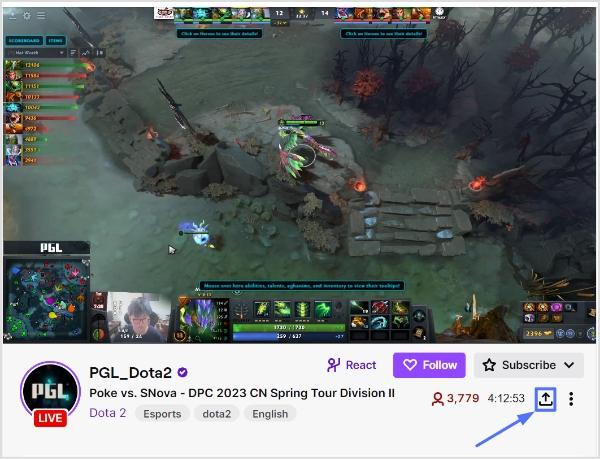
Step 3: Choose how you want to share the link. You can copy the link to share it on other platforms or share it directly to social media platforms like Twitter, Facebook, or Reddit. It’s totally up to you!
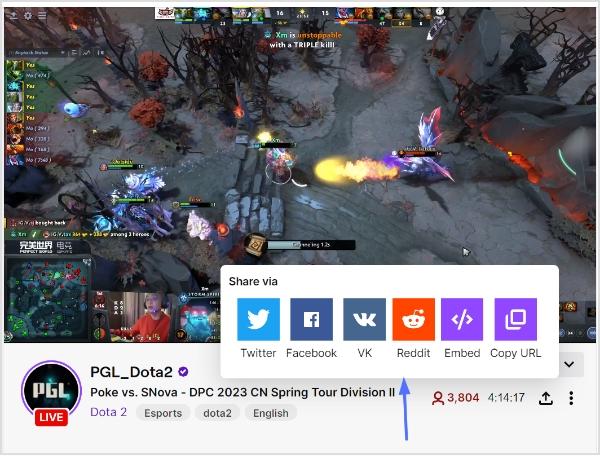
Note: To make your Twitch link even more shareable and trackable, you can utilize an efficient link shortener to brand it, shorten it, and measure clicks seamlessly.
Step 4: Add a message or comment to your post to provide context for your followers and encourage them to check out the stream.
Step 5: Publish your post and wait for your followers to start watching the stream!
Also read: How to Convert video to Link?
Twitch link formats: channel, stream, video and clip
Different Twitch pages have different links. Use the one that matches what you want people to open:
| What you share | Link format | Example |
|---|---|---|
| Your channel (live stream when you are live) | twitch.tv/USERNAME | twitch.tv/emilyplays |
| Your About page and panels | twitch.tv/USERNAME/about | twitch.tv/emilyplays/about |
| A past broadcast (VOD) | twitch.tv/videos/VIDEO-ID | twitch.tv/videos/1234567890 |
| A past broadcast at a moment | twitch.tv/videos/VIDEO-ID?t=1h2m3s | twitch.tv/videos/1234567890?t=1h2m3s |
| A clip | twitch.tv/USERNAME/clip/CLIP-NAME | twitch.tv/emilyplays/clip/FunnyClipName |
Emily Carter, a variety streamer in Austin, shares twitch.tv/emilyplays in her bios because it always opens her channel, live or not. When a moment from last night’s stream goes viral, she shares the clip link instead. The usernames and IDs here are placeholders, so use your own.
To share a past broadcast from a specific moment, open the video, click Share and use the Skip to option, which adds the timestamp to the link. Your clips are listed under Content > Clips in your Creator Dashboard, where each clip has its own share button.
Twitch link not working? Quick fixes
- You changed your username: Twitch says your channel URL does not redirect to your new name. Update the link everywhere you posted it. You can change your username only once every 60 days.
- The link opens the wrong channel or an error page: check the spelling. Usernames have no spaces, and a single wrong letter points to a different (or empty) channel.
- The link is not clickable in your post: some sites only turn text into a link when it starts with
https://. Paste the full address, for examplehttps://www.twitch.tv/emilyplays. - You cannot find the Share icon in the app: look under the three-dot menu on your channel page, update the app, or type the link yourself.
- People land on an offline page: that is normal when you are not live. Add your schedule to your About panel and bio so visitors know when to come back.
Make your Twitch link easier to share and track
Your Twitch link is already short, but it has two limits: it stops working everywhere if you change your username, and Twitch does not tell you which of your bios or posts send people to your channel. A few tools help with that:
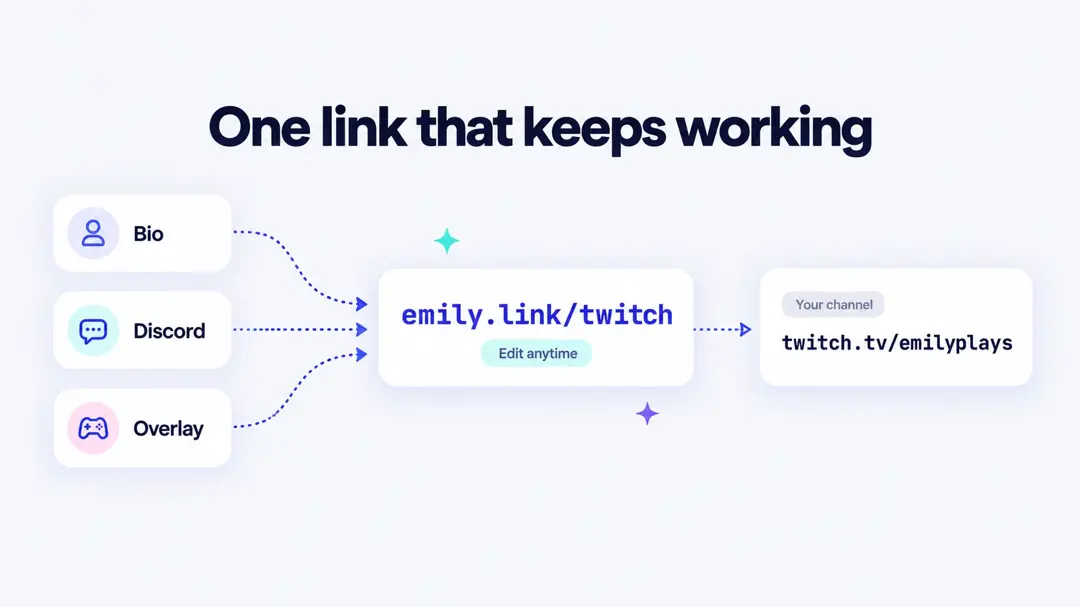
- A branded short link: create a link such as
yourname.link/twitchwith a link shortener and share that instead. If your Twitch username changes, you update the destination once and every bio, video description and printed QR code keeps working. You also see how many clicks each place sends. - A link-in-bio page: put Twitch next to your YouTube, TikTok, Discord and merch store on one bio link page, so a single link in each bio covers everything.
- A QR code: generate a QR code for your channel link and add it to stream overlays, posters and convention badges.
Final Words
Sharing Twitch links is an essential part of building an audience and connecting with other gamers on the platform. Whether you’re sharing your own stream link, your Twitch Channel URL, or a link to a stream you’re watching, it’s important to provide context and encourage viewers to tune in. By promoting your Twitch content on social media and other platforms, and by supporting other streamers in the community, you can build your audience and create a thriving Twitch channel.
So don’t be afraid to share your links and get involved in the Twitch community – the more you engage with other gamers and viewers, the more successful your channel will be!
Next steps: add your Twitch link to Instagram so followers can jump from your posts to your streams, and do the same on every other profile you use.
Trending:
How to get your TikTok Profile URL?
Role of Link Management in Building a Strong Online Presence
FAQs

Arslan Jadoon