Are you an avid Pinterest user looking to share your beautiful boards and pins with friends, family, or potential clients? Or maybe you’re new to the platform and trying to figure out how to navigate its features. Whatever the case may be, one important piece of information you’ll need is your Pinterest URL.
Your Pinterest URL is your unique identifier on the platform and allows others to find and follow your account. But with so many options and features on Pinterest, it can be confusing to locate your URL. Don’t worry though, in this article, we’ll guide you through the steps to find your Pinterest URL and get you on your way to share your amazing content with the world.
Quick answer: Pinterest’s web address is https://www.pinterest.com. Your own Pinterest URL is your profile address: https://www.pinterest.com/ followed by your username, for example pinterest.com/emilycarter. On a computer, open your profile and copy the link from the address bar. In the iPhone or Android app, open your profile, a board or a Pin, tap the share icon and copy the link from the share menu.
Steps checked against the Pinterest Help Center on October 10, 2026.
Where to Look for Your Pinterest URL?
Your Pinterest URL can be found in a few different places, depending on what you’re looking for. Here’s how to find your profile, pin, and board URL.
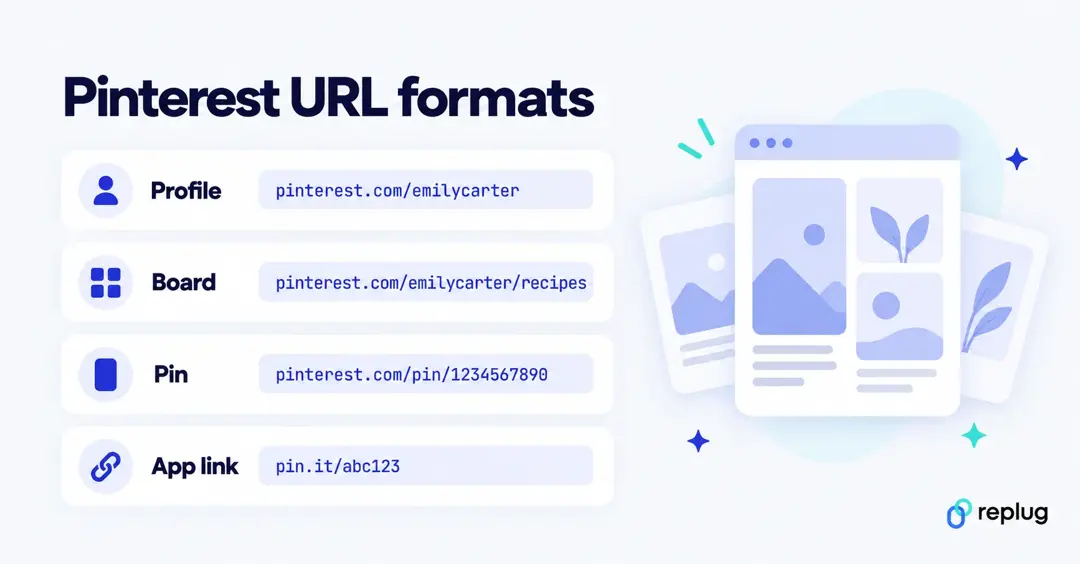
Pinterest URL formats at a glance
| What you want to share | What the URL looks like | Where to get it |
|---|---|---|
| Pinterest itself | https://www.pinterest.com | Type it into any browser |
| Your profile | https://www.pinterest.com/username/ | Your profile page, or the share icon on your profile |
| A board | https://www.pinterest.com/username/board-name/ | Open the board |
| A Pin | https://www.pinterest.com/pin/1234567890/ (a long number) | Open the Pin |
| A short link from the app | https://pin.it/ plus a short code | The share menu in the Pinterest app |
Depending on your country, the address bar may show a local Pinterest domain such as pinterest.ca or pinterest.co.uk. The link still opens for people in other countries. Your username is the part that makes your profile URL unique: Pinterest’s own help article on editing your profile notes that its account, username “Pinterest,” lives at www.pinterest.com/Pinterest.
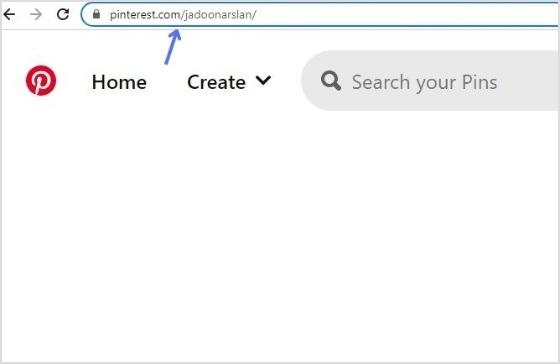
To find your Pinterest profile URL:
Step 1: Log in to your Pinterest account or create a new account.
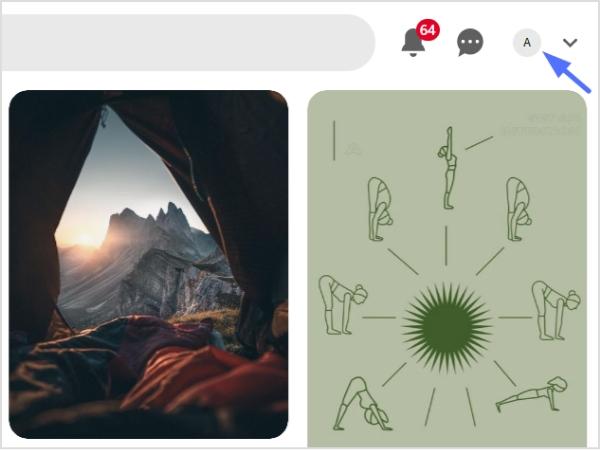
Step 2: Click your profile icon in the top right corner to open your profile page.
Step 3: Copy the URL from the address bar. That’s your Pinterest profile URL.
To find your Pinterest board URL:
Step 1: Log in to Pinterest and open your profile page.
Step 2: Select the board you want to share.
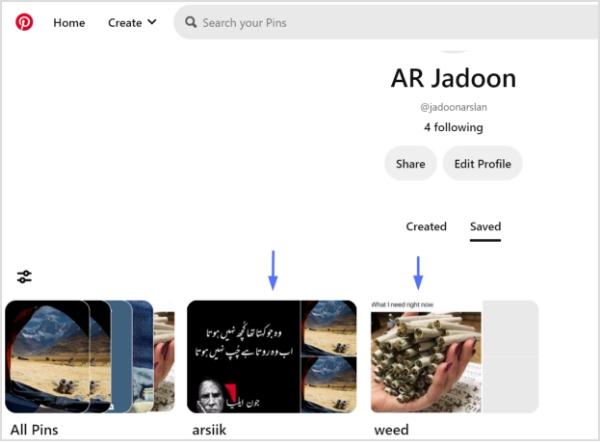
Step 3: Copy the URL from the address bar. That’s your Pinterest board URL.
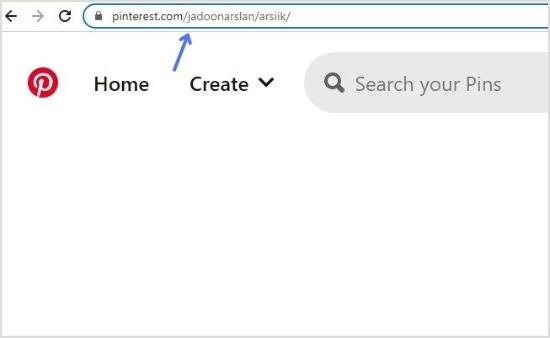
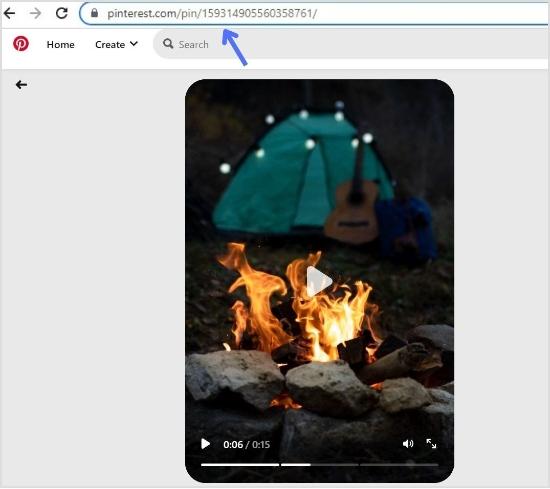
To find your Pinterest pin URL:
Step 1: Log in to your Pinterest account.
Step 2: Select the relevant pin (either from your own board or someone else’s).

Step 3: Copy the URL from the address bar. That’s your Pinterest pin URL.
How to find your Pinterest URL on the app (iPhone and Android)
The Pinterest app has no address bar, so you copy links from the share menu instead. The steps are the same on iPhone and Android, with small differences in where the share icon sits, according to Pinterest’s guide to sharing Pins, boards and profiles.
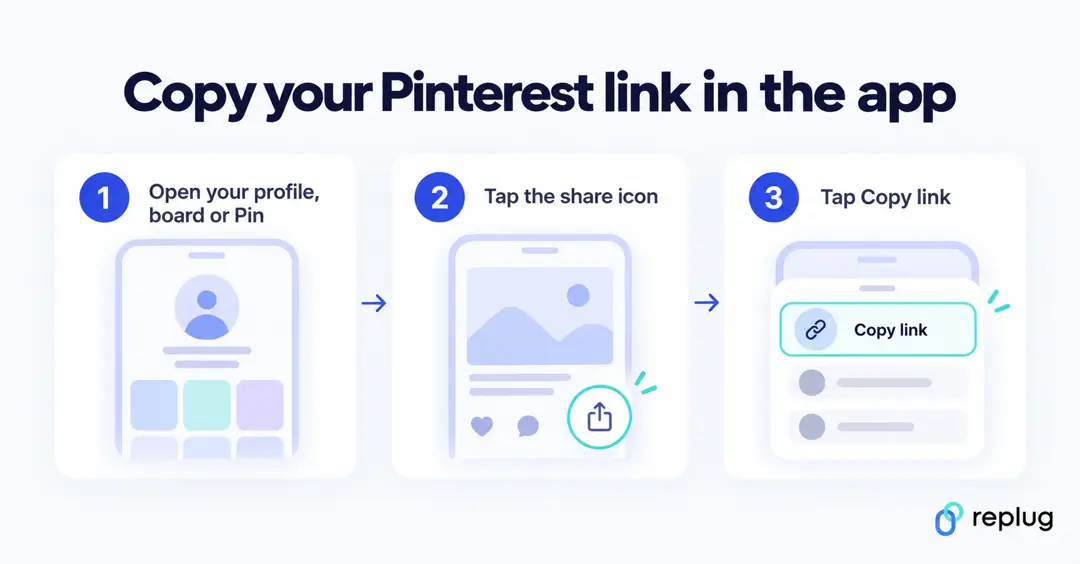
Copy your profile URL in the app
- Open the Pinterest app and tap your profile picture in the bottom-right corner.
- Tap the share icon. On iPhone it is at the top of your profile; on Android it sits below your name.
- Copy the link from the share menu (on Android, tap the link icon), then paste it wherever you need it.
Want the full address instead of a short link? Your username appears under your profile name. Add it to the end of https://www.pinterest.com/ and you have your profile URL. To see it in the app, tap your profile picture in the bottom-right corner, then your profile photo in the top-left.
Copy a board URL in the app
- Tap your profile picture and open the board.
- On someone else’s board, tap the share icon at the top. On your own board, tap the arrow next to Your saves first, then the share icon.
- Copy the link from the share menu.
Copy a Pin URL in the app
- Tap the Pin to open it.
- Tap the share icon.
- Copy the link from the share menu (on Android, tap the link icon).
Links copied from the app often use Pinterest’s short pin.it domain. They open the same profile, board or Pin as the long pinterest.com address, so either one is fine to share.
How to get the image URL of a Pin
A Pin URL points to the Pin on Pinterest. If you need the address of the image file itself, for example to embed or reference it, use your browser:
- Open the Pin on a computer.
- Right-click the image and choose Copy image address (Chrome, Edge and Safari) or Copy Image Link (Firefox). For other sites and your phone, see how to copy an image URL.
- Paste it. Pinterest image addresses start with
https://i.pinimg.com/.
To save the picture to your device instead, open the Pin, click the ellipsis icon (three dots) and choose Download image. Pinterest’s download guide notes that not every Pin can be downloaded. If the Pin came from a website, open the Pin and click its link to visit the original source; the Pin URL alone does not lead there.
How to change your Pinterest URL
Your profile URL follows your username, so changing your username changes your URL. These are the current steps from Pinterest’s Edit your profile help article:
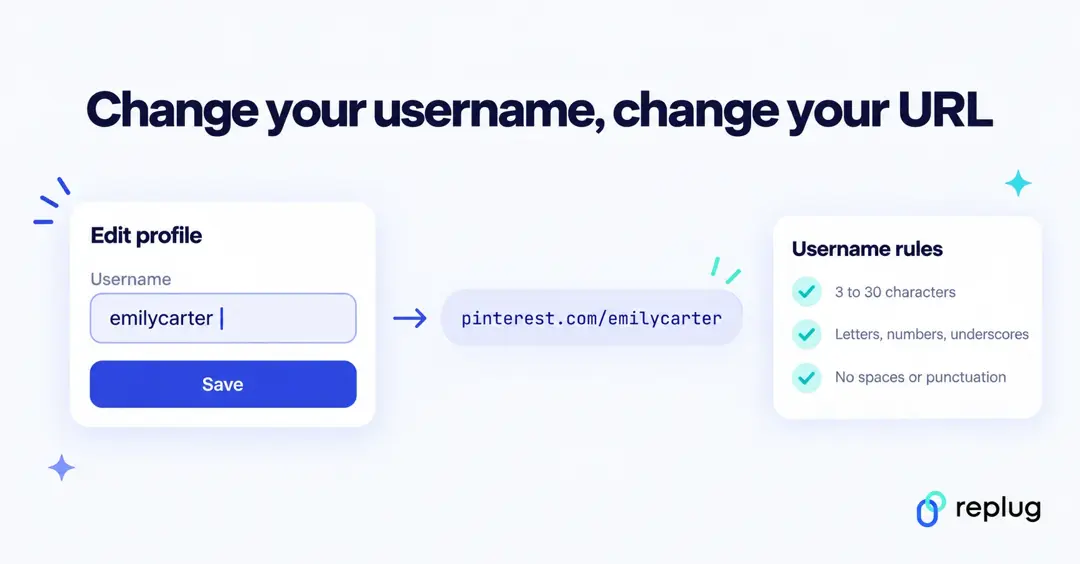
On a computer
- Log in to Pinterest.
- Click the more-options icon at the bottom left of the screen and click Settings.
- Click Edit profile, scroll down to Username and type your new username.
- Click Save.
On iPhone or Android
- Tap your profile picture in the bottom-right corner, then your profile photo in the top-left.
- Tap View profile, then Edit profile.
- Under Username, enter your new username and tap Done.
On a business account, tap your profile photo in the bottom-right corner and then Edit profile under your photo. Usernames must be 3 to 30 characters, use only letters, numbers and underscores, and can’t contain spaces or punctuation or be made up of only numbers.
After a change, update the old link everywhere you shared it, such as your Instagram or TikTok bio, email signature and website.
Can’t find or copy your Pinterest URL?
- There is no address bar in the app. Use the share icon on the profile, board or Pin and copy the link from the share menu.
- Your mobile browser hides the address. Tap the address bar at the top of the page to show the full URL, then copy it.
- Your profile is private. Only people you invite can see a private profile. Pinterest lets you share an invite link from your profile (Share, then Copy link) with people you trust.
- The board link doesn’t open for others. Secret boards are visible only to you, so their links won’t work for anyone else. Make the board public before you share it.
- An old link stopped pointing to your profile. If you changed your username, your profile URL changed with it. Copy the new one and replace the old link.
Make your Pinterest link easier to share and track
Pinterest lets you add one website to your profile, and most other platforms give you a single bio link too. A few ways to get more from your Pinterest URL:
- Shorten it. Board and Pin URLs get long. A branded short link from Replug keeps it tidy, works on your own domain and shows how many people clicked.
- Put it next to your other profiles. A bio link page holds your Pinterest, Instagram, TikTok and shop links in one place, so you only need one link in each bio.
- Add it to your other socials. See how to link Pinterest to Instagram and how to add a Pinterest link to your TikTok bio.
- Polish the profile people land on. Our Pinterest bio guide has ideas for the short description under your name.
Also check out: How to find Steam URL: Step-by-step guide
Final Words
Your Pinterest URL is a vital part of your presence on the platform, allowing others to find and follow your content. Whether you’re sharing your entire profile, a specific pin, or a board, knowing where to find your URL is essential.
By following the simple steps outlined in this article, you’ll be able to locate your Pinterest URL quickly and easily. Plus, to boost shareability even further, you can shorten link for cleaner, trackable shares. This helps you to grow your reach and connect with others on this visually-driven social media platform.
If you’re using a tool like Replug.io to manage your links and strengthen your sharing strategy, the URL you locate here will feed directly into your broader system.
Trending:
How to Add Instagram Link to Facebook Bio?
FAQs

Arslan Jadoon