If you’re looking to promote your Instagram profile and boost your online presence, adding your Instagram link to your Facebook bio can be a highly effective strategy. By doing so, you can reach a broader audience and potentially attract more followers, which can help you take your social media game to the next level.
For creators and marketers who care about link performance, Replug.io lets you brand, shorten, and track your shared URLs so every click tells a story.
In this guide, we’ll explore the steps involved in adding an Instagram link to your Facebook bio on both computer and mobile devices, as well as some tips on how to make the most of Replug’s bio link feature.
How to add Instagram link to Facebook bio on a mobile device?
Here’s a step-by-step guide on how to add your Instagram link to your Facebook bio on a mobile device:
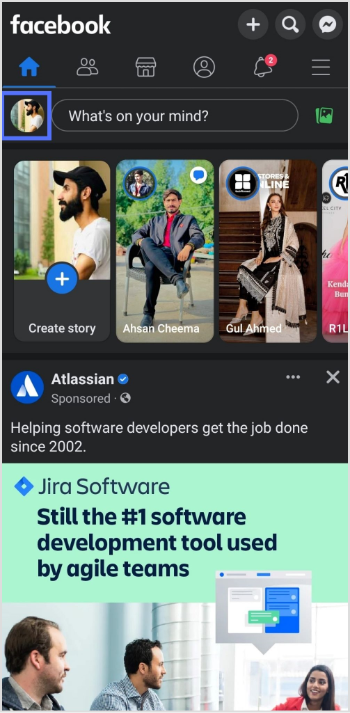
Step 1: Open the Facebook app on your mobile and tap your profile icon.
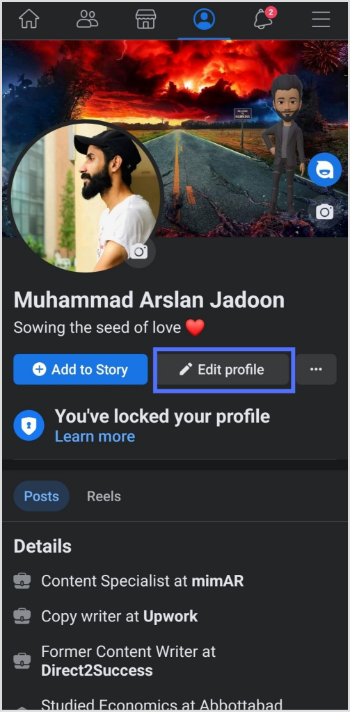
Step 2: Tap the “edit profile” button.
Step 3: In the edit profile section, scroll down to the “links” section and tap “edit”.
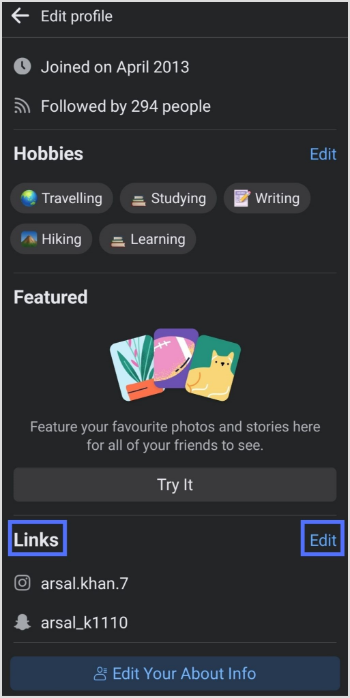
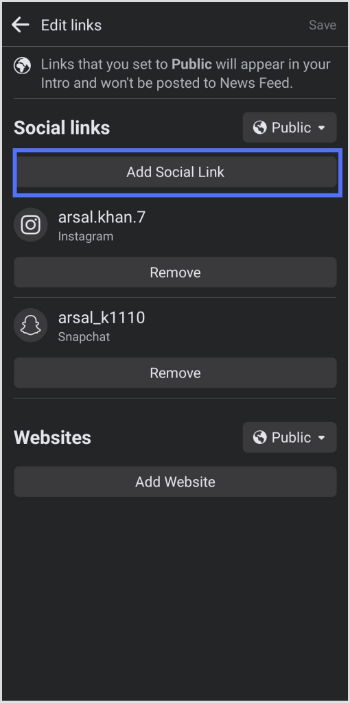
Step 4: Tap the “add social link” button.
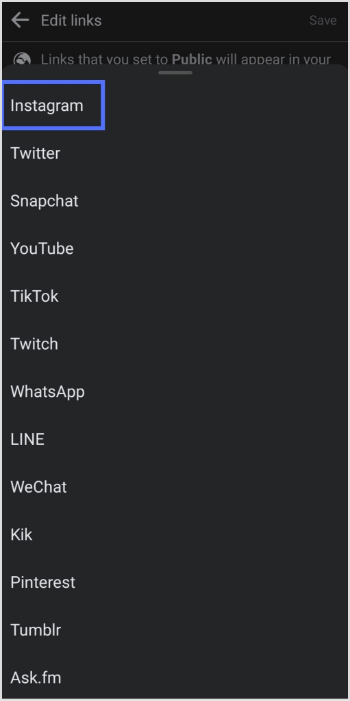
Step 5: Tap the “platform” button and choose Instagram from the list.
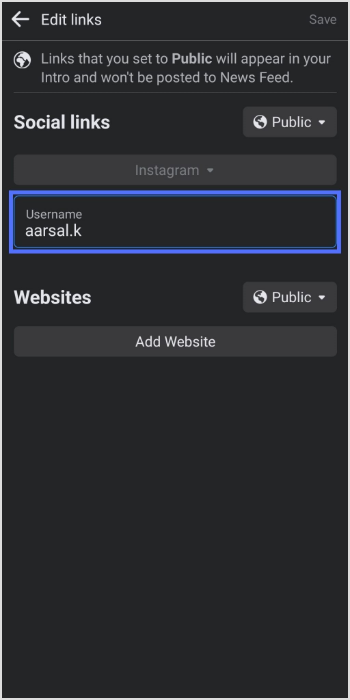
Step 6: Enter your Instagram account “user name” and tap save.
Also Read: How to put a link in your Facebook bio?
How to add Instagram link to Facebook bio on a computer device?
Step 1: Log in to Facebook on your computer browser.
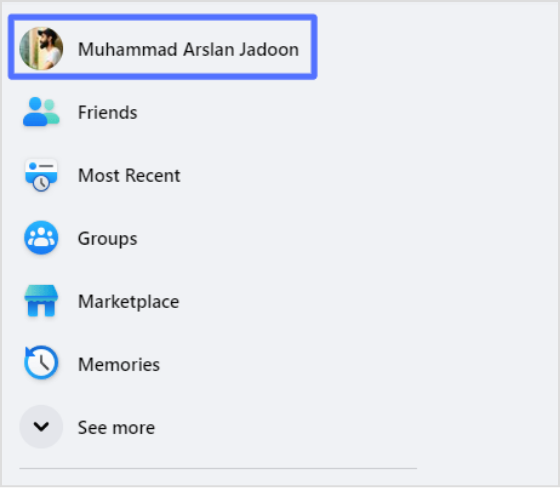
Step 2: Click on your profile name on the top left side.
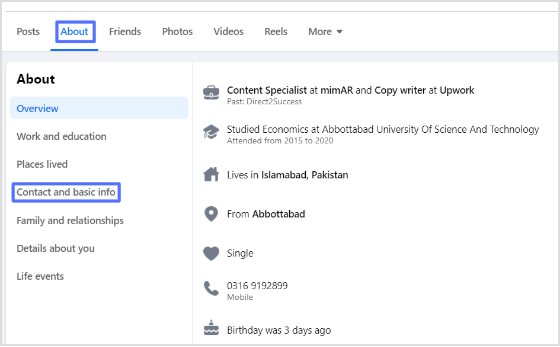
Step 3: Click “about”, then “contact and basic info”
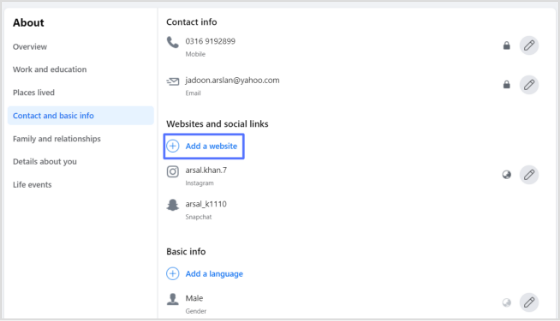
Step 4: Click the “add website button” under the “website and social links” section.
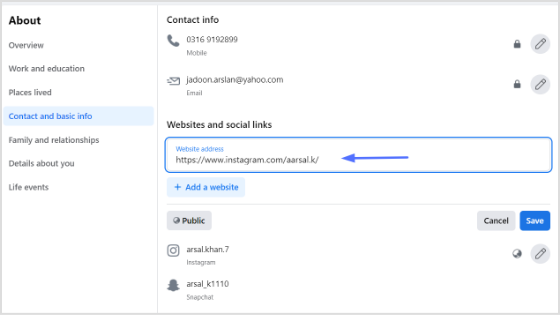
Step 5: Paste your Instagram URL in the URL field and click save. You’ll have your Instagram link in the Facebook bio.
You may also like: How to unlink Facebook and Instagram?
Also, don’t forget to give this Facebook link in bio tool a try. It will assist in boosting your engagement exceptionally.
Trending:
How To Save TikTok Videos Without The Watermark?
How to add a link in bio to your Instagram profile?
Frequently asked questions

Arslan Jadoon