Unlock the full potential of your Facebook profile by adding clickable links to your bio. Whether you’re a business promoting your services or an individual sharing your latest projects, strategically placed links can make a significant impact.
This guide will walk you through the quick and easy steps to incorporate links into your Facebook bio. Elevate your online presence and make it easy for visitors to explore what matters most to you.
Let’s dive in and optimize your Facebook profile for maximum impact.
Quick answer (checked October 2026): on your Facebook profile, tap Edit profile, scroll to Links, tap Add (or Edit), paste your URL, set who can see it and save. On a computer you can also go to About → Contact and basic info → Websites and social links. According to Facebook’s Help Center, the Links section is for “links to any personal sites or things you like”, and Contact info holds your social media links. Keep the bio text for words and put the address in Links, where it shows as a link people can tap. Pages work a little differently; see the table below.
Link in bio on Facebook: What does it mean?
The term “Link-in-bio” on Facebook refers to including clickable links in your Facebook profile, particularly in the “About” section.
This concept originated on Instagram, where users are limited to featuring only one link in their bio (today Instagram allows up to 5 links, according to Instagram’s Help Center). To overcome this limitation, creative users developed link-in-bio landing pages that house a collection of links under a single URL.
While Facebook’s help pages don’t state a limit on the number of website addresses you can include in your bio, some users still choose to adopt the link-in-bio strategy. This approach offers a cleaner and more organized way to direct visitors to various pages on their website.
Some key takeaways:
The key takeaways and recommendations include:
- Include multiple links: Businesses are encouraged to include multiple links in their Facebook bio (using a reliable Facebook bio link tool) to guide visitors to specific information and convert them into regular website visitors or customers.
- Keep links up to date: Regularly update your links and ensure they support a clear call to action that aligns with your Facebook posts. Here’s how to write a call to action.
- No limit on links: Unlike Instagram, which caps profile links at 5, Facebook’s help pages don’t state a limit on the number of websites you can add to your bio.
- Short, branded, and UTM-tracking: For better analytics, optimize your links by making them short, branded, and including UTM-tracking information.
- Reputable link management platform: Utilize a reputable link management tool to track traffic from your social media bios and campaigns effectively.
How to put a link in your Facebook bio?
Adding links to your Facebook profile is a simple yet powerful way to enhance your online presence. Whether you’re using the Facebook app on your mobile device or the desktop version, here’s a step-by-step guide:
On Mobile:
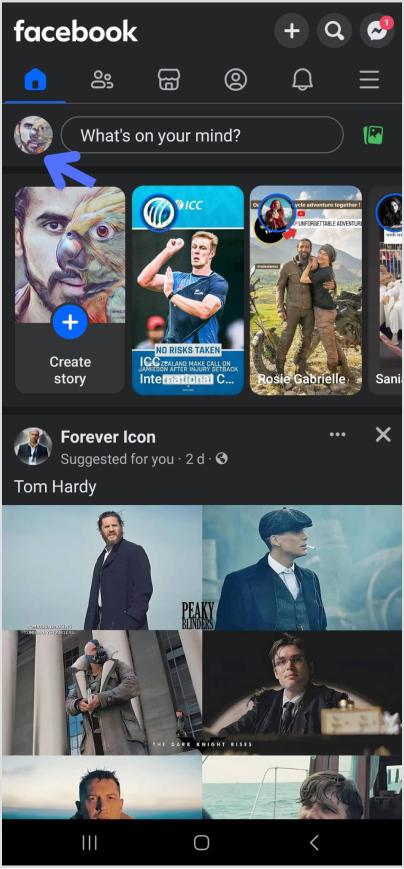
Step 01: Open the Facebook app and tap on your profile picture in the upper left corner.
Step 02: Navigate to your profile page and tap “Edit profile.”
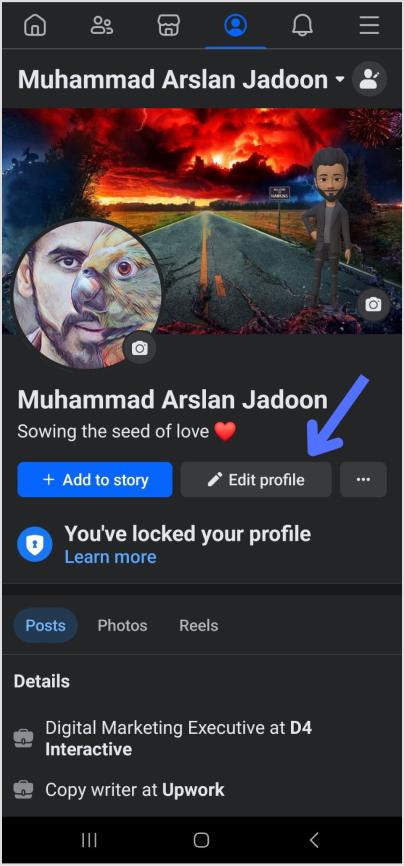
Step 03: Scroll down to the bottom of the page and tap “Edit” next to “Links.”
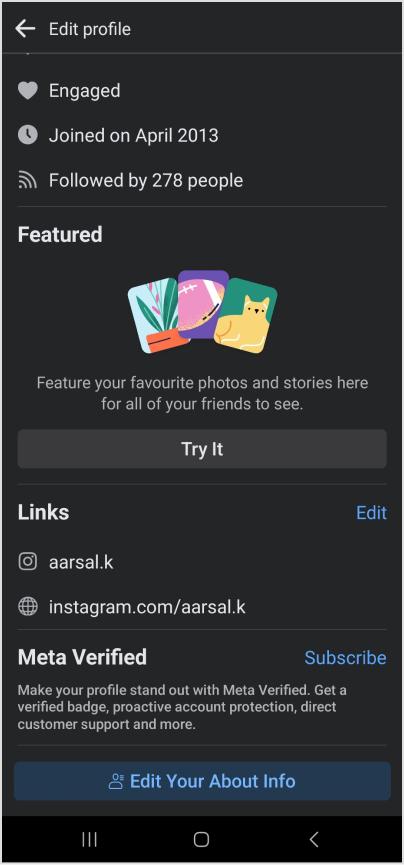
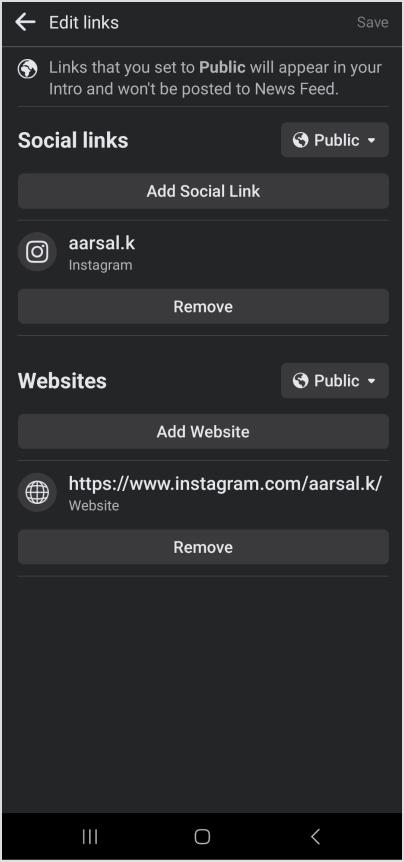
Step 04: To add social media handles, tap “Add Social Link,” choose a platform, and enter your username.
Step 05: For other website links, select “Websites,” enter the URLs, and tap “Save” when finished.
On Desktop:
Step 01: Log in to Facebook and click your profile image in the top left corner.
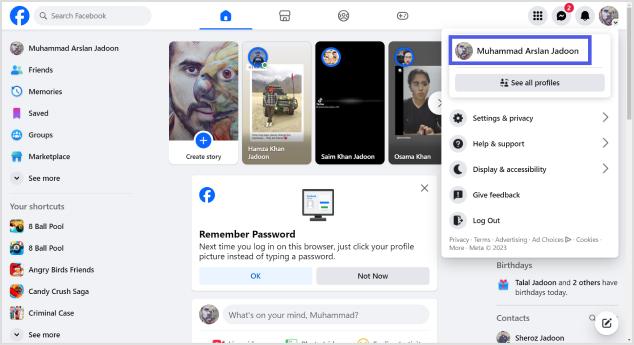
Step 02: Select “Edit profile” below your profile image.
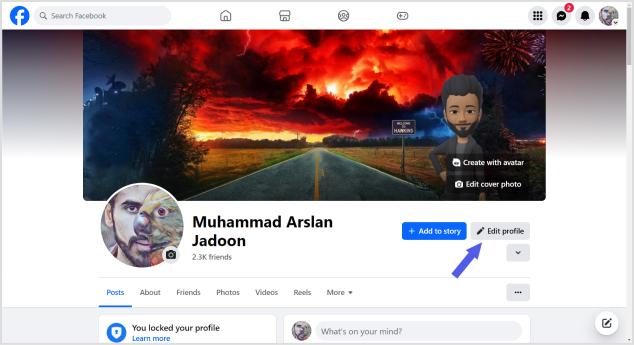
Step 03: Scroll down to “Edit your About info” and choose “Contact and basic info.”
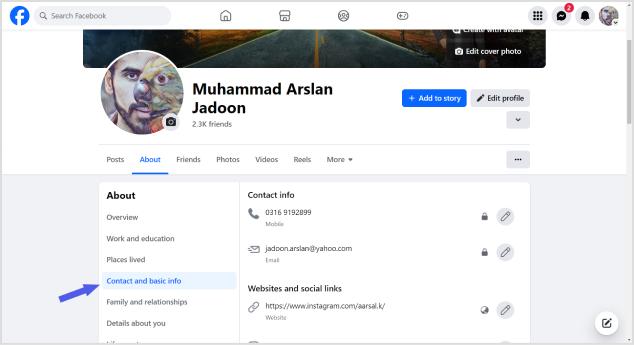
Step 04: Navigate to the “Websites and social links” section and click the pencil icon to edit.
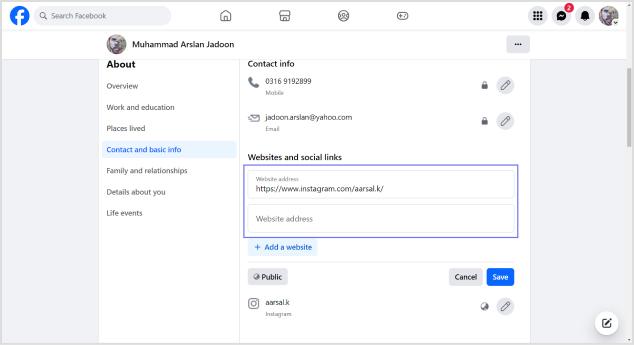
Step 05: Select “Add a website,” enter the URL, and repeat for additional sites. Click “Save” when done.
To add social media links, click the edit icon, choose “Add a social link,” and select your platform.
Enter your username (Facebook will generate a clickable link), and click “Save.”
These simple steps empower you to customize your profile, making it easy for visitors to explore your online presence effortlessly. Whether you’re on the go or at your desktop, optimizing your Facebook profile with links is a quick and effective way to showcase your interests and connect with others.
Also read: How to Add Instagram Link to Facebook Bio?
Where is the link in bio on Facebook?
When someone says “link in my bio” on Facebook, they mean the links on their profile, not a link inside a post. To find them:
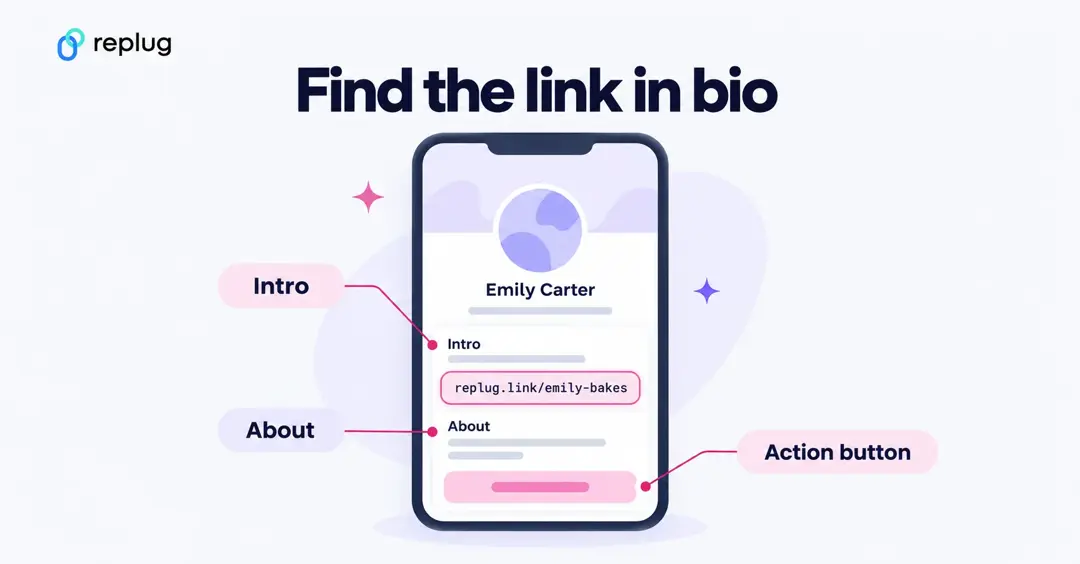
- On a profile in the app: open the profile and look at the details under the profile picture (the Intro area). Open About to see every website and social link the person has made visible to you.
- On a computer: open the profile, look at the Intro box on the left, or click About → Contact and basic info.
- On a Page: check the Intro section and the button under the cover photo. Many businesses put their main link in that action button.
If you can’t see a link, the owner may have limited it to friends or to “Only me”. Facebook lets you choose the audience (for example Public, Friends or Only me) for most profile details, while the Intro section itself is always public.
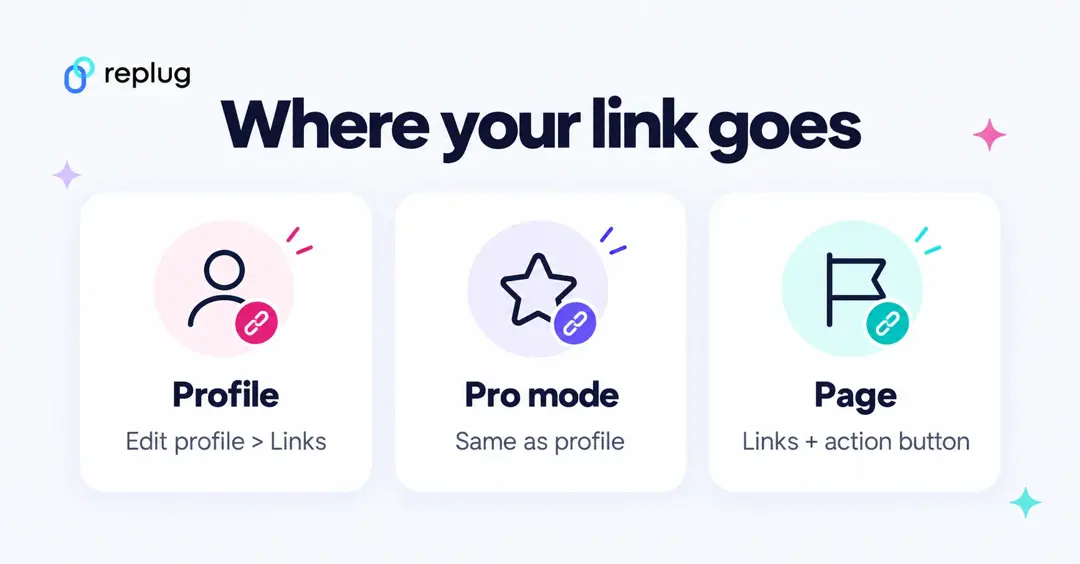
Profile, professional mode or Page: where your link goes
Facebook has three kinds of presence, and the link sits in a slightly different place on each:
| Account type | Where to add the link | Good to know |
|---|---|---|
| Personal profile | Edit profile → Links (websites); Contact info for social links | You pick who can see each link. Per Facebook Help, Links is for “personal sites or things you like”. |
| Profile with professional mode | Same as a personal profile | Per Facebook Help, anyone on Facebook can follow you to see your public updates, so a public link reaches followers too. |
| Facebook Page | Edit → Links (“links to your websites”), plus an action button | Per Facebook Help, only people with Facebook access to the Page can edit it. The action button (Options → Add action button) is the most visible link on a Page. |
Why the profile link matters more in 2026: according to Facebook’s Help Center article on links in Page posts (October 2026), some Pages can include links in only 2 organic posts or comments per month unless they pay for a higher Meta One plan, and the limit doesn’t apply to every Page. The links in your profile or Page details aren’t posts, so they stay in place and are where people go when you write “link in bio”.
Make your Facebook bio link short and trackable
A long URL works, but a short one reads better in the Intro and tells you how many people tapped it. With Replug:
- Short link with click stats (Free plan): paste your URL into Replug and you get a short link such as replug.link/x7Kp2, with clicks, countries, devices and referrers. According to Replug’s pricing page, Free includes 100 short links and 14 days of click history.
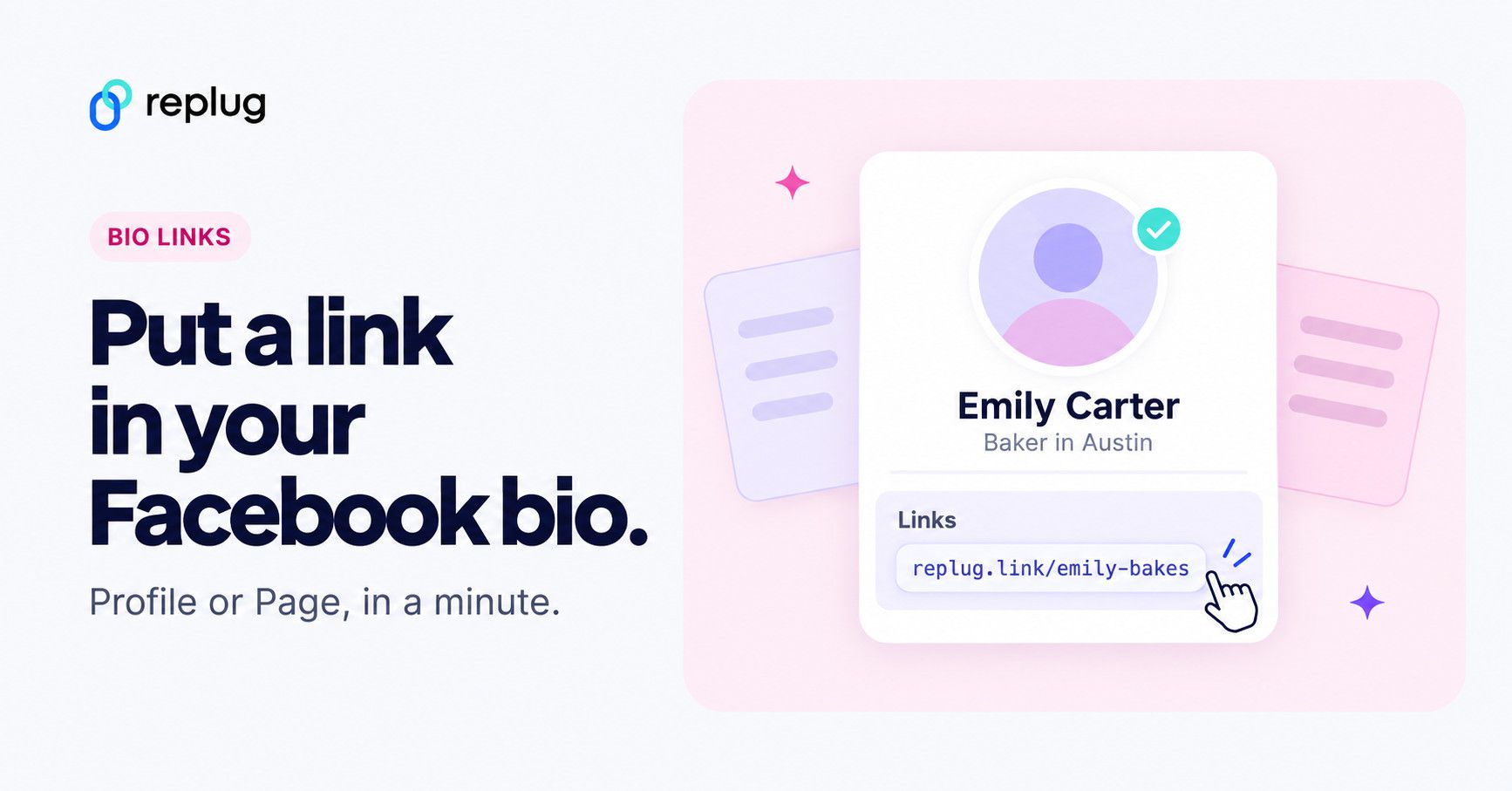
- Readable ending (Essentials and above): choose the ending yourself, like replug.link/emily-bakes, or use your own domain, which every plan supports.
- Several links behind one address: a Facebook bio link page holds your shop, booking page and socials. The Free plan includes 2 bio link pages (per the same pricing page); you can edit the buttons any time without changing the link on Facebook.
Your bio text still matters: it’s what makes people want to tap. For wording that fits next to the link, borrow from these Facebook bio ideas.
Facebook link not showing or not clickable? Quick fixes
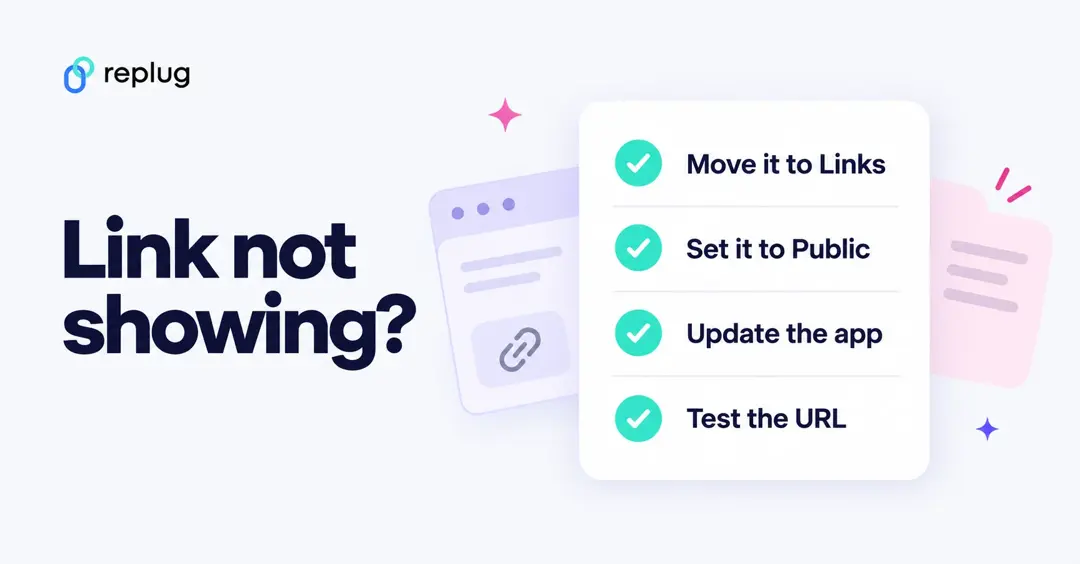
- You typed it into the bio text: move the address into Links (profile) or the Links field and action button (Page).
- Others can’t see it: open the link’s audience setting and choose Public.
- No Links option in the app: update the Facebook app, or add the link from a computer under About → Contact and basic info.
- It opens the wrong page: copy the URL again from your browser’s address bar and test it in a private window.
- You manage a Page but can’t edit it: you need Facebook access with permission to update the Page’s information.
10 Best practices for boosting traffic to your Facebook profile
Optimizing your Facebook business profile is essential for driving traffic and engaging your audience effectively. Here are expert-backed best practices to ensure your profile stands out and serves its purpose:
1. Keep your profile up-to-date
Regularly update your Facebook profile as part of a social media audit, ideally every six months or more frequently if you offer specials and promotions.
2. Use links to support a call to action
Provide all necessary links to fulfill a call to action directly on Facebook, eliminating the need for users to leave the platform.
3. Use short, branded links
Opt for shortened, branded URLs to convey professionalism and enhance brand identity, ensuring a memorable and credible online presence.
You can easily create such branded links using this URL shortener online, designed to help you boost trust, track performance, and strengthen your digital branding.
4. Utilize every aspect of your About page
Populate as many fields on the About page as possible, including contact information, links to social profiles, company privacy policy, services/products, and reviews.
5. Craft an informative intro section
Use the Intro section to concisely communicate whom you serve, the results you help them achieve, and what you assist them in avoiding.
6. Use emojis and graphics thoughtfully
Maintain engagement with visually appealing content while ensuring it aligns with your brand tone and doesn’t feel overly corporate.
7. Share achievements and unique value proposition
Showcase unique offers, stories, and achievements that provide a deeper understanding of your company beyond what’s available on the website
8. Track your metrics
Regularly monitor follower stats and engagement activities to ensure your audience aligns with your target demographic and your content resonates.
9. Condense Facebook URL parameters with link management
Use a link management platform to create short branded links that still track key analytics, enhancing the professionalism of your shared URLs.
10. Create curated lists of links using a link-in-bio tool
Consider using a link-in-bio microsite for a clean and professional presentation of multiple links, allowing visitors to explore your top content easily.
By incorporating these best practices, your Facebook business profile can become a powerful tool for attracting and engaging your audience while maintaining a professional and cohesive online presence.
Optimizing your Facebook profile with Replug link-in-bio:
In a world dominated by social media, where your profile competes with everything else in the Facebook feed, standing out and capturing a customer’s attention is essential.
Try Replug’s bio links, i.e., a powerful feature put forward by this amazing platform to transform your Facebook profile into a dynamic hub for your brand. This customizable microsite allows you to strategically guide visitors to the content that matters most, all while seamlessly integrating branded and shortened URLs.
Learn how Replug streamlines your analytics, providing a comprehensive view of link performance across social media channels. Elevate your brand’s presence on the world’s most popular social platform and discover why countless brands choose Replug to make their mark.
Frequently asked questions

Arslan Jadoon