 14 minutes
How much easier would hitting big growth goals feel if one simple link could guide people to every offer, video, and signup page at once?
Many brands push more content and ads while ignoring this quiet traffic leak. Clicks slip away because followers cannot find what they actually came for.
If you have ever searched for how to add multiple links in one link, you already know this pain.
Are you tired of swapping the single link in your Instagram or TikTok bio every time you launch something new? Long strings of URLs stuffed into captions make posts look messy and hard to follow.
The good news is that there is a smarter way!
By creating one master link that points to a clean landing page, you can send people to all your important links with a single tap.
In this guide, you will see five clear methods, from beginner-friendly options like Google Docs and Canva to professional link-in-bio tools with analytics and customization, so you can pick the right setup for your goals.
So, without any further ado, let’s get started!
What does it mean to add multiple links in one link?
Adding “multiple links in one link” means you share a single URL that points to a landing page containing many different destinations.
Instead of posting separate URLs for a website, shop, YouTube channel, and lead magnet, you give people one gateway link. When someone taps this master link, they land on a simple page that lists buttons or cards for every place you want to send them.
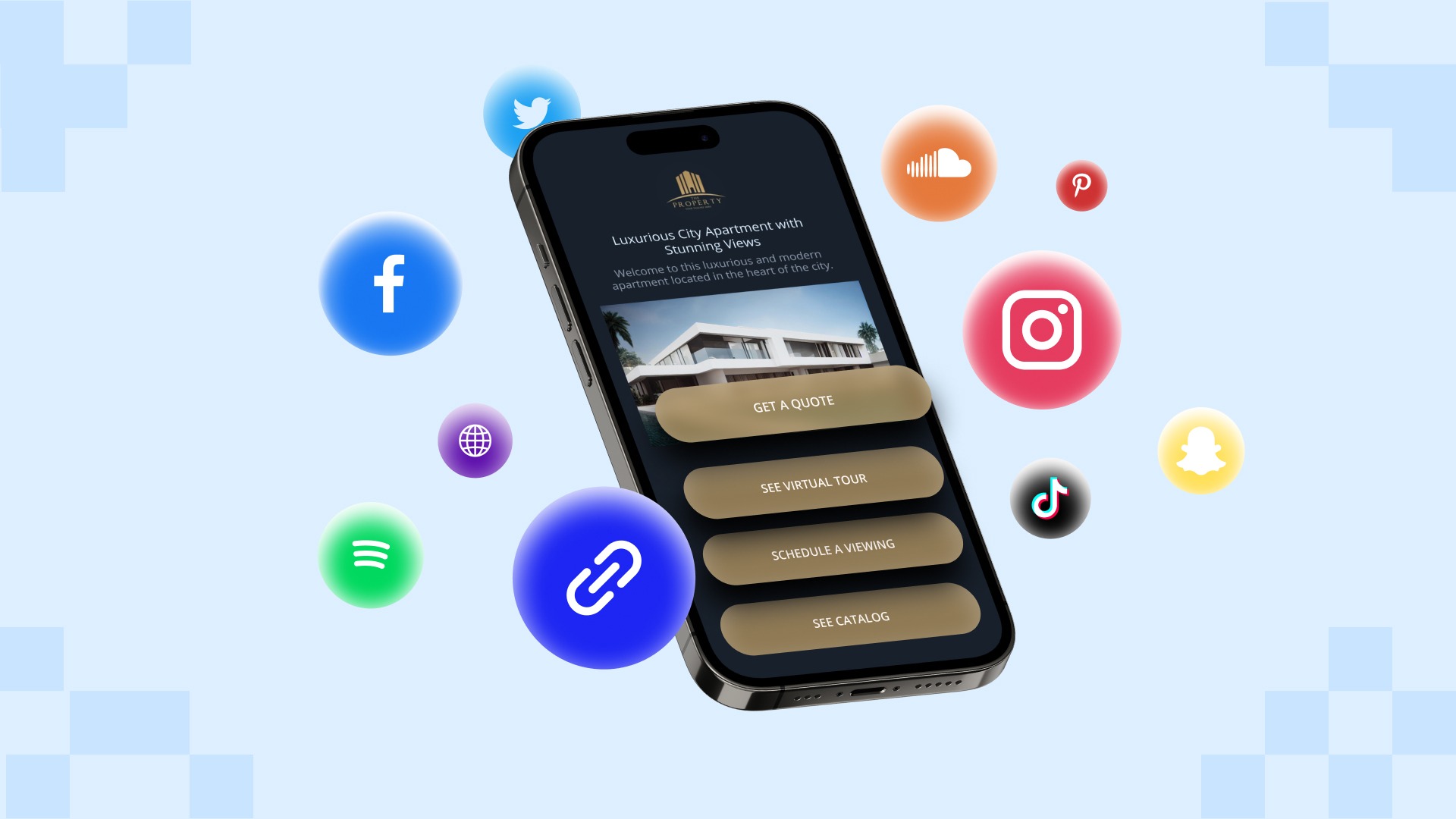
This approach is often called a link-in-bio, link hub, or link aggregation. It is very different from dropping several URLs in a caption, which can look cluttered and hard to click, especially on mobile.
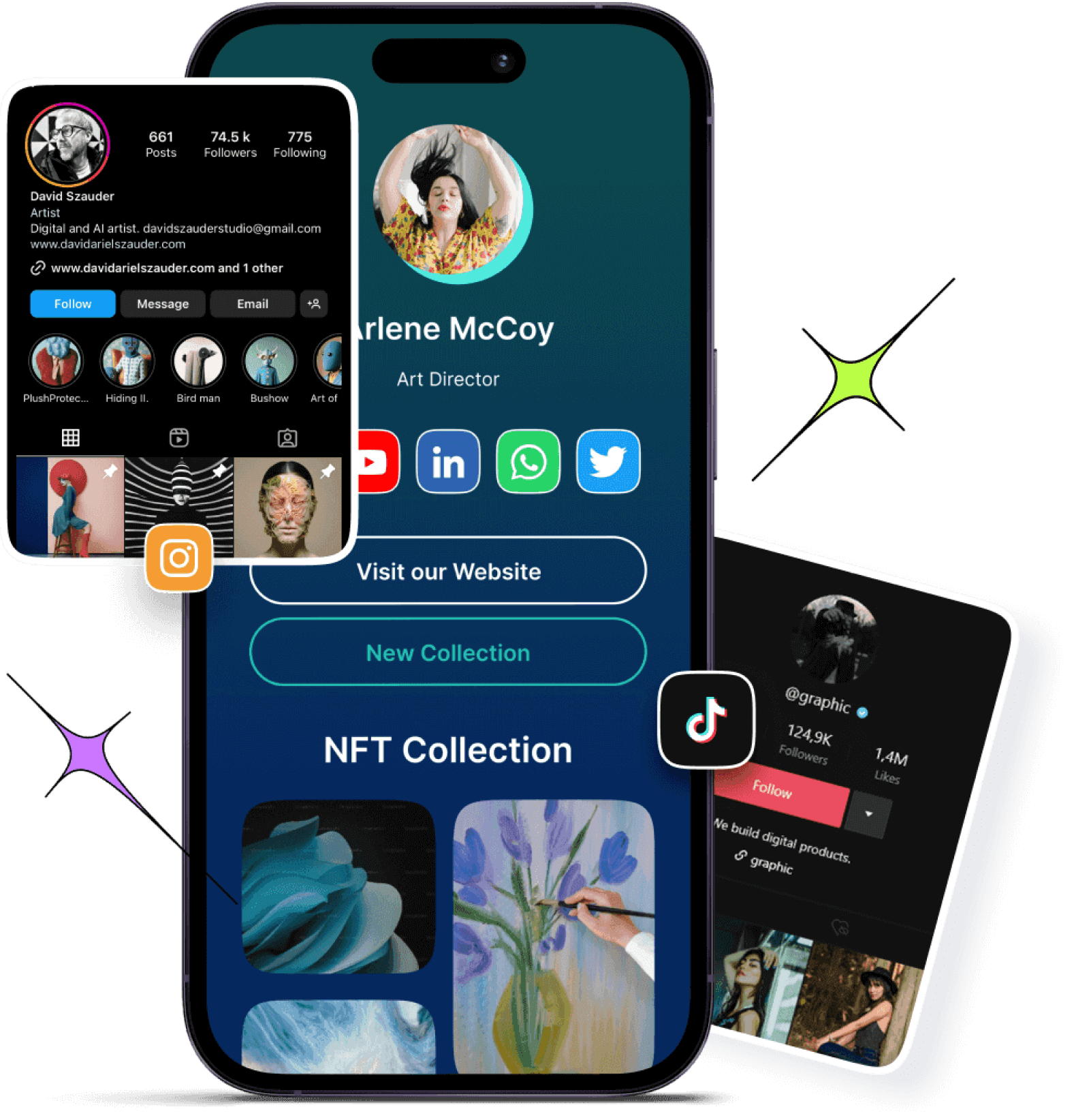
A well-built bio link page is mobile-first, fast to scan, and easy to tap with a thumb. For platforms that limit bios to one clickable link, this is the cleanest way to turn that single spot into a full link menu.
For example, your master link might sit in your Instagram bio and open a page that lists your latest video, online store, newsletter, and contact form in one place.
Why you need to consolidate multiple links into one
Most social platforms allow you to add only one clickable link to your profile. Instagram and TikTok bios allow a single website field, and even on X or LinkedIn, character limits make long lists of URLs painful. When you need to promote many things at once, that rule blocks traffic and slows growth.
A single master link creates a central hub for your entire online presence. It looks professional, keeps your branding consistent, and prevents captions from becoming walls of links. Visitors see a focused set of clear buttons, which makes it easier to move from curious scrolling to clicking to action.

There is also a strong performance benefit. With the right multi-link tool, you can:
- Track clicks on each button and see what people care about most
- Update every destination from one dashboard without editing bios all the time
- Test new offers faster and keep only the ones that perform
- Support monetization through affiliate links, product pages, and email opt-ins
- Use QR codes and branded URLs across both online and offline channels
Over time, those improvements give you better data and smoother workflows, instead of guessing which links matter.
Various methods to add multiple links in one link
There is more than one way to group many URLs together under a single click. Some options are quick workarounds using tools you already know, while others are built specifically for marketers and creators who want tracking and branding.
The methods below move from link-in-bio tools to practical hacks with Google Drive, Google Docs, Canva, and advanced URL shorteners.
Method #01: Using a link-in-bio tool for social media/general use
Using a reliable link-in-biotool is the fastest, most flexible answer when you want one link for many URLs on different social platforms.
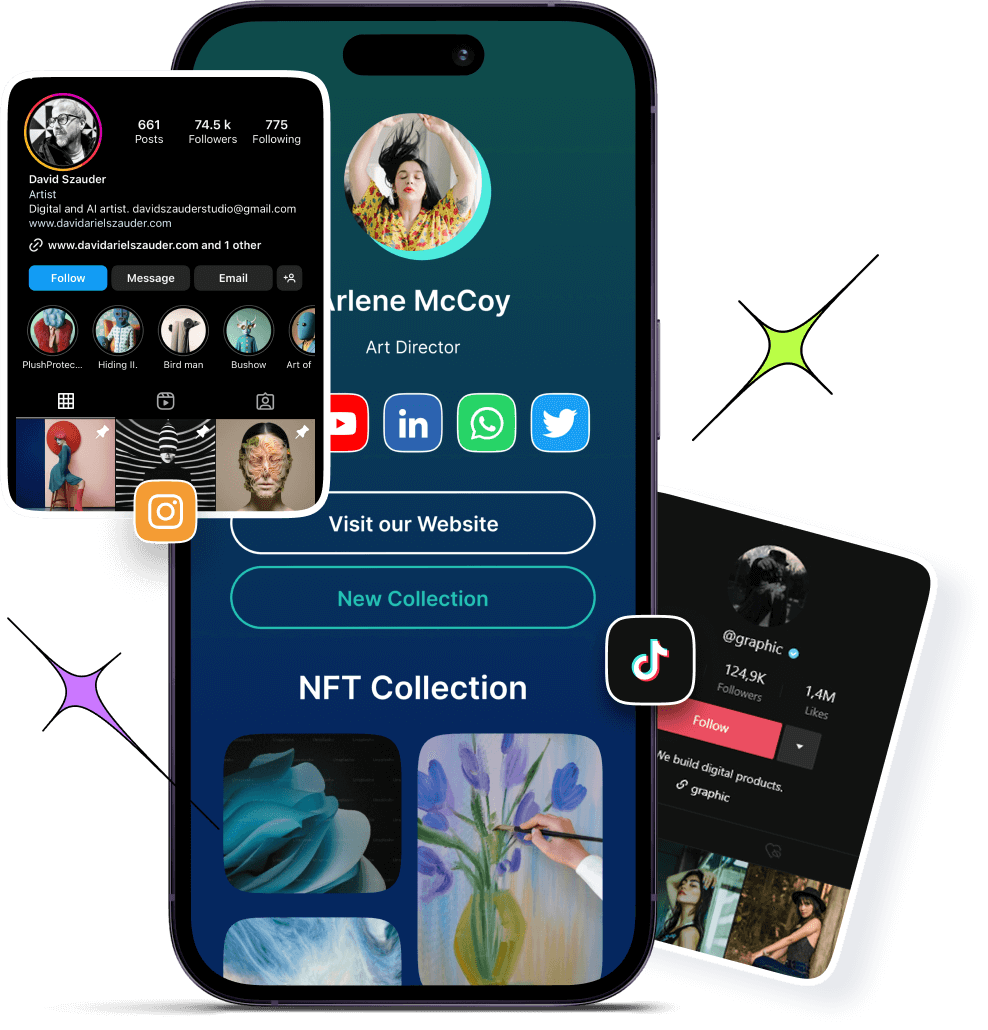
1. Choose a service or tool
Start with a multi-link tool that goes beyond basic link lists. Replug.iostands out by combining bio link pages, branded short links, deep links, and analytics in one place. You can visit the website and create an account in a few minutes.
Compared with simple bio link generators available online, Replug also offers A/B testing, link rotator feature, and retargeting pixels, which matter when campaigns scale.
2. Create your landing page
Inside your dashboard, set up a new bio link page that will serve as your master link hub. Add buttons for everything you want to promote, such as social profiles, shop categories, recent videos, affiliate offers, and email signup forms.
Each item simply needs a clear title and the destination URL. Within a short time, you have one page that turns a single click into many paths.
3. Customize
Design matters when followers move from your profile to your bio link page. Replug lets you match your brand colors, upload a logo or profile image, and pick themes and button styles that feel like an extension of your content.
You can group links under simple headings, highlight time-limited links for launches, and add custom calls to action that appear on top of your shared content to drive more signups or sales.
4. Share
Once your bio link page looks right, Replug gives you one short URL that works everywhere. Add it to your Instagram, TikTok, YouTube, and X bios, and include it in email signatures or podcast descriptions.
You can also generate a QR code from inside Replug, so people at live events, on print flyers, or from product packaging can reach the same multi-link page with a quick scan. From that point on, you update links only in your Replug dashboard, and the master link remains the same.
Method #02: Using a Google Drive add-on for file collections & sharing
If your main objective is to share collections of files, such as media kits, client folders, or course materials, Google Drive can serve as a simple multi-link hub.
By using an add-on or extension, you can turn several Drive items into one shareable entry point. This keeps file sharing tidy without sending long lists of separate links.

1. Use an add-on or extension
Look for a Google Workspace add-on that lets you combine multiple Drive files or folders into a single share page. These tools often read the contents of a specific folder and then produce a simple index page that lists each item.
You can decide which files or subfolders to include and which to hide. This keeps sensitive content private while still giving clients or team members one clean link.
2. Generate links
Once the add-on (Google Drive Direct Download Link Generator) knows which files to include, you can generate a master URL that people can visit in any browser. When they open it, they will see a list of all the included Drive items, each with a clear name that matches your file titles.
This works well for asset packs, onboarding documents, or lesson libraries where people need everything in one place. You only need to update the underlying folder when you add or remove content.
3. Shorten (optional)
The auto-generated link from Google Drive or an add-on can be long and hard to remember. But don’t worry, you can easily shorten a link and turn it into a branded link that is easy to share and track with Replug.
This gives you analytics for every click on that shared Drive hub, lets you add retargeting pixels, and makes it simple to swap in a new target if you reorganize your folders later without changing the short link.
Method #03: Using online URL shorteners
Online tools, including both free and paid URL shorteners, can also help when you want to add or put multiple links into one link, especially for campaigns and testing.
Basic shorteners only replace a long URL with a shorter one, but advanced platforms such as Replug go further with even more advanced features.
When building your link-in-bio page, using a trustworthy link shortener tool lets you create branded, memorable short links that are easier to share and track.
Custom short links not only look more professional but also give you valuable analytics on which links your audience clicks most. This data helps you optimize your link-in-bio strategy and understand what content resonates with your followers.
Method #04: Using Google Docs
Google Docs can act as a simple, no-design multi-link page when you need something fast. It is not as polished as a dedicated bio link page, but it works well for internal lists, quick resource sheets, or temporary campaigns.
1. Create & format your document
Open a new Google Doc and start with a short heading that explains what the document covers, such as weekly promos or client resources. Under that, list the items you want to share in a clear order, for example, newest at the top.
Turn each line of text into a hyperlink by highlighting it, using the link option (🔗) in the toolbar, and pasting your URL. You can use bold text or simple dividers to group links into sections.
2. Set sharing permissions
Once your document looks organized, click the “Share” button and adjust the settings. For broad audiences, choose the option that lets anyone with the link view the document without signing in.
For private or paid content, restrict access to specific email addresses or domains so only approved people can open it. Always double-check permissions to avoid exposing internal files by mistake.
3. Share or shorten your Doc link
Copy the shareable Google Docs URL and test it in a private browser window to confirm that it loads as a read-only page.
If the link looks too long and messy, shorten it to a branded URL that reflects your brand name. This makes your simple Doc feel more professional, lets you track how many people click it, and allows you to improve the title and preview that appear when you post it on social media.
Finally, share this link wherever you want!
Method #05: Using Canva
Canva is a smart choice that lets you build a visual page with your branding, images, and buttons, then share it via a single URL. This is perfect for creators and small brands that care a lot about visuals.
1. Design a one-page layout
In Canva, start with a blank design sized for a phone screen or pick one of the simple website templates. Add your logo, a short intro, and a clear headline that tells visitors what they can expect to find.
Then drop in buttons or text boxes for each place you want to send people, such as Shop, Newsletter, Latest Video, and Contact. Keep the layout clean with enough white space so each tap target is easy to hit on mobile.
2. Add hyperlinks to elements
Select each button or text block and use Canva’s link option to attach the correct URL. Test carefully by clicking through in Canva’s preview so you know every button goes to the right destination.
You can use colors and size to highlight the most important link, such as a current launch or lead magnet. If your brand uses a certain palette or font, apply those styles so this page matches your existing content.
3. Publish & share your Canva link
When your design is ready, you will receive a single URL using Canva’s share options that loads your design in a browser like a landing page.
Now your Canva design works just like a bio link page, and you can place or share that one link wherever your audience meets you.
Read also: How to add multiple links to Instagram bio using Replug?
Wrapping up
Social networks give you precious little space to share links, which makes it hard to promote more than one thing at a time.
Learning how to add multiple links in one link turns that tight limit into a central hub that sends people to every profile, product, and piece of content that matters. Instead of messy captions full of URLs, you offer a single clean tap that feels professional and easy to use.
Across this guide, you saw five ways to do that, from full-featured link-in-bio tools to handy workarounds with Google Drive, Google Docs, and Canva.
The next move is simple!
Decide which method fits your current stage, then build your first multi-link page and share the master URL across your profiles.
If you want professional features and room to grow, start with Replug today. Set up your bio link page, and watch how much smoother your link sharing becomes. One well-planned link can support every launch, partnership, and piece of content you create from now on.

Frequently asked questions

Muhammad Ahsan Jamal