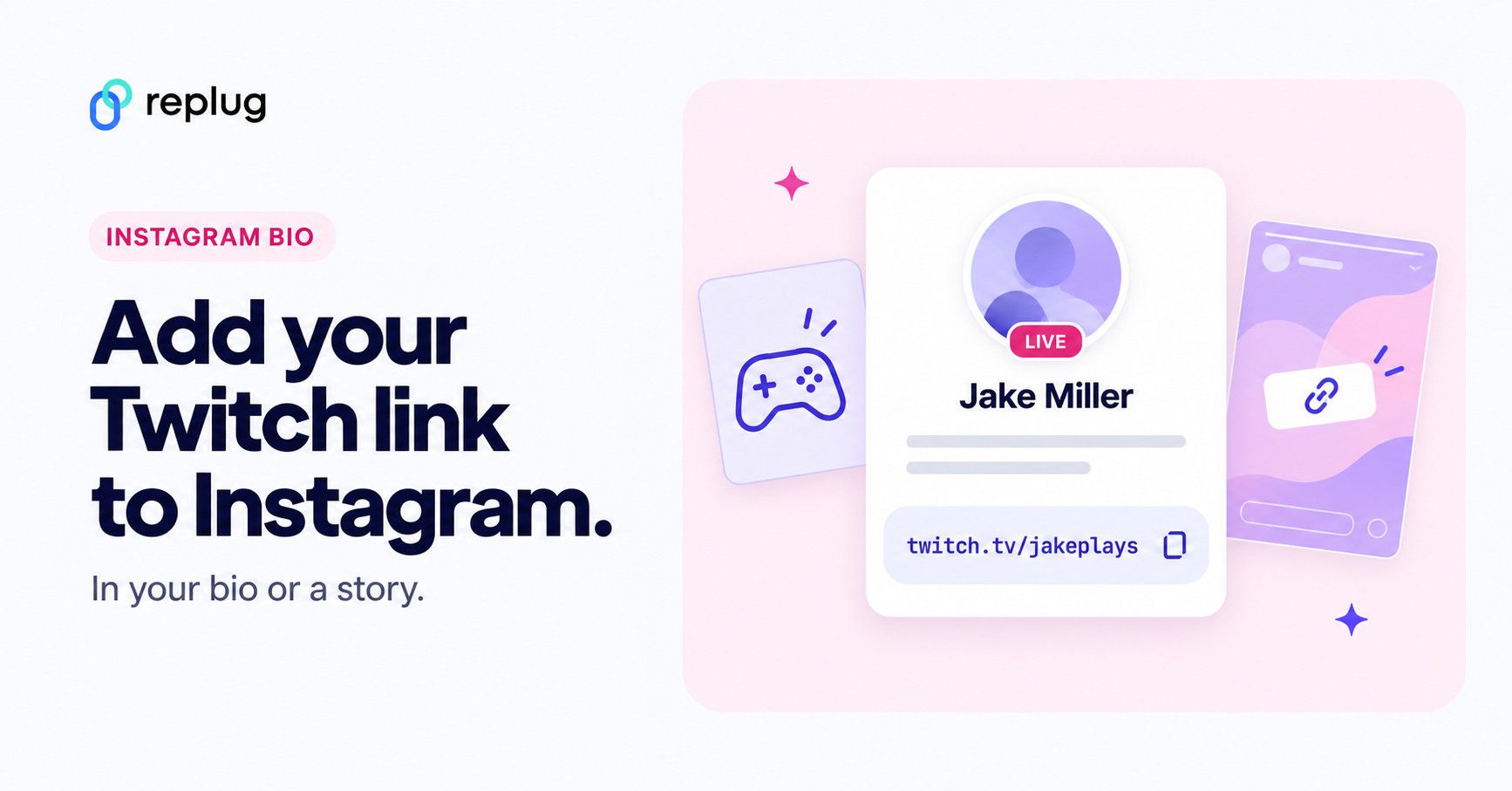
Want your Instagram followers to find your Twitch channel without digging through your stories or DMs?
Twitch describes itself as the place “where millions of people come together live every day”, and that’s a lot of potential viewers you don’t want to miss out on. So, adding your Twitch link to your Instagram bio is the way to go, and yes, there’s more than one way to do it.
Let’s walk you through two solid methods, including one that gives you total control and creative freedom using Replug.
Quick answer (checked October 2026): copy your channel link, which looks like twitch.tv/yourusername. In Instagram, tap Edit profile → Links → Add external link, paste it, add a title such as “Live on Twitch” and tap Done. Instagram’s Help Center says you can add up to 5 links to your profile. For a one-off “I’m live” post, use the link sticker in a story instead (steps below).
How to find your Twitch channel link
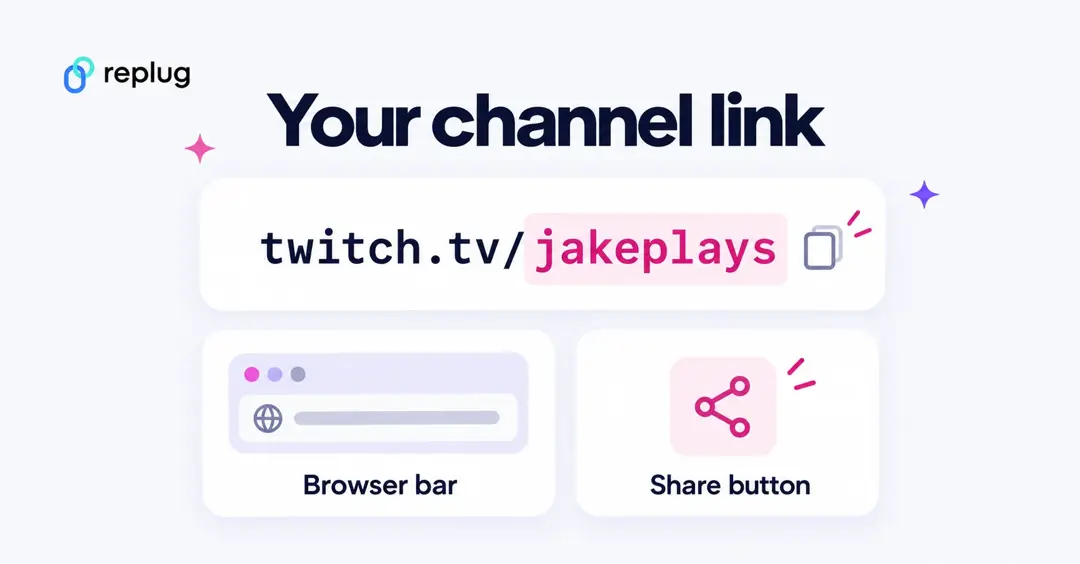
- On a computer: open your channel on twitch.tv and copy the address from the browser bar. It is twitch.tv/ followed by your username.
- In the Twitch app: open your channel and tap Share, then copy the link. Per Twitch Help, the Share button on a channel shares a link to the stream.
- Changed your username? Your channel link changes with it. Twitch’s account settings help says you can change your username once every 60 days, so update the link on Instagram each time.
More ways to copy and share it are in our guide on how to share your Twitch URL link.
Method 1: Use Instagram’s native links tool (quick & basic)
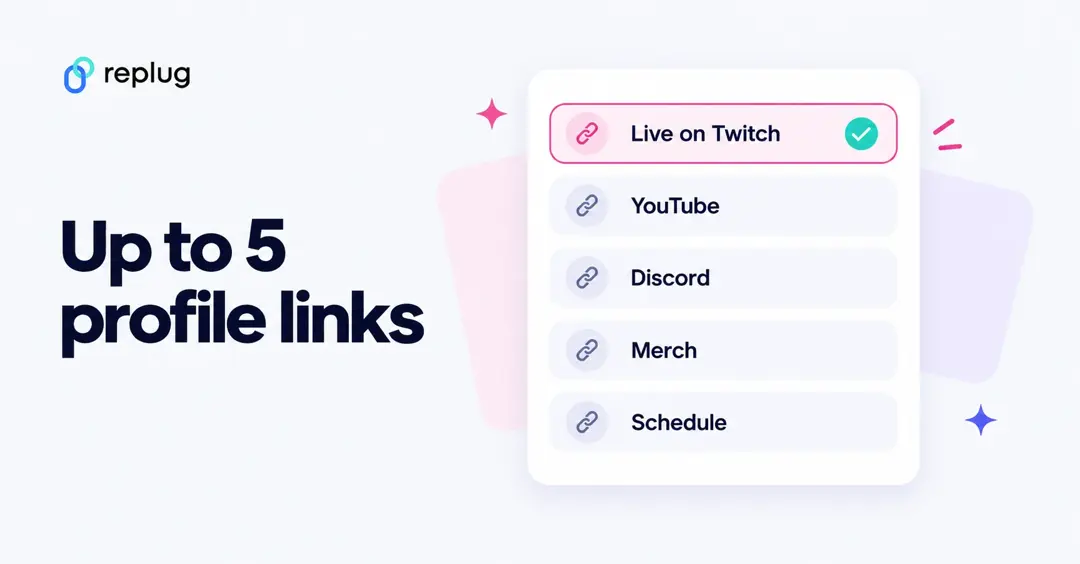
Instagram now lets you add multiple external links to your profile, up to five, to be exact (per Instagram’s Help Center). It’s simple and gets the job done.
Here’s how:
- Open the Instagram app and head to your profile.
- Tap Edit Profile.
- Tap Links, then hit Add external link.
- Paste your Twitch URL.
- Add a title (e.g., “Watch me stream 🎮”) and hit the checkmark to save.

Boom. Your Twitch link is live in your bio. But before you call it a day…
The downsides?
- Your links show up as plain text; no visuals, no custom branding.
- You’re limited to 5 links max.
No click tracking or engagement insights. - And let’s be honest… a boring bio doesn’t drive traffic.

If you want your Twitch profile to stand out and convert viewers into regulars, there’s a smarter option.
Method 2: The Replug way (smart, branded, and click-worthy)
If you’re a Twitch streamer trying to boost your visibility on Instagram, simply pasting your Twitch link in your bio might feel… underwhelming.
Sure, people can tap it but, will they?
Will they want to?
Instagram’s built-in link feature lets you add up to five links, but it has limitations. No branding, no visuals, no storytelling. Just plain, boring URLs. And let’s be real, that’s not enough for today’s attention-challenged, scroll-happy audience.
If you’re serious about building a streaming brand that’s easy to discover and hard to forget, you need an Instagram bio link that does more. That’s where Replug.io comes in.
Why just dropping a Twitch link isn’t enough
A single Twitch URL in your bio might say “Watch me live,” but it doesn’t give people a reason to.
It doesn’t tell them:
- What kind of content you stream
- When you go live
- Why your stream is worth watching
You’re asking your audience to do all the work and most won’t. That’s where you lose them.
To truly capture attention, your bio link should act like a mini landing page: visually appealing, clickable, and custom-tailored to your content.
Replug’s Bio Link feature can turn that one Instagram bio link into a custom landing page, complete with clickable buttons, visuals, branding, and analytics.
No more “just another link.” You’re now giving people a reason to click.
How to add your Twitch link using Replug
Step 1: Log in to Replug
Go to the Replug app and log into your account. Don’t have one? Signing up takes just a minute!
Step 2: Go to “Bio Links”
On the dashboard, click “Bio Links” from the navigation.

Then hit “Create New” to start building your custom bio link page.

Step 3: Customize and publish your bio link page
- Give your bio link a name and a description. It should match your Twitch vibe.
- Customize your bio link page with different colours, layouts, background, buttons, and more.
- Hit the Publish button.

Step 4: Add content blocks
Click on “Content” in the left panel and start adding your Twitch blocks.

Social block:

Link blocks:

Card block:

Important note: Update your blocks as you go otherwise you will lose your progress.

You can also:
- Customize the title (e.g., “Watch me Live!” or “Stream Schedule Here”).
- Schedule the blocks
- Customize the shape, size, and colours
- Add a separator block or spacing block
- Add other platforms (YouTube, Discord, Reddit, etc.).
- Add more blocks if you want.
- Arrange the blocks however you want.
Step 4: SEO optimization (additional step)
Before you copy your new link, take a minute to polish it up for search engines and social media via this amazing link shortener.
Here’s what you can do inside Replug:
- Customize the URL slug
Instead of a random string, go with a custom URL (custom slugs are on the Essentials plan and above, per Replug’s pricing page). Something like this:

- Add a custom meta title and description
These show up when someone shares your link on social platforms or when it appears in search engine results. Use a clear headline and a short, engaging description that tells people why they should click. - Upload a custom preview image
A branded or eye-catching thumbnail makes your link pop on Instagram DMs, Twitter, Discord, or wherever it’s shared. - Set a custom favicon
Tiny detail, big impact. This helps your page look more legit and on-brand. - Add tracking pixels
Want to retarget your audience with ads later? Replug lets you add retargeting pixels so you can build custom audiences and improve ad performance. (Retargeting pixels on bio links start on the Essentials plan; custom meta, social preview and favicon are on every plan.)

These tweaks might seem small, but they go a long way in boosting visibility, brand consistency, and click-through rates.
Step 5: Add Your Replug link to Instagram
- Click “Update”, then copy your new Replug bio link.

This is what the final bio link landing page looks like:

- Now, go back on Instagram:
- Go to your profile
- Tap Edit Profile → Links
- Tap “Add external link”
- Paste your Replug bio link URL
- Tap Done
Now your Instagram bio doesn’t just point to Twitch; it becomes a hub for your entire creator world.
How to add your Twitch link to an Instagram story
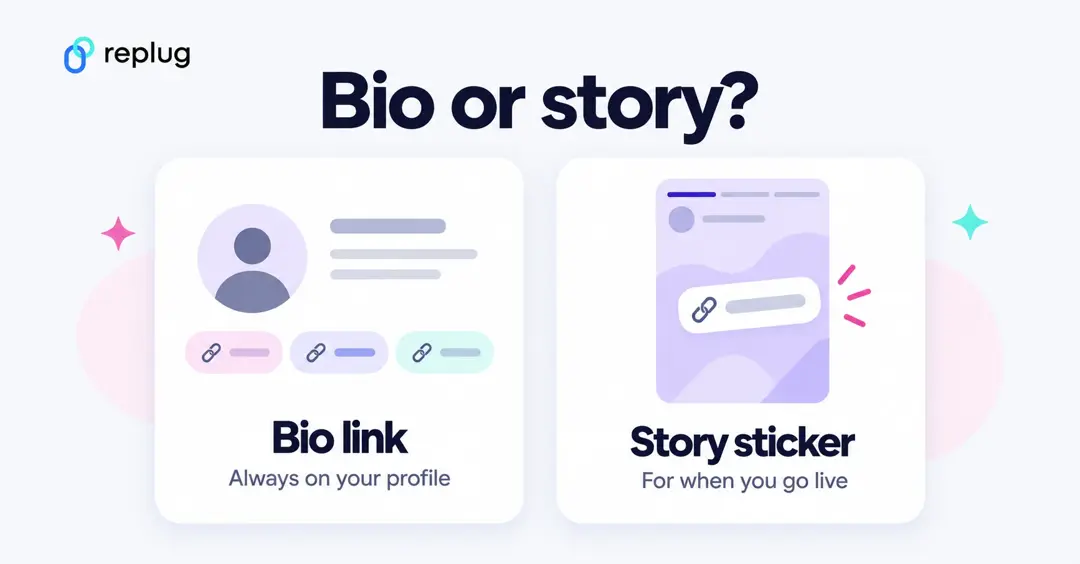
Bio links are for people who visit your profile. When you go live, a story reaches the people who already follow you, and Instagram’s Help Center says a link sticker in a story sends people who tap it to the linked website.
- Copy your Twitch channel link (or the link to a clip or past broadcast).
- In Instagram, swipe right from your feed or tap + → Story, and pick a photo, screenshot of your stream or a short clip.
- Tap Stickers at the top, then Link.
- Paste the Twitch URL, tap Done, and place the sticker where it’s easy to tap.
- Add text like “Live now” and share to Your story.
Link stickers only work in regular (organic) stories, not in ads. Per Instagram’s sticker help page, not every sticker is available to everyone, so if you don’t see Link, update the app first. Save the story to a Highlight called “Twitch” so it stays on your profile after the story expires.
Use the same link everywhere
If you put one Replug bio link on Instagram, you can use the same link on TikTok, X and YouTube, update the buttons in one place, and compare where your viewers come from. Here’s how to add your Twitch link to TikTok as well.
Twitch link not working on Instagram? Quick checks
- Opens a “page not found” on Twitch: check the username spelling, or whether you changed your Twitch username since you added the link.
- Link isn’t clickable: you pasted it into the bio text. Move it to Edit profile → Links.
- No Links option: update the Instagram app; Instagram says adding websites isn’t available on computers, only in the app.
- Already have 5 links: remove one, or replace them with a single bio link page.
So… which method should you choose?
| Feature | Native Instagram link | Replug bio link |
| Add multiple links | ✅ | ✅ |
| Branded design | ❌ | ✅ |
| Visual elements | ❌ | ✅ |
| Analytics & click tracking | ❌ | ✅ |
| Custom CTAs | ❌ | ✅ |
| Dynamic QR codes | ❌ | ✅ |
If you just need to get your Twitch link out there fast, the native Instagram method is fine.
But if you want a bio that actually helps you grow, engage, and convert?
Go with Replug.
No more AFK bios: Stream smarter, link better
Your Twitch content deserves more than a plain link. It deserves a spotlight.
Instagram gives you a bio. Replug turns it into a branded, clickable, conversion-ready landing page.
So the next time someone checks your profile, they won’t just see your Twitch, they’ll be excited to click.
Ready to upgrade your Twitch visibility?
Create your free Replug bio link now!
FAQs for how to add Twitch link to Instagram

Amna Yawar