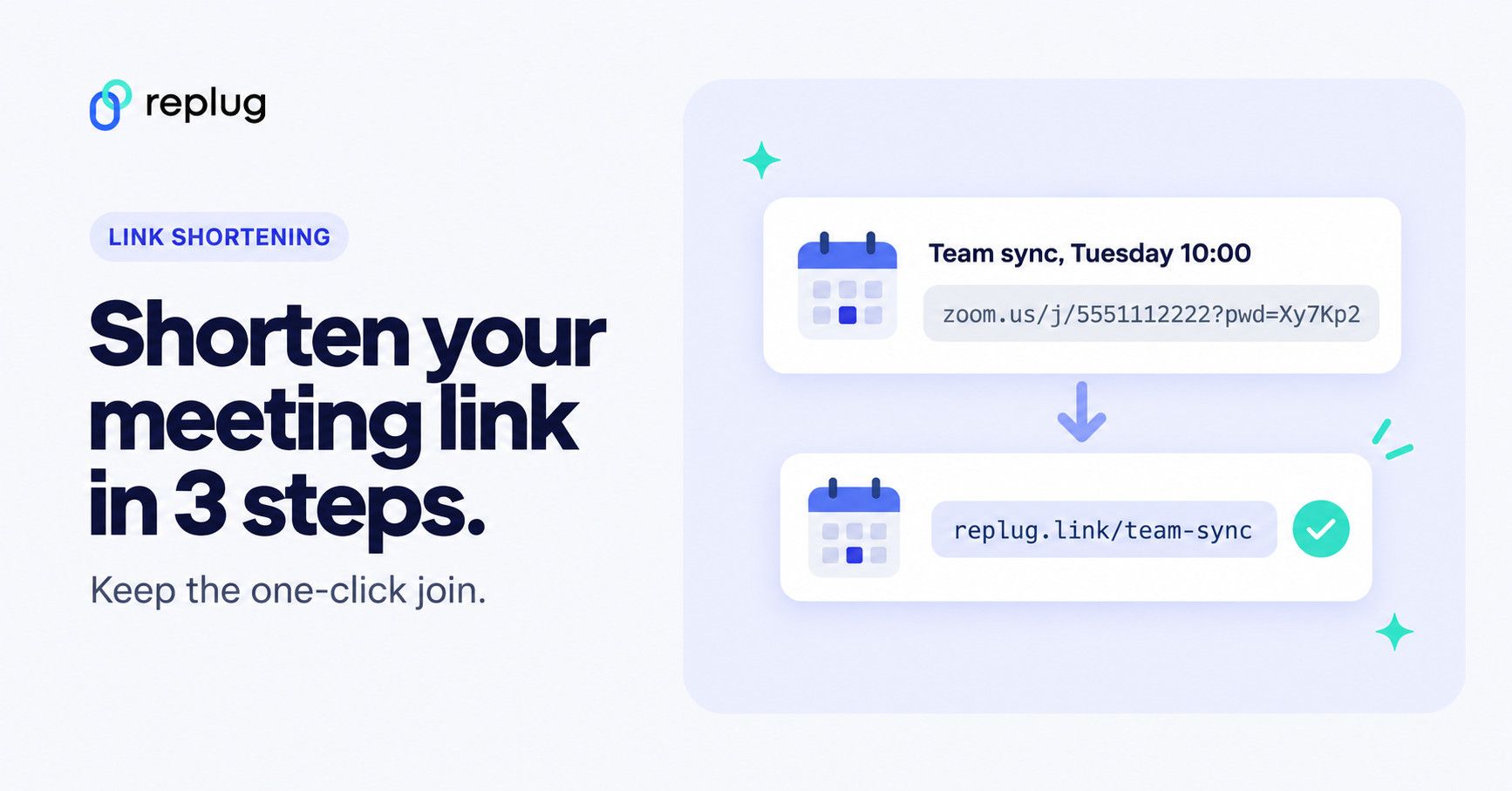
Quick answer: to shorten a Zoom link, copy the full invite link (keep the ?pwd= part so people don’t have to type the passcode), paste it into a link shortener such as Replug and share the short link, for example replug.link/team-sync. If you have a licensed Zoom account on a Business, Education or Enterprise plan, you can also set a custom personal link for your personal meeting room in your Zoom profile, though Zoom’s own meeting invitations keep using your meeting ID.
Ever tried to paste a Zoom invite into an email or social post only to end up with an unwieldy, messy URL? It’s a small annoyance, but one that can make your invitation look unprofessional and cluttered.
Many people face this issue daily. Long links take up space, break across lines in emails and texts, and are hard to read out loud or type from a slide.
The easiest fix? Shorten Zoom links into clean, branded, and user-friendly versions. In this guide, you’ll learn step-by-step how to shorten a Zoom link using an online link shortener, why it matters for your communication, and the best practices to make them effective across email, social platforms, and events.
Let’s jump in and give your Zoom invites a polished, professional touch.
What is a Zoom link shortener?
A Zoom link shortener is a tool that condenses lengthy Zoom meeting URLs into shorter, more manageable links. These shortened links are easier to share and remember, making them particularly useful for invitations, social media posts, and promotional materials. For printed invites, you can also make a QR code for your Zoom meeting.
By using a trustworthy URL shortener, you can transform a long, complex URL into a neat and concise one, enhancing the overall user experience and improving the aesthetics of your communications.
Link shorteners not only simplify URLs but also offer additional benefits, such as tracking link clicks, customizing the link with branded domains, and ensuring secure sharing.
How to shorten Zoom links using Replug?
Here’s a step-by-step guide to help you shorten your Zoom links effectively:
Step 1: Copy your Zoom invite link
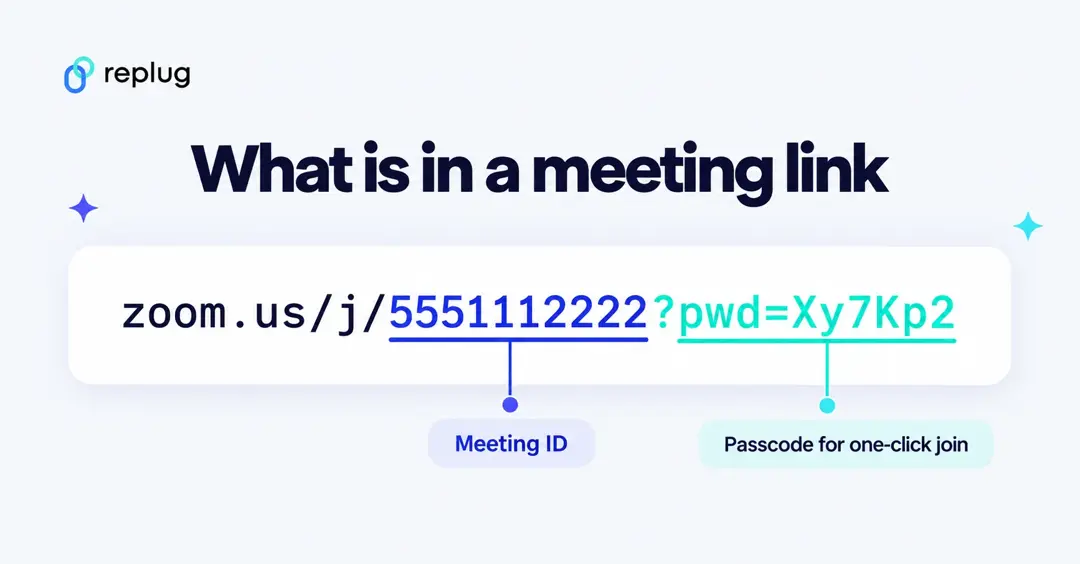
First, you need to have your Zoom meeting invite link ready. Copy the full URL of your Zoom meeting. This link usually looks something like this:
A Zoom invite link includes the meeting ID and, if your account embeds it, an encrypted passcode after ?pwd=. According to Zoom Support, the embedded passcode lets participants join with one click instead of typing it. Copy the whole link, including that part, before you shorten it.

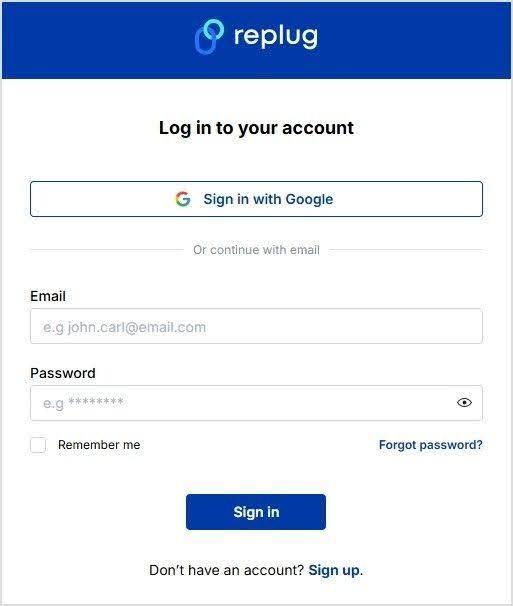
Step 2: Log in to Replug
Now, sign in to your Replug account. You can create one for free if you don’t have an account.
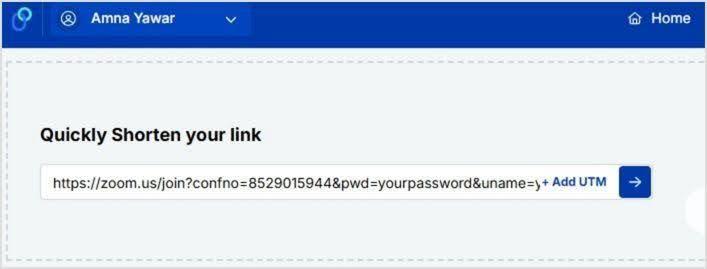
Step 3: Paste your Zoom link
Paste your zoom link under the “Quickly shorten your link” and click on the blue arrow button (in the current dashboard, it’s the shorten bar on the Home page: paste the link and click Shorten):
Also read: How to shorten Google Drive link: Step-by-step guide
Step 4: Generate Zoom short link
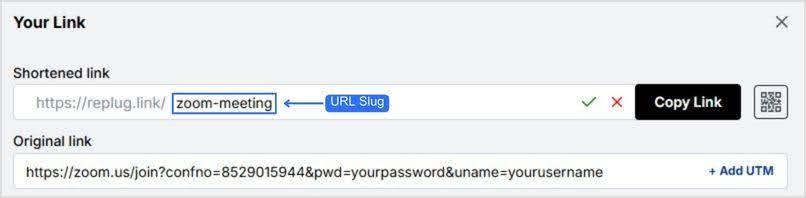
Next, you’ll see a popup with an auto-generated Replug short link:
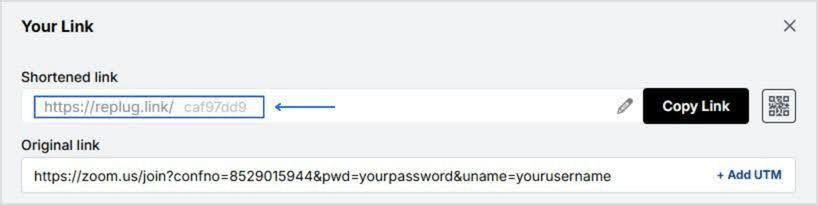
Pro tip: Create a branded short link using Replug by simply customizing your URL slug! (Choosing your own ending, such as replug.link/team-sync, is on the Essentials plan and above; on the free plan you get an automatic ending.)
Also read: How to shorten a hyperlink (and make it instantly clickable)
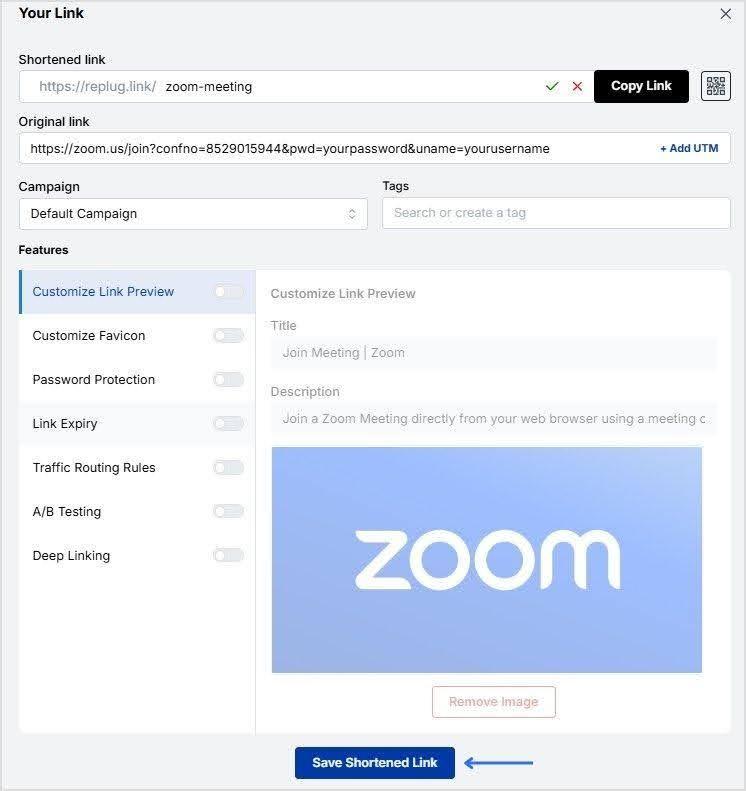
Step 5: Save and share
Once you’ve customized your URL, click on “Save Shortened Link,” and your short Zoom link is ready to be shared!
Shorten your Zoom link inside Zoom: personal link and PMI
Zoom has its own way to make one of your links shorter and easier to remember: the personal link for your personal meeting room. Here is what Zoom Support says about it (checked October 2026):
| Personal meeting ID (PMI) | Personal link | |
|---|---|---|
| What it is | A 10-digit number for your personal meeting room | A name-based alias for your PMI |
| Who can customize it | Licensed users | Licensed users on a Business, Education or Enterprise account |
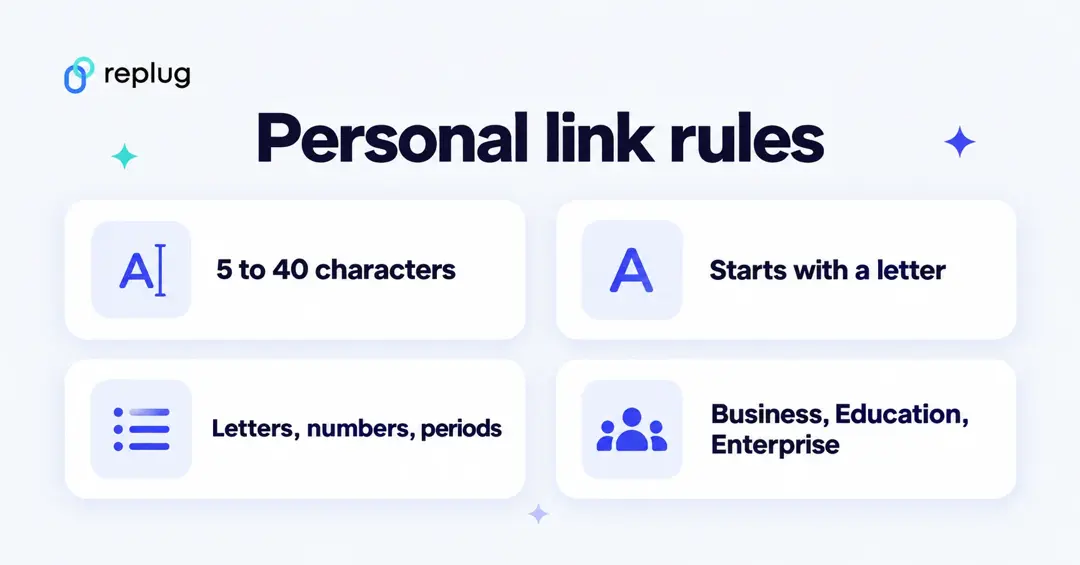
| Rules | 10 digits, can’t start with 0 or 1, no sequences or heavy repeats | 5 to 40 characters, starts with a letter, only letters, numbers and periods; must be unique |
| Used in meeting invitations? | Yes | No: Zoom uses your PMI in invitations instead |
To set your personal link: sign in to the Zoom web portal, click Profile, then under Meeting, click Customize next to Personal Link, enter the name you want and click Save Changes. Zoom also notes that your PMI stays the same as long as you use it at least once every 365 days.
Two limits to keep in mind: the personal link only works for your personal meeting room, not for each scheduled meeting, and it isn’t available on free or Pro accounts. For scheduled meetings, webinars or any account type, a short link from a link shortener does the job.
Where to find your Zoom meeting link
- Zoom web portal: click Meetings, open the meeting and use Copy Invitation, or copy the invite link shown on the page.
- Zoom desktop app: open the Meetings tab, select the meeting and click Copy Invitation; the link is in the text you copy.
- During a meeting: open Participants, click Invite, then Copy Invite Link.
- From a calendar invite: the join link is in the event description or location field.
Labels can vary a little between Zoom versions. When someone clicks the link, Zoom Support explains that the browser opens a launch page and asks to open the Zoom app, which then joins the meeting.
Keep your short Zoom link working
- Recurring meetings: a recurring meeting keeps one link, so one short link can serve every session. Put it in your email signature, calendar description or class page.
- Passcode changes: Zoom notes that changing a PMI passcode can make links sent earlier stop working. If that happens, create a new short link with the new invite link, or, on Replug’s Scale and Agency plans, change the destination of the short link you already shared.
- Public events: anyone with the link (and an embedded passcode) can try to join. For public sessions, use Zoom’s registration or waiting room instead of posting a one-click link everywhere.
- Test before you send: open the short link in a private browser window and check that it reaches the right meeting.
Track your links’ performance
Replug is an all-in-one link management platform that offers powerful URL tracking capabilities. Monitor your link’s click-through rates, geographic data, and other metrics to optimize your marketing strategies effectively.
By using Replug to shorten your Zoom links, you can create professional, easy-to-share URLs while gaining valuable insights into your link performance.
![link analytics dashboard - replug.io]](https://internal-blog.replug.io/wp-content/uploads/2024/12/replug-analytics-dashboard.gif)
Also read: What is a Tracking URL and How Does it Work?
Why shorten Zoom links: Top 5 reasons
Shortening Zoom links offers several advantages, making it a practical choice for anyone who frequently shares meeting invites.
Here are some key reasons to shorten your Zoom links:
- Enhanced aesthetics and professionalism: Long Zoom links can look cluttered and unprofessional, especially when shared in emails, social media posts, or printed materials. Shortened links are cleaner and more visually appealing, enhancing the overall look of your communications.
- Easier to share and remember: Shortened links are easier to share and remember, making them more user-friendly. This is particularly useful when sharing links verbally, over the phone, or in presentations.
- Improved click-through rates: Neater and more concise links can lead to higher click-through rates. Users are more likely to click on a short, clear link compared to a long, complex URL that might appear suspicious or confusing.
- Better tracking and analytics: Many link-shortening services offer tracking and analytics features, allowing you to monitor how many times your link has been clicked, where the clicks are coming from, and other valuable insights. This data can help you measure the effectiveness of your communication and marketing efforts.
- Customization and branding: With our link shortener, you can customize your shortened URLs to include your brand name or a relevant keyword. This not only reinforces your brand identity but also makes the link more meaningful and memorable.
Additional tips
Use branded links: If you’re using a service that allows branded links (like Replug’s custom domain), take advantage of this feature to reinforce your brand identity.
Check security options: Replug offers additional security features, such as link expiration dates and password protection, which can be useful for sensitive meetings. (Both are on the Scale and Agency plans.)
Frequently asked questions

Amna Yawar