To create a QR code for a Zoom meeting, copy the meeting’s invite link from Zoom, paste it into a QR code generator, add a short label such as “Scan to join”, then download the code and share it on slides, posters, emails or event badges. When someone scans it, their phone opens the invite link, which launches the Zoom app or the browser and takes them to the meeting.
This guide walks through each step with Replug, explains which Zoom link to use so the code keeps working, and covers how attendees scan it.
Disclosure: this is Replug’s blog, and Replug, which makes QR codes, is our product.
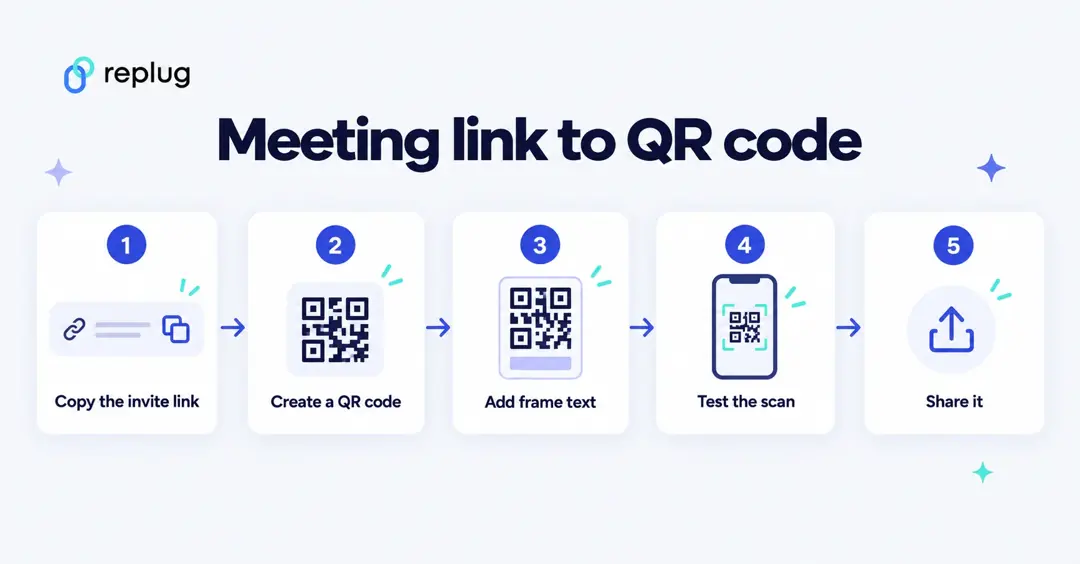
Why use a QR code for Zoom meeting?
A Zoom invite link is long and hard to type. A QR code lets people join from a printed page or a screen with one scan, with no copying and pasting.
A Zoom meeting QR code is especially helpful when:
- Running webinars, classes, or workshops
- Sharing invites on posters, slides, or printed materials
- Running hybrid events where people in the room join from their phones
- Posting on social media or websites
Does Zoom make QR codes itself? Zoom Support documents QR codes for Zoom Events check-in: hosts scan the codes on attendees’ e-badges or registration emails in the Zoom Events app. For a regular meeting invite, you make the QR code yourself from the invite link, as below.
How to create a QR code for Zoom meeting in Replug
Replug’s QR code generator makes dynamic QR codes: each one runs through a short link, so scans are counted. Here is how to make one for a Zoom meeting:
Step 1: Sign in to Replug
Go to Replug and sign in. If you’re new, the Free plan includes 10 QR codes, and paid plans start with a 14-day trial, according to Replug’s pricing page.
Step 2: Find your Zoom meeting link
Schedule the meeting in Zoom and copy its invite link, for example from Copy Invitation on the meeting in the Zoom app or web portal. Our guide to shortening Zoom links shows where to find the link in each place.
- Keep the passcode in the link. Zoom can embed the meeting passcode, encrypted, in the invite link so people join with one click instead of typing the passcode, according to Zoom Support. If that setting is off, attendees will be asked for the passcode after scanning.
- Pick a link that will stay valid. A one-time meeting link stops being useful after the meeting. For a code you print once and use again, use a recurring meeting or your Personal Meeting ID (PMI). Zoom warns that changing the PMI passcode can make previously sent PMI links invalid (Zoom Support).
- Double-check the link by opening it in a browser before you make the code.
Step 3: Generate your Zoom QR code
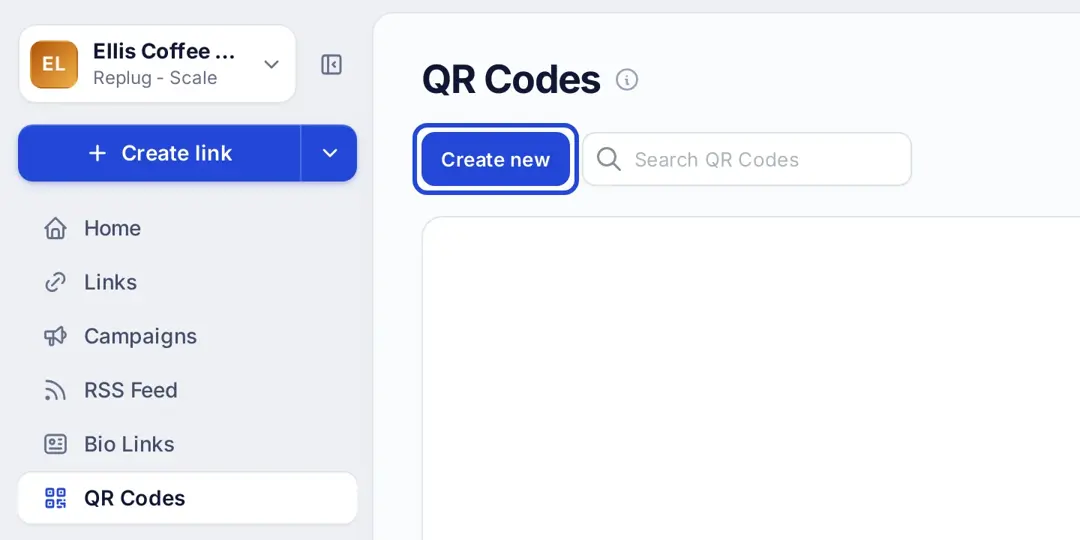
- In Replug, click QR Codes in the left menu, then Create new and Start blank.
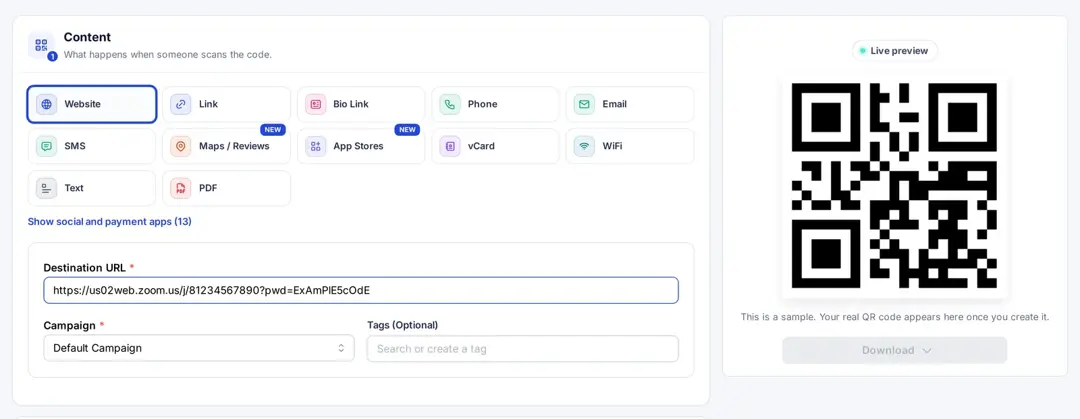
- Select Website as the QR code type and paste your Zoom invite link into Destination URL.
- Choose a campaign (and tags, if you use them).
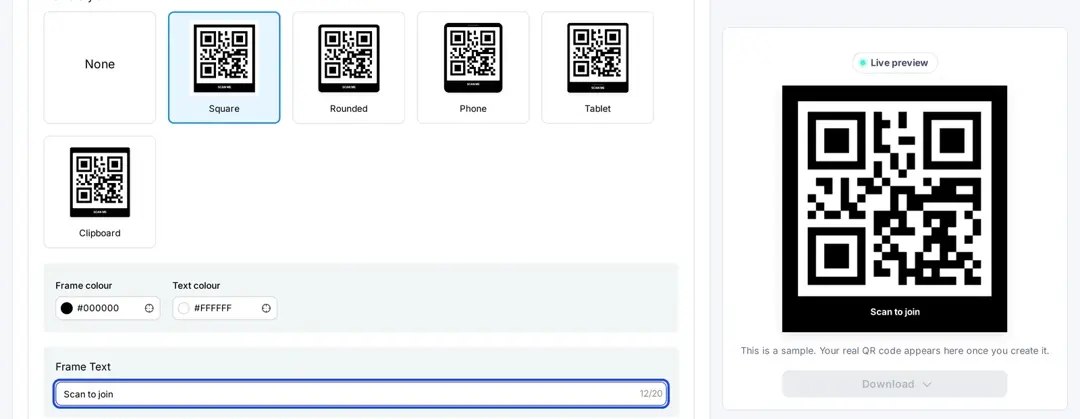
Step 4: Customize your Zoom meeting QR code
Under Design you can:
- Change the shape and colors (Essentials and up)
- Pick a frame and type a short call to action in Frame Text, such as “Scan to join” (up to 20 characters; Essentials and up)
- Add a logo in the center: upload your own or choose a preset icon from the editor’s list, which includes Zoom’s (Scale and Agency)
Step 5: Download your QR code
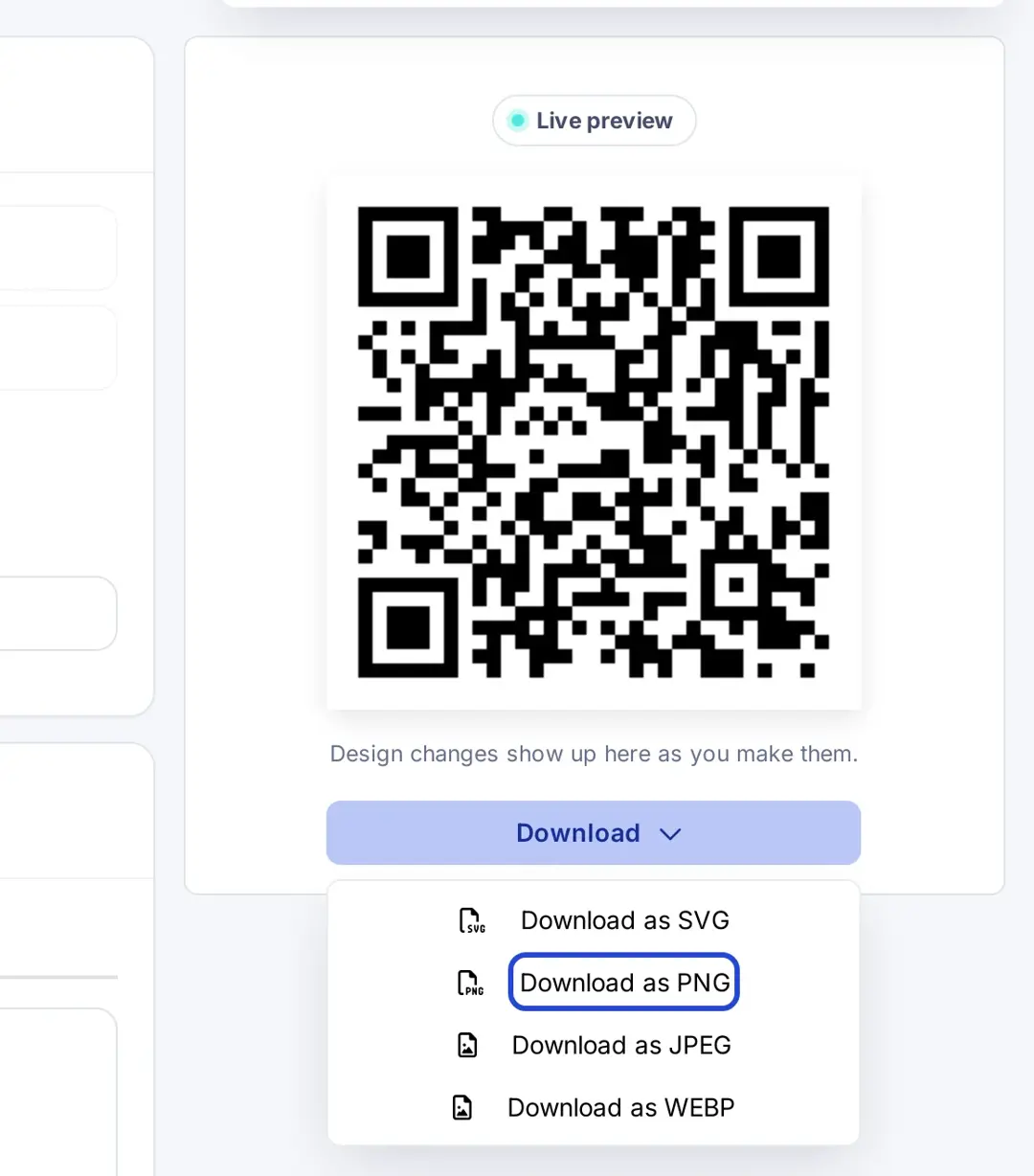
When you’re happy with the design, click Create QR Code, then Download and save it as SVG, PNG, JPEG or WEBP. Use SVG or a large PNG for print and PNG for slides and emails.
Step 6: Share a short link too (optional)
People reading an email or a chat can’t scan a code on the same screen, so share a link as well. Instead of the long Zoom URL, you can shorten the Zoom link in Replug and, with a custom domain, give it a readable branded name such as yourbrand.link/team-sync (custom slugs are on Essentials and up). The QR code and the short link can point to the same meeting.
Also read: How to make a QR code for a video?
How to scan your Zoom meeting QR code
Here is what attendees do:
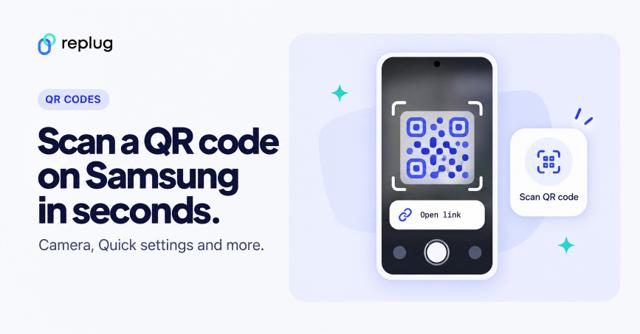
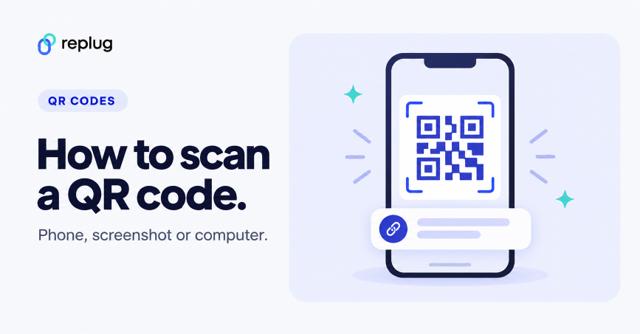
- Open the phone’s camera app and point it at the QR code; on iPhone, tap the link that appears, as Apple Support describes. Most Android phones work the same way (see how to scan a QR code).
- The invite link opens in the browser, which shows a launch page and asks to open Zoom, according to Zoom Support.
- Tap the button to open the Zoom app (it may say Open Zoom Meetings, Allow or Open zoom.us, depending on the browser), and Zoom joins the meeting.
Use the camera’s built-in scanner rather than a separate scanner app: the FBI advises against downloading QR scanner apps because they increase the risk of malware, and notes most phones have a scanner built into the camera (FBI public service announcement).
Tips for sharing your Zoom meeting QR code
1. Test it first
Scan the QR code yourself (and ask a friend too) to confirm it opens the right meeting, without asking for a passcode you didn’t expect.
2. Add it to your calendar invites
Add the QR code image to the invite description in Google Calendar, Outlook or Apple Calendar, so people can join from a phone while their laptop is busy.
3. Include it in your presentation slides
If you’re hosting a webinar, class or workshop, show the QR code on the intro or break slides.
Tip: Add a short call to action phrase like “Scan to join”.
4. Email it as part of your meeting confirmation
Attach the QR code image or put it in the confirmation, reminder or thank-you email, next to the clickable link.
5. Print it on physical materials
If your event is hybrid or in person, print the QR code on:
- Posters
- Flyers
- Table tents
- Badges or welcome cards
6. Share on social media or messaging apps
Post the QR code image on LinkedIn, Facebook groups, WhatsApp, Slack or Discord, with the link in the text for people on the same device. Add clear text such as “Scan to join our next Zoom session” so people know what the code is for.
7. Add it to your website or landing page
If your event is public, add the QR code to the event page, blog post or banner.
8. Use dynamic QR codes
Use a dynamic QR code instead of a static one. Not sure of the difference? Here’s static vs dynamic QR codes.
Benefits:
- Change the meeting link behind a printed code without reprinting it (in Replug, on Scale and Agency).
- Count scans to see how many people used the code. Scans aren’t the same as attendees: someone can scan and not join, so check Zoom’s own reports for attendance.
9. Make it clear what it’s for
Always add a label or caption, such as “Scan to join the Zoom meeting” or “Save this meeting link”.
Conclusion
A Zoom meeting QR code is the invite link in a scannable form. Use a link that stays valid, keep the passcode embedded, add a “Scan to join” label and test it before you share it. With Replug you also get design options and scan counts for each code.
Start with Replug to create custom QR codes and branded short links for your meetings with our link shortener.
Frequently asked questions

Amna Yawar