It has become easier than ever to scan QR codes, especially if you’re using a Samsung device. You’ll find a QR code almost everywhere, from product labels and restaurant menus to posters and even emails! They’re a fast and convenient way to access websites, deals, and more.
If you’re using a Samsung phone, you’re in luck! Samsung has built-in tools that make scanning QR codes effortless. Let’s look into the different methods you can use to scan QR codes on your Samsung device!
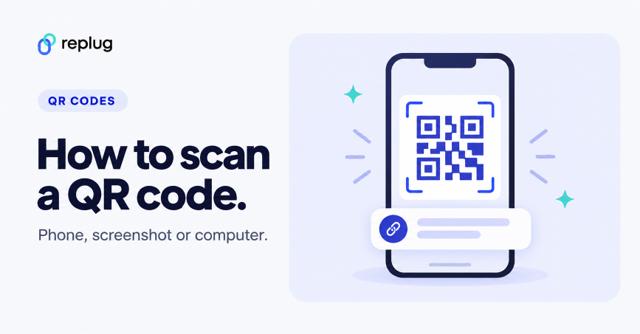
Quick answer: on a Samsung Galaxy phone or tablet, open the Camera app in Photo mode and point it at the QR code, then tap the link that pops up. Or swipe down from the top of the screen with two fingers to open the Quick settings panel and tap Scan QR code. Both methods come from Samsung’s own support guide. If nothing happens, turn on Scan QR codes in the Camera app’s settings.
6 methods to scan a QR code on Samsung
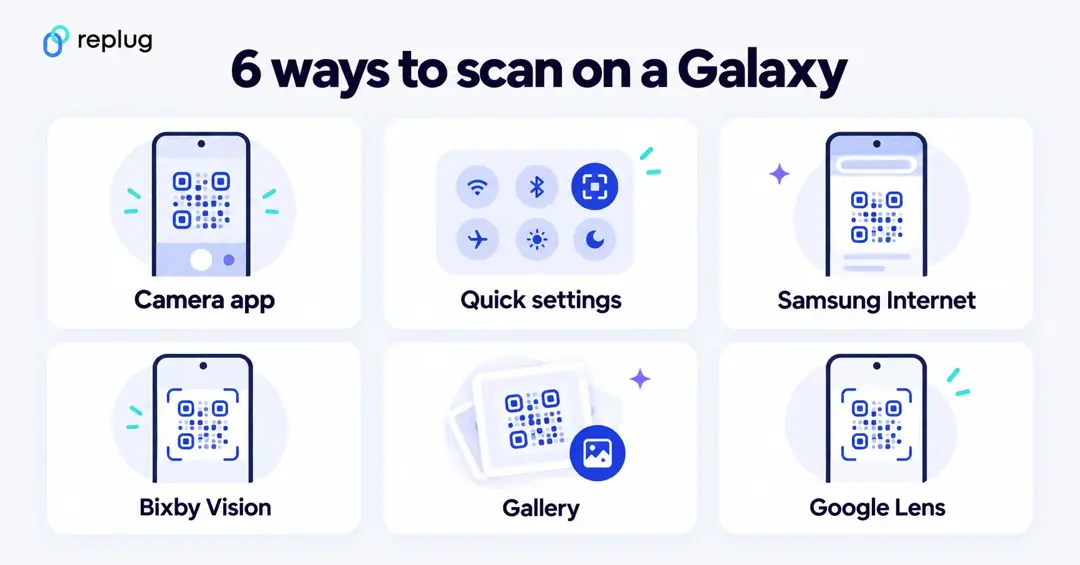
Method 1: Scan a QR Code with the Camera App
Samsung devices come with a native QR code scanner embedded directly in the Camera app. It’s simple, fast, and perfect for everyday use.
- Launch the Camera App: Open your Camera app on your Samsung phone and make sure Photo is selected at the bottom.
- Point at the QR Code: Aim the camera at the QR code, ensuring it’s centered and clearly visible.
- Tap the notification: A pop-up notification will appear once the QR code is recognized. Tap on the notification to open the link or view the encoded information.
If you’d like to test scanning a QR code with your Samsung Camera app, here’s one we’ve created using Replug.io

Note: If the QR code doesn’t scan, make sure the QR code scanner is enabled in your camera settings. To enable it, open the Camera app, tap the Settings icon (the gear) and turn on the switch next to Scan QR codes, as Samsung explains.
Replug goes beyond just creating QR codes. It also provides click tracking and engagement insights, making it an indispensable free link shortener for businesses and marketers.
Method 2: Scan a QR Code with Samsung Internet
Did you know Samsung’s built-in Internet browser also offers a QR code scanner? This method comes in handy if you’re already browsing and come across a QR code.
- Open Samsung Internet: Launch the Samsung Internet app.
- Tap the Menu button: Tap the three horizontal lines at the bottom-right corner to open the menu.
- Enable the QR scanner: Navigate to Settings > Layout and menu > Customize menu. Drag the QR code scanner button into your menu, then go back to the browser (Samsung UK’s guide lists the same path).
- Scan the code: Open the menu at the bottom right and tap QR code scanner to start scanning.
Method 3: Scan a QR Code using Quick Settings
For those times when you need to scan a QR code instantly, Samsung’s Quick Settings feature is a time-saver.
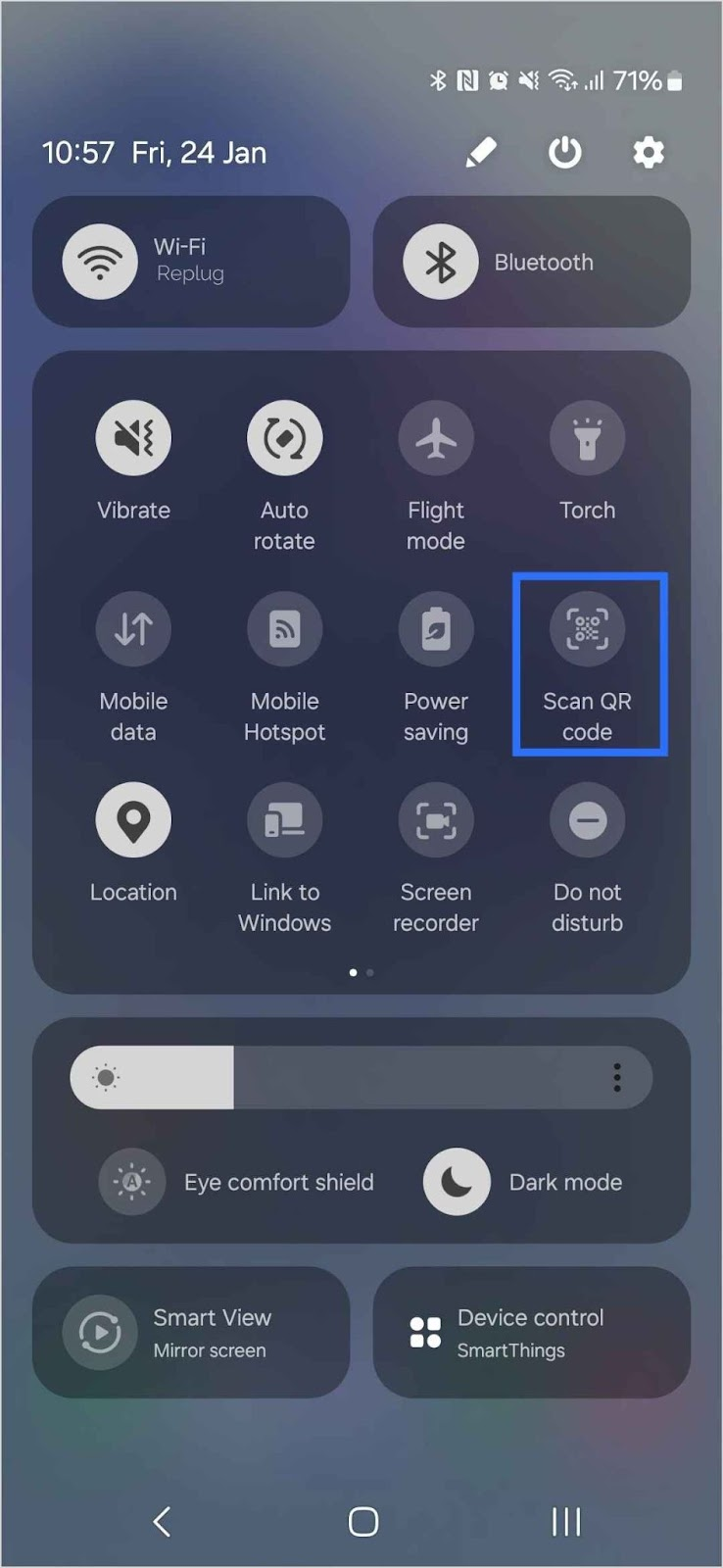
- Swipe down: Using two fingers, swipe down from the top of your screen to open the full Quick Settings panel.
- Locate the QR scanner: Look for the Scan QR Code option. Tap Edit and drag it into your Quick Settings if it’s not visible.
- Tap to scan: Once it’s set up, just tap Scan QR Code. A scanner window opens and reads the code as soon as it’s in focus. According to Samsung, the same window also lets you turn on the flashlight or open the Gallery app to scan a saved image.
Method 4: Scan a QR Code with Bixby Vision
Bixby Vision is a Samsung feature that lets you get more information about the world around you using your phone’s camera. It can also scan QR codes and provide you with the link or content embedded within them.
- Open the Camera App: Launch the Camera app on your Samsung device.
- Activate Bixby Vision: Tap the Bixby Vision icon. You may need to grant it permission if it’s your first time using it.
- Scan the QR Code: Point the camera at the QR code, and Bixby Vision will recognize it.
- Open the link: A pop-up shows the URL or information in the QR code. Tap Open in browser to visit it or Copy to copy the address (Samsung UK).
Note: Bixby Vision may not be available on all Samsung devices. If you don’t see the Bixby Vision icon, check Samsung’s Bixby Vision guide, which notes that available lenses vary by device and software version and that Bixby Vision needs a network connection. If your device doesn’t support it, you can always rely on other methods like the Camera app or Samsung Internet.
Method 5: Scan a QR Code from Photos in Your Gallery
What if you’ve saved a picture of a QR code, and now you need to scan it? No worries! Samsung makes it easy to scan QR codes directly from your photo gallery using Google Lens or Bixby Vision.
Using Google Lens
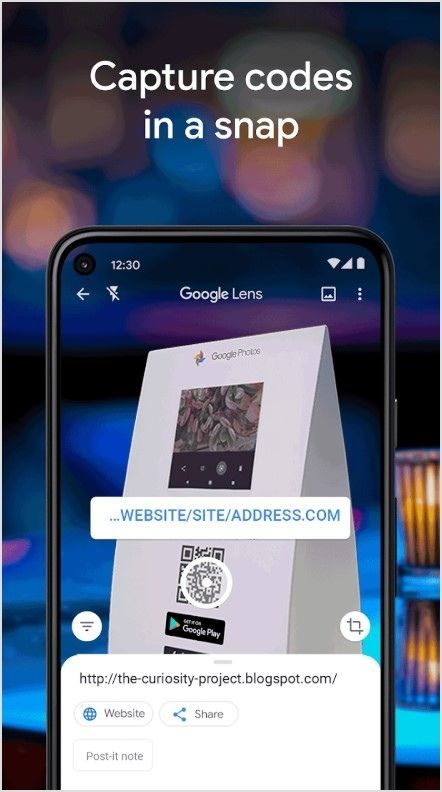
- Open Google Lens: Launch the Google Lens app, or open the photo in Google Photos and tap More > Google Lens (Google Photos Help).
- Select the photo: Choose the image from your gallery that contains the QR code.
- Click the link: Once Google Lens detects the QR code, it will show a clickable link. Tap on it to visit the website.
Using Bixby Vision from the Gallery
- Open Your Gallery: Go to your phone’s gallery and find the saved image.
- Activate Bixby Vision: Tap the Bixby Vision icon on the image.
- Scan and open: Once Bixby Vision detects the QR code, it will present the link. Tap to open it.
The QR code is already on your screen, in a screenshot, an email or a web page? You don’t need a second phone: see our step-by-step guide on how to scan a QR code from a screenshot.
Method 6: Scan a QR code using third-party scanners
If for some reason your Samsung phone doesn’t support the built-in QR code scanner, there’s always the option of using third-party QR code scanning apps. A quick search on the Play Store will give you plenty of reputable options to download and use. Simply install one, open the app, and follow the on-screen instructions to scan any QR code. Pick an app from a developer you recognize, check the permissions it asks for, and skip apps that open links without showing them to you first. The built-in options above already do the job on every recent Galaxy phone.
How to scan a QR code on any Android phone
Not on a Samsung? The same ideas work on Pixel, Motorola, OnePlus and other Android phones. Google’s Android guide to scanning QR codes lists three ways:
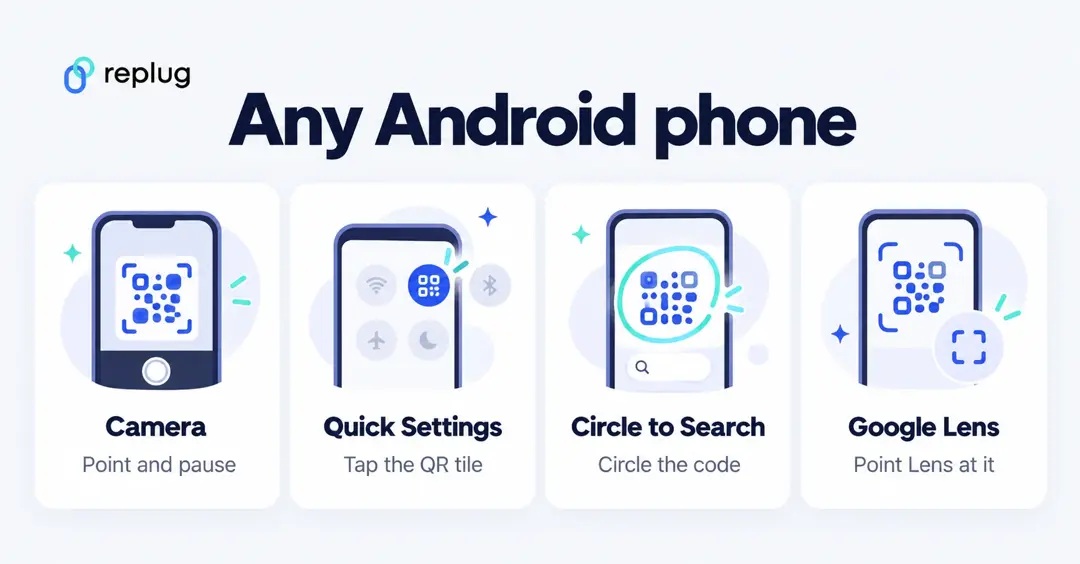
- Camera app: open the camera, point it at the code and pause; a notification shows the link, payment or other details.
- Quick Settings: swipe down from the top of the screen and tap the QR scanner tile, then point the camera at the code.
- Circle to Search (no camera needed): for a code that’s already on your screen, press and hold the home button (or the navigation handle with gesture navigation) and circle the code. It works on select Android devices; search for “Circle to Search” in Settings to turn it on.
- Google Lens: point Lens at the code and it shows the link; it can read several codes at once.
On a Samsung Galaxy, all of these sit alongside Samsung’s own tools, so use whichever is closest to hand.
Where is the QR code scanner on my Samsung phone?
There isn’t a separate scanner app on most Galaxy phones. The scanner is built into the Camera app (Photo mode) and into the Scan QR code button in the Quick settings panel. If you can’t see the button, open the panel, tap the pencil (Edit) icon and drag Scan QR code into your buttons. Galaxy tablets work the same way; Samsung’s guide covers phones and tablets together.
Samsung won’t scan the QR code? Check these first
- Turn on Scan QR codes in the Camera settings (gear icon).
- Use Photo mode, wipe the lens and step back so the whole code, including its white border, fits in the frame.
- Add light: the Quick settings scanner window has a flashlight button.
- Try a second method, such as Bixby Vision or Google Lens, to see whether the problem is the phone or the code.
- If no app can read it, the code itself is probably the problem. Our guide to why a QR code is not working walks through the usual causes.
Smart QR Codes: Track, analyze, and optimize with Replug
QR codes aren’t just for quick link sharing—they’re a strategic tool for tracking engagement and optimizing marketing performance. Whether your audience scans a QR code on an iPhone or a QR code on Samsung devices, Replug helps you gather real-time insights and refine your campaigns for maximum impact.
Every Replug QR code runs through a short link, which is what makes each scan countable: scans and unique scans over time, by country, city, device, OS and browser, according to the Replug QR code generator page. The Free plan includes 10 QR codes.
Why choose Replug for QR code management?
| Feature | What it does | Why It matters |
|---|---|---|
| Real-time tracking | Monitors QR scans, unique clicks, and total interactions. | Understand audience engagement instantly. |
| In-depth analytics | Provides scan locations, device types (including iPhone and Samsung), and referral sources. | Gain insights into how and where your QR codes are being scanned. |
| QR performance charts | Visualizes scan trends over time. | Identify patterns and optimize your strategy. |
| Dynamic QR codes | Allows URL changes without reprinting the code (Scale and Agency plans). | Keep links updated without added costs. |
| UTM codes | Tracks campaign performance across multiple channels. | Measure marketing effectiveness with precision. |
| Multiple download formats | Exports QR codes in high-quality formats (SVG, PNG, JPEG). | Maintain a professional and branded appearance. |
Final Thoughts
With all these options available, scanning QR codes on your Samsung phone has never been easier! Whether you’re using the Camera app, Samsung Internet, Quick Settings, Bixby Vision, or even third-party apps, you’ll be able to scan codes in no time.
Now that you’ve mastered QR code scanning, it’s time to enjoy seamless access to links, promotions, and content on the go.
FAQs for how to scan a QR code on Samsung

Amna Yawar