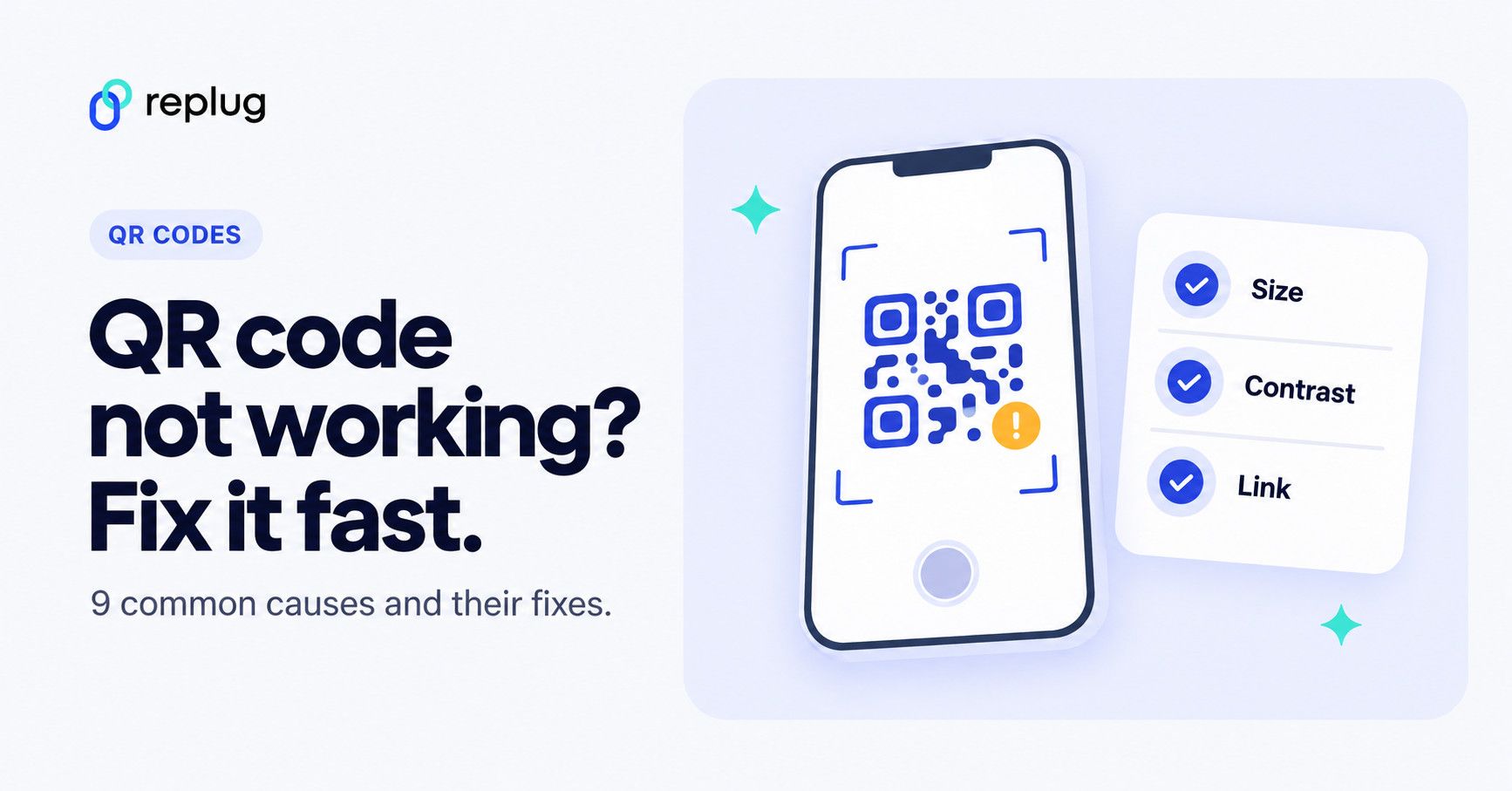
Ever had trouble scanning a QR code? It’s frustrating, right? These little black-and-white squares are supposed to make things easier, but sometimes they just don’t cooperate. Well, don’t worry – we’re here to help you figure out what’s going on.
QR codes are everywhere these days – on ads, products, and even restaurant menus. They’re meant to be a quick and easy way to access information or make payments. But when they don’t work, it can be a real headache.
In this guide, we’ll walk you through nine common reasons why your QR code might not be scanning properly. Whether you’re a business owner trying to improve customer experience or just someone trying to scan a code for the first time, we’ll help you troubleshoot the problem. Let’s get started!
Quick answer: a QR code usually fails for one of two reasons. Either the code can’t be read (too small, low contrast, inverted colors, no white border, damaged or blurry print, too much data), or it reads but the link fails (the dynamic code was deactivated or its subscription ended, or the destination page is broken). First scan it with a second phone or app: if nothing can read it, fix the code; if it opens an error page, fix the link or the account behind it.
Quick troubleshooting checklist
| What you see | Likely cause | What to do |
|---|---|---|
| Camera doesn’t react at all | Scanning is off, code too small or too far, glare | Turn on QR scanning in the camera, move closer, add light, tilt to remove glare |
| Only some phones read it | Low contrast, inverted colors, tiny modules | Print dark on light, larger, with a clear margin |
| It used to work and stopped | Dynamic code deactivated, trial or subscription ended | Check the QR code account; reactivate or move to a code you control |
| It opens an error or “disabled” page | Expired campaign or broken destination URL | Fix the destination or the account behind the code |
| It opens the wrong page | Old link in a static code, wrong URL typed | Regenerate the code, or edit the destination if the code is dynamic |
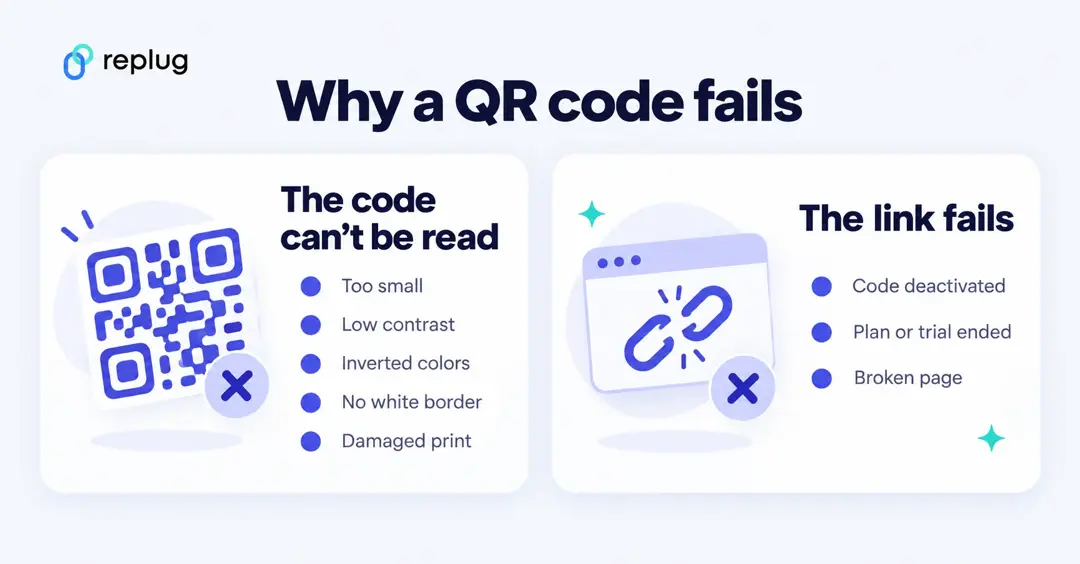
9 reasons why your QR code is not working:
1) Blurry QR code
- Issue: A blurry QR code is often caused by downloading or resizing it incorrectly, leading to a loss of image quality.
- Impact: A scanner may struggle to interpret a blurry QR code, resulting in scanning failures.
- Solution: Always test printed QR codes and ensure they’re of high quality. Download in formats like SVG or PNG to maintain resolution.
2) Color inversion
- Issue: Inverting colors, such as having a dark background with a light foreground, makes the QR code unscannable for many scanner apps; some phone cameras read it, others don’t.
- Impact: QR code scanners expect a dark foreground on a light background for optimal scanning.
- Solution: Stick to the classic white background with a black foreground for maximum compatibility.
3) Small QR code size
- Issue: QR codes below about 2 x 2 cm, the minimum Bitly’s size guide gives for phone scanning, may not scan reliably, impacting readability and functionality.
- Impact: Tiny QR codes may go unnoticed or fail to scan, especially on marketing materials.
- Solution: Adjust QR code size based on usage and location, ensuring it’s noticeable and meets minimum dimensions. As a rule of thumb, make it about one tenth of the scanning distance; our QR code size guide has sizes by medium.
4) Contrast issues
- Issue: Lack of contrast between the QR code and background can hinder scanning, especially with dull or blended colors.
- Impact: QR codes blending into backgrounds or lacking contrast may be overlooked or fail to scan.
- Solution: Make the code much darker than the background (black or a deep brand color on white or a pale tint) for optimal visibility. Avoid over-customization that compromises scannability.
5) Incorrect placement
- Issue: QR codes placed too high, too low, or behind reflective surfaces may not be noticed or scanned effectively.
- Impact: Poor placement diminishes QR code visibility and accessibility to users.
- Solution: Position QR codes at eye level, ensuring they’re noticeable and not obstructed by reflective surfaces.
6) Overcrowding
- Issue: Overloading QR codes with excessive content reduces scanning efficiency and compromises readability.
- Impact: Crowded QR codes take longer to scan and may cause scanning errors due to reduced quiet space and corner visibility.
- Solution: Keep QR codes neat and concise to facilitate faster scanning and maintain scanning accuracy. Encode a short link instead of a long URL, and leave the blank margin four modules wide that DENSO WAVE requires around every QR code.
7) Expired QR code
- Issue: QR codes created as dynamic codes depend on the service behind them. Some generators deactivate codes when a free trial or subscription ends or a scan limit is reached, and the code then opens an error or “campaign disabled” page instead of your content.
- Impact: Users may unknowingly scan expired QR codes, resulting in incorrect or inaccessible information.
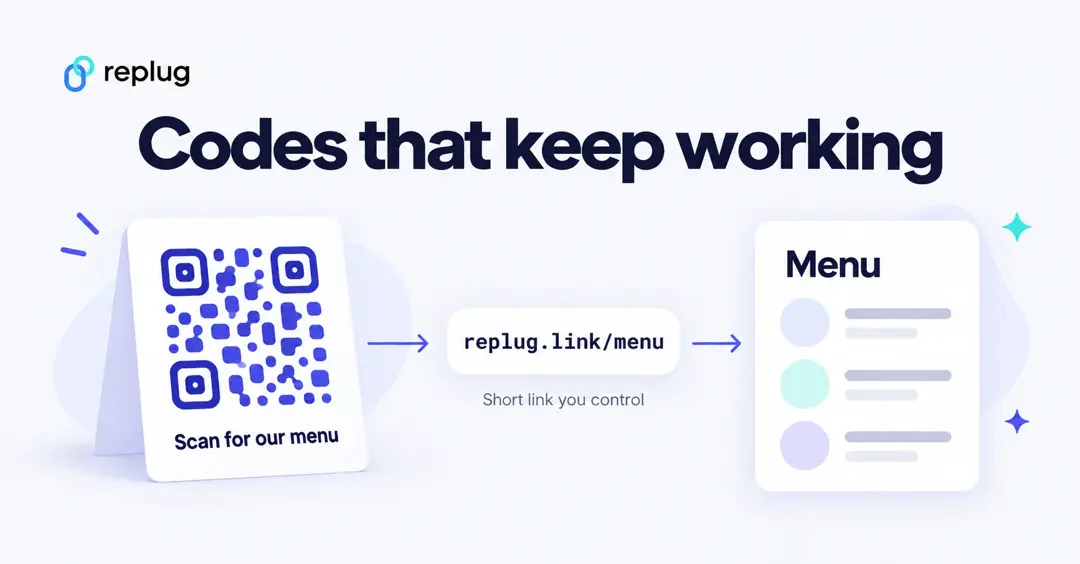
- Solution: Read your generator’s terms before you print, and use one whose codes keep working. With Replug.io, links keep working if you reach a plan limit, according to Replug’s pricing page, and every QR code runs through a short link on your own domain if you add one. Regularly test QR codes to ensure they remain functional and avoid expiration-related problems.
8) Broken links
- Issue: QR codes directing users to broken or non-existent web pages due to URL errors or website malfunctions.
- Impact: Broken links frustrate users and diminish trust in QR code campaigns, resulting in poor user experiences and wasted opportunities.
- Solution: Thoroughly test QR code links to ensure they lead to functional and relevant web pages. Employ dynamic QR codes to modify destinations as needed, preventing link rot and ensuring continued usability (in Replug, editing a printed code’s destination is on the Scale and Agency plans).
9) Over-customization
- Issue: Excessive customization of QR codes, such as complex data patterns, dark background images, or unreadable URLs, can hinder scanning reliability.
- Impact: Overly customized QR codes may become unrecognizable to scanners, reducing scan success rates and compromising campaign effectiveness.
- Solution: Strike a balance between customization and scannability by avoiding elements that obscure QR code data or alter its fundamental structure. Stick to simple customization techniques like adding logos or adjusting colors while maintaining code readability and functionality.
Additional tips for troubleshooting QR code scanning issues
Check camera settings
- Issue: Camera settings on your device may affect QR code scanning performance, especially if QR code scanning is turned off.
- Solution: On a Samsung Galaxy, open the Camera app, tap the Settings icon and turn on Scan QR codes (Samsung). On an iPhone or iPad, use the Camera app in Photo mode or add the Scan Code control to Control Center (Apple). More Samsung options are in our guide to scanning a QR code on Samsung and Android.
Try a third-party QR code scanner
- Issue: Built-in QR code scanners on iPhones or Android devices may not always provide optimal scanning results.
- Solution: Experiment with third-party QR code scanner apps available on your device’s app store. Choose apps with high ratings and positive user reviews for improved scanning accuracy and reliability. You can also try a web-based QR code scanner to quickly see which link a code contains.
Automate and validate your QR codes
Issue: Manual testing of QR codes can be time-consuming and prone to human error.
Solution: If you manage many codes, use an automated test that scans each code, follows the redirect and checks that the final page loads, so you get consistent results across devices and environments.
QR code says “deactivated” or “campaign disabled”?
If the scan opens a page saying the code is deactivated, expired or that the “QR code campaign has been disabled”, your camera is fine. The code is dynamic, and the service behind it has stopped redirecting it. That usually happens when a free trial ends, a subscription lapses or a scan limit is reached.
- If it’s your code: log in to the generator you used and check the code’s status and your plan. Reactivating the account or plan usually brings the code back, because the short link inside it is the same.
- If you can’t reactivate it: make a new code with a generator you control and reprint. Next time, point the code at a short link on your own domain, so you can move it to another service without reprinting.
- If it’s someone else’s code: there’s nothing to fix on your phone. Let the business know, or type the web address if it’s printed nearby.
QR code scans but the page won’t load
- Open the link on another network (Wi-Fi vs mobile data) to rule out a blocked or slow connection.
- Check the destination URL for typos, expired pages or a site that’s down. A dynamic code lets you fix the destination without reprinting.
- If the page is only available in some countries or on some devices, the code works but the content doesn’t. Routing rules can send each visitor to a page that works for them.
- If people scan from a phone, make sure the page works on a phone.
Your phone won’t scan any QR codes
When every QR code fails on one phone, the code isn’t the problem:
- Clean the camera lens and use Photo mode, not Portrait or Video.
- Hold the phone so the whole code, including its white border, is inside the frame, then move back if it won’t focus.
- Turn on QR scanning in the camera settings (Samsung: Camera → Settings → Scan QR codes).
- Try another built-in option: the Scan QR code button in Quick Settings on Android, or the Scan Code control in Control Center on iPhone.
- Restart the phone and update the system and camera app.
- If the code is a sharp print but looks soft in the viewfinder, see how to fix a blurry QR code for the camera-side fixes.
Unlock limitless possibilities with Replug’s QR code generator
Elevate your QR code game with Replug’s dynamic QR code generator, seamlessly integrated to enhance audience interaction in the digital age. Craft instant QR codes effortlessly, linking physical spaces to your digital content, promotions, and experiences. Every code is tracked from the first scan and runs through a short link, so you can see when a code stops getting scans and, on Scale and Agency, point it to a new page without reprinting.
Transform the way you connect with your audience – unlock the potential of QR codes with Replug today. Start by using Replug’s free link shortener to create branded, trackable links that seamlessly integrate with your QR campaigns.
Final words:
Resolving QR code scanning issues requires a combination of understanding common problems and implementing effective solutions. By addressing issues like blurry codes, color inversion, size constraints, contrast issues, incorrect placement, overcrowding, expired codes, broken links, and over-customization, you can ensure that your QR code campaigns remain functional and user-friendly.
Furthermore, don’t forget to check your device’s camera settings and consider using third-party QR code scanner apps for enhanced scanning accuracy. With these tips in mind, you can overcome any challenges and leverage the full potential of QR code technology in your business or personal endeavors.
Frequently asked questions

Manahil