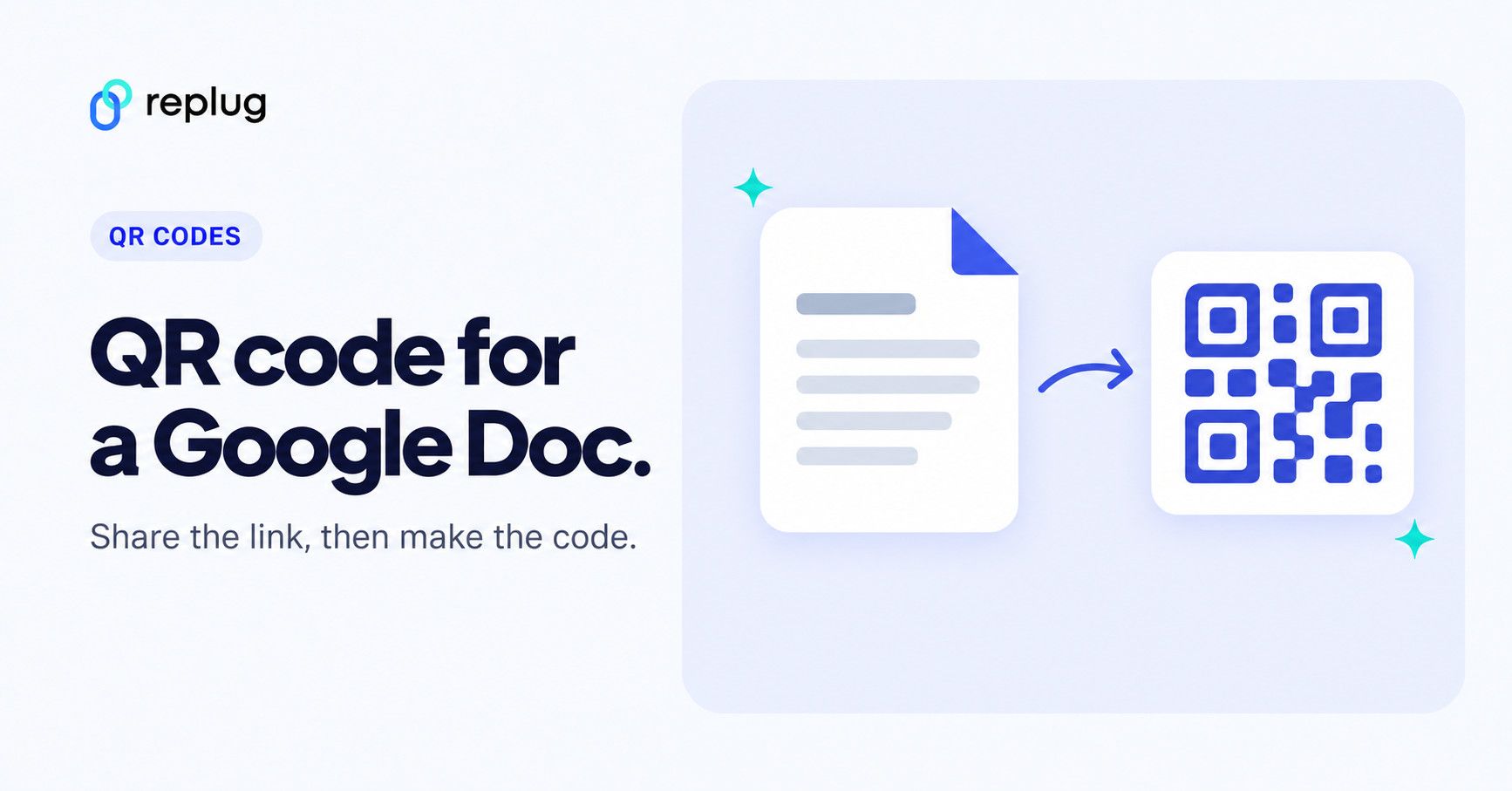
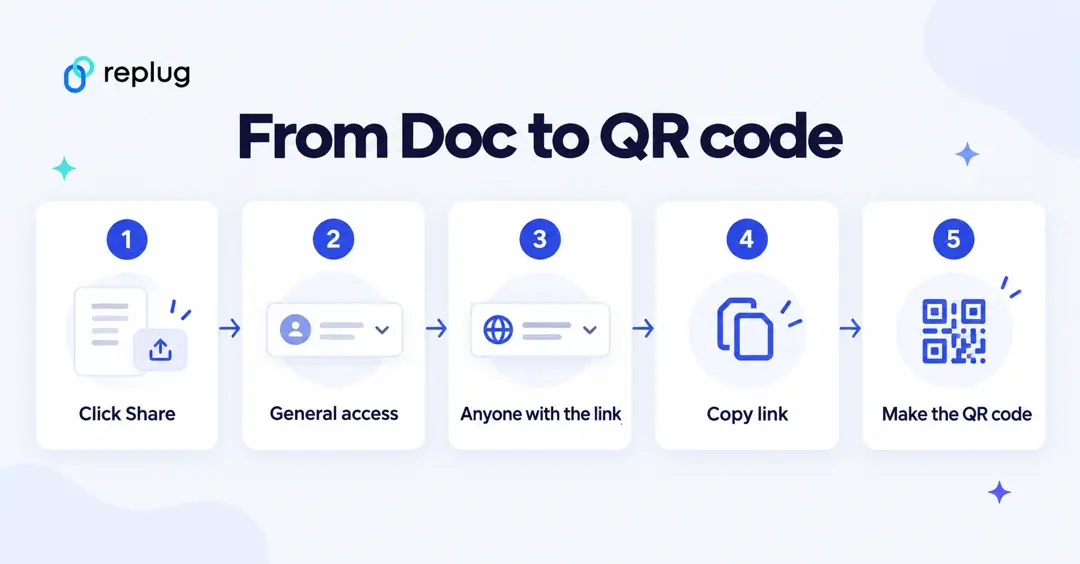
Google Docs has no “make QR code” button, so you make the code from the document’s link. Set the Doc’s sharing to “Anyone with the link”, copy the link, then turn it into a QR code: Google Chrome can make a basic one from its menu, or a QR code generator such as Replug can make a dynamic code you can track and update. Then download the image and print it, show it on a slide or insert it into another document.
This guide shows both ways step by step, plus how to put the QR code inside a Google Doc and how the same steps work for Google Sheets, Slides and Drive files. If you’re new to it, start with how to make a QR code with Replug.
Disclosure: this is Replug’s blog, and Replug, which makes QR codes, is our product.
What is a QR code for Google Docs?
A QR code for Google Docs is a QR code that contains the link to your document. When someone scans it with a phone camera, the Doc opens in their browser or the Google Docs app, if your sharing settings let them in.
While there are multiple uses of QR codes, a QR code for Google Docs is especially useful for:
- Sharing meeting notes or an agenda during a conference
- Giving students quick access to assignments and reading lists
- Linking to a handout from presentation slides
- Putting a sign-up sheet, menu or price list on a poster without typing a long link
First, get a link people can open
A QR code only opens the Doc for people who are allowed to see it. According to Google Drive Help, to share with anyone who has the link:
- Open the Doc and click Share in the top right.
- Under General access, click the down arrow and choose Anyone with the link.
- Choose the role (Viewer, Commenter or Editor). For a printed code, Viewer is usually the safe choice.
- Click Copy link.
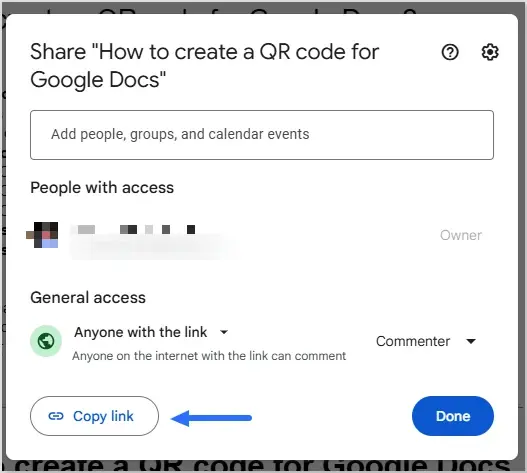
If you leave access Restricted, only people you added (signed in to their Google Account) can open it; everyone else sees a request-access page after scanning.
How to make a QR code for a Google Doc using Google Chrome?
Chrome can turn the page you are on into a QR code, no extra tool needed. The steps from Chrome Help (“Share tabs in Chrome”):
- On a computer: open the Doc in Chrome, select More (three dots) → Cast, save, and share → Create QR code. You can copy the link, download the QR code or scan it with another device’s camera.
- On Android: open the Doc in Chrome, tap More → Share… → QR Code, then follow the on-screen steps to share or download it.
- On iPhone or iPad: open the Doc in Chrome, tap Share → Create a QR Code, then tap Share below the code.

Some Chrome versions also show “Create QR code for this page” when you right-click a page; Chrome Help documents the menu route above.
This method is quick, but the code is static: it contains the Doc’s link itself, so you can’t change where it points, count scans or style it. If you need those, use a QR code generator such as Replug’s custom QR code generator.
Read also: How to make a QR code for Google Forms?
How to make a QR code for a Google Doc using Replug?
1. Copy your Google Docs URL
Set General access to Anyone with the link and click Copy link, as shown above.
2. Open your Replug dashboard
Log in to your Replug account or create one. The Free plan includes 10 QR codes, and paid plans start with a 14-day trial, according to Replug’s pricing page.
3. Create a QR code for your Google Docs
- Click QR Codes in the left menu, then Create new and Start blank.
- Select Website and paste your Doc link into Destination URL. Pick a campaign and, if you like, tags.
- Under Design, change the shape and colors, add a frame with a short call to action such as “Scan for the agenda”, or add your logo (colors, shapes and frames are on Essentials and up; a logo is on Scale and Agency).
- Click Create QR Code, then Download and choose SVG, PNG, JPEG or WEBP. Use SVG or a large PNG for print.
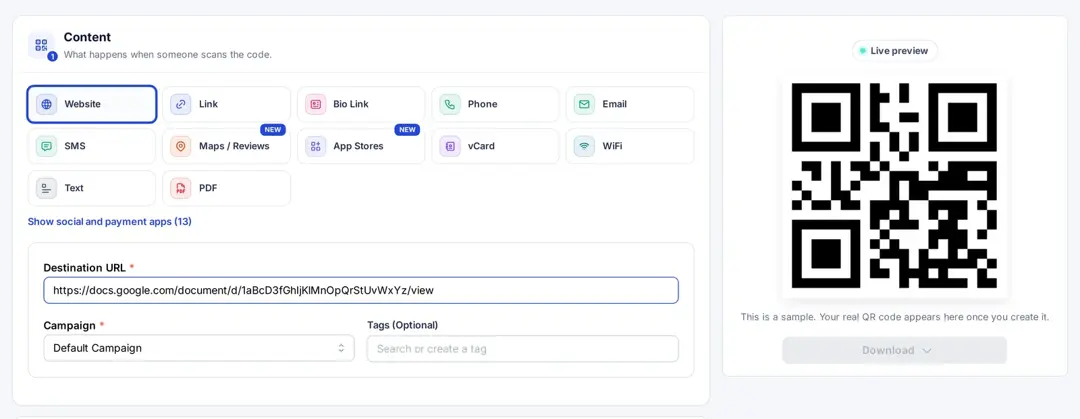
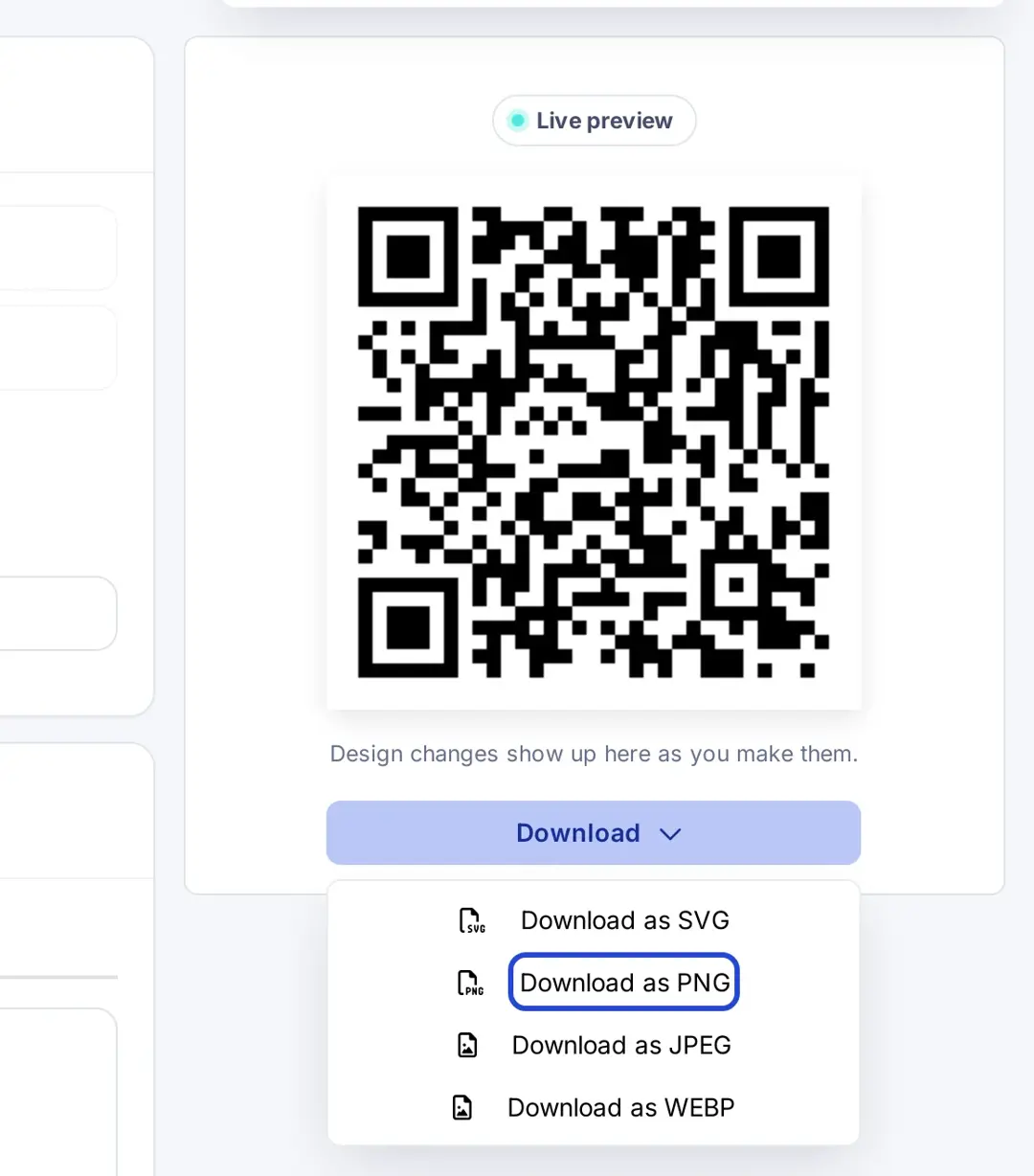
Test the code with your phone while signed out of Google (or in a private browser tab) to be sure people outside your organization can open the Doc.
Put the QR code inside a Google Doc
To show the code in a document (a handout, a sign-up sheet, a lesson plan), download it as PNG and insert it. According to Google Docs Editors Help, click Insert → Image and choose Upload from computer, or pick it from Drive & Photos if you saved it to Drive.
Google Sheets, Slides and Drive files work the same way
A Google Sheet, Slides deck, Form or any file in Google Drive has a share link too, so the steps are the same: set General access, copy the link, make the QR code. To send the link as text instead, you can shorten the Drive share link. Forms are the exception: you share the responder link after publishing, as our guide to QR codes for Google Forms explains. More on spreadsheets: How to make a QR code for Google Sheets?
Why use Replug for QR code generation?
Replug makes QR code generation simple, with trackable codes that support your QR code marketing. According to Replug’s pricing page and the editor:
- Customization: change shapes, colors and frames to match your brand identity (Essentials and up), and add your logo (Scale and Agency).
- Analytics and tracking: see scans, total and unique clicks, countries, cities, devices, operating systems and browsers. History is 14 days on Free, 90 days on Essentials and unlimited on Scale and Agency.
- Print-ready downloads: SVG for print, PNG, JPEG or WEBP for screens.
- Easy management: keep codes in campaigns and tags, next to your short links and bio pages.
- Editable destinations: every Replug code runs through a short link; changing where a printed code points is on Scale and Agency.
- Links keep working: Replug says links keep working if you reach a plan limit.
Benefits of using a QR code for Google Docs
- Quick access: no typing long URLs; one scan opens the document.
- Easy for everyone: most phone cameras read QR codes without an extra app.
- Fewer typos: people land on the right document instead of mistyping a link.
- Works in the room: put the code on a slide, a poster or a table card and everyone can open the Doc at once.
- Less printing: share a long handout as a link instead of copies.
A word on safety: the FBI warns that criminals tamper with QR codes to send people to fake sites, and advises checking the web address after scanning (FBI public service announcement). People can see that your code opens docs.google.com, or your own branded short link if you use one.
Conclusion
To make a QR code for a Google Doc, set sharing to “Anyone with the link”, copy the link and turn it into a QR code with Chrome (quick and static) or a generator like Replug (trackable, with design options). Test it signed out before you share it.
Also, check out our short URL generator to create clean, branded links that complement your QR codes.
Frequently asked questions

Amna Yawar