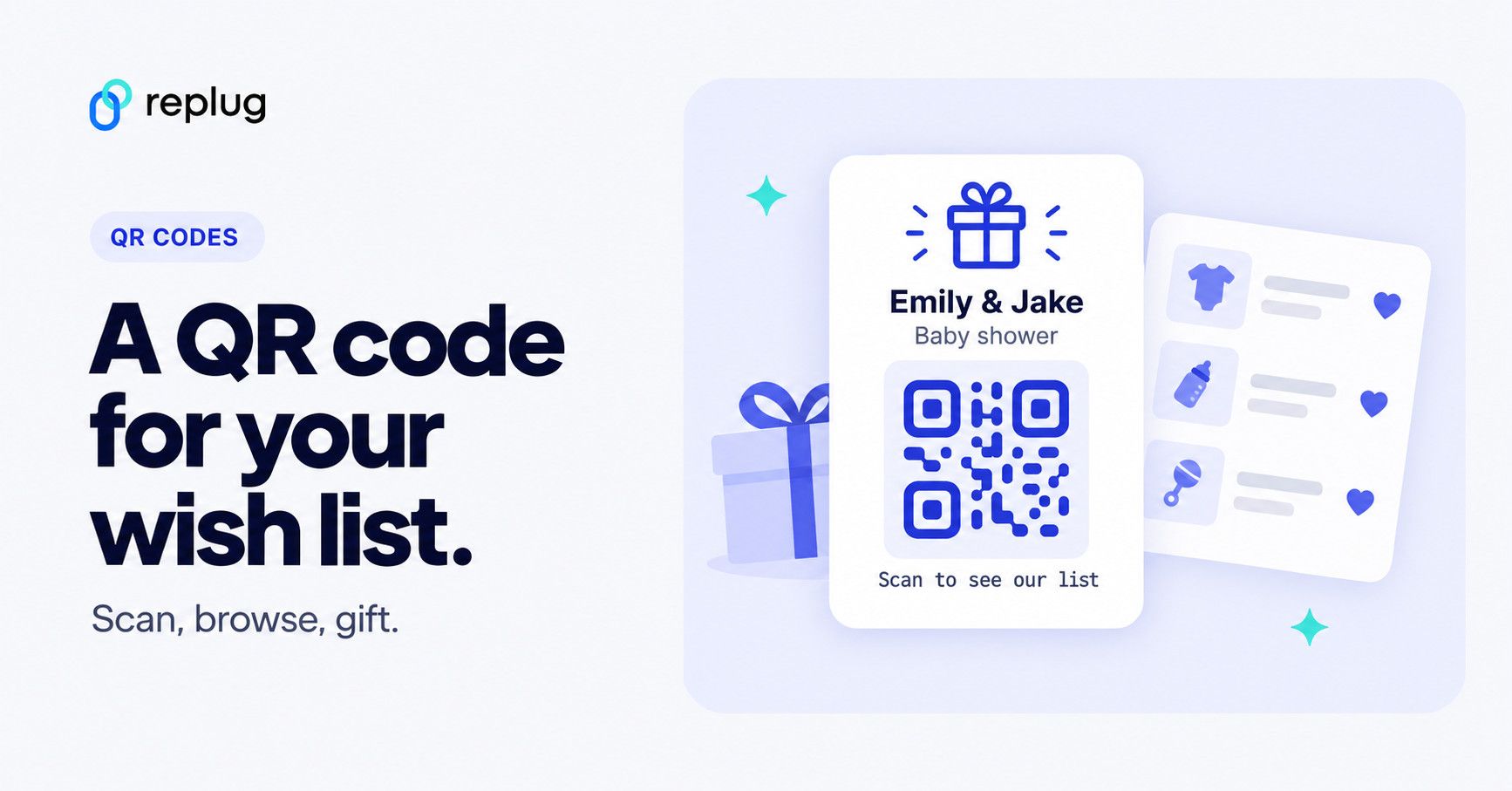
Quick answer: to make a QR code for your Amazon Wish List, copy the list’s share link (Your Lists → pick the list → + Invite or the share icon → View only → copy the link), paste it into a QR code generator such as Replug’s free QR code generator as a Website code, then download the code and test it with your phone camera before you print it. The same steps work for an Amazon baby registry or gift list, as long as it isn’t set to Private.
Amazon Wish Lists feel like mini mood boards for life’s special moments; from baby showers, to birthdays and weddings. Creating this Wish List is often the fun part; picking out things you love, imagining them in your life, and sharing that excitement with the people who care. But, sharing a messy Amazon Wish List URL into every invite or group chat? Not exactly pretty.
So, instead of sending long, clunky URLs, why not create a beautiful, scannable QR code your friends and family can use instantly?
In this guide, you’ll discover how to make a QR code for Amazon Wish List with Replug so you can share your list easily, track its analytics, and keep it updated anytime.
Let’s begin!
Why create an Amazon Wish List QR code
A Wish List isn’t just a list of things; it’s part of the excitement around big moments and small celebrations.
Creating a gift registry QR code means your guests, friends, or followers don’t have to copy-paste long URLs. Instead, they can scan and instantly see your Wish List from anywhere: wedding placards, baby shower invites, thank-you cards, or even an Instagram story. It’s the easiest way to make your Wish List feel modern, thoughtful, and completely your own.
With Replug, your QR code can be:
- Dynamic, so you can change the destination URL of your Amazon Wish List without needing to recreate or resend your QR code (destination edits are on the Scale and Agency plans).
- Branded, with your colors, logo, and style.
- Trackable, so you know how many times it’s been scanned and from where.
Now, let’s move on to how you can make an Amazon Wish List QR code using this efficient link management platform.
How to make a QR code for Amazon Wish List with Replug
Step 1: Find and copy your Amazon Wish List URL
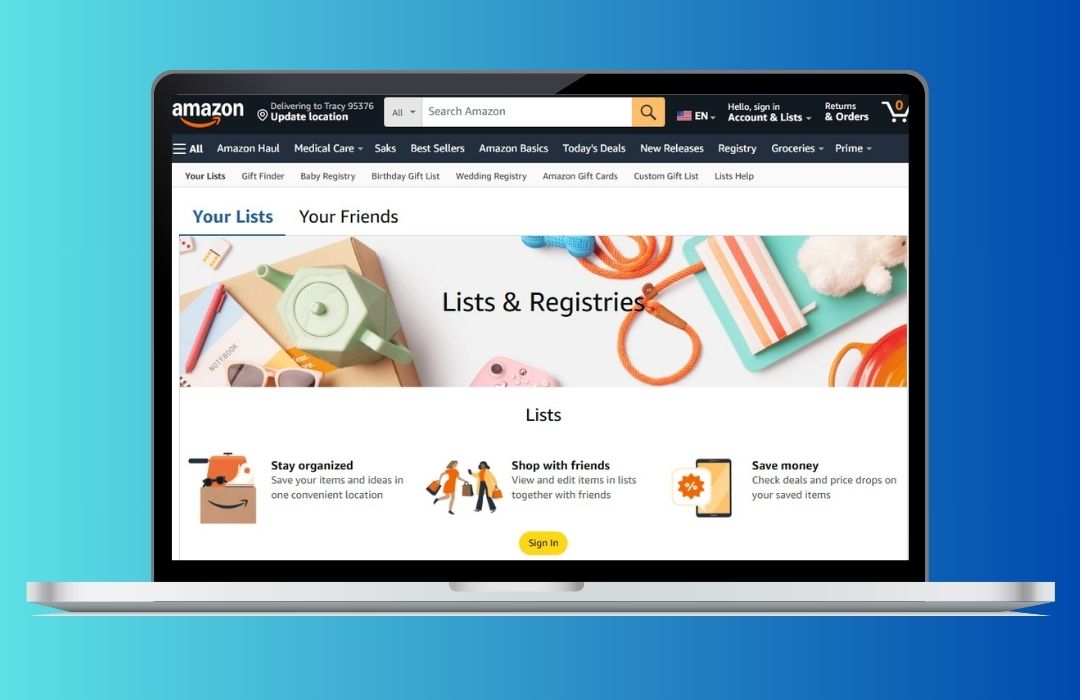
First, you’ll need your Wish List link:
- Log into Amazon and click ‘Accounts and Lists’ on the top right.
- Pick ‘Wish List’ or ‘Your Lists’ to see what you’ve already created.
- Choose permissions: View only (great for sharing) or Edit (if you want others to add items).
- When you’re ready to share, simply click the “Invite” button at the top of your list. From there, you can copy the link directly or send it using the “Email” or “Text Message” options.
Tip: For smooth sharing, set your list to Public or Shared. Go to the three dots > Manage List to check this.
Amazon’s current steps (Amazon Help, checked October 2026):
- Go to Your Lists and select the list you want to share.
- Select + Invite or the share button (the arrow or share icon).
- Choose View only (anyone with the link can see the list but can’t edit it) or View and edit (people you invite can add or remove items).
- Copy the link, or select Invite by email.
If your list was set to Private, inviting people changes it to Shared. You can also select Send list to others at the top of the list and copy the link from there. For a QR code, use the View only link: it lets guests see the list without changing it. Source: Amazon Help, Share Your List.
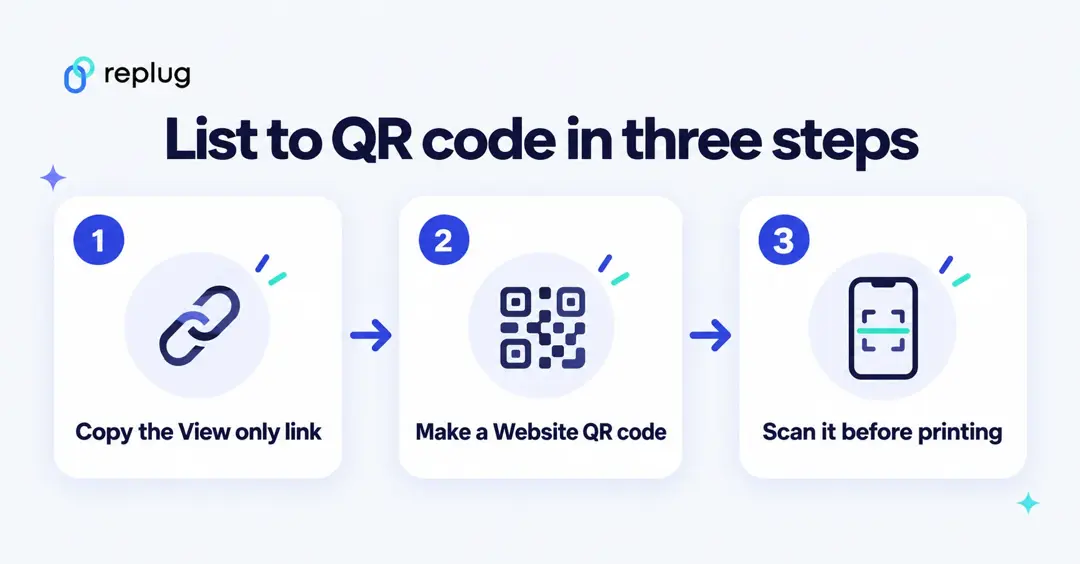
Step 2: Generate your Amazon Wish List QR code in Replug
Now for the fun part!
- Sign in to the Replug app. If you don’t have an account, sign up for the free plan (10 smart QR codes, no card needed); paid plans come with a 14-day trial (per Replug’s pricing page)
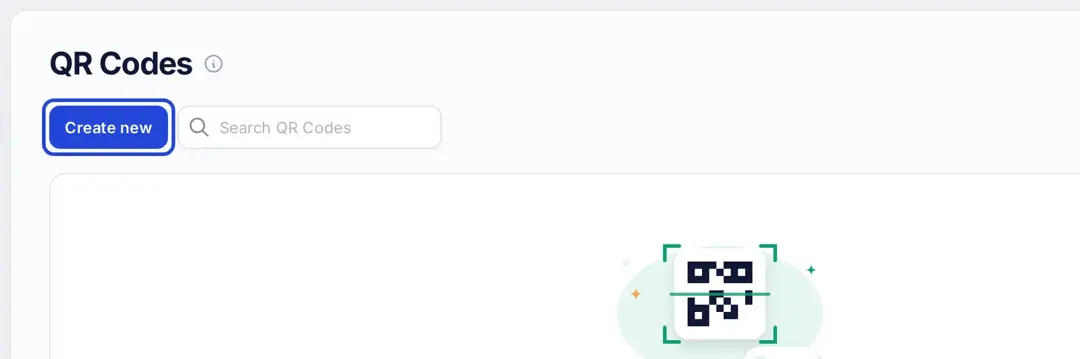
- Click “QR Codes” on the left, then hit “Create new” and pick “Start blank” (or one of the ready-made templates)
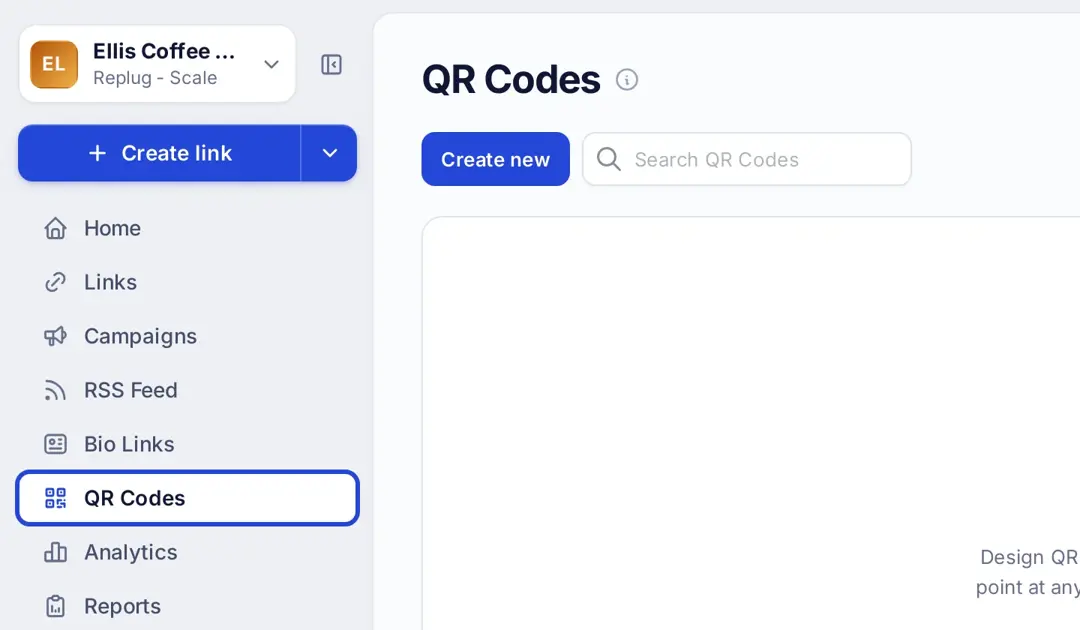
- Under “Name and notes”, add a title and description (optional) for your Amazon Wish List QR code
- Choose “Website” as your QR code type and paste in your copied Amazon Wish List URL in the “Destination URL” bar
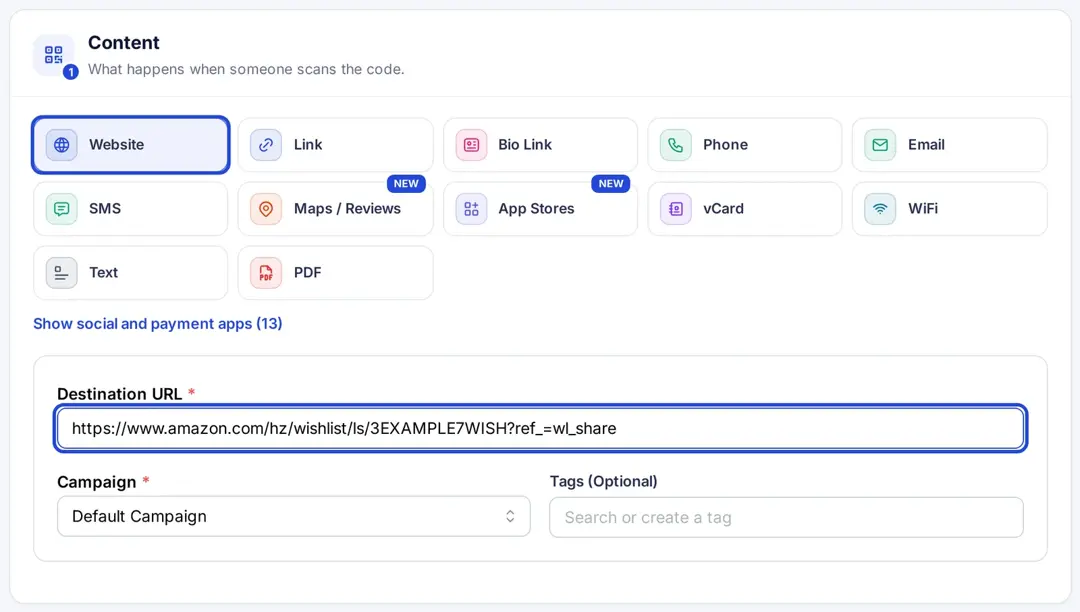
- Connect it to a campaign if you want (optional)
In seconds, you’ve got the start of a Wish List QR code you can make yours uniquely.
Step 3: Customize your QR code
A black-and-white square works, but why stop there?
- Choose frames, shapes, and colors that match your event theme
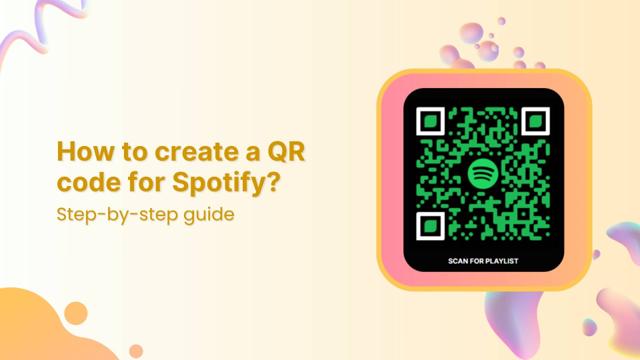
Upload your logo or icon - Add call-to-action text like “Scan for Wish List” (pick a frame under Design → Frame, then type it in Frame Text)
Replug makes it easy to create visually appealing QR codes, perfect for wedding invites, e-commerce QR codes, or even baby shower signs.
Plan note: custom colors, shapes and frames start on the Essentials plan, and adding your logo is on the Scale and Agency plans. Website, short link and Bio Links QR codes are included on every plan, per Replug’s QR code generator page.
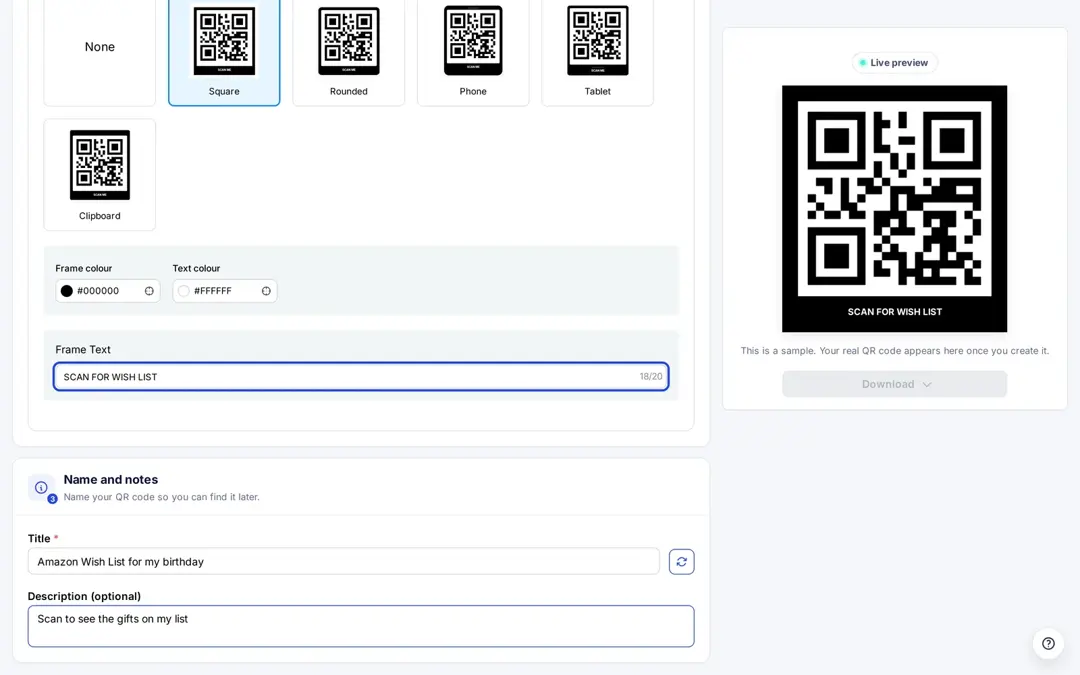
Step 4: Download, scan, and test your Amazon Wish List QR code
Once you love how it looks:
- Click “Create QR code,” then download your design as PNG or JPEG (for screens) or SVG or PDF (for print), the formats listed on Replug’s QR code page.
- Scan it yourself (and ask a friend too) to make sure it opens your Amazon Wish List exactly as you want.
Whether it’s going on printed invites or digital posts, testing gives peace of mind.
Step 5: Cloak your link (optional)
If you’d like, you can cloak the long Amazon link behind a branded, clean URL:
- In Replug’s dashboard, locate your Amazon Wish List link and click “Edit.”
- Connect a custom domain and choose a short, branded slug.
- Toggle Link Cloaking and save your shortened URL.
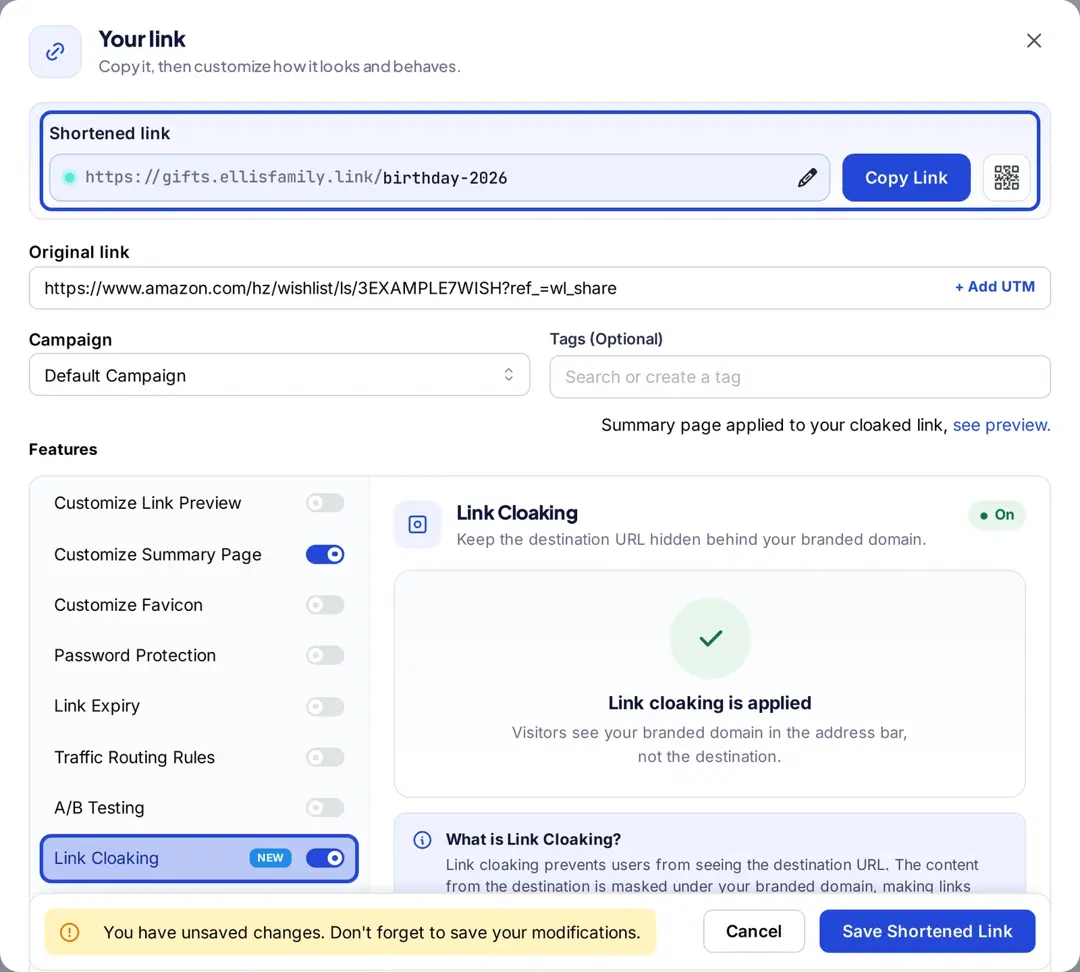
Now your QR code points to a short and memorable URL. Once the user clicks your shared link, they will see your cloaked URL in the browser.
Good to know: cloaking shows the destination inside a frame under your link, and many sites don’t allow that. In our October 2026 check, Amazon’s wish list pages sent an X-Frame-Options: SAMEORIGIN header, which tells browsers not to show them inside another site, so for an Amazon list a branded short link without cloaking is the reliable choice. Link cloaking is on the Scale and Agency plans.
Step 6: Track scans and update anytime
Here’s where Replug really shines with its editable QR codes. You can:
- See real-time data: total QR scans, clicks, devices, location, and referrals.
- Discover your top channels: Use it to spot which channels work best (like email, Instagram, or printed cards).
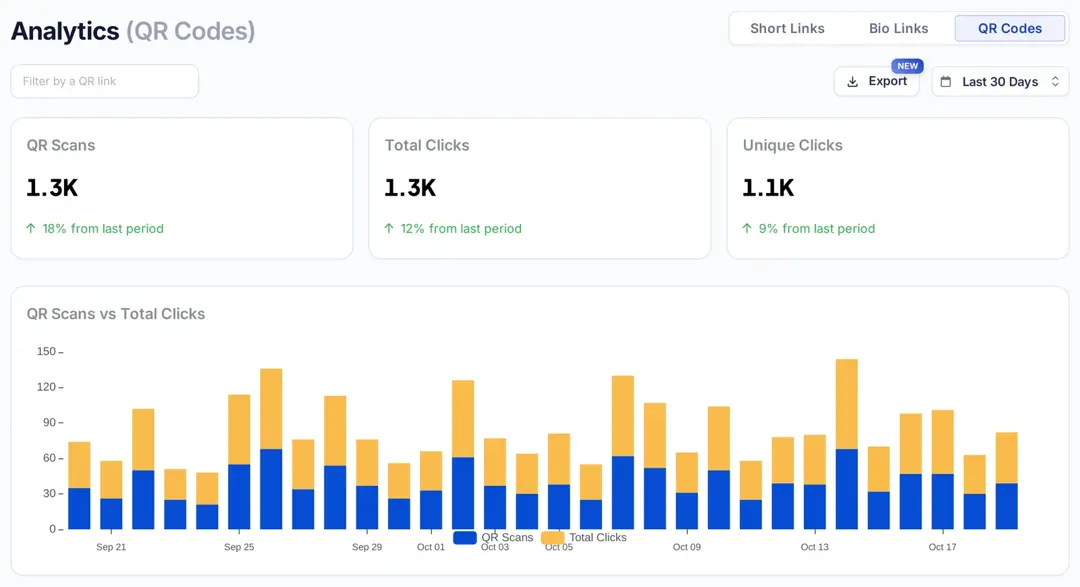
So you’re not just sharing; you’re learning what works.
Read also: How to create a QR code for a business card?
How to make a QR code for an Amazon registry
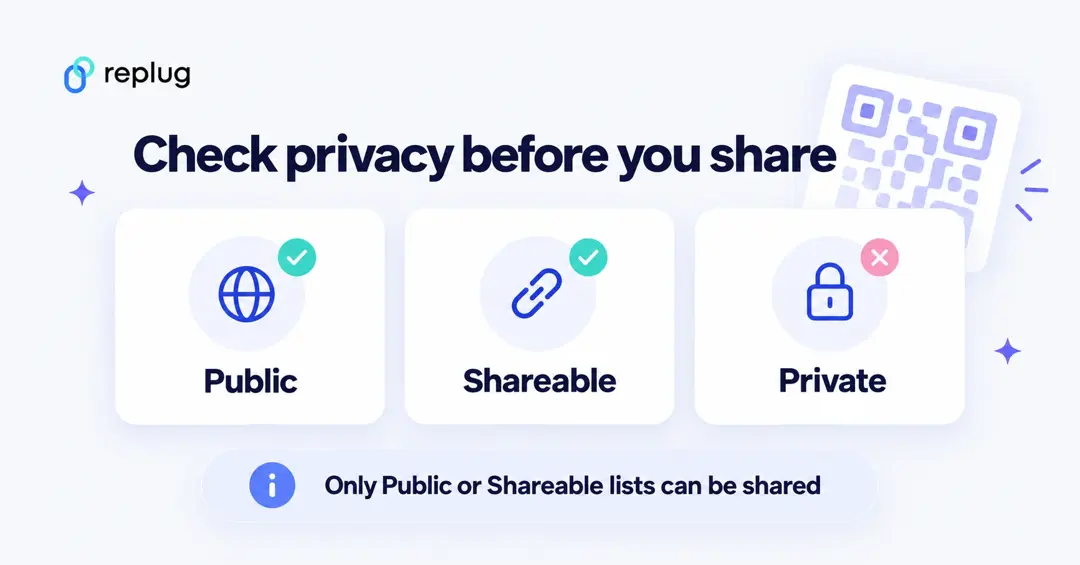
Baby registries, wedding registries and gift lists work the same way: get the share link, then turn it into a QR code. The one catch is privacy. Amazon won’t let you share a registry that is set to Private.
Baby registry
- Go to your Baby Registry and select Share in the top menu.
- Copy the registry link that appears (Amazon also shows buttons for social networks).
- Paste the link into your QR code generator as a Website code.
Source: Amazon Help, Share Your Baby Registry. If the Share option doesn’t work, change the registry’s privacy setting first.
Gift list (birthdays, graduations and other occasions)
- Go to Your Registries & Gift Lists and select the gift list.
- Select Share Your Gift List under the list’s title, or the share icon on desktop, and copy the link.
- Create the QR code from that link.
A new gift list starts as Private. To change it, open the list, select Settings and choose Public or Shareable under “Your Gift List Privacy” (Share Your Gift List, Change Your Gift List Privacy Settings, Amazon Help). For a wedding registry, use its share option the same way.
Guests who don’t have your QR code can still look up a public registry: Amazon’s Find a registry search lets people search by name for a wedding registry, baby registry or gift list (About Amazon). Wish lists are different: Amazon Help says that to see a friend’s list, you ask them to share it (Find a List). That’s exactly why a QR code on your invitation is useful.
Test it before you print
- Scan the code from the printed proof, not just from your screen, with both an iPhone and an Android phone if you can.
- Open the link while signed out of Amazon (or in a private browser window) to see the list the way a guest will.
- Print the code large enough to scan from where people will stand, with a plain margin around it, and add a line such as “Scan to see our registry.”
- Keep a short link next to the code for anyone who can’t scan it.
Creative ways to share your Amazon Wish List QR code
Your QR code isn’t limited to invitations or cards. You can share it almost anywhere people already connect with you:
- Print it on wedding invitations, baby shower cards, or birthday party stationery
- Add it to thank-you cards, menus, seating charts, or event signage so guests can scan it right at the venue
- Share it on Instagram stories, TikTok videos, or include it in your bio links so your Wish List is always one tap away
- Include it in email newsletters, holiday e-cards, or digital announcements
- Place it on packaging inserts if you sell products online. It can double as a gift registry or curated list
- Try adding seasonal or event-specific Wish Lists with unique QR codes to keep things fresh
Tip: Adding a short caption like “Scan to view our Wish List” makes it clear what the code leads to, especially for guests who might not be used to scanning QR codes.
Best practices to make your Amazon Wish List QR code
Here are some best practices to help your Amazon Wish List QR codes look polished, stay scannable, and feel personal wherever you share them:
- Set your Amazon Wish List to Public or Shared, so anyone can view it after scanning.
- Use Replug’s dynamic QR codes to update your Wish List link without reprinting (Scale and Agency plans).
- Match your QR code’s shape, colors, and frame to your event or brand style.
- Add short text like “Scan to view our Wish List” near the code so people know what it links to.
- Test your QR code on multiple devices and screen sizes before sharing widely.
- Cloak your Amazon Wish List URL with a branded short URL to keep it clean and trustworthy.
- Add UTM parameters before shortening your link so you can track which channels drive scans.
- Keep your Wish List updated, especially for seasonal events, so guests see your latest picks.
- Print on high-quality materials to keep your QR code sharp and scannable.
- Consider making separate Wish Lists (and QR codes) for special events or holidays.
- Include a quick line of instructions for guests unfamiliar with scanning QR codes.
These small steps help your Wish List QR code feel personal, reliable, and easy for anyone to use, whether it be online or in print.
To wrap it up…
Your Amazon Wish List is about bringing people together to celebrate life’s moments, big and small. With Replug, you can easily learn how to make a QR code for Amazon Wish List, personalize it, keep it updated anytime, and see how people interact with it.
It’s a small step that makes sharing feel thoughtful, modern, and effortless.
FAQs for how to make a QR code for Amazon Wish List

Amna Yawar