QR codes have become a simple yet powerful way to share links instantly. Whether you’re collecting feedback, taking registrations, or conducting surveys, a QR code can make accessing your Google Form seamless. You can do the same to make a QR code for a Google Doc. Instead of asking people to type in a long URL, a quick QR scan gets them exactly where they need to be.
If you’re looking for an easy way to generate a QR code for your Google Form, you’re in the right place. In this guide, we’ll show you how to make a QR code for a Google Form using Replug, the benefits of using QR codes, and who can make the most out of them.
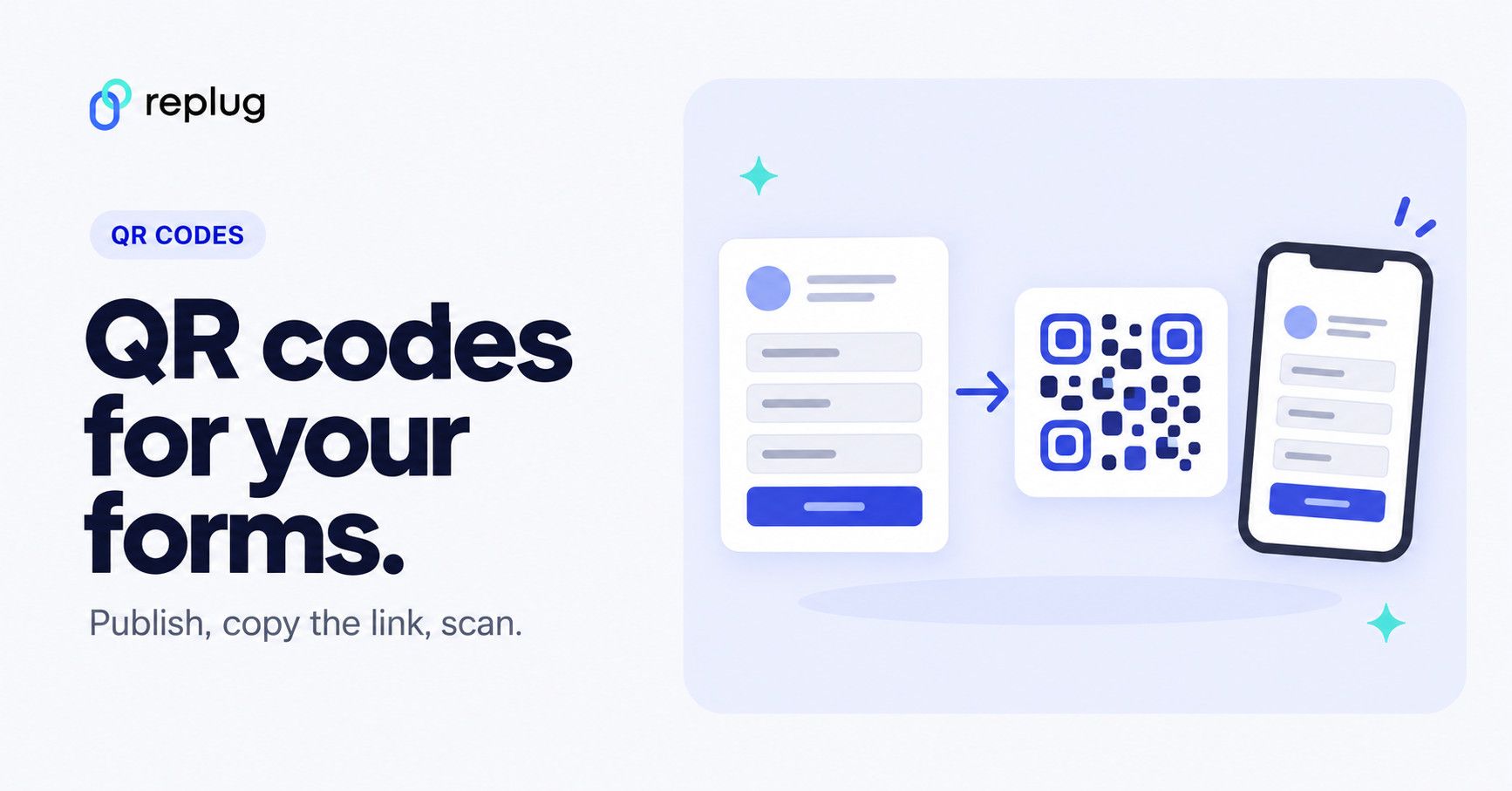
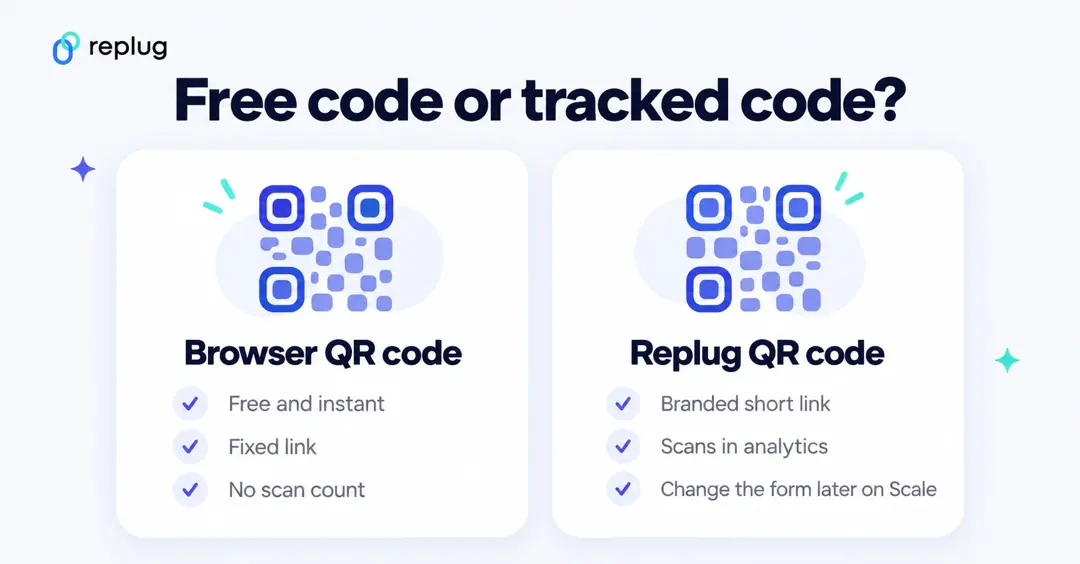
Quick answer: Google Forms doesn’t have a QR code button. Publish your form, copy the responder link (click Published or Share, then Copy responder link), and turn that link into a QR code: with Chrome’s built-in Create QR code for a free, fixed code, or with a QR code generator like Replug if you want a branded link and a scan count.
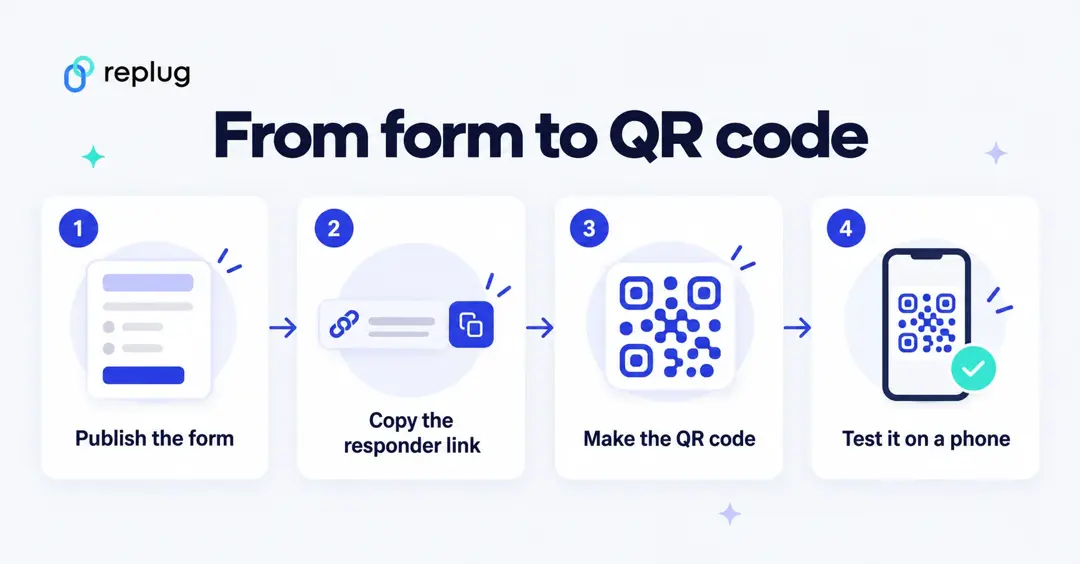
What is a QR code for Google Forms?
A QR code for Google Forms is a scannable code that directs users straight to your form.
Instead of sharing a long URL, you can generate a QR code that instantly opens the form when scanned with a smartphone camera. This makes it easier for users to access and fill out the form, increasing engagement and participation.
Does Google Forms have a QR code?
Not built in. Google’s Publish & share your form with responders help page lists the ways to share a form: by email, as a link (with an optional short link), as a pre-filled link, or embedded on a website. There is no QR code option (checked October 2026). You make the QR code from the form’s link, and that link only works for responders once the form is published:
- At the top right of the form, click Publish, choose who can respond under Manage, and click Publish again. Unpublished forms can’t be opened by responders, even with the link.
- Under General access, give access to anyone with the link if people outside your organization will scan the code.
- Click Published (or Share) and then Copy responder link. Tick Shorten URL first if you want Google’s short forms.gle link.
Don’t copy the editing URL from your browser’s address bar: it ends in /edit and opens the editor, not the form people fill in.
Now, let’s discuss the steps to making a QR code using Replug.io for Google Forms.
How to make a QR code for a Google Form using Replug
Creating a QR code for your Google Form is quick and simple with Replug’s dynamic QR code generator. Here’s a step-by-step guide:
Step 1: Copy your Google Forms link
Open your form, make sure it’s published, then click Published (or Share) and Copy responder link, per Google’s Docs Editors Help.
Step 2: Log in to Replug
Log in to your Replug account. If you don’t have one already, create one.
Step 3: Shorten your Google Forms URL
Paste the form link into the Paste a long URL to shorten… field on the Home screen and click Shorten.

Note: Google Forms can shorten the link itself (the Shorten URL box gives you a forms.gle link), but Google picks the ending and you get no scan count. A short URL shortener such as Replug’s lets you choose the ending (custom endings are on Essentials and up) and counts every scan.
Step 4: Generate and customize your QR code
The Your link window opens. Click Save Shortened Link, then the QR code button next to Copy Link. The New QR code page opens for that link.
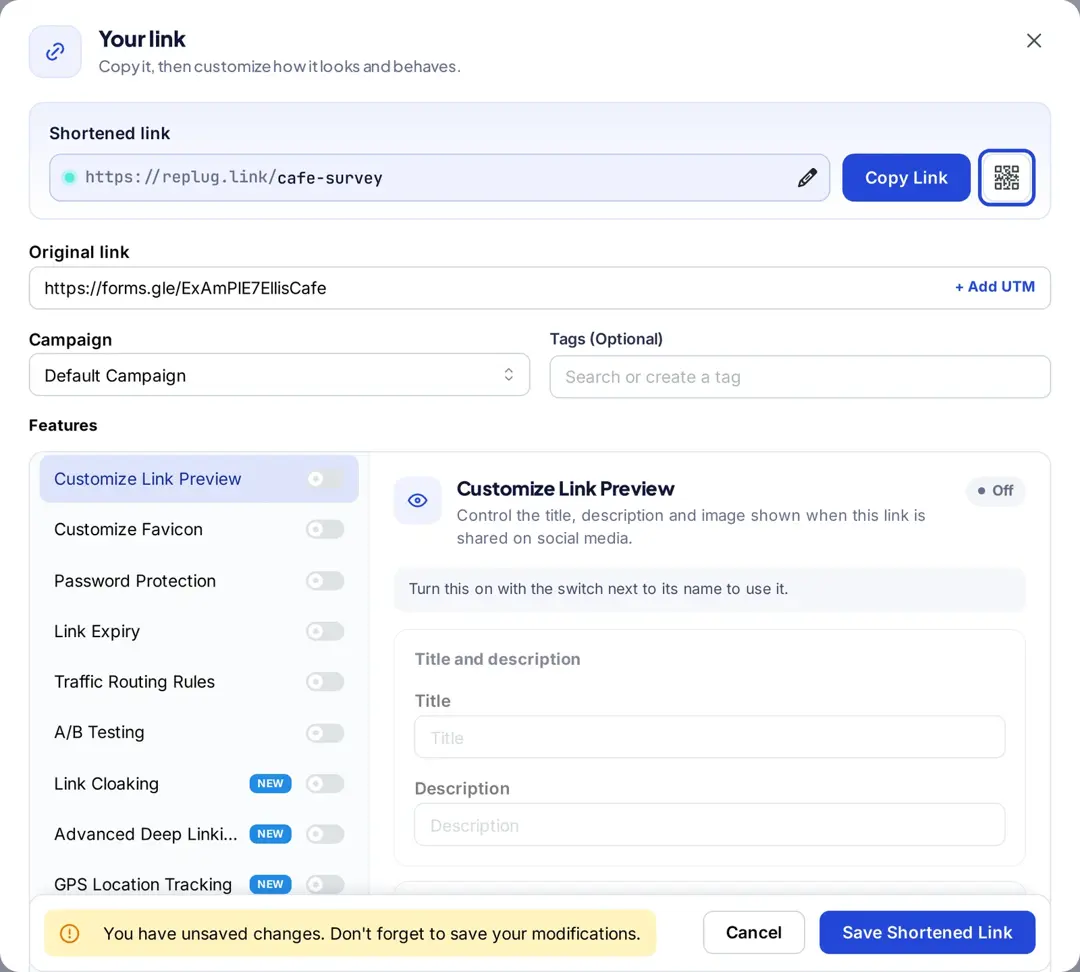
Pick colors, shapes and a frame, add a short line like “Scan to RSVP,” and click Create QR Code. Custom colors, shapes and frames are on paid plans; a logo in the middle is on Scale and Agency, per Replug’s QR code generator page.
You can also start from QR Codes > Create new > Start blank, choose Website and paste the form link as the Destination URL:
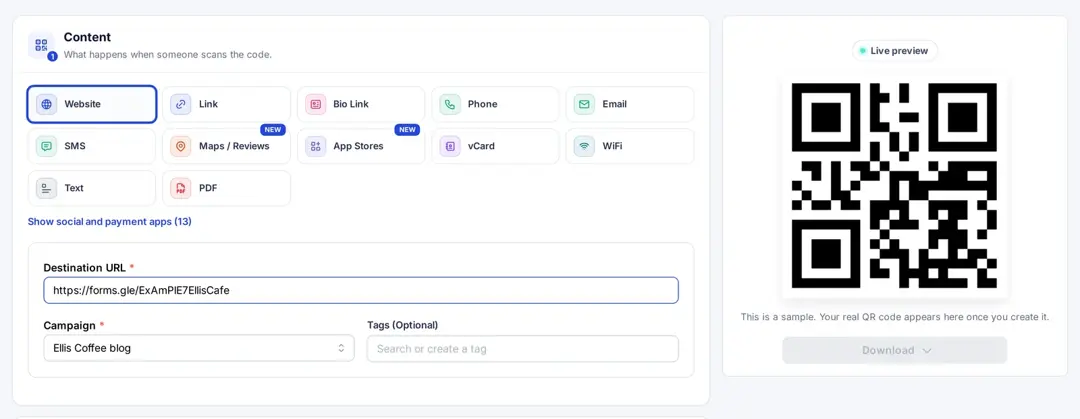
Step 5: Download and share
Download the QR code as SVG, PNG or JPEG, scan it once with your phone while signed out of Google to check that the form opens, and add it to posters, brochures, emails, or any other medium where people can scan it easily.
Alternate method to make a QR code for Google Forms
If you’re just looking for a quick way to generate a fluff-free QR code for Google Forms, Google Chrome is ideal. Open the published form (the responder link, not the editor) and, depending on your Chrome version:
- Right-click anywhere on your Google Forms page and click “Create QR Code for this page” (this shortcut isn’t in every Chrome version; the menu route below is the one Chrome Help documents).

Or:
- Open your Google Form in Chrome.
- Click the More menu (three dots) in Chrome.
- Go to Cast, save, and share, and then select Create QR code.

Now you can:
- Copy the QR link.
- Download the QR code as an image.
- Scan it using another device’s camera.
These steps match Chrome Help for desktop (checked October 2026). The code holds the full form link, so it can’t be changed later and Chrome doesn’t count scans.

But the thing is… are you T-Rex?
Our guess? No.
This brings us to our next question: Why should you use Replug to make a QR code for your Google Form?
Why should you use Replug to make a QR code for a Google Form?
Apart from just making a QR code for Google Forms, Replug offers additional benefits to take your Google Forms QR code to the next level:
- Branded QR codes: Customize your QR code with colors, shapes and a frame (paid plans) or your logo (Scale and Agency), and run it through a branded short link to build trust.
- URL shortening and customization: Shorten long Google Form links and customize them for a professional look.
- Trackable and measurable results: Replug counts scans and unique scans and breaks them down by country, city, device, OS and browser, so you can see which poster or flyer brought in responses.
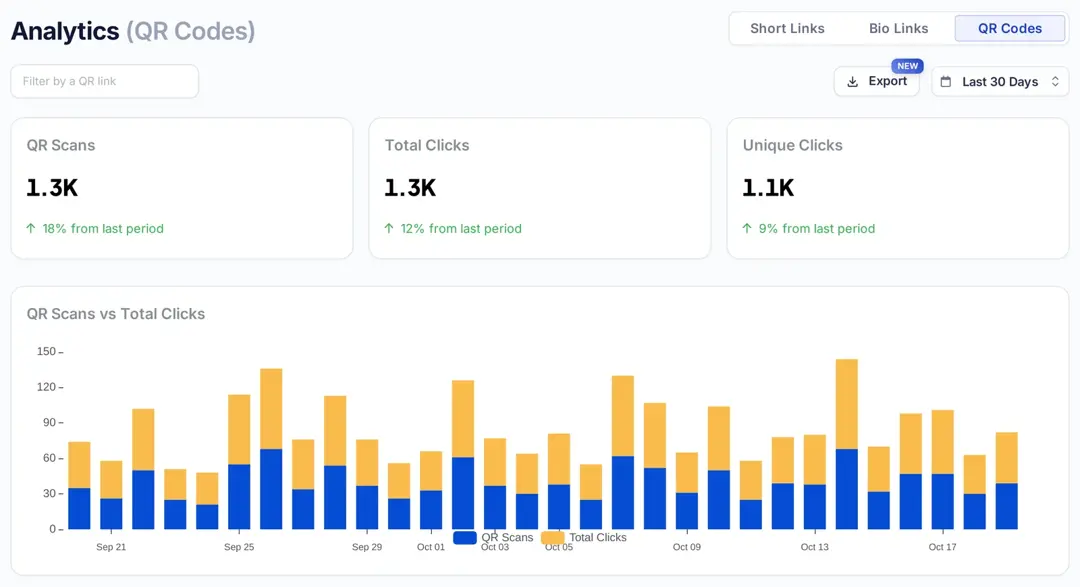
- Dynamic QR codes: Point a printed code at a new form later by creating a dynamic QR code; changing the destination after printing is on the Scale and Agency plans.
- High-quality downloads: Download QR codes in high-resolution formats for print and digital use.
- Retargeting capabilities: Add a retargeting pixel (Meta, Google, LinkedIn, X, TikTok or Pinterest) so people who scan can join an ad audience. Essentials includes one pixel; Scale and Agency have no limit.
- Scans keep working: Plans set how many QR codes and tracked clicks you get (Free includes 10 smart QR codes and 1,000 clicks a month), and Replug’s pricing page says your links keep working if you reach a limit.
Benefits of using a QR code for Google Forms
- Instant access and convenience: A QR code for Google Forms eliminates the need to manually type long URLs. With just a quick scan, users are directed straight to your Google Form, making the process smooth and hassle-free.
- Fewer steps to respond: People don’t have to type a long URL, which removes one easy reason to give up before the form loads.
- Mobile-friendly and scannable: Most people use smartphones, making QR codes an ideal way to share links effortlessly. Users can access the form anytime and anywhere, improving the overall user experience.
- Customizable branding options: With tools like Replug, you can customize the QR code’s design and colors to match your brand. This enhances brand visibility and creates a professional impression.
Related: Uses of QR Codes: Marketing, Sustainability & Convenience
Who can use QR codes for Google Forms?
Event organizers
Event organizers can use QR codes for event registrations, check-ins, and feedback forms to streamline the process. Attendees can quickly scan the code to sign up or provide feedback after an event.
Businesses and marketers
Collect customer feedback, run surveys, or use them for lead generation by placing QR codes on business cards, flyers, packaging, or advertisements.
SaaS companies
Software-as-a-service (SaaS) companies can use QR codes for customer onboarding, product demos, and feedback collection. This enhances the user experience and simplifies access to key resources.
Affiliates
Affiliate marketers can use QR codes to share promotional links, track engagement, and drive conversions more effectively by providing seamless access to landing pages.
Content creators
Bloggers, vloggers, and influencers can use QR codes to share sign-up forms, feedback requests, and exclusive content with their audience, making it easy for followers to engage.
Educational institutions
Teachers and schools can use QR codes for student quizzes, assignments, and feedback collection. This simplifies the process for students, especially in remote or hybrid learning environments.
Restaurants
Restaurants can use QR codes for digital menus, order forms, and customer feedback. Instead of printing new menus, businesses can update forms and links in real time, saving costs and improving efficiency.
Healthcare professionals
Doctors and clinics can use QR codes for patient intake forms, appointment scheduling, and feedback surveys. This helps streamline administrative tasks and provides a contactless solution for patient interactions.
Conclusion
QR codes are an efficient way to share Google Forms without hassle. Whether you need them for business, education, or events, they make form access simple and convenient. Replug makes the process even easier by allowing you to shorten, customize, and track your links.
Ready to boost engagement and streamline responses? Create your QR code with Replug today and see the difference!
Frequently asked questions

Amna Yawar