


To add a QR code to a flyer, create a QR code for the page you want people to open, download it as a high-resolution file (SVG or PNG), place it on your flyer design with a short call to action such as “Scan for the menu”, and print a test copy to check it scans. Use a dynamic QR code if you want to count scans or change the page later without reprinting.
This guide shows each step, with a dynamic code made in Replug and the QR tools built into Canva, plus where to put the code, how big to print it and what to check before the print run.
Disclosure: this is Replug’s blog, and Replug, which makes QR codes, is our product.
What are QR codes on flyers?
A QR code on a flyer is a square barcode printed on the page that people scan with their phone camera to open a link: an event page, a menu, a coupon, a sign-up form or a booking page. It turns a piece of paper into a way to act on the spot, without typing a URL.
Most flyer codes hold a web address. A static code contains the address itself and can’t be changed or tracked. A dynamic code contains a short link that redirects to your page, so you can see how many people scanned and, with tools that allow it, change the destination after printing.
Why add a QR code to your flyer?
1. Boosts audience engagement:
A flyer has room for a headline and a few lines. The code takes people to everything else: the full menu, the event schedule, the price list, a video tour.
2. ROI tracking made easy:
With a dynamic code you can see how many people scanned, when, and from which city, device and operating system. Print a different code on each batch of flyers (one per neighborhood, store or event) to see which one works best.
3. Mobile-friendly magic:
Most phones read QR codes with the built-in camera, no extra app needed. On iPhone you point the Camera at the code and tap the link that appears, as Apple Support explains; for Android, see our guide to scanning QR codes on Android.
4. Always accessible info:
People can scan the code, save the page and throw the flyer away, and they still have your details. If the date, price or offer changes, a dynamic code lets you update the page instead of reprinting.
How to add a QR code to a flyer using Replug?
Replug makes dynamic QR codes from its QR code generator: every code runs through a short link, so scans are tracked. Here is how to create a QR code for a flyer and download it for print:
Step 1: Sign in. Log in to Replug, or sign up for the Free plan (10 QR codes) or a 14-day trial of a paid plan, according to Replug’s pricing page.
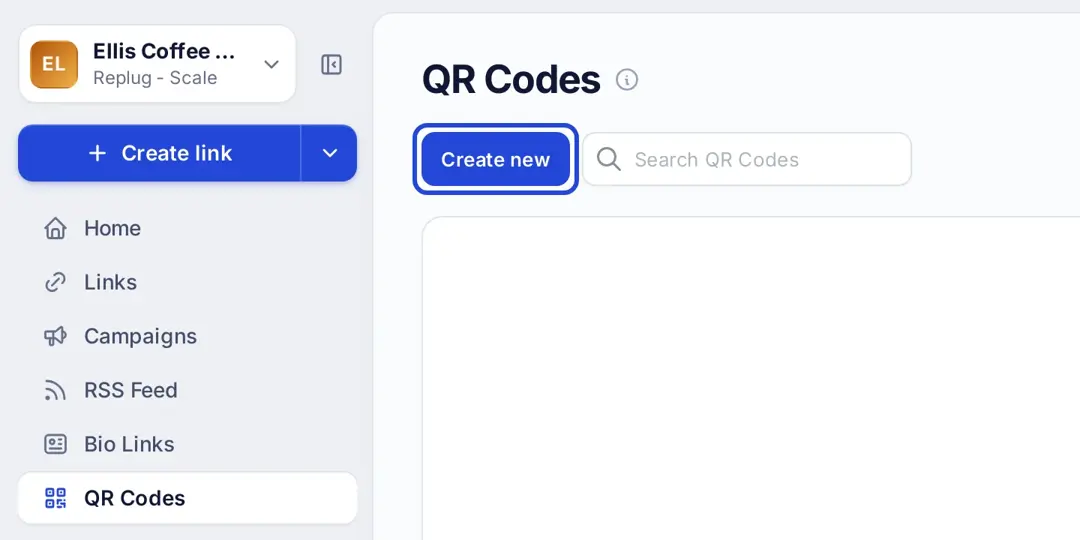
Step 2: Open QR Codes and click “Create new”. Choose “Start blank” or a template.
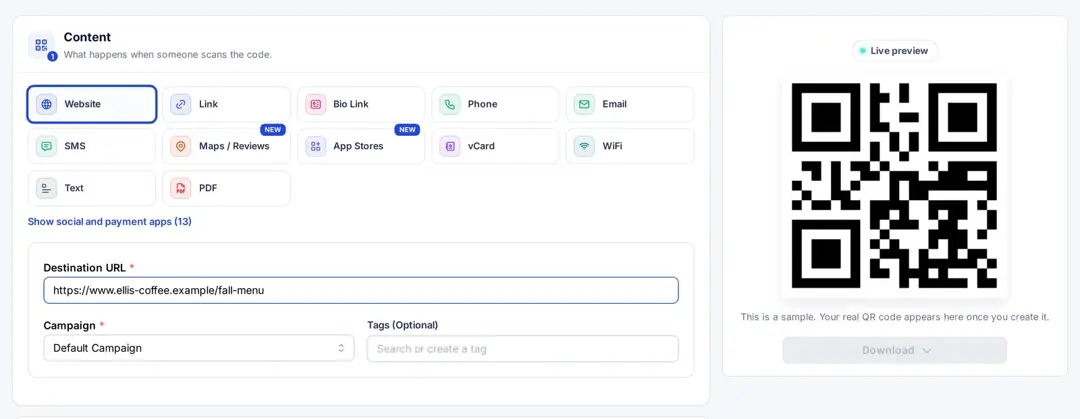
Step 3: Choose the content type and add your link. Select Website and paste the page the flyer should open into Destination URL, for example the fall menu page of a coffee shop in Austin. Pick a campaign and, if you like, tags.
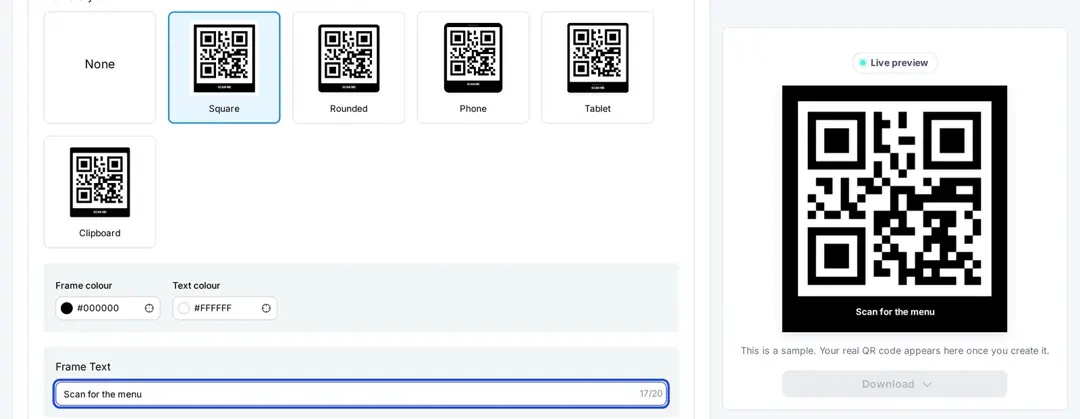
Step 4: Design the code. Under Design, change the shape and colors and pick a frame (Square, Rounded, Phone, Tablet or Clipboard). Type your call to action in Frame Text (up to 20 characters), such as “Scan for the menu”. Colors, shapes and frames are on Essentials and up, and a logo in the code is on Scale and Agency, according to Replug’s pricing page.
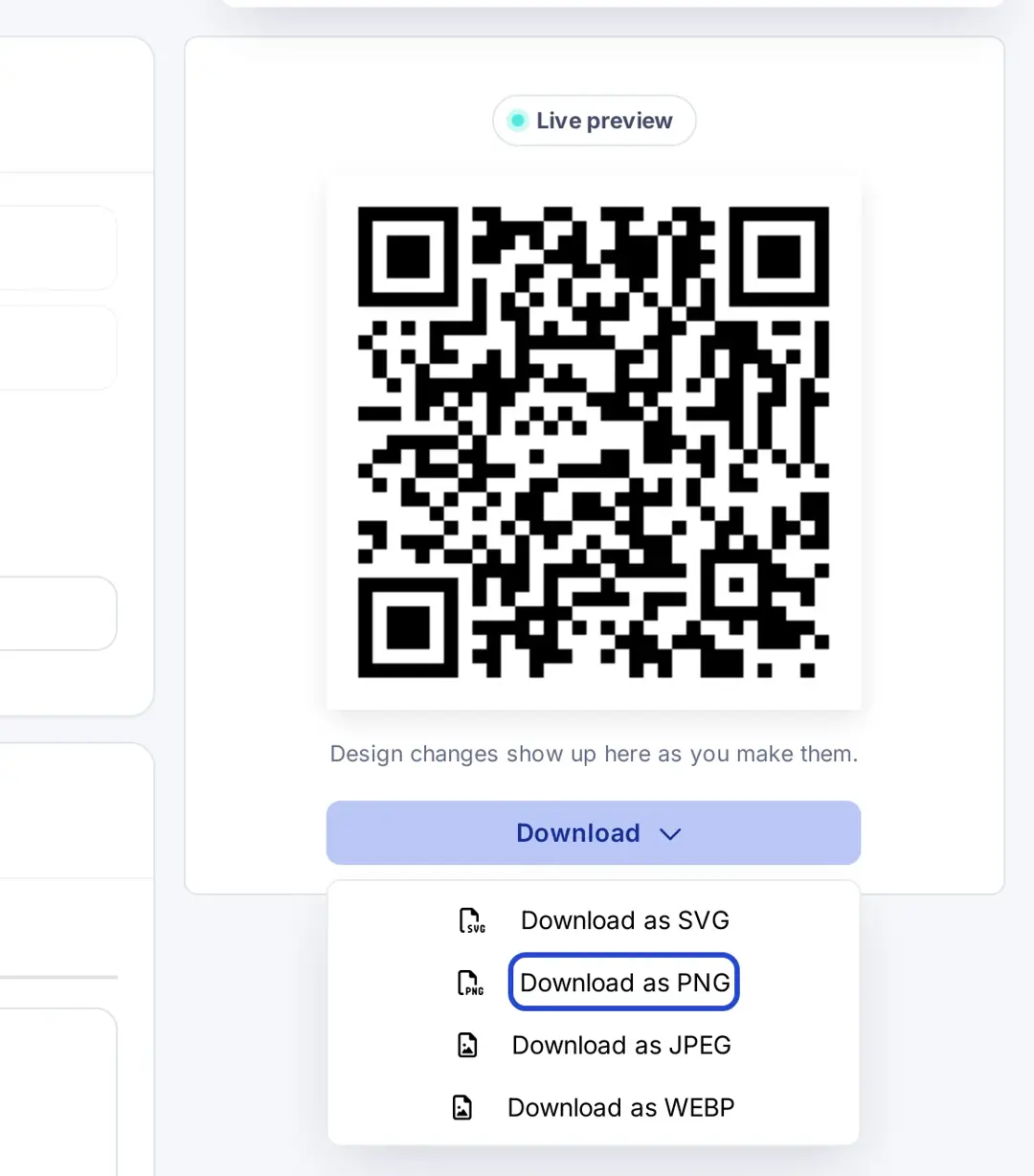
Download your destination URL as a QR code:
Step 5: Create and download. Click Create QR Code, then open Download and pick a format. For print, SVG is the safest choice because it scales without getting blurry; PNG works if you export it large.
You can also start from a short link: shorten the URL on the Home screen with Replug’s link shortener, then click the QR code button (Download QR code) in the Your link window. Either way, the code holds a short link, which keeps the pattern simple and easy to scan.
Also read: QR Advertising: Your gateway to consumer engagement
How to add a QR code to a flyer in Canva
If you design flyers in Canva, you can make the code there or import one you made elsewhere. According to Canva Help (checked October 2026):
- Create it in Canva: in the editor, go to Elements and search “QR code”, then choose Create static or Create dynamic. You can also find both tools under Apps.
- Static vs dynamic in Canva: a static code’s link can’t be changed after you create it and it has no scan tracking. A dynamic code’s URL can be updated without reprinting; scan Insights, expiry dates and a custom logo need Canva Business, Enterprise or Nonprofit, and dynamic codes on Free, Pro and Education include the Canva logo by default.
- Import your own code: download your code as SVG or PNG from your QR tool, upload it to your design and place it like any other image.
Whichever tool you use, keep one code per flyer and one goal per code.
Where to put the QR code on a flyer
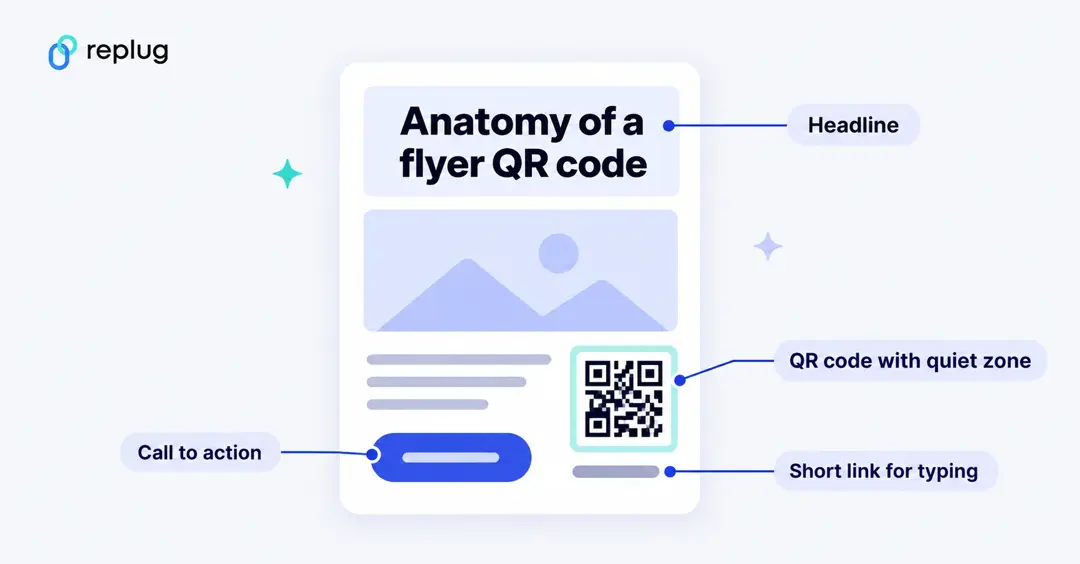
- Near the call to action. The lower right corner or the bottom band works well because readers reach it after the headline and the offer.
- With a label. Print what the scan opens right next to the code: “Scan for the full menu”, “Scan to RSVP”, “Scan for 10% off”.
- With a short link under it. Some people won’t scan; a short, readable link such as replug.link/fall-menu lets them type it instead.
- With blank space around it. Keep a clear margin (the quiet zone) on all sides; Canva Help recommends at least four times the width of one module.
- Away from folds, edges and busy images. A fold through the code or a photo behind it makes it hard to read.
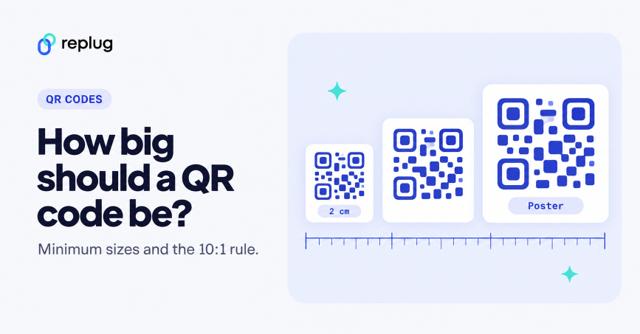
How big? Canva Help recommends no smaller than 2 x 2 cm (0.79 x 0.79 in). That works for a flyer held in the hand; for a flyer on a wall or a poster read from a few feet away, print it larger. Our guide to standard QR code sizes has a size for each scanning distance.
Adding QR code to Your Flyer:
- Place the QR code on your flyer where it is easy to see and scan, with blank space around it.
- Add a short call to action next to the code that says what people get when they scan.
- Test the QR code with an iPhone and an Android phone, on a printed proof, before you print the full run.
Pro tip: Replug analytics show scans, total and unique clicks, countries, cities, devices, operating systems and browsers for each code. History is 14 days on Free, 90 days on Essentials and unlimited on Scale and Agency, according to Replug’s pricing page.
Best practices for using QR codes on flyers:
Use colors that pop:
Brand colors are fine, but keep strong contrast: a dark code on a light background scans best. Avoid light codes on dark backgrounds, gradients behind the code and transparency; Canva Help suggests adding a solid border in a different color if you can’t use contrasting colors.
Incorporate your brand’s identity:
A frame in your brand color and a short line of text make the code look like part of the design. A logo in the center helps people recognize who the code is from; keep it small and test the scan after adding it. In Replug, a logo in the code is on Scale and Agency.
Opt for dynamic QR codes:
Choose dynamic over static for printed materials. Dynamic QR Codes let you count scans and, on plans that allow it, change the destination without reprinting, which is useful when an event date, price or offer changes. In Replug, changing a printed code’s destination is on Scale and Agency.
Ensure design consistency:
Use the same frame, colors and call-to-action style on all your print pieces, so people learn to recognize your codes.
Test before you print
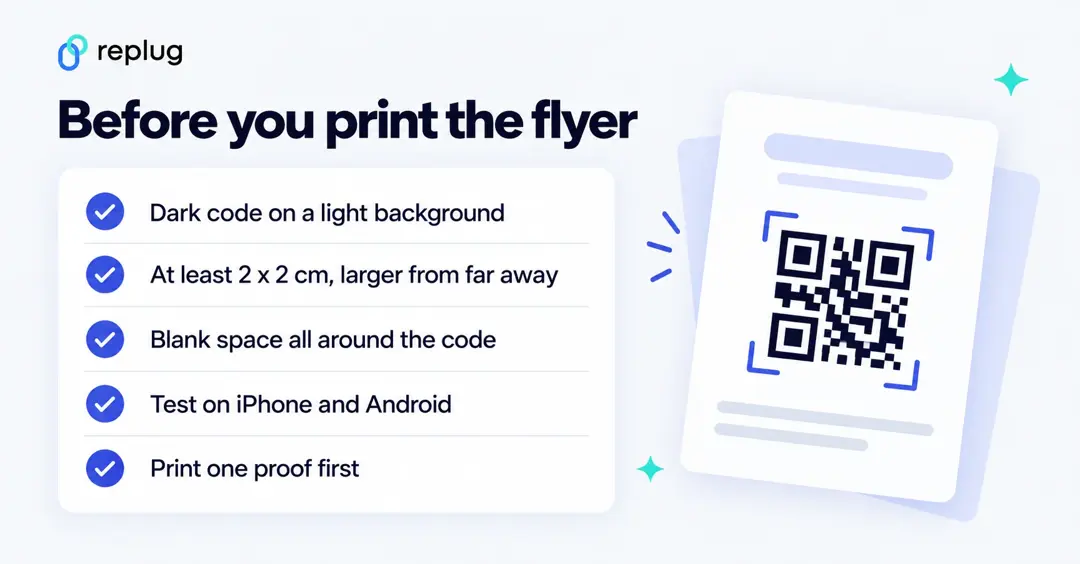
Print one proof at the real size, scan it with two different phones in normal light, and check that the page loads quickly on mobile data. If it doesn’t scan, our checklist for when a QR code is not working covers the usual causes.
Frequently asked questions

Arslan Jadoon




![50+ different types of QR codes with examples & use cases [2026]](/_next/image?url=https%3A%2F%2Finternal-blog.replug.io%2Fwp-content%2Fuploads%2F2026%2F02%2F50-different-types-of-QR-codes-with-examples-use-cases-2026.png&w=640&q=75)