You pull out your phone, point it at a QR code, and… nothing. You try again, and still nothing. Frustrating, right?
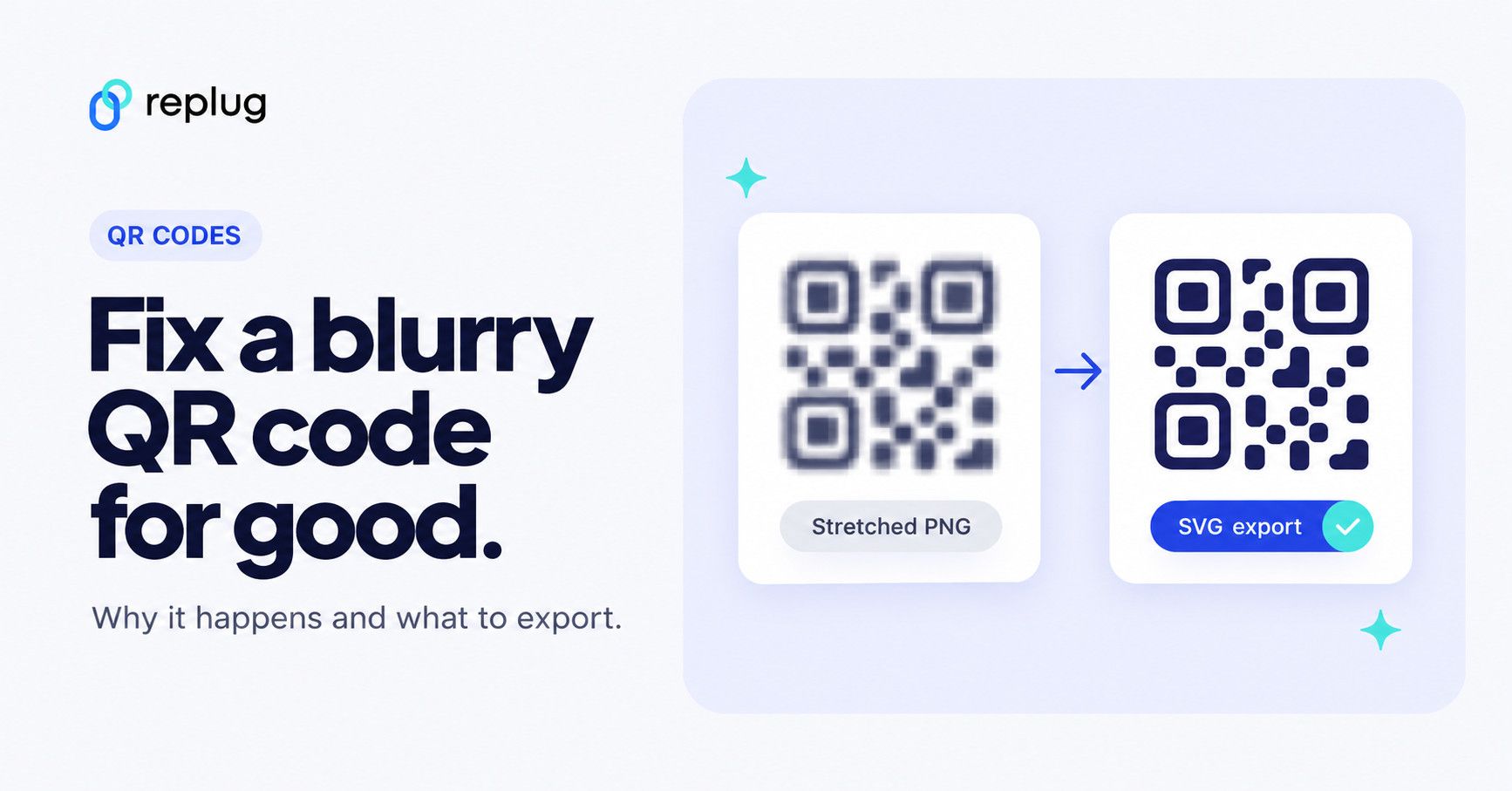
Quick answer: a QR code looks blurry when it was exported small and then stretched, printed below a readable size, printed with weak contrast, or packed with so much data that each square (module) is tiny. Fix it at the source: regenerate the code, export it as SVG or a large PNG, resize it without stretching, keep a clear margin around it and test it on two phones before you print. Sharpening a blurry image rarely brings a code back reliably.
A blurry or poorly generated QR code isn’t just annoying; it’s costing real opportunities. And because people scan QR codes on menus, packaging, posters, tickets and business cards every day, this little square has become way too important to get wrong.
No matter if you’re a business owner, a marketer, or just someone who needs a working QR code, a blurry one can make people give up in seconds.
The good news? Fixing it is simpler than you’d think!
But before we jump into solutions, let’s make sure we’re all on the same page. So let’s quickly cover what a QR code actually is and how it works.
What is a QR code?
A QR code (short for “Quick Response code”) is a two-dimensional barcode that stores information like a website URL, contact details, or a payment prompt and can be instantly read by a smartphone camera.
Unlike the old barcodes you see on grocery items, a QR code holds way more data and works in any direction you scan it.
Its main purpose is simple:to bridge the gap between the physical and digital world in the fastest way possible.
How does it work?
When you create a QR code, the information you enter gets encoded into a pattern of black and white squares.
When someone scans it, their phone’s camera reads that pattern and decodes it back into the original information (opening a link, displaying text, or triggering an action).
Think of it like a secret visual language your phone can instantly translate. The whole thing happens in under a second, which is exactly why QR codes have become so popular.
Why is my QR code blurry?
Before you can fix a blurry QR code, it helps to know what’s causing it in the first place. There are actually quite a few reasons a QR code can become unscannable, and most of them are pretty easy to avoid once you know what to look out for.
Low resolution/pixelation
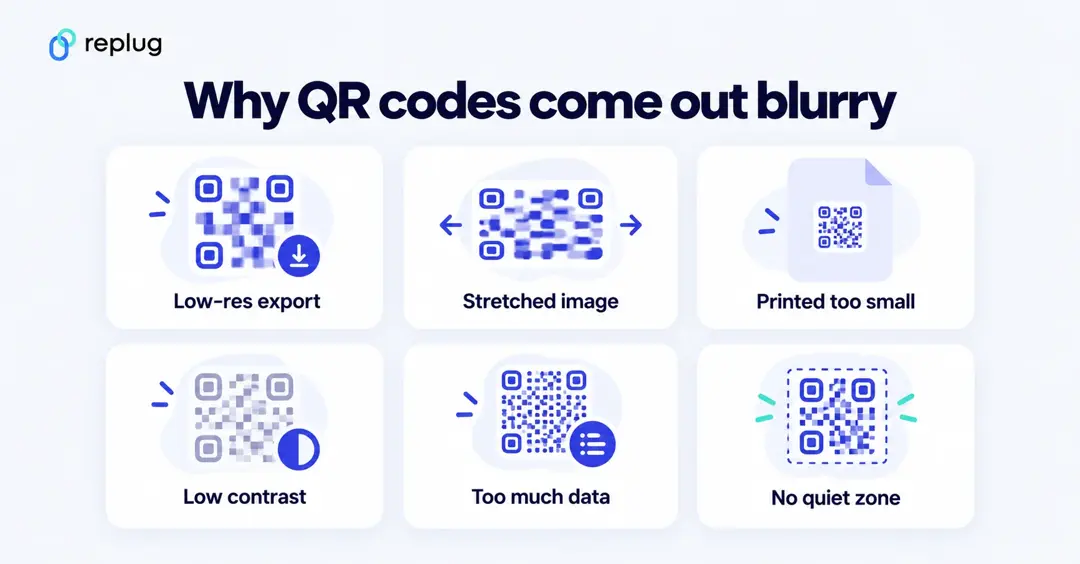
This is probably the most common culprit. When a QR code is created at a low resolution and then stretched or scaled up, the edges get pixelated, and the scanner simply can’t read it cleanly. Always generate your QR code at the highest resolution available.
Poor printing quality
Even a perfectly designed QR code can go bad in print. If your printer is low on ink, using poor-quality paper, or set to a low print quality mode, the fine details of the code get lost. This makes it blurry or patchy and hard to scan.
Insufficient color contrast
QR codes rely on a clear contrast between the dark modules and the light background to be readable. Using similar shades (like a dark grey code on a black background) confuses the scanner and makes the code practically useless.
Over-complication/customization
Adding too many design elements, heavy colors, or large logos right in the center of your QR code can interfere with the data embedded in it. A little customization is fine, but overdoing it often pushes the code past the point where it can still be scanned reliably.
Physical damage
A QR code on a printed flyer, product label, or sticker is vulnerable to real-world wear and tear. Scratches, moisture, fading, or even a bad fold across the code can damage enough of the pattern to make it unreadable.
Incorrect format
Saving or exporting your QR code in the wrong file format can seriously hurt its quality. Formats like JPEG compress image data and can introduce blurriness, while vector formats like SVG or high-resolution PNGs keep the code sharp and crisp at any size.
Too small QR code size
There’s a minimum size a QR code needs to be to work properly. If it’s printed or displayed too small, the individual squares within the code become too tiny for a camera to distinguish. This ultimately makes scanning nearly impossible, especially from any reasonable distance.
Too much data in the code
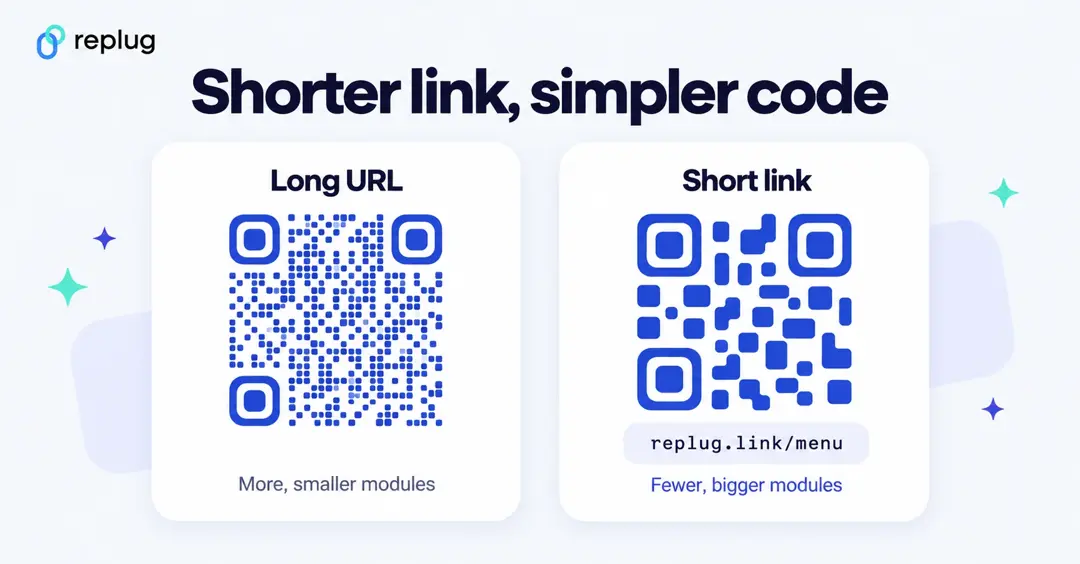
The more you put into a QR code, the more modules it needs. According to DENSO WAVE’s version table, QR codes run from Version 1 (21 × 21 modules) to Version 40 (177 × 177 modules), and more data means a larger version. Print a long URL with tracking parameters at a small size and every module shrinks until a camera can’t separate them. That looks like blur, even when the file is sharp.
The fix is to encode less: point the code at a short link instead of the full URL. A short link keeps the pattern simple, and if the short link redirects, you can change the page behind it later without touching the print.
You may also like: Why is my QR code not working: 9 reasons to consider
How to fix a blurry QR code, step by step
Work from the original link, not from the blurry image. These steps fix almost every blurry code:
- Get the original link or text. If you don’t have it any more, try scanning the blurry code once with your phone; if it opens, copy the link from the browser.
- Regenerate the code in a QR code generator. If the link is long, shorten it first so the pattern stays simple.
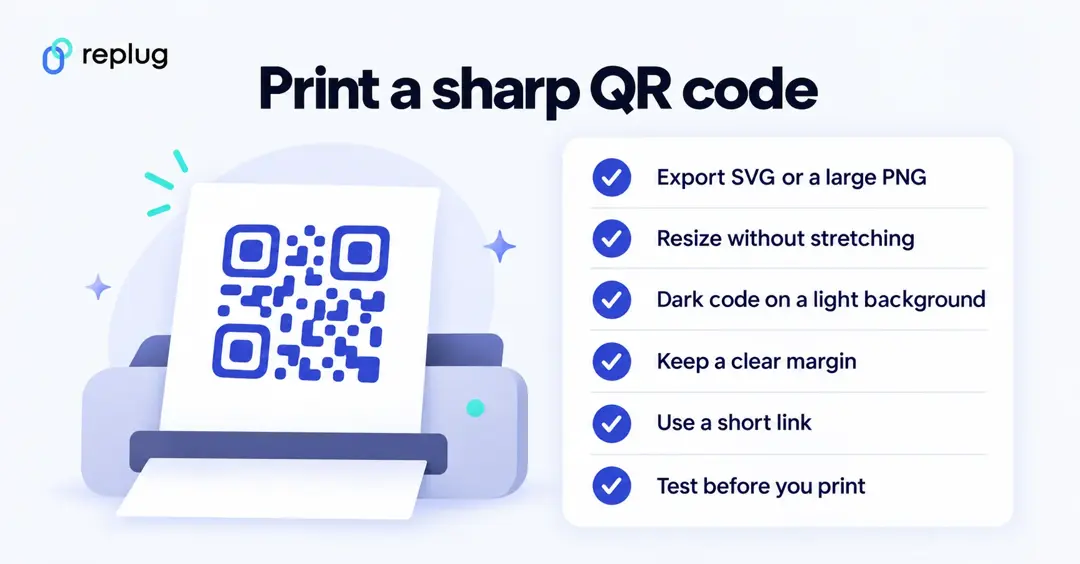
- Export the right file. SVG for print (it is a vector, so it stays sharp at any size); a large PNG for screens and documents. Avoid JPEG for codes you will resize.
- Resize without stretching. Scale it with the aspect ratio locked (hold Shift in most design apps) and never enlarge a small PNG.
- Check contrast and margin. Dark code on a light background, with a clear margin of four modules on every side.
- Print a test copy and scan it with an iPhone and an Android phone from the distance people will really stand.
Enhance your QR codes with these useful tips & tricks
Now that you know what’s causing the blur, let’s talk about how to actually fix it. These tips are straightforward, practical, and easy to apply, whether you’re designing a QR code from scratch or trying to rescue an existing one.
Tip #01: Use high-resolution & vector formats
Always export your QR code as an SVG or high-resolution PNG rather than a JPEG. Vector formats scale to any size without losing sharpness, so your code stays crisp no matter if it’s on a business card or a billboard. This single change alone can make a huge difference.
Tip #02: Improve contrast
Stick to the classic dark module on a light background combo. It’s the most reliable for scanning. If you want to use custom colors, make sure there’s a strong enough contrast between the two. When in doubt, test your QR code on multiple devices before publishing it.
Tip #03: Adjust printer settings
Before hitting print, optimize your printer settings to the highest quality mode available. Also, make sure your ink levels are good. A half-empty cartridge often produces faded or uneven prints that can make a QR code blurry and completely unscannable.
Tip #04: Maintain a “quiet zone”
A quiet zone is the blank white border surrounding your QR code, and it’s not just for looks; it’s actually essential. Without enough white space around the edges, scanners struggle to identify where the code begins and ends. DENSO WAVE, the company that invented the QR code, says a QR code needs a margin four modules wide on all sides, so don’t let a border, text or the edge of the label creep closer than that.
Tip #05: Check lighting & distance
Sometimes the issue isn’t the code itself, it’s the scanning conditions. Make sure the QR code is well-lit and that you’re holding your phone at a comfortable distance, not too close and not too far. Glare from glossy surfaces can also interfere, so consider a matte finish for printed codes.
Tip #06: Maintain proper size & design
As a general rule, your QR code size depends on how much data it holds, how fine your printer can print and how far away people will stand. In DENSO WAVE’s worked example, a code holding 50 characters needs 29 × 29 modules and, printed at 0.254 mm per module on a 400 dpi printer, comes to about 9.4 mm square including the margin. That is a minimum for a dedicated reader held close; for phones, posters and anything scanned from a distance, go bigger and test it at the real distance. Keep the design clean and avoid distorting the shape of the code. Even minor stretching can cast off the scanner.
Tip #07: Remove unnecessary clutter
Less is actually more when it comes to QR code design. Overlapping text, excessive design elements, or a logo that’s too large can all interfere with the embedded data. If you want to add a logo, keep it small and centered. A logo hides modules, and the code only reads if error correction can rebuild what’s hidden. Even at the highest level, H, DENSO WAVE puts that at about 30% of the codewords, and less at the lower levels, so leave a wide safety margin and test the code before you print it.
Tip #08: Avoid poor printing materials
The surface you print on matters more than people realize. Thin or low-quality paper can cause ink to bleed, and shiny or textured surfaces can distort the pattern. For best results, use a smooth, matte, medium-weight paper or a professional-grade label material.
Tip #09: Use error correction
QR codes come with a built-in error correction feature that allows them to remain scannable even if part of the code is damaged or obscured. There are four levels: DENSO WAVE lists about 7% for L, 15% for M, 25% for Q and 30% for H (the share of codewords that can be restored), and says M is the most common choice. Setting your error correction level to “H” (High) helps codes that get scuffed or dirty, but it adds modules, so the pattern gets denser. Not every generator lets you pick the level; if yours does, use H or Q for outdoor and packaging codes and keep the data short.
Can you unblur a QR code that’s already printed?
Sometimes, but treat it as a rescue, not a fix. Image sharpening or contrast tools can make a slightly soft photo of a code readable enough to scan once, and that is often all you need: scan it, copy the link and make a clean new code from it. A code that’s heavily blurred, smudged or cut off usually can’t be rebuilt, because the missing modules are gone. If the code points at a short link you control, you can reprint a sharp version that opens the same link, so nothing you already handed out stops working.
Blurry only when you scan? Check the camera, not the code
If the code looks sharp on paper but your camera shows a blurry square, the problem is on the phone side:
- Wipe the camera lens; a smudged lens blurs everything.
- Move back a little. Phones can’t focus when they are too close, so start further away and let the code fill about half the frame.
- Tap the code on screen to focus, and hold still for a second.
- Add light. Apple’s iPhone guide suggests tapping the flashlight in the Code Scanner for more light.
- Tilt the phone slightly to get rid of glare on glossy paper or screens.
- If the code is in a screenshot or photo, you don’t need the camera at all: see how to scan a QR code from a screenshot.
Generate clear, high-quality QR codes using Replug’s custom QR code generator
If you’re looking for a reliable tool to create clean, scannable QR codes without the hassle, Replug.io is worth checking out. It’s a free URL shortener and an all-in-one link management platform that does a whole lot more than just shorten links.
One of its standout features is the custom QR code generator, which lets you generate high-quality, fully customizable, dynamic QR codes in seconds.
Every Replug QR code runs through a short link (on your own domain if you add one), so the pattern stays simple however long your destination URL is. You can track every scan, and on Scale and Agency you can send a printed code to a new page without reprinting it, according to the Replug QR code generator page.
You can tweak the colors and dot shapes (Essentials and up) and add your logo (Scale and Agency), then download the code as SVG, PNG, JPEG or WEBP. Pick SVG for print so it stays sharp at any size.
Whether you’re a marketer, a business owner, or just someone who needs a quick and reliable QR code, Replug makes the whole process effortless and clean from start to finish.
Wrapping up
A blurred QR code is honestly more of a fixable inconvenience than a real problem, and now you have everything you need to sort it out.
From using the right file formats and fixing contrast issues to choosing quality print materials and enabling error correction, the fixes are simple once you know what to look for.
The key is paying attention to the small details that most people overlook. And if you want to skip the guesswork entirely, a tool like Replug makes it easy to generate clean, high-quality QR codes right from the start.
Put these tips into practice, and you’ll never have to deal with an unscannable, blurry QR code again.
Frequently asked questions

Muhammad Ahsan Jamal