 20 minutes
QR codes are those little black-and-white squares that are seemingly everywhere now (on menus, packaging, ads, and even TV screens). Knowing how to scan a QR code quickly can save a lot of time, especially when you run campaigns or track engagement across channels.
Recent reports estimate that more than 6 billion people use smartphones worldwide, and almost all modern phones ship with a built-in QR code reader in the camera. That means every printed code can turn into a tap or visit within seconds.
This guide walks through how to read a QR code on Android, iPhone, Mac, and Windows, as well as from screenshots and gallery images. Before moving into step-by-step QR code scanning methods, it helps to understand what a QR code actually is.
What is a QR code: A brief overview
A “QR code (Quick Response code)” is a two‑dimensional barcode made of tiny black and white squares arranged in a grid. When a camera scans a pattern, software converts it into data, such as a URL, text, contact card, Wi‑Fi login, or payment info.
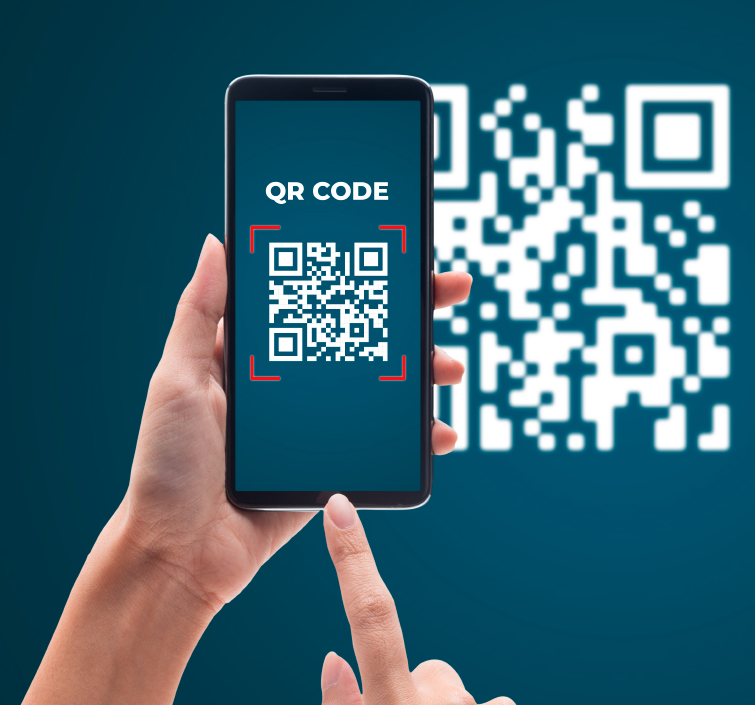
QR codes were first created in the 1990s by Denso Wave, a Japanese company, to track car parts in factories. Because they hold far more data than traditional barcodes and can be scanned from any angle, they are spreading from manufacturing to marketing, payments, tickets, and more.
Their main goal is simple: Move someone from offline to online content with a single scan.
There are two common types of QR codes:
- Static QR codes, which always point to the same data once printed.
- Dynamic QR codes, which point to a short link that can redirect to different pages and record analytics.
Dynamic codes are helpful when you want to update campaigns without reprinting and see how many people scanned each code.
Why QR codes matter so much
QR codes may seem simple, but they carry significant value, especially for today’s marketers and content creators.
- They make it effortless to move people from print or physical spaces to links, landing pages, apps, and social profiles with a single scan rather than a long URL. This reduces friction and leads to more visits, sign‑ups, and actions from the same campaign assets.
- They are easily trackable when linked to analytics or short URLs, so every scan can show where, when, and on what device someone engaged. That turns posters, packaging, and flyers into measurable channels rather than guesswork.
- They work across many use cases, from menus and payments to event check‑ins, affiliate links, and lead magnets. A single code snippet can support many campaign goals, making it a very efficient tool for marketing professionals.
- They are also low-cost to generate and print, so you can test QR campaigns on posters, product inserts, or receipts before investing in larger placements.
How to scan a QR code on Android
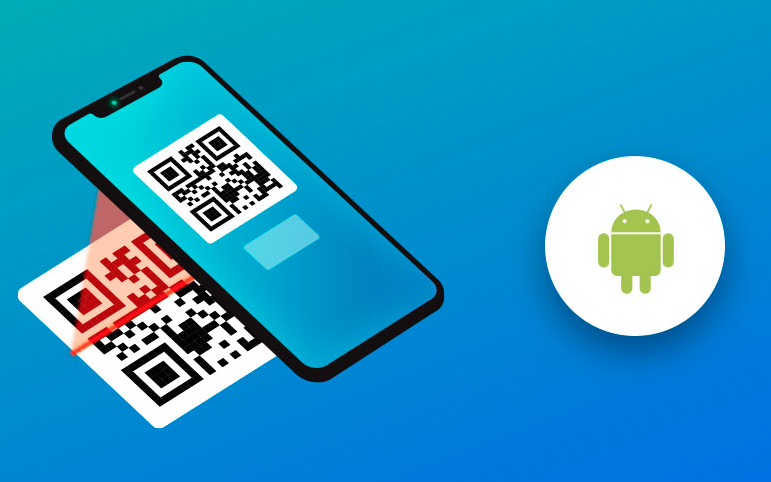
Most modern Android phones can seamlessly scan QR codes without a dedicated QR code reader app. You can use the camera, Quick Settings, Google Lens, or even scan from an image already saved on your phone.
Android Camera app
The default “Camera app” is the fastest way to scan a QR code on an Android phone.
1. Open the Camera app from your home screen, app drawer, or lock‑screen shortcut.
2. Point the rear camera at the QR code and make sure the whole code is inside the viewfinder.
3. Hold the phone steady for a second so the camera can focus and detect the code.
4. When a link or prompt appears on the screen, tap it to open the website, app, payment page, or other action.
Note: If nothing happens, check your camera settings for an option like “Scan QR codes” and turn it on.
QR code scanner
Many Android phones have a dedicated QR scanner shortcut in the “Quick Settings” panel.
1. Swipe down from the top of the screen to open your notifications and Quick Settings.
2. Look for a tile called “Scan QR code,” “QR scanner,” or similar. If you do not see it, tap the edit icon and add it to the panel.
3. Tap the scanner tile to open a simple scanning screen without photo controls in the way.
4. Point your camera at the code and wait for the link or prompt, then tap to open it.
This method is handy when scanning many codes during a workday or event.
Google Lens or Circle to Search
Google Lens and Circle to Search are powerful QR code-scanning features on newer Android devices.
1. Open the Google app or the Camera app.
2. You’ll see the Lens icon. Tap it.
3. Point the camera at the QR code and wait while Lens detects it.
4. The link or action will appear at the bottom of the screen. Tap it to continue.
On supported phones, Circle to Search lets you scan QR codes already on your screen. Long‑press the home button or navigation bar, circle the QR code with your finger, and tap the result that appears.
Scanning from a saved image (screenshot or photo) via Google Photos
You might need to scan a QR code in a screenshot, email, or social post at times. So, here is how to do it:
1. Save or screenshot the QR code, so it appears in your Gallery or Google Photos library.
2. Open the Google Photos app and tap the image that contains the code.
3. Tap the Lens icon at the bottom of the screen to start analysis.
4. Google Photos will detect the QR code and show the link or data, which you can then open or copy easily.
How to scan a QR code on an iPhone
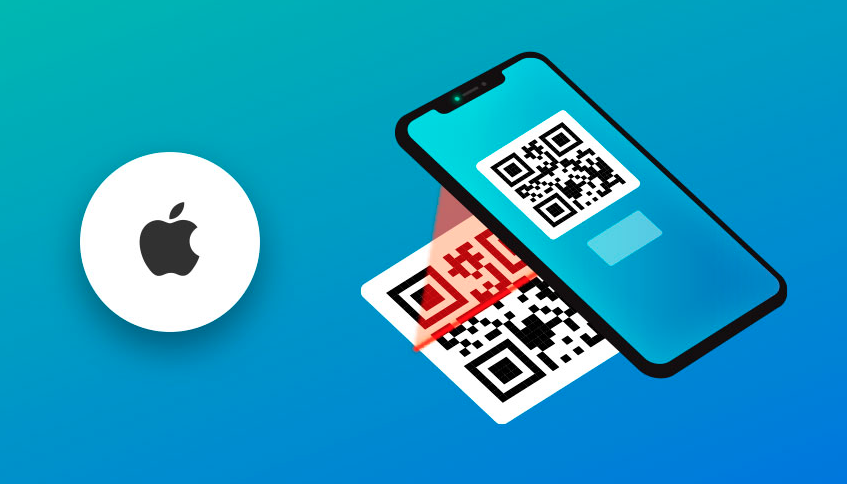
On an iPhone, scanning a QR code is just as simple. The Camera app, Control Center tools, and Photos all include built‑in support, so extra apps are rarely needed.
iPhone Camera app
1. Open the Camera app from the Home Screen, Lock Screen, or Control Center.
2. Switch to the rear camera and point it at the QR code so the whole code fits on the screen.
3. Hold still for a moment. A yellow frame may appear around the code when it is detected.
4. A banner will show at the top of the screen with the link or action. Tap it to open Safari or the related app.
Note: If scanning does not work, go to Settings → Camera and make sure “Scan QR Codes” is turned on.
QR code scanner
iOS also includes a dedicated code scanner shortcut in Control Center.
1. Open Settings and tap “Control Center.”
2. In the list of controls, find “Code Scanner” and tap the green plus button to add it.
3. Swipe down from the top‑right corner (or up from the bottom on older models) to open Control Center.
4. Tap the Code Scanner icon to open a clean scanning screen. Point it at the QR code and tap the prompt that appears.
This is slightly faster than opening the full Camera app, especially if you often scan during campaigns or events.
Live Text (iOS 15 & later)
Live Text lets your iPhone recognize text and QR codes in photos or in the camera view.
1. Open the Camera app and point it at a QR code on a screen or printed page.
2. Look for the small Live Text icon in the corner of the viewfinder. That shows iOS has detected content.
3. Tap the Live Text icon or tap directly on the QR code area.
4. A link or action card will appear. Tap it to visit the page or run the action.
This is helpful when a QR code sits next to important text you also want to copy or translate.
Scanning from a saved image (screenshot or photo) via the Apple Photos app
To scan a QR code stored in your Photos library:
1. Take a screenshot or save the image that includes the QR code.
2. Open the Photos app and tap the image.
3. Press and hold on the QR code area inside the photo.
4. A small menu or link preview will appear. Tap the link or action text to open it in Safari or the related app.
How to scan a QR code on a MacBook
MacBooks cannot scan codes on their own, but it is still easy to read QR codes with a mix of third‑party apps, Safari tools, and the built‑in camera.
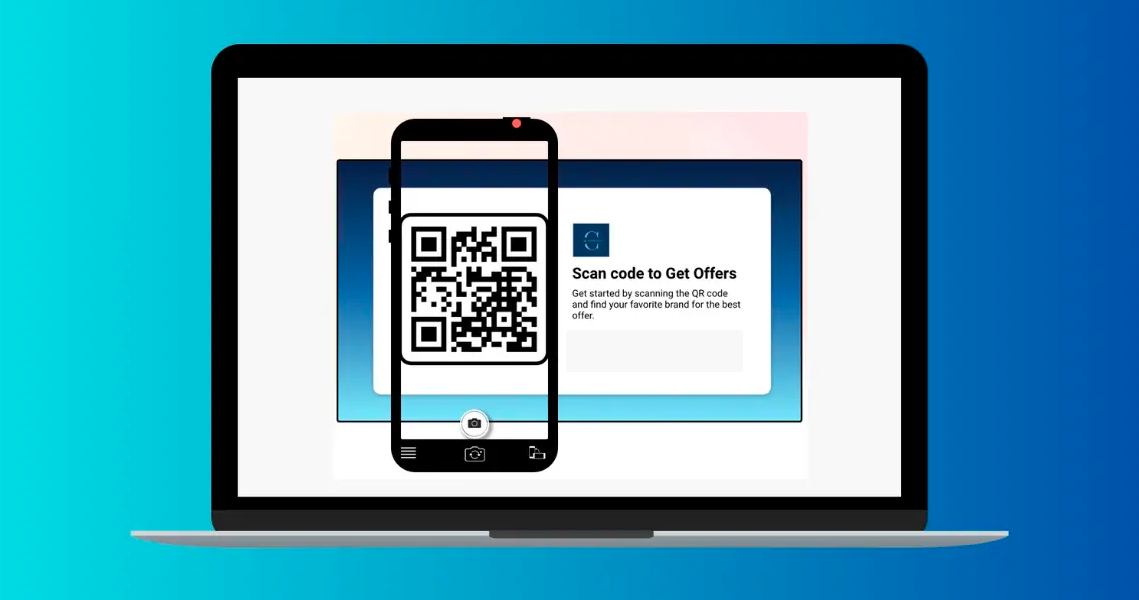
Third-party apps (QR Capture or QR Journal)
Apps like QR Capture or QR Journal let your MacBook scan codes with just a few clicks.
1. Download a QR reader app such as QR Capture or QR Journal from the Mac App Store.
2. Open the app and grant camera access when asked.
3. Hold a printed QR code in front of your MacBook’s webcam, or drag an image file with a QR code into the app window.
4. The app will display the decoded link or data so you can open it in your browser or copy it.
Safari right-click option
When a QR code appears as an image in Safari, you might not need a separate reader.
1. Right‑click (or Control‑click) directly on the QR code image in Safari.
2. If Safari detects a link inside the code, you will see options such as “Open Link” or “Open Link in New Tab.”
3. Click the option you prefer, and Safari will open the URL encoded in the QR code.
This works best for clear, high‑quality QR images on websites.
MacBook’s webcam
Some web‑based tools can scan QR codes using your MacBook’s webcam.
1. Search for a trusted site that lets you scan a QR code online using the camera.
2. Open the site in Safari or Chrome, and allow camera access when prompted.
3. Hold the printed QR code in front of your MacBook’s webcam so the full code stays in frame.
4. Wait for the site to read the code and show the result. Then click to open or copy.
iPhone/iPad camera
Occasionally, the simplest way to scan a QR code on your Mac’s screen is with your iPhone or iPad.
1. When a QR code appears on your MacBook screen, grab your iPhone/iPad.
2. Open the Camera app and point it at the code on your Mac’s display.
3. Tap the banner that appears on your iOS device to open the link.
4. If you want to continue on Mac, use Handoff or simply copy the URL and paste it into a Mac browser.
This is quick when you already have your phone in hand.
Photo Booth app
Photo Booth can help when you need to turn a physical code into an image for later scanning.
1. Open the Photo Booth app on your MacBook.
2. Hold the printed QR code in front of the webcam and take a clear photo.
3. Save the photo, then open a trusted online QR reader in your browser.
4. Upload the Photo Booth image to that site so it can scan and display the link or data.
How to scan a QR code on a computer (Windows PC)
On Windows, there are several ways to read QR codes, from browser tools to the built‑in Camera app and online scanners.
Google Chrome
Google Chrome offers handy support for QR codes, especially when you already have an image at hand.
1. Right‑click an image of a QR code and choose an option like “Search image with Google” if available.
2. On the results page, Google may detect the QR code content and display the URL so you can open it.
3. If that is not enough, install a trusted Chrome extension described as a QR code reader/scanner app and follow its instructions.
4. Use the extension’s button to scan images on a page or upload files containing QR codes.
Windows Camera app
You can also scan a printed QR code using your PC’s webcam.
1. Open the Start menu and search for “Camera,” then open the Camera app.
2. If your version includes a dedicated “Scan QR code” or “Barcode” mode, switch to that mode.
3. Hold the QR code in front of your webcam so it fills most of the preview window.
4. When the app recognizes the code, it will show the decoded text or URL, which you can copy into your browser.
If your Camera app does not support QR codes, use an online scanner with webcam access instead.
Online QR scanner (webcam or file)
Online tools are a simple, hassle-free way to scan a QR code on Windows.
1. Open a reputable QR scanning website that supports camera and file uploads.
2. Choose whether to scan with your webcam or by uploading an image file.
3. If you use the webcam, allow camera access, and hold the code in front of your PC.
4. If you upload, pick the screenshot or photo with the QR code embedded. The site will read it and show the result within seconds.
Screenshot & scan (best for screen-based codes)
For QR codes that sit on your monitor, a screenshot is often the cleanest option.
1. Take a screenshot of the QR code using tools like Snipping Tool, Snip & Sketch, or the Print Screen key.
2. Save the screenshot as an image file.
3. Go to an online QR scanner or use a desktop app that accepts image uploads.
4. Upload the screenshot so the tool can read and display the link or content behind the code.
iCloud Passwords extension
iCloud Passwords on Windows can help with codes used for two‑factor authentication.
1. Install iCloud for Windows and the iCloud Passwords browser extension for Chrome or Edge.
2. When a website displays a QR code to set up an authentication app, open the iCloud Passwords app.
3. Add or edit the login, then choose the option to add a verification code.
4. Follow the prompts to use the QR image shown in your browser, either by scanning it with a paired Apple device or entering the key, so your logins stay synced.
How to scan a QR code on your phone’s gallery
At times, the QR code is already on your phone, inside a screenshot, email, or saved photo instead of on paper. In that case, you do not need a second device to scan it.
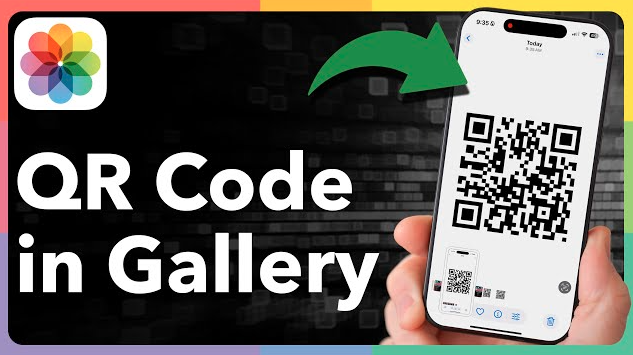
Long-press on gallery images
On both Android and iOS, you can scan many QR codes directly from the gallery.
1. Open your Gallery or Photos app and tap the image that contains the QR code.
2. On iPhone, press and hold the code. On many Android phones, tap the Lens or similar icon.
3. Wait for the system to detect the QR and show a link preview or action.
4. Tap the link to open it in your browser, or copy it for later.
You may also like: How to scan QR code from screenshot or photo: A practical guide for iPhone & Android users
Tips for scanning a QR code
Even when someone knows how to scan a QR code, a few habits make scanning faster and safer across all devices.
Inspect for tampering
Before scanning, take a quick look at the physical QR code for any damage or other issues. If it looks like a sticker placed over another code or part of a sign, it might be fake. In those cases, skip the scan or confirm with staff before using it.
Preview the URL
Most cameras show a link preview before opening it. Read the domain name carefully and watch for odd spellings or strange characters. If the URL looks suspicious or unrelated to the context, avoid tapping it.
Avoid sensitive actions
Be careful when a QR code leads directly to pages that ask for login credentials, card details, or personal data. Instead of entering details right away, open the brand’s website manually in a new tab. This small step helps avoid phishing and fake payment pages.
Beware of unknown sources
Random QR codes on poles, parking meters, or flyers with no clear brand are risky. When there is no logo, explanation, or context, the safer choice is to simply ignore the code. Focus scans on codes from brands, venues, or partners that you trust.
Use the native camera
For basic scanning, the built‑in camera on Android or iPhone is usually the safest option. It has no ads and better system‑level protections than many third‑party apps. Only install extra apps when you truly need advanced features.
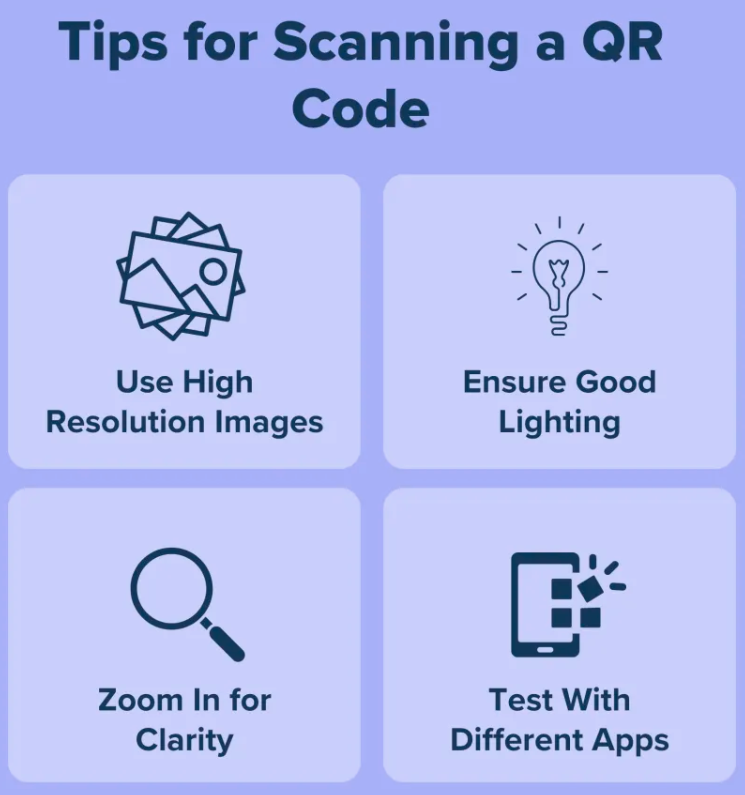
Good lighting & focus
Cameras need light and clarity to read tiny squares. Move closer to a window or turn on your phone’s flashlight when the code is in a dark place. Wait until the image looks sharp on screen before expecting a successful scan.
Distance & stability
If you stand too close or too far, the code becomes blurry. Adjust your distance so the code fills most of the frame without cutting off the edges. Moreover, hold your hands steady for a second to give the camera time to focus.
Optimal angle
Try to keep your camera as straight as possible in front of the QR code. Strong angles or curved surfaces can distort the pattern. A small tilt is fine, but a near‑front view will give the best chance of a quick scan.
How QR code technology works: The future of QR codes!
QR codes store data in a grid of black and white squares. When a camera looks at the code, the software finds the large squares in the three corners, uses them for alignment, and then reads the smaller modules as a string of bits. That data maps to content such as a URL, text, Wi‑Fi settings, or a contact card, which the device then opens or runs.

Behind the scenes, QR codes also use error correction, which lets scanners read the code even if part of it is smudged, scratched, or covered by a small logo. Different “versions” of QR codes hold more or less data depending on how dense the grid is, which is why some codes look more crowded than others.
For marketers, this means every print asset can have a direct, measurable digital action behind it. As phones get smarter, QR experiences will keep improving with features such as on‑screen scanning, deeper analytics, and stronger security checks. Expect QR codes to remain central to payments, ticketing, and campaigns, where a single scan can trigger a full-funnel experience.
Create your custom QR code today with Replug!
Knowing how to scan a QR code is only half the game. To run real campaigns, teams also need QR codes that are on‑brand, trackable, and easy to update. That is where Replug comes in!
Replug is an all‑in‑one link management platform featuring a top-notch custom QR code generator built for marketers, creators, growth teams, etc.
You can create dynamic QR codes for branded short links, files, social profiles, and landing pages, then change the destination later without reprinting anything. Design options let you add your logo, pick colors, and match your brand so people feel safe scanning.
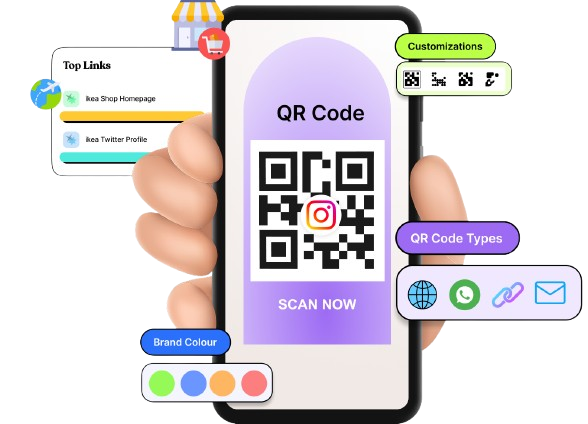

Every scan feeds into a real‑time analytics dashboard with data on devices, locations, and referral sources. You can add retargeting pixels, A/B test different URLs behind the same code, and send traffic to different pages based on device or country. That turns a simple square into a smart entry point for your entire campaign.
Wrapping up
QR codes turn any surface into a clickable call to action, as long as people know how to scan them quickly and safely.
With the built‑in tools on Android, iPhone, Mac, and Windows, plus gallery and screenshot tricks, there is rarely a need for extra hardware.
Combine these scanning habits with safe‑browsing tips, and every code becomes a smooth step into your content, funnel, or offer.
When you are ready to go beyond basic codes and run trackable, branded campaigns, Replug can help you generate and manage them from one clean dashboard.
Frequently asked questions

Muhammad Ahsan Jamal