In the beginning, QR code generators were mostly used for testing or simple features in games where the destination didn’t really matter. But today, a reliable random QR code generator is an asset for developers, marketers, agencies, and everyday users alike.
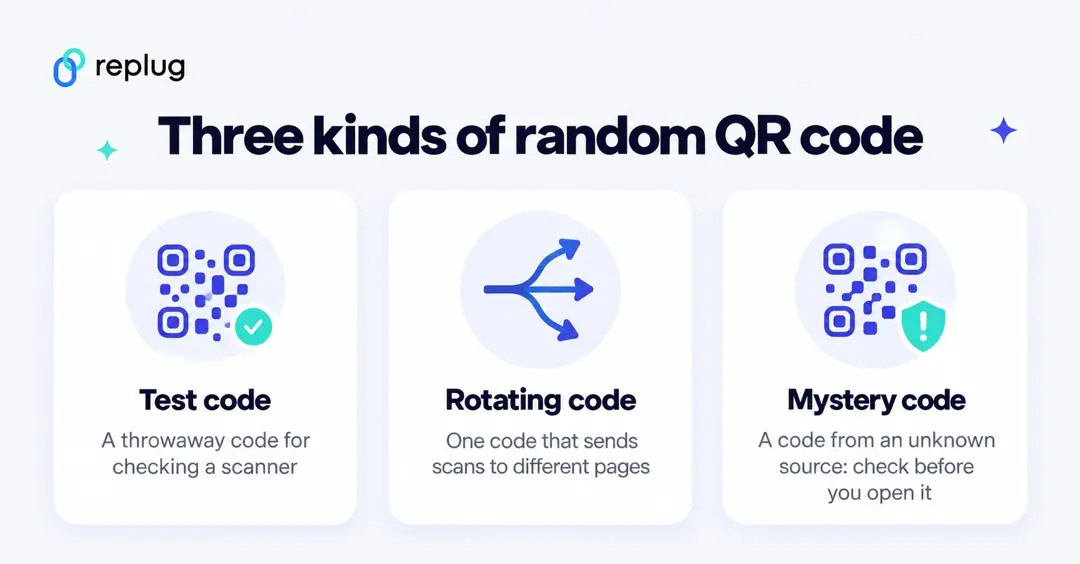
Quick answer: “Random QR code” means one of three things. (1) A test code: any QR code that opens something harmless, for checking a scanner, a print proof or an app; you can scan the one below. (2) A rotating code: one QR code that sends each scan to one of several pages. A QR code can’t do that by itself; it needs a dynamic code whose short link splits visitors across URLs, which Replug does with A/B testing on the Scale and Agency plans. (3) A mystery code found online or on a sticker: don’t scan codes from sources you don’t know.
What is a random QR code?
In marketing, a random QR code is a dynamic QR code that leads users to a different destination each time it’s scanned by rotating between multiple URLs. People also use the term for a throwaway code to test with, or for codes they come across and are curious about.
Need a random QR code to scan or test?
A QR code isn’t random by itself: it stores fixed text, usually a web address, and every phone that scans it reads the same thing. A “random QR code generator” just makes a code from a random or throwaway value. For most tests you only need a code that opens a page you know is safe. This one opens replug.io:
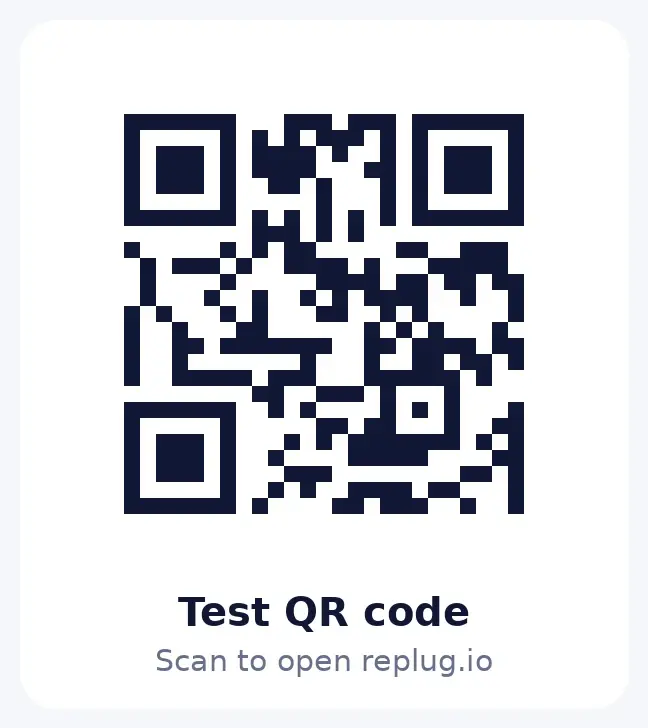
Point your phone’s camera at it; a link preview should appear. If you need many test codes, a free static generator is enough, because nothing needs tracking. If you want to test tracking or redirects, make a dynamic code that runs through a short link; Replug’s Free plan includes 10 QR codes, according to its pricing page.
Whether you’re testing QR code functionality, running A/B marketing experiments, or creating quick, scannable links for your projects, QR codes have the speed and flexibility to get it done effortlessly.
QR codes are now an everyday tool on menus, packaging and posters, and more businesses and creators use tools like Replug.io to automate QR code creation. The rest of this guide shows how to build the second kind of random QR code: one code that sends scans to different pages.
| Replug allows you to easily shorten links, rotate multiple URLs, and generate trackable, customizable QR codes, all from one single platform. |
Step 1: Sign in to your Replug dashboard
- Sign in to the Replug app. If you don’t have an account, sign up. Splitting one link across several URLs (A/B testing) and rule-based traffic routing are part of the Scale and Agency plans, which you can try free for 14 days (Replug pricing).
Step 2: Create a short link
- Click Create link, paste the first page you want people to land on and click Create short link. The Your link window opens with the new short link on replug.link (or your own branded domain).
Step 3: Split scans across several pages with A/B testing
- Under Features, turn on A/B Testing. Your original URL becomes Variation A at 100%.
- Click Add destination URL for each extra page. You can add up to 20 URLs to one link, according to Replug’s A/B testing page.
- Set the share each page gets in Weight (%), or click Split evenly. The weights must add up to 100%.
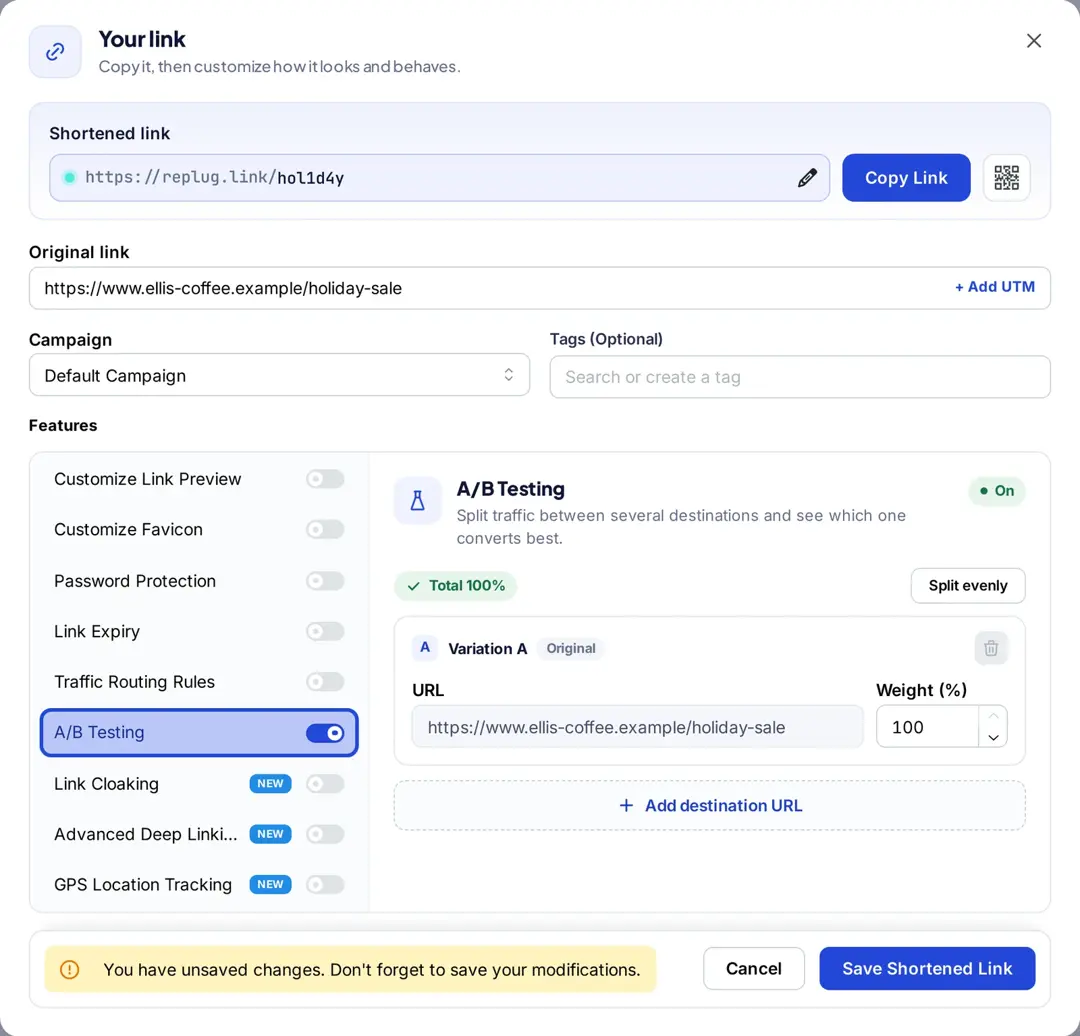
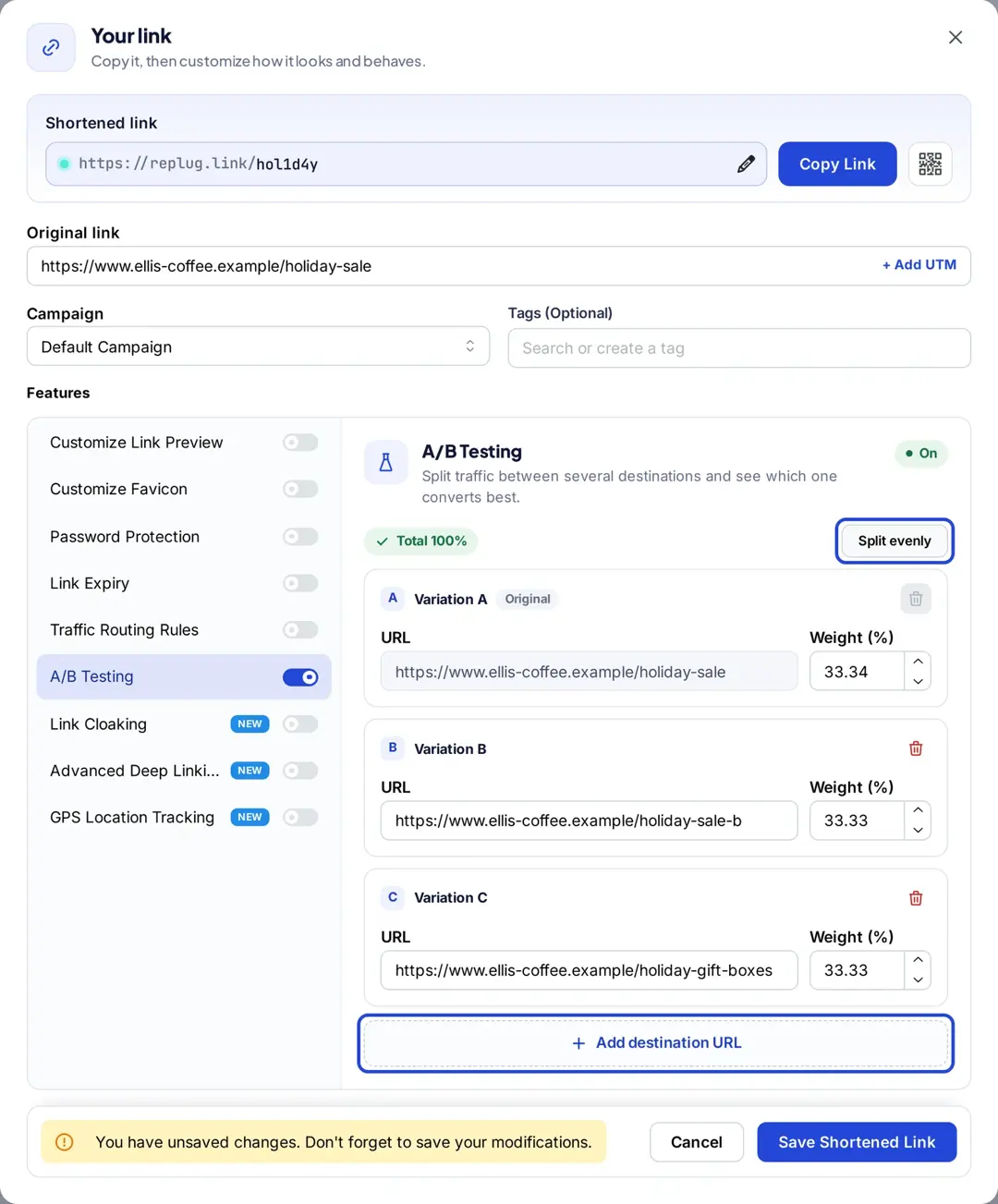
Each scan is sent to one of the URLs according to those shares, so over many scans a 50/50 split sends about half of visitors to each page. It is a weighted split, not a lottery you can predict for one person.
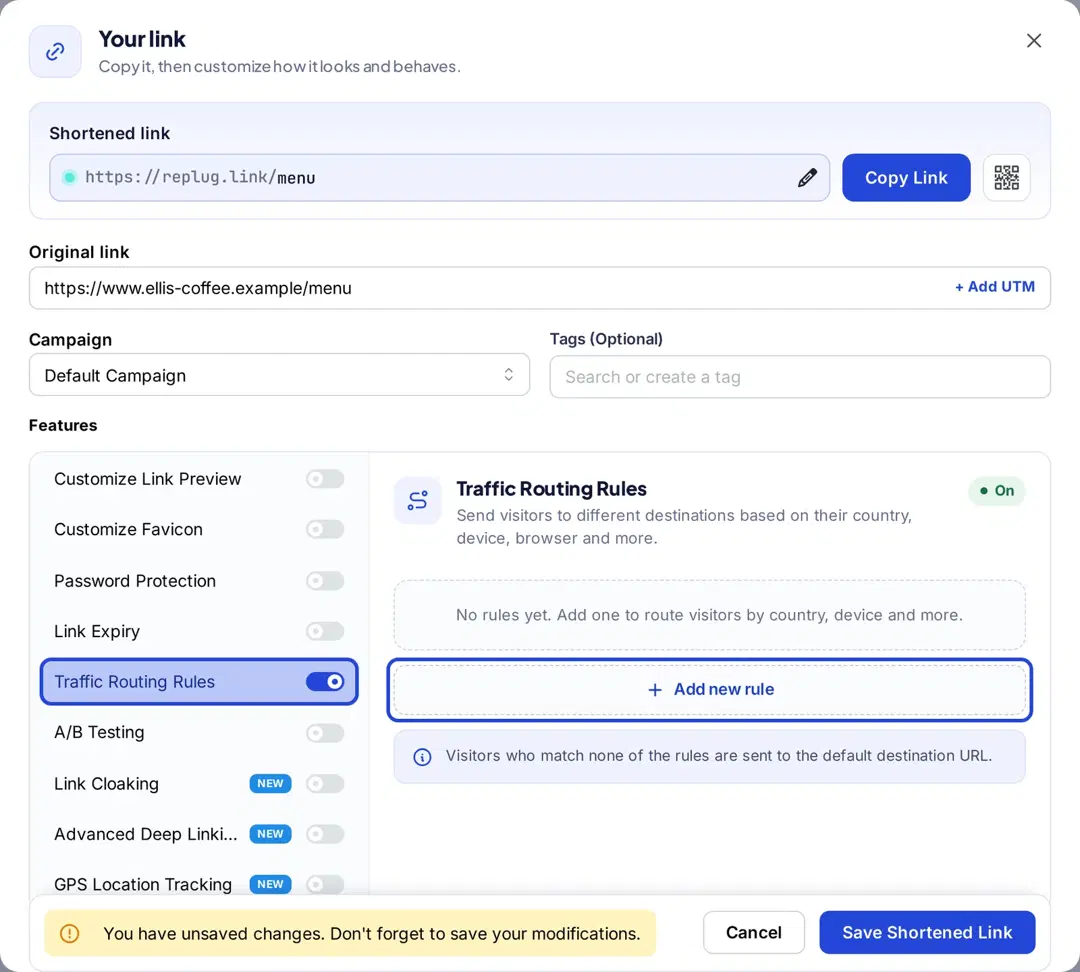
Prefer rules to a random split? Use traffic routing
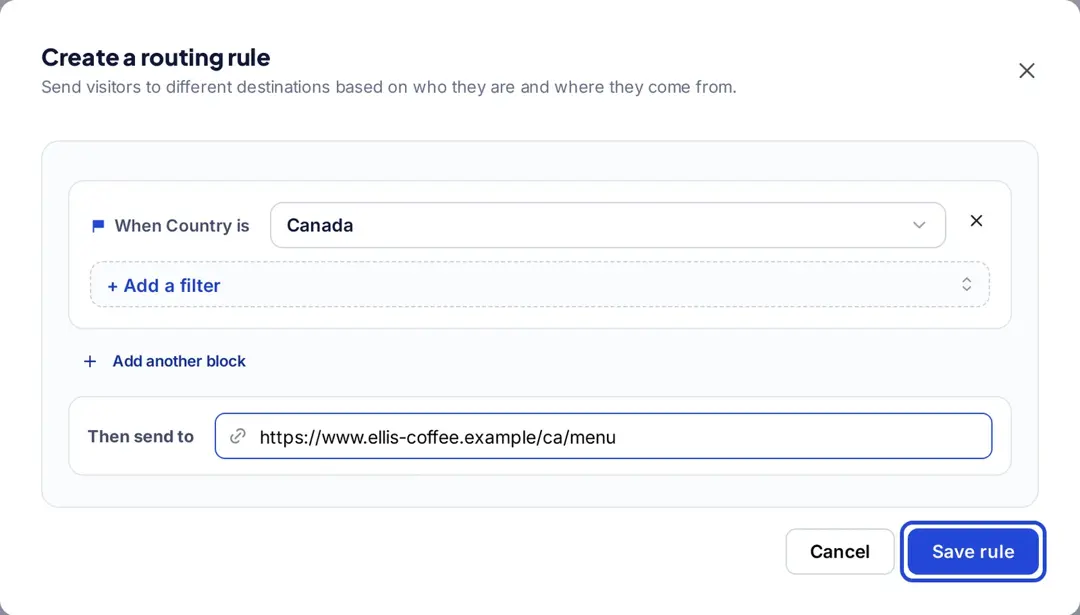
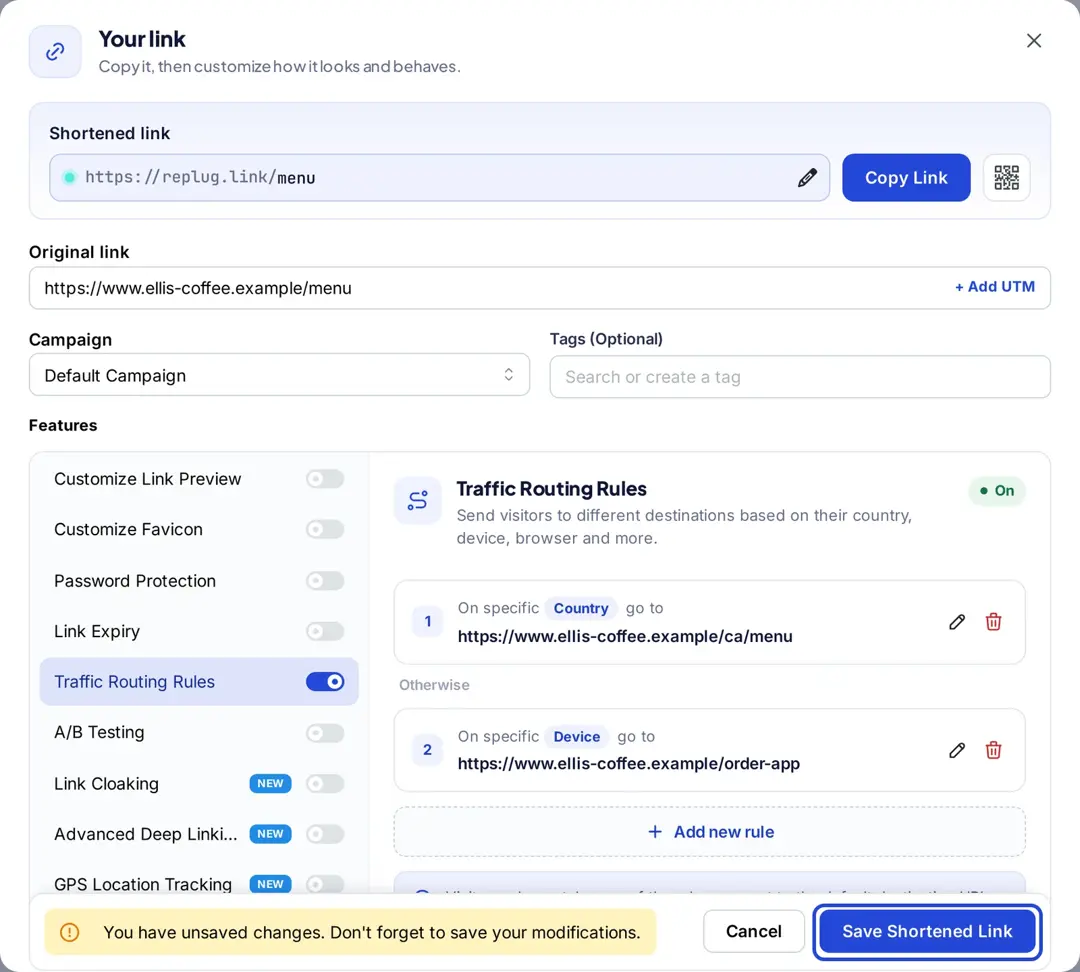
If you want the destination to depend on who scans (their country, city, device, browser, operating system, the date or the day of the week), turn on Traffic Routing Rules instead and click Add new rule. Replug checks up to 10 rules from top to bottom, sends each visitor to the first rule they match and sends everyone else to the main URL, according to its link rotator page.
Step 4: Save the link and make the QR code
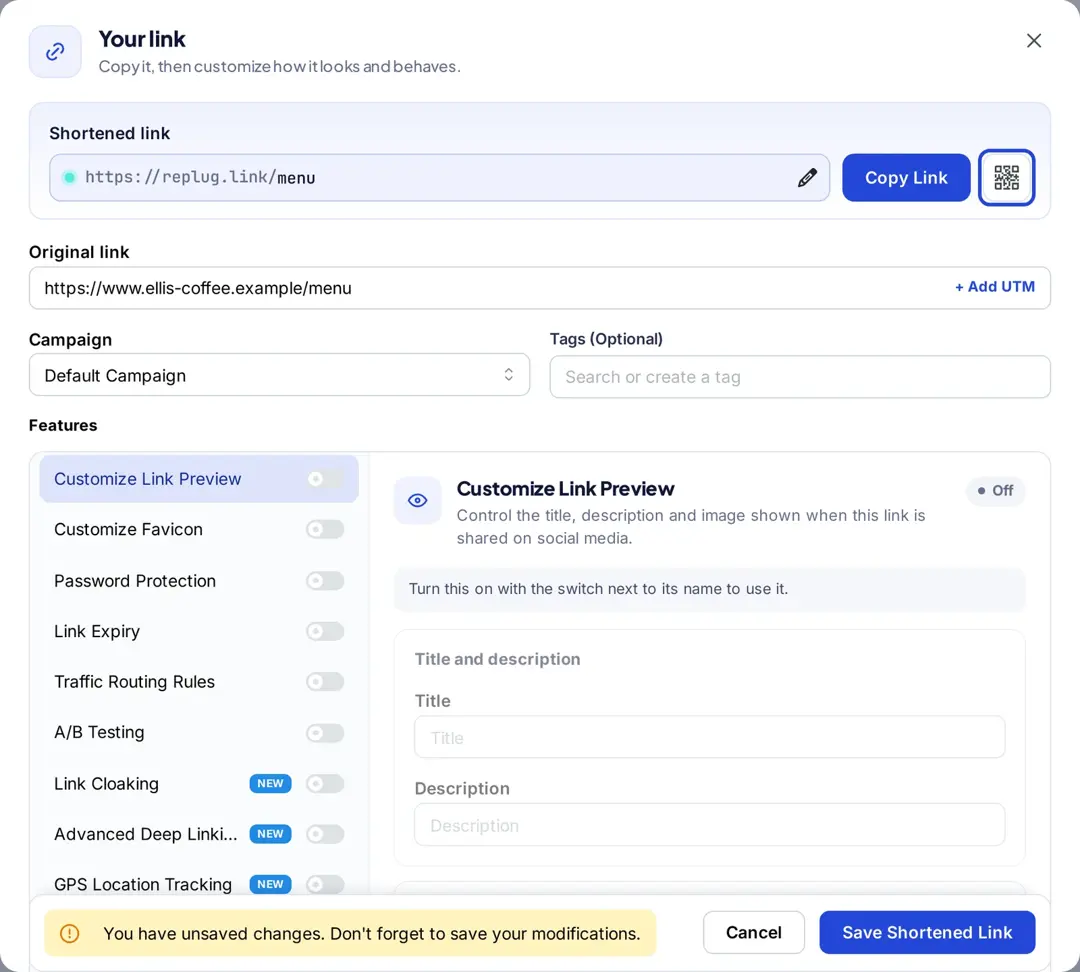
- Click Save Shortened Link.
- Click the QR code button next to Copy Link in the Your link window (or open the link’s actions menu on the Links page and choose QR Code).
Step 5: Customize your QR code
In the Design section you can:
- Change the shape, pattern and colors on the Shape tab
- Add a frame and short frame text such as “Scan me” on the Frame tab
- Upload your logo on the Logo tab (Scale and Agency plans, per the QR code generator page)
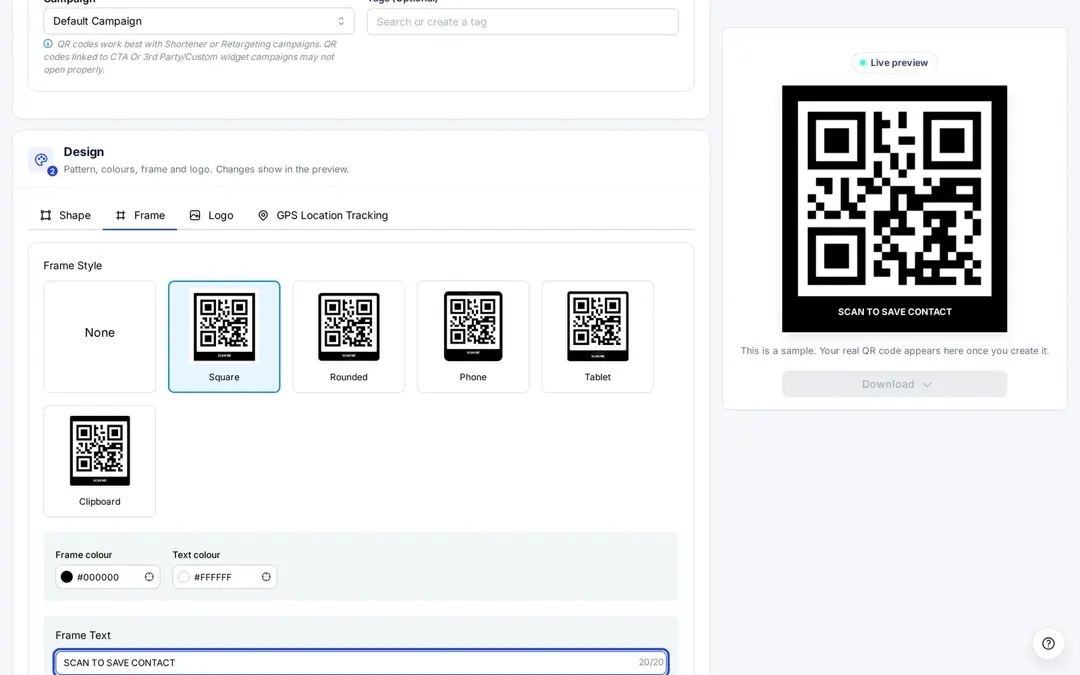
The live preview updates as you change things. Keep strong contrast between the code and its background so every phone can read it.
Step 6: Save and download your QR code
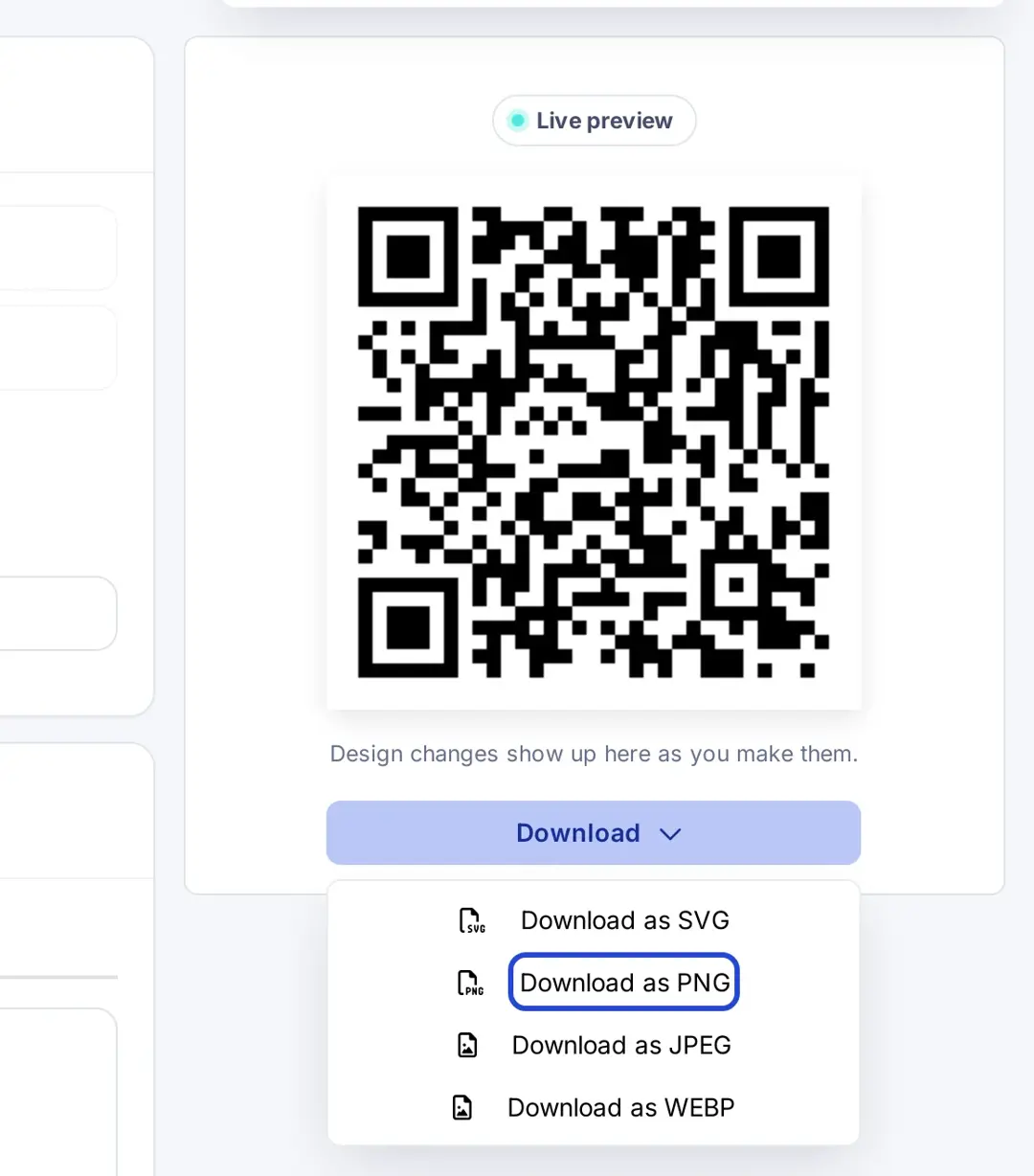
Click Create QR Code at the top right, then open the Download menu and choose SVG for print or PNG or JPEG for screens.
Scan the printed or on-screen code a few times from different phones to check that it opens your pages, then watch scans per destination in Analytics. If one page clearly wins, raise its weight or send all scans to it. On Scale and Agency you can change destinations without reprinting the code.
Why use random QR codes?
Here are a few creative use cases:
- They help you run A/B tests by directing users to different landing pages without needing separate QR codes.
- They make content distribution more efficient by linking to various blog posts, videos, or product pages.
- They boost user engagement by offering something new with every scan, adding an element of surprise.
- You can update or change the destination URLs after the QR code is printed or shared (in Replug, on the Scale and Agency plans).
- They support personalized user journeys based on filters like country, device type, or date and day of the week (with traffic routing rules rather than a random split).
- They’re perfect for gamified experiences like “scan to win,” hidden discounts, or rotating messages.
- They reduce costs and streamline workflows, especially for agencies managing multiple campaigns.
- Tools like Replug offer detailed analytics, allowing you to track scans, devices, and user behavior in real time.
- They work well in print media, one QR code on a flyer or package can serve fresh content over time.
- They enhance the overall user experience by making interactions more dynamic, interactive, and memorable.
Also read: QR Advertising: Your gateway to consumer engagement
Is it safe to scan a random QR code?
Scanning a code is safe when you know who put it there. Codes from unknown sources are another matter: the FBI warns that criminals tamper with QR codes, for example by sticking their own code over a real one, to send people to sites that steal login and payment details (FBI IC3 public service announcement, January 2022). Its advice:
- After scanning, check the web address before you open or enter anything.
- Be careful with logins, personal details and payments on a page you reached through a QR code.
- On a physical code, check that no sticker has been placed over the original.
- Don’t download apps from a QR code; use your phone’s app store, and use the camera’s built-in scanner instead of a separate scanner app.
If you publish QR codes yourself, a short link on your own branded domain makes that first check easy for the people who scan.
Final thoughts
Random QR codes have come a long way from basic functionality to becoming powerful tools for testing, marketing, and user engagement. With platforms like Replug, creating and managing these codes is not only simple but highly customizable and data-driven. Whether you’re looking to rotate links, run A/B tests, or craft interactive experiences, random QR codes offer the flexibility you need. And with Replug, you can do it all from one smart dashboard.
FAQs on random QR code

Manahil