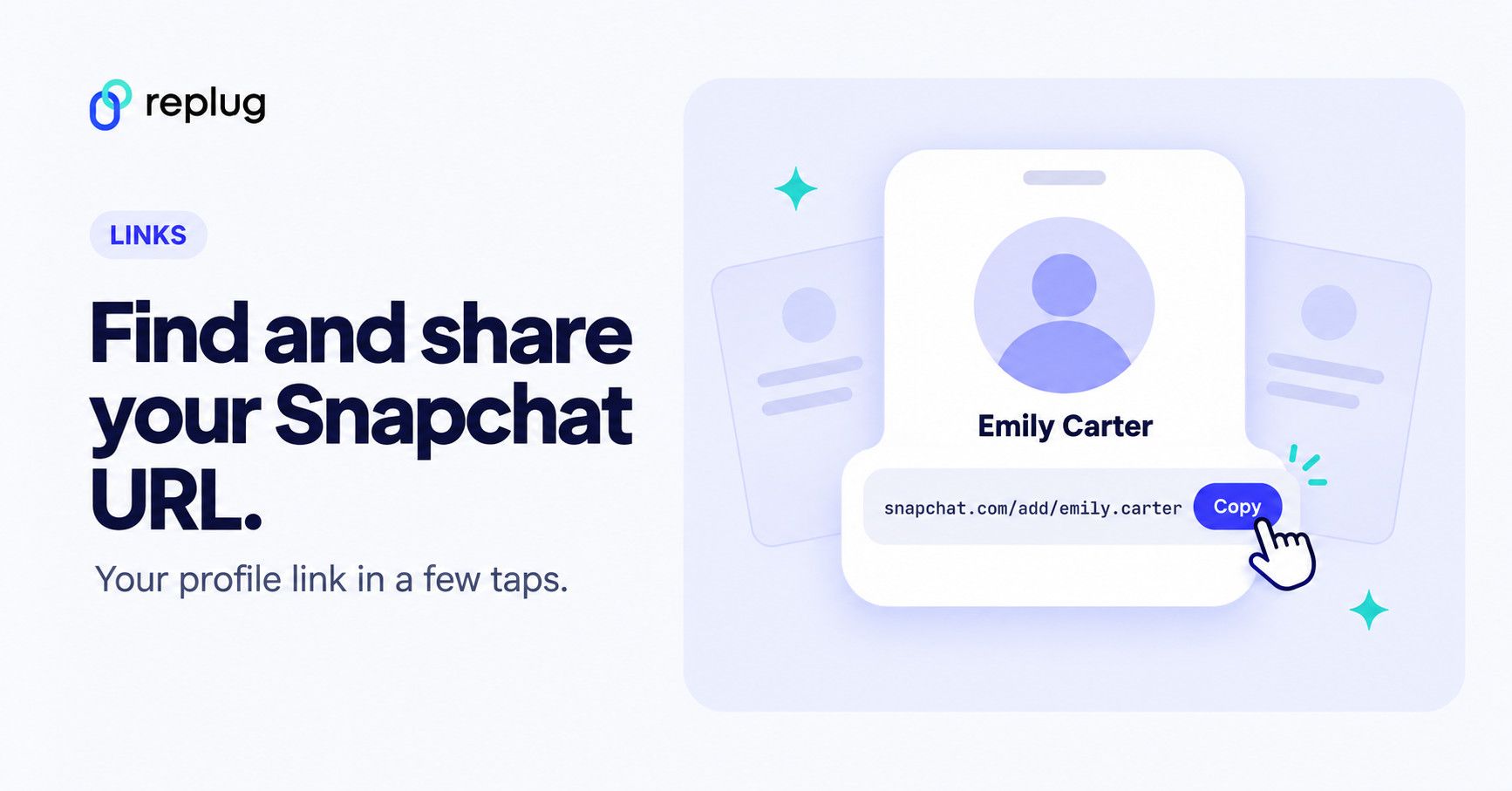
Quick answer (checked October 2026): your Snapchat URL is https://www.snapchat.com/add/ followed by your username, for example snapchat.com/add/emily.carter. To copy it in the app, tap your Bitmoji or profile icon in the top left, tap the share icon next to Settings, and tap Copy under “Share Your Profile”. You can also build it by hand: add your username to the end of snapchat.com/add/. Snapchat Support uses the same snapchat.com/add/ address for Public Profiles.
Have you ever tried sharing your Snapchat profile only to find everyone asking, “What’s your link?” You’re not alone!
According to Snap Inc.’s second-quarter 2026 results (August 2026), Snapchat averaged 493 million daily active users and 971 million monthly active users, so it remains one of the most-used social platforms of 2026.
But despite its massive popularity, many users still don’t know how to get or share their Snapchat URL, leaving them frustrated and stuck when connecting with friends, followers, or customers.
That confusion can make something as simple as building your presence feel way harder than it should be.
In this guide, we’ll walk you through exactly how to find your Snapchat URL, starting with the basics. So let’s step in and clear things up!
First up:What is a Snapchat URL link?
What is a Snapchat URL?
A “Snapchat URL” is simply a web link that leads straight to a specific Snapchat profile or piece of content. It’s like a shortcut that saves people from searching around for your username.
Instead of telling someone to type your exact username (which is easy to mess up), you can just send a link that instantly opens your profile in Snapchat. This makes connecting way faster and smoother than the old days of only searching or scanning Snapcodes or QR codes (here’s how QR codes work).
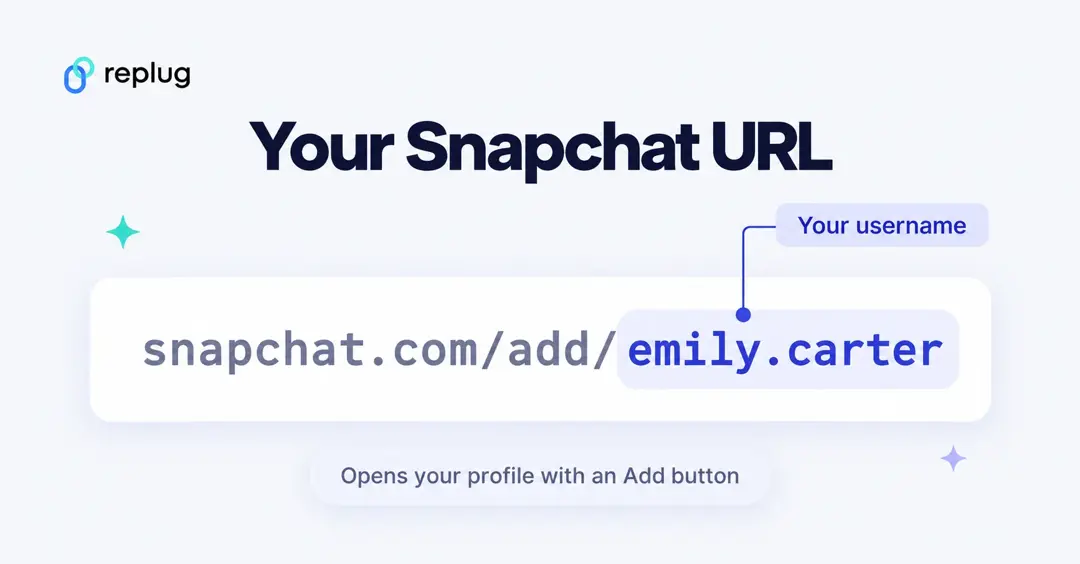
The main purpose of a Snapchat URL is to make sharing and adding friends easier. When someone taps the URL, they’ll see your Snapchat page with an “Add” button right away (no extra steps).
That’s especially handy if you’re trying to grow your audience, promote yourself, or just make it simple for friends to find you online.
Snapchat URL example
Here’s what a typical Snapchat profile link looks like:
https://www.snapchat.com/add/yourusername
In this example, replace yourusername with your actual Snapchat username. Now, the resulting link becomes your personal Snapchat URL that you can share anywhere, anytime!
Snapchat link formats at a glance
“Snapchat URL” can mean a few different links. Here is what each one looks like and what it opens:
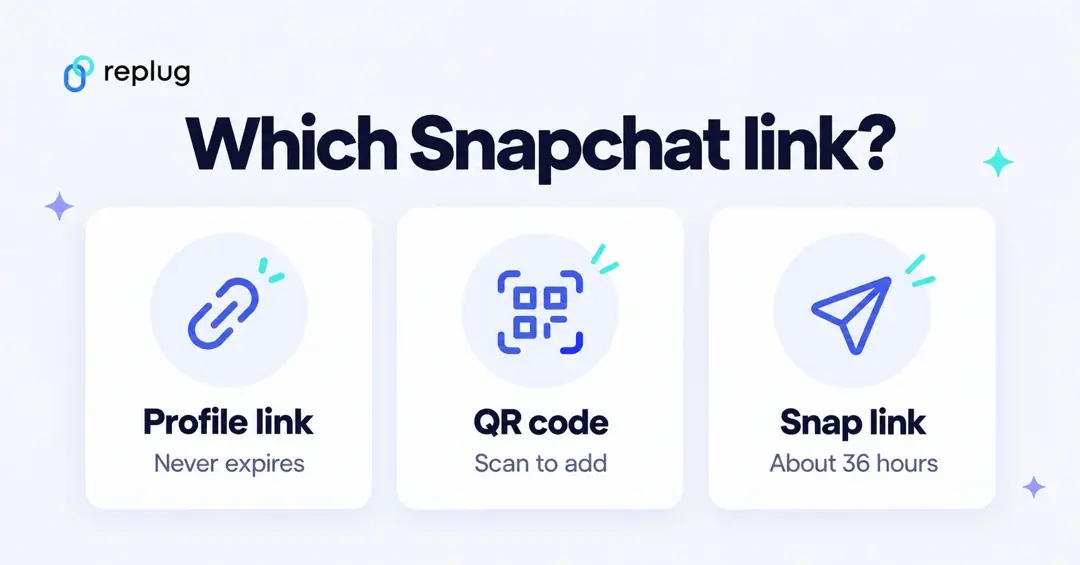
| Link type | What it looks like | What it opens |
|---|---|---|
| Profile (add) link | https://www.snapchat.com/add/username | Your profile with an Add button. This is the link most people mean. |
| Snapcode | A yellow square with black dots (your profile QR code) | Your profile when someone scans it with the Snapchat Camera |
| Public link to a Snap or Memory | A link created with the link button on that Snap | That piece of content, for about 36 hours |
| Snapchat for Web | web.snapchat.com | Snapchat in a computer browser (sign-in needed) |
Sources: profile links and Snapcodes from Snapchat Support’s Snapcode article and “How to Add Friends on Snapchat”; public content links from “How do I share content from Snapchat?”, which says shareable public links expire around 36 hours after they are created.
How to get my Snapchat URL on the app: Step-by-step guide!
Getting your Snapchat URL right from the app is super simple! It’s just a few taps, and you’ll have a link ready to share with friends, followers, or in your bio.
📱 Here’s how to get the Snapchat URL on the app:
Step #01: Open the Snapchat app on your phone like you normally would.
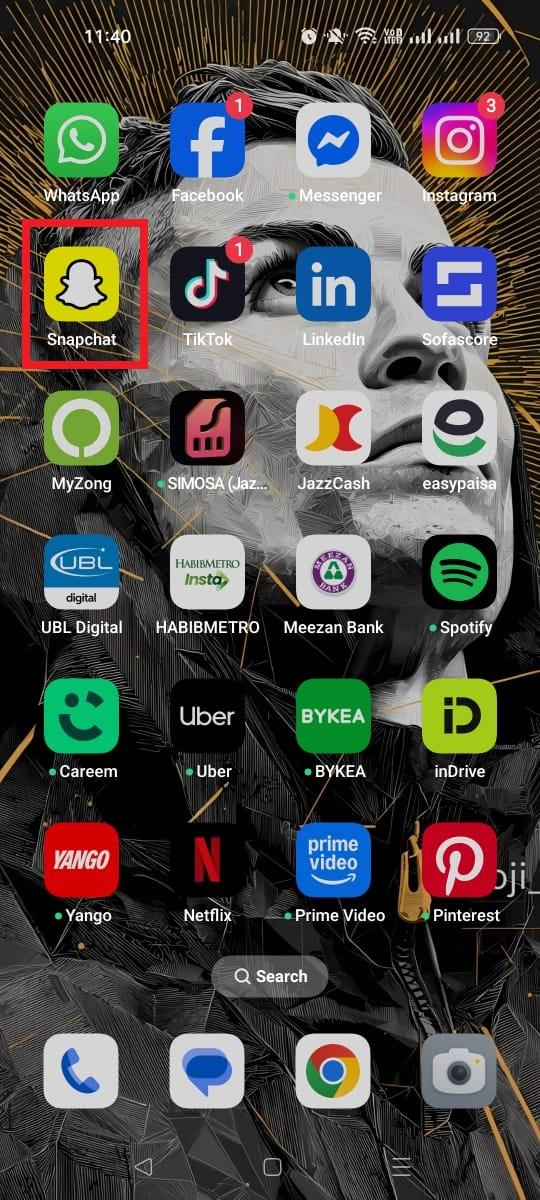
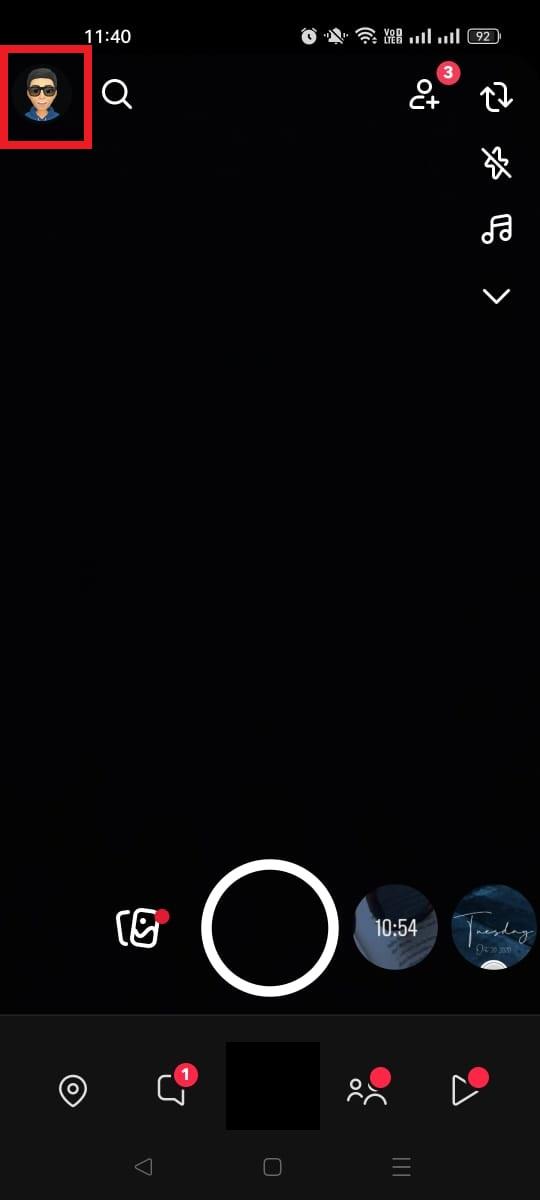
Step #02: Go to your profile by tapping your Bitmoji or profile icon in the top left corner.
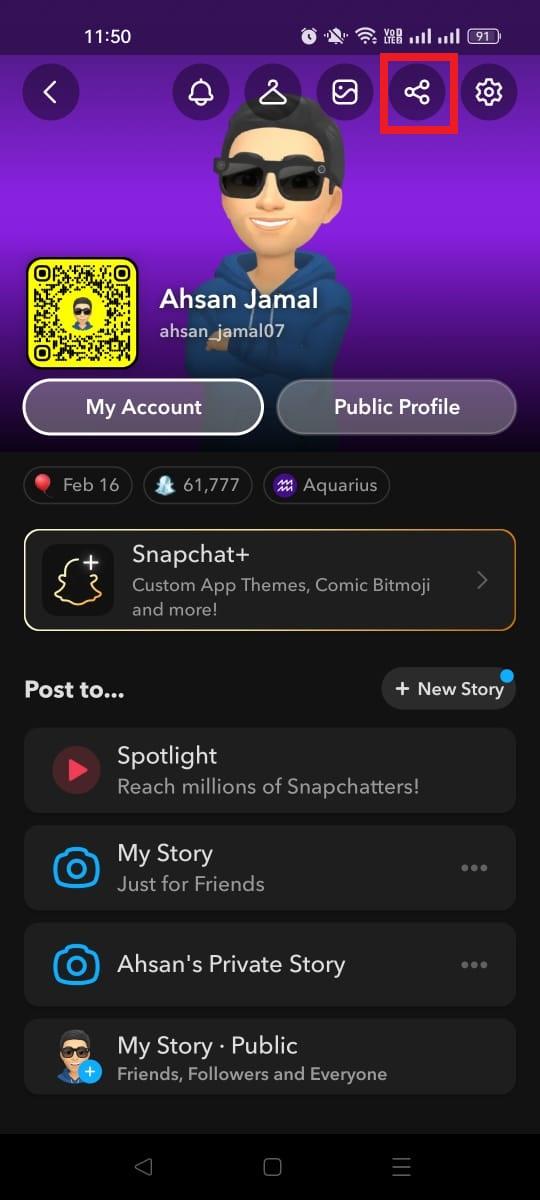
Step #03: Look for the “Share” icon and tap it. It will be on the left side of the “Settings” icon.
Step #04: On the next screen, you will see an option that says “Share Your Profile.” Under it, tap on the option labeled “Copy.”
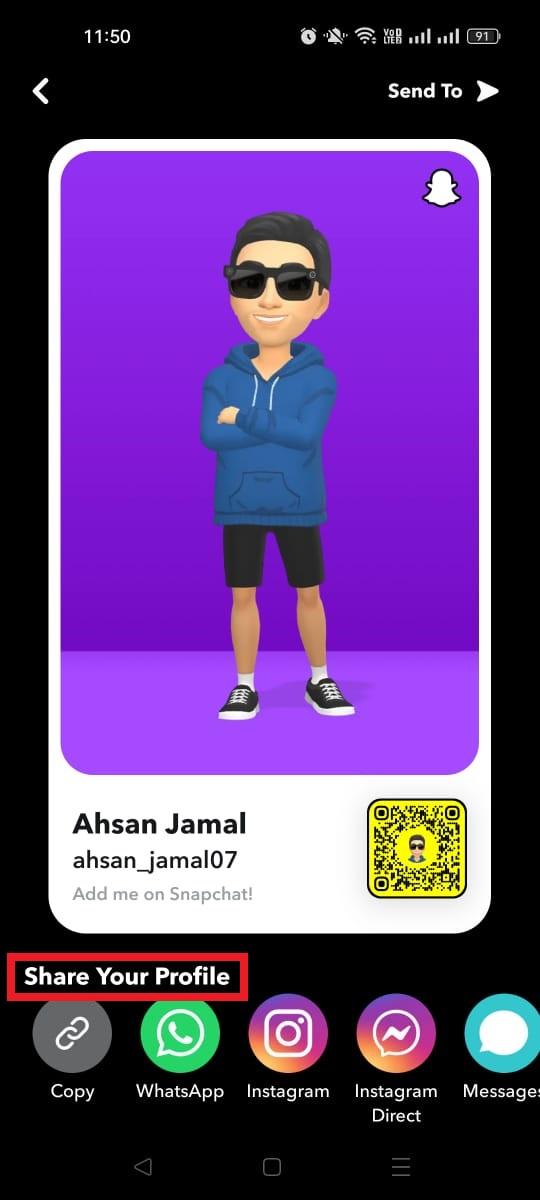

Step #05: Snapchat will show you your unique URL (it usually looks like https://www.snapchat.com/add/yourusername).
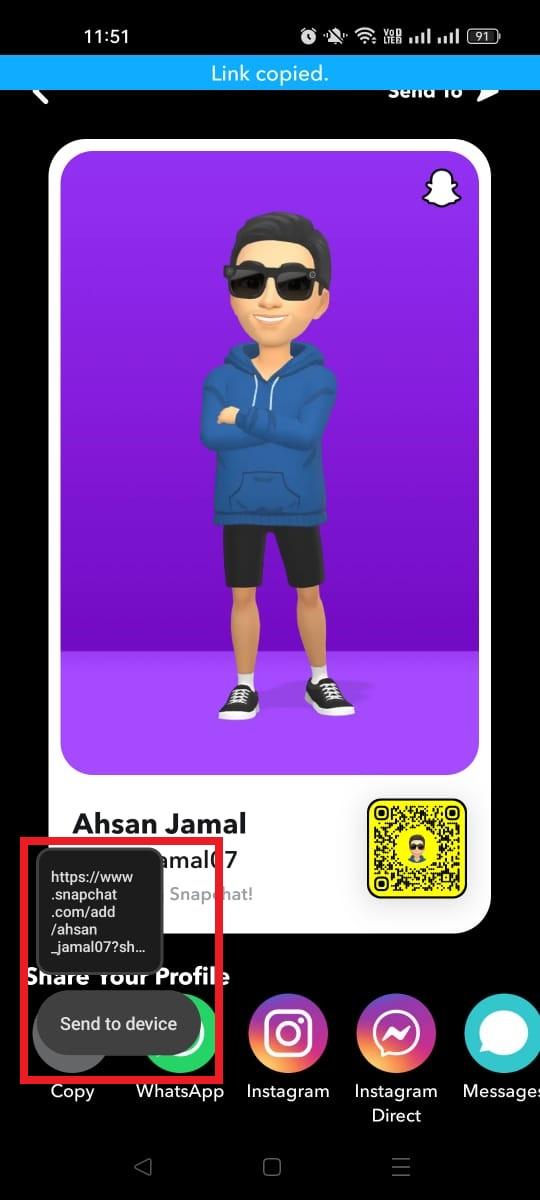
Step #06: From here, pick how you want to share it. You can copy it to your clipboard, send it in a message, post it on social media (like WhatsApp or Instagram), or save it for later.

And that’s it! You’ve now got your personal Snapchat link ready to go 🥳. It makes adding you way easier than asking people to type your username by hand.
How to copy a Snapchat URL from the app: Grab your link straight from your phone!
Copying your Snapchat URL right from the app is one of the easiest ways to share your profile with others, whether you want friends to add you or you’re promoting your account online.
Here’s how to copy a Snapchat profile link URL:
Step #01: Open the Snapchat app on your phone and make sure you’re logged in.
Step #02: Go to your profile by tapping your Bitmoji or profile icon in the top-left corner of the screen.
Step #03: Look for the “Add Friends” option and tap it. It will be under the section titled “Friends.”
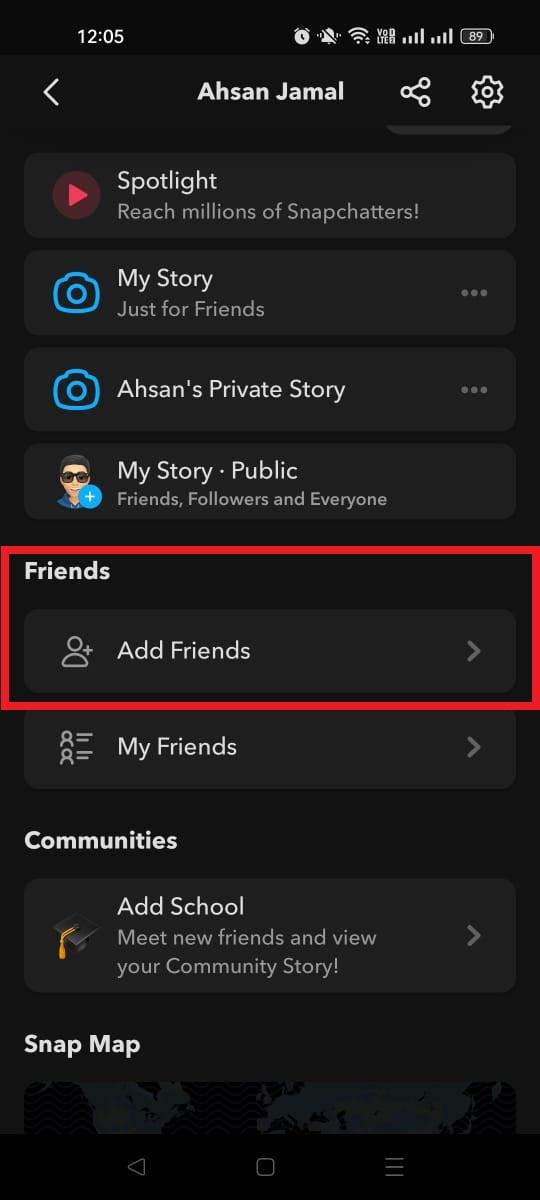
Step #04: On the next screen, you will see an option that says “Invite friends.” Tap that!
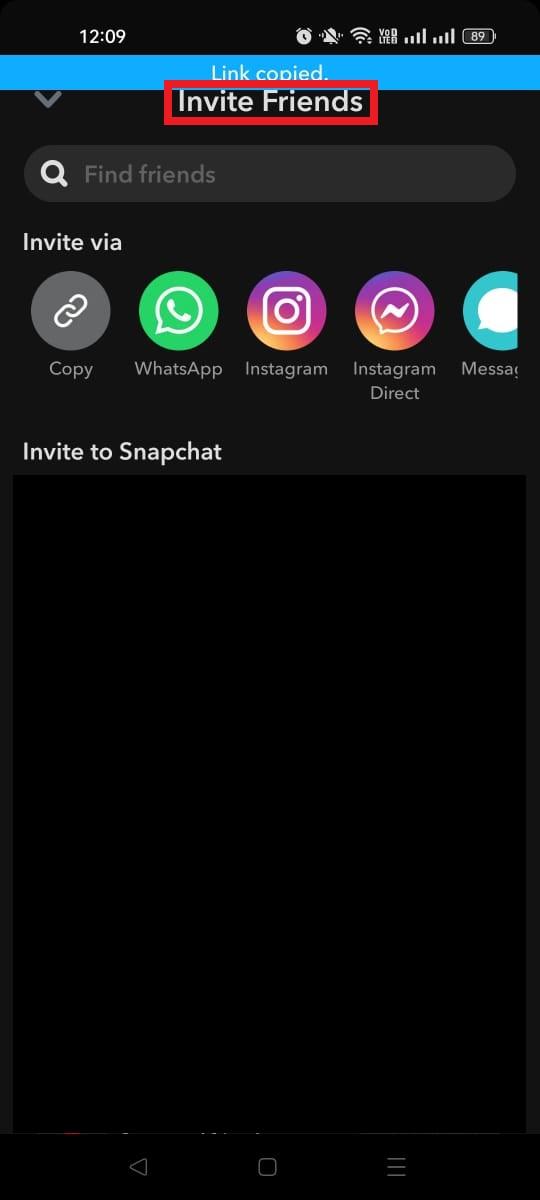
Step #05: Now, under the “Invite via” heading, tap “Copy.” This displays your Snapchat profile URL (something like https://www.snapchat.com/add/yourusername) and copies it to your clipboard.
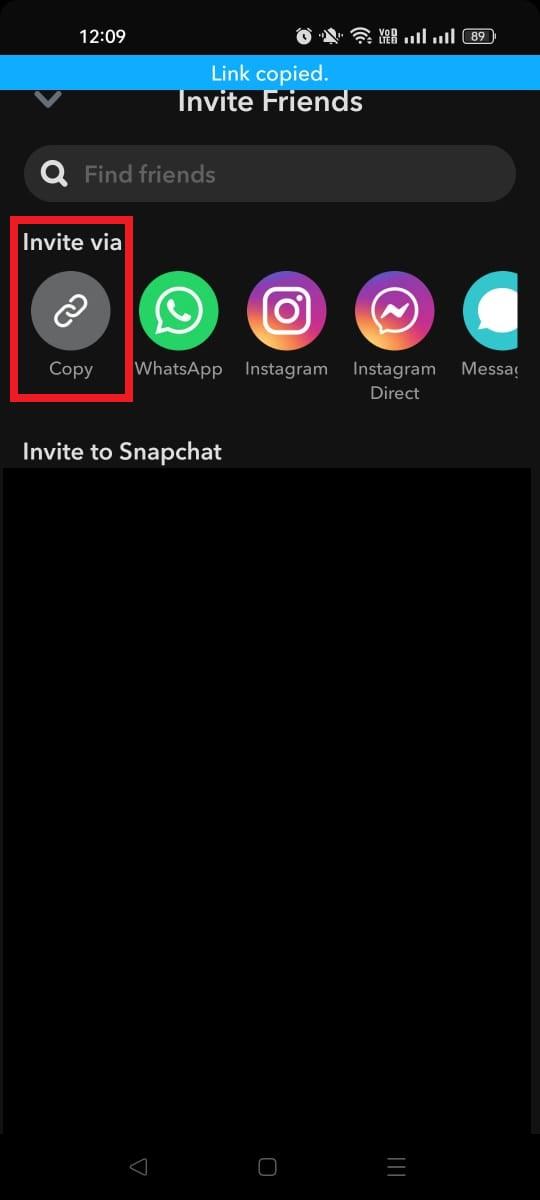
Step #06: Paste it wherever you want, e.g., like in a message, your Instagram bio, or a blog post, by long-pressing and selecting “Paste.”
That’s it! Now you’ve got your Snapchat URL copied and ready to go, making it way easier for people to find and add you.
How to share your Snapcode (Snapchat’s QR code)
Your Snapcode is the scannable version of your profile link. According to Snapchat Support:
- Open Snapchat and tap the Profile icon.
- Your Snapcode sits next to your display name and username. Tap it to enlarge it.
- Share it on other platforms or save it to your Camera Roll.
To add someone from their Snapcode, Snapchat’s guide to adding friends says to point the Snapchat Camera at the code, press and hold on it to scan, then tap “Add Friend”. A Snapcode works well on printed material, while the snapchat.com/add/ link is better for bios, emails and messages.
How to find someone else’s Snapchat URL
Snapchat profile links follow the same pattern for everyone, so you only need the person’s username (not their display name). Add it to the end of https://www.snapchat.com/add/. For example, the username jake.miller gives snapchat.com/add/jake.miller. If you don’t know the username, search for the person’s name in Snapchat with the magnifying glass at the top of the screen, as Snapchat Support describes, and check the username on their profile.
Public Profile URL for creators and businesses
A Public Profile is the public-facing version of an account, used by creators and businesses to get discovered. It doesn’t get a different kind of address: per Snapchat Support, you can open a Public Profile and its Snapcode at https://www.snapchat.com/add/ plus the username. Put that link in your other bios, your website and your email signature.
Does your Snapchat URL change when you change your username?
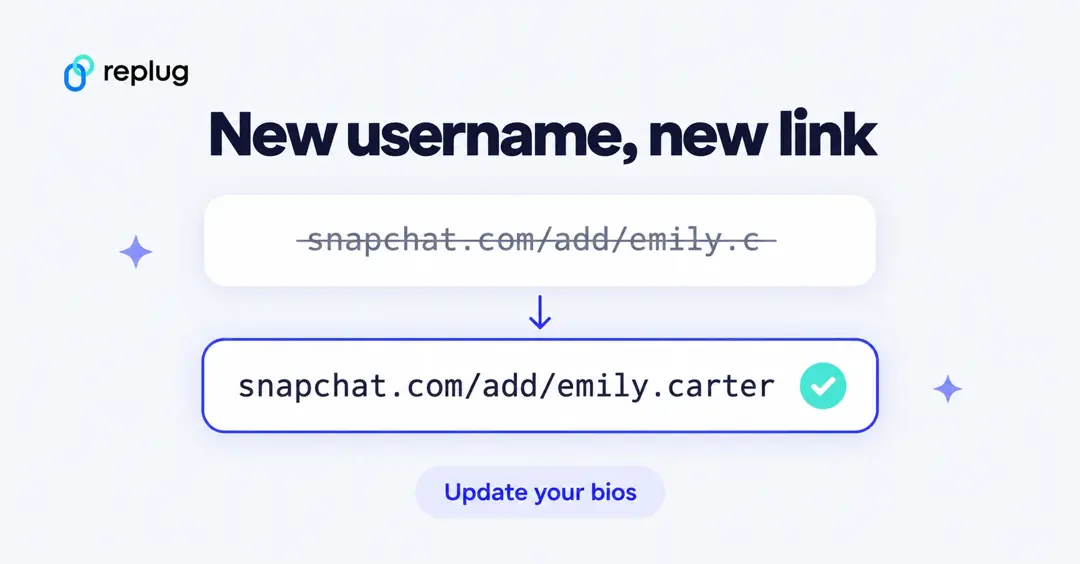
Yes. Your profile link contains your username, so a new username means a new link. According to Snapchat Support, you can change your username once a year (12 months from your last change) under Settings → My Account → Username. After a change, update the link everywhere you’ve posted it.
If you share your Snapchat link in many places, a short link you control saves you that cleanup: you update one link instead of every bio. With Replug, changing where an existing short link points is available on the Scale and Agency plans (see Replug’s pricing); on Free and Essentials you would create a new short link.
Snapchat link not working? Quick fixes
- Typo in the username: the link must use your exact username, not your display name. Check it on your profile.
- It opens a browser page instead of the app: the person may not have Snapchat installed or signed in. They can still add you after signing in.
- A shared Snap link stopped working: public links to Snaps and Memories expire around 36 hours after they are created, per Snapchat Support. Create a new one.
- You changed your username: the old snapchat.com/add/ link no longer matches your profile. Share the new one.
How to view links on Snapchat: Inside direct snaps & in stories
Sometimes friends send you web links inside snaps or add them to their stories, and Snapchat makes it pretty easy to see what they’re sharing.
No matter if it’s a link in a direct snap or a swipe-up link in a story, you just need to know where to look and how to interact with it.
Here’s a friendly, simple run-through so you never miss a link someone shares with you!
🔍 Viewing links in direct snaps
Step #01: Tap the snap in your chat feed or conversation list to view it.
Step #02: Check the bottom center of the screen for a small arrow pointing up, and you might also see the name or title of the website that’s linked.
Step #03: Drag your finger upward on the screen to load the web page that’s connected to the snap.
Step #04: When you’re done, either tap the down arrow in the corner or pull the page downward to go back to the snap or chat.
That’s all there is to it!
📖 Viewing links in stories
Step #01: Go to the “Stories” section by swiping left from the camera screen, and then tapping the option labelled “Stories.” You’ll see all recent stories from your friends or accounts you follow.
Step #02: As you watch a story, if the creator has attached a link to a snap (using the paper clip icon when they posted it), you’ll see a prompt like “Swipe up to view” or the website title at the bottom.
Step #03: Swipe up on the screen when that prompt appears. This opens the web link right in Snapchat’s browser.
Note: If there isn’t a link included, swiping upward won’t do anything. You need to have the Snapchat app installed on your phone or tablet in order to see the linked content easily.
Read also: How to add a link to Snapchat story: 6 simple steps
How to attach a link to a snap: 5 quick steps to follow!
Attaching a web link to your snap lets people swipe up to open a site right from your photo or video. Perfect option for sharing articles, products, events, or anything cool you’ve found online.
It’s quick and works right inside the Snapchat app!
Step #01: Open Snapchat and take a snap. Just shoot a photo or record a video like you normally do.
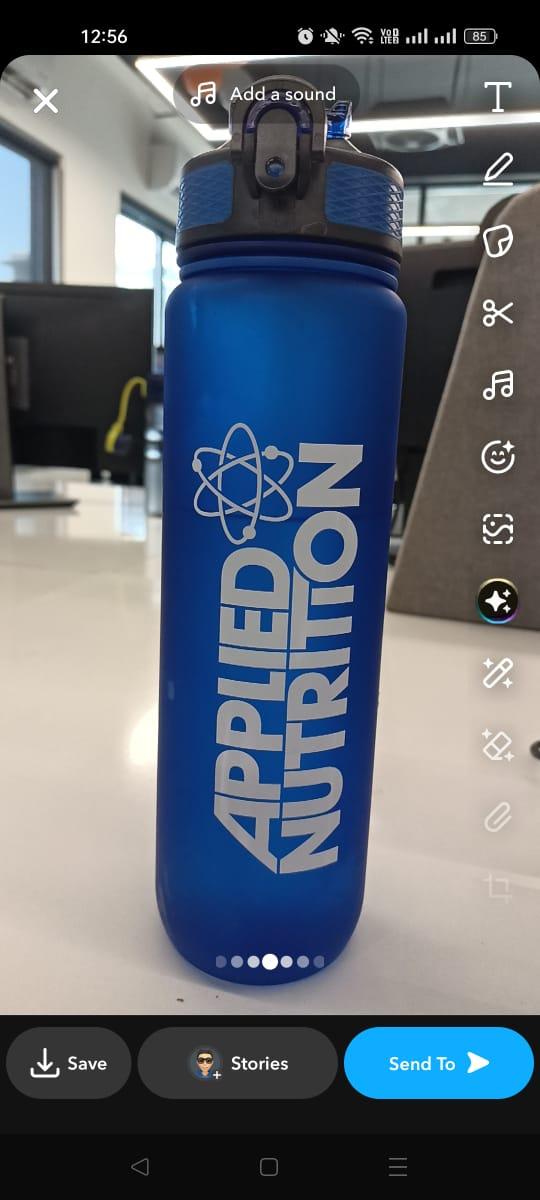
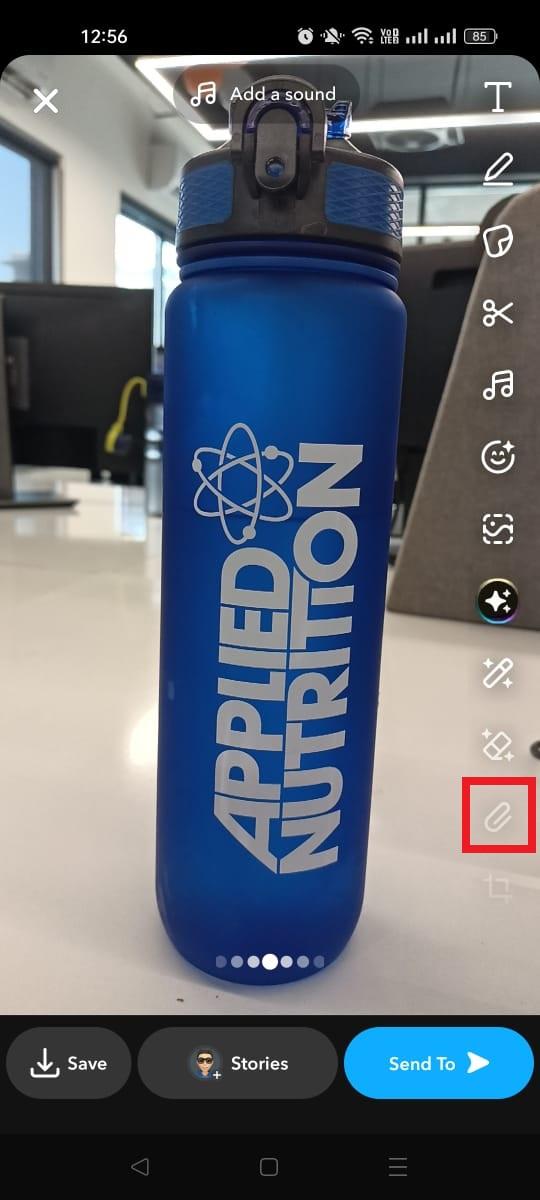
Step #02: Tap the paperclip icon. On the preview/edit screen, look for this icon in the vertical toolbar on the right; that’s Snapchat’s link button.
Step #03: Enter or paste your URL. Type in the web address you want to share, or paste one you’ve copied from elsewhere.
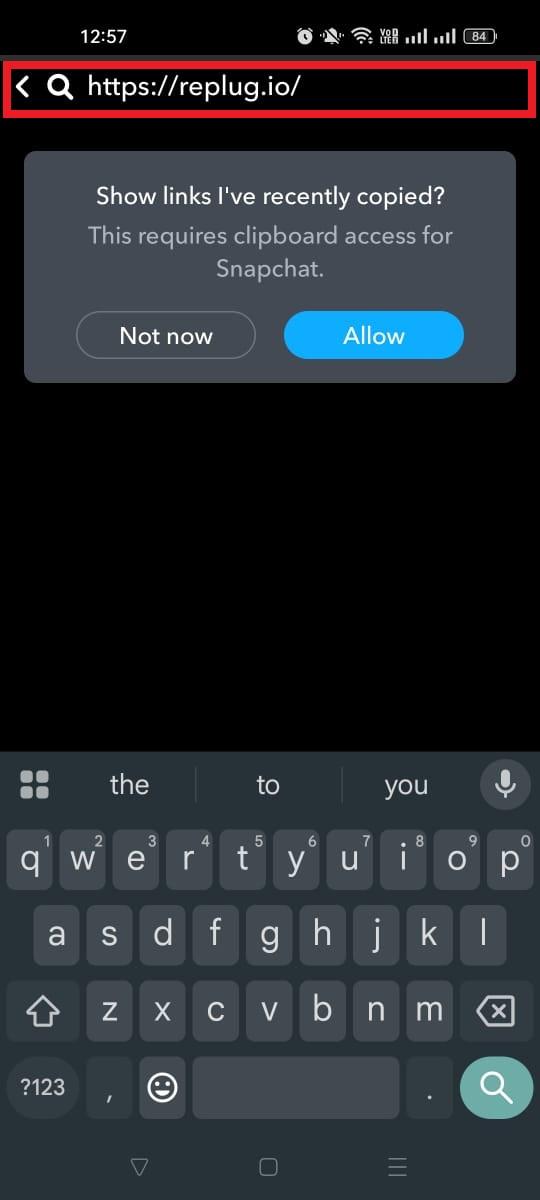
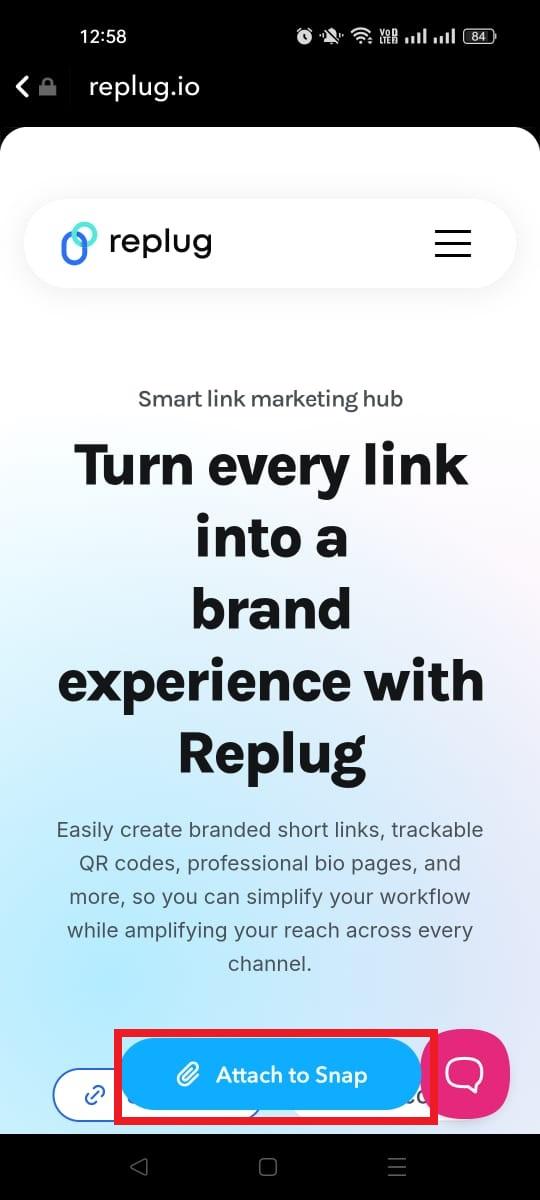
Step #04: Tap the “Attach to Snap” button. Once the link looks right, hit this blue button. Snapchat will show a little preview so you can double-check it.
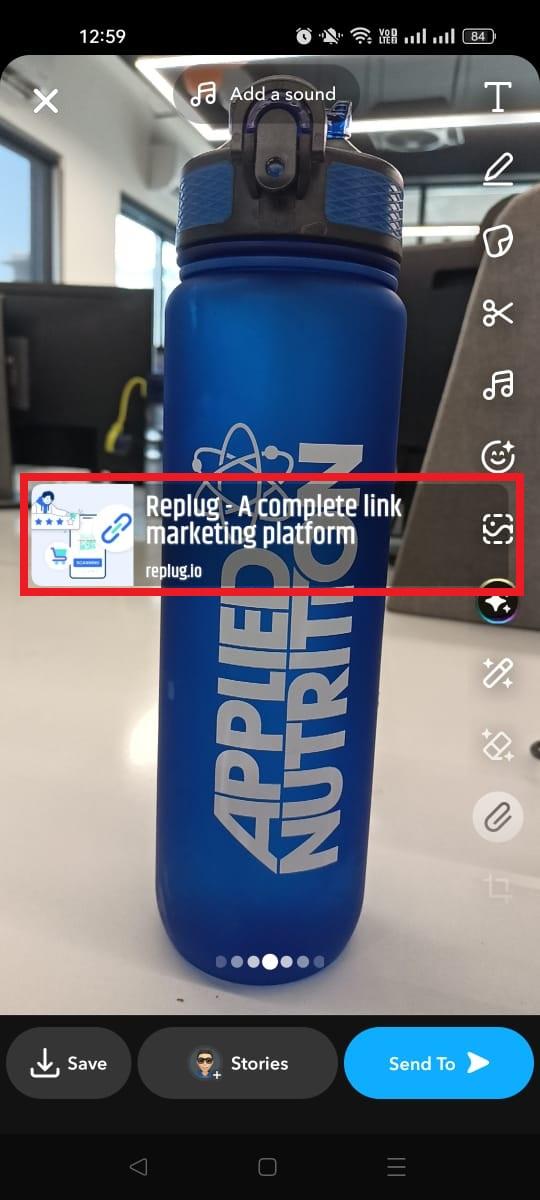
Step #05: Send or post your snap. Now just send it to friends or add it to your story. Anyone who sees the snap can swipe up to open the link in Snapchat’s internal browser.
That’s it! This feature makes sharing useful web content super easy without leaving the app. 😊
Also read: How to get an image URL: Get the URL of a photo on different devices & platforms within seconds!
Shorten your Snapchat links with Replug!
If your Snapchat URL feels too long and cluttered to share, especially in places like Instagram bios, texts, or tweets, a link shortener like Replug can help you turn it into a clean, simple, and more professional link that’s easier to share and remember.
Shortened links also tend to look better and can boost engagement when you drop them on social media or in your content.
Here’s a simple step-by-step guide to help you shorten your Snapchat URL using Replug:
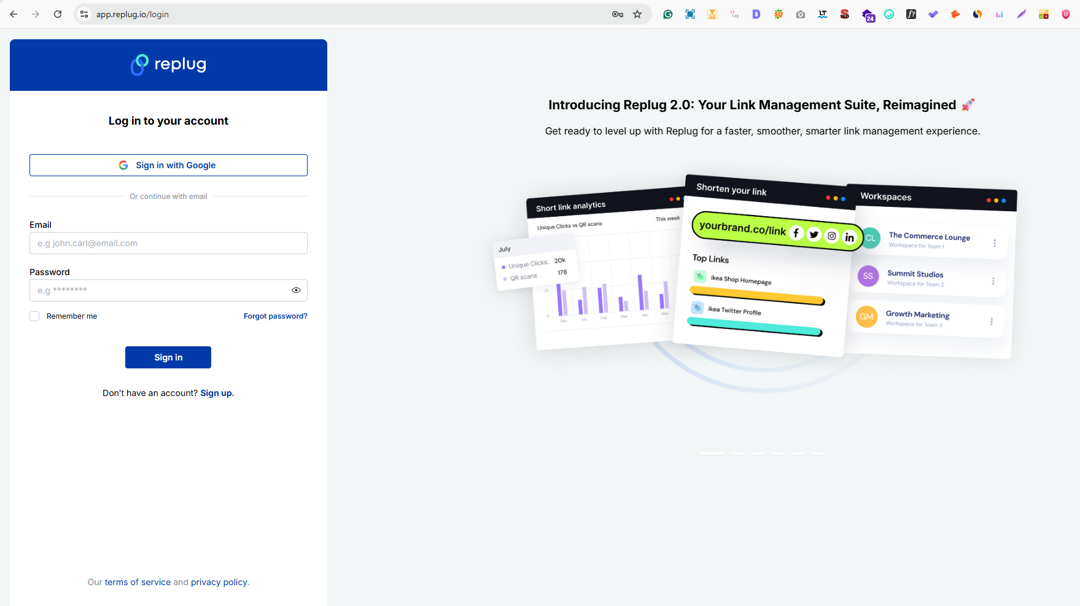
Step #01: Sign in or create an account on Replug. Go to the Replug website and log in to your account. If you don’t have one yet, signing up is quick, and there’s a free option to get started.
or

Step #02: Paste your Snapchat URL. On the dashboard, find the box labeled “Quickly Shorten your link” and paste your copied Snapchat URL (like https://www.snapchat.com/add/ronnie_07).
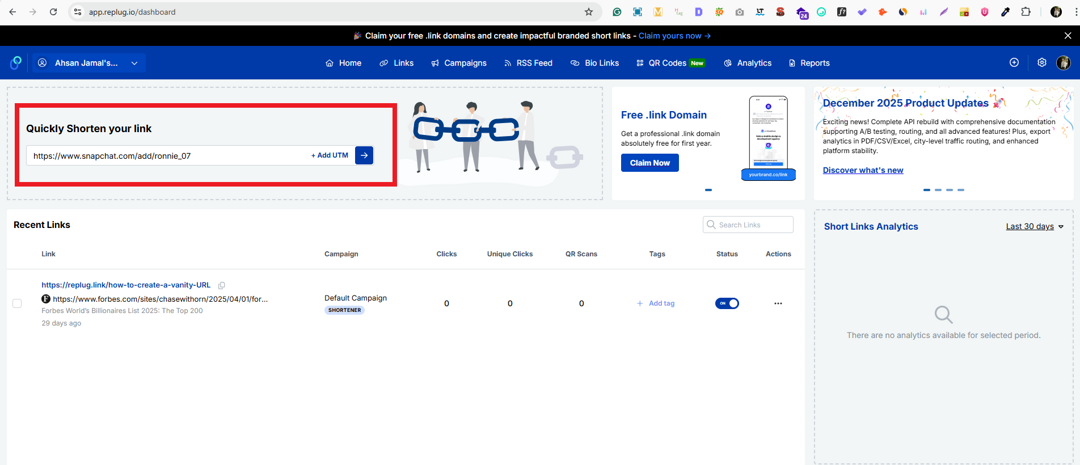
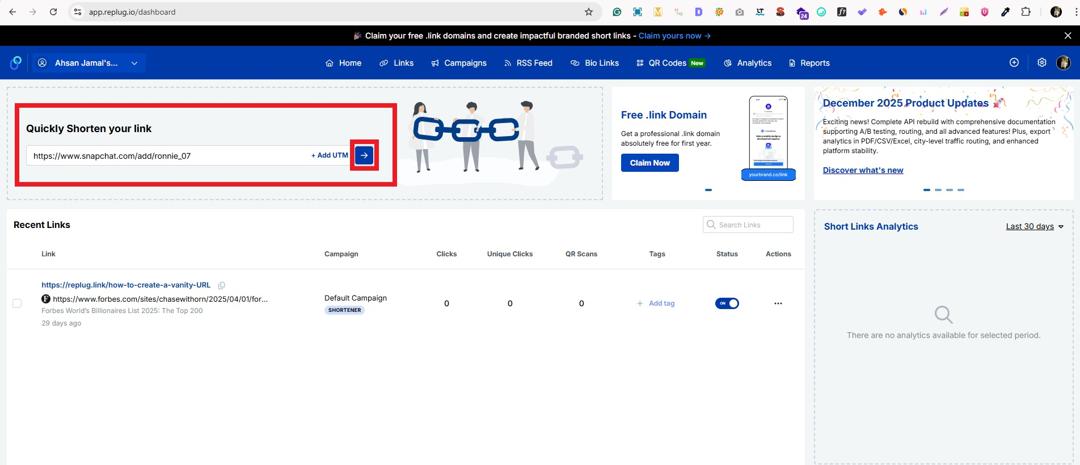
Step #03: Generate your short link. Click the blue button to create the short link. Replug will instantly generate a cleaner, shorter version of your Snapchat URL.
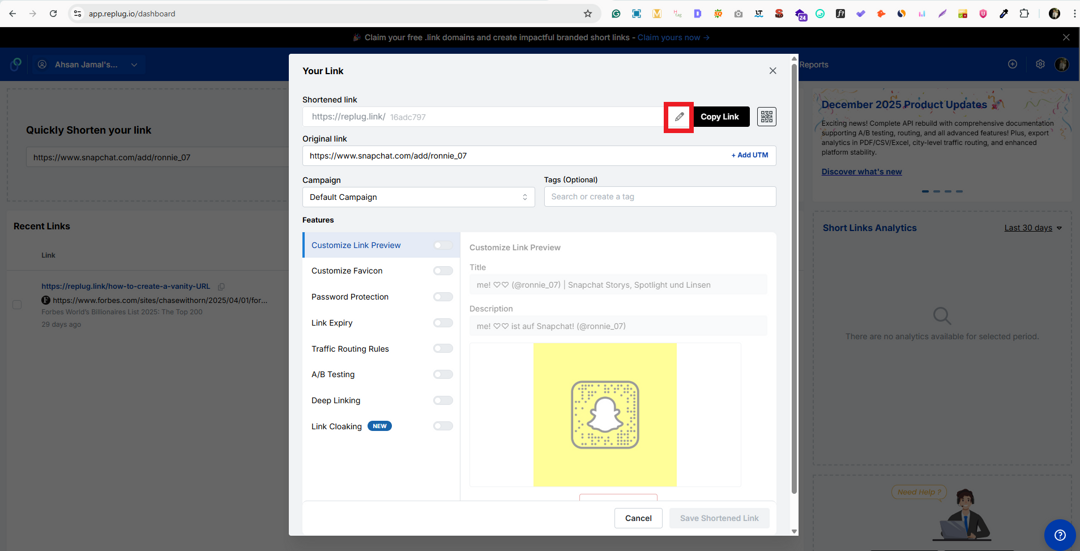
Step #04: Customize your short link (optional). You can adjust the text after the slash (called the slug), so it matches your name or brand, making it even more memorable. For this, click the pencil icon. Custom endings are available on the Essentials plan and above; on the Free plan Replug creates the ending for you, for example replug.link/x7Kp2 (see Replug’s pricing).
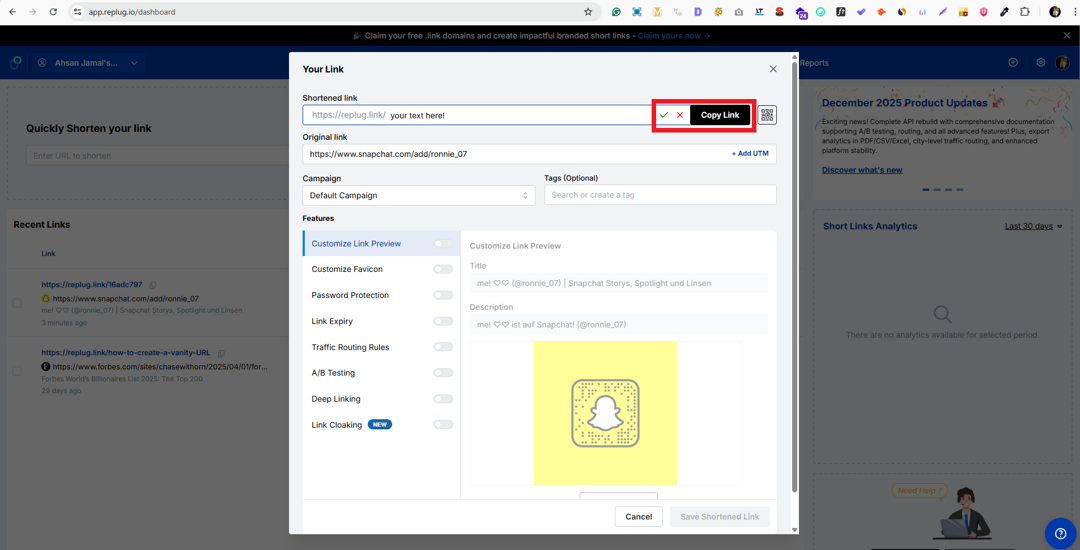
Step #05: Copy your shortened link and share it. Once you’re happy with it, click the “✔” icon. Then, copy the shortened link by pressing the “Copy Link” button and use it anywhere you like, such as in bios, emails, posts, or chats.
Note: Using a Snapchat URL shortener like Replug not only tidies up your link but also gives you options like link tracking, how many people click it, adding custom call-to-actions, or even using your own domain if you want to look extra polished. Click tracking and your own domain are included on every plan, including Free; call-to-action overlays start on the Essentials plan.
Wrapping up
To wrap up, now you’ve learned how easy it is to find, copy, share, and even shorten your Snapchat URL (no guessing, no confusion).
You saw simple steps for grabbing your Snapchat link, viewing shared links in chats and stories, attaching links to your own snaps, and using a reliable URL shortener to make those links easier to share on socials and beyond.
These tools don’t just clean up long URLs; they help you look more professional and boost engagement wherever you post.
If you’re ready to take your Snapchat sharing to the next level, give Replug a try today!
It’s an all-in-one link optimization platform with features like branded short links, click tracking, personalized CTAs, bio links, QR codes, and more. The ideal option for making every link count!
Frequently asked questions

Muhammad Ahsan Jamal