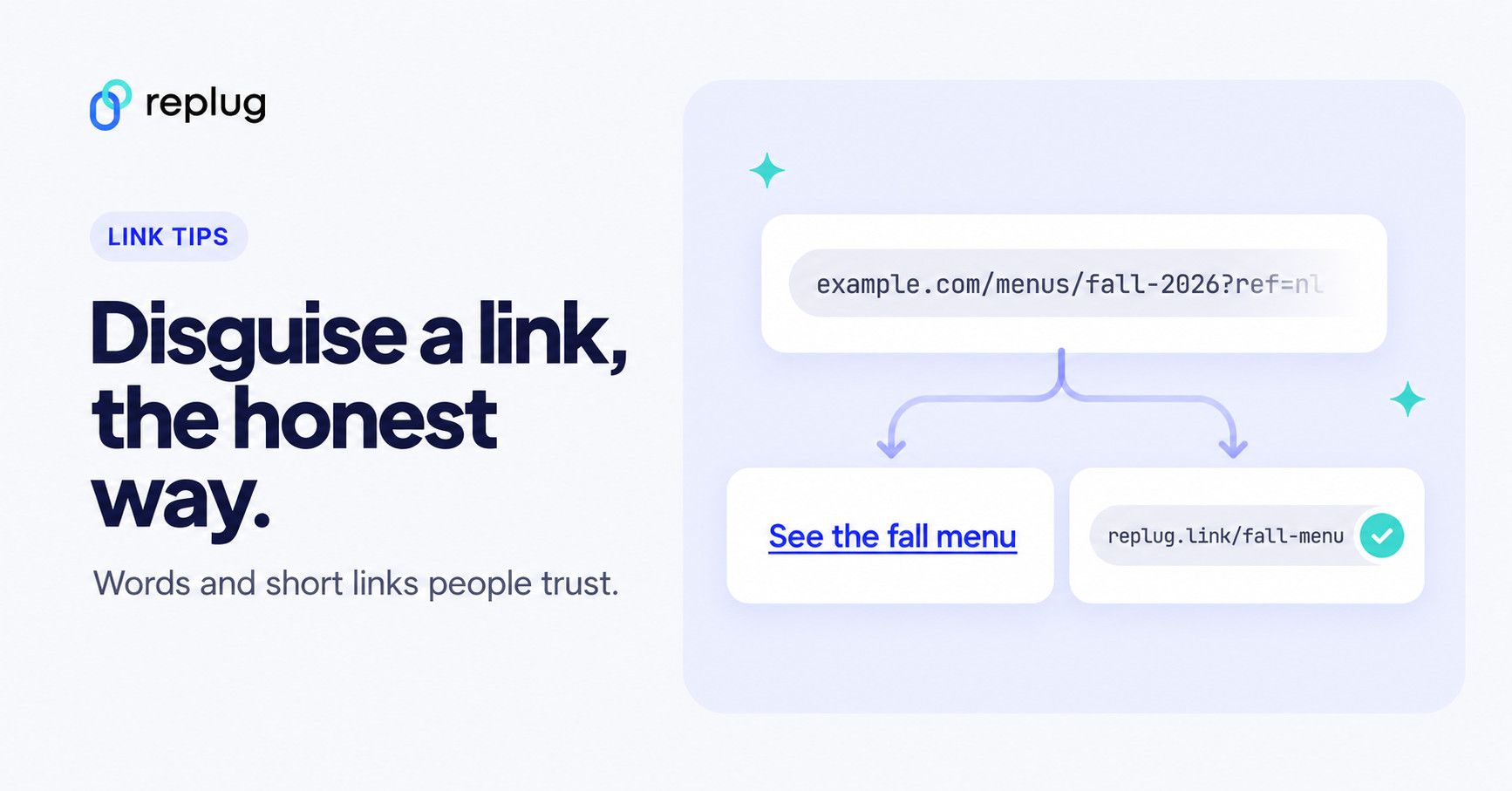
Quick answer: to disguise a link, show people something cleaner than the raw URL. Put the link behind words (a hyperlink such as “See the fall menu”), use a masked link in chat apps that support it, or swap the long address for a branded short link with a readable ending, such as replug.link/fall-menu or yourdomain.com/fall-menu. You can also set the title and image people see in the link preview. A disguised link should change how a link looks, not where it goes: the destination should be what the words promise.
Link disguising is all about hiding a link so that it looks like another link. Though the term itself might sound dubious, it is very useful in the digital world. People generally mask links to shorten them and brand them.
Disguising a link means concealing the bad parts or random characters of the URL to make it look clean, and here’s where URL shorteners come in handy for turning these messy and random links into something meaningful and useful.
In this article, you’ll learn how to disguise a link effectively and how to rename a link with the help of tools like Replug. If you’re thinking about changing a URL to improve branding, user trust, or click-through rates, you’re in the right place.
Try Replug.io today!
What is a disguised link?
A disguised link (also called a cloaked URL or masked URL) hides the original URL and redirects traffic to the original destination URL without damaging the user experience.
Advanced URL shorteners make disguising a URL easy and allow you to quickly create a customized URL (or vanity URL/branded link) that appears to the users when you share with them. Keep in mind that spammy-looking links can get flagged; if that happens, here’s how to get a domain off a URL blacklist.
Now the real question arises. Why do people use disguised links?
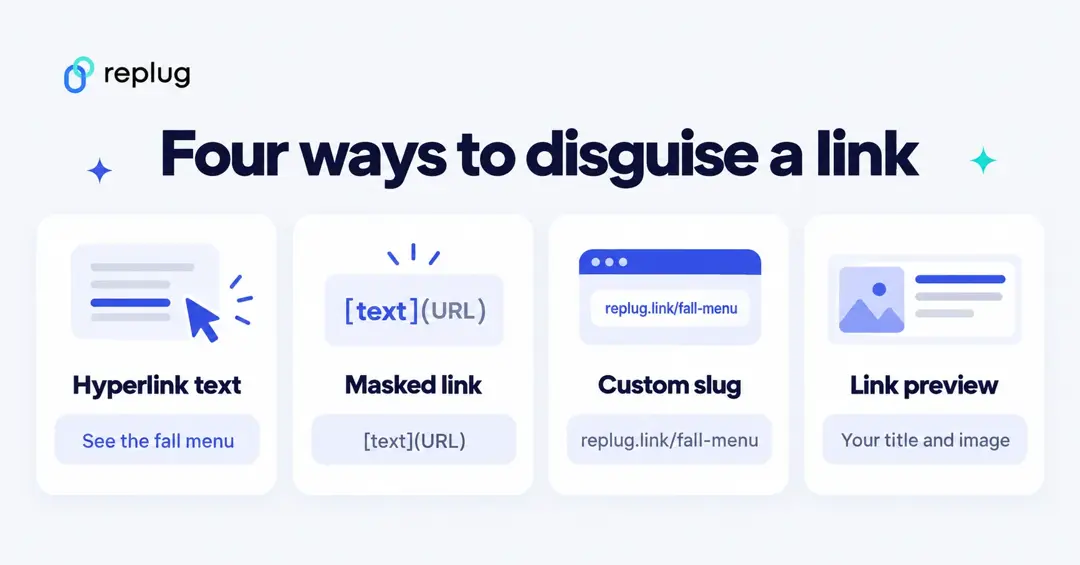
4 ways to disguise a link (and what each one hides)
Which method fits depends on where you share the link. Some places let you hide the address behind words; others always show the address, so the best you can do there is make the address itself short and readable.
| Method | What people see | Where it works | What stays visible |
|---|---|---|---|
| Hyperlink text | Your words, such as “See the fall menu” | Docs, Word, email, websites, many chat apps | The real URL on hover or long-press |
| Masked link (Markdown) | Your words, written as [text](URL) | Discord and other apps that support Markdown links | The app may show the URL or a preview before opening it |
| Branded short link with a custom slug | yourdomain.com/fall-menu or replug.link/fall-menu | Anywhere, including bios, captions, texts and print | The short link itself; the destination appears once the page opens (unless cloaking is on) |
| Custom link preview | Your own title, description and image in the preview card | Social apps and messengers that show previews | The short link or its domain under the card |
One rule for all four: disguise the look of a link, never the intent. Use words or a slug that describe the page honestly, and don’t send people somewhere other than what the text promises. Links that mislead people get reported, blocked by safety filters and can break platform rules.
Why disguise a link?
- Creates a great first impression: A URL is something that people see at first sight when you share a profile, video link, company website, or even when promoting your website builder software. So, if it looks suspicious, no one is going to click.
- Can help your sales: a clean, branded link can help e-commerce sales, brand engagement, and user experience, because a link people recognize is easier to trust.
- Tracks link performance: URL tracking tools not only disguise links but also allow track performance by creating custom links.
- They are easy to create: With the right tools, learning how to disguise a link takes just a few steps. So, why not go for a branded URL rather than one that looks like a jumble of random characters?
Reasons to use disguised links
There are various reasons to disguise links. Below are the ones on top of the list:
- URL shortening and beautification
- Replace nasty and ugly URLs
- To make affiliate links
- To disguise free web hosting URLs
Disguised links for affiliate marketing
Affiliate marketers often rely on link disguising for a cleaner presentation and to protect their affiliate IDs from theft or malware. Using Replug or similar tools, they can:
- Shorten link easily
- Optimize URL slugs to create branded affiliate links
- Track performance and conversions
Whether you’re promoting a product or campaign, changing a URL to match your brand can significantly boost trust and engagement.
How to disguise a link in text (hyperlink)
The simplest way to hide a URL is to put it behind words. This works in most editors and email apps, and the steps below come from each vendor’s help center (checked October 2026).
Google Docs
- Highlight the text you want to link, then click Insert → Link (or press Ctrl + K / ⌘ + K).
- Under “Link,” paste the URL.
- Click Apply.
Source: Google Docs Editors Help, Work with links & bookmarks.
Microsoft Word
- Select the text you want to turn into a link.
- On the Insert tab, select Link (or right-click the text and choose Link).
- Paste the URL in the Address box; you can change the wording in Text to display.
Source: Microsoft Support, Create or edit a hyperlink.
Websites and email templates (HTML)
In HTML, the words between the tags are what people see, and the address sits in the href attribute:
<a href="https://www.example.com/menus/fall-2026?ref=newsletter">See the fall menu</a>Discord and other Markdown apps
Discord calls these masked links: put the text you want displayed in square brackets and the URL in parentheses, as in [See the fall menu](https://example.com), per Discord’s Markdown Text 101. We cover previews, embeds and the other Discord tricks in our guide on how to disguise a link in Discord.
Where a hyperlink isn’t possible (Instagram captions, SMS, printed flyers), people see the address itself. That is where a branded short link does the disguising; see how to make a link clickable for where links can and can’t be clickable.
How do you disguise a link on a website?
A URL shortener is your secret weapon to transform any clunky link into a sleek, hidden gem. But that’s just the beginning. You can also track performance, analyze click data, and enhance your links with CTAs, bio links, click retargeting, and more!
Let’s say that you are promoting a new line of Columbia whole coffee beans that you just launched.
Here’s how you can use Replug to disguise your link:
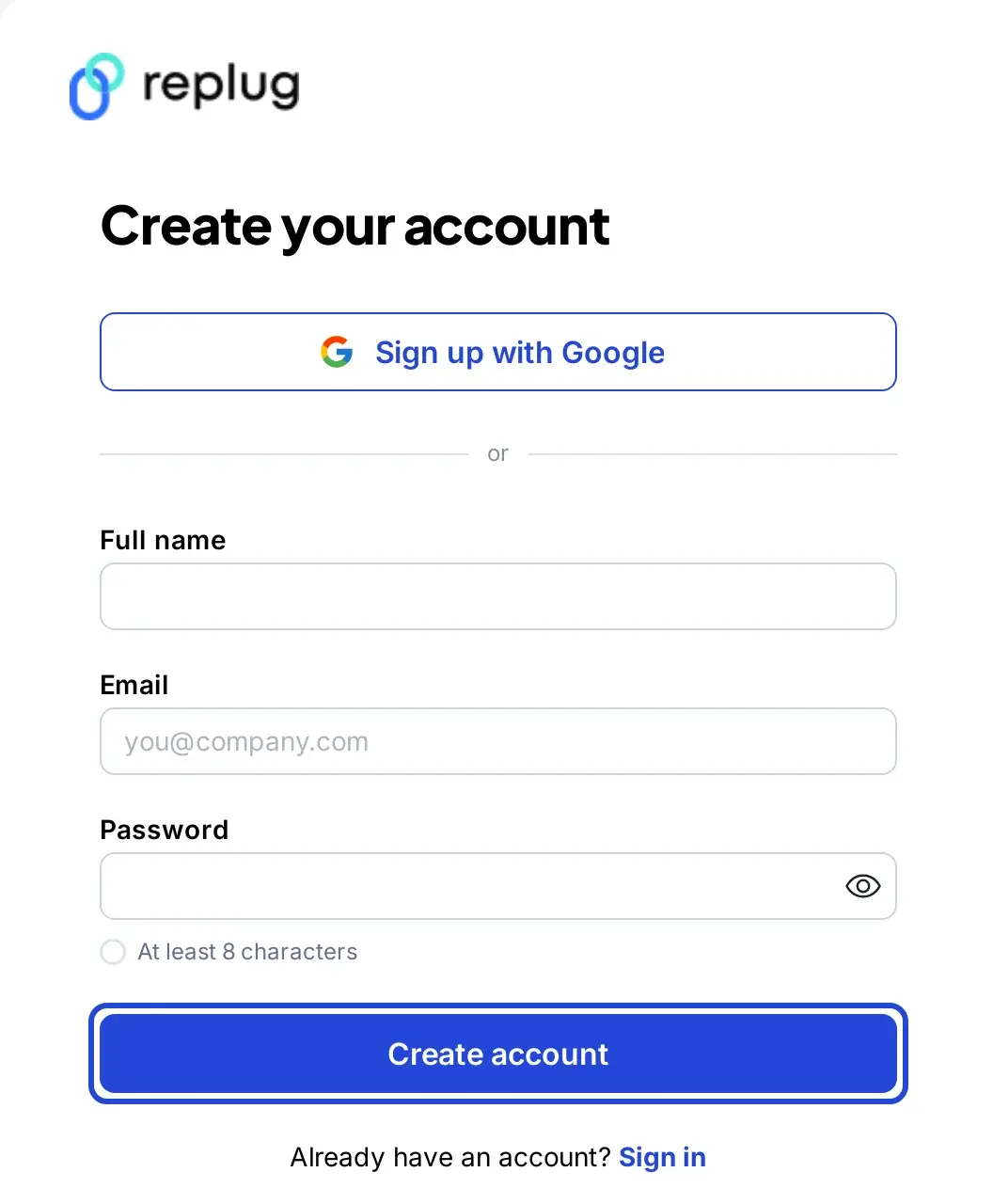
Step 1: Sign in or create an account
Sign in to your Replug account. If you’re new, you can start on the free plan without a card; paid plans come with a 14-day trial (per Replug’s pricing page).
Step 2: Enter the URL you want to disguise
On the Home page, paste the long URL into the Paste a long URL to shorten… box and click Shorten.

Step 3: Disguise your URL
After you click Shorten, Replug creates the link and opens the Your link window. Click the pencil icon next to the short link to change the URL slug, thereby masking your URL so that it doesn’t look spammy.
From here you can also set additional parameters that you want for your campaign, such as a customized favicon (Essentials and up), deep linking and A/B testing (Scale and Agency). You can also add a UTM parameter to track your links’ performance (all plans).
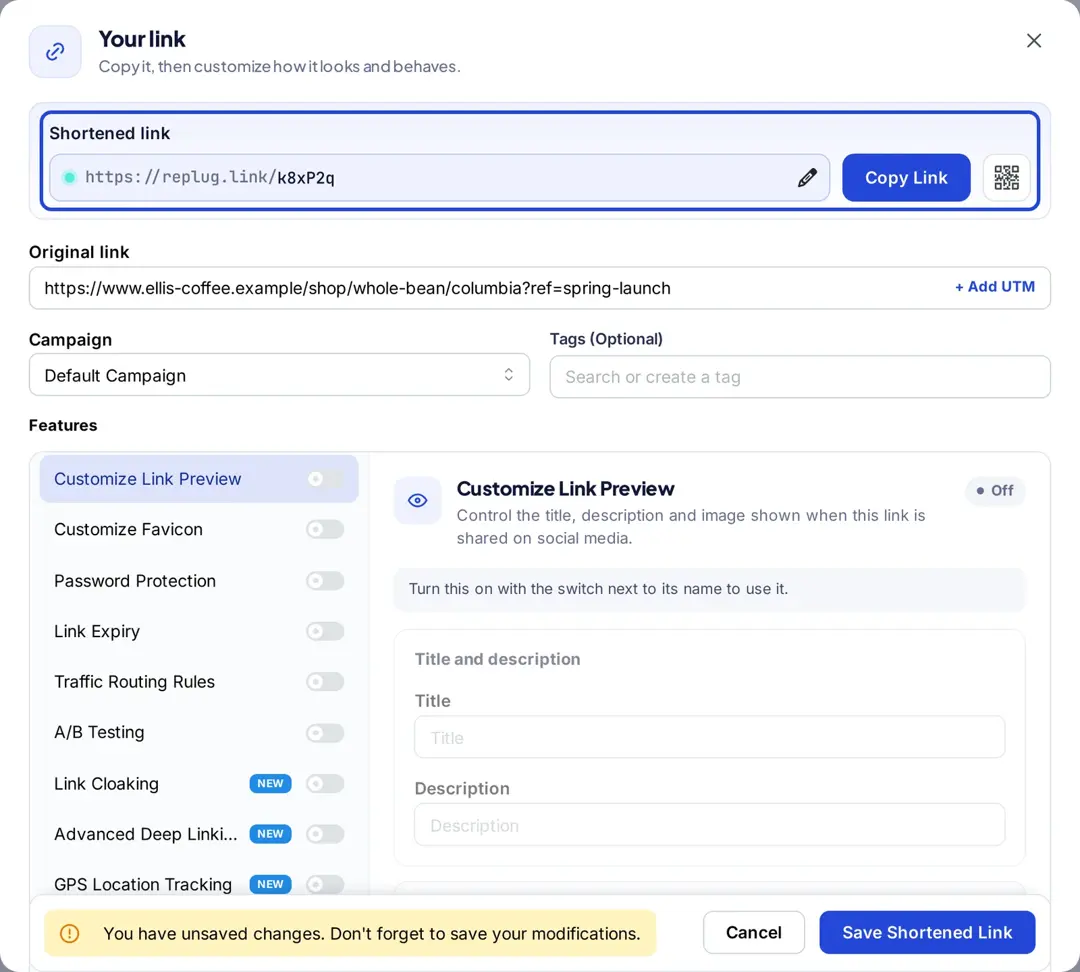
Now just type the slug (in our example “/columbia-whole-bean”) and click on the green tickmark icon to save your disguised URL.
Plan note: choosing your own ending (the URL slug) starts on the Essentials plan; the free plan gives you an automatic ending on replug.link. You can connect your own domain on every plan, including Free, so the whole link carries your name.
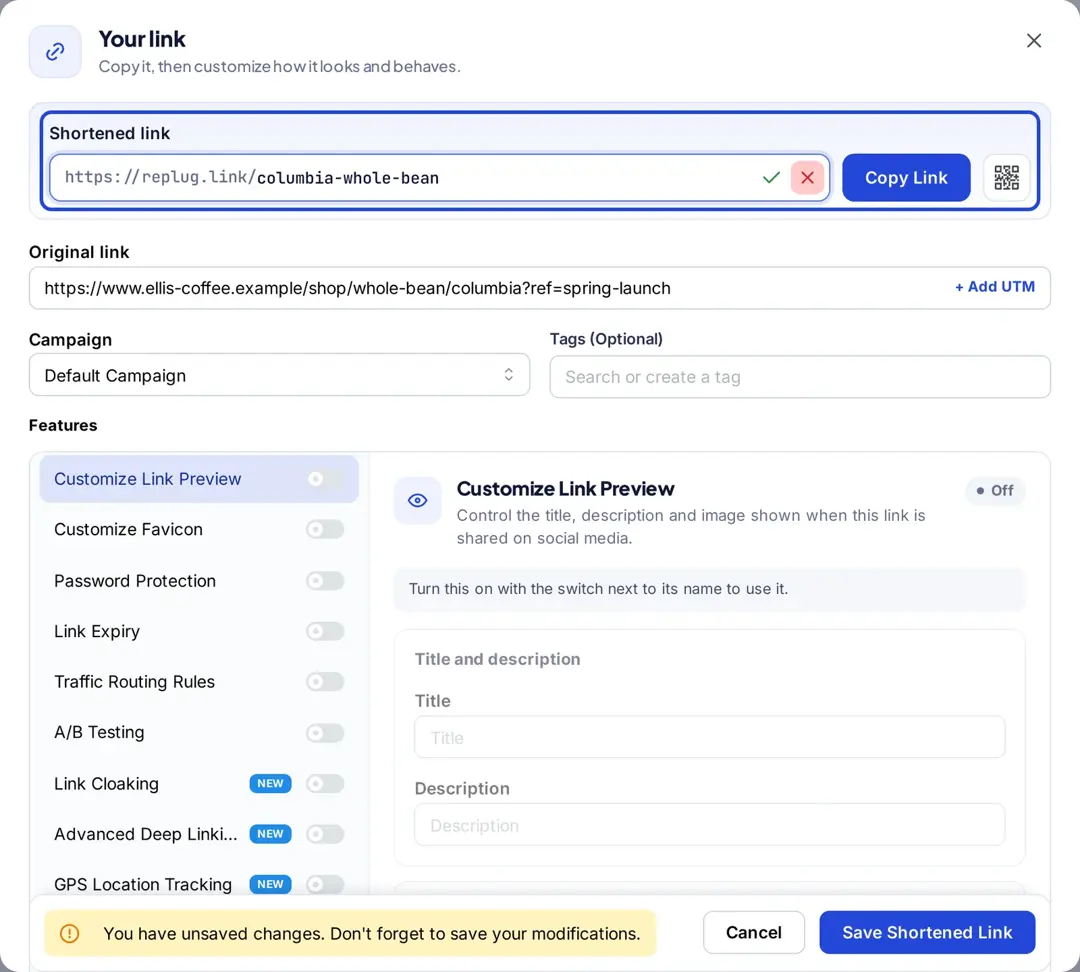
Step 4: Enable link cloaking
Under Features, turn on the Link Cloaking switch. Link cloaking in Replug displays only your custom, branded link in the browser’s address bar, thereby disguising the original URL. This keeps your link clean, professional, and more trustworthy.
Link cloaking is on the Scale and Agency plans, and it only works with sites that allow themselves to be shown inside another page; many sites block that. If you’re weighing cloaking for affiliate links, our guide on what link cloaking is covers the trade-offs.
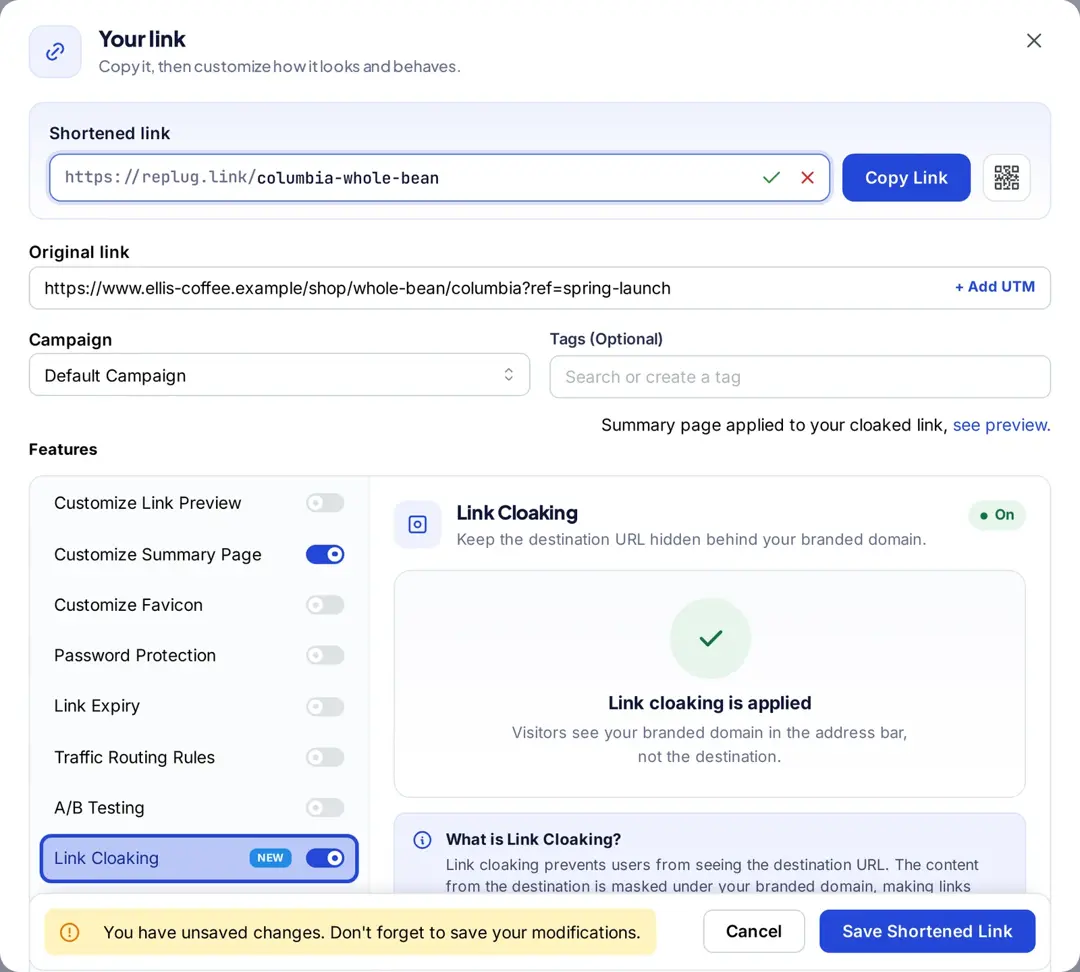
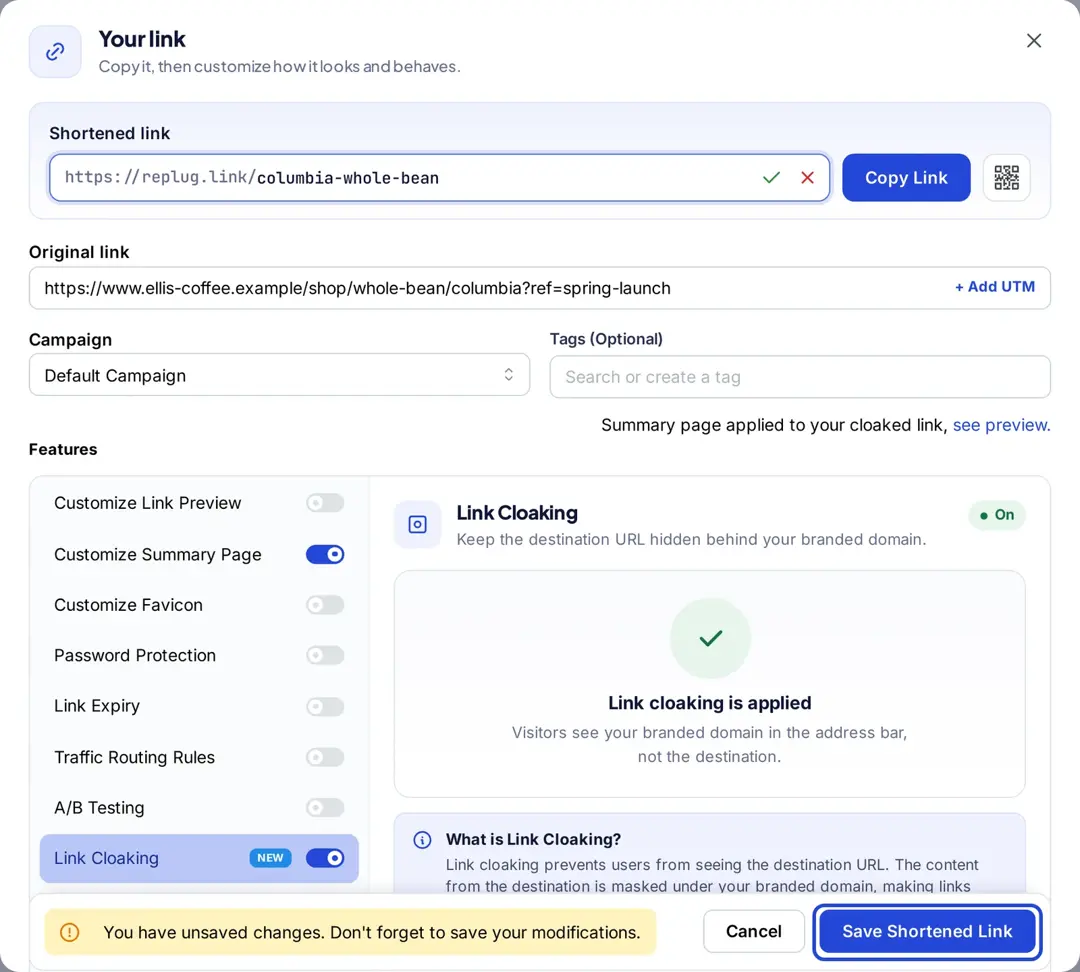
Step 5: Save and share!
Once done, just click on the “Save Shortened Link” button and share it with your audience, whenever, wherever!
Control the link preview, too
When you paste a link into a social app or messenger, the app usually fetches the page and builds a preview card from its Open Graph tags: og:title, og:image, og:description and og:url, as defined by the Open Graph protocol. That card often says more about a link than the URL does.
In Replug you can set your own preview title, description and image for a short link (“Customize link preview,” Essentials and up, per the pricing page). Use it to describe the page clearly, for example “Fall menu, Carter’s Kitchen, Austin,” not to make the link look like something it isn’t.
What a disguised link still shows
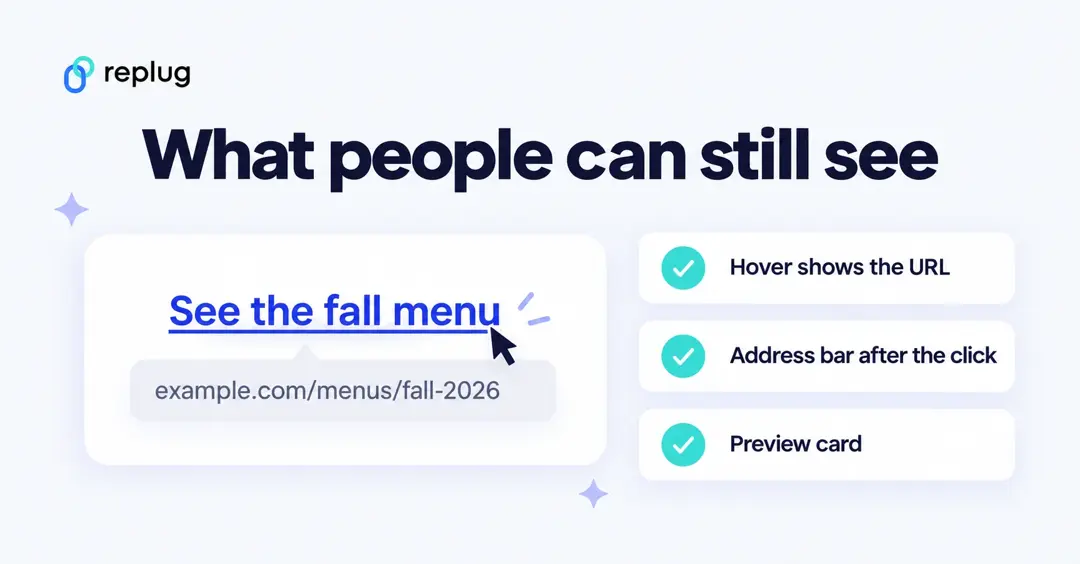
Disguising a link makes it cleaner; it doesn’t make it invisible, and it shouldn’t. Keep these limits in mind:
- Hover and long-press: desktop browsers show a link’s address when you hover over it, and phones show it when you press and hold.
- The address bar: after a short link redirects, the browser shows the destination address, unless you use cloaking (and the destination allows it).
- Previews: many apps build their own preview from the destination page, so a YouTube or store link can still look like one.
- Safety checks: apps, email providers and link services scan links. Replug, for example, checks new links against Google Safe Browsing, PhishTank and VirusTotal (per its QR code page).
If you want a whole site to appear under your own domain rather than a single link, that’s a different technique; see our guide to URL masking. For video links specifically, see how to disguise a YouTube link.
Replug key features
Link management
Multiple link shortening tools are available in the market, but Replug is among the few best link shorteners that offers link disguising, tracking & optimization as well as a catchy calls to action.
Replug is an easy URL shortening and tracking platform that allows you to:
- Create eye-catching branded URLs.
- Generate social media bio links
- Add URL tracking with custom URL UTM parameters, and tags
- Add retargeting pixels with powerful analytics and branded links.
Replug Chrome extension
Replug’s chrome extension makes it easier to create disguise links. You can download the Google Chrome extension and log into your Replug account by entering your login credentials.
Once completed, you’ll have full control of using Replug features in no time.
Link analytics
Replug stands higher among all link management tools when it comes to link analytics. You can make a profitable brand strategy by keeping an eye on link analytics.
Below are some great click analytics you can track using Replug:
- Click-through rate
- Visitor by browser
- Visitors by the operating system
- Visitor by country
- Visitor by source/referrer
Deep linking
Deep links let users go to the specific application rather than going through the hassle of visiting irrelevant web pages. They can make the path from a click into the app much smoother (deep links are on the Scale and Agency plans).
Link rotation
With the help of Replug’s link rotation (or traffic routing) feature, you can reach your target audience by setting multiple filters such as geography, browser, and device. You can also select the IP address, day or date (per the link rotator page; traffic routing is on the Scale and Agency plans). Hence, link rotation allows you to redirect users and deliver a unique experience on the base of these filters.
QR codes
Replug allows you to create custom, dynamic QR codes. After you you’ve disguised your URL, you can quickly create a branded QR code by customizing the colours and adding a frame (Essentials and up) and incorporating your logo (Scale and Agency). This allows for seamless sharing across all platforms, and also makes your link look cleaner and quicker to access.
Retargeting pixels
Every branded URL can include retargeting pixels (one pixel on Essentials, unlimited on Scale and Agency) to help you retarget website visitors who bounced before buying. This is especially useful for e-commerce brands looking to reduce cart abandonment, re-engage lost leads, and improve return on ad spend. One clean link can bring customers back right when it matters most.
A/B testing
Link A/B testing features allow you to redirect links to several destinations. With Replug, you can efficiently distribute the weightage and test up to 20 URLs on one link (A/B tests are on the Scale and Agency plans).
Final words
Using a URL shortener to disguise a link is not only for the people of the e-commerce world. In fact, URL shorteners are way much more than just a shortening tool.
You can create bio links, test landing pages via A/B testing, add CTA’s for special offers and discounts, route and redirect traffic etc. And this is just the tip of the iceberg.
Ready to disguise and hide your links like a pro? Try Replug today!
Frequently asked questions

Amna Yawar