 22 minutes
Have you ever clicked a link only to be greeted with a red warning screen, and suddenly your traffic starts to decline, getting even worse?
Welcome to the nightmare of a URL blacklist. It’s one of the most frustrating problems website owners face in 2026.
Studies show that over 95% of users bounce instantly when they see a security warning, meaning a single blacklisted URL can wipe out nearly all your visitors overnight.
Worse yet, blacklisting isn’t just for sketchy sites. Even trusted domains can get flagged due to malware injections, phishing alerts, or outdated plugins.
When your site gets blacklisted, your SEO, reputation, and revenue drop pretty fast.
But don’t panic!
There are practical, proven ways to fix it and get your URL back in good standing.
Let’s start with the basics, i.e., the URL blacklist’s meaning.
What does URL blacklist mean?
At its core, a “URL blacklist” is simply a list of specific web addresses, i.e., the URLs you see in your browser, that have been identified as unsafe or harmful.
These lists are maintained by search engines, browsers, hosting providers, and cybersecurity services to keep people safe online by blocking access to sites that might put users at risk.
When a URL is on a blacklist, visitors often see a warning instead of the normal page to protect them from danger.
Is a URL blacklist dangerous?
Being on a blacklist doesn’t cause harm itself; it’s a warning system. But the reasons a URL ends up on one are often dangerous.
Many blacklisted URLs are linked to malware downloads, deceptive redirects, or URL phishing attempts that try to trick you into giving up personal info like passwords, bank details, or login credentials.
That’s why browsers and security tools block them, to stop you from falling into scams or having your device compromised.
URL blacklist example
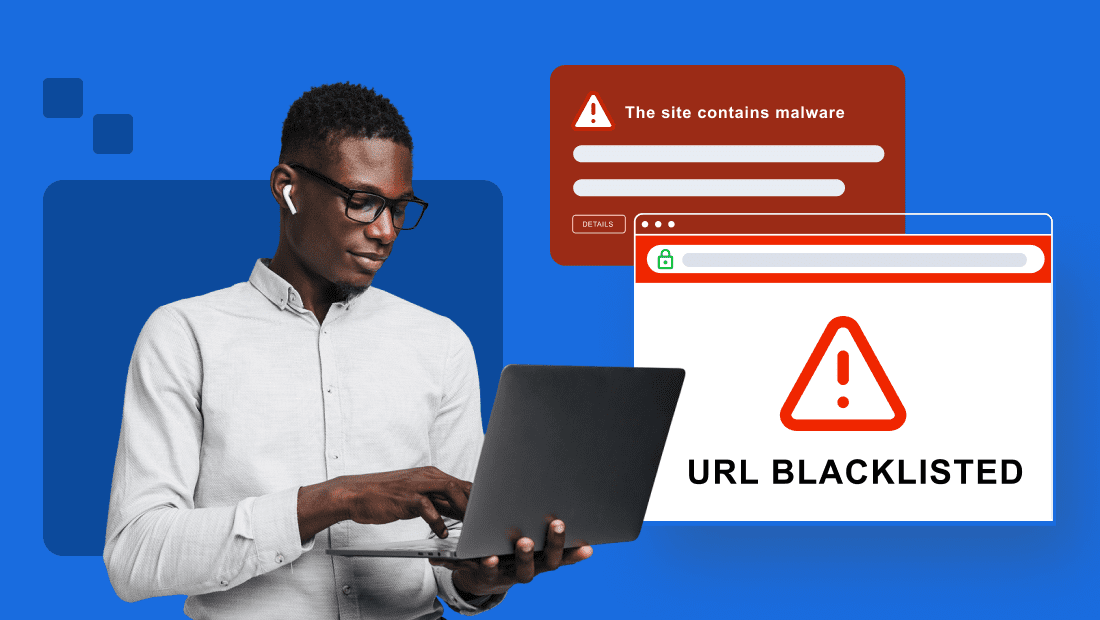
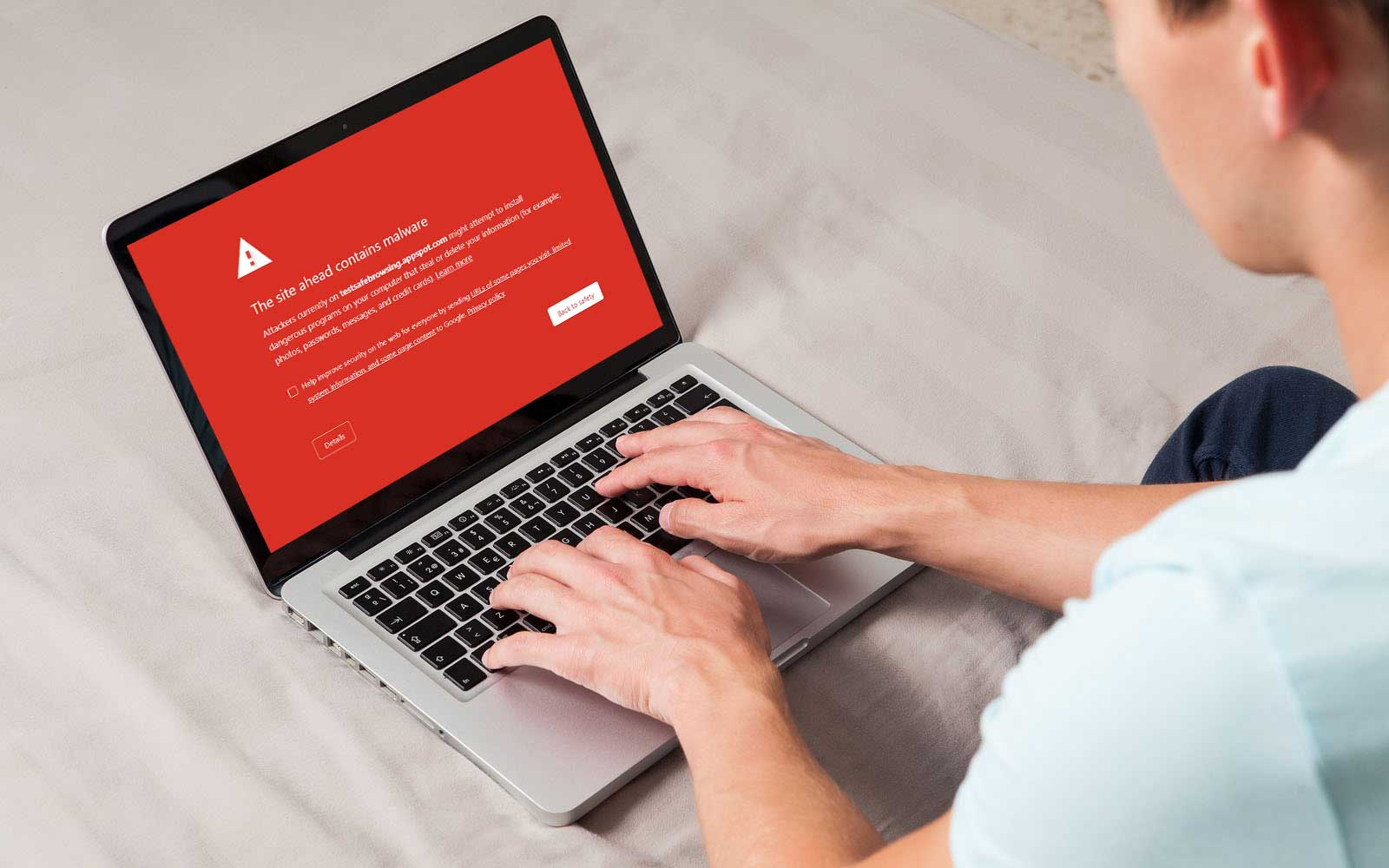
A real-world example is when you click a link hoping to open a site, and instead, you’re greeted with a big red warning page saying the site ahead may be harmful.
That happens because authorities like “Google Safe Browsing” have flagged that URL as unsafe, perhaps because it hosted malware or was involved in phishing schemes.
The goal isn’t to punish a site owner but to protect you from potential threats before you even load the page.
How does a URL get blacklisted?
A URL can end up on a blacklist when security systems detect harmful or deceptive behavior, and they want to protect users from danger before anyone gets hurt.
Here are the most common reasons this happens:
Phishing schemes/plans & content
Sites involved in phishing, where attackers trick visitors into revealing personal info such as passwords or bank details, are flagged quickly. If your URL hosts fake login pages or misleading forms, security services will blacklist it to block those scams.
SEO spamming
Hackers sometimes inject spammy keywords and links into a site to manipulate search rankings or promote sketchy products. This SEO spam harms user trust and makes your site look deceptive, which can trigger blacklisting.
Malware & trojan horses
Malware, including Trojan horses, disguises harmful code as normal downloads or scripts. When security systems detect malware on your site, your URL is blacklisted to stop the spread of infections as quickly as possible.
Harmful & unsafe plugins
Installing plugins from unverified sources or third-party sites (especially outdated ones) can introduce vulnerabilities or hidden malicious code. That can lead to compromised pages and blacklist flags.
Harmful & unsafe redirects
If your site redirects users to unsafe or blacklisted pages (even unknowingly), it can look suspicious to security scanners. Unwanted redirects often signal a compromise and can get your URL blacklisted.
Why do URLs get blacklisted: Common reasons for URL blacklisting
When a URL is flagged as unsafe or harmful, it typically ends up on a blacklist so browsers, search engines, and security tools can protect users from risks and threats.
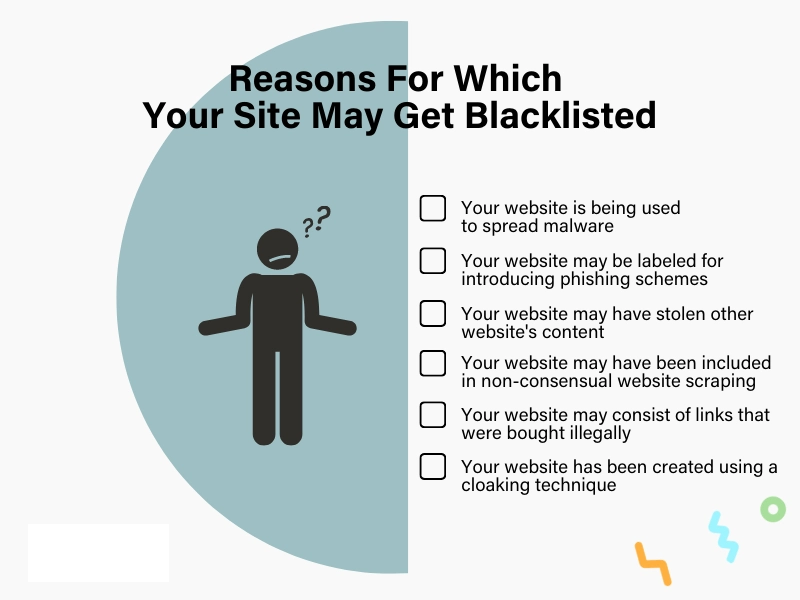
Here are the most common reasons this happens:
Malware infections or code/viruses/trojans
Sites that host or distribute harmful software, such as viruses, malicious code, or Trojan horses, are quickly flagged and blacklisted to stop infections and protect visitors.
Phishing schemes or scams (stealing user data)
If a URL is used to trick people into giving up private info (often mimicking real sites), it gets blacklisted fast, because phishing is a major online threat.
Hosting spam content/emails & engaging in deceptive practices
URLs tied to bulk spam content or misleading scams dilute trust and can lead to blacklisting, since they harm user experience and security.
Unwanted software or adware distribution (software vulnerabilities)
Sites that push unwanted programs or adware through vulnerabilities are flagged to prevent unwitting users from installing risky software.
Outdated & harmful plugins
Using outdated or unsafe plugins leaves sites open to hacks and malicious injections, which often trigger blacklist warnings from security systems.
Compromised Ad Networks & sites
If your site ends up delivering ads from compromised networks that link to unsafe pages, your URL’s reputation suffers, and it may surely be blacklisted.
Command & Control (C&C) servers
URLs tied to infrastructure used to control malware networks are blocked, so attackers can’t manage harmful software.
Hacking or defacement
When hackers deface your site with malicious pages or links, authorities often blacklist it to prevent further damage.
Distributing pirated or illegal content
Sites that share illegal downloads or break copyright laws are flagged and blocked to protect users and comply with the standard rules and regulations.
Adult or inappropriate content (18+)
URLs serving adult (pornographic) or otherwise inappropriate material without proper labeling can be blacklisted under strict platform policies.
Breaking search engine or hosting policies
Violating service rules, such as manipulating search rankings or infringing hosting terms, can get your URL blacklisted by engines and providers.
Negative domain history
If a domain has had bad behavior in the past, it might carry a tainted reputation in search engines’ eyes, leading to blacklisting even after ownership changes.
Linking to other blacklisted or suspicious sites
Sending users to known bad or flagged URLs can harm your own site’s credibility and cause it to be blacklisted, too. Be aware of such activities and practices!
Violations of Terms of Service (ToS)
Ignoring the ToS of services you rely on (like email platforms, hosts, or ad networks) can result in blacklist penalties when violations are detected.
Avoiding unnecessary redirects
Too many redirects, especially to unsafe or unknown places, can signal problems and increase the chance of being flagged as suspicious.
Note: This breakdown reflects the common risks that lead to URL blacklisting today, and why staying secure and compliant is key to keeping your site visible and trusted online.
How to check if a URL is blacklisted: 10 tested methods discussed
Checking whether a URL is blacklisted can save you time, avoid traffic headaches, and prevent reputation damage.
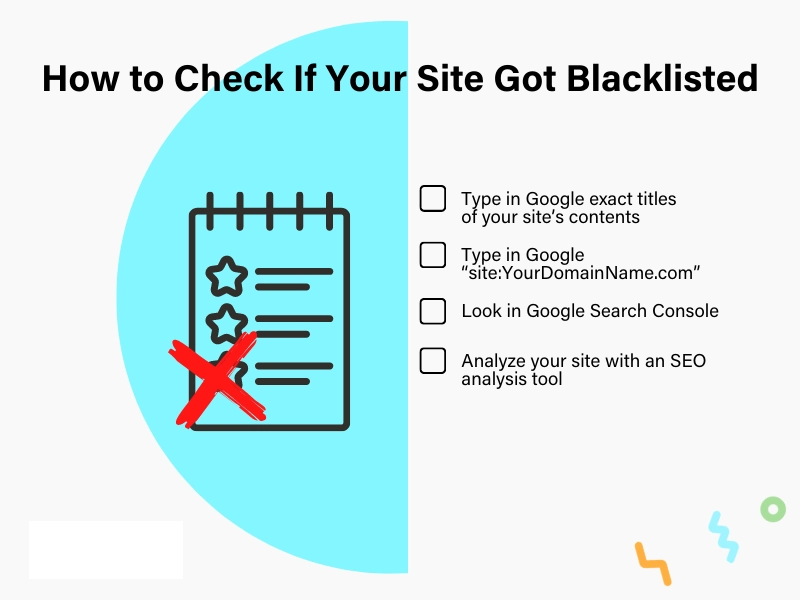
Here are 10 practical ways you or anyone managing a site can quickly test if a URL is on a blacklist or not (friendly, simple, and effective).
Method #01: Using online URL blacklist checker tools
There are tools online where you paste your URL, and they scan major blacklist databases (Google Safe Browsing, Norton, Avast, AVG, etc.) to show if it’s flagged. Tools like EasyDMARC DMARC checker or similar services check reputation and blacklist status instantly in real time.
Method #02: Using Google Search Console
If you’ve added your site to Google Search Console, check the Security Issues or Manual Actions reports. Google notifies you here if it has marked your site as unsafe or malicious.
Method #03: Via reliable & dedicated browser extensions
Browser extensions (like those from reputable antivirus vendors) can show you in real time if a URL is known to be unsafe when you browse. These act like built-in blacklist checks.
Method #04: Using a security software or tool
Security tools and scanners (malware scanners, web protection software) check URLs against threat lists and alert you if something is blocked or risky.
Method #05: Looking for your site or domain on search engines
Search your site’s domain on Google or Bing. If it’s flagged, you might see warnings like “Site may be hacked” or “This site may harm your computer.”
Method #06: Staying alert for browser warnings
Sometimes the quickest sign is your web browser itself. Messages like “Deceptive site ahead” or other full-page warnings mean the URL is likely in a major blacklist.
Method #07: Watching out for your security plugins
If you use WordPress or another CMS, security plugins can notify you if your site or URL behaves suspiciously or is flagged in malware databases.
Method #08: Checking your hosting provider dashboard
Many web hosts monitor blacklist status and will alert you inside your dashboard or via email if your site is reported as unsafe or dangerous.
Method #09: Inspecting your email for alerts
Services like Google Search Console and some hosts will email you if they detect a blacklist issue, so check your inbox for warnings about unsafe URLs.
Method #10: Analyzing big security blacklists, right away
Go straight to major blacklist listings, such as Google Safe Browsing transparency reports, to see the status of any URL. These show whether Google considers a URL reasonable or harmful.
How to fix a blacklisted URL or site: Useful tips to get your site back & running again
If your URL or site has been blacklisted, don’t panic! There’s a clear path to recover it.
The main idea is to clean up whatever caused the blacklist, secure your site, and then notify the blacklist authority (e.g., Google or antivirus software) that you’ve resolved the issue.
Here are the tips that actually work:
Tip #01: Identify the reason for blacklisting
First, find exactly why your site was flagged (malware, phishing content, hacking, unsafe redirects, etc.). Knowing the root cause guides the cleanup process.
Tip #02: Check security
Before fixing anything, run a full security scan with reliable tools or plugins to identify any threats or suspicious files residing on your site.
Tip #03: Scan & clean
Use security software or malware scanners to detect infected files, malicious code, and hidden threats. Make sure you scan thoroughly so nothing gets missed.
Tip #04: Remove any malware, viruses, or malicious code
Once threats are found, remove them completely, including backdoors, injected scripts, and unsafe files, so your site is immaculate and spotless.
Tip #05: Change all passwords
Anytime your site has been compromised, assume hackers might have access to your credentials. Update all passwords (admin panel, FTP, database, hosting, email accounts) to strong, unique ones.
Tip #06: Fix vulnerabilities
Patch any security holes that let attackers in quietly. Update plugins, remove unused themes, fix file permissions, and tighten access controls as a priority.
Tip #07: Submit a review request
After everything is clean on your end, use tools like Google Search Console or other blacklist removal authorities to request a review and removal of the blacklist status. Be clear about what you fixed.
Tip #08: Prevent future issues
Add a firewall, use security plugins, enable monitoring alerts, and limit login attempts so you avoid the same problem again.
Tip #09: Update & monitor your site regularly
Keep your software and plugins updated, and schedule scans so you notice risks early before they lead to another blacklist. Many tools can automate this for you, as well. Consider them!
Note: Getting blacklisted feels scary, but with careful cleanup and ongoing security habits, your site can bounce back stronger than before.
How to fix a blacklisted URL or site: 6-step practical guide just for you
If your site or a specific URL has been blacklisted, the good news is there’s a practical step-by-step way to get it back on track without guessing what to do next.

Here’s a simple six-step guide you can follow to clean things up and request removal from blacklists like Google Safe Browsing.
Step #01: Take your website offline
If your site is actively infected or showing warnings to visitors, put it in maintenance mode or temporarily take it offline. This stops harm from spreading and protects users while you fix the issues.
Step #02: Update all access credentials (with strong ones)
Change every password (admin login, hosting control panel, FTP/SFTP, database, and email accounts) to strong, unique ones to lock out attackers.
Step #03: Fully scan your website database and all files
Use reputable security scanners (site-level and host-level tools) to check every file and database entry for malware, injected code, hidden backdoors, or suspicious scripts.
Step #04: Clear all potentially harmful files
Remove or clean any infected files, scripts, or harmful code the scanners find. This includes malware, unauthorized redirects, hidden scripts, and any files that don’t belong to the system.
Step #05: Point out the principal cause
Find and fix the root cause (like insecure plugins, outdated software, or vulnerable themes) that let the infection in the first place so it doesn’t happen again.
Step #06: Put forward a reconsideration appeal
Once everything is clean and secured, submit a review or reconsideration request through tools like Google Search Console or the respective blacklist authority’s form, explaining what you fixed and asking for removal.
Note: Following these steps carefully not only helps clear the blacklist flag, but it also strengthens your site against future attacks. A win-win situation as you get back online!
How to prevent your URLs/website from getting blacklisted: Safety measures listed!
Stopping your site from ever landing on a blacklist in the first place is way easier than dealing with the fallout. By putting solid protections in place and staying proactive, you significantly reduce the risk of hacks, malware, or unsafe behavior that triggers blacklist warnings.
Here’s how to keep your URLs and website safe and trusted:
Keep software, plugins, & themes updated (remove unused ones)
Outdated CMS core files, plugins, and themes are the easiest ways attackers find a way in. Regular updates patch security holes, and removing unused ones removes potential attack points.
Install web application firewalls (WAF) & security plugins (on priority)
A Web Application Firewall (WAF) filters out harmful traffic before it reaches your server, cutting off many common attacks that lead to blacklist flags. Security plugins can also scan for malware and alert you to threats. But please install a reputable one from a licensed provider.
Use strong, unique passwords
Weak or repeated passwords make it easy for hackers to guess your saved credentials. Always use strong, unique passwords for admin, hosting, and database accounts, and change them immediately if you suspect a breach.
Limit user signup/login attempts
Brute-force attacks (where bots try countless password combinations) are pretty common. Limiting login attempts locks out these bots and protects your admin area from being compromised.
Use SSL (HTTPS)
Installing an SSL certificate and forcing HTTPS encrypts data between your site and visitors, preventing attackers from tampering with content or hijacking sessions. Sites without HTTPS are more likely to be flagged as unsafe.
Regularly back up & scan your website database
Regular backups mean you can quickly restore a clean version if something goes wrong, and scheduled scans help catch malware well before it causes real damage or gets you blacklisted.
Use dedicated user roles & restricted user permissions
Only give users the access they really need. Restricting admin rights lowers the impact if an account is compromised and prevents unwanted changes that could trigger blacklist issues.
Watch for suspicious & fraudulent activity (monitor user activity with caution)
Monitor login patterns, file changes, and unusual behavior strictly. Early signs of trouble let you act before a blacklist authority flags your site. Tools or host dashboards often have activity logs for this.
Educate users & staff members
Human error, such as clicking phishing links or installing unsafe plugins, poses a significant risk. Teach your team about good security habits and how to spot threats so everyone helps keep the site secure.
Use a reputable & trustworthy web hosting provider (reliable & managed web hosting)
A good host offers uptime monitoring, automated security scanning, firewalls, and quick support when issues arise. This adds a strong layer of protection and alerts you early if anything looks off the table.
Safeguard & encrypt your site forms
Make sure forms that collect info use encryption and validation. This stops attackers from injecting malicious code or harvesting data, and prevents them from achieving their ultimate goal.
Only use trusted software from official providers
Don’t install plugins or tools from shady sites or third-party providers. Trusted sources reduce the risk of hidden malware or backdoors. Only consider them, please!
Use Google Web Risk API
For dynamic security checks, tools like Google’s Web Risk API are the best options available online. They can tell you if URLs are flagged as malicious before visitors even see them.
Perform regular/weekly security audits
Scheduled audits help catch weak spots you might miss otherwise, giving you a chance to fix them before they cause serious trouble. This is quite a healthy process for your site’s security.
Submit your URLs to search engines
Regularly submitting sitemaps and URLs to tools like Google Search Console keeps engines informed and increases visibility into security issues they detect.
Comply with SEO best guidelines
Following search engines’ standard guidelines (such as natural content and a clean structure) keeps your site credible and reduces the risk of penalties and blacklist signals.
Monitor & scan for viruses and threats
Use malware scanners (such as Sucuri, VirusTotal, or host-provided tools) to check your site often. Catching threats early stops them from worsening and thus saves them from being added to a URL blacklist.
Secure your website (avoid malicious content)
Make sure nothing on your site (pages, downloads, ads) contains pirated, illegal, copyrighted, or harmful content that could get you flagged and harm your site’s reputation at any time.
Monitor backlinks very carefully
Spammy or low-quality backlinks can hurt your site’s domain rating and can lead to the curse of a blacklist. Regularly check and remove risky links using tools such as Google Search Console or SEO platforms.
Maintain email best practices
Set up proper email authentication (like SPF, DKIM, and DMARC) and avoid spammy sends. Poor email conventions can lead to IP blacklisting, which can severely affect your domain’s trust.
Note: These steps build a strong defense that keeps your URLs trusted by users and blacklist services, giving you peace of mind and a safer site overall. You’ll drastically reduce the chance that your site or URLs will ever end up on a blacklist in the first place, keeping your traffic, reputation, and visitors safe.
Consequences of a blacklisted URL for website owners: Major impacts of being blacklisted!
Getting a URL blacklisted can feel like having the digital traffic lights turn red on your site. The visitors stop coming, trust goes down, and things you’ve built up (like SEO and services) take a catastrophic hit.
A massive drop in website traffic (drastic traffic loss)
When your site is flagged and blocked by search engines or browsers, people either won’t see it in search results or will leave as soon as a warning pops up. That means your visitors can drop sharply almost overnight.
High-level damage to brand reputation & trust
Seeing a “This site may harm your computer,” or similar warning scares most users off. Even if the problem is fixed later, many people won’t trust your brand as they did before.
Negative & unwanted SEO consequences (search engine demotion)
Search engines would rather not send people to risky sites, so they either push your pages way down or remove them from results entirely. That’s a big blow to your SEO efforts, and climbing back up can take a long time.
User warnings & alerts
Major browsers and search platforms show clear warnings when a user tries to visit a blacklisted page. Most visitors will click away rather than ignore those alerts, which keeps traffic low and frustrates potential customers.
Suspension/Withdrawal of associated services
It’s not just search engines! Services tied to your URL, such as ad platforms, email marketing tools, or even your hosting provider, might suspend your account until the issue is fully resolved. That adds another layer of disruption and cost.
How to steer clear of the URL blacklist: The best proactive preventive measures
Avoiding a URL blacklist isn’t just about reacting after something bad happens; it’s more about building good habits and keeping your site secure, so you don’t end up on a blacklist in the first place.
Pick secure & reliable tools
Choose trustworthy and well-maintained software, plugins, and tools for your website. Always remember, low-quality or unknown tools can introduce vulnerabilities that hackers love to exploit.
Implement a highly effective security strategy
Put strong security measures in place, such as firewalls, malware scanners, and strong passwords, since they help block threats before they cause trouble that leads to blacklisting.
Limit users’ access (only limited, required permissions granted)
Don’t give everyone full access to your site. Only grant necessary permissions so that, even if an account is compromised at any time, the damage is limited.
Run monitoring, backups, & scans on a regular basis
Keep a keen eye on your site with regular scans and monitoring to catch issues early, and always maintain up-to-date backups so you can restore your site quickly if something goes wrong.
Stick to a very strict update schedule
Make it a habit to regularly update your CMS, plugins, themes, and other software. Updates often patch security holes that attackers could use to break in.
Summing up
To wrap things up, a URL blacklist isn’t just a technical issue! It’s something that can seriously impact your traffic, trust, and overall online presence.
In this guide, we walked through what URL blacklisting is, why it happens, how to check whether your site is affected, and how to fix it step by step.
More importantly, we covered smart, practical ways to prevent your URLs from getting blacklisted in the first place, so you’re not stuck firefighting later.
Staying secure, keeping things up to date, and using the right tools can save you a lot of stress down the road.
If you want extra peace of mind while managing and sharing links, give Replug.io a try. It’s a top-notch URL shortener that lets you shorten a link in no time and create clean, branded short URLs on the go. A simple, reliable tool built for modern marketers of today!


Frequently asked questions

Muhammad Ahsan Jamal