One urgent email or one simple click, and a whole marketing campaign can go off the rails. URL phishing thrives on that split second when someone taps a link without thinking.
Research shows that billions of spam emails are sent every day, and phishing links sit behind most data breaches reported by companies worldwide.
For teams who are pretty passionate about links, those everyday URLs can turn into silent entry points for attackers. Stolen logins, drained ad accounts, fake checkout pages, and damaged brand trust are all very real, possible outcomes.
The good news is that this threat is fairly predictable once you understand how it works. This guide breaks down what URL phishing is, how attackers design their tricks, real-life examples, and clear steps to stop them.
Let’s start with a quick overview of what this digital world attack actually means!
What is URL phishing: A brief overview
URL phishing is a type of phishing attack that uses a “deceptive link” as its primary weapon.
Attackers send emails, texts, social posts, or ads that point to URLs they control, but dress them up to look safe and familiar. The victim lands on a fake page that copies a real site, such as a bank, ecommerce store, ad platform, or company login portal.
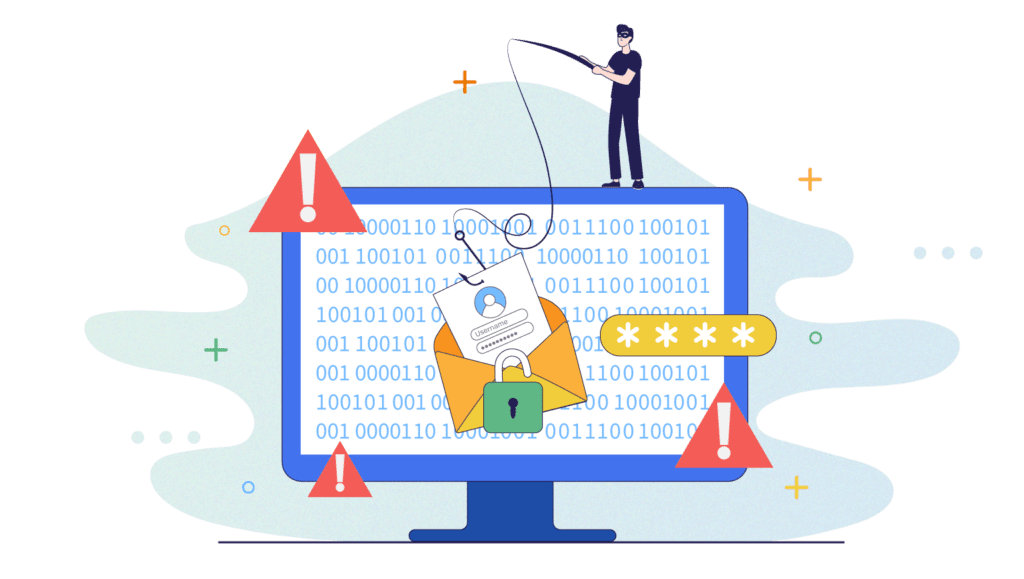
The primary goal is simple, i.e., to get the person to enter something of significant value. That might be usernames and passwords, card numbers, one‑time codes, or even full identity details. Sometimes the fake page also drops malware or steals active browser sessions in the background.
What makes URL phishing so dangerous is that a single convincing link can bypass firewalls and security tools, because the victim opens the door by clicking it.
Why is URL phishing important?
URL phishing matters because it is one of the most common starting points for data breaches and account takeovers.
Studies have shown that phishing plays a key role in the majority of reported infringements, and the number of phishing sites has grown several times over in just the last few years.
Setting up a fake website and buying a domain is cheap, so attackers can easily send millions of messages at a very low cost.
For marketing teams, agencies, and online businesses, this attack hits right where work happens: email campaigns, social posts, ads, and landing pages filled with links.
Note: One successful phishing URL can compromise brand accounts, ad platforms, payment systems, or CRM tools in minutes. Understanding the URL phishing meaning, how it works, and where it shows up is now basic security knowledge, not just an everyday IT problem.
How does URL phishing work?
At a high level, URL phishing follows the same script. An attacker sends a message with a crafted link, stirs up urgency or curiosity, and funnels the victim onto a fake page.
That page collects data, then often bounces or redirects the user to the real site, so nothing feels wrong. Under the hood, though, there are several specific tricks you will see again and again.
URL phishing with masked links
Masked links hide the real destination behind friendly text. On an email or web page, the visible part might say “https://yourbank.com” or “View invoice”, while the underlying URL points to a completely different location. Since most people click the blue text without checking the status bar, attackers count on this gap.
Note: Masked links show up in email campaigns, PDF invoices, and social posts, and they are a core building block of many URL phishing types or schemes.
URL phishing with open redirect
Some trusted sites use redirect parameters, such as “?redirect=” or “?url=”, to send visitors to another page after login or tracking.
If these redirects are not locked down, attackers can seamlessly plug a malicious address into that parameter. The phishing link then starts with a real domain, but ends on the attacker’s page. This makes the URL look safe at a glance and helps it slip past filters.
Note: Open-redirect abuse is common in phishing emails that claim to come from well‑known brands.
URL phishing via similar-looking domains
Another typical URL-phishing style relies on domains that look almost identical to legitimate ones.
Scammers register addresses with minor spelling changes, extra words, or swapped characters. For example, “paypaI.com” with a capital “I,” or “secure‑yourbank‑login.com”.
Some even use characters from other alphabets that look like normal letters, which is where “IDN homograph tricks” come in. To a busy reader on a phone, these fake domains can pass as the real thing.
Types of URL phishing
URL phishing is not a single trick; it is a family of methods focused on altering or hiding how a URL looks. Most real attacks combine two or three of these styles at once.
Knowing the main URL phishing types makes it much easier to explain risks to your team and to spot red flags in daily work, efficiently.
Link masking
Masked links appear to point to one thing but send you to another. The clickable text, button label, or even preview image suggests a trusted destination, but the “href” or underlying address points somewhere else.
Marketers use safe link masking to create clean, trackable, and SEO-friendly URLs, yet attackers mimic the same approach to hide phishing pages behind “reset password” buttons or fake unsubscribe links.
Note: Hovering over the link on desktop is often enough to reveal the mismatch.
Open redirects
With open redirects, the first part of the link uses a well‑known domain, which builds quick trust. Buried after a parameter, though, is the actual malicious URL that the redirect will send you to. Email filters and users may focus only on the front of the link and miss the rest.
Note: Because open redirects target real websites rather than just fake ones, they can be harder to block without smart URL filtering and scanning.
Typosquatting
Typosquatting, sometimes called “URL hijacking”, uses domains that look like common typing mistakes. An attacker might buy “goggle.com” or “facebokk.com” and fill them with phishing pages or ad traps.
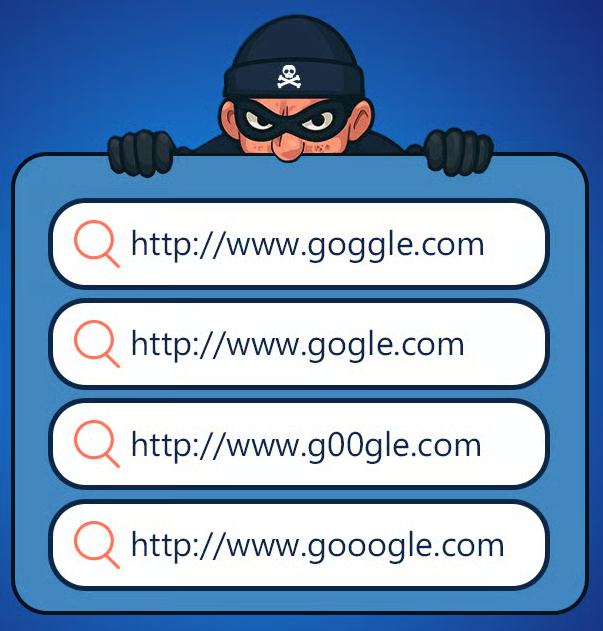
Users might land there by typing the address wrong, or by clicking a link in a message where the typo is easy to miss.
Note: This method works exceptionally well on smartphones, where small screens make subtle spelling changes hard to see.
IDN homograph attack
IDN homograph attacks use characters from other writing systems that look like regular Latin letters. For example, a Cyrillic “ä” can look the same as an English “a”.
Spammers combine these characters to build domains that appear identical to real ones when pasted into a message.
Note: To the human eye, “ɢoogle.com” or “payάbill.com” looks normal, but the browser treats them as separate domains controlled by the spammer.
Doppelgänger domains
Doppelgänger domains remove or rearrange dots in ways that trick people and, sometimes, internal tools. Instead of “mail.company.com”, the attacker might register “mailcompany.com”. In a long email header or auto‑generated link, that missing dot can be tough to notice.
Note: These domains are often used for internal phishing, targeting staff who expect messages from systems such as HR, payroll, or CRM tools.
HTTP/HTTPS phishing & spoofing
Many people see a padlock icon in the URL address bar and feel safe. Attackers take advantage of that habit in two ways:
- Some phishing sites still use plain HTTP, hoping rushed users will not notice the missing padlock at all.
- Others get a valid TLS certificate, so the fake site shows HTTPS and a padlock just like the original.
In simple words, HTTPS only tells you the connection is encrypted, not that the site itself is honest, so you still need to read the domain name carefully.
Common URL phishing methods
Once cybercriminals have a deceptive link, they still need to deliver it and dodge basic filters. Here are some of the most typical methods they use to make URL phishing harder to spot in real inboxes and feeds.
Mixing legitimate links with malicious links
Instead of sending a message with one shady link, attackers blend a bad URL into a message full of normal ones. For instance, an email might include real links to a privacy policy, a help center, and social profiles, plus a single phishing URL on a “verify now” button.
Basic scanners that only flag messages full of flawed links may let this pass. To a human reader, the mix of known and unknown links can also feel more trustworthy.
Abusing/exploiting URL redirects
Intruders often chain redirects together so that the first few steps look normal. A phishing link might go from:
A URL shortener → to a tracking domain → to an abused open redirect on a real site → and finally to the fake page.
Each step makes it harder for simple tools to see the end destination. Shortened links are especially popular here, since they hide the full path.
This is the main reason why any short URL generator used in campaigns should be tied to a transparent review process, and destinations should be checked for phishing behavior before links go live.
Hiding malware inside image files
Some campaigns do much more than steal passwords. They also aim to drop malware, like info‑stealing trojans or remote access tools. One trick is to hide harmful code inside image files or to make the entire email or message a single clickable image.
Filters that look mostly at text might miss it. When the victim clicks the image, they may download a file or open a page that abuses a browser flaw. From a user’s point of view, it just looked like a harmless graphic or banner.
Major signs of a URL phishing attack
The good news is that URL phishing leaves clues behind. When people know how to identify suspicious or malicious attempts, those attempts become apparent. They no longer hide among the noise, even when there is a lot going on.
Camouflaged URLs
If the visible link text or button label does not match the address shown in the status bar when you hover, that is a strong warning sign. Another clue is when a PDF or image has clickable areas that jump to unrelated domains.
Note: Any mismatch between what a link claims and where it goes deserves a slow, careful look.
Urgent/threatening SMS notification
Phishing texts often claim that an account will close, a package will be returned, or a fine will be added unless the person clicks right away. They may use generic names like “Bank Support” or “Delivery Team” and link to shortened URLs.
Real companies rarely threaten customers in this way over SMS, so urgency plus a link from an unknown number should raise suspicion.
Subdomain-spoofed URL
Attackers love domains where the real brand name sits on the left, not at the end. Think “paypal.security‑alert.com” instead of “paypal.com”. Many people scan only the first part and ignore the actual registered domain on the right.
Note: When reviewing links, the part directly before “.com”, “.net”, or another main ending (i.e., TLD) is what really counts.
Unknown / Red-flag senders
If the sender address appears random or misspelled, or does not match the name shown in the display field, be careful.
Even if the name says “Support”, the real email or text might come from a throwaway domain with a long string of numbers.
Note: Combine that with an unexpectedly long URL, and you’ll have a strong hint of URL phishing at work.
Extra characters or symbols in links
Phishing URLs or links often use extra dashes, numbers, or words like “verify,” “secure,” or “update” glued next to brand names. For example, “secure‑yourbank‑login‑247.com”.
While some companies use long tracking URLs, an overload of symbols around a brand name, especially in a message you did not request, should make you pause and think for a while.
Misspelled web addresses
Simple spelling errors in the domain, like “faceboook”, “linkedln”, or “goggle”, remain very common. On mobile devices, these mistakes are easy to miss.
Note: Any time a link to a well‑known site looks slightly off, type the address manually in the browser instead of tapping the link.
To recap the main signs, you can think in terms of this quick reference:
| Sign | What to look for |
| Mismatched link text | Button or text says one thing, but the status bar shows another domain |
| Extreme urgency | Threats or time pressure, plus a link from an unknown sender |
| Odd subdomains | Brand name at the start, not near the end of the domain |
| Strange sender address | Display name vs. real email does not align |
| Extra symbols/keywords | Many dashes, numbers, or “secure/verify/update” keywords around a brand |
| Spelling mistakes | Minor typos in famous domains |
How to identify a URL phishing attack
Spotting URL phishing is mostly about slowing down and checking a few details more critically and thoroughly. A quick, repeatable routine can block most attacks before they go anywhere near your credentials.
Double-check the URL
Before clicking, hover over the link on desktop or press‑and‑hold on mobile (without opening) to see the full address. If it seems off, copy and paste it into a plain text editor to read it clearly and carefully. If you’re still unsure, here’s how to verify a suspicious link before you open it.
When in doubt, skip the link and go directly to the site by typing the address yourself or using a saved bookmark.
Inspect the domain name spelling
Focus on the part of the URL right before the main ending, i.e., the top-level domain such as “.com” or “.org”. Look for:
- swapped letters,
- extra words,
- or numbers added to a brand name.
Compare it to how the real site is spelled or previous emails you trust.
Carefully review all the content
Phishing pages and emails often reuse logos and colors but may miss details in wording and layout. Watch for:
- awkward grammar or phrasing,
- strange spacing,
- outdated branding,
- generic greetings like “Dear user”.
These small slips, paired with a link that asks for sensitive data, are a strong signal of trouble.
Tools like TruthScan help users detect suspicious emails by analyzing sender patterns, embedded links, and scam indicators before any interaction occurs, adding an extra layer of protection against phishing attempts.
Verify the connection protocol (HTTPS)
Check for “https://” and a padlock in the browser, but treat it as just one check, not a final verdict. Click the padlock to see who the certificate was issued to and whether it matches the brand you expect.
If the page asks for passwords or payment data over plain “http://” with no padlock, close it right away.
Real-world examples of URL phishing
Real attacks tend to follow familiar storylines, and reviewing URL phishing examples can help teams recognize these patterns quickly. Walking through a few common ones makes it easier to brief your team and spot similar patterns in inboxes and chats.
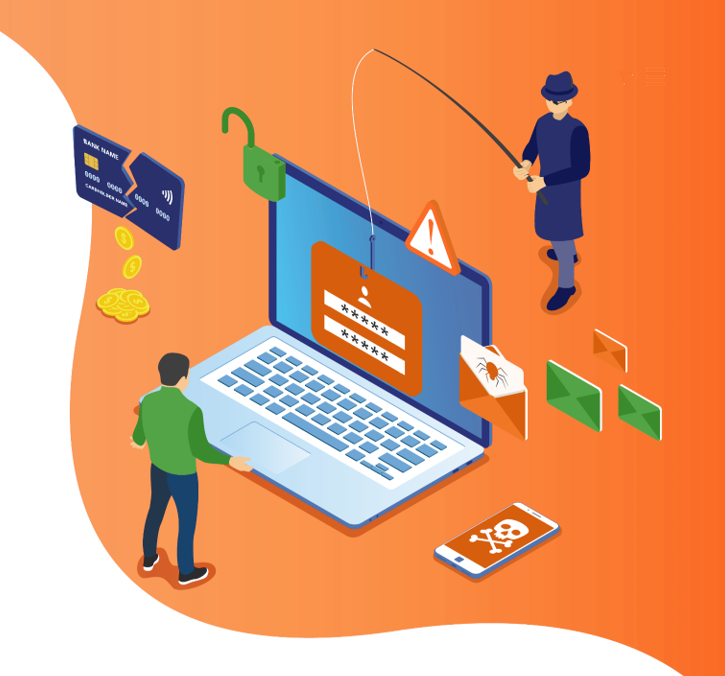
Suspicious-login / Account-breach phishing alert
A message arrives in your inbox claiming there was a “suspicious login” to your email, ad account, or social profile. The email uses your logo, includes rough location details, and pushes a “Review activity” button.
That button leads to a fake login page with a URL that looks similar but not exact. Once you enter your credentials, the attacker can log into the real account, change settings, and lock you out.
Fake e-commerce scam
Someone searching for a popular product finds a top‑ranked ad or link with a slightly misspelled brand domain. The site looks like a real store, complete with realistic product photos and reviews.
At checkout, the page asks for full card details and sometimes extra personal data “for verification”. The victim might never receive a product, but their payment details are now in criminal hands.
Donation-scam alert
During a natural disaster or viral news event, emails and social posts appear asking for urgent donations. They copy the name and logo of a well‑known charity, but the links lead to look‑alike domains that accept card payments or crypto transfers.
In some cases, the page also prompts visitors to log in to their email or payment account via a fake portal, capturing even more sensitive data.
FedEx delivery phishing scam
A text or email claims a FedEx package cannot be delivered due to an address problem or an unpaid customs fee. A short link promises a quick way to “reschedule delivery” or “pay a small charge”.
The link goes to a fake shipping page where victims enter card information or login details for a delivery account. Spammers then use that data for fraudulent purchases or to target other services that reuse the same password.
Best practices for preventing URL phishing
Intercepting or blocking URL phishing takes more than one tool or tip. The strongest defenses combine technology, smart habits, and clear processes that fit how teams already work.
Here’s how you can protect yourself from URL phishing:
URL filtering
URL filtering compares web addresses against lists of known bad sites and policy rules before allowing access. They can block entire categories, such as phishing, malware, or newly registered domains.
In a business network, this acts like a safety net under your users, catching many dangerous clicks before a page even loads.
Link protection
Modern email and collaboration tools can rewrite links so that every click first passes through a scanning service. These systems scan URL phishing patterns in real time, follow redirects, and block access if the final destination looks suspicious.
For marketing and agency work, this adds a background guardrail around campaign links and inbound messages.
Security hygiene
Basic habits go a long way:
- Multi‑factor authentication for important accounts
- Strong, unique passwords stored in a password manager
- Regular software and browser updates
- Limited use of admin accounts for daily work
These steps reduce damage even if a phishing URL steals a single password, and they close many holes that malware tries to exploit after a bad click.
AI-based protection
Many security platforms now use machine learning to spot previously unseen URL-based phishing. Instead of waiting for a domain to appear on a blocklist, they look for patterns in the URL, page content, hosting setup, and behavior.
An AI‑driven URL phishing detection system can flag suspicious sites seconds after they appear, even in fast‑moving campaigns.
Cybersecurity & security awareness training
People remain the last line of defense, so training should be part of everyday work, not a one‑time event.
Short sessions and phishing simulations teach staff what a phishing URL example looks like, how attackers push emotional buttons, and how to report concerns.
Over time, this builds a shared habit of pausing before clicking any link that seems out of place.
Check the domain’s reputation
Before trusting a link, especially one used in paid campaigns or newsletters, check the domain with:
- reliable reputation services,
- browser safety checks,
- or built‑in security tools from your email provider.
These checks can reveal if a domain is very new, tied to prior abuse, or listed in threat feeds. For brand protection, monitoring for look‑alike domains related to your name also helps spot problems early.
Warnings for suspicious domains
Modern browsers and security products often display full‑screen warnings when a site is known to be phishing or malicious. Teach teams never to click past those alerts just to “get work done faster”.
If a warning appears on a link used in a campaign, stop and review where that URL came from before doing anything else.
Use a URL phishing scanner
Dedicated tools can scan URLs for phishing signs before anyone visits them. These scanners follow redirects, check SSL, compare against threat intelligence, and sometimes even analyze page content in a sandbox.
Note: Building a quick “scan URLs for phishing, then share” step into content and campaign workflows sharply reduces the odds that a bad link ever reaches your audience.
How does Replug help businesses defend against URL phishing attacks?
For marketers, agencies, and online businesses, links are vital daily, and that makes them a favorite target for attackers.
Replug is built as a short URL generator and an all-in-one link management platform that keeps those links organized while still giving teams the tracking and branding they need.
Instead of dealing with risky redirects or generic shorteners, you manage every link from a single, hassle-free central dashboard.
Here is how Replug fits into a safer link strategy:
Centralized link control
When you create or edit a link in Replug, you do so from a single dashboard rather than across multiple tools. This makes it easier to review destinations before sharing them, retire old or suspicious URLs, and keep a clean inventory of links used across email, ads, and social posts.
Custom domains & branded links
With these, Replug turns long, messy addresses into clean URLs that clearly belong to your brand. Audiences learn to recognize your branded links and can spot impostors that try to copy them.
Note: This simple visual cue makes it harder for attackers to use random short links or look‑alike domains to impersonate you.
HTTPS & controlled redirects
Replug serves short links over HTTPS by default. Because every redirect runs through your chosen domain, your team can standardize how links are created and reviewed, rather than relying on unknown public shorteners. This reduces the risk of hidden redirects sneaking into your campaigns.
Link rules & campaign structure
Teams can agree on internal rules (e.g., which domains are allowed in campaigns, or which roles are allowed to publish new links), then apply those rules inside Replug workspaces. Consistent naming, tags, and UTM parameters also make it easier to spot any URL that does not look like it belongs.
Analytics & anomaly spotting
Replug’s click and traffic reports show where visitors come from, which devices they use, and how often they click. Sudden spikes, traffic from unexpected regions, or unusual referrers can act as early warning signs that a link is being abused or that someone has copied a campaign URL for phishing.
Agency & multi-brand support
For agencies and partners, Replug’s workspace structure and branding options keep everything organized under your own domain while still centralizing link management. You can run many client workspaces, apply consistent link practices across all of them, and quickly adjust or disable URLs if something suspicious appears.
QR codes & cross-channel links
Replug can easily generate QR codes that point to your branded short URLs, so the same review and tracking process you use for links extends to printed material and events. If you need to update a destination due to a phishing concern, you can change the target behind the short link without reprinting the QR code.
Used this way, Replug becomes a controlled hub for your marketing URLs. It does not replace dedicated security products, but it makes it far easier for teams to share clear, branded, and trackable links while keeping a close eye on how those links are used.
Summing up
URL phishing is not some rare, advanced hack; it is a daily threat built around simple tricks with links. Attackers twist URLs through masking, typos, redirects, and fake HTTPS to pull people onto convincing copycat sites and steal whatever they can.
By watching for some unique signs in links, building habits like double‑checking domains, and using tools that scan URLs for phishing, teams can cut this risk to a much lower level.
If your work depends on sharing links with customers or followers, using a carefully managed short URL generator should be part of that plan.
Replug.io gives you branded and trackable links, centralized link control, and HTTPS by default, so every click feels safer for both your team and your audience. It is well worth giving Replug a try!
Frequently asked questions

Muhammad Ahsan Jamal