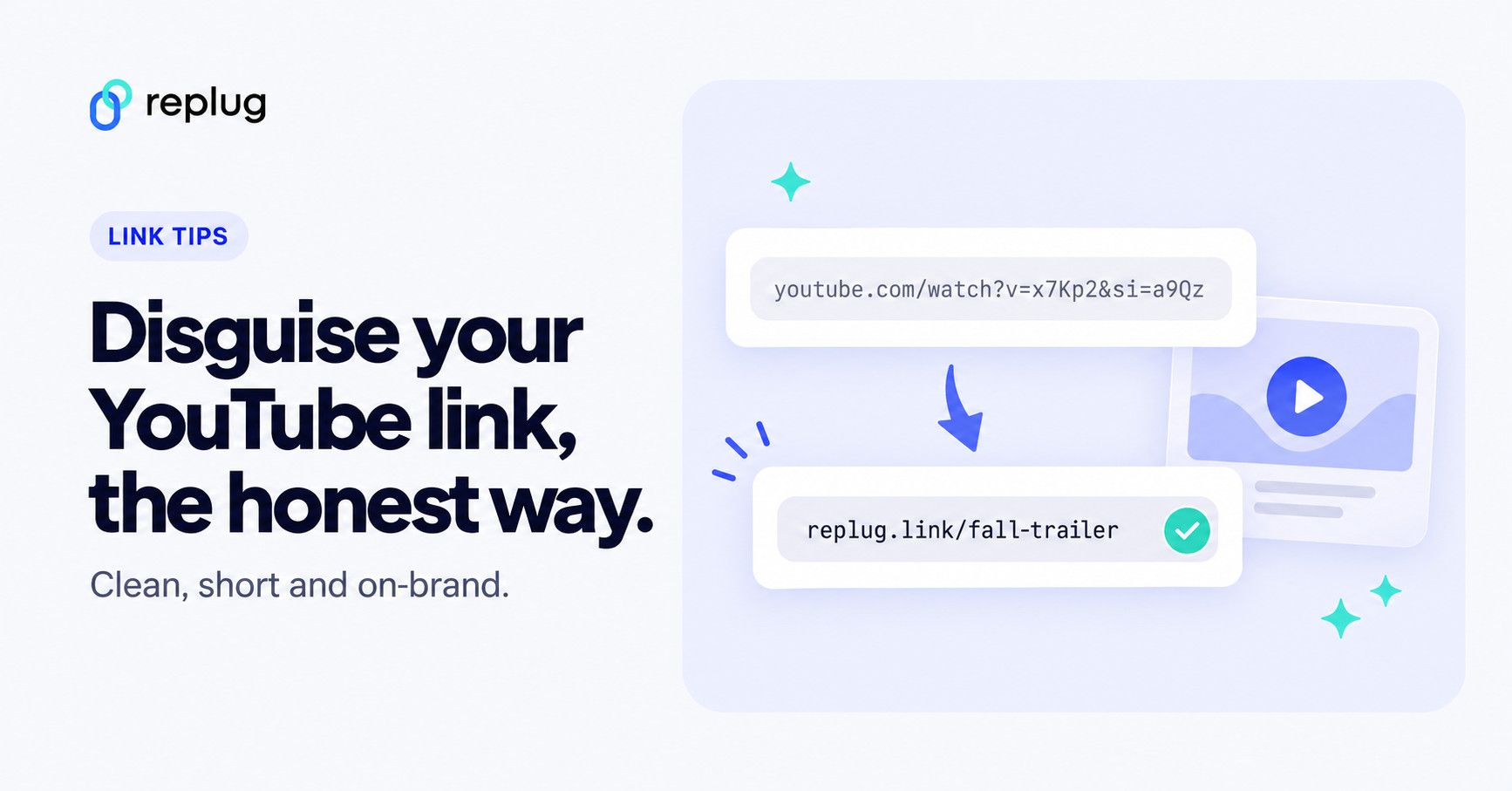
Quick answer: to disguise a YouTube link, put it behind words or behind a short link you choose. In emails, documents and chat apps that support it, hyperlink text such as “Watch the trailer” (in Discord, a masked link: [Watch the trailer](your YouTube link)). Anywhere the address itself shows, use a branded short link such as replug.link/fall-trailer or one on your own domain. A disguised link should still be honest about what it opens: many apps show a YouTube preview card anyway, and the link should lead to the video people expect.
Just dropped a fire YouTube video? Maybe it’s a tutorial, a product drop, or some BTS magic. You’re hyped to share it, but that standard YouTube URL? Yeah… not the vibe.
This is where using a branded, shortened link steps in. With the right link manager, you can turn that generic link into a polished, professional URL that reflects your brand and builds trust at a glance.
But it’s not just about aesthetics. A disguised YouTube link builds trust, gets more clicks, and keeps the spotlight on your content. Let’s break down why this tiny switch can level up your share game.
What does it mean to disguise a link?
Disguising a link means hiding the original URL behind a cleaner, branded, or shortened version. Instead of showing a long, complex link, like a default YouTube or affiliate URL, you present a custom link that’s easy to read, memorable, and trustworthy.
Tools like Replug let you disguise links using your own domain, add custom slugs, and even enable cloaked links so users only see the disguised version in the browser. It’s a simple way to make your links look more professional and boost clicks.
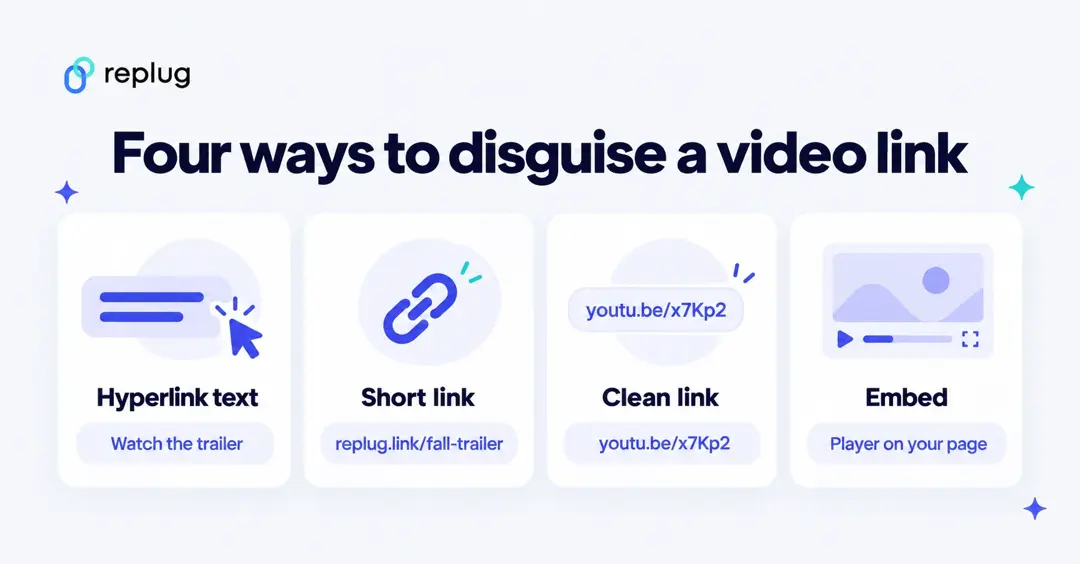
Ways to disguise a YouTube link (and what each one hides)
| Method | What people see | Where it works | Preview card |
|---|---|---|---|
| Hyperlink text | Your words, such as “Watch the trailer” | Email, Google Docs, Word, websites, Discord masked links | Email apps may still show a video preview |
| Branded short link | replug.link/fall-trailer or yourdomain.com/trailer | Anywhere, including bios, captions, texts and print | Most apps follow the link and still show the YouTube card; custom previews change it (Essentials and up) |
| Clean YouTube link | youtu.be/VIDEO_ID without the ?si= part | Anywhere | Shows the YouTube card |
| Embedded video | A video player on your own page | Your website or blog | No link shown at all |
One rule for every method: disguise the look of the link, not where it goes. Use words or a short link that tell people what they’ll get, and don’t send people to something other than what the text promises. For the general version of these techniques (not just YouTube), see our guide on how to disguise a link.
How to disguise a YouTube video link using Replug?
Replug is an amazing link management platform that makes it easy to disguise long YouTube URLs with custom short links. This results in improving visibility, uplifting trust, and driving more engagement.
Here’s how to hide your YouTube link step-by-step using Replug:
Step 1: Copy YouTube URL
Go to the YouTube app and copy the URL you want to disguise from the search bar.
Step 2: Log in to Replug
Log in to Replug or create a free account if you don’t have one already. You can start on the free plan without a card; paid plans come with a 14-day trial (per Replug’s pricing page).
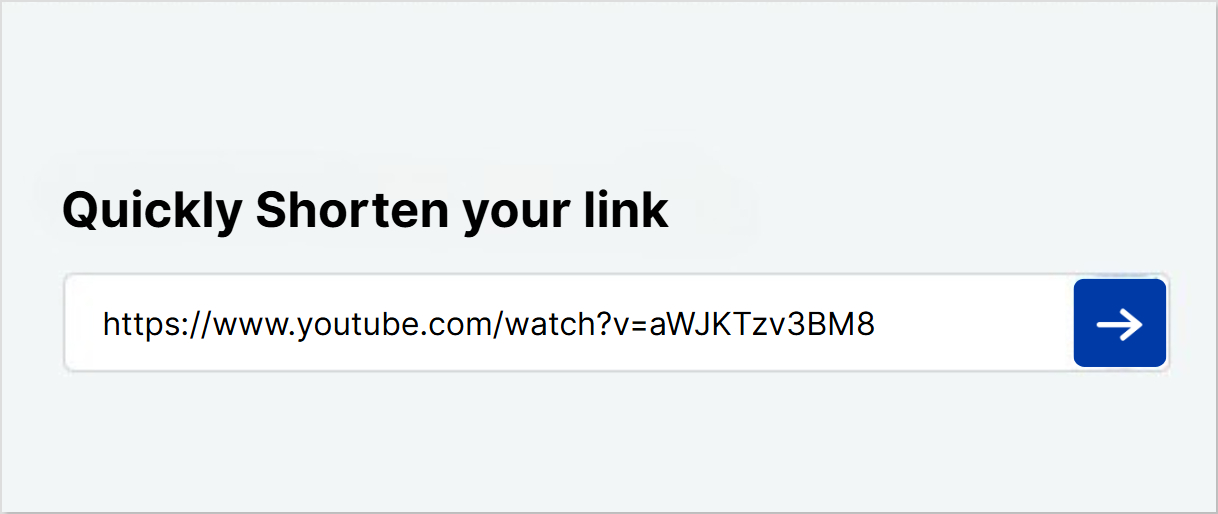
Step 3: Shorten your link
Paste your YouTube embed link into Replug’s dashboard. (A normal video link, such as youtube.com/watch?v=… or youtu.be/…, works too.)
Related: How to shorten a YouTube URL?
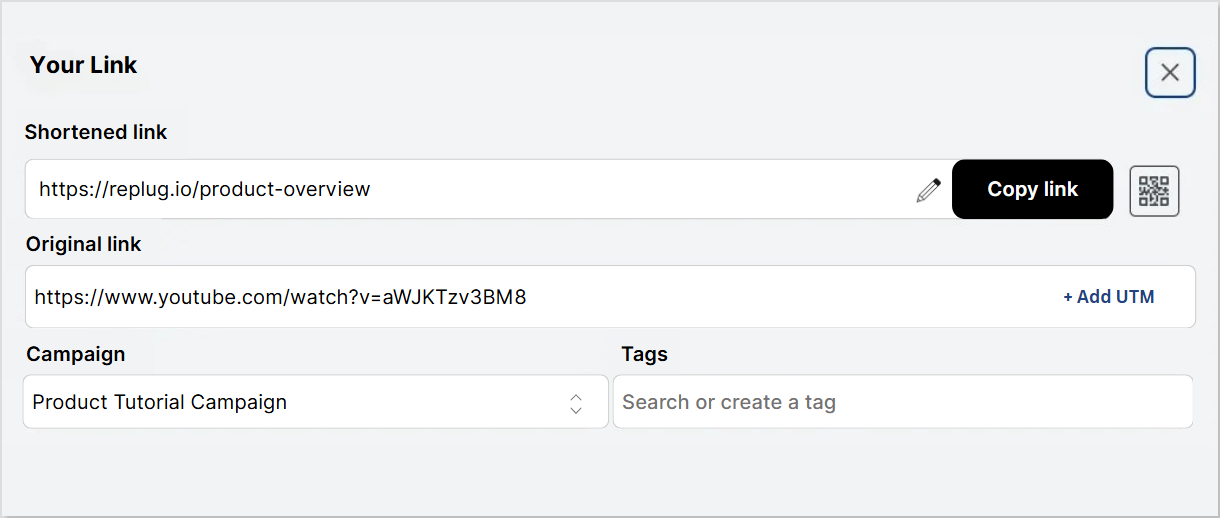
Step 4: Disguise your YouTube video link
Choose the ending of your short link so it says what the video is, such as replug.link/fall-trailer. Picking your own ending starts on the Essentials plan; the free plan gives you an automatic ending. You can also use your own domain on any plan, including Free.
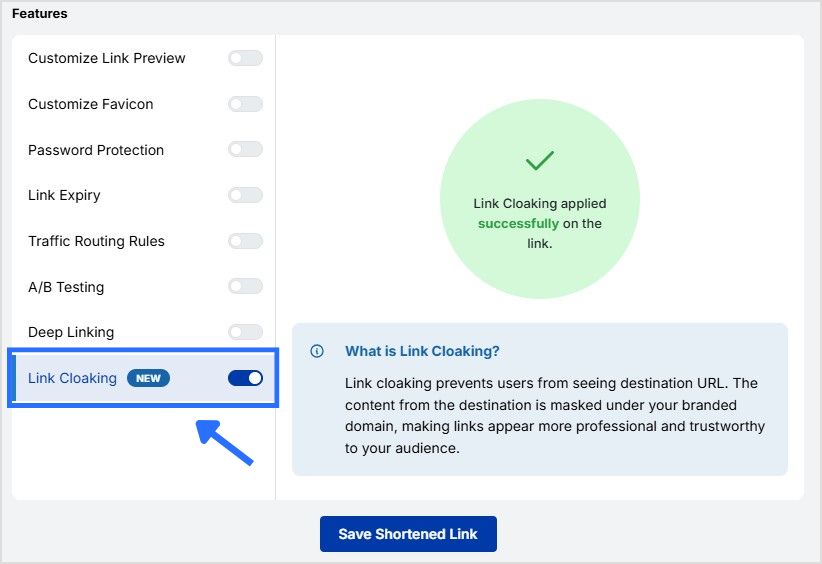
Step 5: Enable link cloaking
Turn on link cloaking in Replug so users only see your custom, disguised link in the browser’s address bar, instead of the original YouTube URL. It keeps your video link clean, branded, and more trustworthy.
Good to know: YouTube doesn’t let its normal watch pages load inside another site (in our October 2026 check, youtube.com/watch pages sent an X-Frame-Options: SAMEORIGIN header), so Replug shows YouTube links in YouTube’s embedded player on your short-link page instead. Link cloaking is on the Scale and Agency plans.
Step 6: Save link
Once you’re set, hit “Save Shortened link” and Replug will generate a clean, trackable short YouTube URL that’s ready to share.
How to Embed a YouTube Video Using YouTube’s Built-in Feature
YouTube also lets you embed videos directly onto your website or blog. Here’s how:
1. Go to the YouTube video
Navigate to the video you want to embed on YouTube.
2. Click the “Share” Button
Below the video player, click the “Share” button.
3. Select “Embed”
In the pop-up, click the “Embed” option (</> icon).
4. Copy the embed code
A preview window with an HTML <iframe> code will appear. Click “Copy” to copy the code.
5. Paste the code into your website
Go to the backend of your website or blog and paste the embed code into the HTML where you want the video to appear.
Tips:
- Make sure your site/platform supports embedding HTML (e.g., WordPress, Webflow, Blogger).
- You can manually adjust the width and height in the iframe code.
- Some website builders also let you paste the YouTube URL directly, and they’ll auto-embed it.
These are the same steps YouTube Help gives for embedding: Share, then Embed, then copy the HTML code into your page. The basic code looks like this:
<iframe width="560" height="315" src="https://www.youtube.com/embed/VIDEO_ID" title="YouTube video player" allowfullscreen></iframe>Want a code snippet with your video link in it? Just share the URL!
Clean (sanitize) a YouTube link before you share it
Links copied with YouTube’s Share button often end with ?si= and a string of letters. That part is a share identifier, not part of the video address, and the video plays without it. To clean a link:
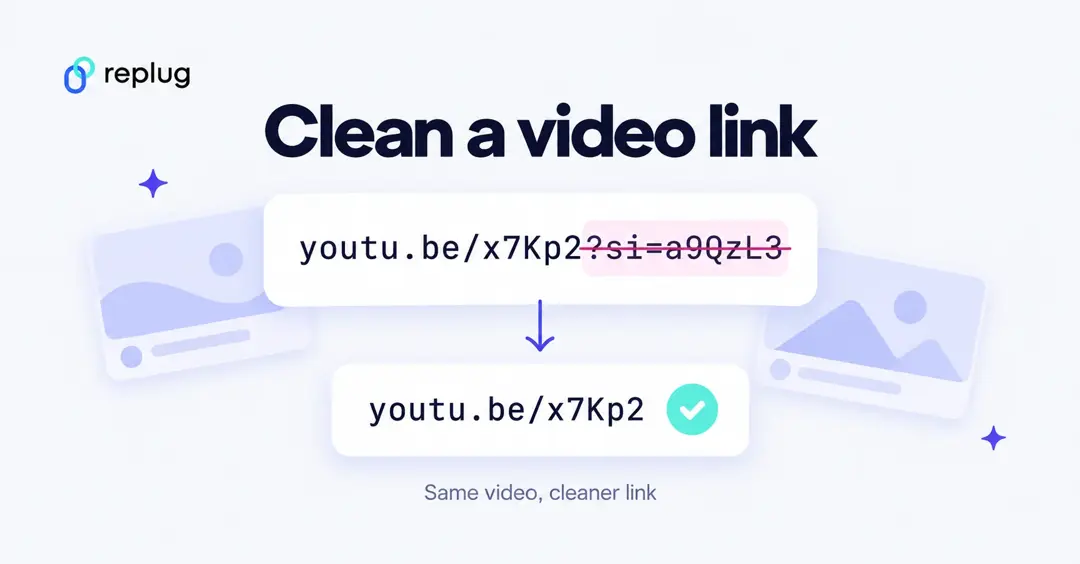
- Copy the link from Share → Copy (or the address bar).
- Delete ?si= and everything after it. A clean link looks like youtu.be/VIDEO_ID or youtube.com/watch?v=VIDEO_ID.
- If you want the video to start at a certain moment, use the Start at box in the Share window, which YouTube Help describes; it adds a time to the link (for example ?t=150).
- Paste the clean link where you need it, or shorten it first.
A short link takes care of this for you: whatever you paste in, people only ever see your short link.
Hide a YouTube link in Discord, email and documents
- Discord: Discord’s Markdown guide explains masked links: put the text in brackets and the URL in parentheses, like [Watch the trailer](https://youtu.be/VIDEO_ID). Discord may still show the real address in a warning before opening it. Wrapping a link in angle brackets, like <https://youtu.be/VIDEO_ID>, stops the video preview. More options are in our guide to disguising a link in Discord.
- Gmail and Outlook: select your words, press Ctrl+K (Cmd+K on a Mac), paste the YouTube link. Some email apps add a video preview under the message anyway; a branded short link usually avoids that.
- Google Docs and Word: same shortcut. Docs may offer to turn a YouTube link into a video “chip”; keep it as text if you don’t want that.
- Instagram and TikTok: captions don’t make links clickable, so put the short link in your bio or link-in-bio page.
Share an unlisted or private YouTube video
If you want to hide the video itself rather than the link, use YouTube’s visibility settings. According to YouTube Help, an unlisted video can be shared by URL but doesn’t show up in search, related videos, recommendations or on your channel, while a private video can’t be shared by URL at all. Anyone who has the link to an unlisted video can watch it and pass it on, so a disguised short link doesn’t make it secret.
Can you change a YouTube video without changing the link?
Not on YouTube itself: each upload gets its own address, so uploading a fixed version means a new link. If you shared a Replug short link instead, you can point that same short link to the new video and everyone who already has it lands on the right one. Changing a short link’s destination is on the Scale and Agency plans; on Free and Essentials, create a new short link.
Benefits of disguising your YouTube video link
1. Make your link memorable and on-brand
Custom short links are easy to remember and look far more professional than default YouTube URLs. When you add your own domain, it reinforces brand recognition across all platforms.
2. Build trust across platforms
Generic or affiliate-style YouTube links can appear suspicious, especially in emails or chats. A clean, branded URL instantly looks more credible.
3. Boost your click-through rates
Disguised links are not just visually appealing; they can also get more clicks. Shorter, clearer links perform better across marketing channels and potentially have a higher CTR.
4. Keep your messaging clean
Long URLs can clutter up your posts or trigger previews that take focus away from your content. Disguising your YouTube link helps keep things neat and distraction-free.
5. Track every click and conversion
With Replug, you can monitor performance in real-time. See how many clicks your YouTube link gets, where traffic is coming from, and what content drives results.
6. Create a QR code instantly
Want to share your video offline? Replug lets you create a custom, dynamic QR code for any short link, making it easy to promote your video through print or packaging.
7. A/B test multiple video links
Wondering which custom link will make your video stand out? Use Replug to split test up to 20 URLs and optimize based on actual data (A/B tests are on the Scale and Agency plans).
8. Use link rotators for smarter sharing
Need to promote different videos to different audiences? Replug’s link rotator lets you route users to different YouTube videos without changing the link (traffic routing is on the Scale and Agency plans).
9. Add calls-to-action directly to your link
Don’t stop at just getting clicks, turn them into actions. With Replug, you can add CTA buttons, and create bridge and summary pages that display while your video plays (CTAs start on the Essentials plan).
Wrapping it up
If you’re serious about growing your YouTube presence, your link strategy shouldn’t be an afterthought. Disguising your YouTube video link with a branded short URL isn’t just about looks; it’s about boosting trust, engagement, and performance across every platform you share on.
With Replug, you get full control over how your video links appear, perform, and convert. From link cloaking to CTAs, QR codes, analytics, and more, it’s your one-stop solution for turning any video drop into a brand moment.
So the next time you’re ready to share your content, skip the clunky links. Share it smart. Share it with Replug.
👉 Try Replug free for 14 days and start transforming your YouTube links today.
Frequently asked questions

Amna Yawar