Quick answer: a CTA (call to action) button is a clickable button on a website, landing page, email, ad or app that asks people to take one specific next step, such as “Start free trial”, “Add to cart” or “Book a demo”. A good CTA button has a short label that starts with a verb and says what people get, a color that stands out from the page, a size that is easy to tap, and a clear spot where people expect it.
You have clicked hundreds of them: a “Learn more” button that opens a page with details, or a “Buy now” button that takes you to checkout. This guide covers what makes them work, how to write and build one, the main types, and real examples.
What is a call to action button?
A call to action (CTA) button is a clickable button or link on a website, advertisement, or piece of content that encourages the audience to take a specific action.
A CTA can drive a variety of different actions depending on the content’s goal, such as collecting sign-ups, making a purchase, booking a call or subscribing to a newsletter. Each page should have one main CTA, so people know what the page wants them to do.
Why is a CTA button important?
CTA buttons act like signposts on your website, pointing visitors toward the action that helps them and you. Here’s why:
Benefits for visitors:
- Clarity: They tell visitors what to do next, eliminating confusion and helping them find what they’re looking for faster.
- Convenience: They offer a one-click path to things like downloading resources, starting free trials, or contacting you.
- Value: They highlight content or actions that can solve their problems or improve their experience.
Benefits for you:
- Conversions: They encourage visitors to take specific actions, like signing up for a newsletter or making a purchase.
- Engagement: They keep visitors moving through your site instead of leaving.
- Data: Clicks on each button show which offers and pages people respond to, which helps you decide what to change.
Anatomy of a CTA button
Five things decide whether people notice and click a CTA button:
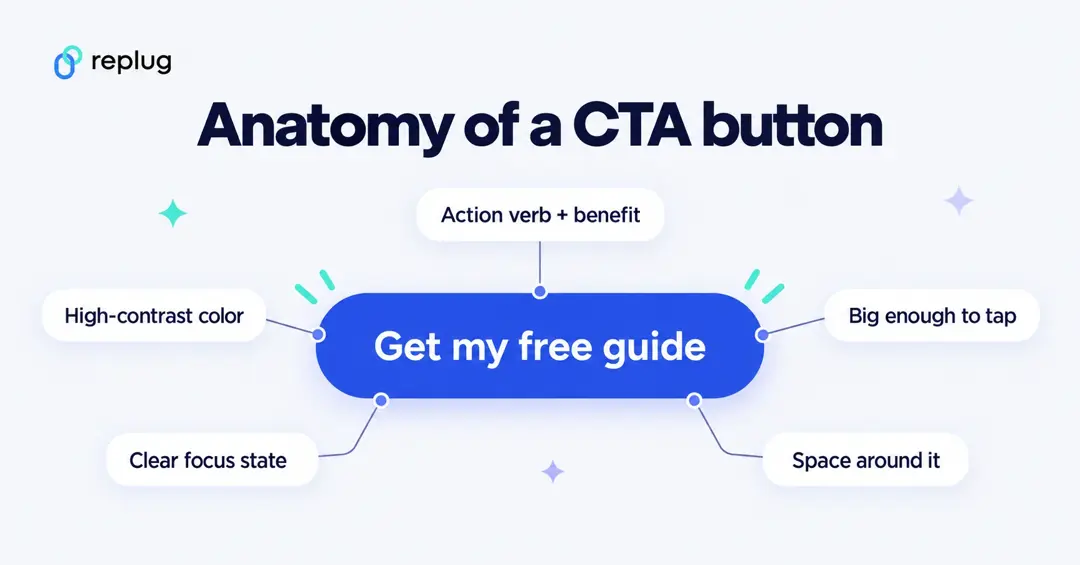
- The label. Start with a verb and say what people get: “Get my free guide” tells people more than “Submit”.
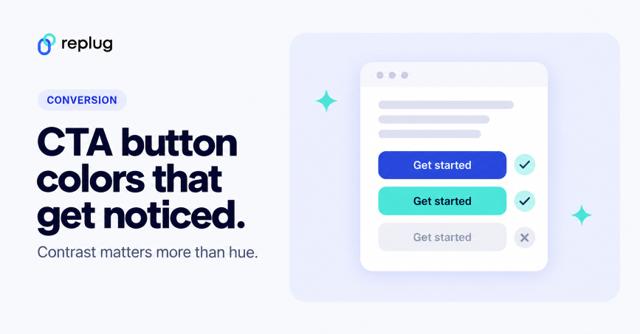
- The color. Use a color nothing else on the page uses, with readable text on it. Our guide to CTA button colors covers contrast ratios and examples.
- The size. Make it easy to hit. WCAG 2.2 SC 2.5.8 sets a minimum target of 24 by 24 CSS pixels; Apple’s Human Interface Guidelines recommend a hit region of at least 44 by 44 points, and Material Design recommends touch targets of at least 48 by 48 dp.
- The shape and states. It should look clickable: a clear rectangle, usually with rounded corners, as Nielsen Norman Group advises in Beyond Blue Links. Give it a hover style and a visible keyboard focus outline (WCAG SC 2.4.7, Focus Visible).
- The placement and space. Put the main button where people finish reading the offer, keep space around it, and don’t surround it with competing buttons. The GOV.UK Design System notes that pages with too many calls to action make it hard for users to know what to do next.
How to write CTA button copy
The label is the part most people read. A simple formula works for most buttons: verb + what they get.
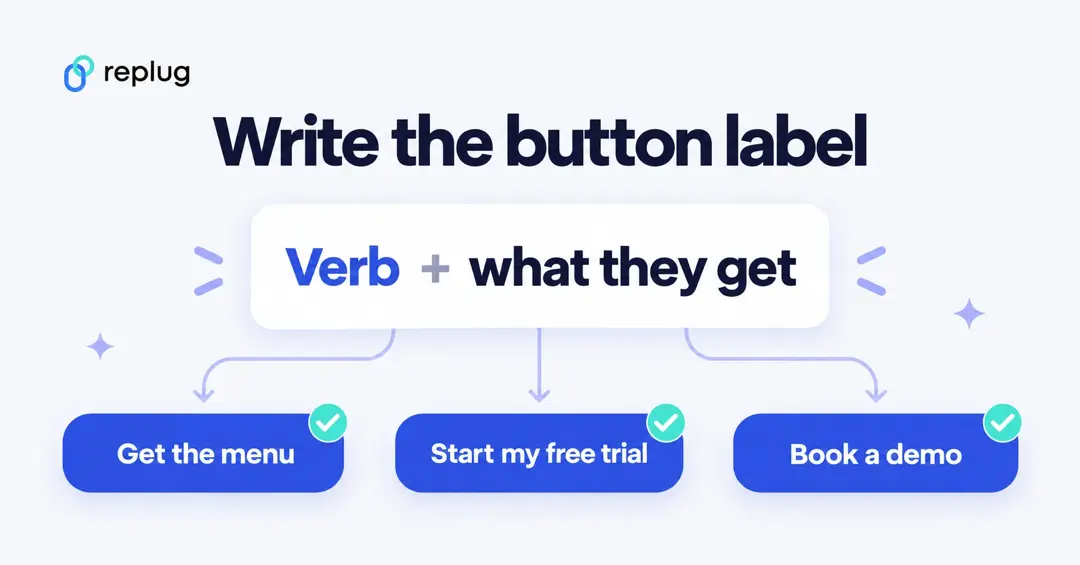
- Start with a specific verb: Get, Start, Book, Download, Try, See, Join, Shop.
- Name the result: “Get the menu”, “Start my free trial”, “Download the checklist”.
- Keep it short: two to five words fit on one line on a phone.
- Match the page: if the headline promises a free guide, the button should say “Get the free guide”, not “Sign up”.
- Remove doubt nearby, not in the button: a small line under the button such as “No credit card needed” answers the main worry.
- Avoid vague labels: “Click here”, “Submit” and “Learn more” say little about what happens next; use them only when the context is obvious.
For more label ideas, see our list of call to action phrases.
Different types of CTA buttons to boost your CTR
CTA buttons vary in style and wording depending on the goal of the page. Each type has a specific purpose and works best in different situations. Let’s explore some common ones:
1. Lead generation:
Offer a free e-book, checklist or webinar in exchange for an email address. The button could say “Get your free e-book” and sit right next to the offer.
2. Form submission:
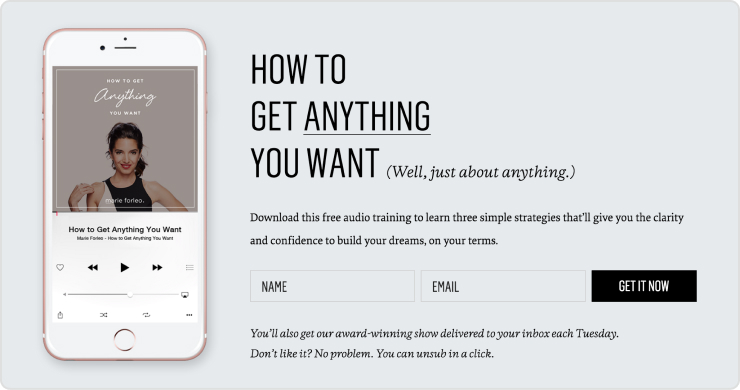
This CTA sends a form, like “Sign up for our newsletter” on a blog or “Tell us your needs” on a contact page. Label the button with the result, not “Submit”.
3. “Read More” button:
If you show snippets of longer content, this CTA invites visitors to continue, like “Read the full article” on a blog post preview.
Related: Call to action for social media: 15 best examples
4. Product or service discovery:
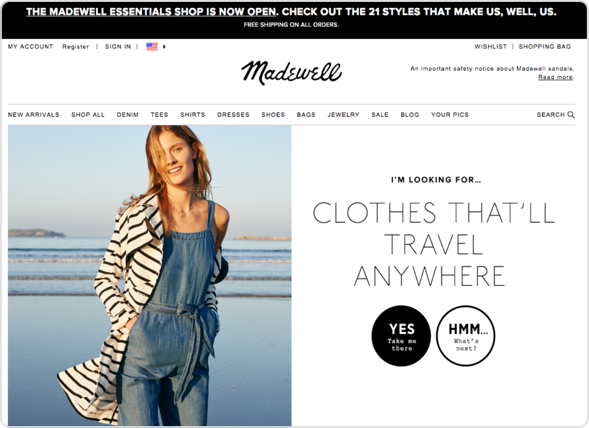
This CTA leads visitors to explore your offerings, like “Browse our collections” on a clothing site or “See our services” on an agency page. In this example from 2024, Madewell used two playful round buttons (“Yes” and “Hmm”) to start a style quiz.
5. Download now:
After someone signs up, a CTA like “Download our beginner’s guide” delivers what they asked for and keeps them engaged.
6. Purchase CTA button:
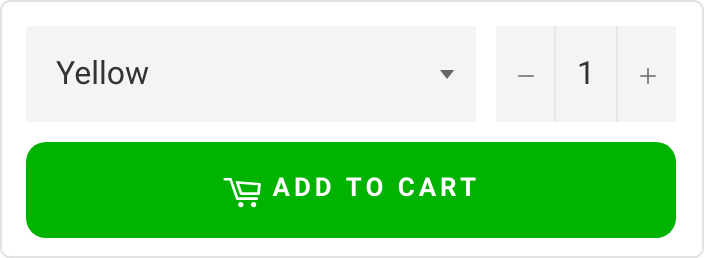
On product pages, a bold “Buy now” or “Add to cart” button prompts the purchase. Make it the most visible element near the price.
7. Demo/Trial CTA:
Let visitors try before they buy with CTAs like “Start your free trial” or “Book a demo”. A short line under the button, such as “No credit card required”, answers the most common objection.
8. Contact us:
Make it easy for people to reach out with a clear “Contact us” or “Chat with us now” button, especially on pricing and support pages.
9. Banner CTA
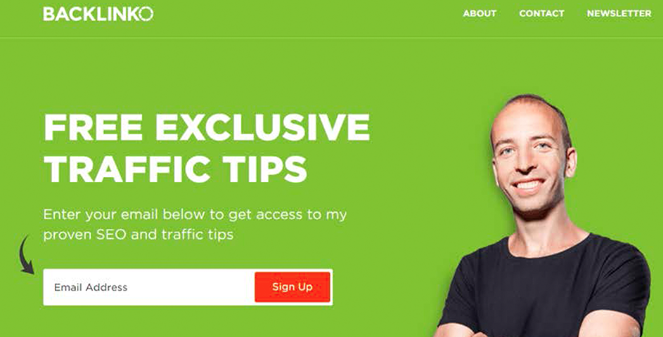
A banner CTA is a wide, eye-catching strip at the top of a page or inside the content, often with a short offer and a sign-up field. Here, Backlinko’s green banner pairs a sign-up form with a contrasting red “Sign Up” button (example from 2024).
10. Social sharing CTA
A social sharing CTA asks people to share content, such as an article, image or video, with their network, usually through share buttons next to the content.
CTA buttons in ads and on social media
Ad platforms give you a fixed set of button labels instead of free text. For example, Meta Ads Manager lets you add a call-to-action button to ads, and the list of buttons you can choose from depends on the campaign objective (awareness, traffic, engagement, leads, app promotion or sales). Pick the label that matches what happens after the tap.
For buttons and links in social posts and profiles, see our social media CTA examples; for software that helps you build CTAs on your site, see our roundup of call to action tools.
How to make a CTA button in HTML
Use the right element: a link (<a>) when the button goes to another page, and a <button> when it submits a form or runs an action. MDN’s guide to the anchor element warns against using links with href="#" as fake buttons and says to use a <button> instead. Here is a simple, accessible starting point you can copy:
<!-- A link that looks like a button: it goes to another page -->
<a class="cta-button" href="https://www.example.com/fall-menu">See the fall menu</a>

<!-- A real button: it submits a form or runs an action on the page -->
<button class="cta-button" type="submit">Book a table</button>

<style>
  .cta-button {
    display: inline-block;
    min-height: 44px;            /* comfortable to tap */
    padding: 12px 24px;
    border: 0;
    border-radius: 8px;
    background: #1565C0;         /* 5.75:1 with white text */
    color: #FFFFFF;
    font-weight: 600;
    text-decoration: none;
    cursor: pointer;
  }
  .cta-button:hover { background: #0D47A1; }
  .cta-button:focus-visible {    /* keyboard users must see focus */
    outline: 3px solid #111735;
    outline-offset: 3px;
  }
</style>
Best practices for designing an effective CTA button
- Tell them what to do: Use strong verbs like “Download” or “Book”.
- Highlight the benefit: What do they get by clicking? A free guide? A table for Friday?
- Short and sweet: Keep the text easy to read on a phone.
- Make it stand out: Use contrasting CTA button colors and good placement.
- Mobile-friendly: Easy to tap on any device, with space around it.
- One main action per page: Give secondary actions a quieter style.
- Test it: Compare labels, colors and placement with an A/B test on your own pages.
Remember, good CTAs guide users and improve their experience.
Add a CTA button to pages you don’t own with Replug
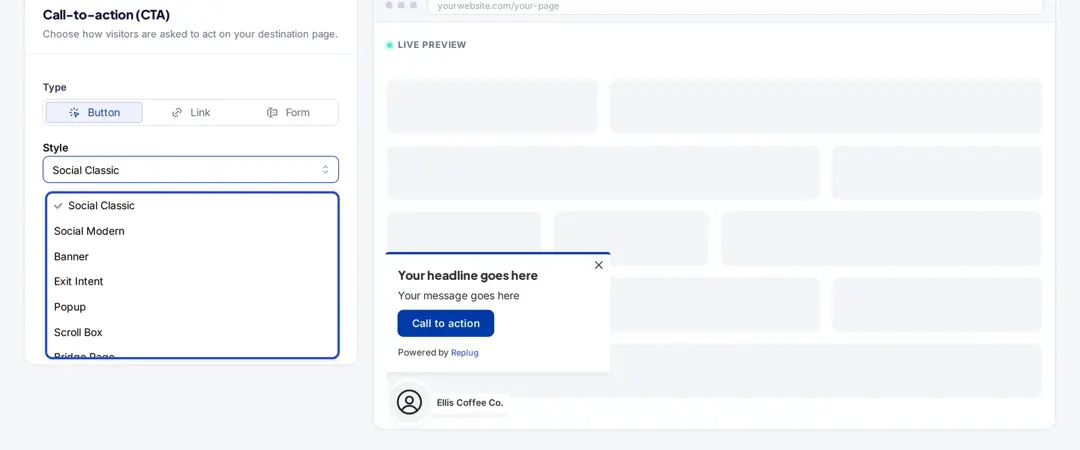
When you share someone else’s page, such as a news article about your product or a partner’s listing, you can’t add a button to it. Replug’s CTA generator places your own call to action on top of the page you share through a short link. You choose the type (button, link or form) and a style such as a pop-up, banner, scroll box or bridge page:
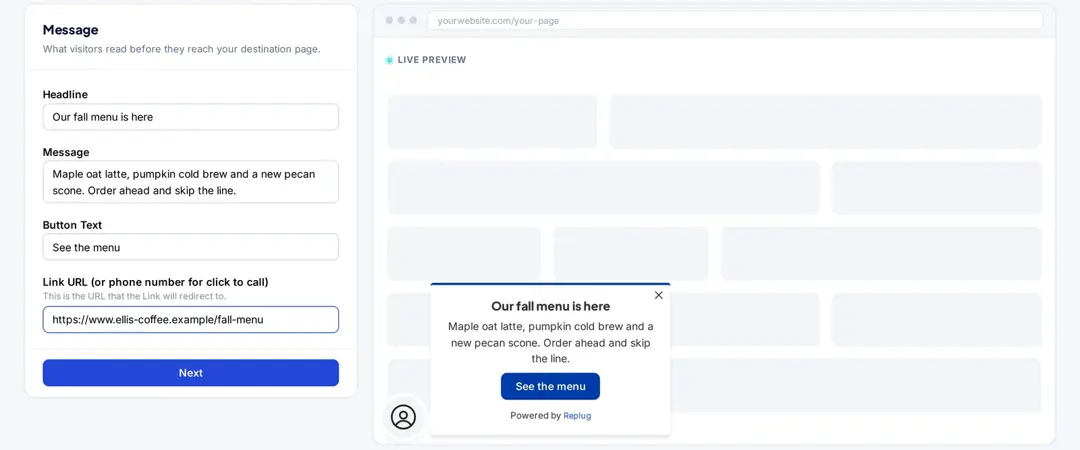
Then write the headline, message and button text, and set where the button goes (a URL, or a phone number for click to call). The live preview shows the result before you save, and every click on the short link is counted in Replug analytics. CTAs are on the Essentials plan and above, according to Replug’s pricing page.
Related: How to create a CTA campaign using Replug?
3 best call-to-action button examples
Ready to see some well-known CTAs? Here are three examples from 2024, with what changed since:
1. Netflix: “Join Free for a Month”
In early 2024 this example showed Netflix’s “Join free for a month” button. Netflix no longer advertises a free month on its homepage: when we checked in October 2026, the main button read “Get Started”, next to an email field and the line “Ready to watch? Enter your email to create or restart your membership.” The lessons still hold: it is clear, concise and placed right where you decide.
- Clear: One field and one button, nothing else competing.
- Low effort: Start with just an email address.
- Reassuring: The nearby “Cancel anytime” line answers the main worry.
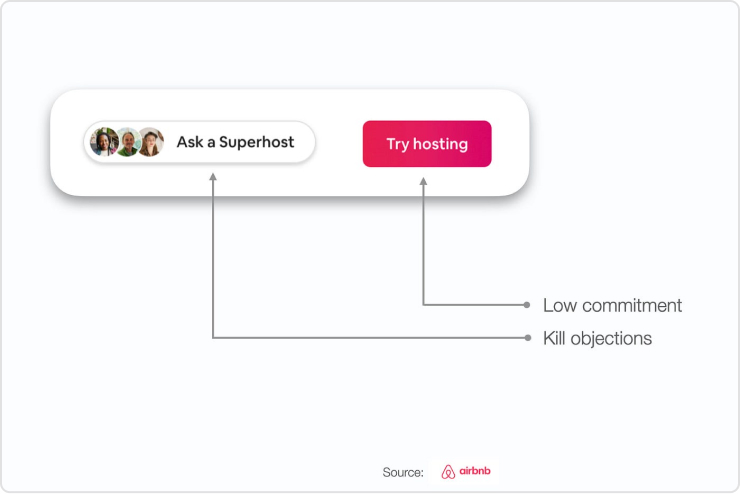
2. Airbnb: “Try Hosting”
Airbnb’s “Try hosting” button (shown here in 2024) invited people to explore hosting without a big commitment. Its host page now uses a “Get started” button (checked October 2026), with the reassurance “Getting started is free” nearby.
- Intriguing: “Try hosting” piques curiosity without asking for a big commitment.
- Low barrier to entry: “Try” and “Get started” suggest it’s easy to begin.
- Paired with a second option: “Ask a Superhost” gives unsure visitors another path.
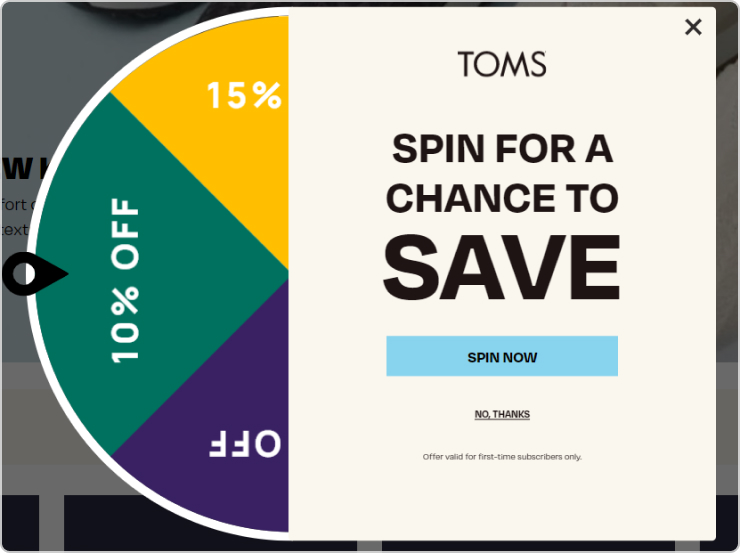
3. “SPIN FOR A CHANCE TO SAVE” – TOMS
This TOMS pop-up from 2024 turned a discount offer into a game, with a “Spin now” button and a clear “No thanks” link to close it.
- Gamification: Spinning a wheel is a fun, interactive way to engage visitors.
- Surprise: Not knowing the discount adds a little excitement.
- Easy exit: A visible “No thanks” keeps it from feeling like a trap.
Your CTA buttons are some of the most important elements on your site. Craft them with care, and track your clicks to see which ones people use.
FAQs

Eeman Bokhari