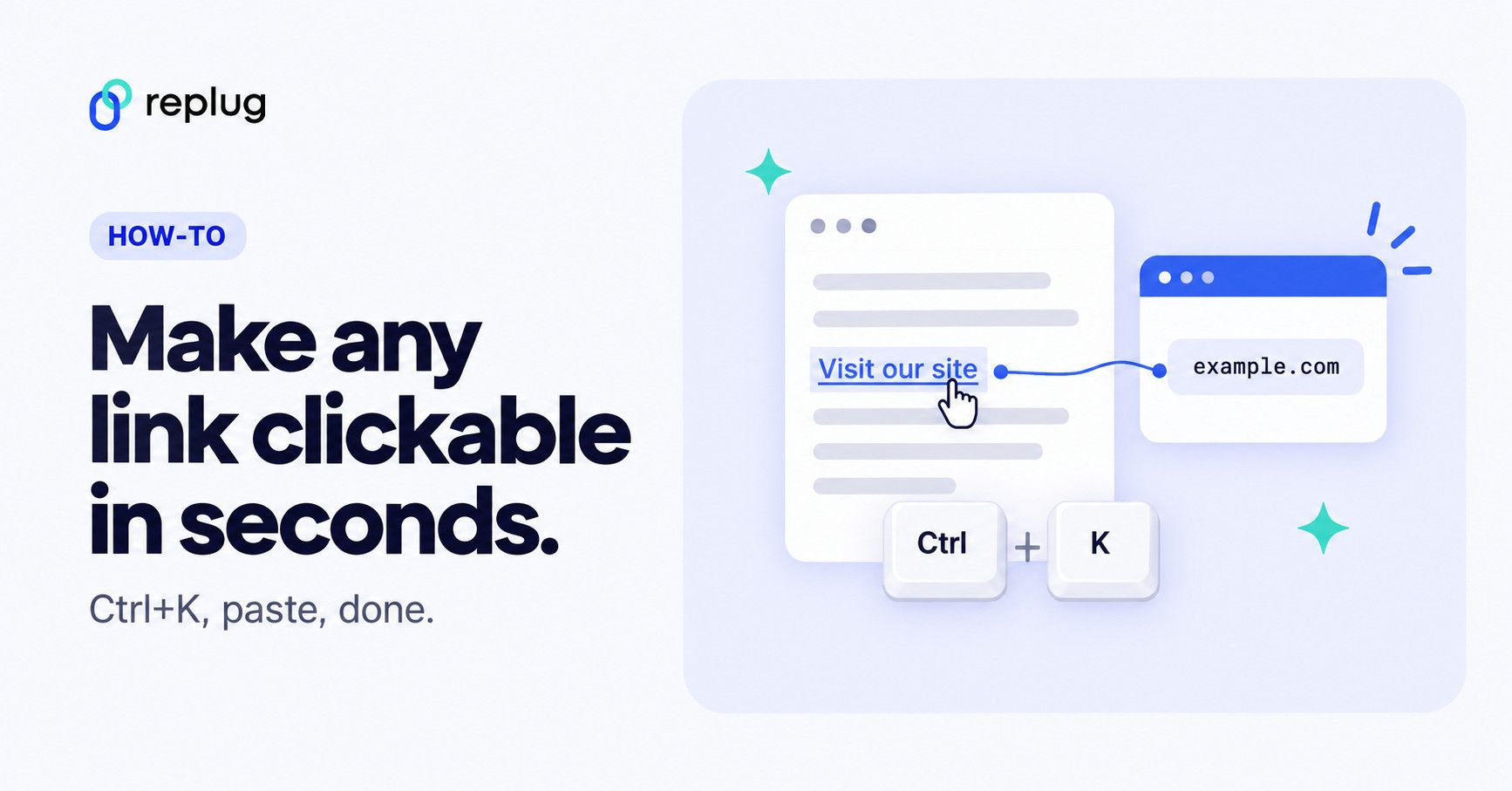
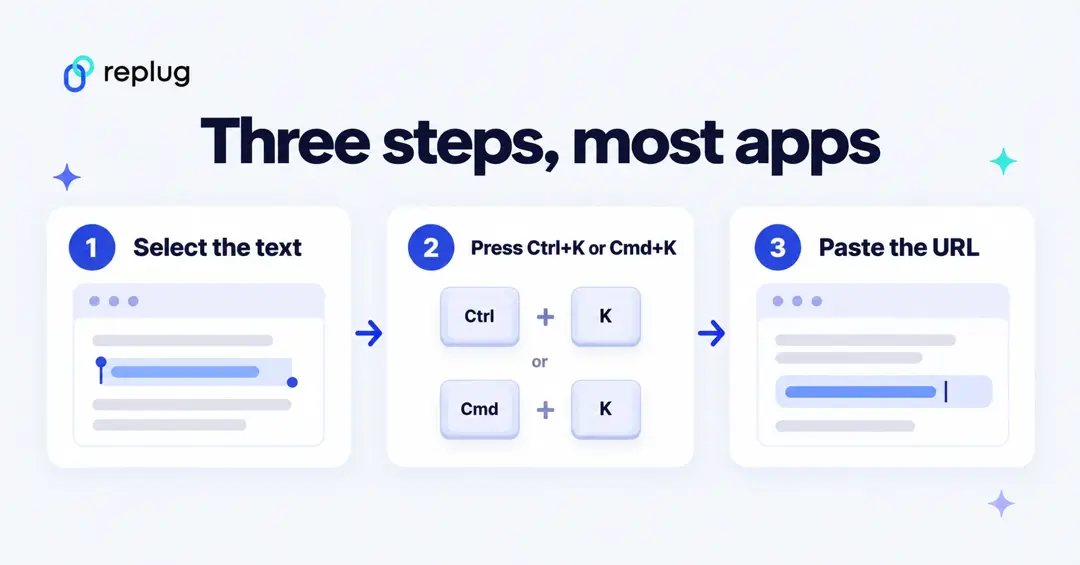
Quick answer: to make a link clickable, select the words you want people to click, press Ctrl+K (Windows) or Cmd+K (Mac), paste the web address and press Enter. That shortcut works in Word, Outlook, Google Docs and Gmail. In most apps and chats you can also paste the full address, starting with https://, and it turns into a link on its own. On a web page, wrap the text in an HTML link tag: <a href="https://example.com">Visit our site</a>. Instagram and TikTok don’t make links in captions clickable; use the link field in your profile instead.
Have you ever clicked on a piece of text and instantly landed on another page? That simple action powers much of the web.
According to the ITU’s Facts and Figures 2025, almost three-quarters of the world’s population is now online, and links are the tiny bridges that connect billions of pages together every second.
For bloggers, marketers, and website owners, clickable links are more than just navigation. They help guide readers, boost SEO, and keep visitors exploring your content.
And since many pages on the web get little or no search traffic, knowing how to properly link your content can make a real difference in visibility.
The good news?
Creating a clickable link takes only a few seconds once you know how. But before jumping into the steps, let’s start with the basics: what exactly is a clickable link?
What is a clickable link?
A clickable link (also called a “hyperlink”) is a piece of text, image, button, or icon that you can click or tap to open another webpage, file, or location on the internet.
Behind the scenes, the link contains a URL (Uniform Resource Locator), basically the address of the destination page. When someone clicks the link, their browser reads that URL and loads the corresponding content instantly.
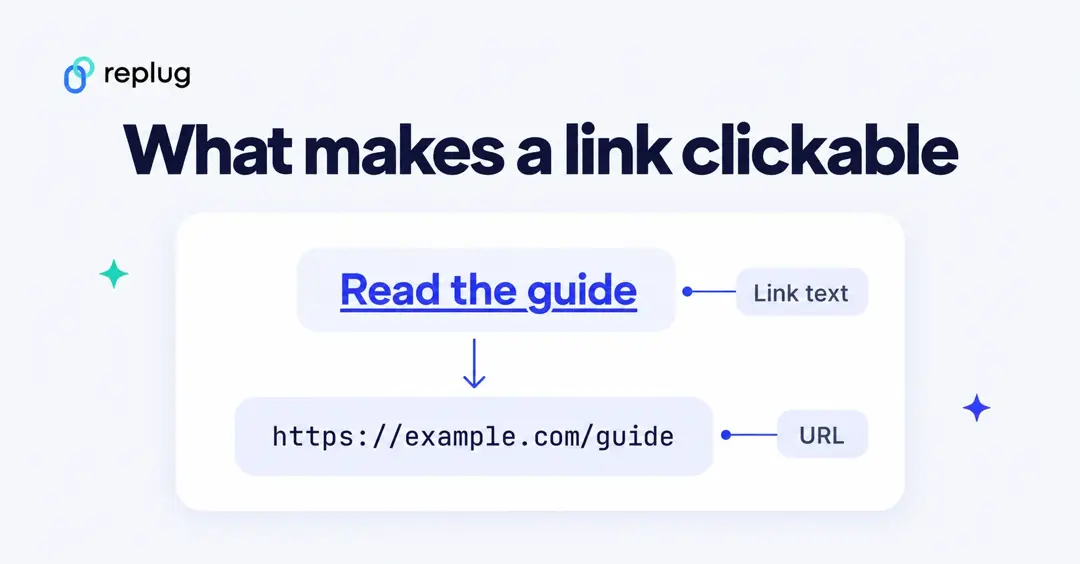
The main goal of a clickable link is simple: to connect different pieces of information on the web and make navigation easy for users.
Without links and URLs connecting pages, the internet would just be a collection of isolated documents instead of the interconnected web we use every day.
How does it work
A clickable link contains a URL, which is the exact address of the destination page or resource.
Here’s how it works:
- When someone clicks the link, the web browser reads the URL and requests that page from the server.
- The server then sends the requested page back to the browser, which loads the new content instantly.
Links can point to:
- another website,
- another page on the same site,
- a file, or
- even a specific section within a page.
Note: Clickable links don’t have to be just text. They can also be images, buttons, icons, or graphics, all connected through URLs. Most browsers visually highlight links (often blue or underlined), so users know they are clickable and lead somewhere else.
The importance of clickable links in 2026
- Navigation: Clickable links help users move from one page to another quickly, making the web easy to explore.
- Content discovery: They connect related articles, resources, and tools through URLs, helping readers find more useful information.
- SEO benefits: Search engines use links to understand website structure and relevance, which can influence how pages rank in search results.
- User engagement: Well-placed links keep visitors exploring your site longer, which can reduce bounce rates and improve conversions.
- Credibility: Linking to trusted sources through URLs can make your content look more reliable and well-researched.
In short, clickable links are the connective tissue of the internet. They guide readers, share knowledge, and keep the web organized and accessible.
How do you make a link (URL) clickable?
Making a URL or a link clickable is usually very simple. In most apps, websites, and social platforms, you just need to paste the URL into a text field, and the platform automatically turns it into a clickable link.
The exact steps may vary slightly depending on the device or platform you’re using, but the process is generally quick and beginner-friendly.
Let’s walk through how to do it on different platforms step by step!
How to make a link clickable on a phone
If you’re using a smartphone (Android/iOS), creating a clickable URL is mostly about copying and pasting the link. Most messaging apps automatically convert the pasted URL into a clickable link.
Step-by-step guide:
1. Open your phone’s browser (Chrome, Safari, etc.) and go to the page you want to share.
2. Tap the address bar at the top and copy the full URL.
3. Open the messaging app you want to use (Messages, WhatsApp, Messenger, etc.).
4. Tap inside the message box.
5. Press and hold the screen, then tap Paste.
6. Send the message.
Once sent, the URL automatically becomes a clickable link that the recipient can tap to open the webpage.
How to make a link clickable on Instagram
Instagram doesn’t allow clickable URLs directly inside most post captions. Instead, the main clickable link appears in your profile bio (often called the “link in bio”).
Step-by-step guide:
1. Open the Instagram app and go to your Profile.
2. Tap Edit Profile.
3. Scroll down and find the Links or Website section (in the current app, tap Links, then Add external link; Instagram’s Help Center says you can add up to 5 links). In some cases, you will see an “Add link” option. Tap it.
4. Tap Add link, Add external link, or Add new link.
5. Paste your URL into the field, and give it a title.
6. Save the changes by tapping the ✔ icon.
Now the URL in your bio becomes clickable for anyone visiting your profile.
Useful tip: Many creators add text like “Click the link in bio” in their posts or stories to direct followers to that clickable link.
How to make a link clickable on TikTok
On TikTok, clickable links usually appear in your profile bio or website field. However, according to TikTok’s help page on profile links, you need at least 1,000 followers or a Verified Business Account to add a website link.
Step-by-step guide:
1. Open the TikTok app.
2. Tap Profile at the bottom.
3. Tap Edit profile.
4. Find the Website or Links section (in the current app: next to Links, tap Add).
5. Paste your URL (starting with https://) into the field.
6. Save your changes.
After saving, the URL becomes a clickable link on your TikTok profile, allowing viewers to open your website or landing page directly.
How to make a link clickable in Word
Creating a clickable link in Microsoft Word is very simple. You can turn any text, image, or phrase into a link that opens a webpage, file, or email address.
Step-by-step guide:
1. Open Microsoft Word and open your document.
2. Highlight the text or phrase that you want to turn into a clickable link (e.g., Visit our website).
3. Go to the Insert tab in the top menu.
4. Click Link or Hyperlink in the “Links” section.
5. A dialog box will appear. In the Address field, paste the URL you want to link to.
6. Click OK.
Your selected text will now appear as a blue, underlined, clickable link that opens the URL when clicked (“Ctrl + click”).
Quick tip: You can also press “Ctrl + K” after selecting text to quickly add a hyperlink.
According to Microsoft Support, the simplest way is to press Enter or the Spacebar right after typing a web address (for example, www.example.com): Word turns it into a link on its own. In the Insert Hyperlink box you can also change the Text to display, so readers see “Visit our website” instead of the full address.
How to make a link clickable in Excel
Excel also allows you to create clickable links inside cells. This is useful when you want to link data, websites, or files directly from your spreadsheet.
Step-by-step guide:
1. Open your Excel worksheet.
2. Click the cell where you want the clickable link to appear.
3. Right-click the cell and select Link or Hyperlink.
4. Click on Insert Link.
5. In the dialog box, paste the URL in the Address field.
6. Click OK.
Now the cell contains a clickable link that opens the destination when clicked.
Alternative method:
You can also create a link using the formula:
=HYPERLINK(“https://example.com”, “Open Website”)
This formula creates a clickable link with custom display text inside the cell.
Microsoft’s HYPERLINK function reference describes the syntax as HYPERLINK(link_location, [friendly_name]): the first part is the address, the optional second part is the text people see in the cell.
Note: You can also type or paste a web address (e.g., https://replug.io/) directly into a cell and press Enter or Tab. Excel usually converts it automatically. Or, you can use the Insert tab option as well. It’s totally up to you to use the method that suits you the best!
Also read: How to create password-protected links: Safely exchange confidential information online!
How to make a link clickable in PowerPoint
In PowerPoint, clickable links can be added to text, images, icons, or shapes. This is often used in presentations to open websites or jump to other slides, hassle-free.
Step-by-step guide:
1. Open your PowerPoint presentation.
2. Select the text, image, or object that you want to turn into a clickable link.
3. Go to the Insert tab on the top menu.
4. Click Link (or Insert Link).
5. In the Address box, paste the URL you want to link to.
6. Click OK.
Your text or object is now a clickable link. When clicked during the slideshow, it will open the linked webpage or file.
Helpful tip: You can also link to another slide inside the same presentation, which is useful for interactive presentations or navigation menus.
How to make a link clickable in Gmail
Adding a clickable link in Gmail helps make your emails cleaner and easier to read. Instead of pasting a long URL, you can attach it to simple text like Visit our website.
Step-by-step guide:
1. Open Gmail and click Compose to start a new email.
2. Write your email message as you normally would.
3. Type the text you want people to click (e.g., Check our latest report).
4. Highlight that text with your mouse.
5. Click the Insert link icon (it looks like a small chain) in the email toolbar.
6. A small box will appear. Paste the URL you want to link to in the address field.
7. Click OK or Apply.
Your selected text will now become a clickable link that opens the URL when the recipient clicks it.
Quick tip: You can also press Ctrl + K (Windows) or Cmd + K (Mac) after selecting the text to insert a link faster.
How to make a link clickable in Google Docs
In Google Docs, you can turn any word, phrase, or even an image into a clickable link that opens a webpage, file, or another section of your document.
Step-by-step guide:
1. Open your Google Docs document.
2. Highlight the text you want to turn into a clickable link.
3. Click the Insert menu at the top of the page.
4. Select Link from the dropdown menu (or click the chain icon in the toolbar).
5. In the link box, paste the URL you want to connect to.
6. Click Apply.
Your text will now appear as a clickable hyperlink that opens the linked webpage when someone clicks it.
Helpful tip: You can also press Ctrl + K after selecting text to insert a link quickly in Google Docs.
Google’s Docs Editors Help lists the same steps (Insert, then Link, enter the text and the link, then Apply) and the shortcut Ctrl+K or ⌘+K. They also work in Google Sheets and Slides.
How to make a link clickable in a PDF
Making a URL clickable in a PDF usually requires a PDF editor such as Adobe Acrobat or another PDF editing tool.
Step-by-step guide:
1. Open your PDF file in a PDF editor (e.g., Adobe Acrobat).
2. Go to Tools and select Edit PDF.
3. Click Link, then choose Add/Edit Web or Document Link.
4. Use your mouse to draw a rectangle around the text or area where you want the clickable link.
5. A dialog box will appear. Choose Open a web page as the link action.
6. Paste the URL of the webpage you want to link to.
7. Click OK and then save the PDF.
Now the selected text or area becomes a clickable link that opens the URL when someone clicks it in the PDF.
Helpful tip: If you still have the original document (Word, Google Docs, etc.), it’s often easier to insert the link there and then export the file as a PDF so the clickable URL is preserved automatically.
How to make a link clickable in Canva
In Canva, adding a clickable link is very quick. You can attach a URL to text, images, buttons, or shapes. When the design is downloaded as a PDF or shared online, the link remains clickable.
Step-by-step guide:
1. Open your design in Canva.
2. Highlight the text, image, or button you want to link.
3. From the available options, click the Link icon (it looks like a small chain).
4. Paste or enter the link you want to connect to.
5. Press Enter or click Done.
6. Download your design as a PDF (standard or print) or share it online.
Now, anyone viewing the exported PDF or online design can click the element to open the URL.
Quick tip: Canva links work best when you export your design as a PDF or present it digitally, since links don’t work in printed versions.
Read also: How to add multiple links in one link: 5 easy methods explained!
How to copy a link and make it clickable (paste it as a hyperlink)
This is the most common case: you have a web address and want people to be able to click it.
- Open the page in your browser, click the address bar and copy the address (Ctrl+C or Cmd+C; on a phone, tap the address bar, then Copy or the share button and Copy link).
- Paste it where you want it (Ctrl+V or Cmd+V). In Word and Outlook, press Space or Enter after the address and it becomes a link. Gmail, Google Docs, chat apps and most social posts also link a pasted address that starts with https:// or www.
- To show words instead of the address, type the words, select them, press Ctrl+K or Cmd+K and paste the address into the link box.
- Click or tap the link once to test it before you send or publish.
How to make a link clickable in Outlook
According to Microsoft Support, you can add links to the body of an email and show either the full address or any text you choose:
- Select the text you want to link, or place the cursor where the link should go.
- Select Insert link (the chain icon), or press Cmd+K on a Mac (Ctrl+K in Outlook for Windows).
- Enter the web address and, if you like, the text to Display as.
- Select OK.
How to make a link clickable in HTML (on a website)
On a web page, a link is an <a> element with an href attribute. MDN’s guide to creating links shows the basic form:
<a href="https://example.com">Visit our site</a>A few useful variations:
- Open in a new tab: add
target="_blank" rel="noopener"inside the tag. - Email link:
<a href="mailto:emily@example.com">Email Emily</a>opens a new message to that address. - Phone link:
<a href="tel:+15125550123">Call us</a>lets people tap to call on a phone. - Image link: put an
<img>tag between<a>and</a>and give the image alt text that says where the link goes. If you need the image address first, here is how to find an image’s URL.
In WordPress and most website builders you don’t need the code: select the text, click the link (chain) icon or press Ctrl+K, and paste the address.
How to make a link clickable on Facebook and in text messages
Facebook posts and comments, iMessage, Android Messages and WhatsApp turn a pasted web address into a link on their own, and often show a preview card. Paste the full address (with https://) and send. If the address is very long or breaks across lines, a short link is easier for people to read and tap.
Best practices for making a clickable link: Create effective hyperlinks
Creating a clickable link is easy, but crafting a good hyperlink takes a little thought. A well-made link helps readers understand where they’re going before they click and makes your content easier to navigate.
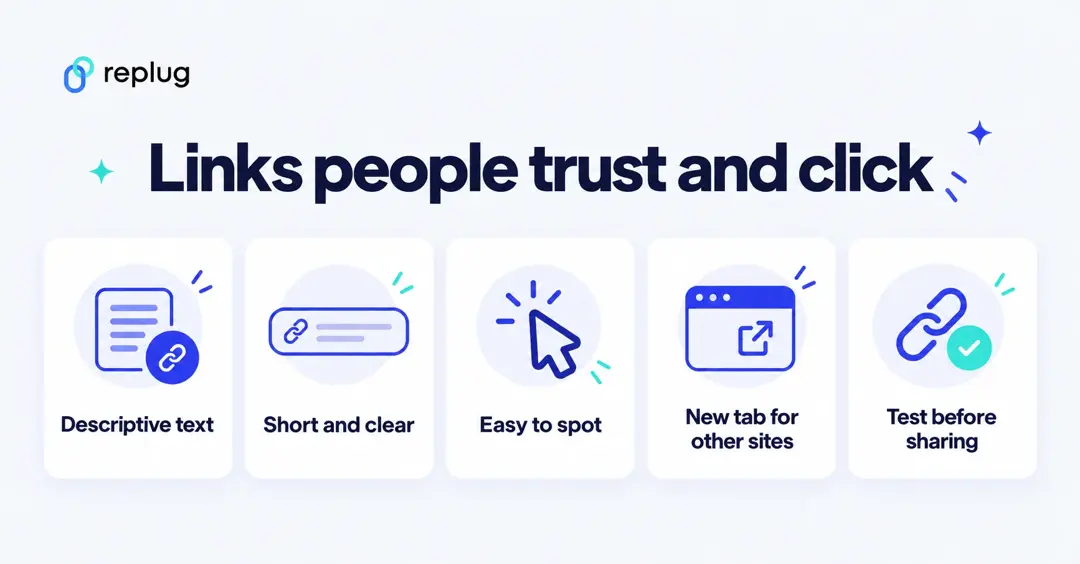
Following a few simple practices can improve usability, accessibility, and even SEO.
- Descriptive link text: Use text that clearly explains where the link leads. Instead of vague phrases like “click here,” write something meaningful like “Download the SEO checklist.” Clear link text helps users understand the link’s purpose and improves accessibility for screen readers.
- Concise phrasing: Keep hyperlink text short but informative. Long or overly wordy links can be harder to read and navigate, especially for users relying on assistive tools.
- Visual accessibility: Make sure links are easy to recognize. Typically, they appear underlined or in a different color so users can quickly spot them.
- Open in new tab: For external links, opening them in a new tab can help readers stay on your page while still exploring the linked content.
- HTML structure: On websites, hyperlinks are usually created with the HTML <a> tag and a valid href attribute, which tells browsers where the link should go.
Using these simple practices makes your hyperlinks clearer, more user-friendly, and easier for everyone to navigate.
Why isn’t my link clickable? Quick fixes
- The address is incomplete: many apps only link text that starts with https://, http:// or www. Add the start of the address and paste it again.
- There’s a space or line break in it: long addresses sometimes get broken when copied. Copy it again from the address bar, or use a short link.
- The app doesn’t allow links there: Instagram and TikTok captions stay plain text. Use your profile link or, on Instagram, the link sticker in Stories.
- Your email is in plain-text mode: plain-text emails can’t hide an address behind words. Switch back to rich text (HTML) formatting, then add the link.
- Automatic links are turned off: in Word and Outlook, AutoFormat settings can stop addresses from linking. Add the link by hand with Ctrl+K.
- The PDF lost its links: printing to PDF or saving a design as an image removes links. Export to PDF from the original file instead.
Create branded, short clickable links with Replug!
If you regularly share links online, you’ve probably noticed how long and messy some URLs can look. That’s where Replug comes in!
It’s a powerful link management platform that helps you shorten, brand, and track your links all from one dashboard. With its custom URL shortener, you can turn long URLs into clean, professional links that are easier to share and remember.
A short link helps most where people see the address itself: text messages, YouTube descriptions, printed flyers, slides and social captions. Compare yourstore.com/collections/fall-2026/new-arrivals?utm_source=newsletter with replug.link/fall-drop. Replug’s free plan includes 100 short links and lets you connect your own domain; choosing your own ending (like fall-drop) starts on the Essentials plan, per Replug’s pricing page.
Replug isn’t just about shortening links; it also helps you manage and optimize them. The platform allows you to create branded, clickable short links using custom domains, track clicks with detailed analytics, and organize your links for marketing campaigns.
Many marketers and businesses use Replug because it makes link sharing look more professional while also giving insights into how people interact with those links. You can even run A/B tests (on the Scale and Agency plans), add tracking parameters, and monitor link performance in real time.
In short, if you want your links to look cleaner & clickable, more trustworthy, and easier to manage, Replug’s link shortener is a great tool to try.
Wrapping up
In the end, making a link clickable is a small skill that makes a big difference online. From understanding what hyperlinks are to creating them on platforms like Word, Excel, Gmail, PDFs, or social media, the process is actually quite simple once you know the steps.
Clickable links help connect information across the web and make it easier for readers to navigate between pages, documents, and resources with a single click.
By using clear link text, following good linking practices, and even using tools like Replug to create branded short links, you can make your content cleaner, more useful, and easier to explore.
So the next time you share a URL, take a few extra seconds to turn it into a clickable link. It’s a small tweak that greatly improves the reader’s experience.
Frequently asked questions

Muhammad Ahsan Jamal