Scrolling through TikTok, it takes one good post to send thousands of people to a profile in a single day.
TikTok now has well over a billion monthly users, and studies show that a large share of them search for brands, products, and creators before making a decision. Without a clear link in your profile, all that attention fades as fast as it came.
That is why knowing how to add links to a TikTok bio is a real power move for social media managers, creators, and marketers. A single tap can send people to a store, a newsletter, an affiliate page, or a long‑form video that closes the sale.
In this guide, you will see what a TikTok bio link is, who gets it, how to work around follower limits, and how tools like Replug help you turn one link into many, hassle-free!
Let’s start with the basics and answer what a TikTok link in bio actually is!
What is a TikTok link in bio?
A “TikTok link in bio,” or simply a “TikTok bio link,” is a clickable URL that appears right under your profile photo, name, and short bio on your TikTok profile. It sends people straight from your profile to a website, online store, funnel page, portfolio, or any other destination you choose.
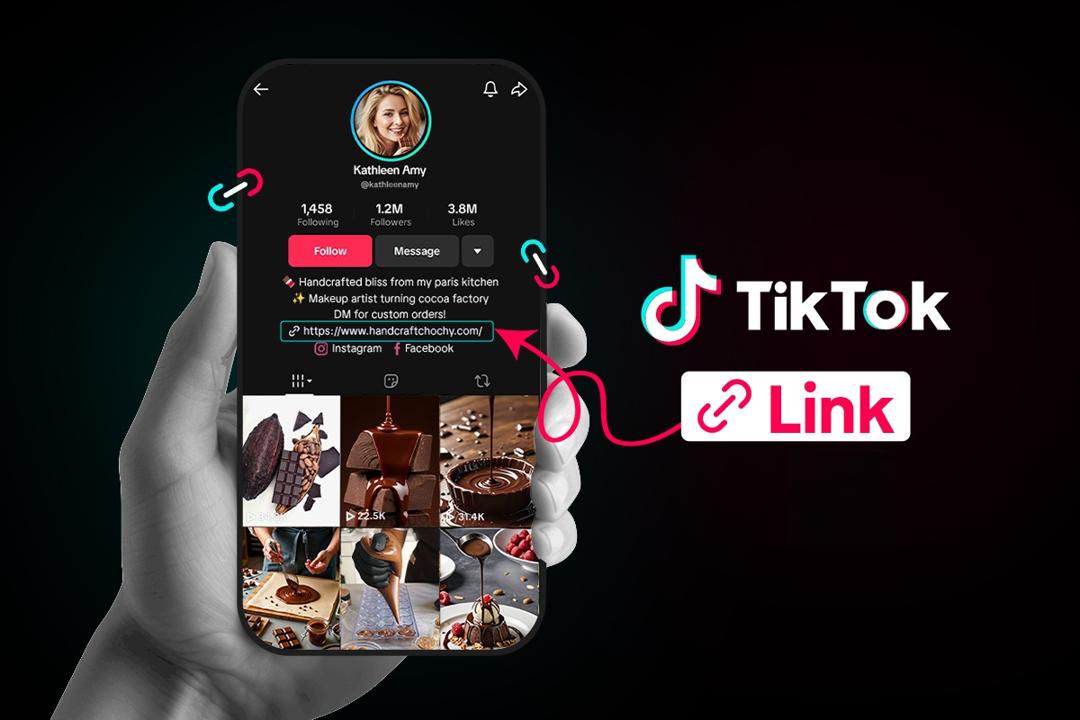
TikTok only gives you one clickable website field, so it is prime space for anyone who cares about traffic and sales.
For content creators, marketers, and brands, that website field works as a bio link page. Videos bring the views, but the link in bio turns that attention into page views, sign‑ups, and purchases.
When someone taps your profile after seeing a post, that bio link is the bridge from casual interest to real action.
What do you need to add a link to your TikTok bio?
Many people open their TikTok profile, tap Edit, and notice there is no “website” field. This can feel confusing, but it usually comes down to TikTok rules about who can add a clickable link.
TikTok link in bio eligibility depends on your account type and follower count!
Here is a quick view of how it works by account type.
| Account type | Bio website field access | Follower requirement | Extra notes |
| Personal account | The website field appears after TikTok grants access in your region | Often 1,000 followers or more | Some regions still limit the website field for personal profiles |
| Business account | The website field appears once you switch to business | No follower minimum | Best option when you need a link but do not have 1,000 followers yet |
| Underage account | Often no website field, even with followers | Not available in many cases | TikTok protects younger users with tighter link rules |
| New account | The website field may be missing while the account is still fresh | Not clearly stated | You may need some activity and time before all profile features show up |
TikTok updates its rules from time to time, and rollouts can be different by region. The safest plan is to use a “Business account” if you need a clickable link as soon as possible.
How to open a business account on TikTok
A TikTok Business account gives you faster access to the website field, plus better analytics and other tools. The good news is that it is free and takes only a minute to set up.
Here’s how to set up a TikTok business account via the TikTok app
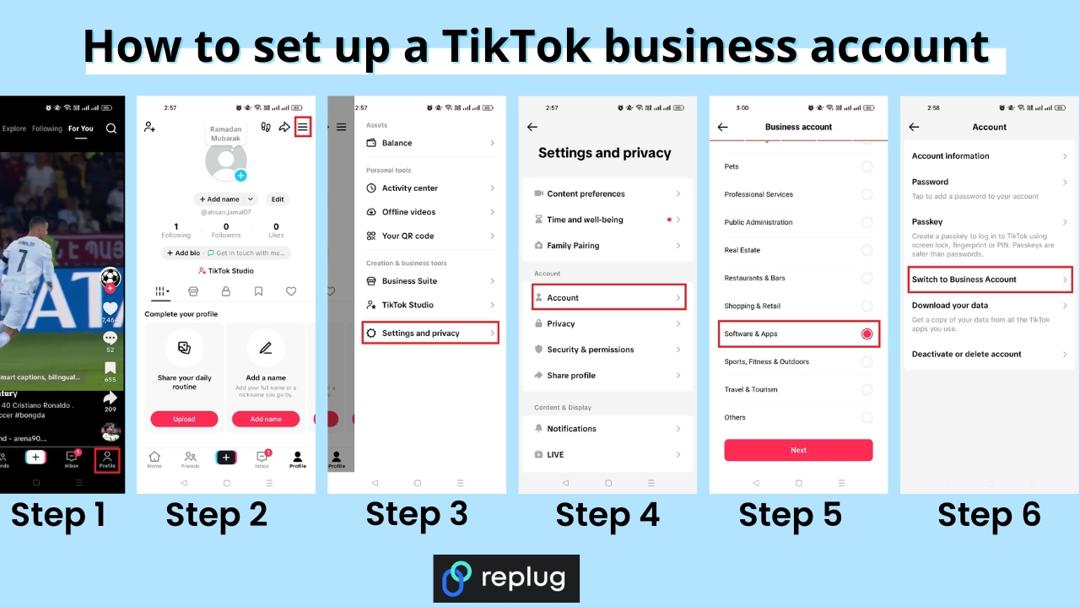
1. Open the TikTok app and go to your Profile tab at the bottom right. Make sure you are logged into the account you want to switch.
2. Tap the three‑line menu in the top right, then tap Settings and privacy. This opens the main control area for your account.
3. Tap Account. On most profiles, this sits near the top of the settings list and controls account type and region.
4. Tap Switch to Business Account. TikTok may show a short explanation of what a business profile can do before you confirm your choice.
5. Choose a category that best fits you, such as Education & Training, Software & Apps, or Others. This helps TikTok understand your content and may influence which features you see.
6. Add an email address and your bio (you can skip these if you want), and that’s all! You can always review those settings later if something looks off.
Here’s how to set up a TikTok business account from a desktop browser
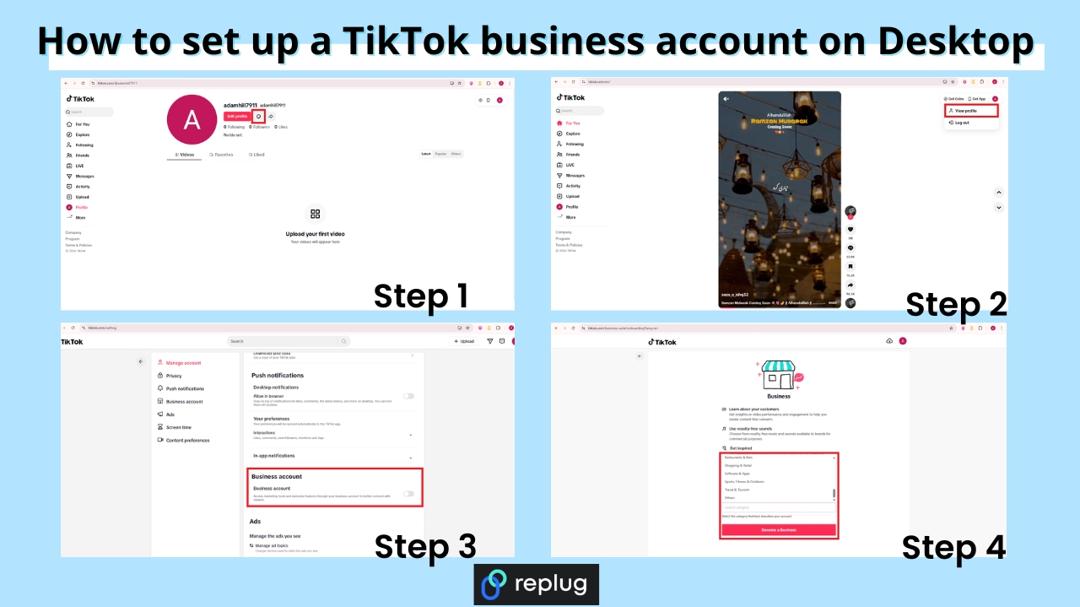
1. Open a browser on your computer, go to the TikTok website, and sign in.
2. Move your mouse over your profile photo in the top-right corner and click View profile → Settings.
3. Look for the Business account section and turn on the toggle button.
4. Pick your business category and click the button labeled Become a Business. TikTok may ask for more details, such as country or business name, especially if you plan to run ads later.
After this, go back to your profile and check the Edit profile screen. You should now have access to the website field that allows a clickable bio link.
Note: Alternatively, register directly at business.tiktok.com using a business email to create a new, separate business-specific account.
How to add links to your TikTok bio on phone
Most people will add a bio link from the TikTok app, because this is where TikTok gives full control over profile fields. Once your account meets the rules for a clickable link, the process is quick.
Here’s how to add links to TikTok bio on mobile in a clear, step‑by‑step way:
- Open the TikTok app and go straight to your Profile tab. Make sure you are on the account where you want the link to appear, especially if you manage more than one.
- Tap Edit button. You will see fields for your name, username, bio, and other info. For Business accounts, you should also see fields for Website and email.
- Find the Website field. If you see only options for Instagram, YouTube, or other socials, your profile may not yet meet the website rules, or you may need to switch to a Business account, as shown earlier.
- Tap the Website field and paste or type your URL. This can be your store home page, a newsletter sign‑up, a podcast, or any other main call to action. It is often smarter to send people to a single bio site rather than a random page.
- Double‑check the URL. Confirm that there are no spaces, missing dots, or spelling errors, because even a small mistake will break the link. You can copy the link from your browser beforehand to avoid typos.
- Tap Save in the top right. Then go back to your public profile and tap the link to test it. If it opens the right page, you are good to go. If not, repeat the steps and correct the URL.
A clean link in the right field makes it effortless for people to move from your videos to your site.
How to add links to TikTok bio on PC
TikTok still keeps most profile edits on mobile, but in some regions, you can add or edit the website field in a desktop browser. Even when that field is missing, you can still change your business status and social links from a computer.
Here’s how to add links to TikTok bio on laptop/PC:
1. Open the TikTok website in a browser and log in to the right account.
2. Click your profile photo in the top right, then click View profile.
3. Click Edit profile. On a desktop, this button usually appears near your avatar and username.
4. Look for a field named Website. If it appears, click it and paste your full URL, starting with https. If it does not appear, your account or region is limited on desktop, so you will need to use the mobile app instead.
5. Scroll through any other fields you want to adjust, such as your bio text or social media icons, then click Save.
6. Refresh your profile page and click the link to test it.
How to add link to TikTok bio with 1000 followers
If your personal account has at least 1,000 followers and TikTok supports website links in your region, the setup is simple. The hard work was growing the audience; now you just need to plug in the link and keep it sharp.
Follow these quick steps once you reach that milestone:
1. Open the TikTok app and go to your Profile. Check the top of the screen to confirm your follower count is at or above 1,000. If it is close but not quite there, give the system a little time to update.
2. Tap Edit profile. TikTok often adds the Website field to personal accounts once they qualify under the TikTok link-in-bio eligibility rules for your region.
3. Look for the Website field and tap it. If it still does not show, try closing and reopening the app or updating TikTok from your app store.
4. Paste your main URL or a key landing page, then tap Save. Make sure the link starts with https, so it opens correctly.
5. Visit your public profile and tap the new link to check that it loads quickly and takes you to the right place. If you see any issues, fix the link and test again.
Read also: How to add your Discord link to TikTok bio (2 easy ways)
How to add multiple links to TikTok bio
TikTok only gives you one clickable website field, which feels tight when you have offers, socials, and partner links to share. The smart way to handle this is to send that single link to a simple landing page that lists everything (all significant links) in a single, clean view. Tools such as Replug.io make this pretty easy and trackable.
Here is a simple process to turn one TikTok link into a full link hub:
1. Create a bio links page with the best link in bio tool online. This page serves as your mini-site and can display buttons for your store, newsletter, latest video, lead magnets, and affiliate links. You control the colors, layout, and branding so they match your profile and look like a professional bio extension.
2. Add key buttons to that page instead of clutter. Include links for:
- Your main revenue source (services or flagship product)
- One or two free resources
- Your top social channels
Try not to overload visitors with too many options, because clear choices tend to get more clicks.
3. Copy the bio page URL from your Replug dashboard. If you use a branded short domain with a short path, the link will look clean on TikTok and other apps. This also helps people remember it if they see it in a video overlay.
4. Open TikTok, go to Edit profile, and paste that bio page URL into the Website field. Tap Save, then test it from your public profile. Every visitor now lands on your link hub instead of a single destination.
5. Update the contents of your bio link page over time without changing the URL in TikTok. When you launch new campaigns or features, just swap buttons or move them higher on the page. The TikTok link stays the same, but the experience stays fresh.
This approach gives you “multiple links in one link” and makes your TikTok bio much more flexible as your content plan grows.
Key benefits of adding links to your TikTok bio
Adding a clickable link to your TikTok bio transforms your profile from just a content hub into a powerful traffic and conversion channel. Instead of stopping at views or follows, you give users a clear next step, whether that’s visiting your website or signing up.
Here’s why it matters:
- Drive consistent, high-intent traffic
Every viral or high-performing video pushes new users to your profile. A well-placed bio link captures that attention and turns it into website visits, leads, or sales, creating a steady traffic stream over time. - Shorten the path from discovery to action
TikTok is fast-paced. A strong bio link lets users move instantly from watching your content to taking action, which is crucial for impulse purchases, limited-time offers, and product launches. - Access better data and insights
Using tracked links helps you understand which videos, hooks, and posting times drive the most clicks, so you can optimize content based on real performance data, not guesswork. - Build a flexible, future-proof funnel
Your bio link acts as a central hub. Even if TikTok features or trends change, you can update your destination link anytime without editing old content, keeping your traffic and strategy consistent. - Support multiple goals with one link
A single bio link can direct users to a landing page that includes your offers, social profiles, affiliate links, or content, making it easier to guide different audiences in one place.
Wrapping up
A strong TikTok presence is much more than just random views. It is about where people go after they like a post, and that is where your link in bio does the heavy lifting.
You have seen how to add links to TikTok bio on phone and PC, how to work around follower limits, and how to use bio link tools to share more than one destination at once.
When you connect that link to a focused bio page and track every click, TikTok becomes a real growth channel instead of just an awareness play.
Replug brings this all together with bio link pages, analytics, and extra helpers such as a free TikTok downloader and caption generator, so you can publish faster and measure better. Set up your link, test it, and let every new view work harder for your brand.
Frequently asked questions

Muhammad Ahsan Jamal