Your TikTok is popping, your Discord server is thriving… but the two aren’t linked? C’mon now. That’s like having a hype squad and forgetting to invite them to the main event.
Whether you’re building a community around gaming, memes, or chaotic late-night convos, adding your Discord to your TikTok bio can turn passive scrollers into active members.
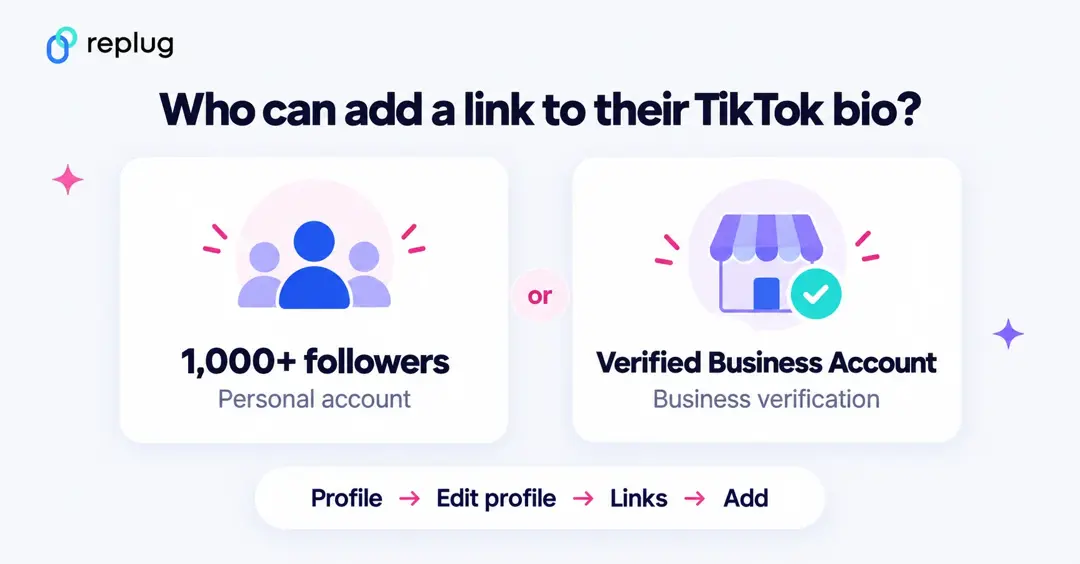
Short answer: copy a Discord invite link that never expires, then in the TikTok app go to Profile → Edit profile, tap Add next to Links and paste it. TikTok only shows the link field if you have at least 1,000 followers or a Verified Business Account. If you already use a link-in-bio page, the steps are the same as when you add Linktree to TikTok: you paste one URL and put your Discord invite on that page.
And good news? You’ve got options.
In this guide, we’ll show you two ways to add your Discord link to your TikTok bio: one using TikTok’s built-in method, and the other using Replug’s built-in link in bio maker (for when you want to do more with one link).
Let’s go!
Why add your Discord link to TikTok?
A viewer discovers your TikTok, enjoys your content, and wants to join your Discord community. But without a link in your bio, they’re left unsure of what to do next. What now?
Answer: nothing. Because that curiosity? Gone.
By adding your Discord link, you:
- Funnel your TikTok audience to your Discord community.
- Build deeper connections with fans.
- Create a space for announcements, drops, convos, and more.
In short: TikTok + Discord = the ultimate creator combo.
Now, let’s look into 2 easy methods to add your Discord server link to your Tiktok bio:
Method 1: Add your Discord link using TikTok’s native option
TikTok lets you add one clickable link in your bio, so if Discord’s your main hangout, this method will work.
Step 1: Grab your Discord invite link
First, generate an invite link from Discord:
On mobile
- Click on a server from the side navigation.
- Tap the server name at the top, tap Invite, then tap the “Copy Link” icon to copy your invite link.
On desktop
- Click on a server from the side navigation.
- Click “Invite your friends” (or open the server name menu and choose Invite People)
- Copy the server invite link and send it to a friend.
Tip: Click on “Edit invite link” and set the expiration date to “Never” so that your audience doesn’t end up on a dead link. New invites expire after 7 days by default, so this step matters for a bio link that stays up for months.
You’ve got your Discord link, now let’s plug it into TikTok.
Which Discord link should you put in your TikTok bio?
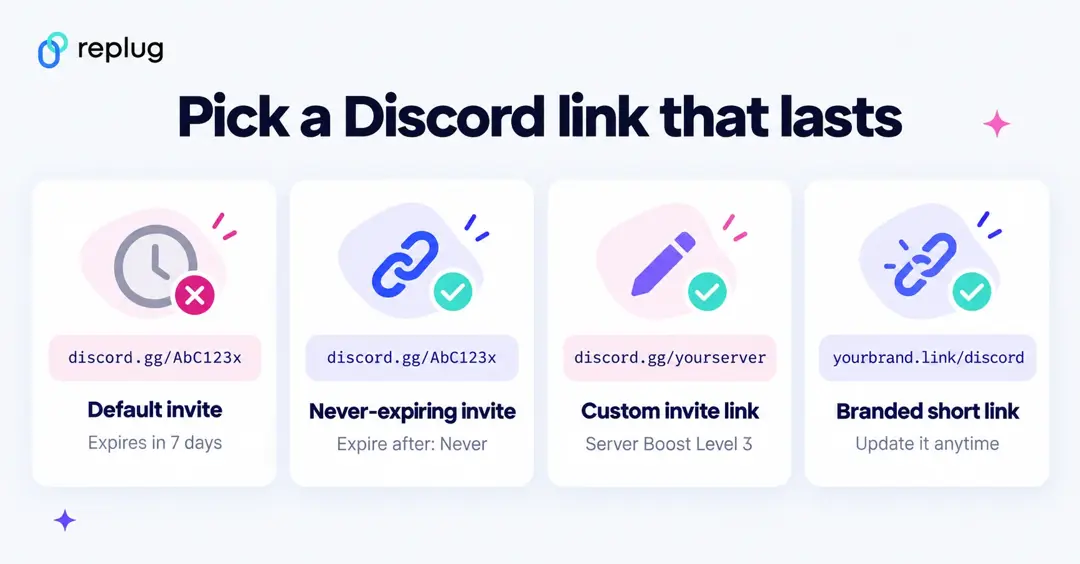
Discord gives you a few kinds of invite links. They all open the same server, but they behave differently once they sit in a bio for weeks or months:
| Link type | What it looks like | Good to know |
|---|---|---|
| Default invite | discord.gg/AbC123x | Expires after 7 days unless you change it under Edit invite link. Set Expire After to Never and Max number of uses to No limit. |
| Web version of the same invite | discord.com/invite/AbC123x | The same invite code on discord.com. Handy if an app rejects the short discord.gg address. |
| Custom Invite Link | discord.gg/yourserver | Permanent and easy to read. Needs Server Boost Level 3; up to 25 lowercase letters, numbers or dashes. See what a Discord vanity URL is and how to create one. |
| Branded short link | yourbrand.link/discord | A short link you control that points to your invite. If the invite changes, you update the destination and the link in your bio keeps working. |
Before you paste anything into TikTok, open the invite in a private browser window. If it says the invite is invalid or expired, create a new one. Also check that invites are not paused in Server Settings → Invites, because a paused server rejects every invite link.
Option A: If you have less than 1,000 followers
You’ll need a Verified Business Account to unlock the link field. Switching account type is not enough on its own anymore: TikTok’s help center says profile links are for accounts with at least 1,000 followers or a Verified Business Account, so you also have to verify your business.
Here’s how:
- Go to TikTok > Profile > Tap the three lines (☰).

- Tap Settings and privacy > Account > Business verification (older versions of the app call it Switch to Business Account).

- Choose a category (like “Personal Blog” or “Gaming”) and follow the steps to submit your business information and documents.
- Go back to your profile and tap Edit Profile.
- Next to Links, tap Add and paste your Discord link (older versions of the app call this field “Website”).

Good to know before you switch: according to TikTok’s account types page, business verification can take up to 5 business days, the documents you need depend on your country, and Verified Business Accounts can only use the Commercial Music Library, not the general music library. TikTok also advises against switching back and forth, because your verification is not saved. If you are a creator rather than a business, growing to 1,000 followers on a personal account is usually the better route.
Option B: If you have 1,000+ followers
You can keep your personal account and still get the link feature:
- Open TikTok > Tap Profile.
- Hit Edit Profile.
- Next to Links, tap Add and paste your Discord invite (the field used to be called “Website”).
Now anyone visiting your TikTok can click and join your server.
Method 2: Add a clickable bio link using Replug
You don’t want to keep handing out Discord links.
If someone wants to join your jamming or streaming server, they shouldn’t have to DM you for it. Just drop your Replug bio link in your TikTok profile, and let them choose where they want to go.
No more juggling links or repeating yourself. Replug is an all-in-one link management platform that keeps all your important links, such as your Twitch, Merch, YouTube, and Discord servers, neatly in one place.
Plus, you can create branded short links effortlessly with Replug’s URL shortener free tool, making it easier to share and track every link across your platforms. For your server invite, use a Discord link shortener.
And if you ever shut down a server? Just remove it from your Replug bio link page. That’s your subtle way of saying, “yeah… that era’s over.”
Here’s how to add a link in TikTok bio:
Step 1: Sign up for Replug
Go to Replug and create an account (there’s a free trial, so no excuses).
Step 2: Create your bio link page
- From the dashboard, head to Bio Links.

- Click Create New.

- Customize your bio link page with a title, buttons, description, custom layout, colours, and background image (optional).
Step 3: Add content blocks
- Click on Content.

- Add a block for your Discord invite, and more blocks for Twitch, YouTube, Spotify, or even your dog’s Instagram. You do you (no one’s judging).
Social blocks:

Link blocks:

Card block:

What more can you do?
- Add text, spacing, and separator blocks.
- Embed a video block (Youtube, TikTok, Instagram, Facebook, and X).
- Add an RSS feed for your content.
- Rearrange the blocks however you want.
Step 4: Optimize it (additional step)
- Customize your link slug. A custom URL ensures that you stay on brand and recognizable.

- Add a title and meta description.
- Upload a picture and favicon (optional, but chef’s kiss).
- Drop a tracking pixel if you’re into analytics or retargeting ads.

This is what the final preview looks like:

Step 5: Add it to TikTok
Copy your Replug bio link and paste it in the “Website” field of your TikTok profile. Now, when someone clicks it, they get a full-on hub with all your links, including your Discord.
Why route your Discord invite through a bio page?
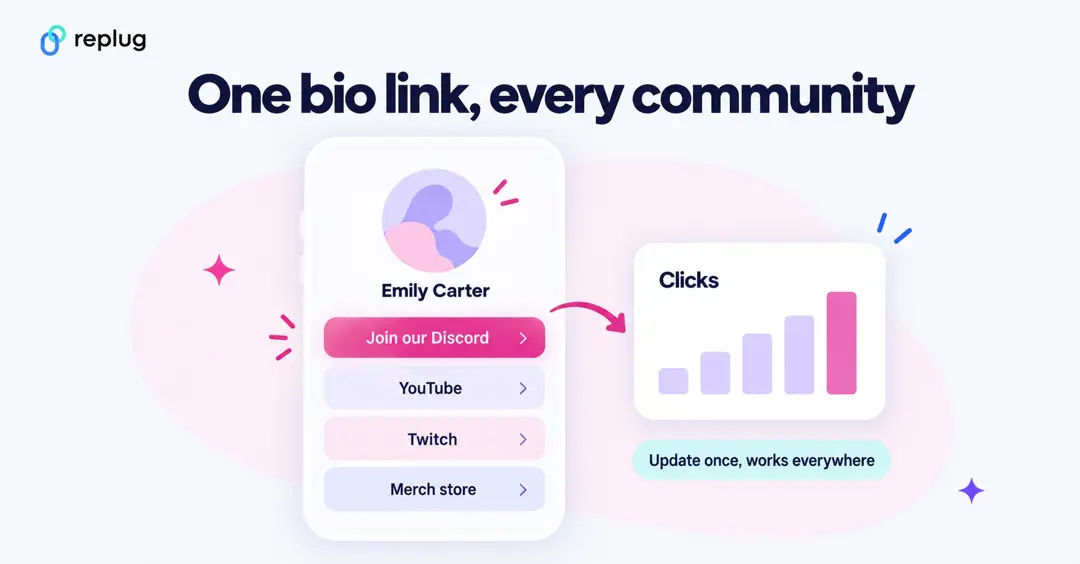
- One place to update. If you replace an expired invite or open a new server, you change the button once on your bio page instead of editing your TikTok profile again.
- See how many people tap it. Replug shows views, clicks and click-through rate for every link on your TikTok bio link page, so you know how many TikTok visitors actually head to Discord.
- Time-limited invites. Running a launch or a giveaway server? You can schedule a link or block to go live and end on a date.
- Discord next to everything else. Add Discord to the row of social icons along with YouTube, Twitch and Spotify, or give it its own button with a clear label like “Join our Discord”.
If you only want to share the invite itself, a branded short link from a Discord link shortener does the same job for a single link: it looks cleaner than a random invite code and counts the clicks.
Quick comparison: TikTok’s native vs. Replug
| Feature | TikTok Native | Replug |
| One clickable link | ✅ | ✅ |
| Multiple links | ❌ | ✅ |
| Visual customization | ❌ | ✅ |
| Click tracking | ❌ | ✅ |
| Dynamic QR codes | ❌ | ✅ |
| Mobile optimization | ✅ | ✅ |
| Easy to update | ❌ (edit profile again) | ✅ (dashboard control) |
Can you connect TikTok to Discord?
Many people searching for this want the opposite of a bio link: a TikTok badge on their Discord profile. Discord calls these Connections. Here is how they work and where TikTok stands right now.
How to add a connection on Discord
- On desktop or in a browser, open User Settings (the cogwheel icon) and choose Connections.
- To see every option, select the View More icon, then click the app you want to connect and log in to it.
- On mobile, tap your avatar in the bottom-right corner, tap the cogwheel, then tap Connections → Add.
- When it works, Discord shows a “Connected your … account to Discord” message and the account appears on your profile.
These steps come from Discord’s Account Connections FAQ.
Why TikTok is missing from your Discord connections
If you cannot find TikTok in the list, or the connection fails, you are not doing anything wrong. Users reported connection errors (often “error code 10001”) through June 2026, and since July 2026 Discord has not let people add new TikTok connections. Discord’s own TikTok LIVE Subscription role FAQ now says that setting up a new Discord role connection for TikTok LIVE Subscriptions is no longer available, while existing connections stay active.
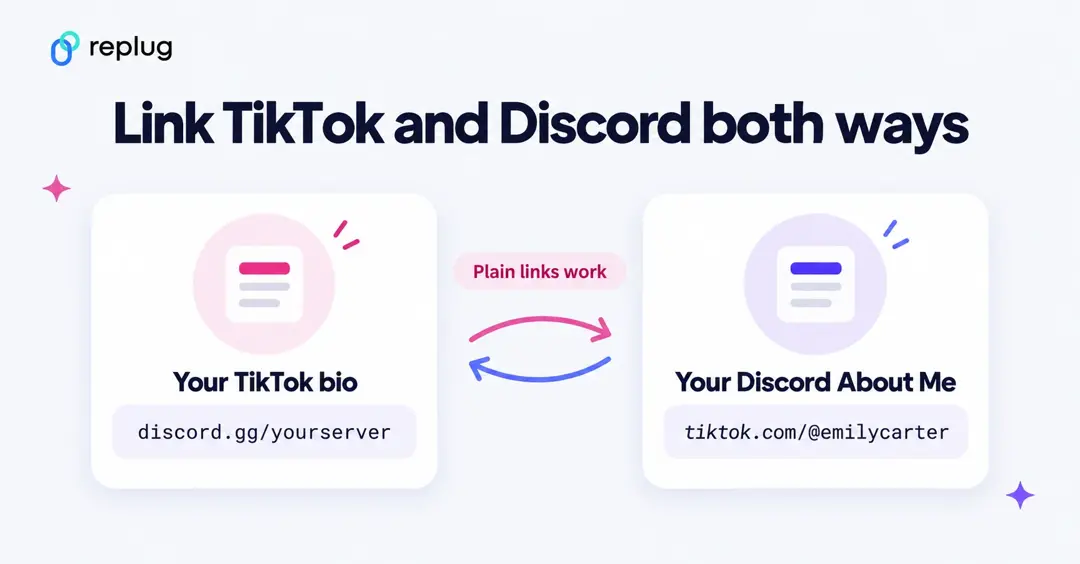
Until that changes, the practical way to link the two accounts is with plain links:
- TikTok → Discord: put your Discord invite in your TikTok bio, using either method above.
- Discord → TikTok: paste your TikTok profile link (tiktok.com/@yourusername) into the About Me section of your Discord profile. Our guide on how to find your TikTok profile URL shows where to copy it.
- Both at once: put a single bio link page in both places, so TikTok viewers and Discord members can find all of your profiles.
Discord link not working on TikTok? Common fixes
- There is no Links field in Edit profile. Your account doesn’t qualify yet. You need at least 1,000 followers or a Verified Business Account. Update the app and check again after you cross 1,000.
- Visitors see “Invite invalid” or “Invite expired”. The invite hit its 7-day expiry or its maximum number of uses, or someone deleted it. Create a new invite set to never expire and no use limit, then replace the link in your bio.
- Nobody can join even with a fresh invite. Invites may be paused. Check Server Settings → Invites.
- TikTok won’t accept the link. TikTok says it no longer supports links that open or log you into other social media apps, but links to those platforms’ websites are allowed. Make sure you paste a full web address that starts with https://, such as https://discord.com/invite/yourcode, or use a bio link page that lists your invite.
- The link opens a message about opening it in a browser. TikTok’s in-app browser applies safety checks to external links. Visitors can tap through to their phone’s browser or the Discord app.
- Your custom invite link stopped working. A Custom Invite Link only stays active while your server keeps Boost Level 3. Switch back to a never-expiring regular invite if the boosts lapse.
To wrap it up
- Just want a clickable Discord link? Use TikTok’s native bio link.
- Want to link everything and look pro? Replug’s your best bet.
Pick the method that fits you best, but don’t let your TikTok bio go to waste. It’s your shortcut to a stronger, more connected audience.
You may also like:
2 easy ways to add a Pinterest link to your TikTok bio
Frequently asked questions

Manahil