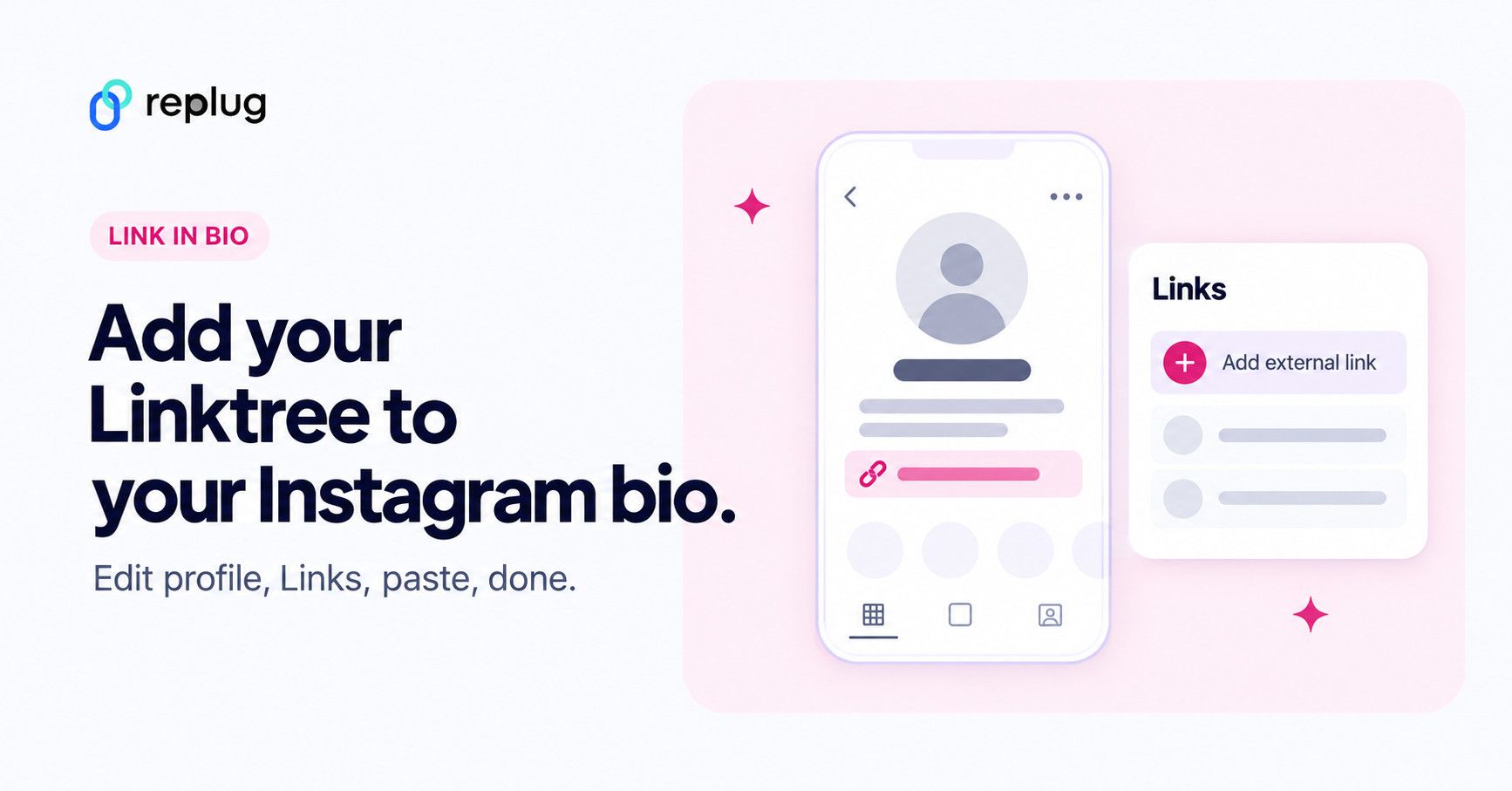
To add a Linktree to Instagram, copy your full Linktree URL (for example https://linktr.ee/yourname), open the Instagram app, go to your profile and tap Edit profile, then tap Links > Add external link, paste the URL and tap Done. You don’t need a business account: according to Instagram Help, any profile can show up to 5 links, and anyone, on or off Instagram, can see them (checked October 2026).
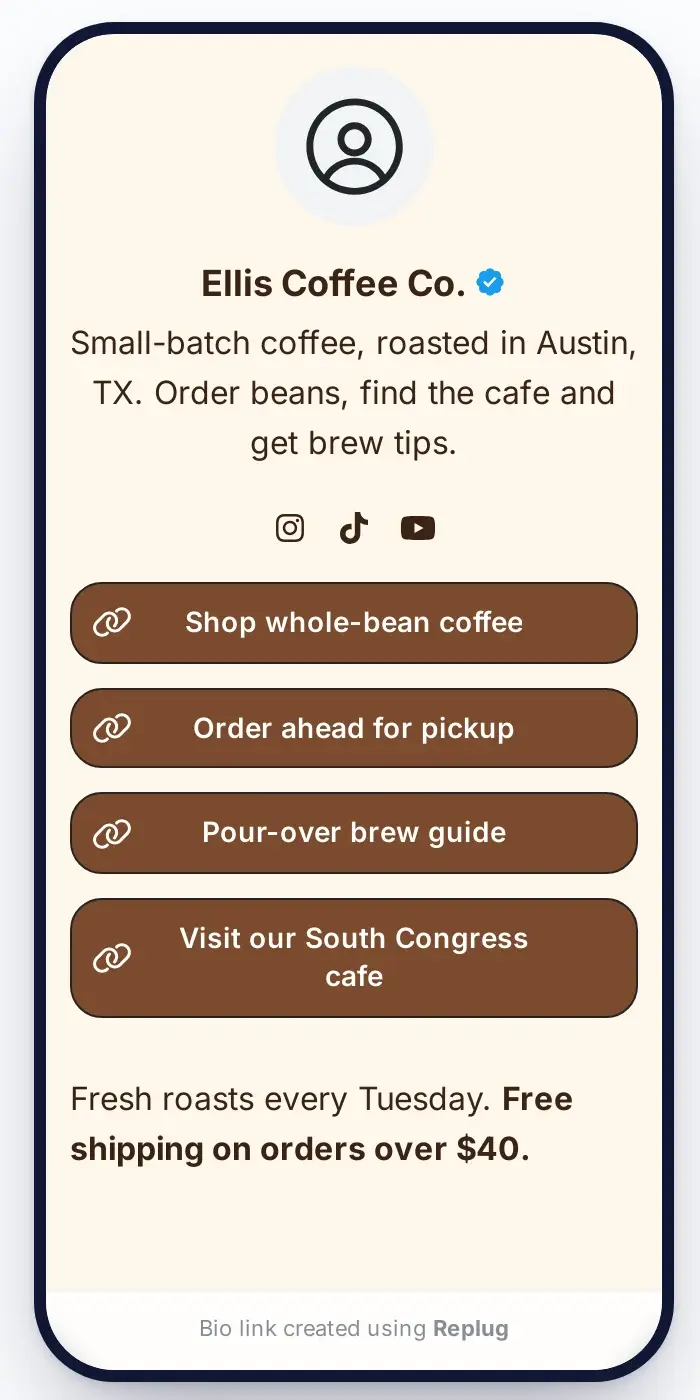
Instagram now allows several links in a bio, but five links still fill up fast if you’re a creator, shop or marketer with more to share. That’s where a link-in-bio page comes in: Linktree is the best-known one, and people often call any page like it “a linktree.” You put one link in your bio, and that page lists everything else.
Below: how to add your Linktree to Instagram step by step, how to edit or update it later, quick fixes when the link doesn’t work, and how to do the same with a Replug bio link page if you’d rather not use Linktree.
How to add your Linktree to your Instagram bio
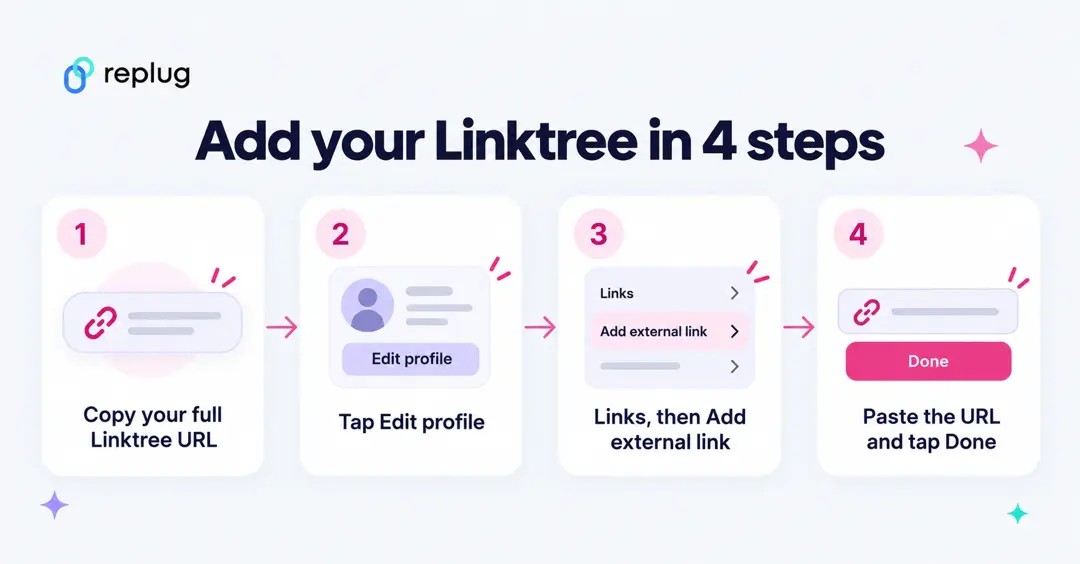
Step 1: Copy your full Linktree URL
Your Linktree URL is linktr.ee/ followed by your Linktree username (Linktree Help: About your username). To copy it, Linktree Help says to go to the Links page under My Linktree, click Share, then hit Copy next to your URL. Copy the full address with https:// at the start: Linktree’s Instagram guide says that’s what lets Instagram recognize it as a link.
Step 2: Open your Instagram profile and tap Edit profile
In the Instagram app on your phone, tap your profile picture in the bottom right to go to your profile, then tap Edit profile at the top. Instagram Help notes that adding websites isn’t available on computers, so use the iPhone or Android app.
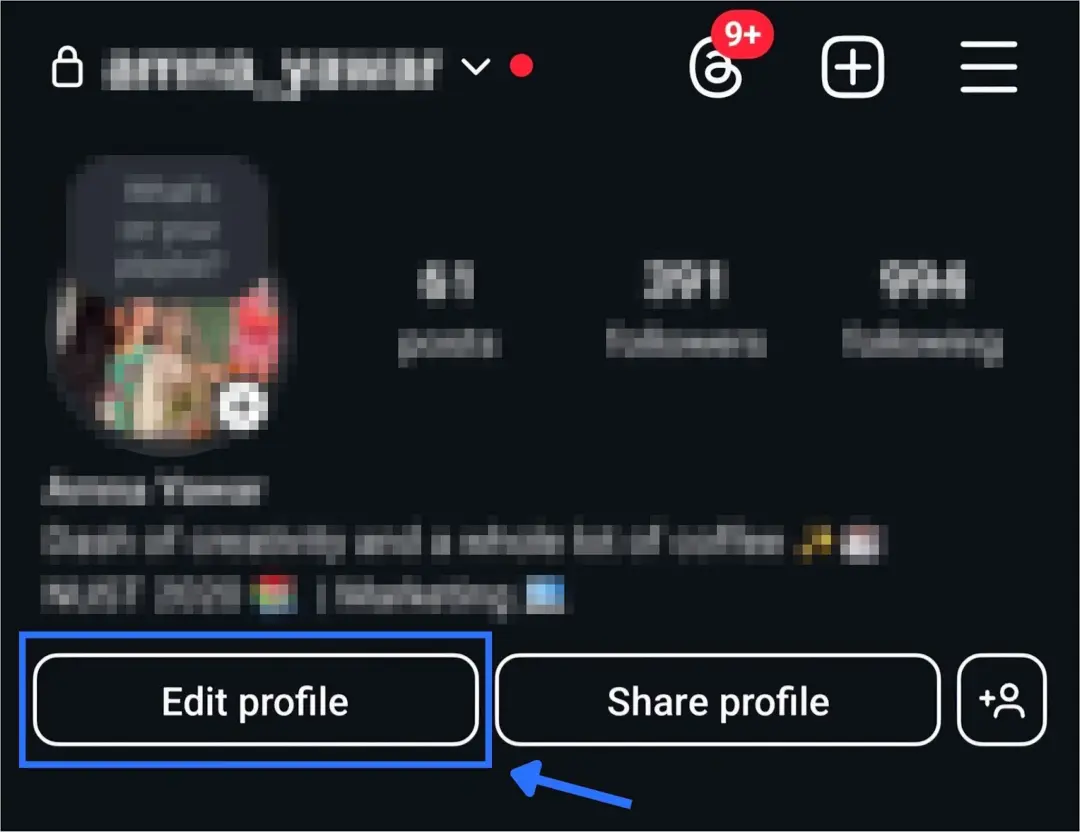
Step 3: Tap Links, then Add external link
On the Edit profile screen, tap Links (it may show as Add Link if you have none yet), then tap Add external link. On Android, Instagram Help calls this button Add link.
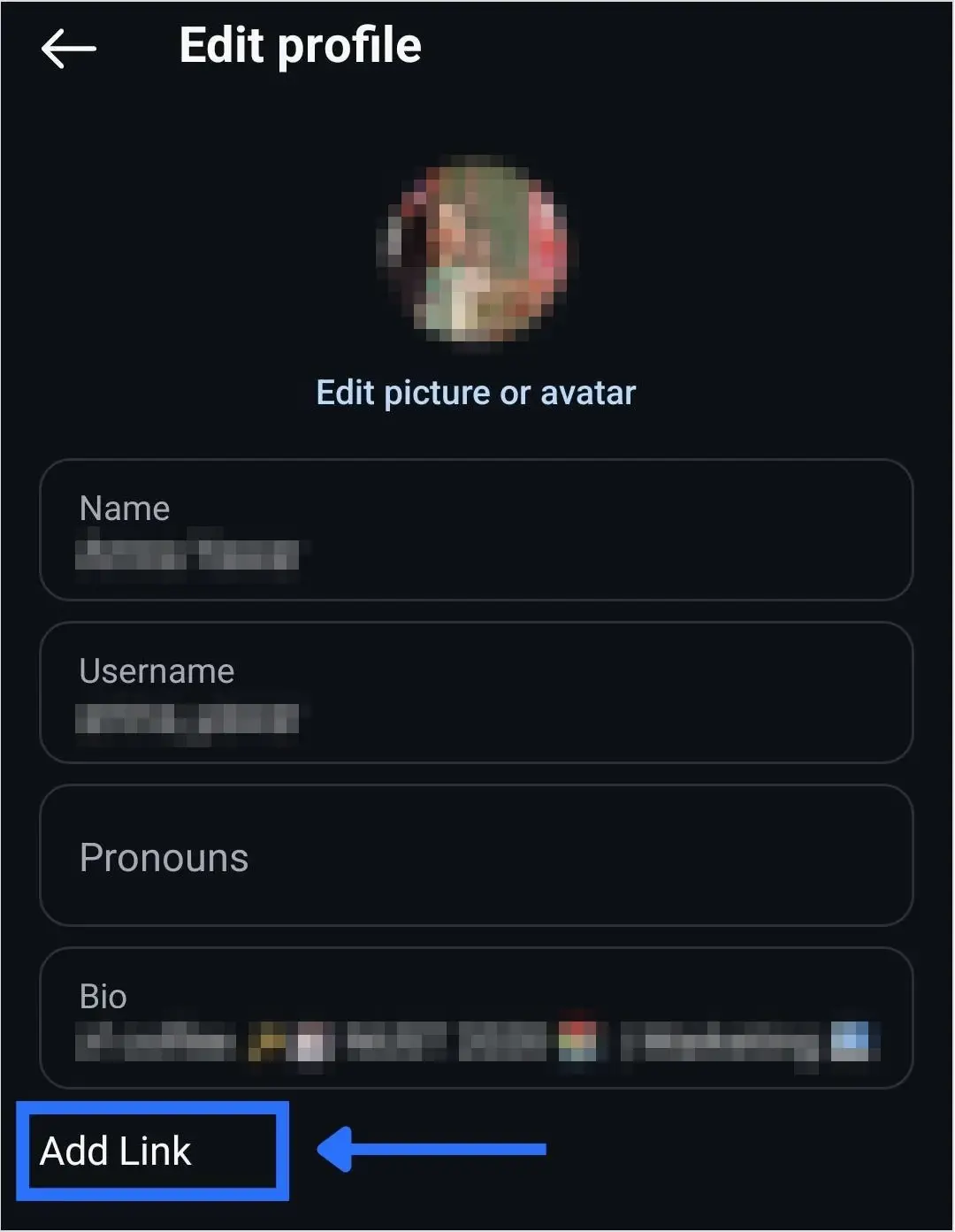

Step 4: Paste your Linktree URL and tap Done
Paste your Linktree URL in the URL field. The Title field is optional; it’s a label for you in the Links list. Tap Done (the check mark), then go back to your profile. Your Linktree now shows as a tappable link under your bio. Open it once from your own profile to check it loads.
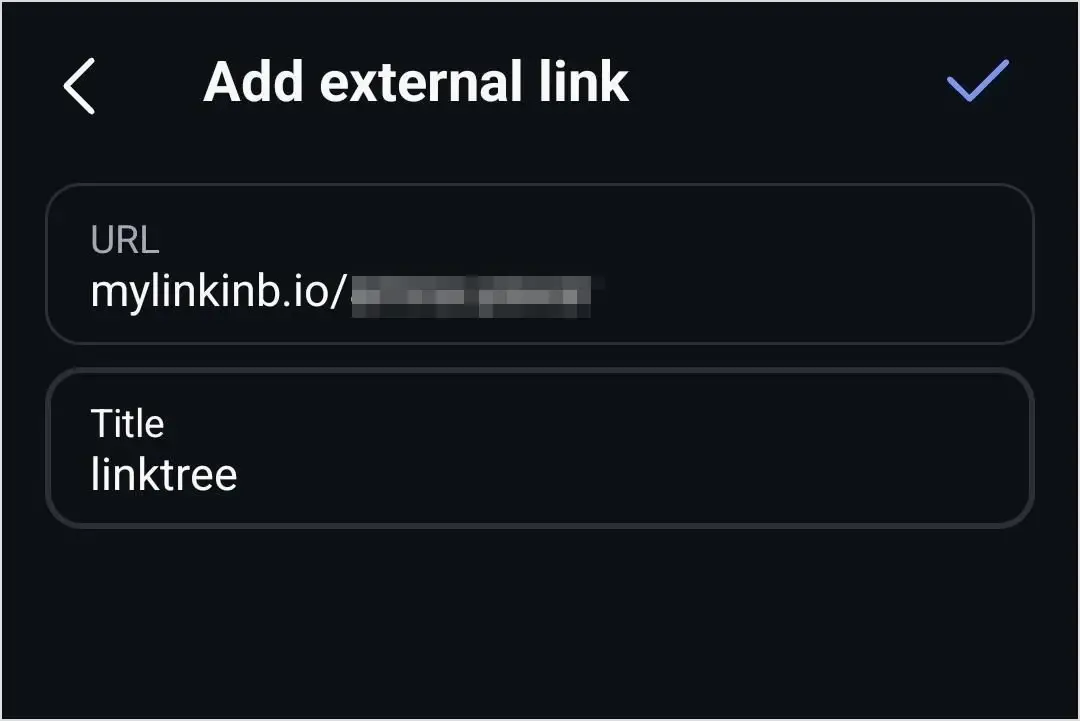
If you have more than one link, the first one in the list is the one shown under your bio. To change the order, go to Edit profile > Links, tap Options > Reorder links, and drag your Linktree to the top (Instagram Help).
How to edit or update your Linktree on Instagram
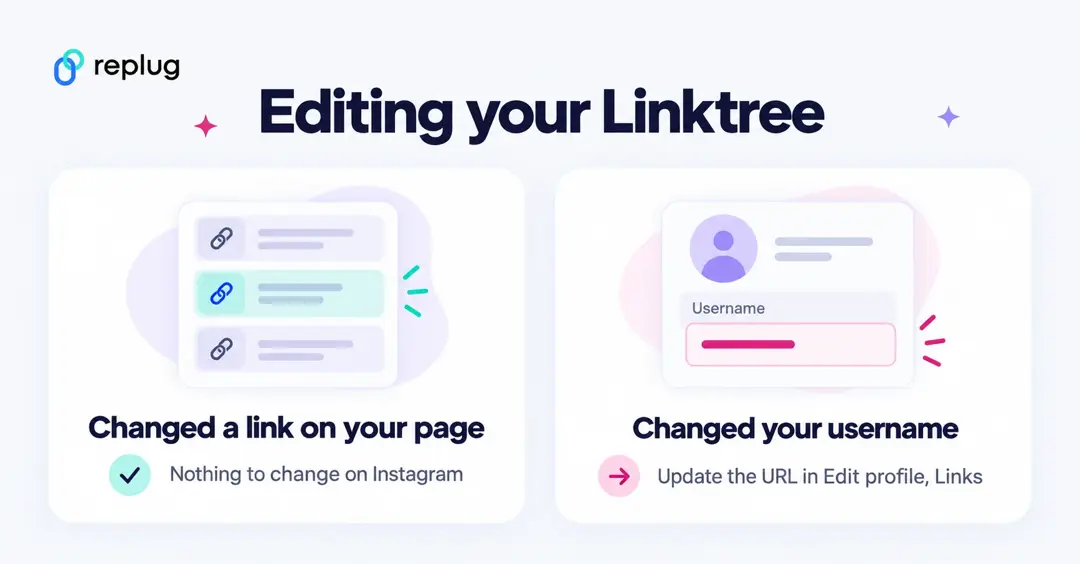
Most of the time you don’t need to touch Instagram at all. Your bio points to your Linktree URL, so when you add, remove or reorder links on your Linktree, followers see the new version the next time they tap it.
You only need to edit Instagram when the URL itself changes, for example after you change your Linktree username. Then go to Edit profile > Links, tap the old link, replace the URL with the new one and tap Done. To take the link off your profile, tap it and choose Remove link (Instagram Help).
Linktree not working on Instagram? Quick fixes
- Use the full URL. Paste https://linktr.ee/yourname, not a shortened or partial address (Linktree Help).
- Check it’s in Links, not in your bio text. Instagram Help describes profile links only through the Links field, so add the URL there rather than typing it into your bio.
- A warning screen appears. Linktree Help says these warnings come from Instagram or TikTok, can appear on any link and don’t mean your Linktree is broken. Open your profile in a browser while logged out to see what followers see.
- Instagram won’t save the link. Linktree’s troubleshooting post (March 2023) suggests updating the app, and if you just changed your name, email or username, trying again in 24 hours.
- You want your Instagram posts on your Linktree. That’s a different feature: Linktree Help says Instagram only connects to Linktree when it’s a Creator or Business account. Adding your Linktree URL to your bio works on any account.
Want the same link on other apps? See how to add Linktree to your TikTok bio or make a QR code for your Linktree for print.
How to add a linktree to Instagram using Replug
If you’d rather use Replug than Linktree, the Instagram part is the same: you paste your bio page URL under Links. The difference is where the page lives. Replug bio pages use a mylinkinb.io address by default, or your own domain. Plans on replug.io/pricing (checked October 2026): 2 bio links on Free, 10 on Essentials, unlimited on Scale and Agency. For a side-by-side with other tools, see our Linktree alternatives roundup, and for Linktree’s own plans, Linktree pricing.
Step 1: Create a bio link using Replug
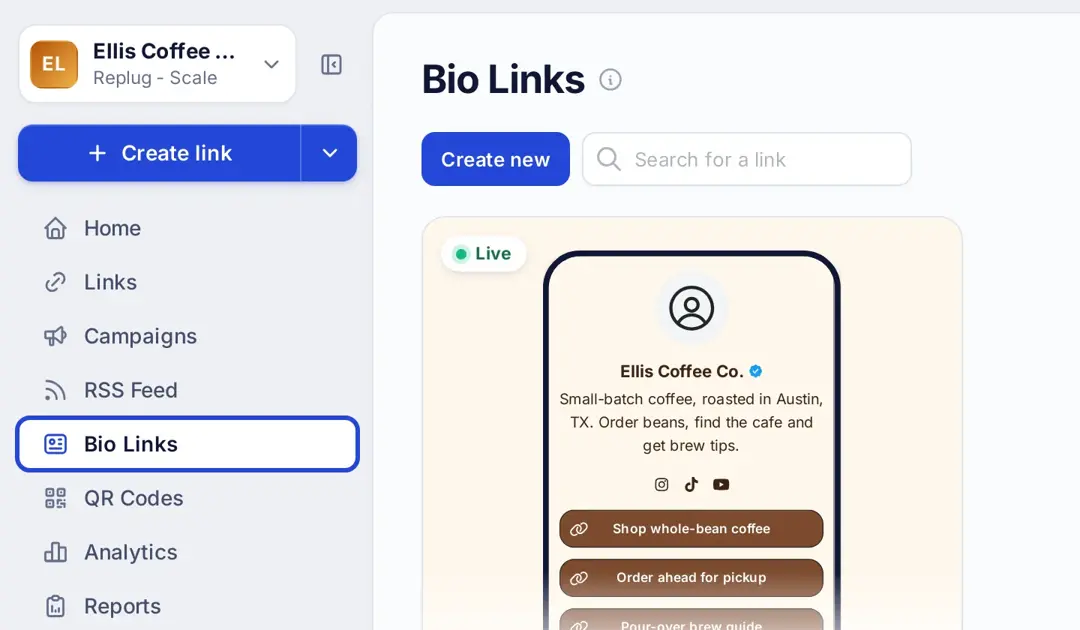
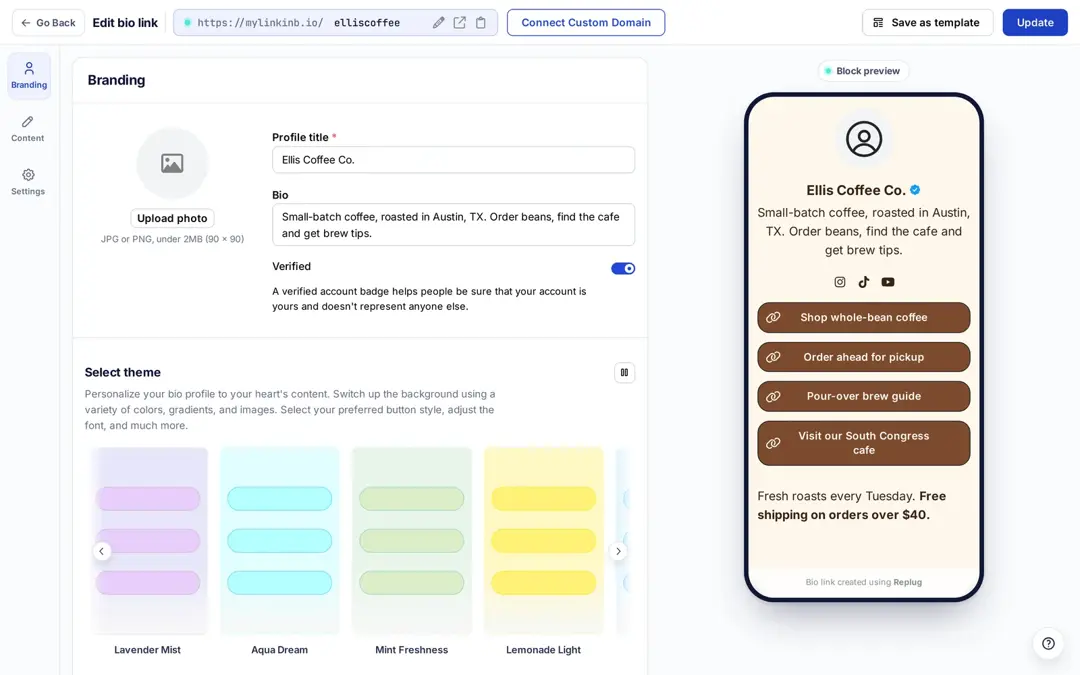
In Replug, open Bio Links in the left menu and click Create new. Add a profile title and bio on the Branding tab and pick a theme; the phone preview updates as you go.
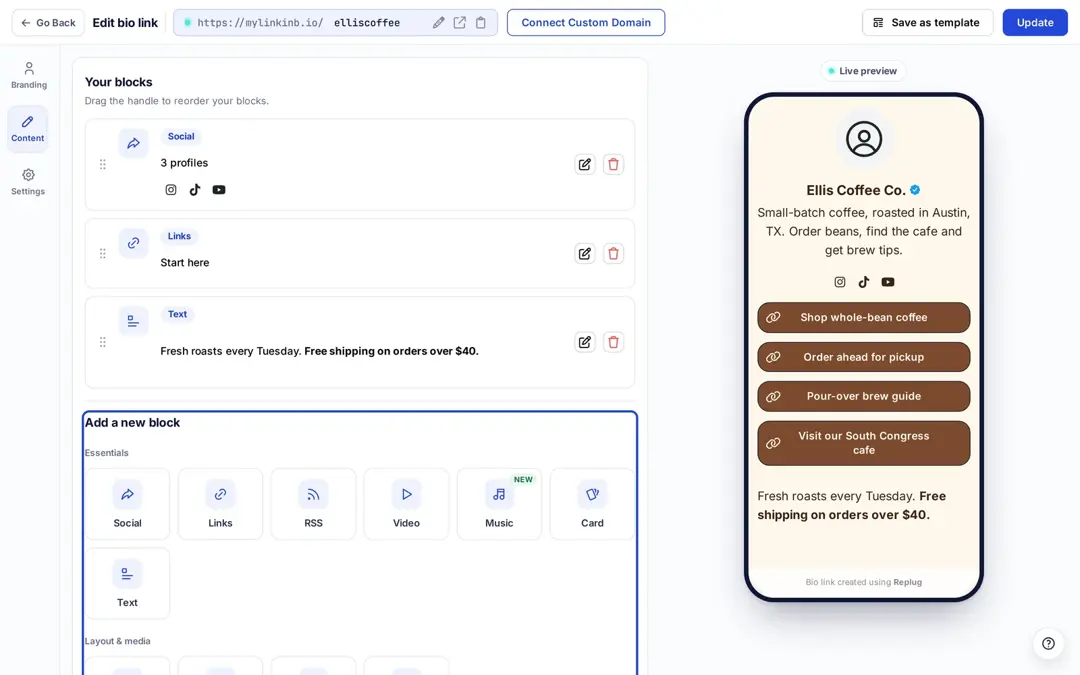
On the Content tab, add blocks such as Social, Links, Video, Music, Card or Text, then click Update to publish.
Step 2: Copy your Replug linktree
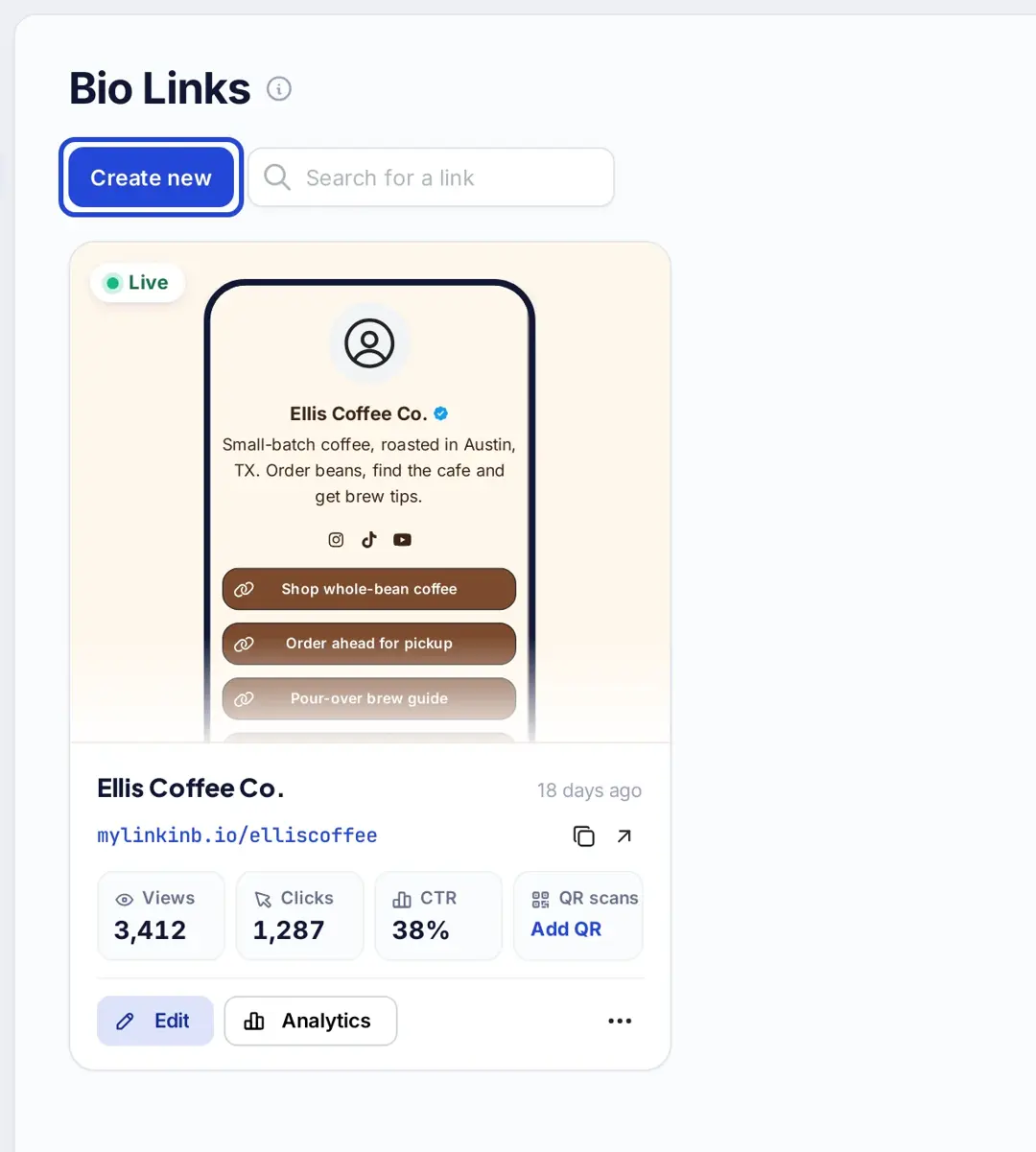
Back on the Bio Links page, your page card shows its URL with a copy icon next to it. Copy it.
Step 3: Paste it into Instagram
Follow steps 2–4 above: Edit profile > Links > Add external link, paste the URL and tap Done.
What a Replug bio page adds
A link-in-bio page should do more than hold a few links. Here’s what Replug’s bio pages include, per replug.io/bio-links and the pricing page:
Customization: themes, colors, fonts and content blocks such as links, videos, music, social icons and text. If you’re starting from scratch, see how to create a bio site.
Branded links: connect your own domain to the bio page instead of the default address, with this URL shortener handling the links.
Analytics: views, clicks and click-through rate for the page, plus clicks and unique clicks for your short links. History is 14 days on Free, 90 days on Essentials and unlimited on Scale and Agency.
Retargeting: add a retargeting pixel to your bio page (Essentials and up) so visitors can join your ad audiences.
Easy updates: change the page whenever you like; the link in your Instagram bio stays the same.
Search and sharing previews: set your own SEO title and description and a custom social preview for the page.
Conclusion
Adding a Linktree to your Instagram bio takes a minute: copy the full URL, then Edit profile, Links, Add external link, paste and Done. After that, update the links on your Linktree page and leave Instagram alone unless the URL changes. If you want your own domain, retargeting or a different editor, a Replug bio page goes in the same Links field. And if you only need a few links, Instagram’s own 5 links may be enough; our guide to adding multiple links in one link compares the options.
FAQs for how to add linktree to Instagram

Amna Yawar