Promoting Amazon products sounds simple at first. But as your list grows with best selling products, affiliate offers, digital downloads, Kindle ebooks, and more, it can quickly feel overwhelming.
Most social platforms only give you limited space for links. Updating them across bios, emails, and videos takes time, and your audience might miss your best picks.
A bio landing page for Amazon products keeps everything in one place. With Replug, you can create a bio site that holds all your links, and you only update it in one place.
The short version: create a bio page, add a Links block with buttons that say they go to Amazon, paste the links Amazon’s Associates program gives you (not cloaked or hidden behind another short link), add the disclosure Amazon requires, and add the page to your Associates account. In this guide, you’ll learn how to build that page step by step and keep it within Amazon’s rules.
Why create a bio landing page
When you’re sharing multiple offers, it doesn’t take long before you hit the limit:
- Promoting best selling products on Amazon alongside your latest blog or video
- Launching a new ebook or course
- Running limited‑time affiliate marketing campaigns
Updating all those links separately can be time‑consuming, and your audience might miss something great.
If you also sell digital products on Amazon or run affiliate marketing campaigns, flexibility matters even more. When a product sells out, is discontinued or is recalled, you want to remove or replace its link quickly, in one place.
A single bio link or a landing page for Amazon products fixes this. A link in bio means a unique link containing all your important URLs in one place. You simply update your product list in one place, and your bio link stays the same.
Also read: 13 best ways to share affiliate links
Amazon Associates rules for a bio page
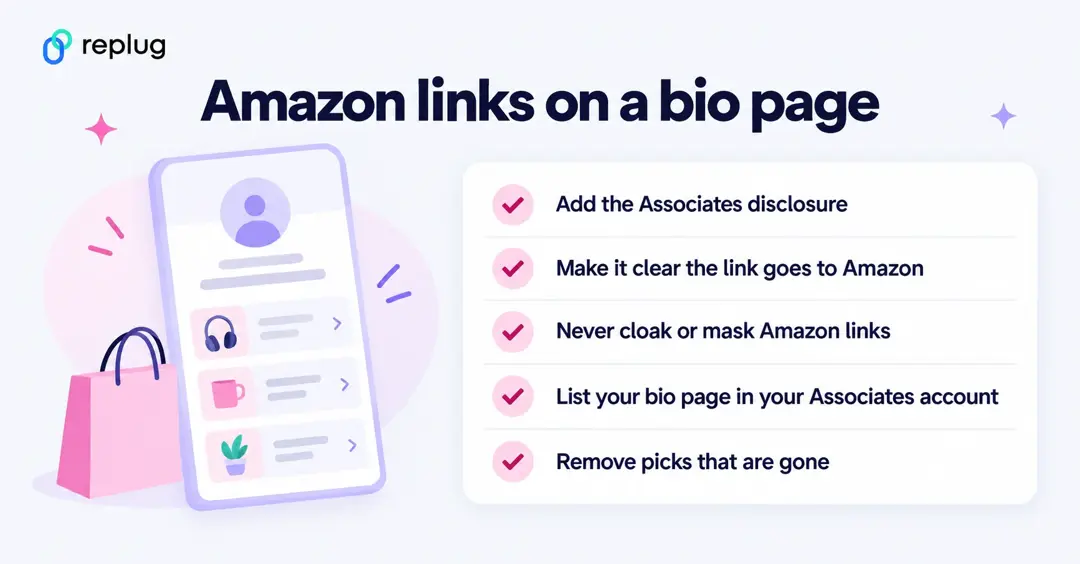
If the links on your page are Amazon affiliate links, the page is part of your Associates “Site”, so Amazon’s rules apply to it. The key points, from Amazon’s Associates Program Operating Agreement and Program Policies (checked October 2026):
- Add Amazon’s disclosure. The Operating Agreement says you must “clearly and prominently” state: “As an Amazon Associate I earn from qualifying purchases.” Put it on the page itself, for example in a Text block near your Amazon buttons.
- Use the links Amazon gives you. The agreement says links must use the “tagged” link formats Amazon provides. Copy them from Associates Central or the SiteStripe bar on Amazon.
- Don’t hide or cloak Amazon links. The policies say you will not “cloak, hide, spoof, or otherwise obscure” the site a click comes from, and will not use “a link shortening service, button, hyperlink or other ad placement in a manner that makes it unclear that you are linking to an Amazon Site.” Paste the Amazon link straight into the button and say “on Amazon” in the button text.
- List the page in your account. The policies ask you to identify your Site(s) and keep that information up to date, so add your bio page address in your Associates account.
- Disclose pixels if you use them. If you add a retargeting pixel, the policies also ask you to disclose the use of cookies and pixels, for example in a privacy policy linked from the page.
In the US, the FTC also expects affiliate links to be disclosed clearly and close to the links; its Endorsement Guides FAQ suggests wording like “I get commissions for purchases made through links in this post.”
Step‑by‑step: How to create a landing page for Amazon products in Replug
Here’s how you can use our link in bio maker to set up your Amazon landing page. The Free plan includes 2 bio link pages, according to the pricing page (checked October 2026).
Step 1: Sign up or log in
Go to the Replug app and sign in to your account, or sign up. There is a Free plan, and paid plans come with a 14-day trial.
Step 2: Create a new bio landing page
- In your dashboard, click Bio Links in the left sidebar, then Create new.
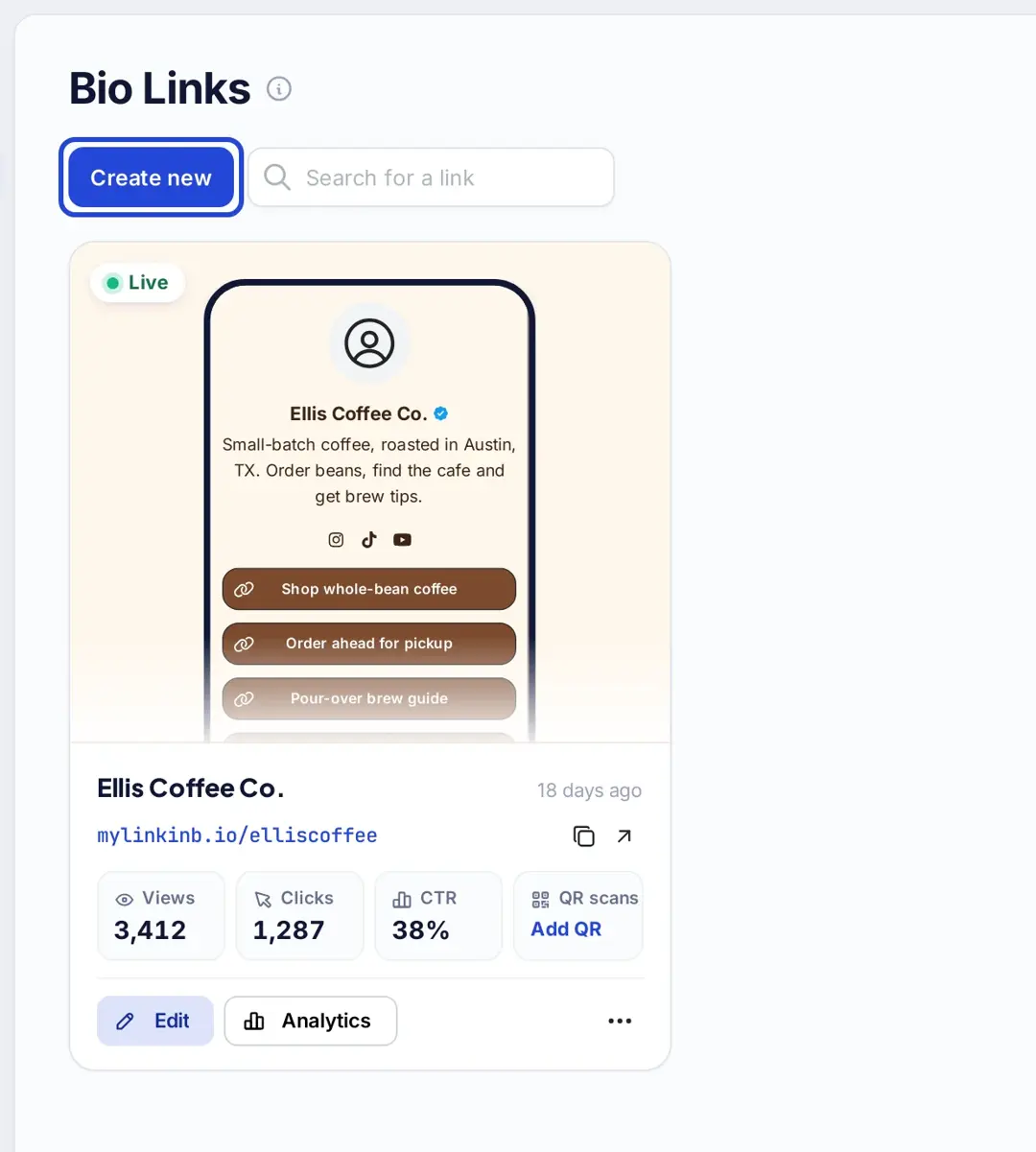
- On the Branding tab, add your profile picture, title and description, and pick a template or theme. (The verified badge is on Scale and Agency plans.)
- Click Publish when you are ready; after that, click Update to save changes.
Step 3: Add your Amazon product links
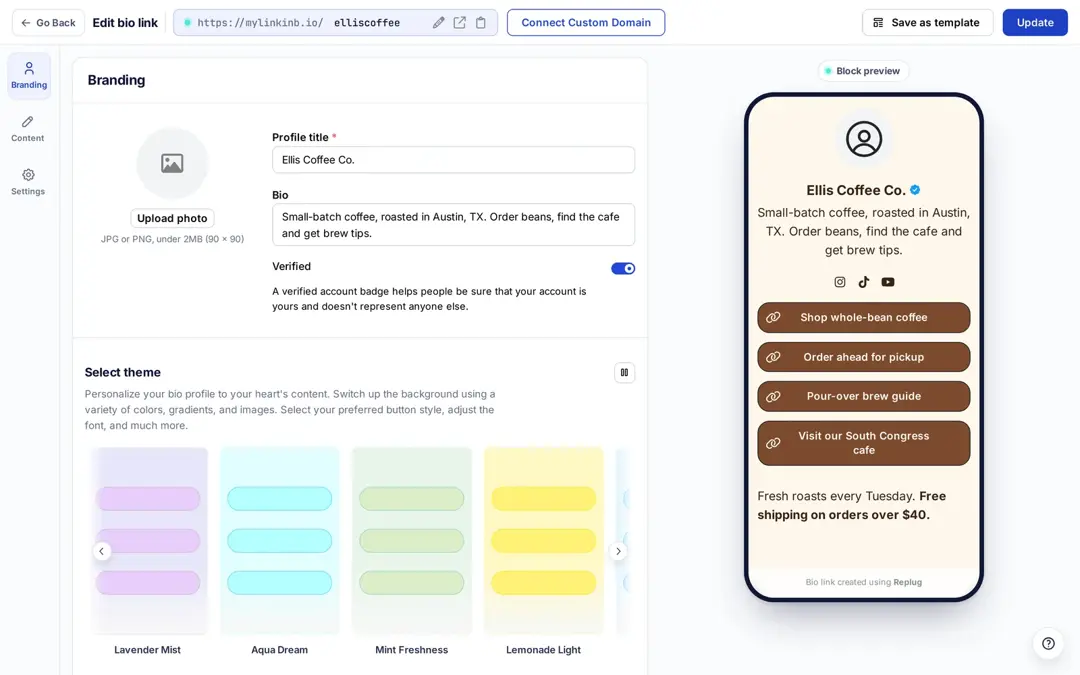
- Open the Content tab and choose Links under Add a new block.
- For each product, add a title that says where the link goes, such as “Pour-over kettle I use daily (Amazon)”, and paste the Amazon affiliate link as the URL. A Links block holds up to 5 links; add another block for more.
- Add a Text block with “As an Amazon Associate I earn from qualifying purchases.” and place it near your Amazon buttons.
- You can add other block types if required, such as Card, Social, Separator or, on Essentials and up, Carousel. Click Update to save your progress.
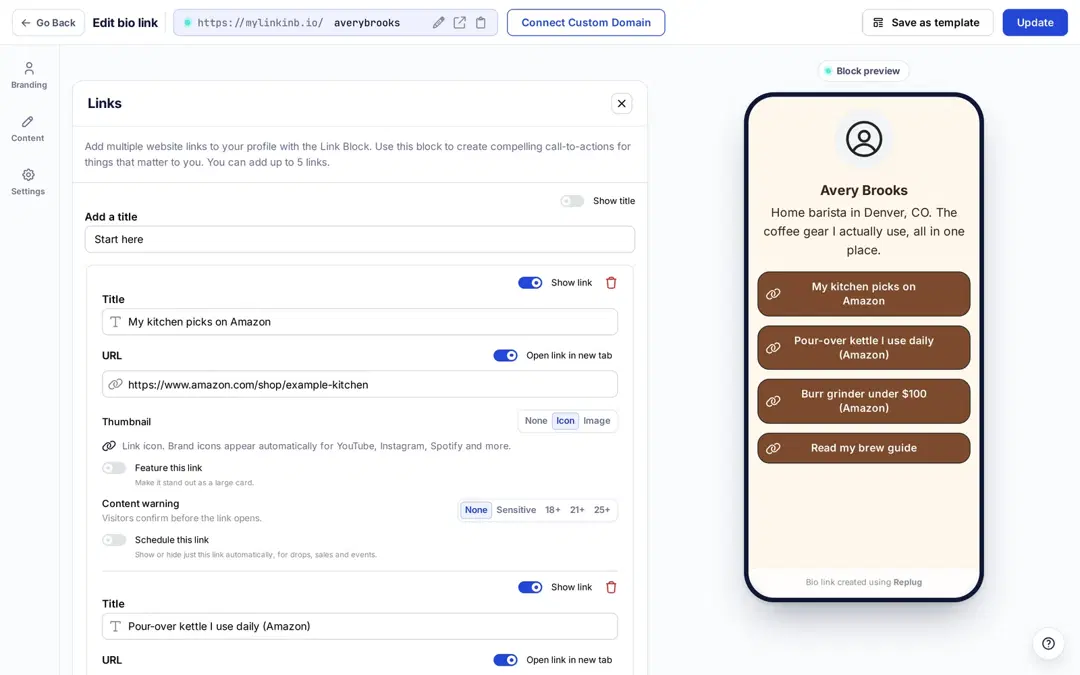
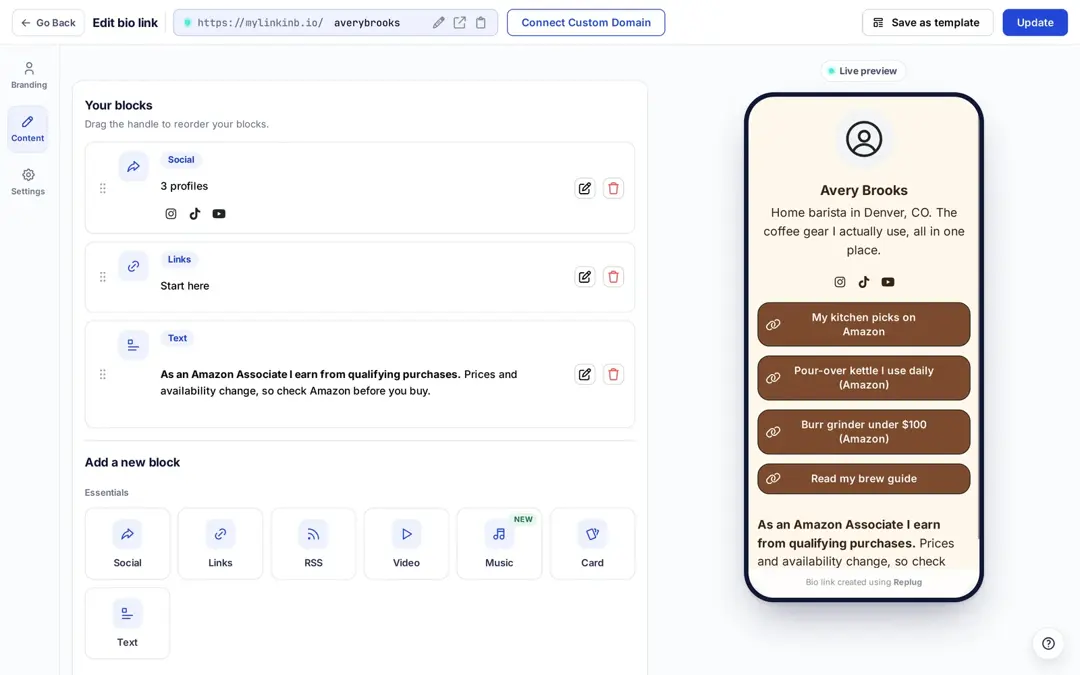
If you’re exploring how to make money on Amazon without selling physical products, affiliate marketing is one route: you share Amazon links and earn a commission on qualifying purchases. New to it? Start with a beginner’s guide to affiliate marketing, and for Instagram specifically, see how to add an Amazon link to your Instagram bio.
Step 4: Customize SEO and social media preview
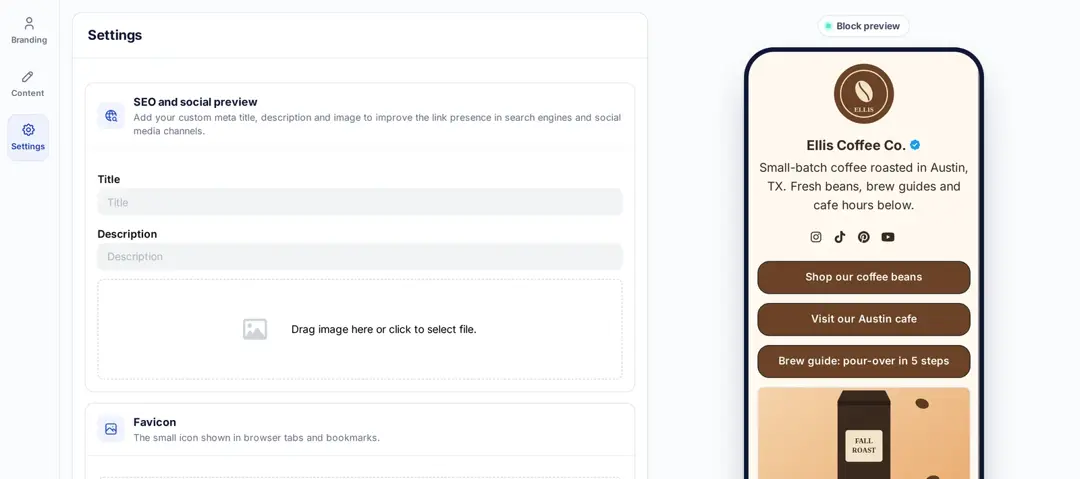
- Go to the Settings tab
- Add a custom meta title and description to improve how your landing page for Amazon products appears in search results
- Upload a preview image that looks good when your page is shared on social media
- Optionally add a retargeting pixel (Essentials and up) so you can reach visitors with ads later, and disclose it as Amazon’s policies require
Step 5 (optional): Create a custom URL for your bio link
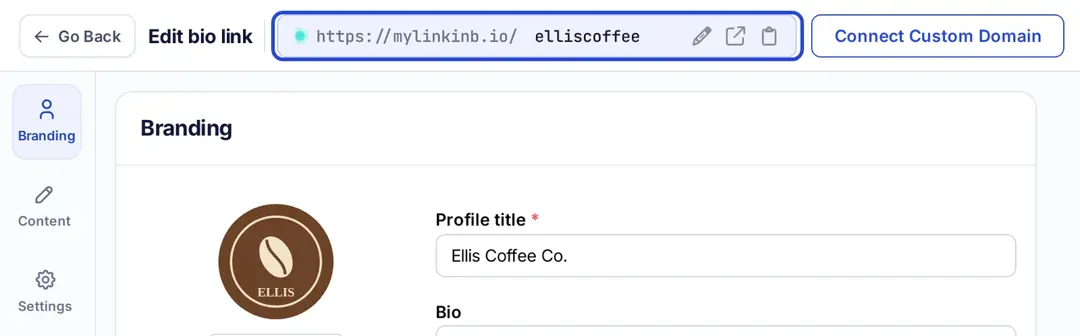
- Personalize your landing page link to match your name or niche
- Click the pencil next to the mylinkinb.io address to change the slug, or click Connect Custom Domain to use your own domain
Step 6: Share your landing page everywhere
Once your landing page for Amazon products is ready, share it where your audience hangs out. Add it to your Instagram and TikTok bio, YouTube description, Pinterest profile, email signature, blog sidebar, and even printed materials with a QR code. Because the page holds the Amazon links, you share your bio page link, never a disguised Amazon link.
The more places people can find your page, the more chances they have to find a product they want. Make sure you follow the best bio link practices as well.
Tips for your bio landing page for Amazon products
To get better results and keep your page fresh, try these tips:
- Place your most useful picks at the top so they get more attention
- Use direct titles like “Shop My Top Picks on Amazon” instead of generic labels
- Add UTM parameters to the link to your bio page in each profile to see which platform sends the most visitors (leave the Amazon links as Amazon gives them)
- Mention real promotions on the products only while they run, and check prices on Amazon before you post
- Add a retargeting pixel so you can reach visitors again with ads (Essentials and up)
- Create a QR code for your bio landing page directly in Replug and share it on packaging, flyers, or emails
- Mix in digital products like ebooks and audiobooks published through Amazon’s Kindle Direct Publishing platform to diversify what you offer
- Check your bio link analytics to see which links get the most clicks and refine your list over time; sales and commissions show in your Associates reports
- Write a clear call-to-action, for example “See what I’m loving this month” or “Shop my current kitchen must-haves”
- Keep your product list updated and remove items that are discontinued or recalled
Conclusion
A landing page for Amazon products isn’t just about adding more links; it’s about making your bio easier to use. Instead of juggling updates across multiple platforms, you control everything from one branded page.
Whether you’re promoting best selling products on Amazon, sharing digital downloads, or exploring affiliate marketing, this approach keeps your content organized and your audience engaged, as long as you follow Amazon’s link and disclosure rules.
With tools like Replug, it’s simple to build, track, and update your landing page whenever you need, so your visitors always find your best offers.
For complete control over your links and campaigns, try this all-in-one link management platform that helps you organize, analyze, and optimize every click.
Frequently asked questions

Amna Yawar