
In the vast landscape of social media, X (formerly Twitter) is a prominent platform connecting people from all walks of life. In this guide, we’ll uncover the secrets of tweeting links with finesse.
Ready? Let’s get tweeting!
Short answer: paste the link as the very last thing in your post on X. When the site supports link previews, X turns it into a card and hides the URL text, so readers see your words and a clickable image with the site’s domain. X doesn’t let you hide a link behind custom words in a regular post, so the card, or a short link with a readable ending such as rplg.co/fall-sale, is the cleanest option.
How to tweet a link without a URL?
When crafting a tweet on X, the URL you include will be initially visible within the tweet text. However, upon posting the tweet, Twitter automatically generates a preview for certain URLs (not all), transforming the appearance of the tweet.
This preview showcases essential details from the linked page, such as a headline, description, and often an accompanying image.
As a result, the full URL is no longer prominently displayed in the tweet, offering a cleaner and more engaging presentation for users.
Here’s how to tweet a link without URL:
Step 1: Log in to X and paste your link into the compose box at the top of your Home timeline.
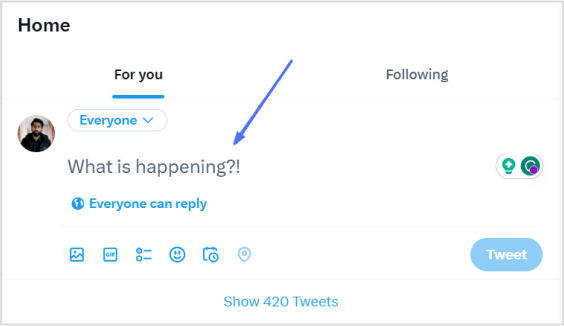
Also read: How to find my Twitter URL on mobile and desktop?
Step 2: Twitter will automatically generate a preview of your pasted link. Hit the Tweet button (now labeled Post) and Twitter will share the link without showing the URL. This only works when the link is the last thing in the post; any text or punctuation after it keeps the URL visible.

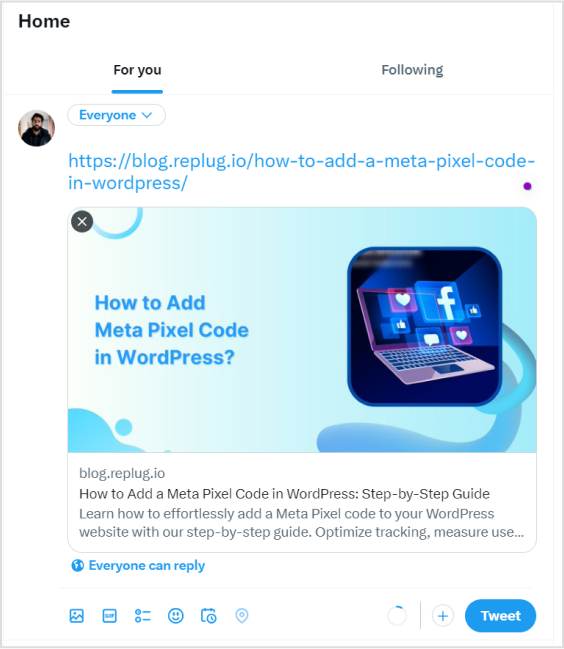
That’s it! You’ve your link tweeted without the URL!
Important note:
- Not all URLs will trigger a preview; some links, such as specific file types or websites with restricted access, may still display the full URL in the tweet. In addition, you only have 280 characters to use in a tweet. In this situation, you could:
- Use a URL shortener service
- Describe the link in your tweet.
And guess what? We have a solution for your long X URL problem!
Can you hyperlink text on X (Twitter)?
Not in a regular post. X shows every link as a URL or a link card and has no option to put a link behind words like “read the guide”. There are a few ways to get close:
- Let the card replace the URL. Put the link at the end and let X show the preview card, as described above.
- Use a readable short link. A link like rplg.co/fall-sale tells people where they are going, which a long tracking URL or a t.co address doesn’t.
- Write an X Article. Articles, available to some paid X subscribers, are long-form posts where you can link words the way you would in a blog.
- Mention accounts instead of linking them. An @username is clickable and doesn’t need a URL.
How X counts links in a post
According to X’s developer documentation on counting characters, every link is wrapped in X’s t.co shortener and counts as 23 characters, whether the original is 15 characters or 300. So:
| Link you paste | Counts as |
|---|---|
| rplg.co/fall-sale | 23 characters |
| https://www.example.com/blog/2026/10/fall-sale-guide?utm_source=x | 23 characters |
| Two links in one post | 46 characters |
A short link won’t give you more room on X, but it still helps: people can read and remember it, it looks the same when copied into a DM or a screenshot, and it can count clicks. On platforms without automatic wrapping, such as Instagram captions, SMS or print, a short link does save space.

Why your link preview isn’t showing (and how to remove one)
- Text after the link. Anything after the URL, even a period, keeps the URL visible. Move the link to the end.
- The site has no preview tags. X builds the card from the page’s Open Graph or Twitter Card tags. If a page has none, you only get a plain link. Shortening the link with a tool that lets you set a custom preview fixes this for pages you don’t control.
- The card shows an old image. X caches previews. Add a harmless parameter such as ?v=2 to the end of the URL, or update the preview on your short link, then post again.
- You want no card at all. If the composer shows a close button on the preview card, tap it before posting; otherwise add a word after the link so it stays as plain text.
- Images or video are attached. When you add your own media, X shows the media instead of the link card, and the URL stays visible.
Link in the post or in a reply?
Many marketers report that posts with outside links get less reach on X than posts without them, so a common pattern is to post the text or image first and add the link in your first reply. X doesn’t publish how links affect ranking, so test both: post one with the link in the body and one with the link in a reply, use a different short link for each, and compare clicks.
How to track clicks on links you post on X
- Create a short link for each post, or at least for each campaign, so you can see which one drove visits.
- Add UTM parameters such as utm_source=x to the destination so your website analytics labels the visits correctly.
- Check the short link’s report for clicks, countries, devices and referrers. X’s own post analytics also show link clicks, but only for that post and only inside X.
- Use the same link in your X bio and on your bio link page if you want one view of all clicks from your profile.
Replug’s Free plan includes 100 short links, 3 custom domains and click tracking with 14 days of history; paid plans keep history longer and let you choose your own link endings.
Introducing Replug: Your solution for shortening X URLs
With Replug, you can transform lengthy URLs into concise links for your tweets. Say goodbye to character count woes and hello to engaging, impactful content. (One caveat: X counts every link as 23 characters however long it is, so the real gains are a readable, branded link and click tracking rather than saved characters.)
Let’s dive into the simple process of Replug’s URL shortening and bring your X sharing to the next level!
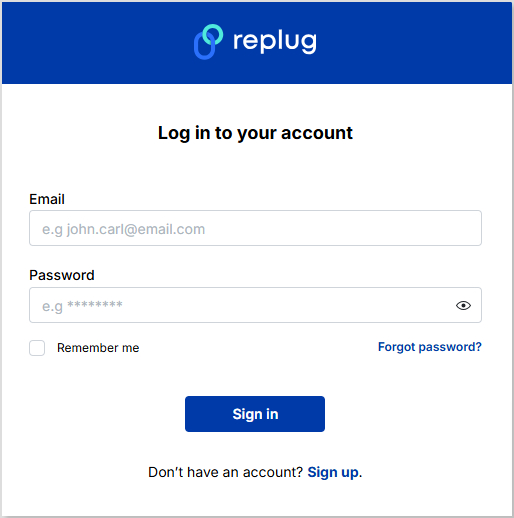
Step 1: Sign in to Replug or create an account for free.
Step 2: Next, you’ll be led to the main dashboard. To shorten your URL, enter the desired URL you want to track in the bar under “Quickly Shorten your link”:
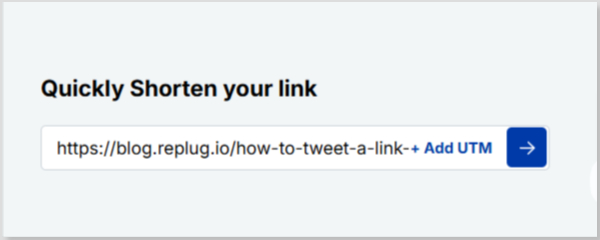
Step 3: After entering your URL and clicking on the blue arrow button, Replug will automatically generate a shortened link that you can copy:
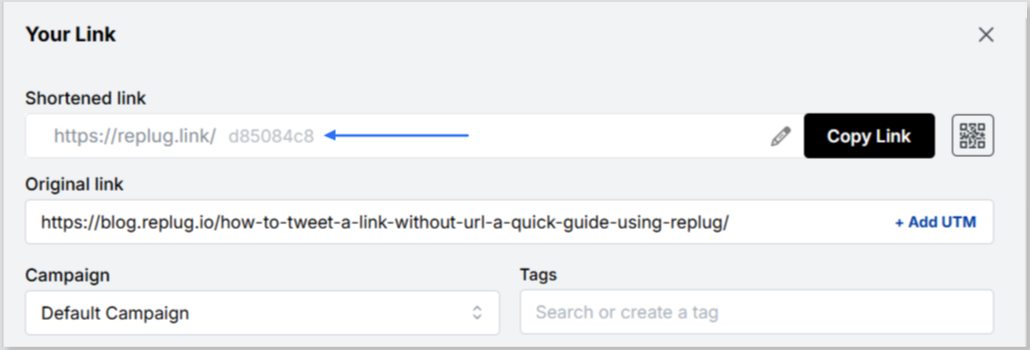
Step 4: You can also customize the URL with the slug of your choice by clicking on the pencil icon:
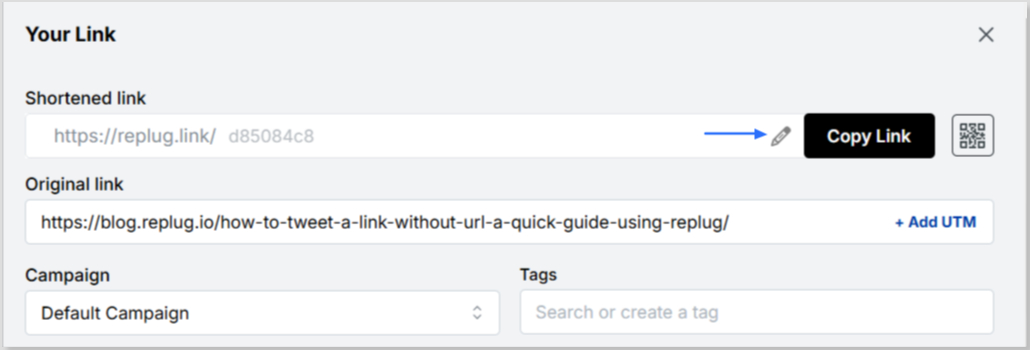
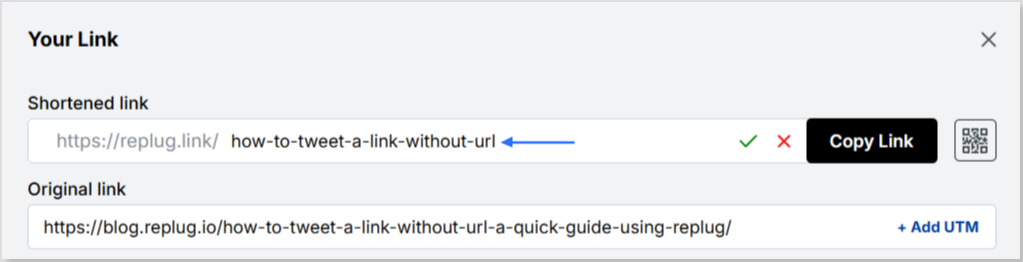
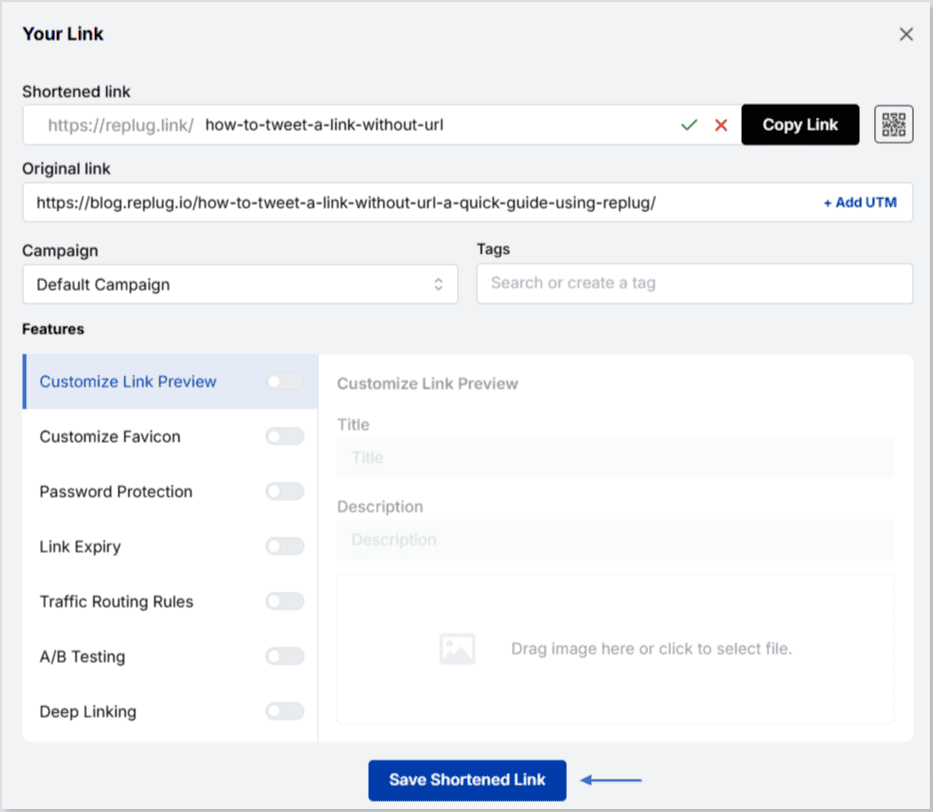
Step 5: Simply save your URL and you’re done! Share away, whenever, wherever.
Replug Analytics: Measure link success
Are your X links making the impact you desire?
With Replug Analytics, you can dive deep into your link performance and discover the key to boosting engagement, maximizing reach, and achieving your Twitter goals like never before!
Replug’s Analytics feature empowers you to make data-driven decisions and revolutionize your link-sharing strategy.
Learn more about the Replug analytics here!

FAQs about how to tweet a link without URL on X

Arslan Jadoon