As a Twitter user, having a URL for your profile is helpful for several reasons.
First, you can share your URL with friends and gain new followers by promoting it on other social media platforms, including email, business cards, company pamphlets, or restaurant menus. The more your URL is shared, the more likely you attract new followers.
Second, you can include your URL in the social media sections on other websites, allowing you to embed links to other profiles. This can help you grow your following as people search for more of your content on different platforms.
Additionally, having a distinct and solid brand identity across all your social media accounts will help you attract and retain followers.
Here’s how to find your Twitter URL:
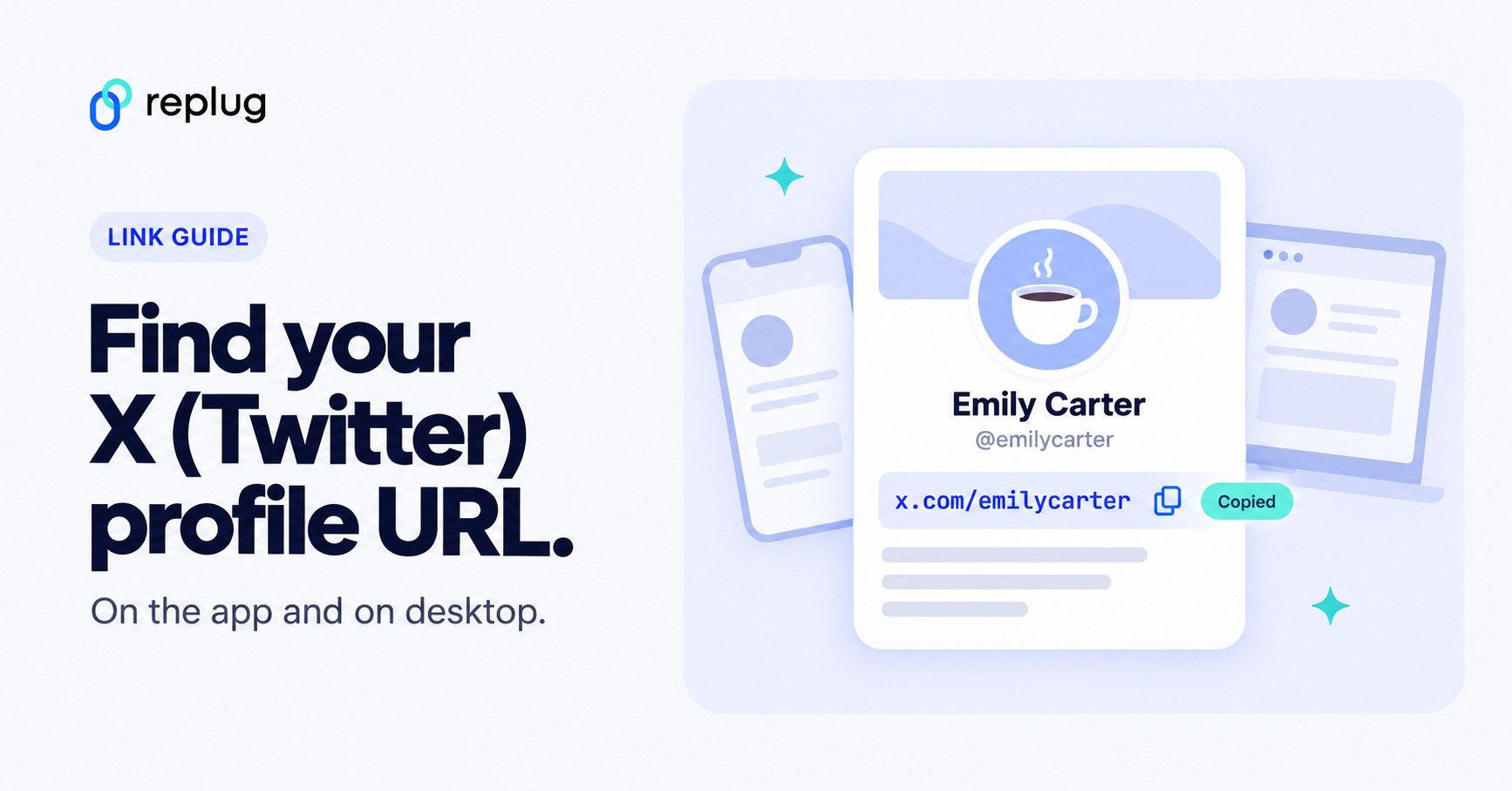
Short answer: your Twitter URL is https://x.com/ followed by your username, without the @. If your handle is @emilycarter, your URL is https://x.com/emilycarter. Twitter is now called X, and old twitter.com/username links still redirect to the same profile. On a computer, open your profile and copy the address bar; in the X app, add your username to x.com/ or copy your profile link from the share menu (steps below).
The app is now called X, and some menus in the screenshots below have new names, but the steps are the same.
How to find my Twitter URL on a mobile phone?
Follow these steps on your iOS or Android mobile device to find your Twitter URL:
Step 1: Open the Twitter app on your mobile device.
Step 2: Tap the profile icon in the top left corner.

Step 3: You will now see your user name in the sidebar below your name.
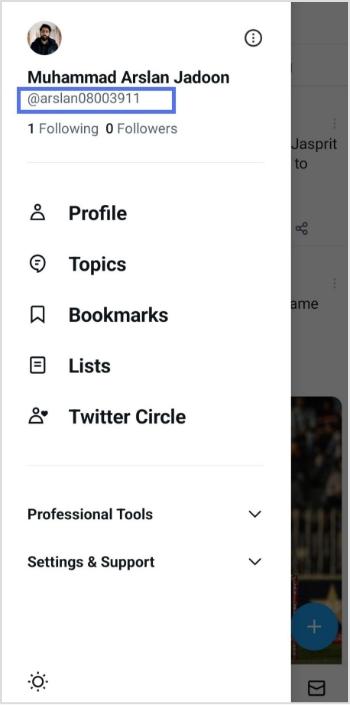
Step 4: Add your username after the Twitter link (x.com/arslanjadun, without the @; the old twitter.com/arslanjadun address redirects there), and you’re done.
How to find my Twitter URL on a computer device?
Here’s how to find your Twitter URL on a computer device.
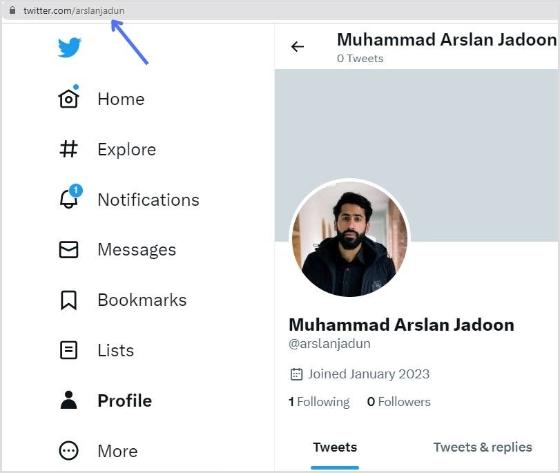
Step 1: Log in to Twitter and click on your profile icon to open your profile.
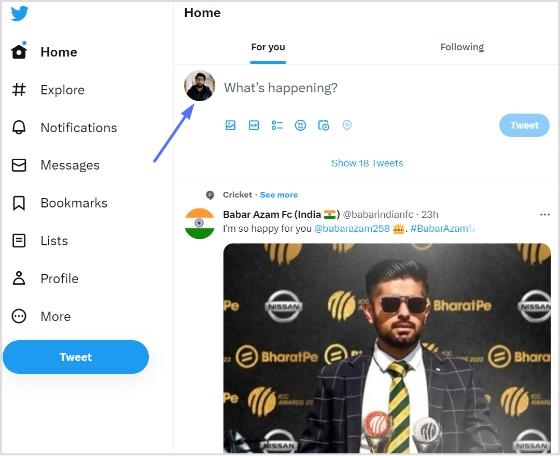
Step 2: Copy the URL in the browser’s address bar, and you’re done.
How to copy your X (Twitter) profile link in the app
- Open the X app and tap your profile picture in the top-left corner, then tap Profile.
- Tap the three-dot (more) icon at the top of your profile.
- Tap Share, then Copy link. The link looks like
https://x.com/emilycarter.
If you don’t see a share option, type the URL yourself: x.com/ plus your username. It works the same way.
Twitter (X) URL formats with examples
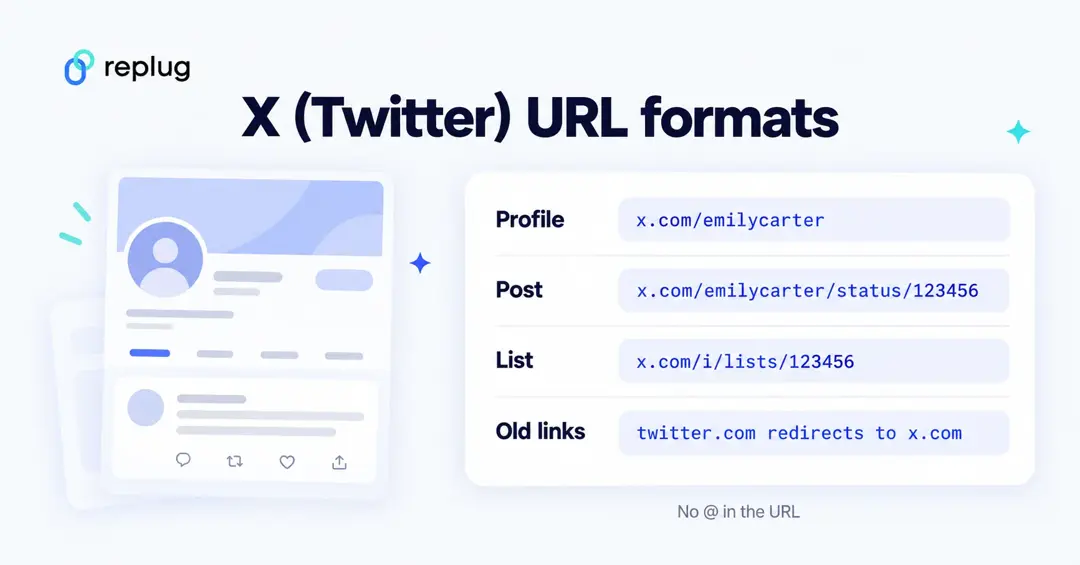
| What you want to share | URL format | Example |
|---|---|---|
| Your profile | x.com/username | x.com/emilycarter |
| A post (tweet) | x.com/username/status/post-ID | x.com/emilycarter/status/1845012345678901234 |
| A list | x.com/i/lists/list-ID | x.com/i/lists/1234567890 |
| A community | x.com/i/communities/community-ID | x.com/i/communities/1234567890 |
| A search | x.com/search?q=keyword | x.com/search?q=austin%20coffee |
| Older links | twitter.com/… or mobile.twitter.com/… | Redirect to the same page on x.com |
Usernames in URLs never include the @ sign, and capital letters don’t matter: x.com/EmilyCarter and x.com/emilycarter open the same profile.
How to get the URL of a post (tweet)
- In the app: tap the share icon under the post, then tap Copy link.
- On a computer: click the share icon under the post and choose Copy link, or click the post’s date or time to open it and copy the address bar.
The number at the end of a post URL is the post ID. It never changes, but the username part updates if the author changes their handle.
How to find someone else’s Twitter URL
Open their profile and copy the address bar on a computer, or use the same share menu in the app. If you only know their handle, the URL is x.com/ plus the handle without the @.
Can I change my Twitter URL?
You can change your Twitter URL anytime by changing your @username, otherwise known as your handle.
Before you change it, know the rules from X’s help center:
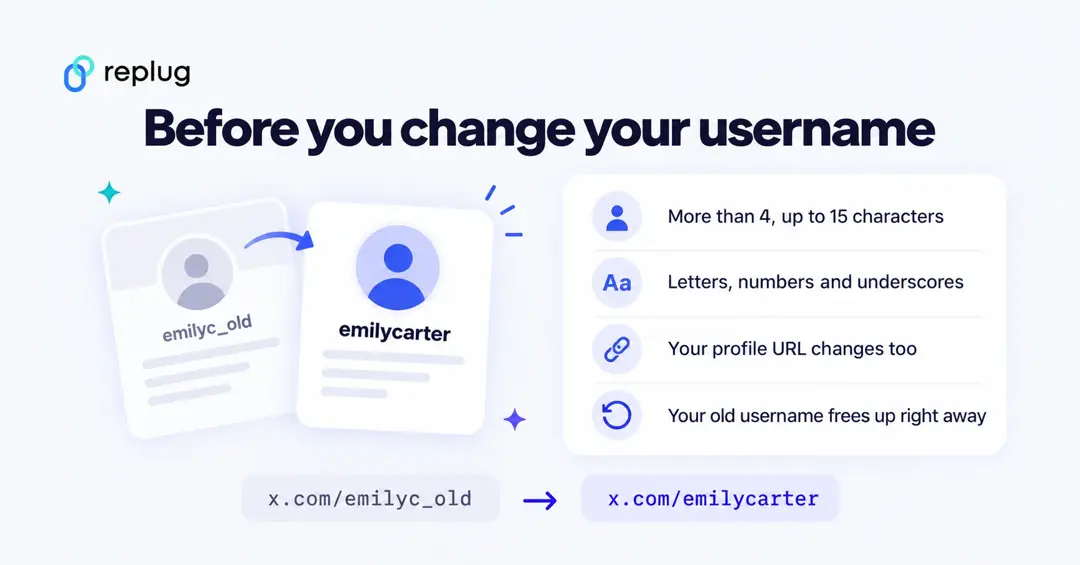
- Your username must be more than 4 and up to 15 characters long.
- It can contain only letters, numbers and underscores; no spaces.
- Your display name (the name shown above your @username) is separate and can be up to 50 characters.
- Changing your username doesn’t affect your followers, Direct Messages or replies.
- Your old username becomes available to anyone right away, so links to
x.com/oldnamemay later open someone else’s profile. Update your bio links, email signature and website after you change it.
Here’s how to change your Twitter URL on mobile and computer devices.
How to change my Twitter URL on a mobile device
Step 1: Log in to the Twitter app and tap your profile icon in the top left corner.

Step 2: In the left side menu, Tap “setting and support,” then “setting and privacy.”
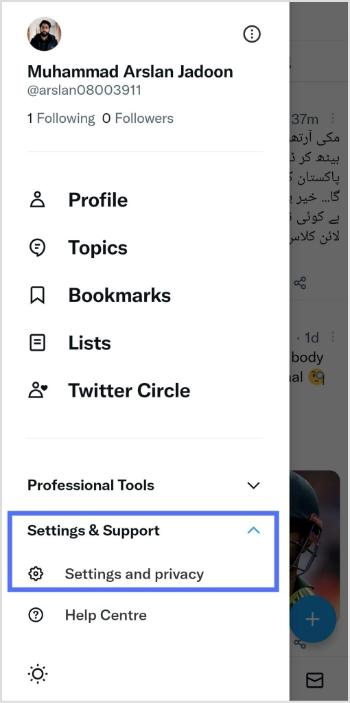
Step 3: Tap “your account” on the next screen.
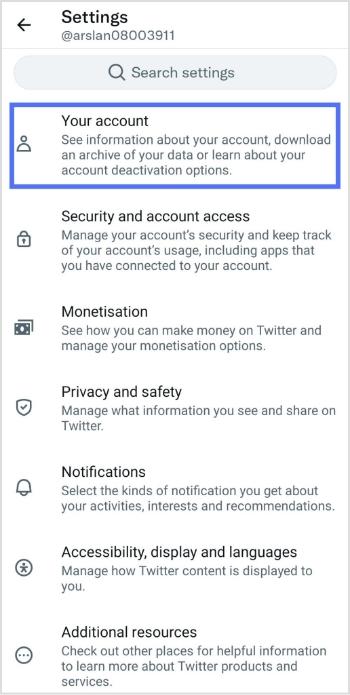
Step 4: Now, tap “account information.”
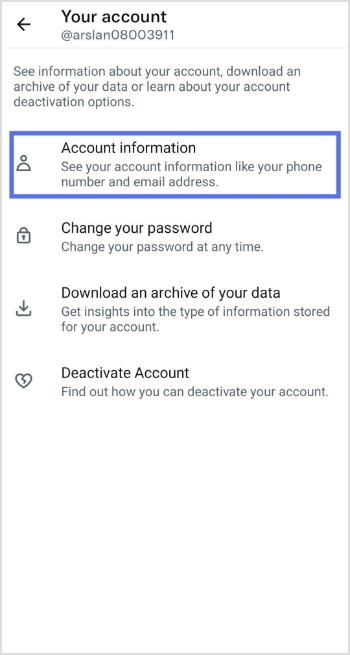
Step 5: Tap “user name” to open your current user name.
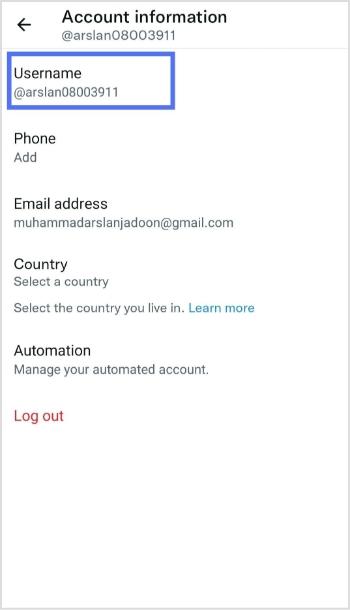
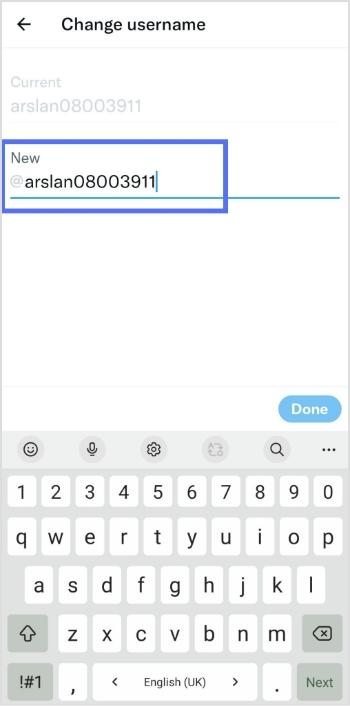
Step 6: Type your new username and tap done.
Also Read: How to Shorten a link using a URL shortener?
How to change my Twitter URL on a computer device
Follow the steps below to change your Twitter URL on a computer device:
Step 1: Log in to your Twitter profile and click on more in the left-side menu.
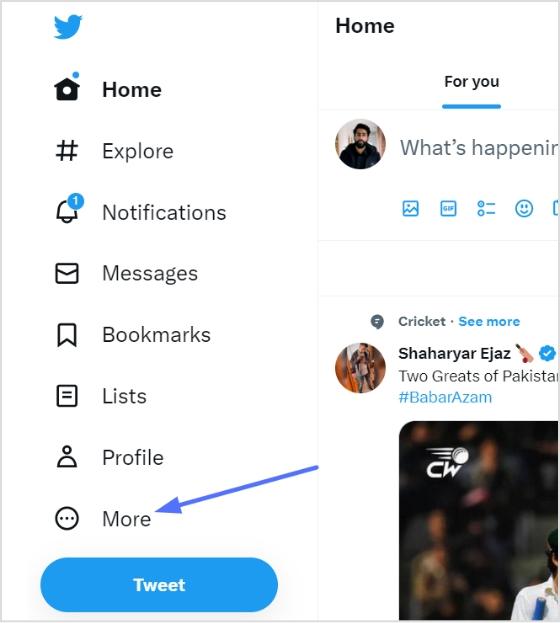
Step 2: Click “setting and support” from the left side menu. Then, click “setting and privacy” from the drop-down menu.
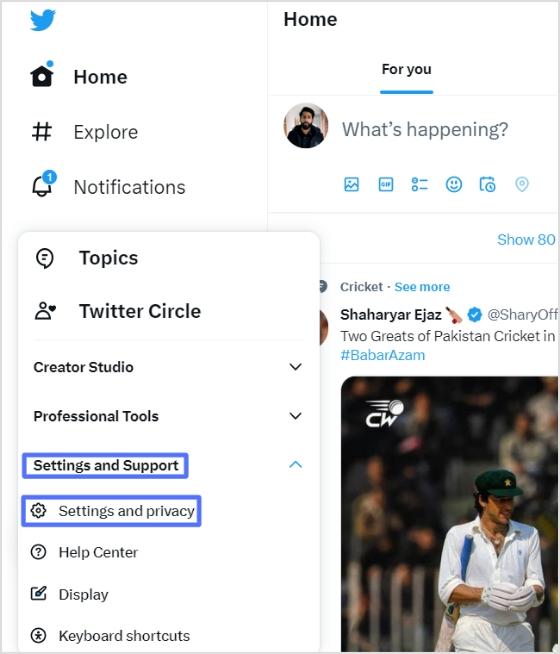
Step 3: Click “account information” from the “your account” menu.
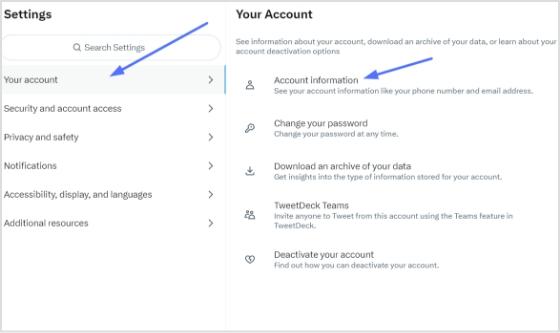
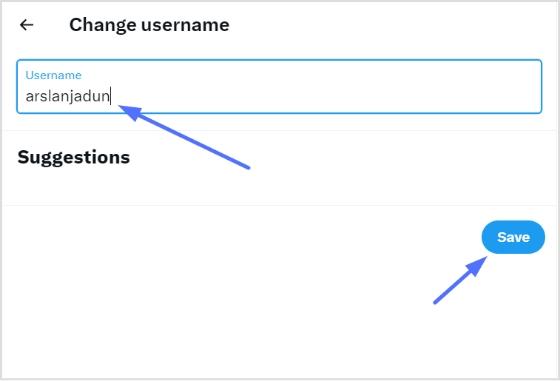
Step 4: Click “username” in the account information section.
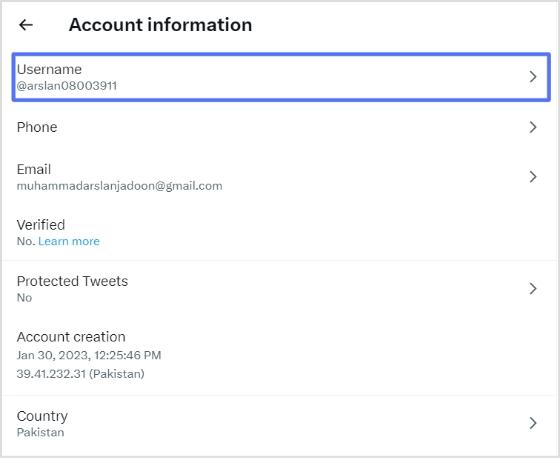
Step 5: Type your new username and click save.
Looking for a Better Way to Manage Social Media URLs?
Managing multiple social media accounts is time-consuming, and keeping track of all the links to articles can be challenging. To streamline campaigns, it is recommended to use a tool such as Replug to keep all the links in one place.
It serves as a reliable link management platform that simplifies tracking, organizing, and optimizing your URLs.
However, deciding what links to include in the Replug can be confusing. For Twitter, the best link to start with is the URL of the entire profile, which can be easily shared and is always in the format of “x.com/username” (older links use “twitter.com/username” and still redirect).
The ultimate solution for managing all your social media links
Our link management tool provides you with a dashboard to manage all your shortened links, including the ability to track clicks and see analytics on the usage of each link. This can help you understand how your social media profiles are being used and accessed.
Replug provides several benefits when handling all your social media URLs:
Create a consistent brand across all profiles
A consistent brand across all your social media profiles is important for building a recognizable and professional image. Using the same URL shortener for all your profiles, such as Replug, ensures that your profiles are all linked together under one recognizable brand. This makes it easier for people to find and remember your profiles and creates a consistent image for your brand.
Also Read: Branded links vs. short links: Which is right for your brand?
Track and analyze clicks on your links
Replug provides analytics and click tracking on your links, so you can see how many people are clicking on your social media profile links, where they are coming from, and which ones are most popular.
Also Read: What is a Tracking URL and How Does it Work?
Provide easier-to-remember and share links
Shortened Replug URLs are easier to remember and share than individual social media profiles’ long, complex URLs. You can enhance brand recognition and improve your profile’s accessibility by shortening your social media URLs with Replug.
Provide Cross-platform compatibility
Handling all your social media URLs through Replug provides cross-platform compatibility, making it easier for people to access your profiles from any device or browser. Replug links are designed to work seamlessly across all platforms, including desktops, laptops, smartphones, and tablets, ensuring that your profiles are accessible to everyone, regardless of their device.
Trending:
How to Build Your Brand on YouTube – Branding on Youtube the Right Way!
Benefits Of A Link Rotator: Why & When To Use Rotating Links?
What Is A Vanity URL & How To Track It?
7 best URL shorteners available online in 2026 – Features, pricing, reviews & more
FAQ
Frequently Asked Questions

Arslan Jadoon