Welcome to Tumblr, the go-to spot for sharing your creativity through photos, text, videos, and more. Whether you’re an artist, writer, or love expressing yourself, Tumblr’s got you covered.
How do you add links to your Tumblr bio?
It’s not as obvious as you’d think, but fear not – it’s surprisingly easy once you know the trick. Stay with us, and we’ll show you how to effortlessly upgrade your Tumblr experience. By adding links to your bio, you’ll make it easy for your online world to connect with you.
Let’s dive in!
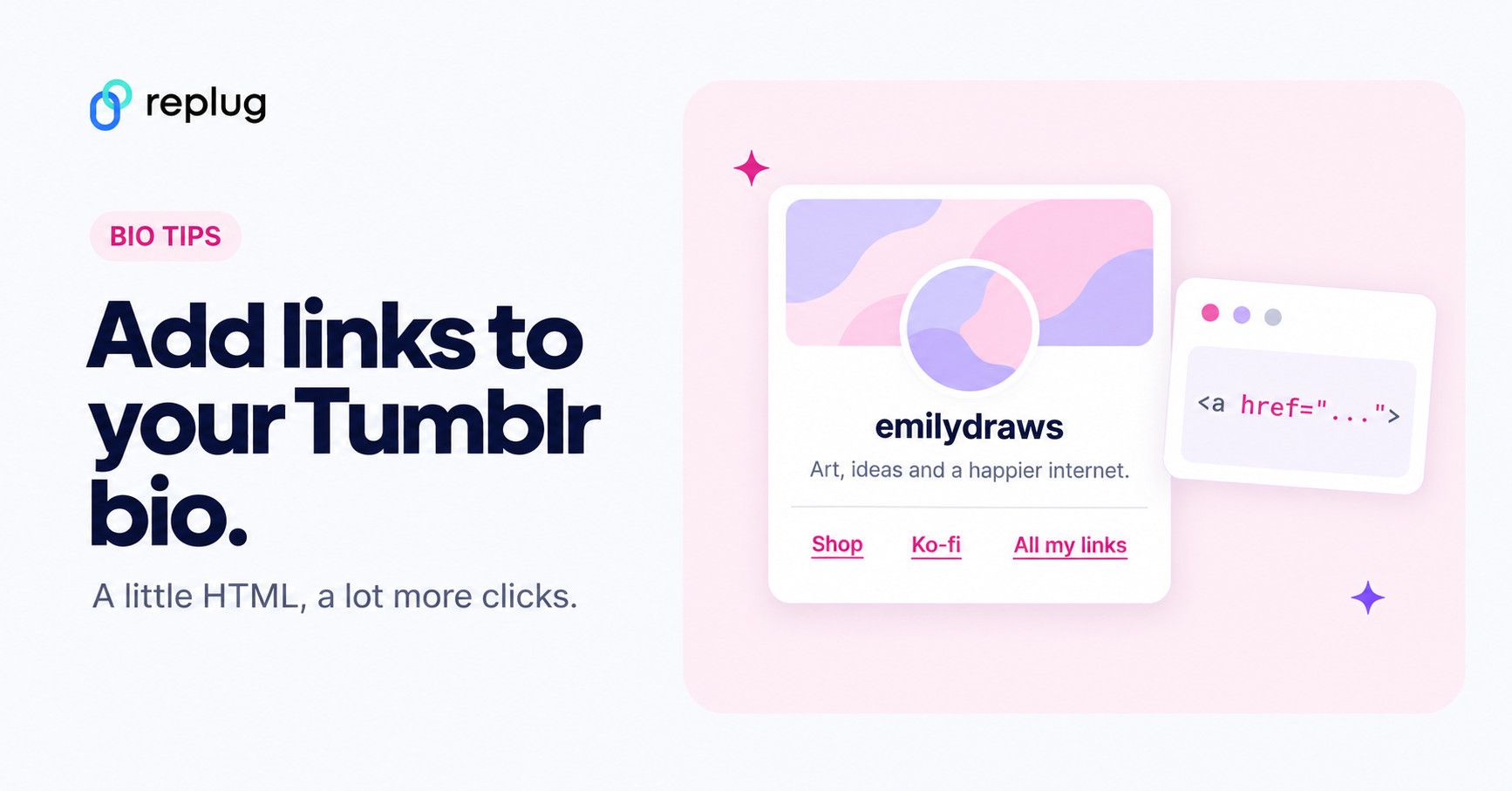
Short answer: Tumblr has no separate link field, so you add links to your bio with a little HTML. On a computer, open your blog, click Edit appearance, then Edit theme, and paste <a href="https://yoursite.com">My website</a> into the Description box. Click Save. You can add several links this way, or one link to a bio page that holds all of them.
Adding links to your Tumblr bio: What you need to know
Before you start linking up your Tumblr bio, here’s the lowdown:
- You’ll need to use some basic HTML code for this. No worries, it’s simple.
- Tumblr doesn’t have a fancy button for adding links. You’ll have to do a bit of copy-paste action with the HTML code.
- Adding a link in bio is a cool way to connect your visitors to your other social media or special works. It makes your Tumblr world a bit more interactive.
Don’t worry if it sounds a bit technical, we’ll keep it super simple. All you need to do is view HTML code, copy and paste a little code. No need to stress; let’s make your Tumblr bio awesome together!
Also read: 7 hidden best bio link practices no one talks about
How to add links to Tumblr bio?
Follow these steps to add links to your Tumblr bio:
Step 1: Go to the Tumblr website and log in to your account using your credentials.
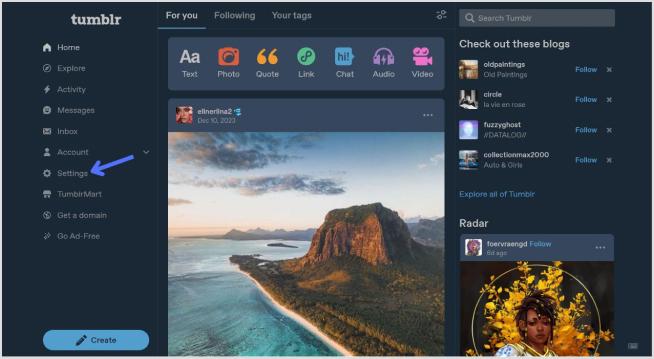
Step 2: Click on “Setting” in the left-side menu.
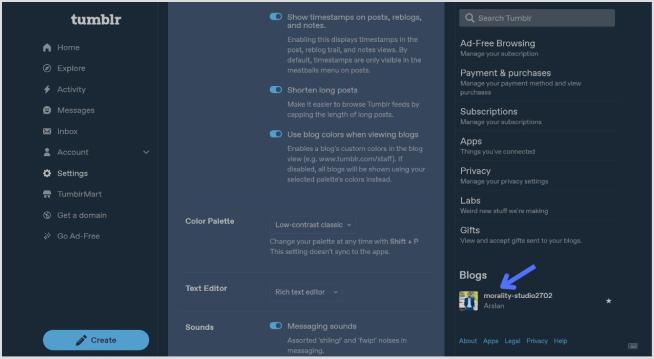
Step 3: Look for the “Blogs” section at the bottom of the right-side menu and click it.
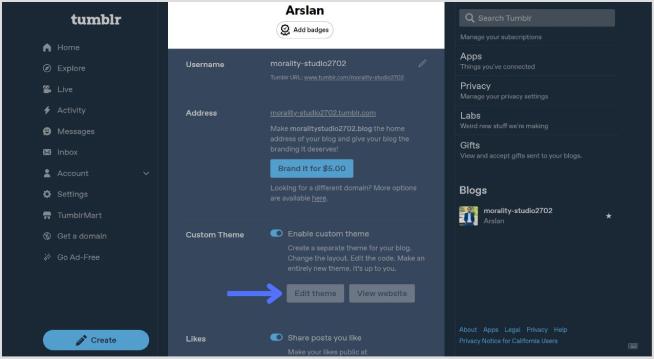
Step 4: In the blog setting, click on the “Edit Theme” button.
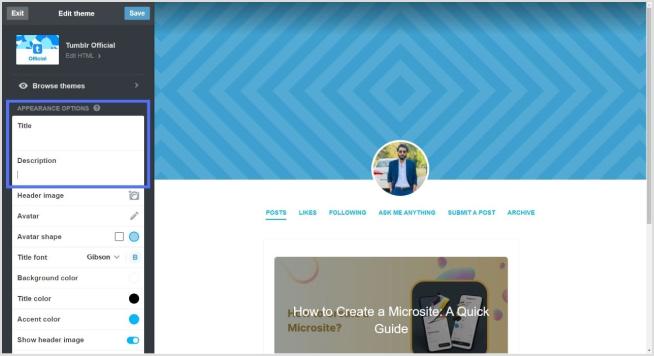
Step 5: Look for a section called “Title” and “Description”. This is where you can input information about yourself.
Can’t find these menus? Tumblr moves things around now and then. The direct route is to open your blog (tumblr.com/yourblogname), click the palette icon or Edit appearance, then Edit theme. The Description box is in the panel on the left. Your blog name is part of that address, and you can change your Tumblr URL if it no longer fits.
Step 6: To add a link, use standard HTML anchor tags. The format is as follows:
<a href="URL">Link Text</a>Replace “URL” with the actual link and “Link Text” with the text you want to display for the link.
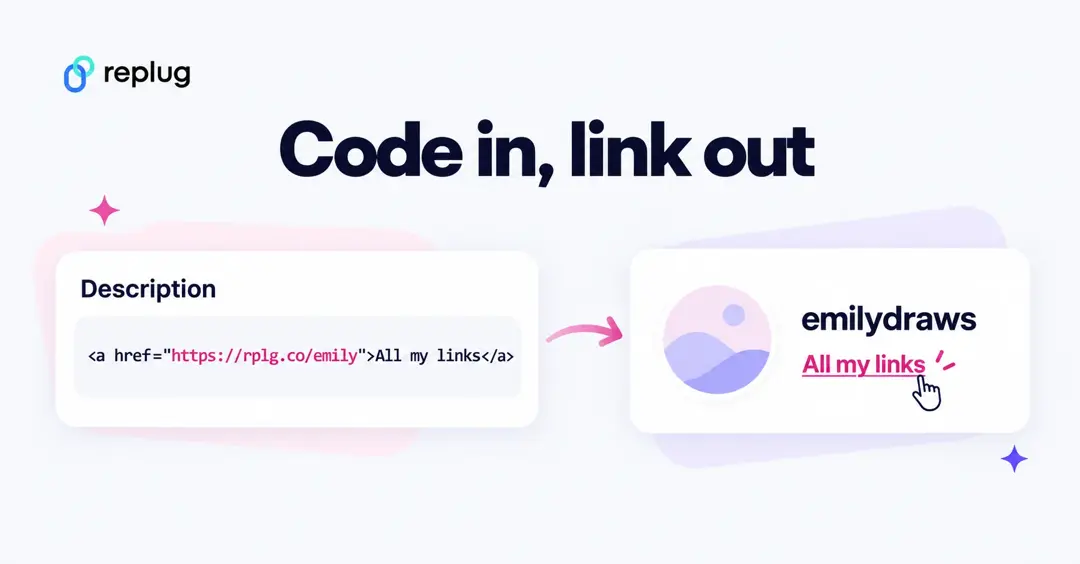
For example:
<a href="https://replug.io/">Visit my website</a>Add this in the description section.
Type the code, don’t paste it from a document. Word processors and notes apps turn straight quotes (“) into curly ones (“ ”), and Tumblr can’t read a link written with curly quotes. Also keep https:// at the start of the address.

To add more than one link, put a line break or a separator between them:
<a href="https://rplg.co/emily-shop">Shop</a> · <a href="https://rplg.co/emily-kofi">Ko-fi</a> · <a href="https://rplg.co/emily-ig">Instagram</a>Step 7: After adding your link, save the changes. It should appear in your Tumblr bio.
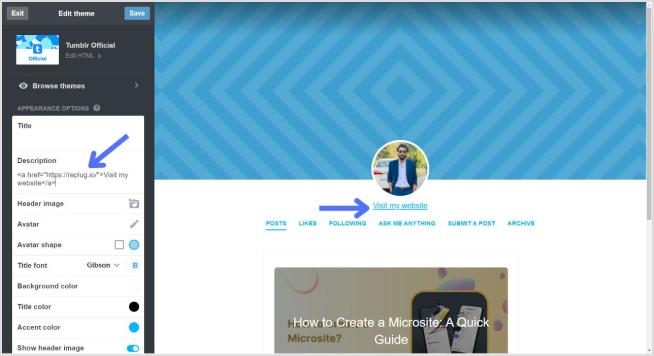
Simply confirm that the link looks right by visiting your Tumblr blog. Check your bio, and if everything is as expected, your link is good to go! Your Tumblr bio now features the link, allowing visitors to click and explore the connected website hassle-free.
How to add a link to your Tumblr bio on mobile
- Open the Tumblr app and tap your profile (the person icon).
- Tap the palette icon to open Edit appearance.
- Tap the description and type your link code, for example
<a href="https://rplg.co/emily">All my links</a>. - Tap Save, then open your blog in a browser to check the link.
Links in the description work on the web and on iPhone, but some Android app versions don’t open them, and several users report that editing the description in the app can strip the HTML. The safest routine is to edit your bio on a computer, or in your phone’s browser with desktop mode on, and avoid touching it in the app afterward.
How to edit or change your Tumblr bio
Your bio is the Description of your blog, so you change it in the same place you add links: Edit appearance → Edit theme → Description on a computer, or profile → palette icon in the app. Change the text, keep your link code intact and click Save. If you have more than one blog, pick the right one from the account menu first; each blog has its own description.
Tumblr bio ideas that include a link
A good Tumblr bio says who you are, what you post and where else to find you. A few examples you can adapt (replace the links with your own):
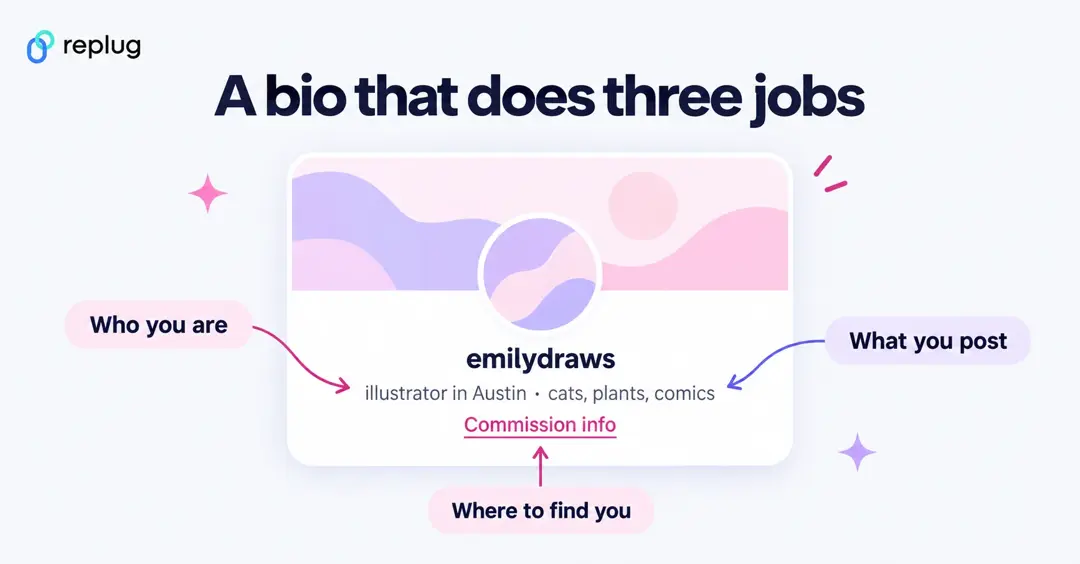
- Artist: illustrator in Austin · cats, plants, comics · commissions open → Commission info (linked)
- Writer: fic writer, slow updates, long chapters · masterlist and AO3 → Read my work (linked)
- Photographer: film photos from the Pacific Northwest · prints → Shop · Instagram (two links)
- Small shop: handmade earrings, shipped from Ohio · restock dates on my page → All links (one link to a bio page)
- Fandom blog: reblogs, gifsets, no spoilers before Friday · rules and tags → Read first (linked to a pinned post)
What is your Tumblr link?
To put your Tumblr in another bio, you need its address. Tumblr blogs open at tumblr.com/yourblogname, and the older format yourblogname.tumblr.com still works. In the app, open your blog, tap the share icon and choose Copy link; on a computer, copy the address bar while your blog is open. If you add the link to Instagram or TikTok, a short link lets you see how many people tap through.
Tumblr bio link not working? Common fixes
- The code shows up as text. A quote mark or angle bracket is missing, or the quotes are curly. Retype the code by hand.
- The link opens a Tumblr error page. The address is missing https://, so Tumblr treats it as a page on your own blog.
- The link worked, then stopped. The description was probably edited in the app. Re-add the code on a computer.
- Visitors on Android can’t open it. Some Android app versions don’t open description links. Mention the link in a pinned post as well.
- The bio doesn’t appear on your blog at all. Some custom themes don’t show the description. Turn the description on in the theme options, or switch themes.
How to hyperlink text in a Tumblr post
Posts are easier than the bio. In the post editor, select the words you want to link, click the link icon in the toolbar that pops up, paste the address and press Enter. Pinning a post with your links to the top of your blog is another way to give visitors more than the bio can hold.
How to add multiple links to the Tumblr bio?
Tumblr allows only one clickable link directly in the bio. (Strictly speaking, the description box accepts several HTML links, as shown above, but a long row of links is hard to read on small screens.) However, you can use Replug’s “bio links” feature to overcome this limitation and showcase multiple links.
With Replug, you can easily showcase multiple links, drive traffic efficiently, and optimize your bio for enhanced engagement.
Note: You can also leverage Replug’s advanced link tracking features to gain insights into link performance, click-through rates, and audience engagement. Enhance your bio links and track their success effortlessly with Replug.
Here’s how to add multiple links to your Tumblr bio using Replug:
Step 1: Sign in to Replug or create a free account.
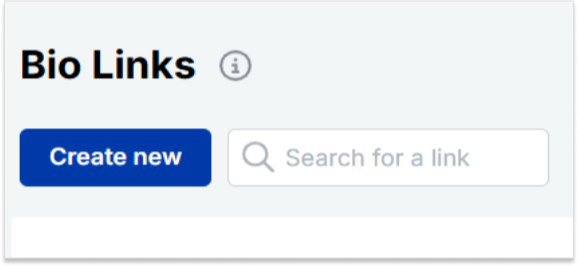
Step 2: Locate the “Bio Links” feature in the top banner. The bio link dashboard will appear in front of you.
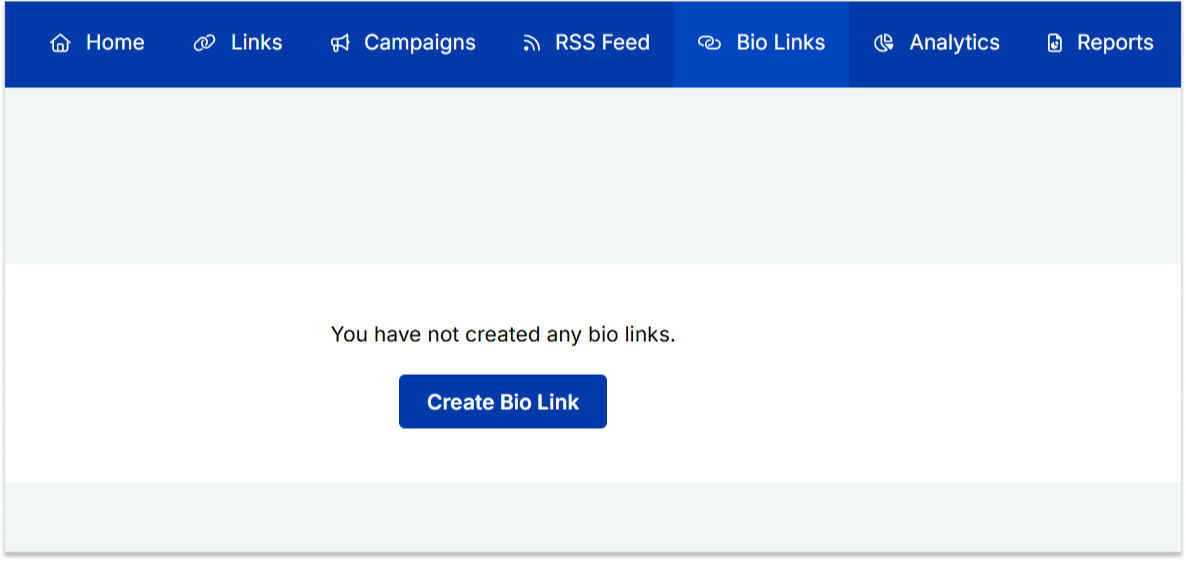
Step 3: Click the “New Bio Link” button to start setting up your Tumblr bio. You’ll be directed to a new page where you’ll find three main categories: branding, content, and settings.
Step 4: In the branding section, add a brand title and description, select themes, and choose button styles to match your aesthetic.
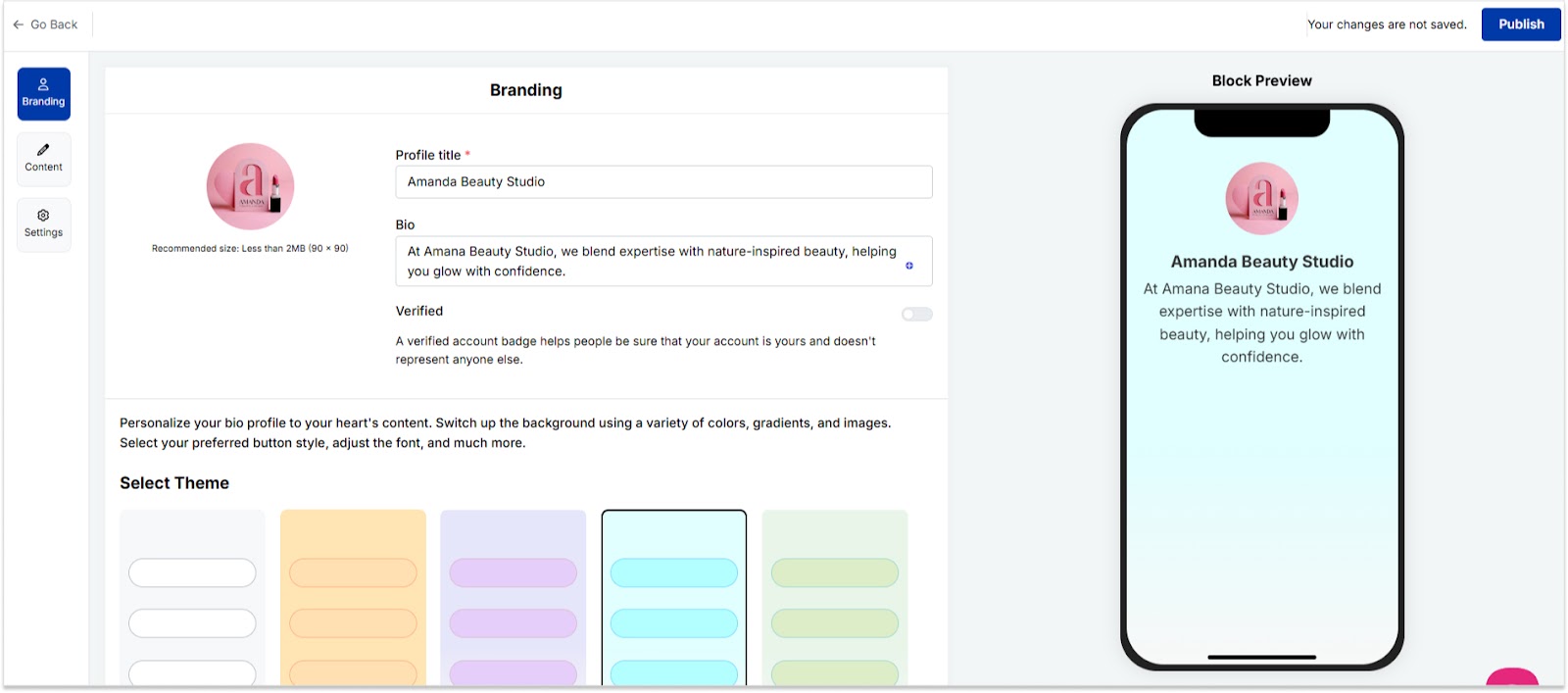
Once you’re done, click “Publish” in the upper right corner to save your changes.
Step 5: Head to the content category. Here, you can add social icons, links, RSS feeds, videos, cards, text, and more.
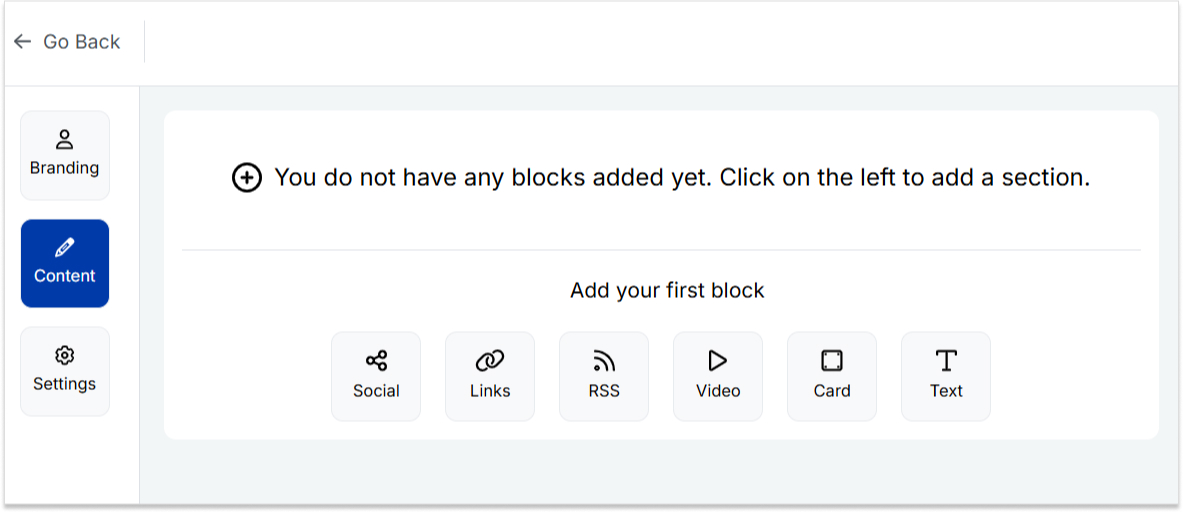
For example:
- Social icons: Add up to 8 platforms, customize colors, and link to your profiles.
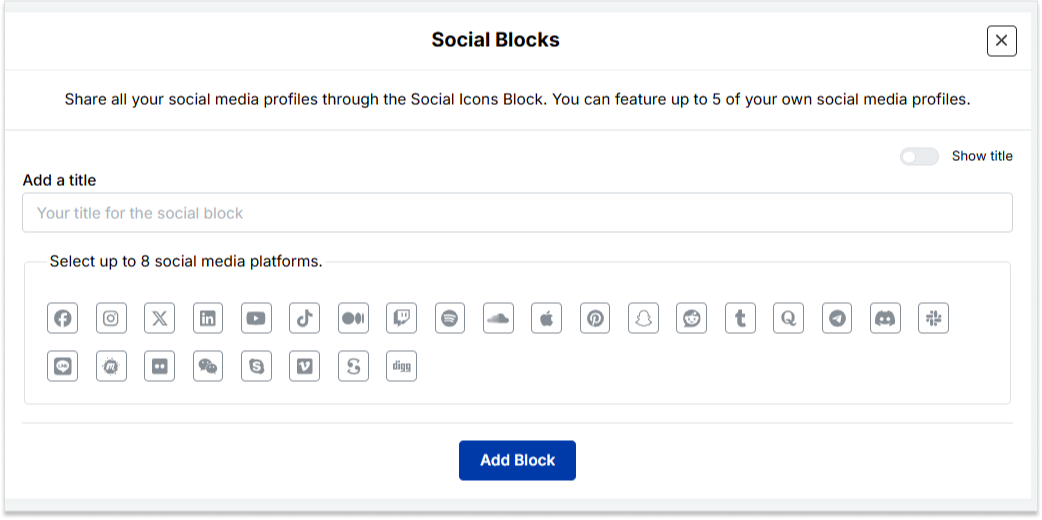
- Links block: To include website links, use the “links” block. Add titles and URLs for each link.
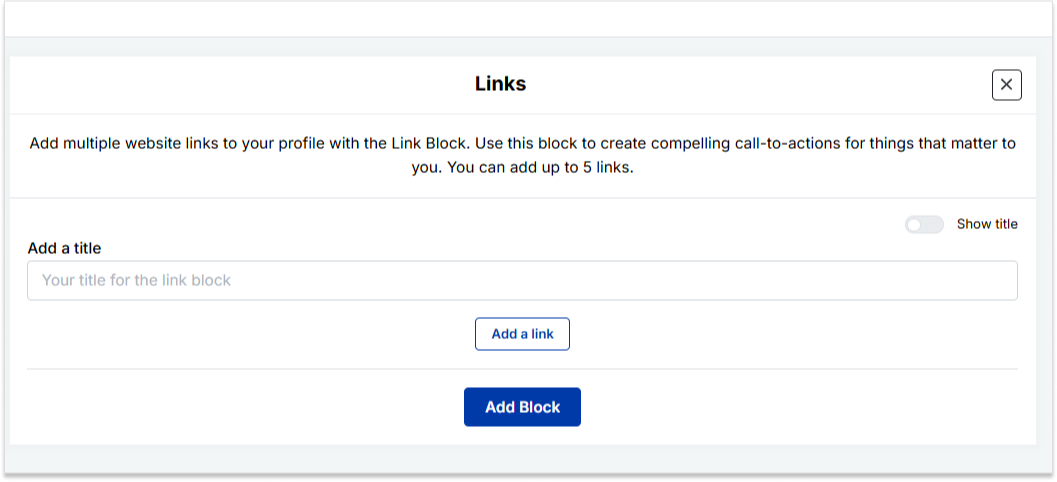
Step 6: Once you’ve added the necessary blocks, click “update” to save each one.
Step 7: Go to the settings section to further customize your bio link’s SEO and social media preview. Add a title, description, favicon image, and even a retargeting pixel if desired.
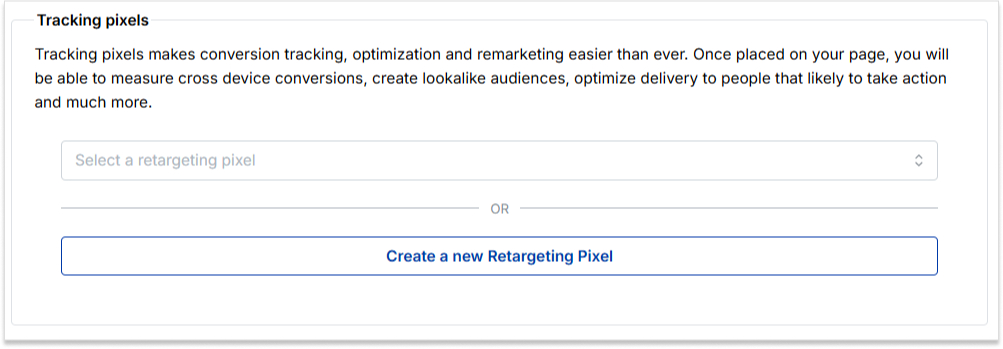
Step 8: Once everything is set, save your Replug-generated bio link and use it to showcase multiple links on Tumblr.
Note: For a more streamlined sharing experience, use Replug’s URL shortener free tool to create branded, trackable links. It not only keeps your Tumblr bio neat but also helps you measure link performance and audience engagement effectively.
FAQs on Tumblr bio

Arslan Jadoon